How to fix
Mwac.sys BSOD
on Windows
Resolve the mwac.sys BSOD error on Windows 10 and Windows 11 effortlessly. Follow our expert-tested solutions for a quick fix, with screenshots.

What causes How to fix mwac.sys BSOD in Windows?
- Conflict between mwac.sys driver and another driver
- Corrupted system files
- Outdated Malwarebytes antivirus software
- Malware or security threats
- Hardware failures
Repairs Windows system files, removes malware, and restores a clean OS state — without reinstalling.
Hello. For the last few months, my PC crashes occasionally because of mwac.sys BSOD. What causes this and is there a way to fix it?
The mwac.sys BSOD[ref en-1] error is a common problem for Malwarebytes antivirus software users on Windows. Mwac.sys is a driver[ref en-2] file included with Malwarebytes Web Access Control. It is in charge of monitoring network traffic and blocking malicious websites.
The term BSOD refers to a critical system error that causes the computer to crash and display a blue screen with an error message. A variety of factors can cause BSODs, including hardware failures, software issues, and driver conflicts. A conflict between the mwac.sys driver and another driver on the system usually causes the mwac.sys BSOD error. BSOD errors can be very serious because they can result in data loss, system instability, and even hardware damage.
As a result, it is critical to address the problem as soon as possible in order to avoid further damage. Updating drivers, disabling Malwarebytes Web Access Control, reinstalling Malwarebytes, and running system scans for malware and other security threats are all possible solutions to the mwac.sys BSOD error. This guide will walk you through six steps to resolve the mwac.sys BSOD in Windows.
Keep in mind that the troubleshooting process can be lengthy, so you can also use a maintenance tool like [d1] that can fix most system errors, BSODs, corrupted files, and registry[ref en-3] issues. Otherwise, follow the step-by-step instructions below.
Solution 1. Fix Corrupted System Files
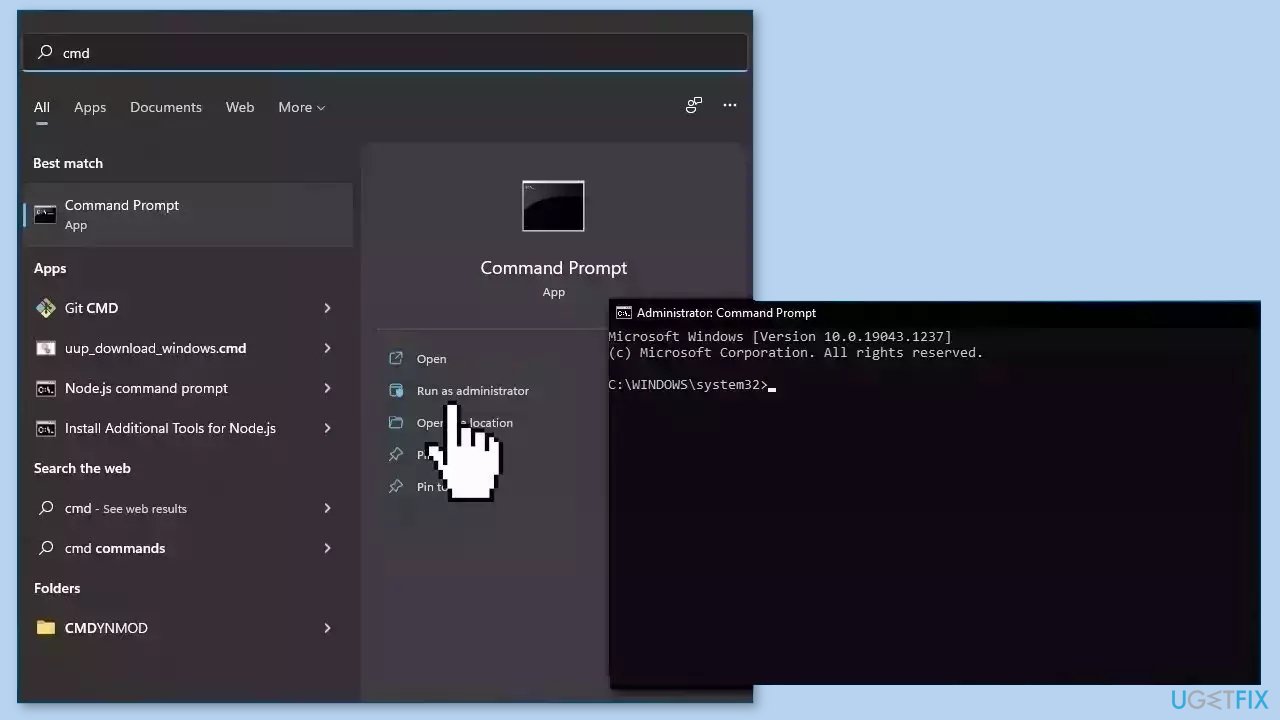
Use Command Prompt commands to repair system file corruption:
- Open Command Prompt as administrator
- Use the following command and press Enter:
sfc /scannow
- Reboot your system
- If SFC returned an error, then use the following command lines, pressing Enter after each:
DISM /Online /Cleanup-Image /CheckHealth
DISM /Online /Cleanup-Image /ScanHealth
DISM /Online /Cleanup-Image /RestoreHealth
Solution 2. Update Malwarebytes Antivirus
- Open Malwarebytes in Windows.
- Look for the gear icon located at the top-right corner of the screen.
- Click the gear icon to open the program Settings.
- Once the Settings window appears, click the General tab.
- Look for the section labeled Application updates.
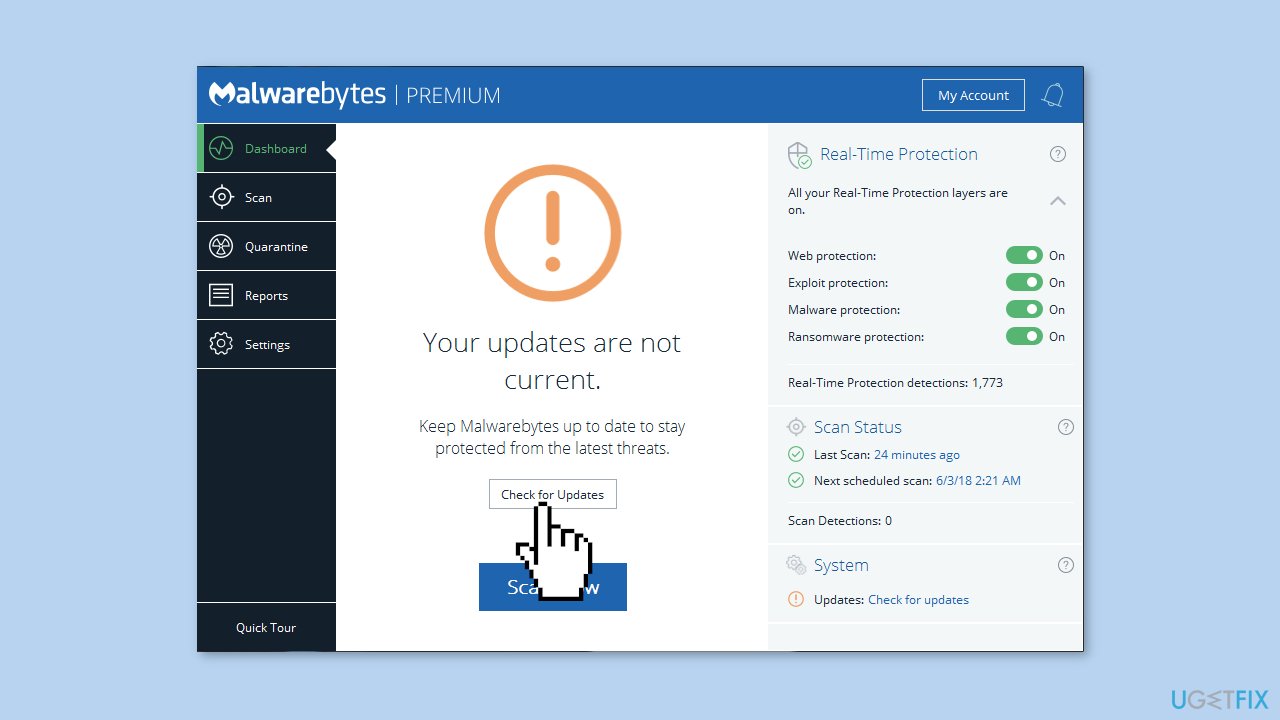
- Under the Application updates section, click the Check for updates button.
- Wait for Malwarebytes to search for and download any available updates.
- Once the updates are downloaded and installed, you can close the Settings window and start using Malwarebytes.
Solution 3. Reinstall Malwarebytes
- Click on the Windows Start button.
- Go to Settings > Apps.
- Scroll down to find Malwarebytes and click on it.
- Click Uninstall and follow the prompts to remove the software.
- Restart your computer.
- Go to the Malwarebytes website and download the latest version of the software.
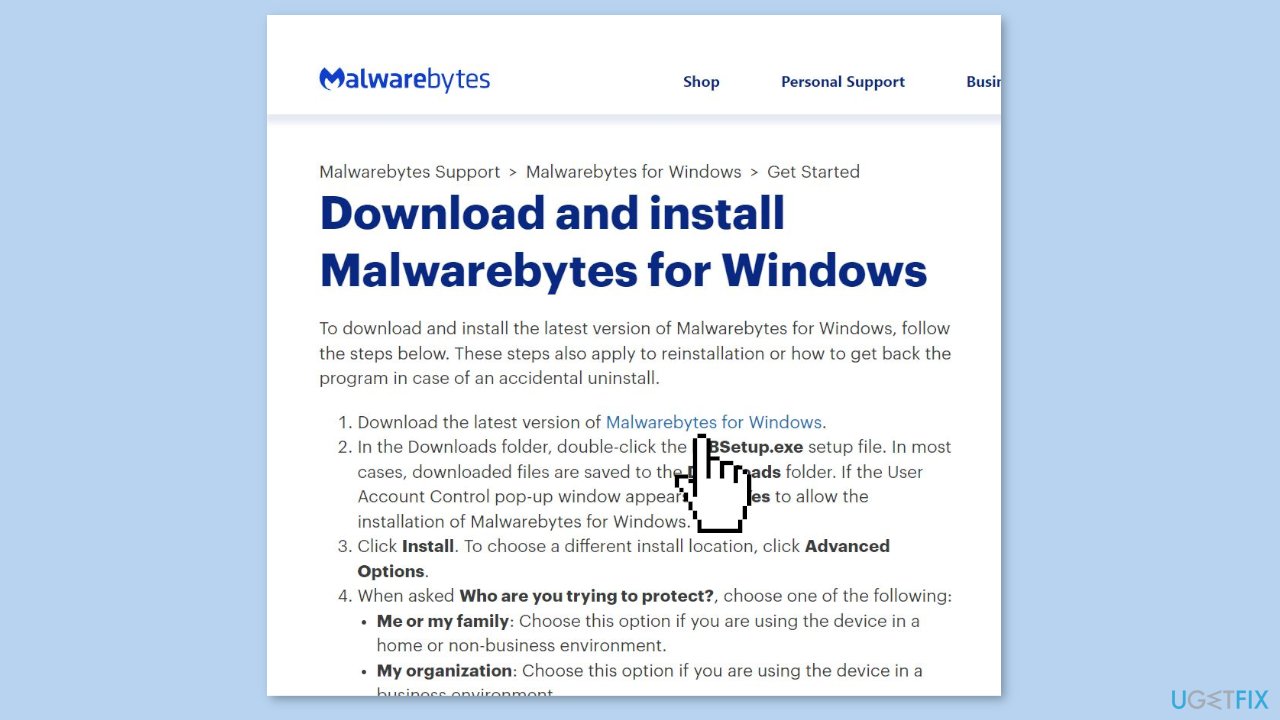
- Save the installation file to your computer.
- Navigate to the location where you saved the new Malwarebytes installation file and double-click on it to begin the installation process.
- Follow the prompts to install Malwarebytes on your computer.
Solution 4. Run System Restore
System Restore is a feature in Microsoft Windows that allows users to revert their computer's state to a previous point in time. This can be helpful if you have made changes to your system that are causing problems.
- Press the Windows key + R on your keyboard to open the Run box.
- Type SystemPropertiesProtection and press Enter.
- Go to the System Protection tab.
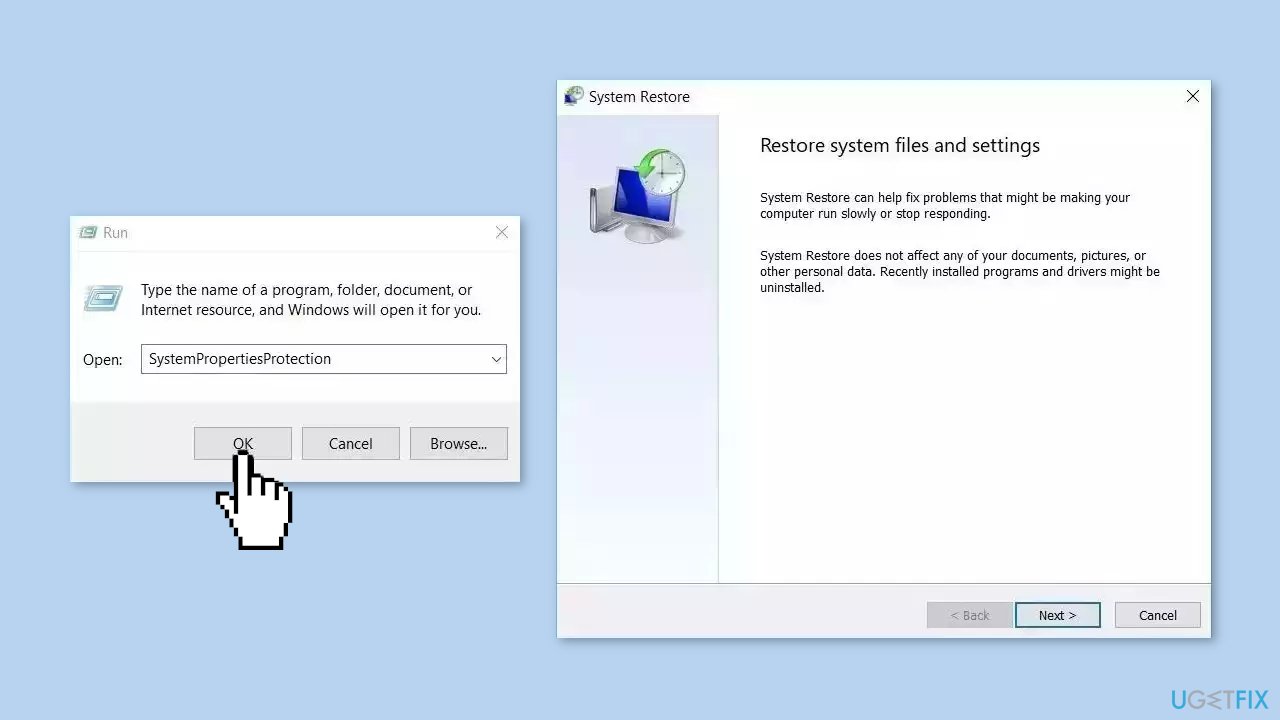
- You will see the System Restore… button. Click it to run System Restore.
- Follow the prompts until you can select a restore point.
- Select the one you want (ideally before the issue started occurring) and go ahead with the process.
Solution 5. Use Windows Defender
If none of the solutions for the mwac.sys BSOD error are effective in resolving the issue, users may need to consider uninstalling Malwarebytes and using Windows Defender instead. While Malwarebytes is a reputable antivirus software, there may be specific conflicts between the software and the user's system that are difficult to resolve.
Windows Defender is a built-in antivirus software that comes with Windows, and it provides real-time protection against viruses, malware, and other security threats. It is constantly updated by Microsoft to ensure that it provides the best possible protection for users.
Solution 6. Repair Install Windows
- Visit the official Microsoft website to download Windows 11 or Windows 10 Installation Media
- Run the Media Creation Tool and select Create Installation Media for another PC.
- Select your USB drive.
- Let the Process complete of writing the Installation files to the USB drive.
- Click Finish.
- On the PC you wish to upgrade, Press Windows + E to open the File Explorer.
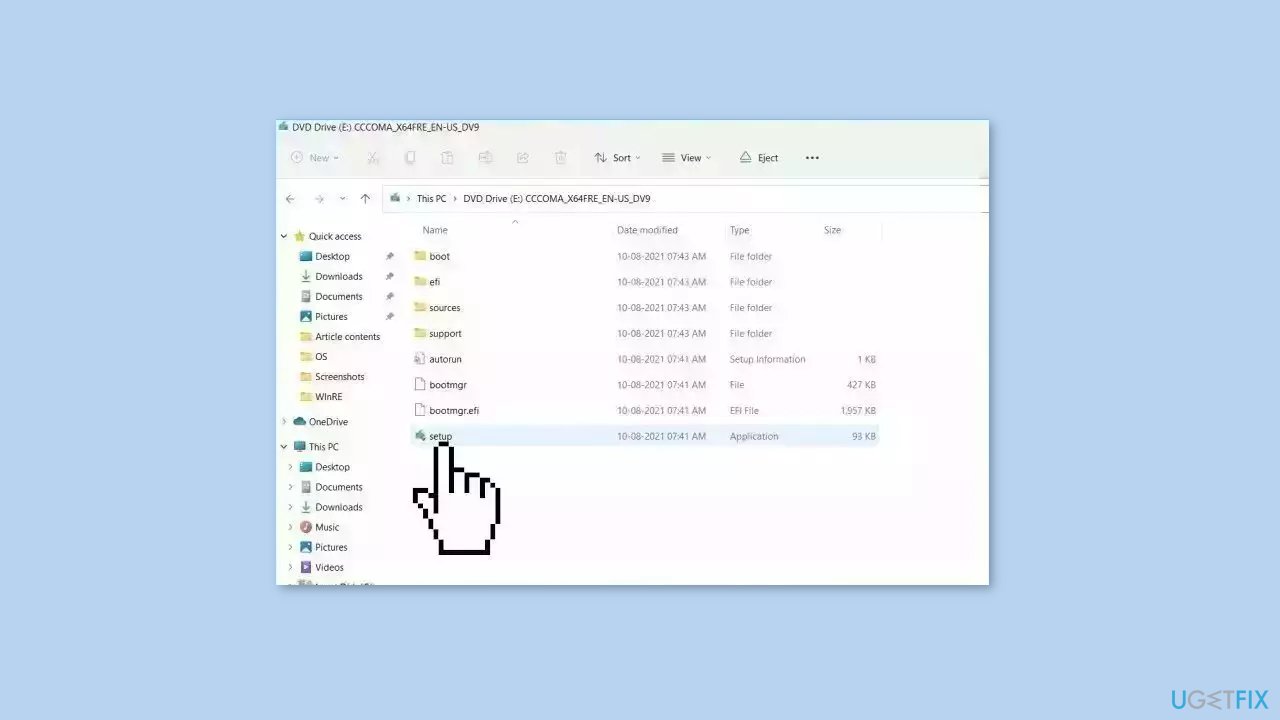
- Open the Removable drive and click Setup.exe.
- Accept the license terms on the next screen.
- Confirm the Upgrade options – Files, apps and Settings are kept.
- Click Install, and the upgrade should start.
Bottom line
To fix the mwac.sys BSOD error, you can repair corrupted system files using Command Prompt, update your Malwarebytes antivirus, disable Malwarebytes Web Access Control, or reinstall Malwarebytes. If these solutions do not resolve the issue, consider using a maintenance tool to fix system errors.
Frequently asked questions
The mwac.sys BSOD error is typically caused by issues with the Malwarebytes software or its drivers. This can happen due to outdated software or conflicts with other security programs.
To troubleshoot the mwac.sys BSOD, you can start by updating or reinstalling Malwarebytes and ensuring that all Windows updates are applied. If the problem persists, consider running the Windows Memory Diagnostic tool to check for hardware issues.
To prevent the mwac.sys BSOD in Windows 10, regularly update your Malwarebytes and Windows system, and avoid running multiple antivirus programs simultaneously. Additionally, you can adjust the settings in Malwarebytes to limit potential conflicts.




Report an issue
What's wrong with this guide? We review every report and update or remove content.
Report received — thank you. We'll review and fix it.
You need a free account to submit a report.
Be the first to comment