How to fix
.NET Framework Error 0x800736B3
on Windows
Resolve the .NET Framework Error 0x800736B3 on Windows 10 quickly and effectively. Get expert-tested solutions with step-by-step guidance today!


What causes How to Fix .NET Framework Error 0x800736B3 on Windows 10?
- .NET Framework 3.5 was not installed during the upgrade
- Installation of .NET Framework 3.5 failed due to system issues
- Cumulative updates may interfere with .NET Framework installation
- Windows 10 may have corrupted .NET Framework files
- Previous versions of Windows did not have .NET Framework pre-installed
Repairs Windows system files, removes malware, and restores a clean OS state — without reinstalling.
I’ve recently upgraded from Windows 7 to Windows 10. About a week after that I tried to run a game and got an error saying that I don’t have .NET Framework 3.5 installed. Then I tried to install the .NET Framework 3.5, but each time ends up with the error message saying: Reference assembly not installed in the system, error 0x800736B3. Have no ideas what should I do. Could you please help? Thanks!
.NET Framework is a software framework developed by Microsoft, which encompasses a class library[ref en-1] known as Framework Class Library (FCL). It consists of thousands of pieces of shared code, which serve software developers so that they can use the code to perform some common functions.
Microsoft explains that:
.NET framework is a technology that supports building and running the next generation of applications and Web services.
Earlier Windows versions, including 7,[ref en-2] 8, 8.1 and others did not have this technology pre-installed, so people had to install it manually if needed. Windows 10 OS come with .NET Framework 3.5 by default, but it sometimes happens that .NET software fails to install during the upgrade or update of the operating system.
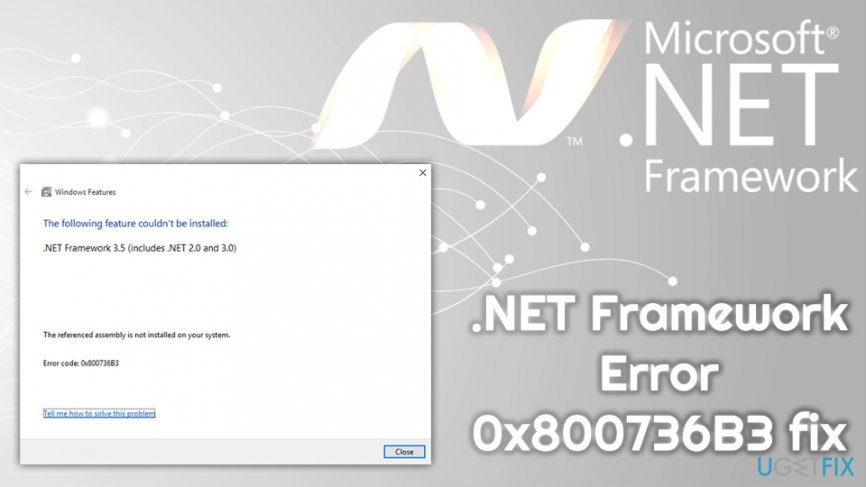
Consequently, a PC’s owner receives an error code “Reference assembly not installed in the system. Error Code: 0x800736B3.” If you recently encountered this issue when, for example, trying to launch a game, you can try to perform .NET Framework Error 0x800736B3 fix as explained below.
Because .NET Framework 3.5 is required for most modern games to run or even start and is a standalone component, installing it anew should fix 0x800736B3 error. However, many users reported that they struggle with the installation of it, as it drops the same error. Therefore, please perform steps 1 to 3 if you are having problems with the installation of .NET Framework 3.5.
Method 1. Uninstall Microsoft .NET Framework 3.5 updates
- Right-click on Windows key + I to open Settings app.
- Select Updates and Security and click Update history.
- At the top of the page, click on Uninstall updates and look through the list of installed updates.
- Find the latest cumulative update the installation of which triggered the error 0x800736B3.
- Right-click on it and select Uninstall.
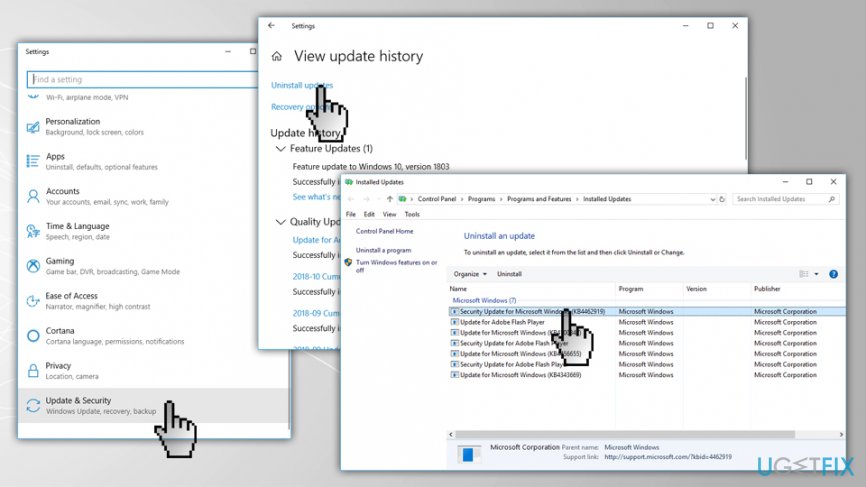
Net framework error 0x800736b3 uninstall updates
NOTE: It’s not advisable to have an outdated operating system due to the risk of infections and various malfunctions. This method can be applied only as a temporary .NET Framework 3.5 error 0x800736B3.
Method 2. Use Group Policy Editor
- Press Windows key, type gpedit.msc, and press Enter.
- Once Group Policy Editor opens, navigate to Computer Configuration > Administrative Templates > System.
- Look for Specify settings for optional component installation and component repair option on the right pane.
- If it is set to Not Configured, double-click on it, set Enabled.
- After that, enable Contact Windows Update directly to download repair content instead of Windows Server Update Services (WSUS) and click OK.
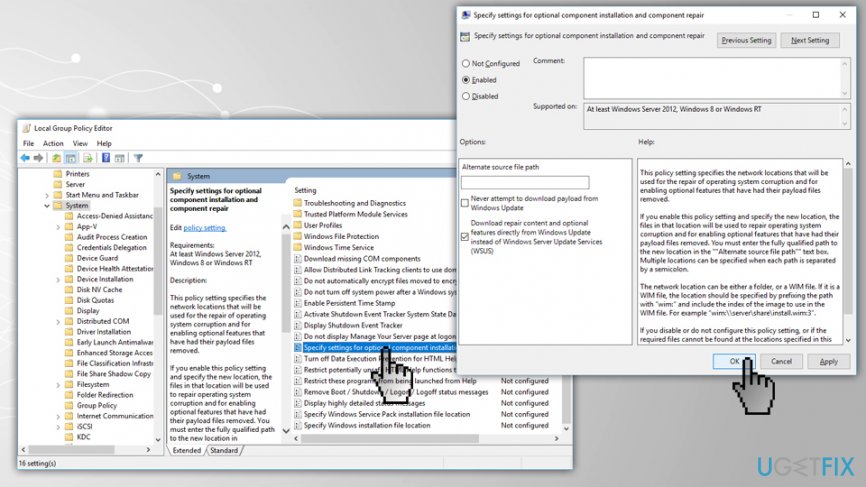
Net framework error 0x800736b3 edit local group policy
Method 3. Use the inbox Deployment Image Servicing and Management (DISM) tool
- Press Windows key and type Command Prompt or cmd into the search box.
- Select Command Prompt from search results, right click on it an pick Run as administrator.
- If you are prompted for an administrator password or confirmation, type the password or press Allow.
- Copy and paste DISM.exe /Online /Cleanup-image /Restorehealth and press Enter.
- If the Windows Updates service that provides required files is corrupted, you should use a Windows installation media or use a Windows side-by-side folder from a network share as a repair source. Insert the media and run the following command to the Command Prompt window:
DISM.exe /Online /Cleanup-Image /RestoreHealth /Source:C:\\RepairSource\\Windows /LimitAccess
IMPORTANT: instead of C:\\RepairSource\\Windows type the location of your repair source. - The type sfc /scannow and press Enter. Let the scan complete.
- Then close Command Prompt and run Windows Updates.
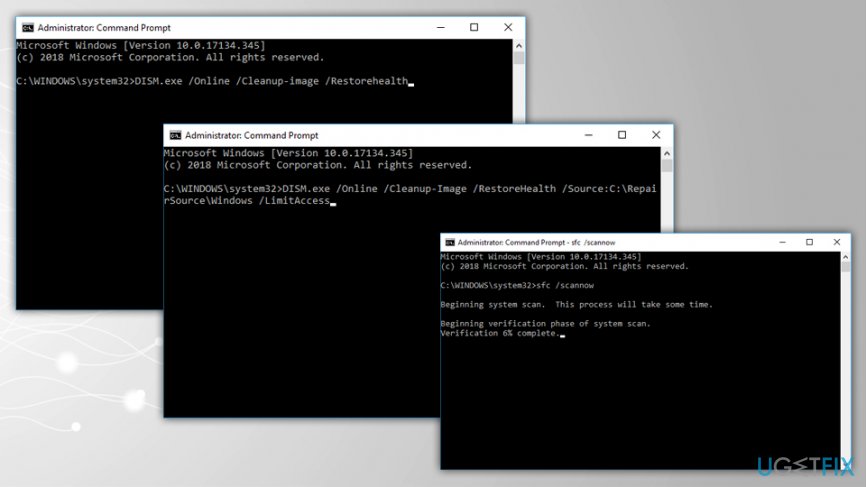
Net framework error 0x800736b3 fix via command prompt
TIP: when you fix 0x800736B3 error, it’s advisable to run a thorough system scan with [d1]. Using an optimization tool is highly recommended to maintain Windows registry,[ref en-3] system files, security, and other problematic cases the damage of which may lead to further errors.
Method 4. Reinstall .NET Framework 3.5 entirely
Once you completed Method 3, you should try to reinstalling .NET Framework and see if it fixed .NET Framework Error 0x800736B3:
- Go here to download the executable of .NET Framework 3.5
- Pick your language and click on Download
- Follow the on-screen instructions to finish the installation
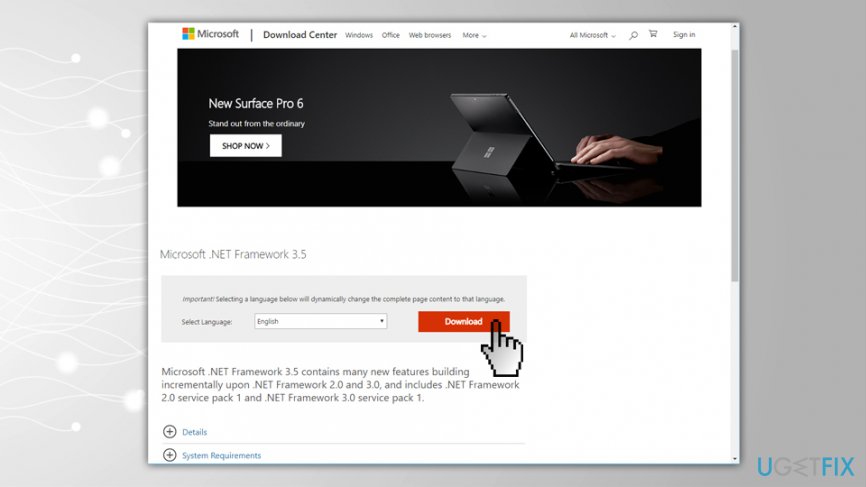
Net framework error 0x800736b3 reinstall net framework
Bottom line
To fix the .NET Framework Error 0x800736B3, you can try uninstalling recent updates, ensuring .NET Framework 3.5 is enabled in Windows features, or using the DISM tool to repair system files. If these methods do not resolve the issue, consider seeking further technical support.
Frequently asked questions
This error typically occurs due to corrupted system files or issues with the Windows Update component. It can also arise if the .NET Framework installation itself is damaged.
You can use the 'Turn Windows features on or off' setting to disable and then re-enable the .NET Framework. Additionally, running the System File Checker (sfc /scannow) can help repair corrupted files.
Yes, you can use the DISM tool to repair the Windows image and then run the .NET repair tool available from Microsoft. This approach typically resolves the issue without needing a full reinstallation.




Report an issue
What's wrong with this guide? We review every report and update or remove content.
Report received — thank you. We'll review and fix it.
You need a free account to submit a report.
Be the first to comment