How to fix
NET Framework error “Unhandled exception has occurred in a component in your application”
on Windows
Resolve the "Unhandled exception" error in Windows 10 or 11 effortlessly. Follow our expert-tested fixes to restore your applications without hassle.


What causes How to fix NET Framework error “Unhandled exception has occurred in a component in your application”?
- Missing Windows updates
- Corrupted system files
- Outdated graphics drivers
- Issues with external components
Repairs Windows system files, removes malware, and restores a clean OS state — without reinstalling.
Hello. Every time I leave my Windows PC on Sleep Mode and came back, I receive the NET Framework error. What should I do?
.NET Framework[ref en-1] is a software development framework for building and running applications on Windows. It includes a large class library called Framework Class Library (FCL) and provides language interoperability (each language can use code written in other languages) across several programming languages.
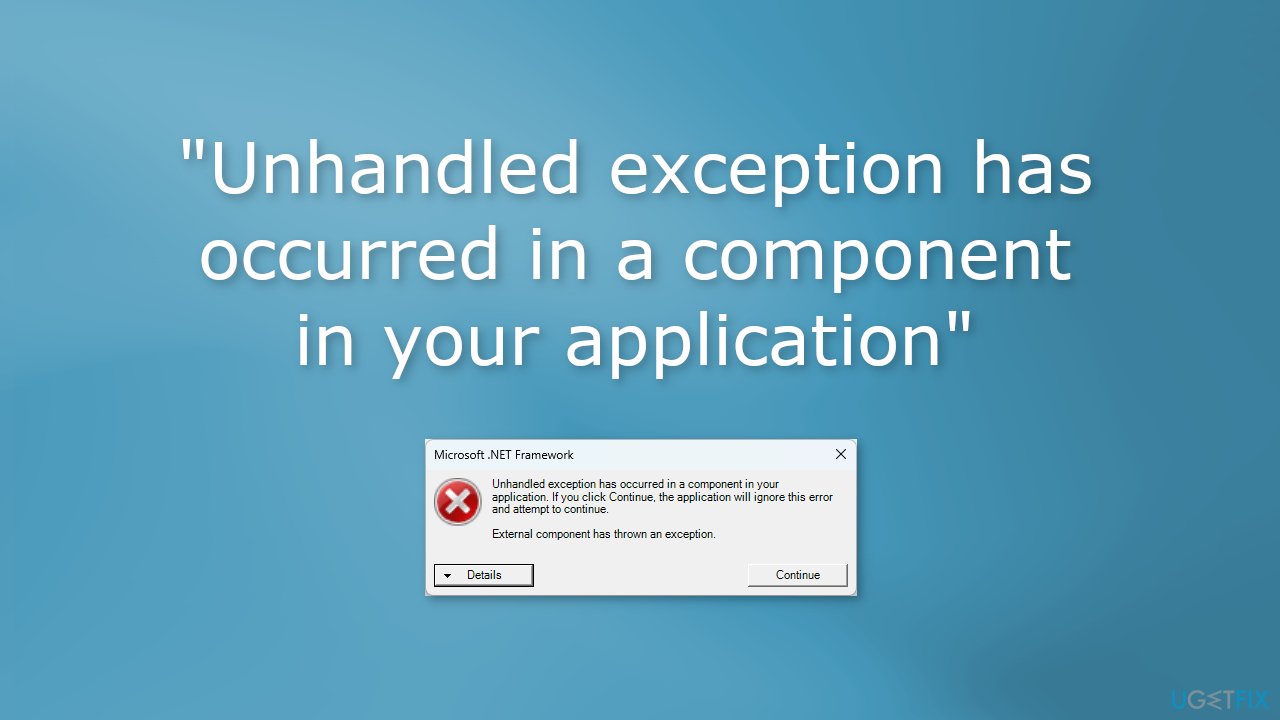
Recently, some users reported receiving a NET Framework error in Windows - "Unhandled exception has occurred in a component in your application." The full error message reads as follows:
Unhandled exception has occurred in a component in your application. If you click Continue, the application will ignore this error and attempt to continue.
External component has thrown an exception.
It is unknown what exactly causes the NET Framework error. It could appear because of missing Windows updates or corrupted system files, etc. In this guide, you will find 6 steps that should help you fix "Unhandled exception has occurred in a component in your application" error message.
However, if you want to avoid a lengthy troubleshooting process, you can use a maintenance tool like [d1]. It can automatically fix most system errors, BSODs,[ref en-2] corrupted files, and registry[ref en-3] issues. Otherwise, follow the step-by-step instructions below.
Solution 1. Install Windows Updates
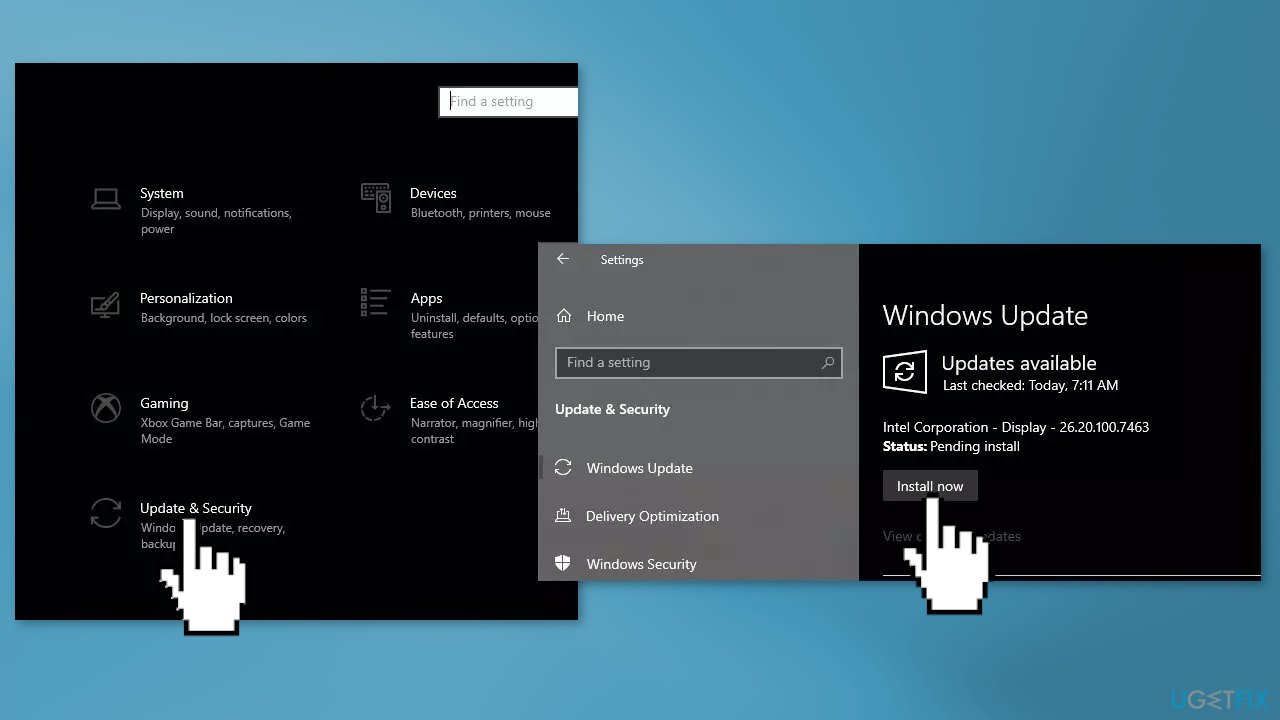
- Click Settings from your start menu and click Update & Security
- Choose Windows Upgrade from the left panel and click the Check for updates button, and then your computer will check for, download, and install any updates found
Solution 2. Repair Corrupted System Files
Use Command Prompt commands to repair system file corruption:
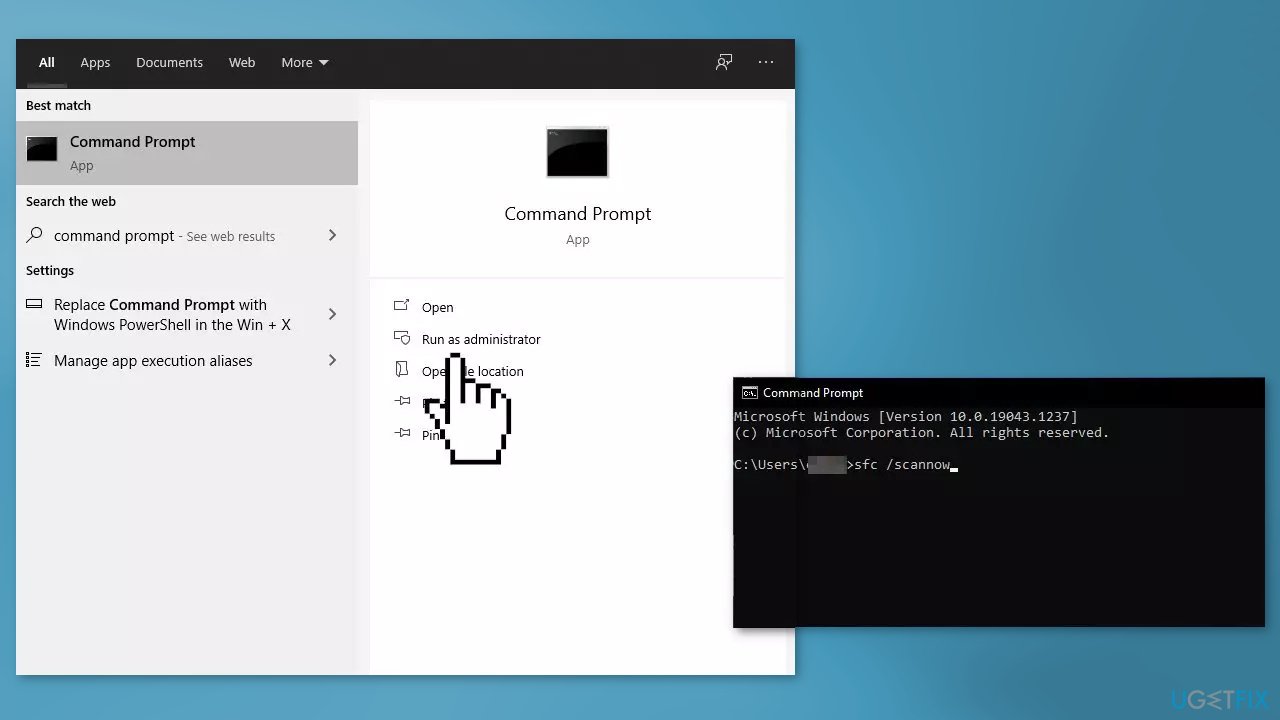
- Open Command Prompt as administrator
- Use the following command and press Enter:
sfc /scannow
- Reboot your system
- If SFC returned an error, then use the following command lines, pressing Enter after each:
DISM /Online /Cleanup-Image /CheckHealth
DISM /Online /Cleanup-Image /ScanHealth
DISM /Online /Cleanup-Image /RestoreHealth
Solution 3. Update Graphics Drivers
- Open Device Manager and expand the Display Adapters tab
- Right-click on your graphics driver and select Update Driver
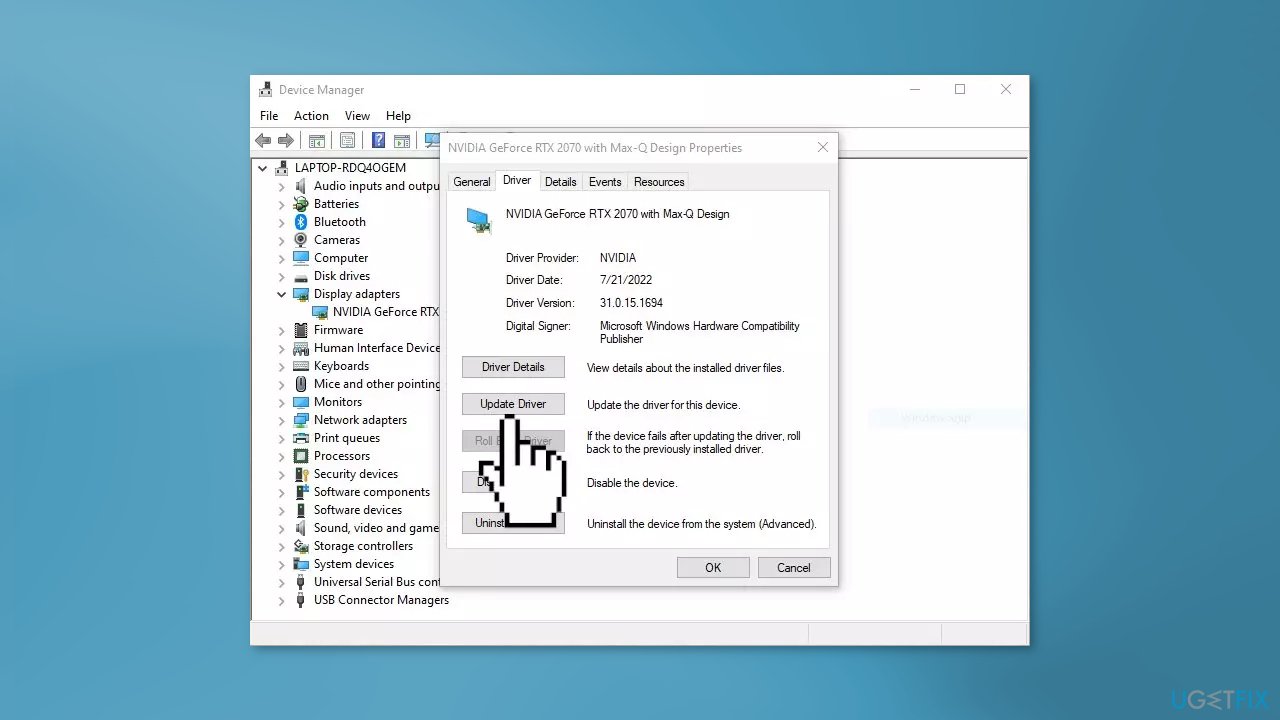
- Press on Search Automatically for Drivers
- If a graphic driver update is available, install it and then restart your PC
- Upon restart, launch the Modern Warfare game and check if it fixed the issue.
- You may also use a dedicated utility like [rev id="DriverFix"] that ca find the best drivers for your machine and install them automatically
Solution 4. Install the latest DirectX version
- Visit the DirectX download page on Microsoft's site
- Select your preferred language from the drop-down box and then choose Download to save the setup file to your computer
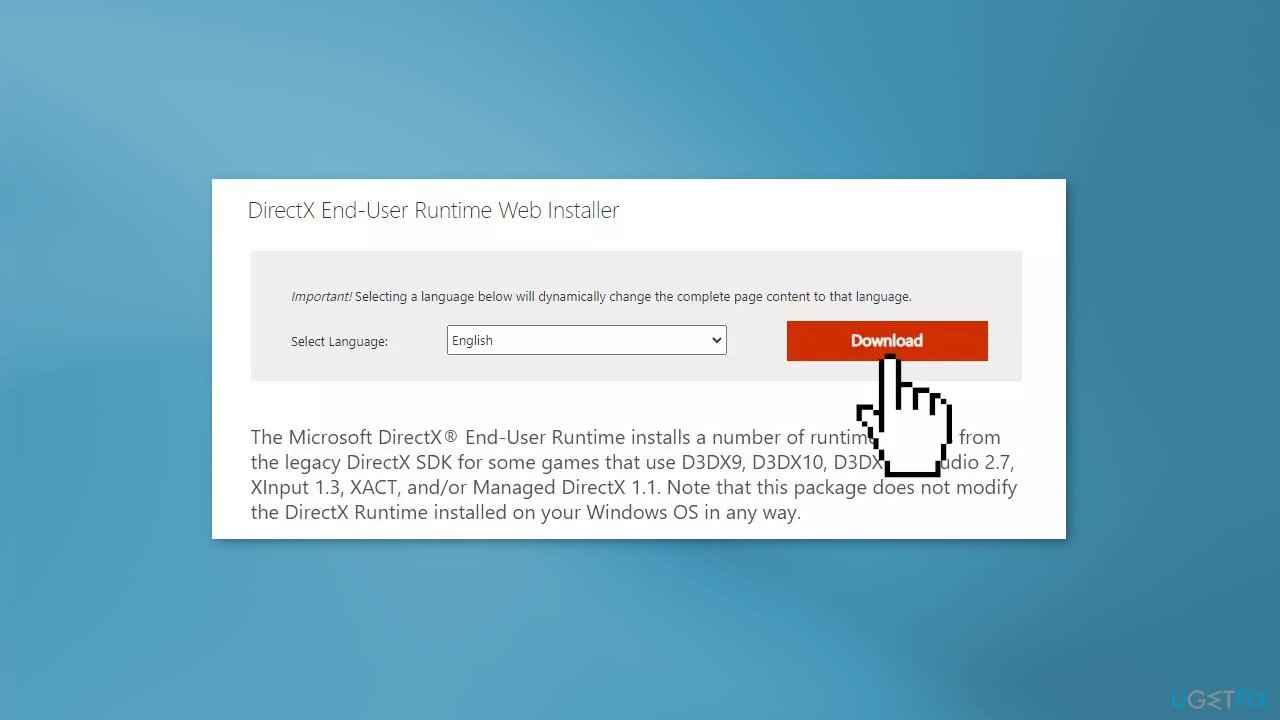
- Open the dxwebsetup.exe file and complete the DirectX installation by proceeding with the on-screen instructions
- Restart your computer
- Check if the problem was solved
Solution 5. Uninstall the Affected Program
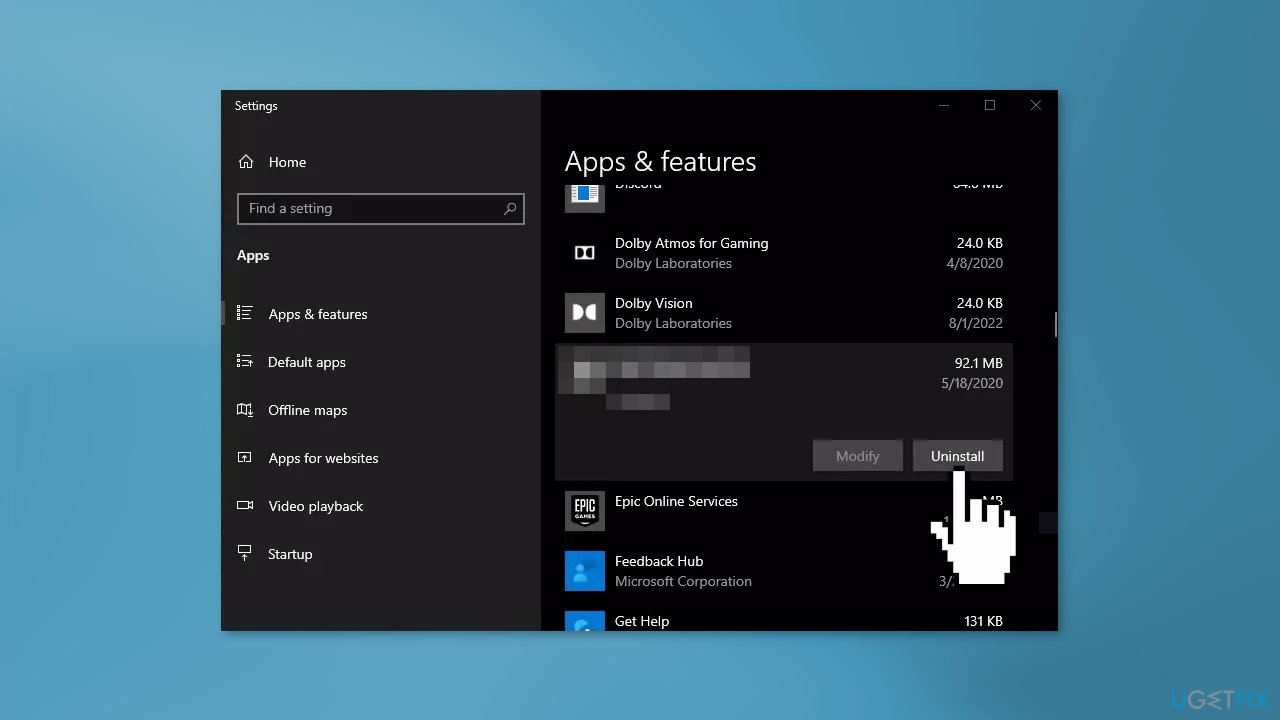
If the error appears when you are trying to launch a specific application, try to uninstall it to see if it fixes the issue. Some people report that after uninstalling "Bixby" the NET Framework error disappeared.
- Go to Apps & Features
- Find the application in the list
- Click on it and press Uninstall
Solution 6. Repair Install Windows
- Download the Windows 10 ISO file
- Now mount the ISO file
- Double-click on the file setup.exe to start the repair, install from the mounted drive
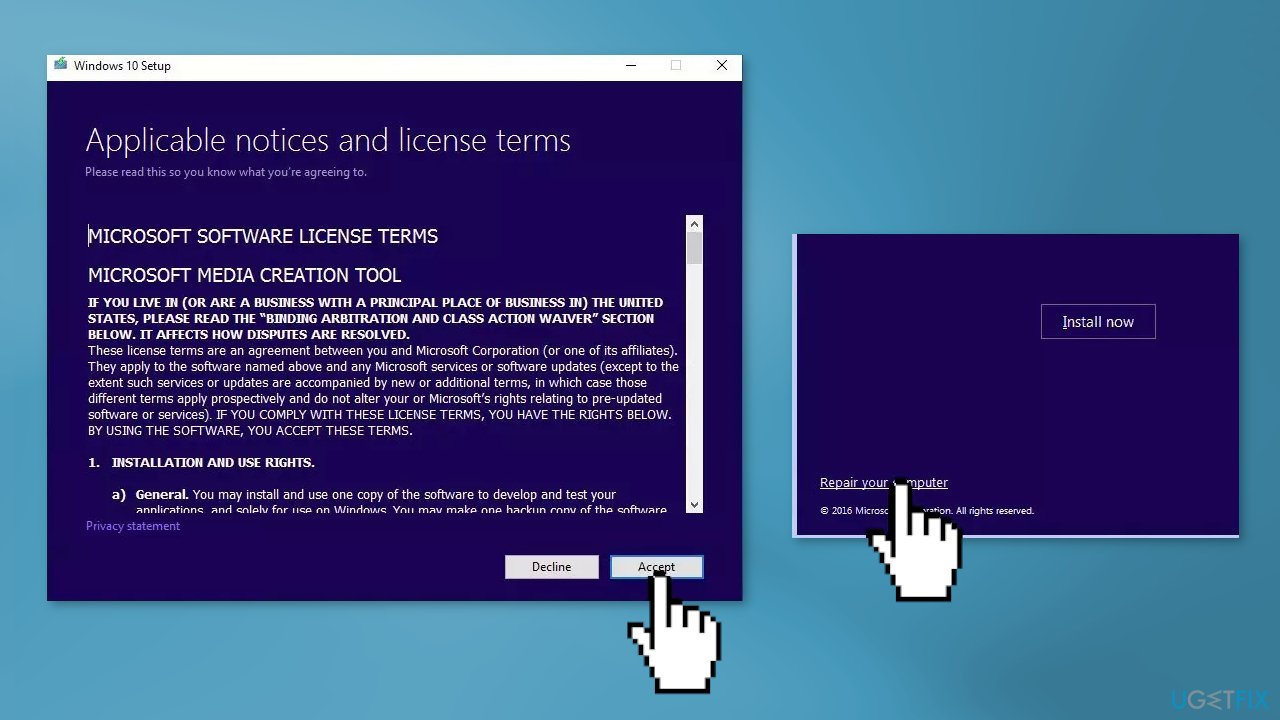
- When the installation provides the License Terms, read them and click Accept
- Windows 10 will now check for updates and will install the ones available
- When all is set, click Install
- When the installation is complete, follow the on-screen instructions
Bottom line
To fix the NET Framework error 'Unhandled exception has occurred in a component in your application', you can install Windows updates, repair corrupted system files, and update your graphics drivers. If these solutions do not resolve the issue, consider using a maintenance tool to automatically fix system errors.
Frequently asked questions
You can try repairing the .NET Framework through the Control Panel by going to Programs and Features, selecting Microsoft .NET Framework, and choosing the Repair option. If that doesn't work, consider reinstalling the .NET Framework from the official Microsoft website.
Yes, ensuring that Windows 11 is fully updated can help fix compatibility issues that may cause this error, as updates often include important patches and improvements for the .NET Framework.
You can use the .NET Framework Repair Tool provided by Microsoft to scan and fix issues with your .NET Framework installation on Windows 10.




Report an issue
What's wrong with this guide? We review every report and update or remove content.
Report received — thank you. We'll review and fix it.
You need a free account to submit a report.
Be the first to comment