How to fix
.NET Framework Installation error 0x800F0906
on Windows
Resolve the .NET Framework installation error 0x800F0906 in Windows 10 and 11 with expert-tested solutions that fix issues in minutes.

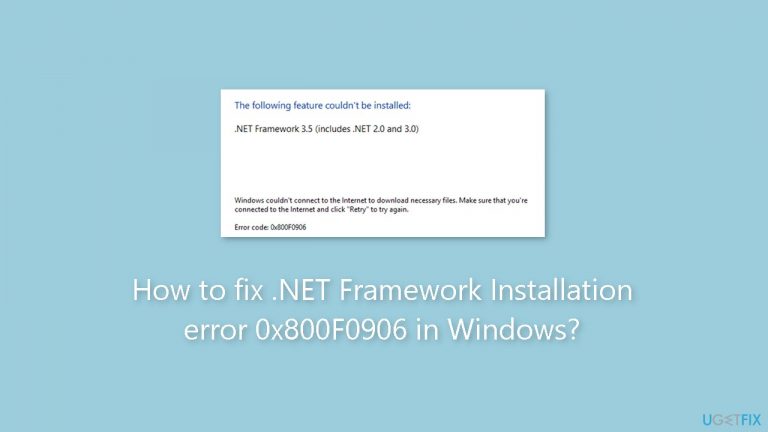
What causes How to fix .NET Framework Installation error 0x800F0906 in Windows?
- Poor internet connection
- Corrupt system files
- Conflicts with other software
- Pending Windows updates
- .NET Framework not enabled in Windows Features
Repairs Windows system files, removes malware, and restores a clean OS state — without reinstalling.
Hello. I tried to install the .NET Framework but I received the 0x800F0906 error. How do I fix this?
The .NET Framework[ref en-1] is a Microsoft software development platform that is required to run many applications and services on Windows operating systems. It offers a comprehensive and consistent programming model for developing applications with visually stunning user interfaces, seamless and secure communication, and the ability to model a variety of business processes. The .NET Framework is a critical component for the proper operation of many software applications, so it must be installed.
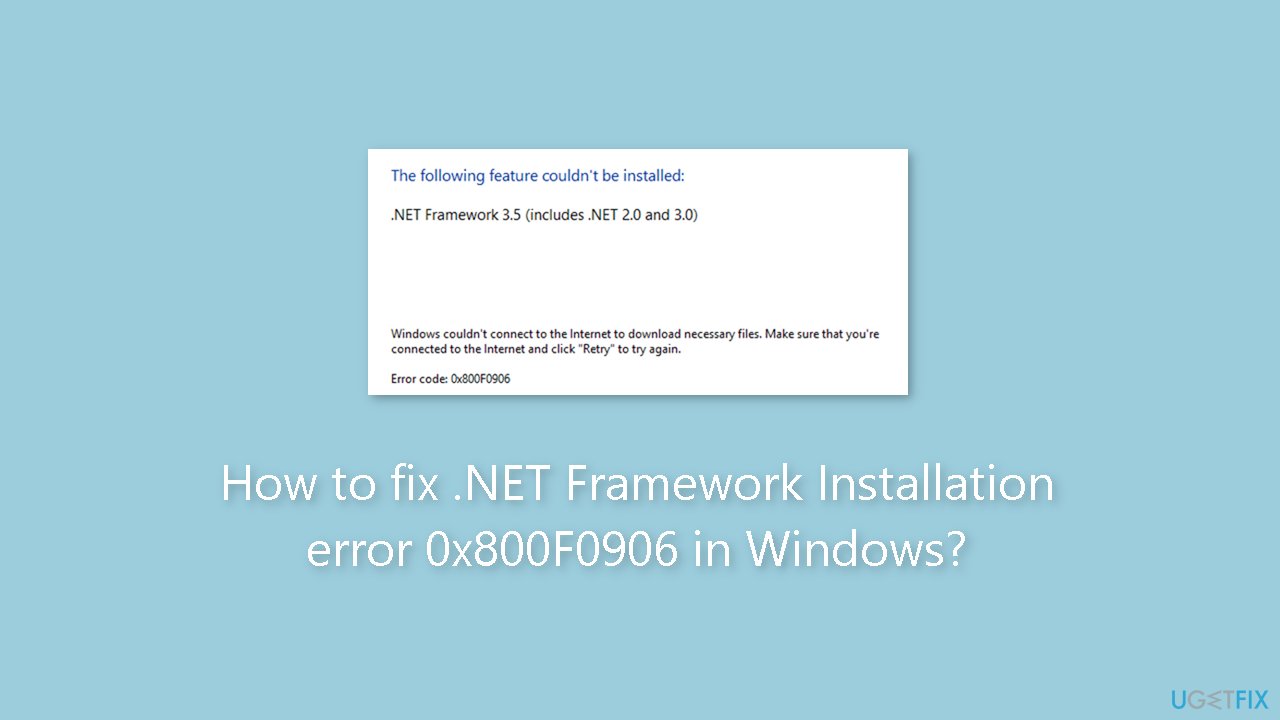
The error code 0x800F0906 is a common problem that can arise during the installation of the .NET Framework on Windows-based computers. This error code is typically generated when the system is unable to download and install the required files for the .NET Framework for a variety of reasons, including a poor internet connection, corrupt system files, or conflicts with other software installed on the system.
This issue can affect users in several ways, including:
- Preventing the installation of certain software applications that require the .NET Framework to run.
- Causing existing .NET Framework-dependent applications to stop working.
- Interrupting the installation process of other software applications that require the .NET Framework to be installed.
To resolve the .NET Framework installation error 0x800F0906, you can follow the step-by-step instructions below or you can try an automatic maintenance tool like [d1]. It can fix most system errors, BSODs,[ref en-2] corrupted files, and registry[ref en-3] issues.
Solution 1. Check Windows Update
- Press the Windows key + I to open the Settings app.
- Click on Update & Security.
- Select Windows Update and click on Check for updates.
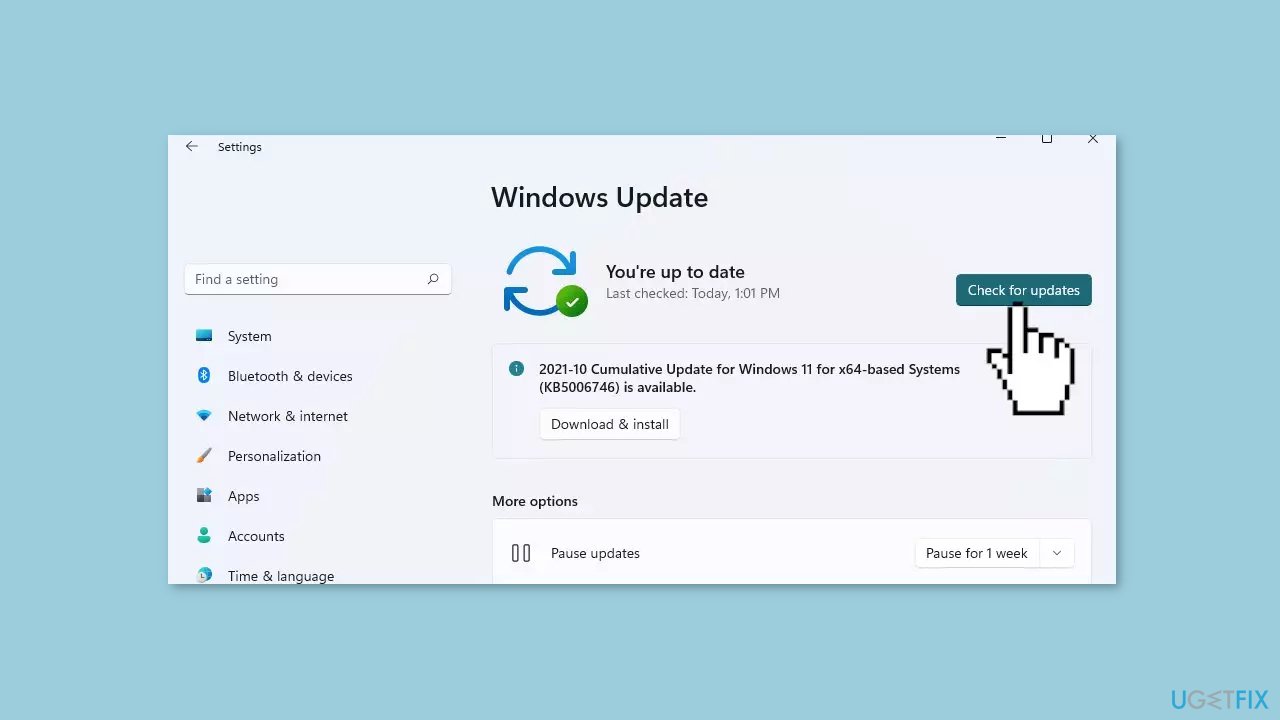
- Install any pending updates and restart your computer if prompted.
Solution 2. Enable .NET Framework in Windows Features
- Press the Windows key + R to open the Run dialog.
- Type appwiz.cpl and press Enter to open the Programs and Features window.
- Click on Turn Windows features on or off on the left panel.
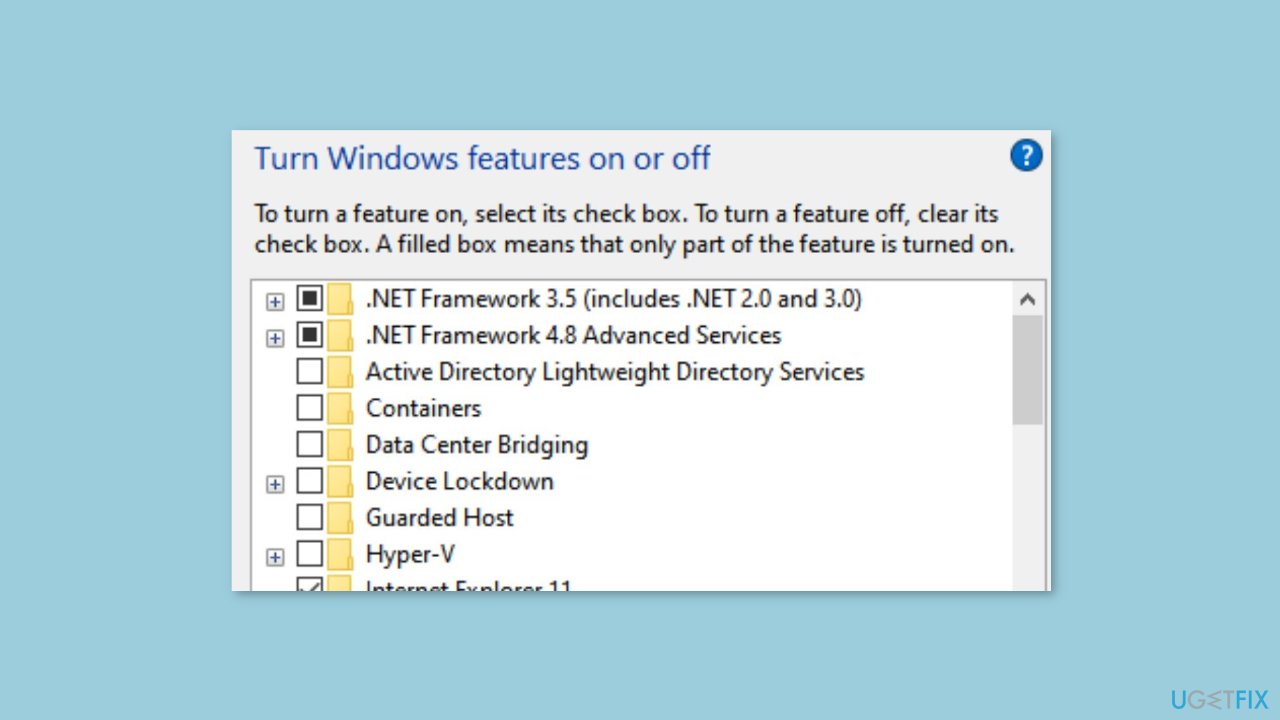
- In the Windows Features window, find .NET Framework and check the box beside it.
- Click OK to apply the changes and wait for the process to complete.
- Restart your computer.
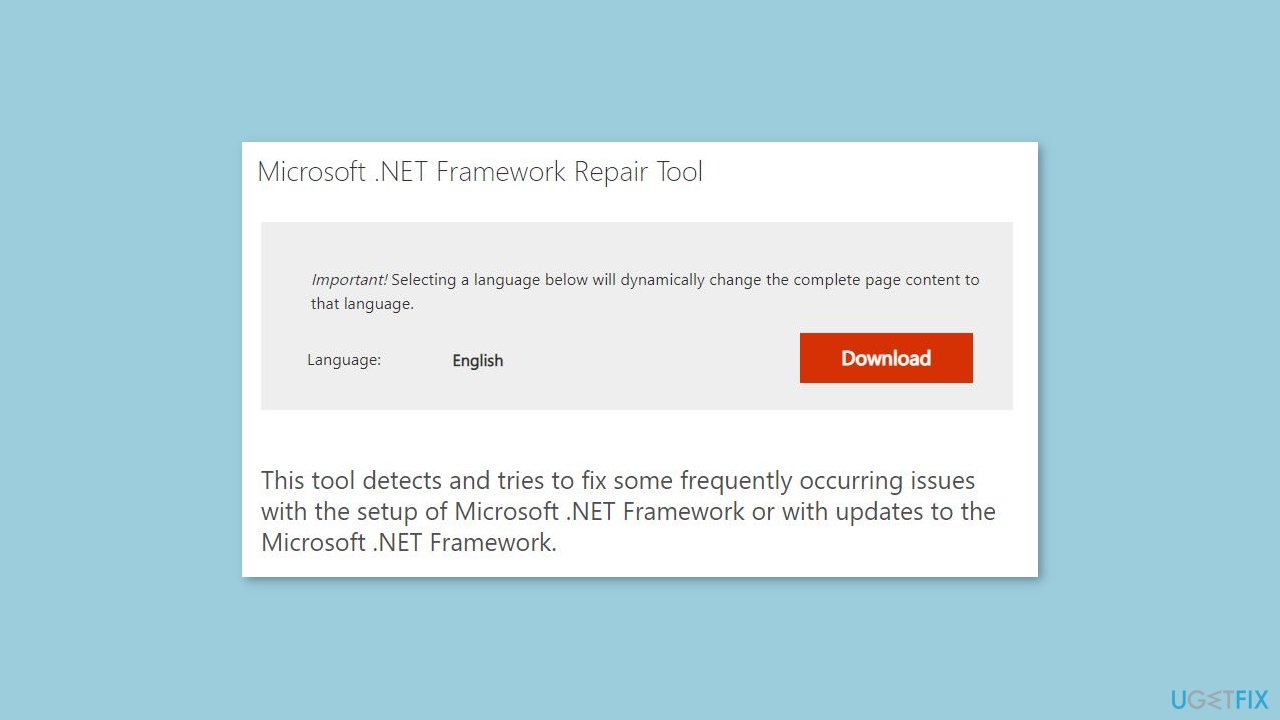
Solution 3. Use the .NET Framework Repair Tool
- Download the .NET Framework Repair Tool from the Microsoft Download Center.
- Run the tool and follow the on-screen instructions to repair the .NET Framework installation.
Solution 4. Install the .NET Framework using the Standalone Installer
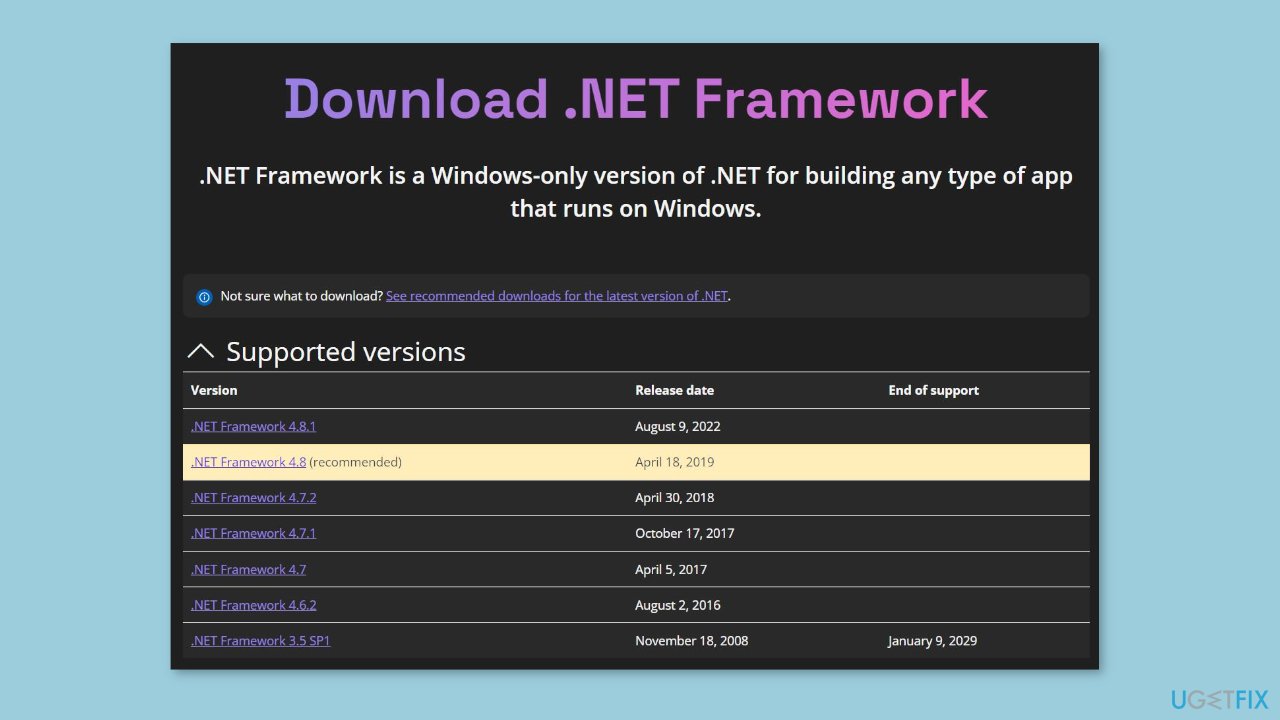
- Download the .NET Framework offline installer from the Microsoft Download Center.
- Run the installer and follow the on-screen instructions to install the .NET Framework.
Solution 5. Modify the Group Policy Settings
- Press the Windows key + R to open the Run dialog box.
- Type gpedit.msc in the dialog box and press OK to open the Local Group Policy Editor.
- Expand Computer Configuration and then Administrative Templates. Select System.
- Open the Specify settings for optional component installation and component repair Group Policy Setting and click on Enabled.
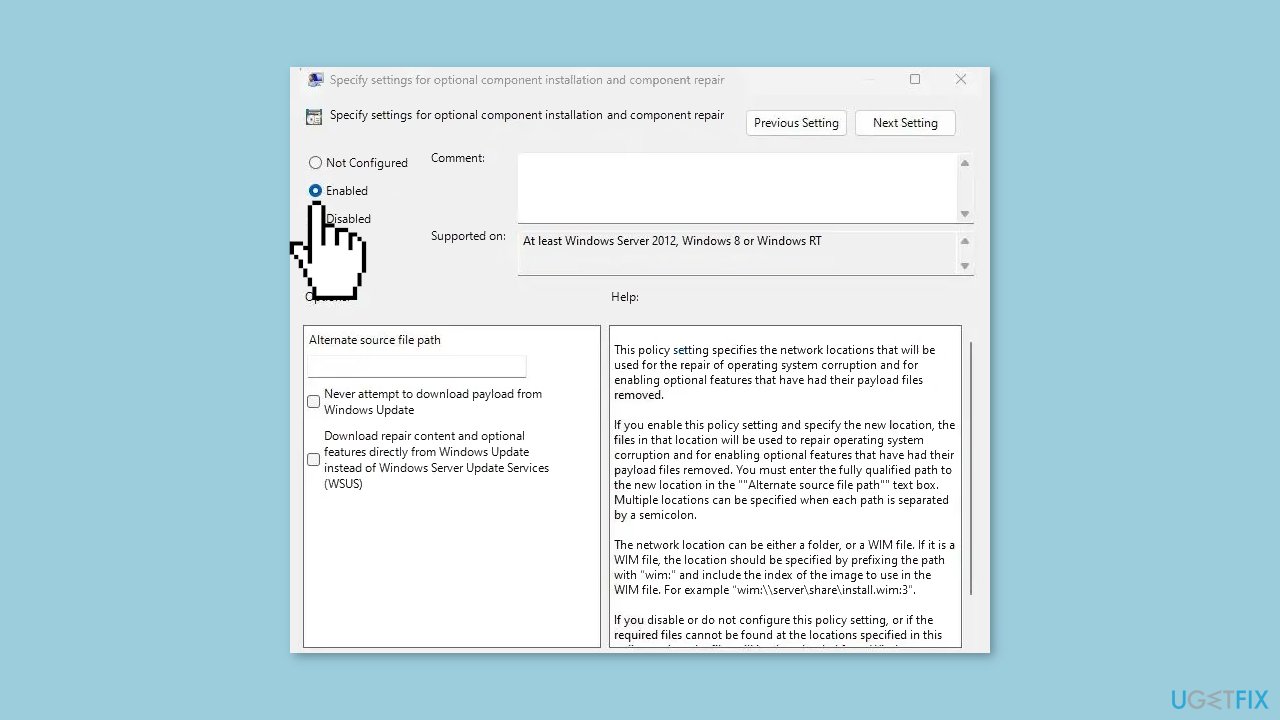
- If an alternative source file is needed, specify the fully qualified path of a shared folder that contains the contents of the \sources\sxs folder from the installation media. This can be done in the Alternative source file path box.
- To use a WIM file as an alternative source file location, add the WIM: prefix to the path and add the index of the image you want to use in the WIM file as a suffix. For example, WIM:\server_name\share\install.wim:3 (3 represents the image index).
- Check the box to select Contact Windows Update directly to download repair content instead of the WSUS (Windows Server Update Services), if applicable.
- Click OK.
- In the command prompt, type update/force and press Enter to apply the policy.
Solution 6. Perform a System Restore
- Press the Windows key + R to open the Run dialog.
- Type rstrui and press Enter to open the System Restore utility.
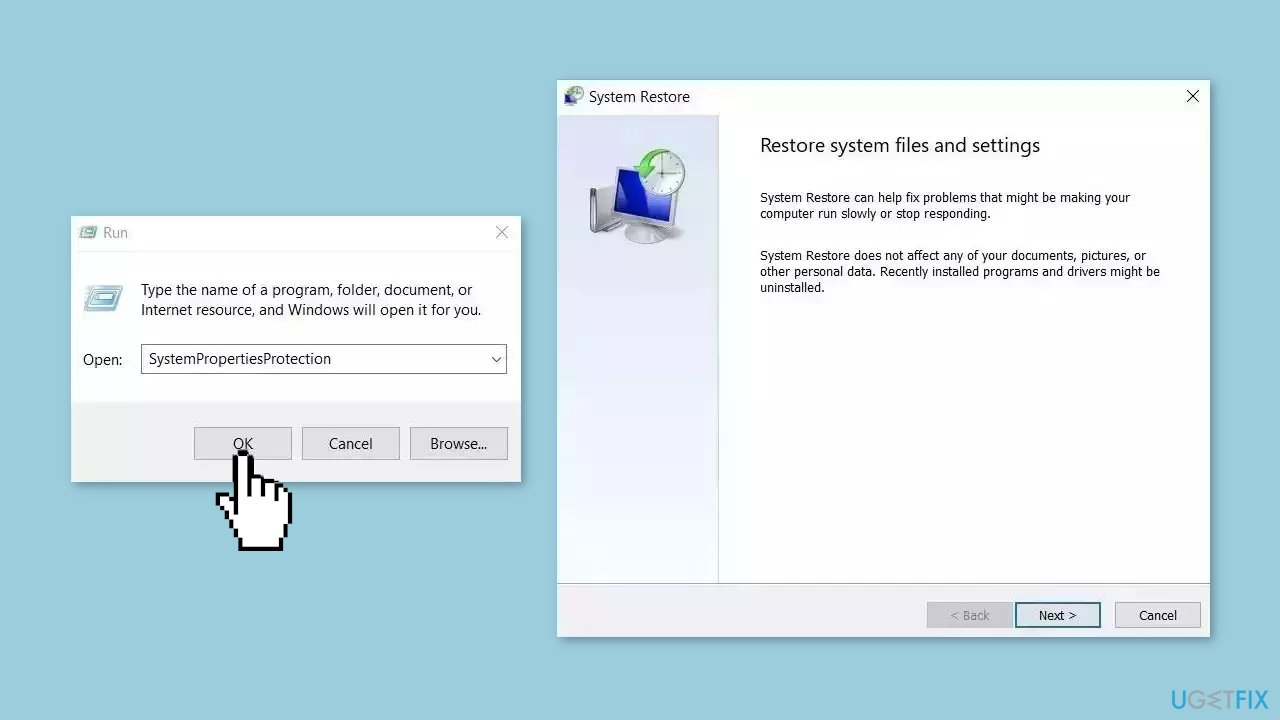
- Follow the on-screen instructions to restore your computer to an earlier point when the .NET Framework was working correctly.
Solution 7. Use the Windows Installation Media
- Insert the Windows installation media into your computer.
- Open the Command Prompt.
- Type the following command and press Enter:
Dism /online /enable-feature /featurename:NetFx3 /All /Source:<drive>:\sources\sxs /LimitAccess
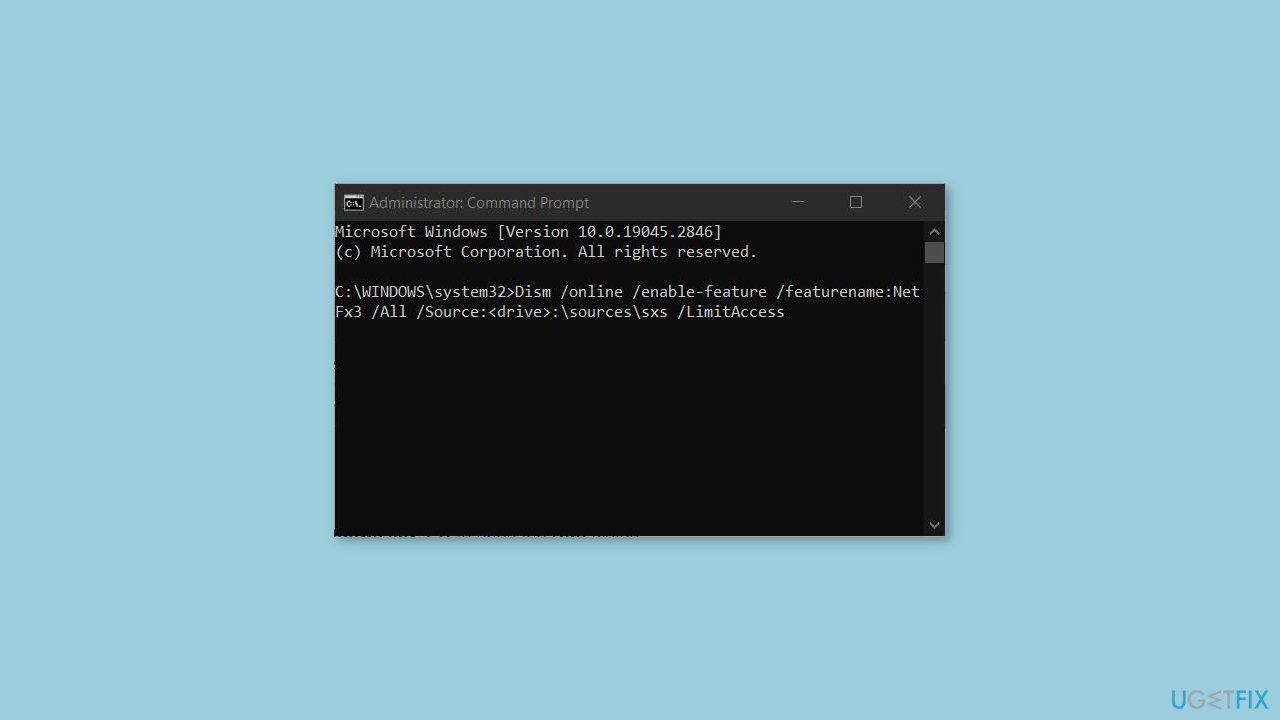
- Replace <drive> with the letter of the drive where the Windows installation media is located (e.g., D:\sources\sxs).
- Wait for the command to complete.
- Restart your computer to apply the changes.
Bottom line
To fix the .NET Framework installation error 0x800F0906, you can check for Windows updates and ensure that the .NET Framework is enabled in the Windows Features. If these solutions do not resolve the issue, consider using an automatic maintenance tool to fix system errors.
Frequently asked questions
This error typically occurs due to missing or corrupted files in the Windows component store, which prevents the .NET Framework from being installed properly.
You can fix this error by running the DISM tool to repair the Windows image and then attempting to install the .NET Framework again.
Yes, you can download the .NET Framework installer directly from the Microsoft website and run it to bypass the installation error on Windows 10 or Windows 11.




Report an issue
What's wrong with this guide? We review every report and update or remove content.
Report received — thank you. We'll review and fix it.
You need a free account to submit a report.
Be the first to comment