How to fix
.NET Framework installation error 0xc8000222
on Windows
Resolve the .NET Framework installation error 0xc8000222 on Windows 10 or 11 quickly and effectively. Expert-tested solutions inside!

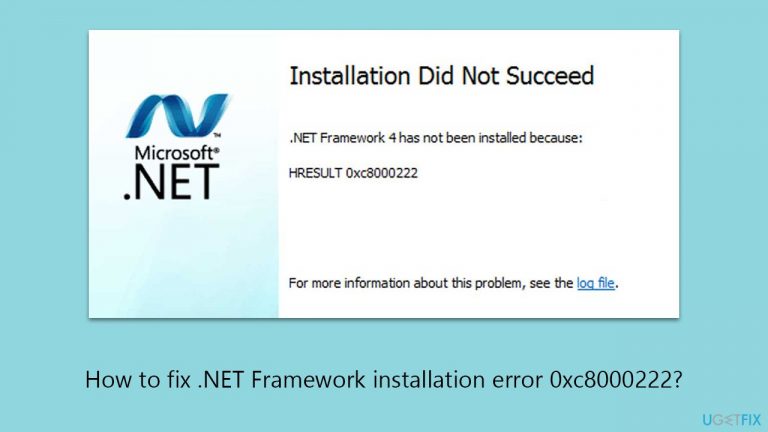
What causes How to fix .NET Framework installation error 0xc8000222?
- Damaged update databases
- Incompatibilities with the current system configuration
- Issues related to Windows Update
- Temporary files in the Windows Update cache
- Common installation and upgrade issues with the .NET Framework
Repairs Windows system files, removes malware, and restores a clean OS state — without reinstalling.
I am unable to install the Microsoft .NET Framework update - I keep getting an error code 0xc8000222. So how do I resolve this? Please help.
The Windows operating system would not be complete without the.NET Framework, which offers a uniform and all-encompassing programming model for creating programs with a wide range of business processes that can be modeled, smooth and secure communication, and appealing user interfaces. Because of its vast library, cross-language compatibility, and ability to allow the development of a wide range of programs, from desktop to web-based services, it is an essential platform for developers.
The .NET Framework was once a standalone program that needed to be manually installed. To guarantee that users always receive the most recent version and security updates, Microsoft has incorporated it more thoroughly into the Windows operating system in recent years. Users can update it through Windows Update. With this modification, less manual intervention is required because the process is now mostly automated.
Some users may still see the 0xc8000222 issue while attempting to update the.NET Framework in spite of these changes. This error message indicates a difficulty with the Windows Update process and can be caused by a number of underlying problems, including damaged update databases, incompatibilities with the way the system is currently configured, or other issues relating to Windows Update.
There are several options you can consider when dealing with this error in order to fix the 0xc8000222 error. One of these is emptying the Windows Update cache, which can occasionally fill up with temporary files that impede the update procedure, or running the built-in troubleshooter could be an option.
Using the Microsoft.NET Framework repair tool is an additional technique that addresses typical issues with the framework's installation and upgrades. While these methods don't fix the issue right away, they can deal with the underlying issues that produce the 0xc8000222 error.
Using PC repair software [d1] can be a useful approach to fix any underlying Windows issues automatically if you face this or other errors on Windows. This could potentially resolve the update issue without requiring direct manual interaction.
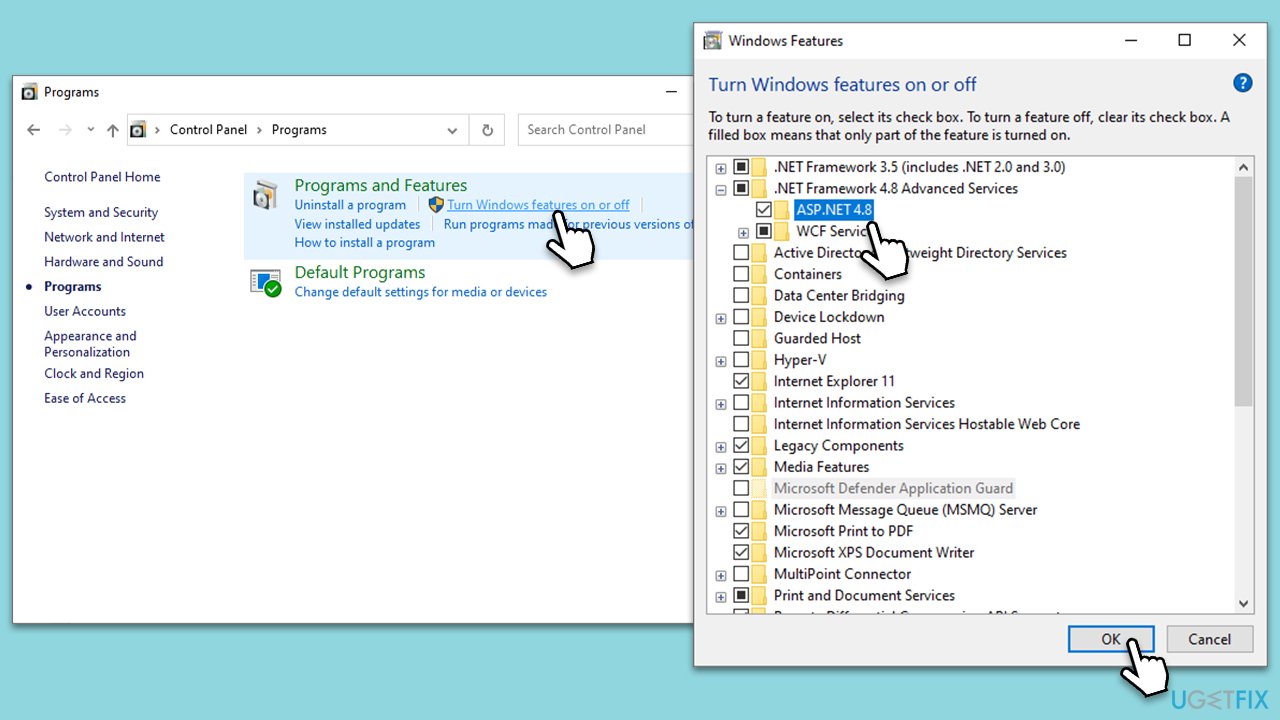
Fix 1. Enable all .NET Framework components in Windows Features
This solution works by ensuring all necessary .NET Framework components are enabled in Windows. Sometimes, certain components might be disabled, leading to update errors. Enabling them can resolve these issues.
- Type Control Panel in Windows search and select Programs.
- Select Turn Windows features on or off.
- Enable .NET Framework 3.5 (includes .NET 2.0 and 3.0).
- Next, enable .NET Framework 4.8 Advanced Services and press the plus icon next to it.
- Make sure to enable ASP.NET 4.8 as well.
- Click OK.
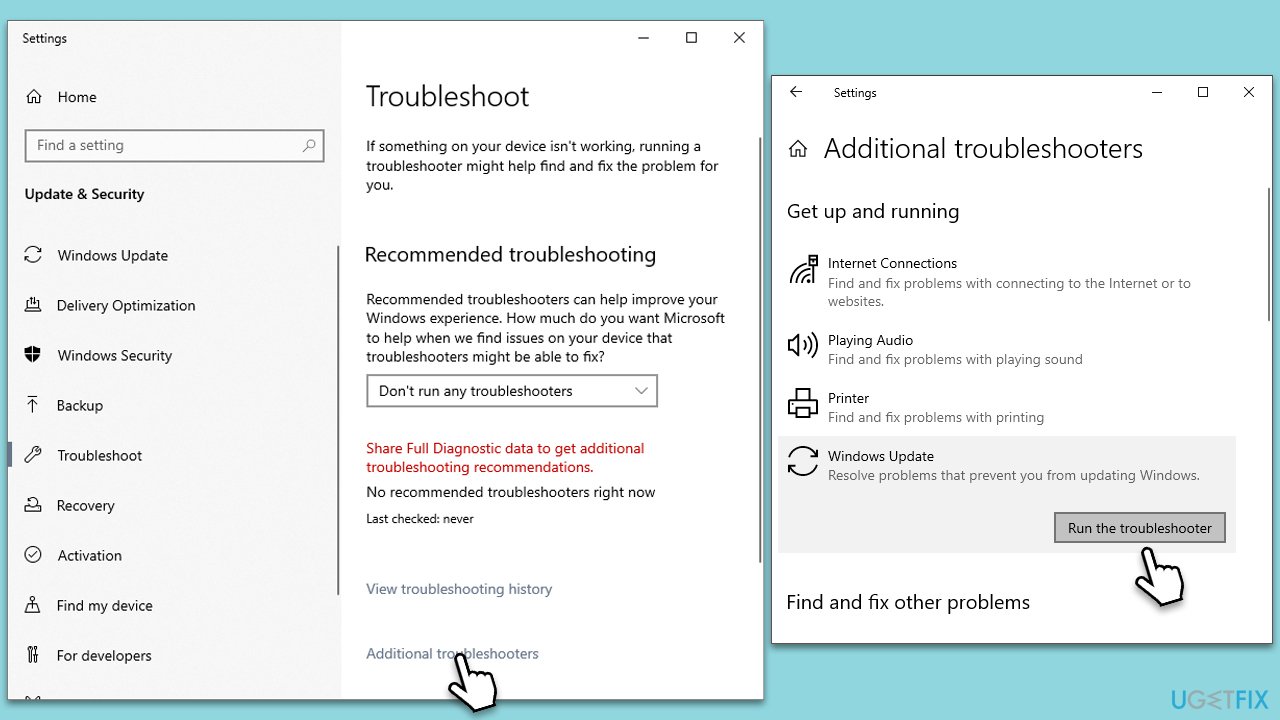
Fix 2. Run Windows update troubleshooter
The Windows Update Troubleshooter is designed to find and automatically fix issues with Windows Update. It can resolve errors by resetting network settings, clearing update caches, and fixing corrupted update files.
- In Windows search, type Troubleshoot, and press Enter.
- Select Additional troubleshooters/Other troubleshooters.
- Scroll down and click on Windows Update.
- Click Run the troubleshooter/Run and follow the prompts.
- Restart your computer after the troubleshooter completes its process.
Fix 3. Perform Disk Cleanup
Disk Cleanup helps free up space on your hard drive and can remove temporary files that may interfere with Windows Update. Cleaning up these files can sometimes resolve update issues.
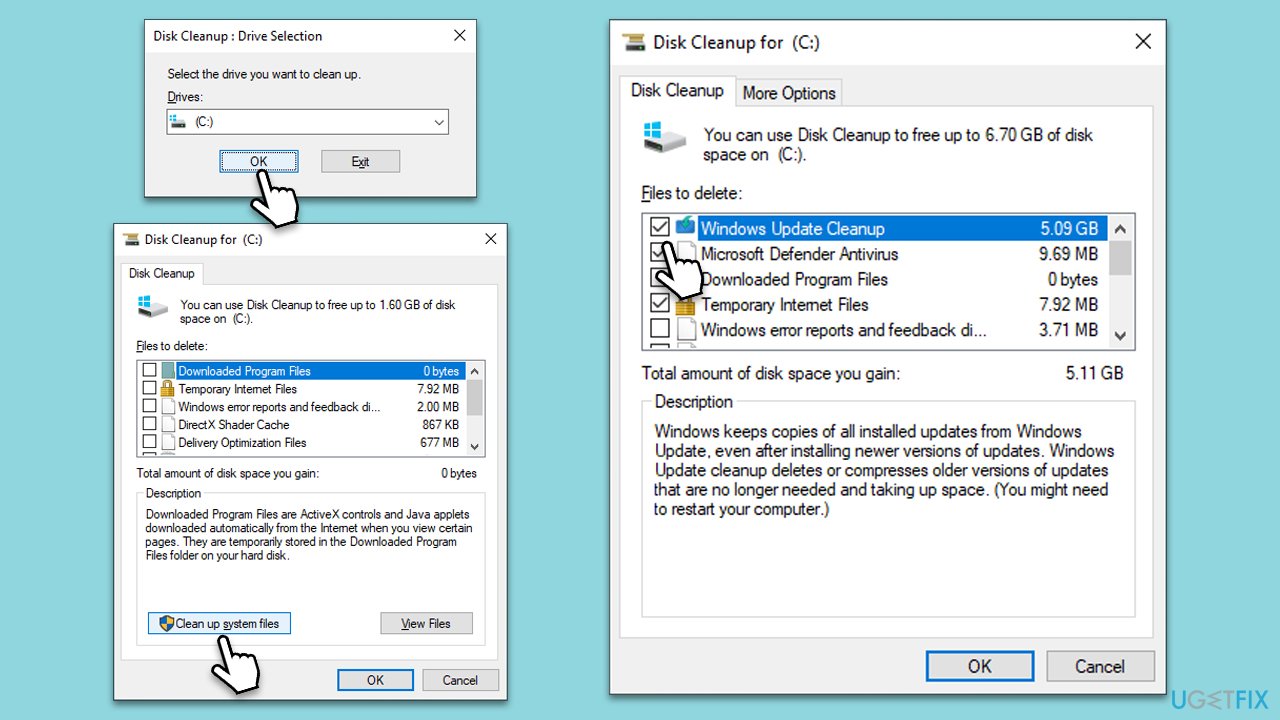
- Type Disk Cleanup in Windows search and press Enter to open the Disk Cleanup utility.
- In the Disk Cleanup window, click Clean up system files.
- Select the drive (usually, C:) again and click OK.
- It is important to clear up sections related to Windows updates (Windows Update Cleanup, Windows upgrade log files, Delivery optimization files), as well as other temp files -Temporary Internet Files, Temporary Files, etc.
- Click OK to begin the cleanup process.
Fix 4. Use .NET Framework repair tool
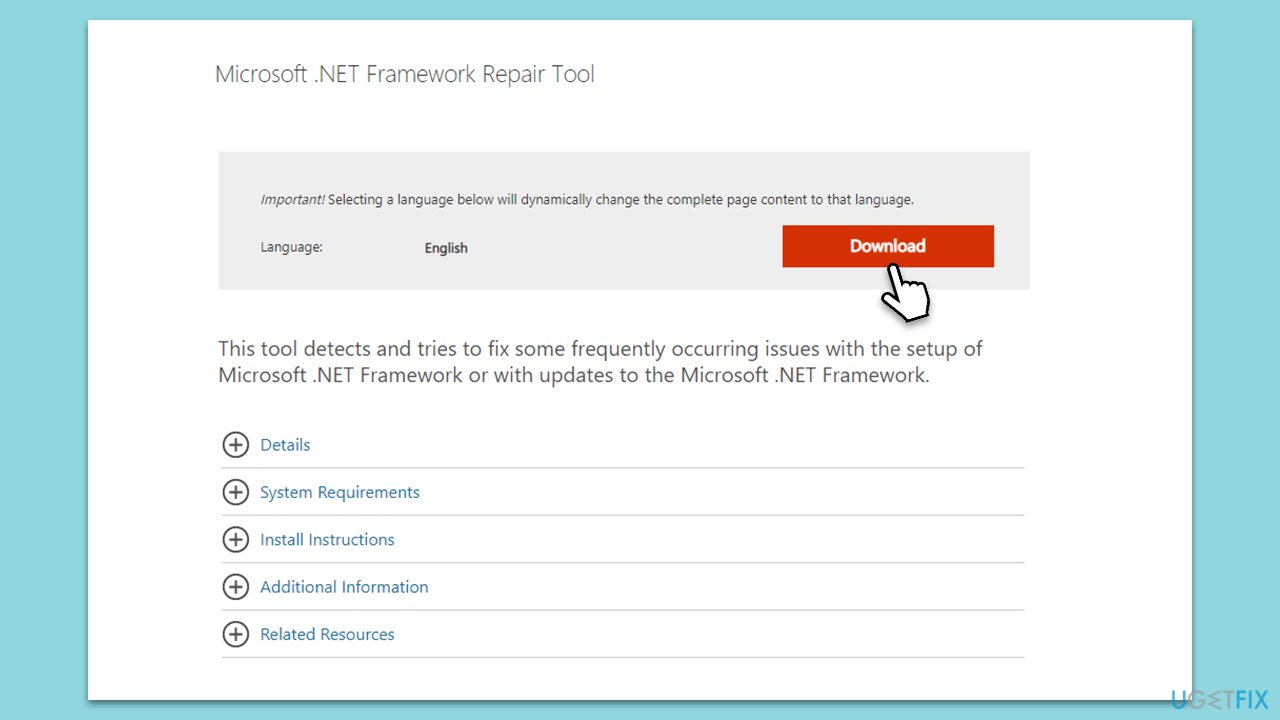
The .NET Framework repair tool is provided by Microsoft to automatically detect and fix issues with the .NET Framework installation. It can resolve common problems that prevent updates.
- Download Microsoft .NET Framework Repair Tool from the official Microsoft website.
- Start the launcher and select NetFxRepairTool.exe, pressing Next after.
- Double-click the file to begin the repair process.
- When prompted, mark the I have read and accept the license terms and click Next
- Windows will diagnose all the issues and repair them automatically for you
- Restart your computer if it doesn't happen automatically.
Fix 5. Perform Clean Boot
Performing a clean boot starts Windows with a minimal set of drivers and startup programs. This can help identify if background programs are interfering with the .NET Framework update.
- Type msconfig in Windows search and hit Enter.
- Go to the Services tab and tick the Hide all Microsoft services checkbox.
- Select Disable all.
- Go to the Startup tab and click Open Task Manager.
- Here, right-click on each of the non-Windows entries and select Disable.
- Close down the Task Manager.
- Go to the Boot tab and tick the Safe boot option.
- Restart your device and try installing it again.

Fix 6. Run SFC and DISM
Running SFC and DISM tools can fix underlying system issues affecting the .NET Framework update.
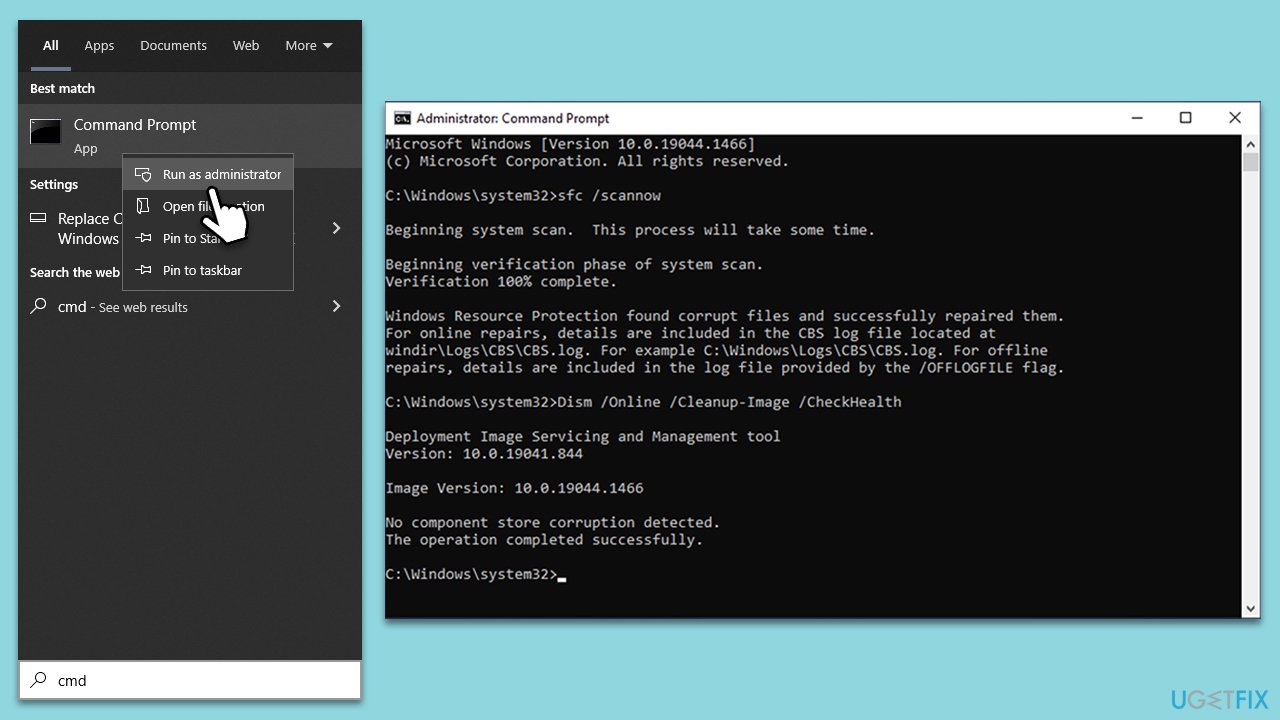
- Type cmd in Windows search
- Right-click on Command Prompt result and select Run as administrator
- When User Account Control shows up, click Yes
- Paste the following command into the new window:
sfc /scannow - Press Enter and wait till the scan is finished
- Once done, run this set of commands, pressing Enter every time:
DISM /Online /Cleanup-Image /CheckHealth
DISM /Online /Cleanup-Image /ScanHealth
DISM Online /Cleanup-Image /RestoreHealth
(Note: if you get an error executing this last command, add /Source:C:\RepairSource\Windows /LimitAccess to it and try again). - Restart your device.
Bottom line
To resolve the .NET Framework installation error 0xc8000222, you can try emptying the Windows Update cache, running the built-in troubleshooter, or using the Microsoft .NET Framework repair tool. If these methods do not work, consider using PC repair software to automatically fix any underlying Windows issues.
Frequently asked questions
This error typically occurs due to corrupted system files or issues with Windows Update components. Ensuring that your system is updated and running the System File Checker can help resolve the problem.
You can fix this error by running the Windows Update Troubleshooter and checking for pending updates. Additionally, resetting the Windows Update components may also resolve the installation issue.
Yes, you can try reinstalling the .NET Framework from the official Microsoft website or using the DISM tool to repair Windows image issues. Make sure to restart your computer after performing these steps.




Report an issue
What's wrong with this guide? We review every report and update or remove content.
Report received — thank you. We'll review and fix it.
You need a free account to submit a report.
Be the first to comment