How to fix
NetBT 4311 Error
on Windows
Resolve the NetBT 4311 Error on Windows 10 and 11 effortlessly with our expert-tested solutions. Fix issues quickly, with screenshots for clarity.

What causes How to fix NetBT 4311 Error on Windows?
- Network adapter removal
- Incorrect log values
- Driver device creation failure
- Outdated drivers
- Insufficient storage for drivers
Repairs Windows system files, removes malware, and restores a clean OS state — without reinstalling.
Hello. I have an issue with the NetBT 4311 Error. It has appeared a few times on my Windows 10 computer. It triggers the restart. I was playing games and doing other things, nothing, in particular, that could trigger the issue. I have no idea what it means. Help me.
NetBT 4311 Error is the problem that occurs on older devices and even on recent builds of computers. It gets triggered during video gameplay, browsing, and other application launches. It is extremely frustrating since the issue leads to a full PC crash[ref en-1] that makes people worry.
This event of a restart or a full system crash, NetBT 4311 Error or Initialization failed because the driver device could not be created issue is the problem that occurs once the network adapter is removed and Microsoft Windows detects this issue and reinstalls the adapter. It is the system log that appears in Event Viewer.[ref en-2]
The issue with the error message is caused by the incorrect log. A non-zero value is incorrectly returned with OS finds and references the new network adapter. It can appear after the removal of a remote access service or when the network adapter gets reinstalled.
NetBT 4311 Error message:
Initialization failed because the driver device could not be created
It is common for various new laptop users and for older versions of various WIndows devices to suffer from this event because drivers can go out of date and once there is not enough space for such pieces the compatibility issues surface. File system fixes, driver updates, and repairing broken pieces can help you to fix NetBT 4311 Error on Windows.
You can always rely on tools like [d1] when dealing with any errors, issues with the performance. This is the application that provides a great insight into the machine because files that need updates, repairing get indicated. It can even take care of infection[ref en-3] damage. If you run this app before you move on to more manual NetBT 4311 Error fixes, you can save time or even solve additional problems automatically. That saves time.
Method 1. Update drivers via Device Manager
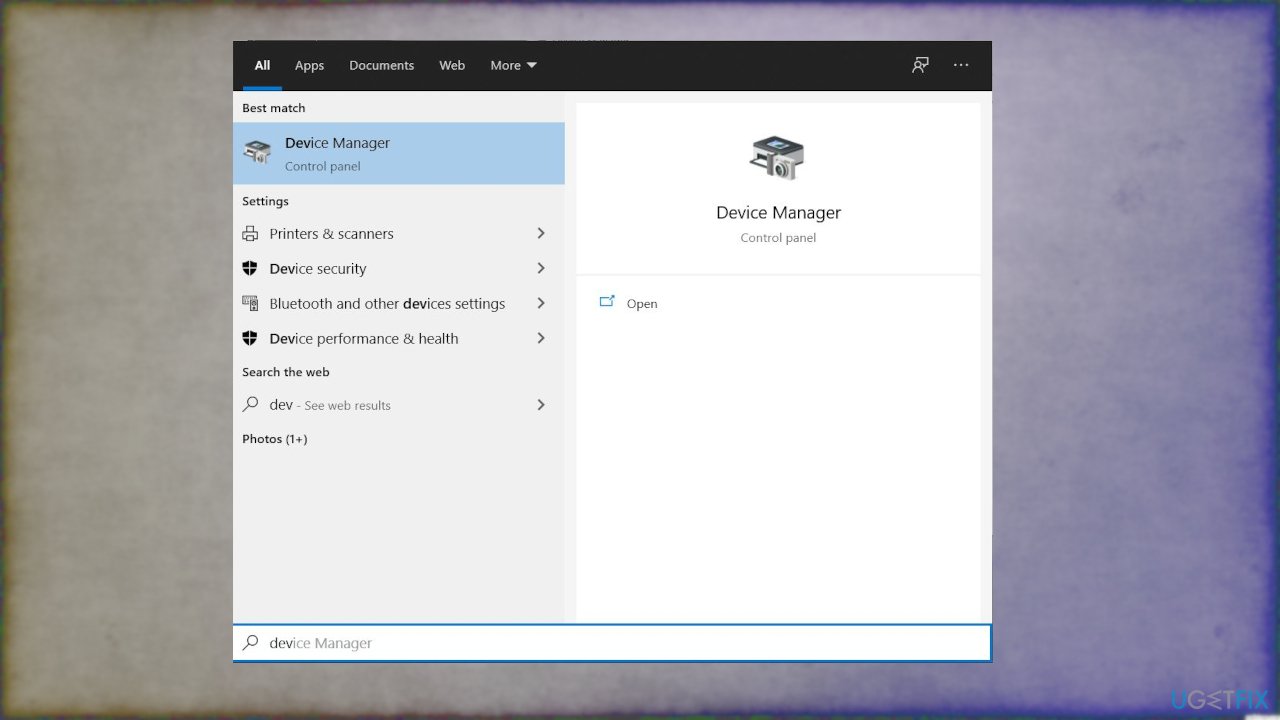
- Right-click on Start and choose the tool or find it by searching.
How to fix error netbt 4311 device man find - Once the Device Manager is opened, expand the section of your choice.
- Right-click on the problematic driver and select Update driver.
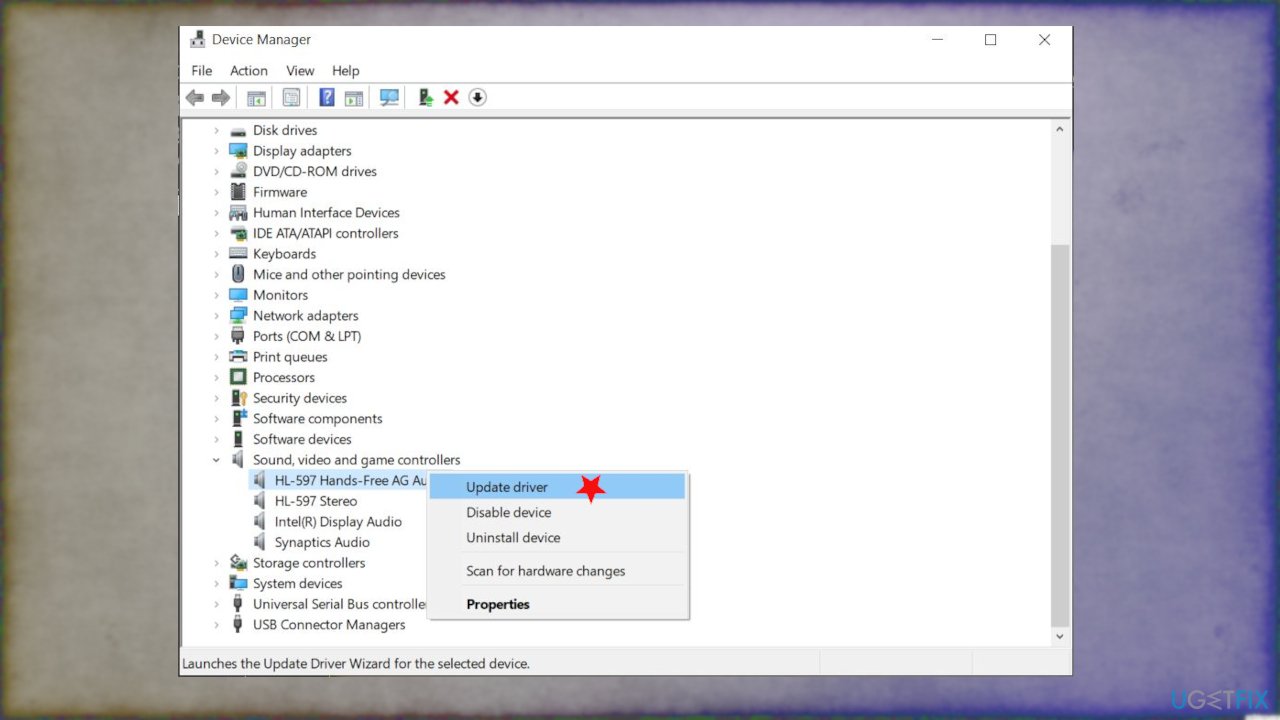
How to fix error netbt 4311 device manager - You can try to update audio or game controller drivers if you don't know exactly what causes the error.
- Pick Search automatically for drivers.
- Wait till Windows downloads and installs drivers.
- Reboot your PC.
- Repeat with relevant drivers.
Method 2. Update drivers automatically
Driver updates can be difficult, especially when you have no idea what pieces on the machine triggered these issues and particularly NetBT 4311 Error. The problem with driver updates is the compatibility too because you might download random drivers or different files from untrustworthy sources or get the wrong version for the machine that leads to additional issues with the performance.
It is better to use software specifically designed for automatic driver updates. Tools like [rev id="DriverFix"] have a database with various drivers and scans your machine for the indication of which pieces need to be replaced. The program automatically selects the needed version and takes all the measures to ensure the proper performance with compatibility issues.
Method 3. Uninstall third-party applications
You can do this two ways:
via Control panel
- Open Control Panel via Run box or Windows Search.
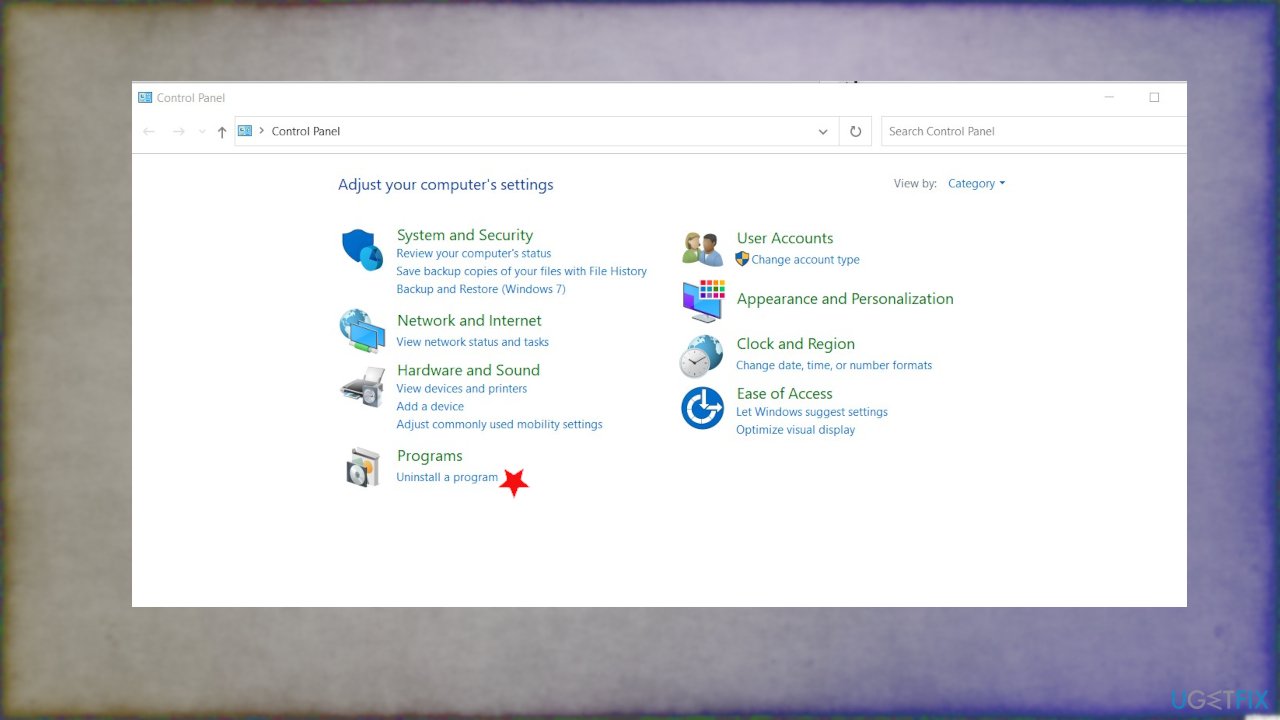
How to fix error netbt 4311 control panek - Click on Programs and Uninstall a program feature.
- Find the problematic program and click on it.
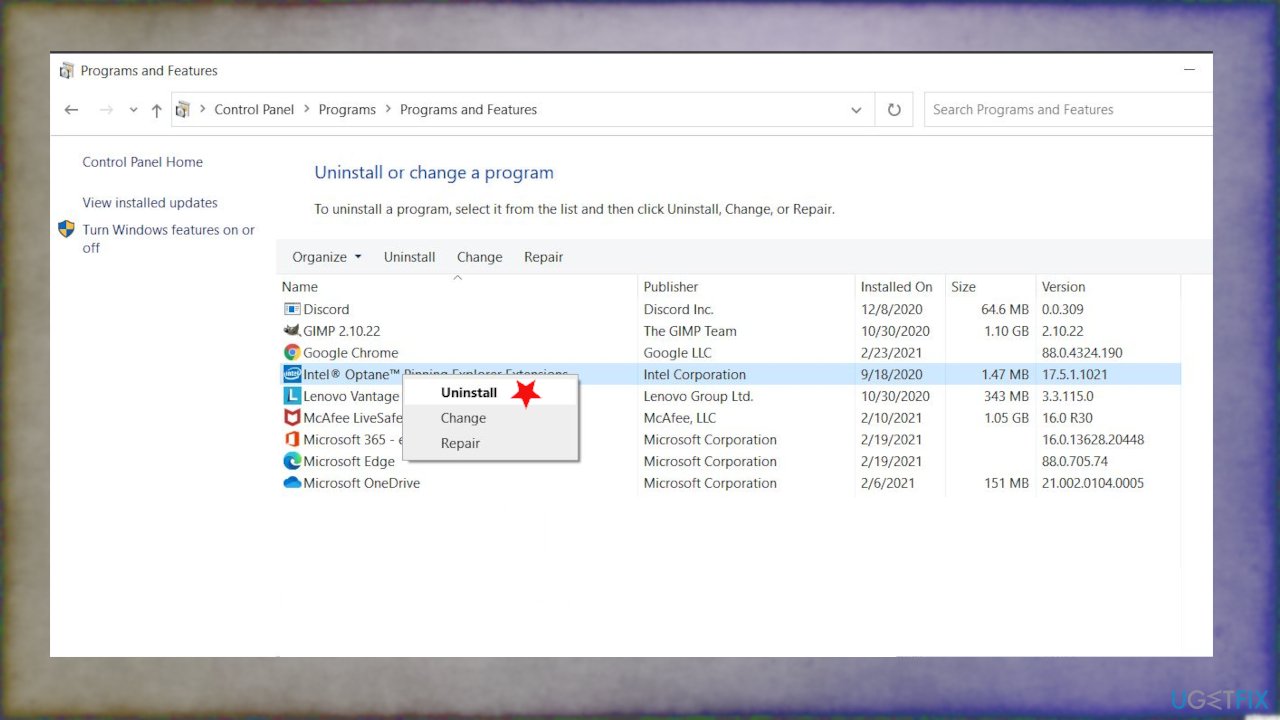
How to fix error netbt 4311 control panel uninstall - Choose Uninstall.
via System settings
- Click the Start button and go to Windows Settings.
- Click on Apps and then choose Apps and Features from the menu.
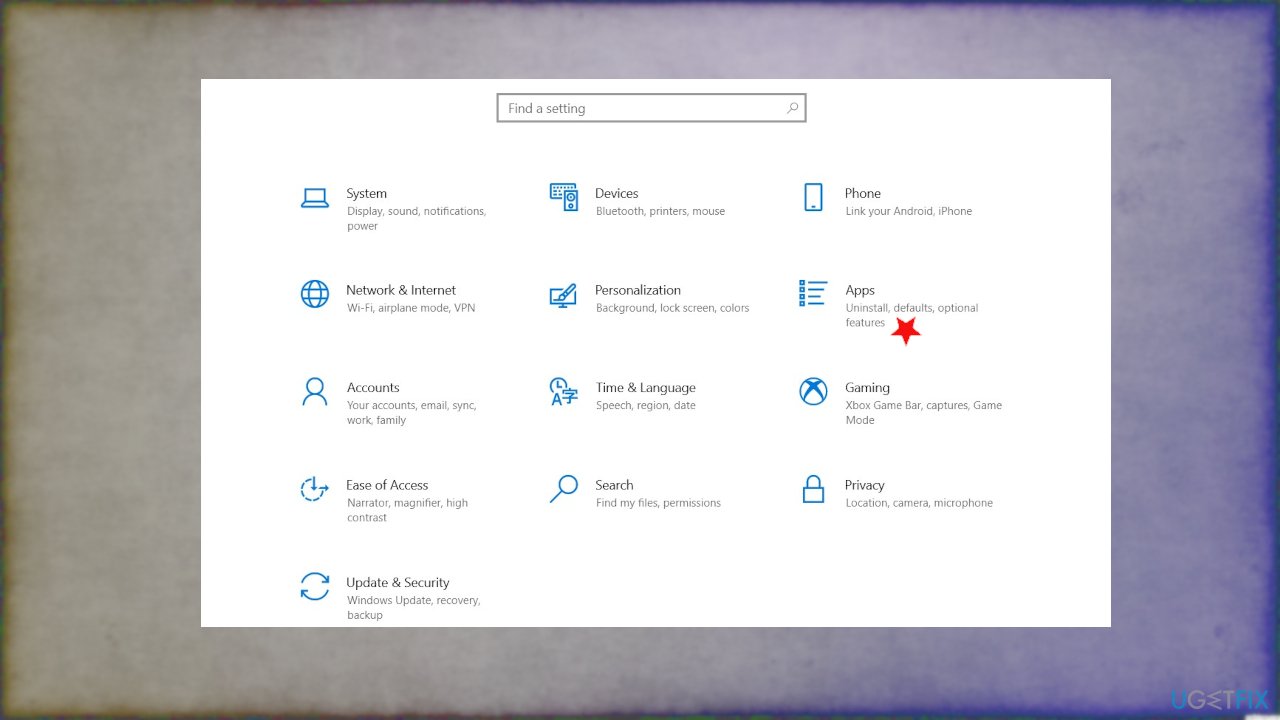
How to fix error netbt 4311 uninstall program - Choose Apps & Features on the left and find the application.
- Click on it to get the Uninstall button.
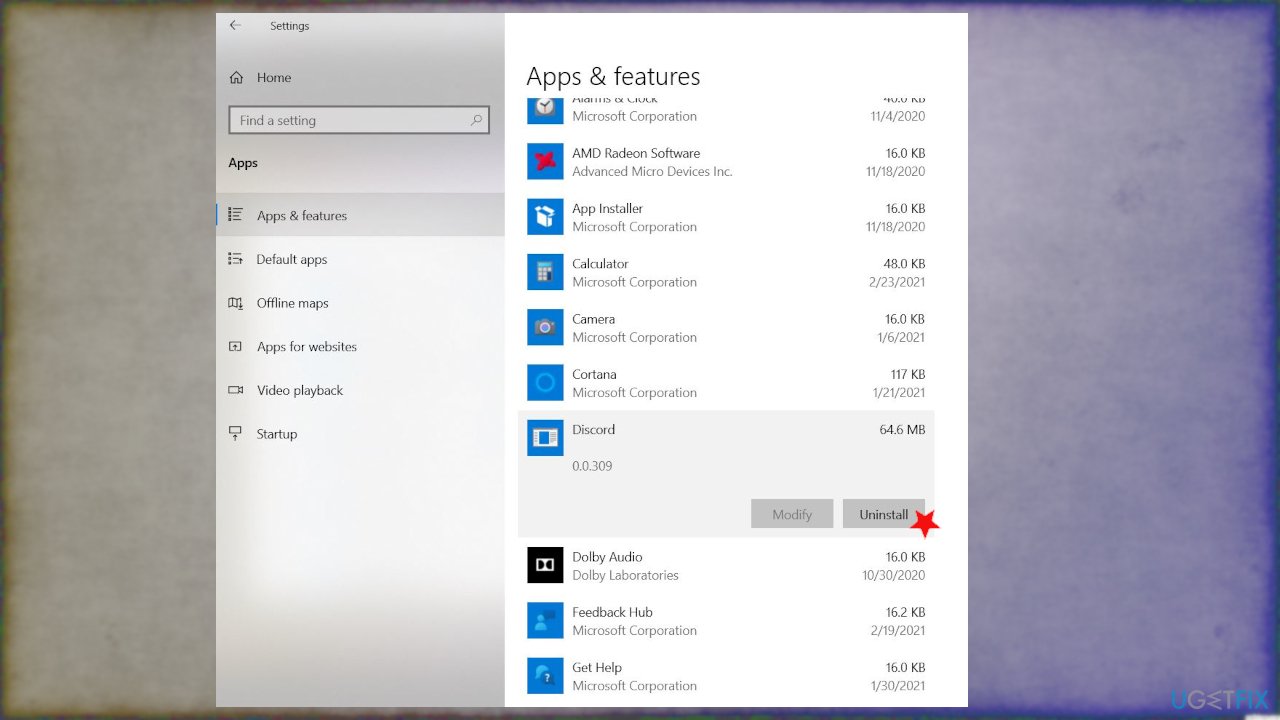
How to fix error netbt 4311 program uninstal - If you encounter the permission window, click Yes.
- Confirm the Uninstall.
- Wait for the process to finish.
Method 4. Disable automatic restart option to fix NetBT 4311 Error on Windows
- Go to search.
- Type View advanced system settings.
- Click Settings in the Startup and Recovery section.
- Uncheck the marks next to Automatically restart under the System Failure and click OK.
- Restart the PC.
- From there, issues do not cause an automatic restart.
Bottom line
To fix the NetBT 4311 Error on Windows, you can perform file system fixes, update drivers, and repair broken components. Additionally, using specialized tools can help identify and resolve issues automatically. If these methods do not resolve the error, further troubleshooting may be necessary.
Frequently asked questions
The NetBT 4311 Error usually occurs when there are issues with the NetBIOS over TCP/IP settings or network misconfigurations in Windows 10 and Windows 11.
To fix the NetBT 4311 Error in Windows 11, check your network adapter settings and ensure that the NetBIOS over TCP/IP option is enabled.
Yes, you can use the Command Prompt to reset the TCP/IP stack and renew your IP address, which may help resolve the NetBT 4311 Error on Windows 10.




Report an issue
What's wrong with this guide? We review every report and update or remove content.
Report received — thank you. We'll review and fix it.
You need a free account to submit a report.
Be the first to comment