How to fix
Netwbw02.sys BSOD
on Windows
Resolve the netwbw02.sys BSOD on Windows 10 quickly and effectively with expert-tested solutions. Get your system running smoothly again!

What causes How to fix netwbw02.sys BSOD on Windows 10?
- Driver issues
- Malware infection
- Wi-Fi connection problems
- Slowdowns or crashes
- Corrupted system files
Repairs Windows system files, removes malware, and restores a clean OS state — without reinstalling.
Driver_irql_not_less_or_equal (netwbw02.sys) is a BSOD which shows randomly. It's irritating coz it causes forced Windows restart. What can I do to fix it?
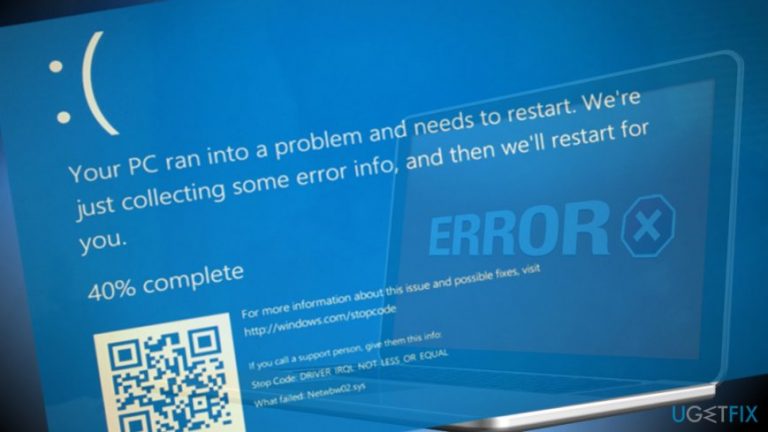
DRIVER_IRQL_NOT_LESS_OR_EQUAL is the most frequently encountered Windows 10 BSOD,[ref en-1] which causes a fatal system crash. It can occur at any time and completely lock the screen without the ability to log into the desktop.
In most of the cases, the problem is related to system's drivers or other essential Windows components. Each instance of Driver_irql_not_less_or_equal BSOD is different and should bear a reference to a reference to a problematic component. Recently, people started reporting a netwbw02.sys file as a culprit of the Driver_irql_not_less_or_equal error.
NETwbw02.sys is one of Windows drivers. More specifically, it's a component of Intel Wireless WiFi Link Driver or Intel Wireless Adapter Driver for Windows (version 8.1 - 64 Bit) by Intel. It's not included in the list of core Windows system files, but it's responsible for maintaining Wi-Fi connection and other services related to the Internet connection.
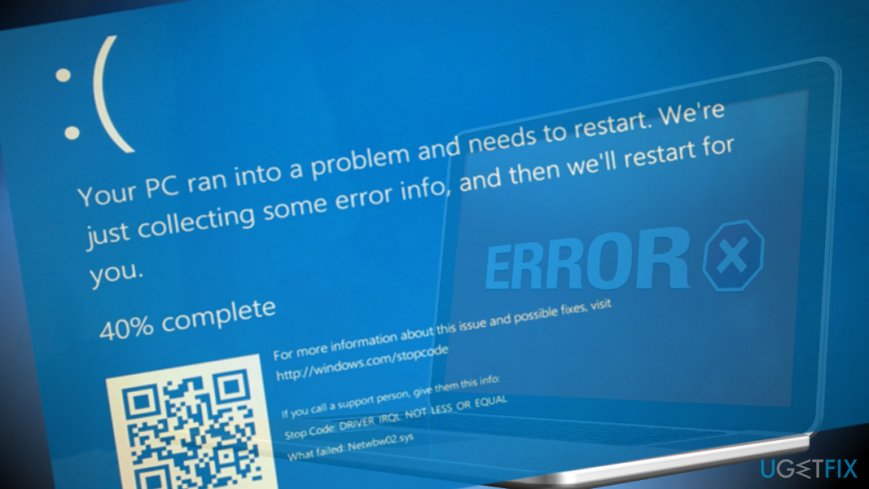
Usually, before the emergence of the netwbw02.sys BSOD people notice random Wi-Fi connection problems,[ref en-2] slowdowns, crashes, and similar unusual system's behavior. Soon after that, the following message in a blue screen environment occurs:
Your PC ran into a problem and needed to restart. We’re just collecting some error info, and then we’ll restart for you. (30% complete).
For more info about this issue and possible fixes, visit http://windows.com/stopcode
If you call a support person, give them this info:
Stop Code: DRIVER_IRQL_NOT_LESS_OR_EQUAL
What failed: NETwbw02.sys
The lucky ones did not have to do anything except restart the system to fix NETwbw02.sys BSOD. The others had to perform many diverse methods to address the problem or even take the system to a professional IT specialist.
Note that the culprit of the NETwbw02.sys error might be a malware infection. Technical security rating of this file is 15% dangerous, which is not much but still considerable. Malware developers may exploit such and similar system files for disguising malicious files, so the BSOD that you are currently seeing might be related to Spyware, Trojan,[ref en-3] Worm or another infection. Thus, to fix DRIVER_IRQL_NOT_LESS_OR_EQUAL with the NETwbw02.sys BSOD, run a scan with [d1] or another reputable security tool. If it did not help, follow these steps:
Update Network Adapter Drivers
- Press Windows key + R, type devmgmt.msc, and hit Enter.
- Alternatively you can right-click on Windows key and select Device Manager.
- When the Device Manager opens, expand Network adapters section.
- Right-click on your Network Adapter (Intel Network Adapter in particular) and select Update Driver Software.
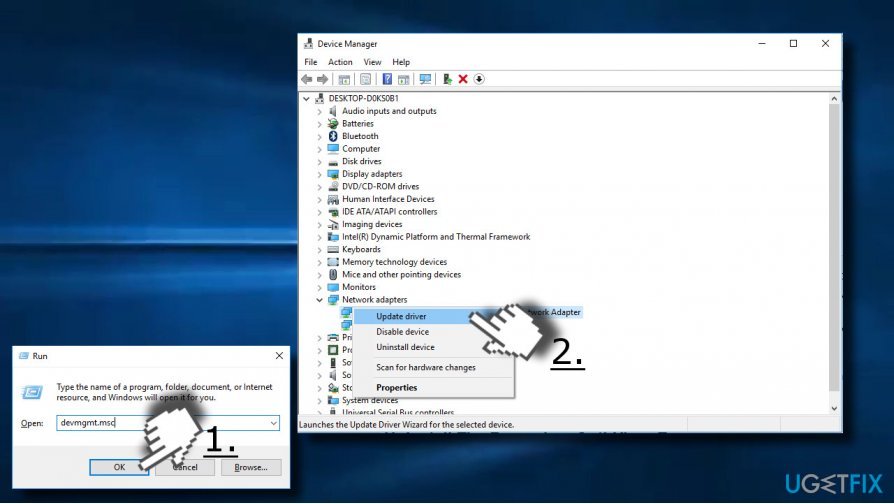
In some of the cases, update won't help due to incompatible driver or other serious malfunctions. Therefore, we would strongly recommend uninstalling the driver and download its latest version from the manufacturer's website. For this purpose, you should follow the steps indicated above, except that instead of "Update Driver Software" press "Uninstall."
After that, restart your PC and navigate to the official Intel's website to download the latest version of Intel Network Adapter that is compatible with the type of your OS.
Uninstall The Secondary Anti-Virus Program
In many cases, the netwbw02.sys BSOD strikes PCs that run two anti-malware tools - the primary and the secondary ones. Very often they run into conflict, which may result in slowdowns, crashes, and, like in this case BSOD screen. Therefore, consider removing the secondary anti-virus, at least temporarily, to check whether removal helps to remove DRIVER_IRQL_NOT_LESS_OR_EQUAL BSOD.
One of the ways to eliminate all components related to unwanted security tool is to run a scan with [rev id="Perfect Uninstaller"]. Nevertheless, you can also do that manually:
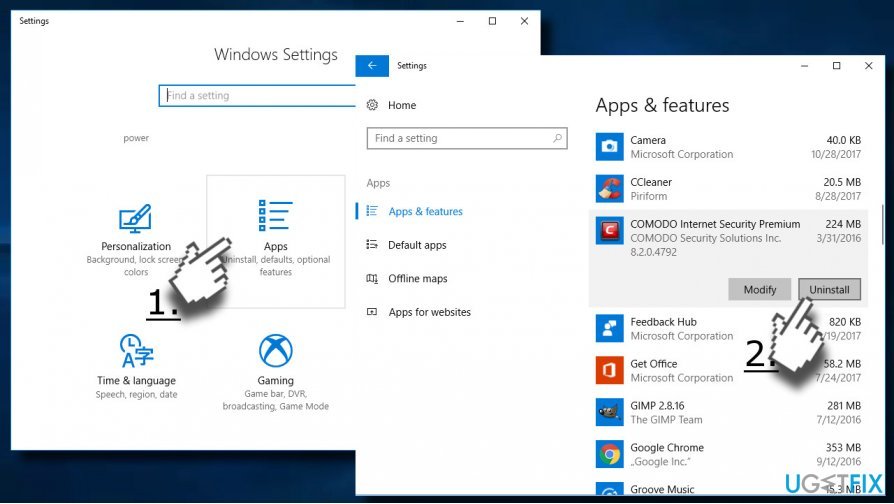
- Press Windows key + I and select Apps.
- Find the antivirus entry on the Apps & Features section.
- Click on it and select Uninstall.
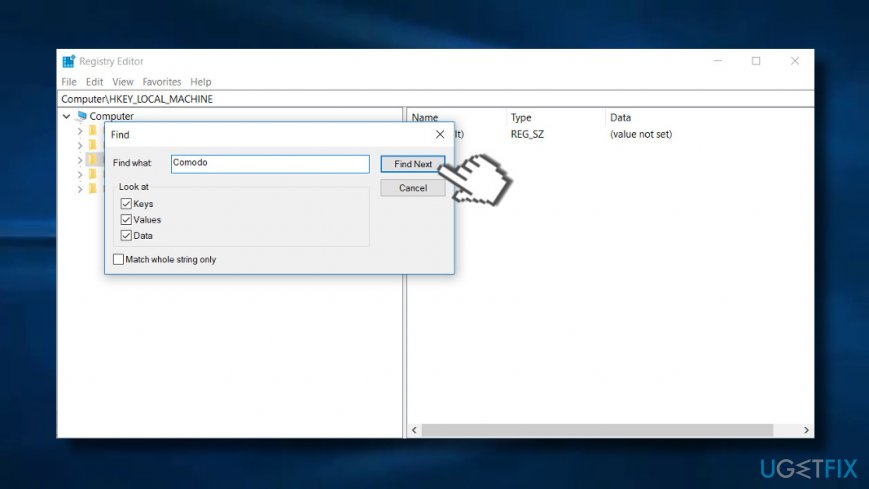
- After that, press Windows key + R to open Registry Editor.
- Press Edit -> Find Next.
- Enter the name of the program that you have deleted before and click Find Next.
- In case the search delivers some results, remove all of them. For this purpose, right-click on the entry and select Remove.
Install Windows Updates
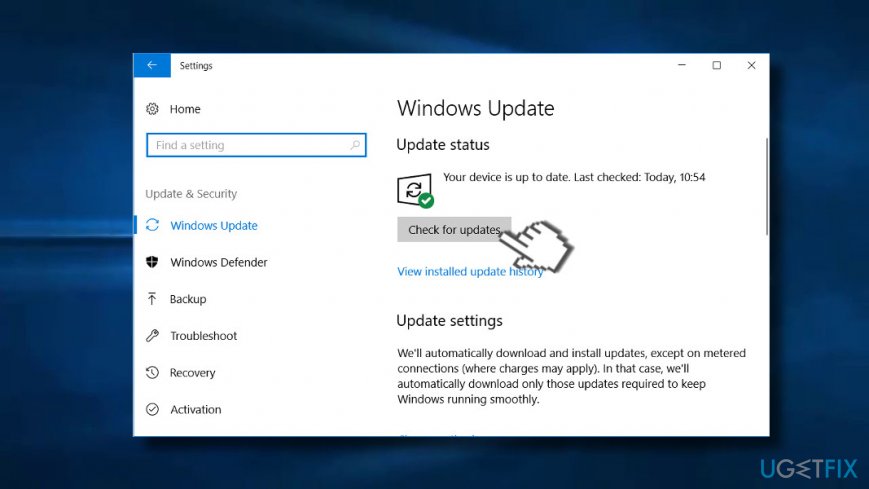
- Press Windows key + I to open Settings.
- Select Update and Security.
- Click on Check for Updates button and wait for all pending updates to be prepared.
- When they are installed, restart the system to finish up the installation.
Bottom line
To fix the DRIVER_IRQL_NOT_LESS_OR_EQUAL error caused by netwbw02.sys, users can try restarting their system, updating drivers, or scanning for malware. If these methods do not resolve the issue, it may be necessary to consult a professional IT specialist.
Frequently asked questions
The netwbw02.sys file is associated with Intel wireless drivers, and a BSOD can occur due to driver corruption or compatibility issues in Windows 10.
You can update the driver by going to Device Manager, locating your network adapter, right-clicking it, and selecting 'Update driver' to search automatically for updated driver software.
If updating doesn't help, consider uninstalling the driver and then reinstalling it, or rolling back to a previous version that was stable before the issue occurred.




Report an issue
What's wrong with this guide? We review every report and update or remove content.
Report received — thank you. We'll review and fix it.
You need a free account to submit a report.
Be the first to comment