How to fix
Network Adapter crashing
on Windows
Resolve Network Adapter crashes on Windows 10 and Windows 11 quickly with expert tips. Get your connection stable again, fixed in minutes!

What causes How to fix Network Adapter crashing in Windows?
- Outdated drivers
- Incompatible drivers
- Faulty hardware
- Conflicts with third-party applications
- Outdated software
Repairs Windows system files, removes malware, and restores a clean OS state — without reinstalling.
Hello. My Internet connection keeps disconnecting because the network adapter stops working. What can I do to fix this?
When a network adapter crashes in Windows, users can have a frustrating experience. Driver[ref en-1]] issues are a common source of this problem. Drivers that are outdated or incompatible with the adapter can cause it to malfunction, resulting in slow internet speeds, disconnections, or the inability to connect to the internet at all. Hardware issues, such as a faulty adapter or network card, can also cause the problem in some cases.
Conflicts with other installed applications can also cause a network adapter to crash. Third-party network applications, such as firewalls, VPNs, or antivirus software, can occasionally interfere with network adapter functionality. Furthermore, outdated software can cause compatibility issues and crashes.
The consequences for users can be severe. Slow internet speeds can have an impact on work productivity and impede online activities like streaming and gaming. Frequent disconnections can also be annoying and disrupt ongoing tasks like downloading or uploading files. In extreme cases, being unable to connect to the internet at all can have serious consequences, such as missed deadlines or revenue loss.
Fortunately, there are several options for dealing with a network adapter crash. Updating drivers and software, as well as disabling conflicting applications and resetting network settings, can frequently resolve the issue. This guide will walk you through 5 steps that should help you fix Network Adapter crashing in Windows.
Keep in mind that the manual troubleshooting process can be lengthy. Instead, you can use a maintenance tool like [d1] that can fix most system errors, BSODs,[ref en-2] corrupted files, and registry[ref en-3] issues automatically. Otherwise, follow the step-by-step instructions below.
Method 1. Run the Network Adapter Troubleshooter
Windows 11:
- Press the Windows + I keys on your keyboard to open the Settings app.
- Click on the System option.
- On the left side of the screen, scroll down and click on the Troubleshoot option.
- Click on Other troubleshooters.
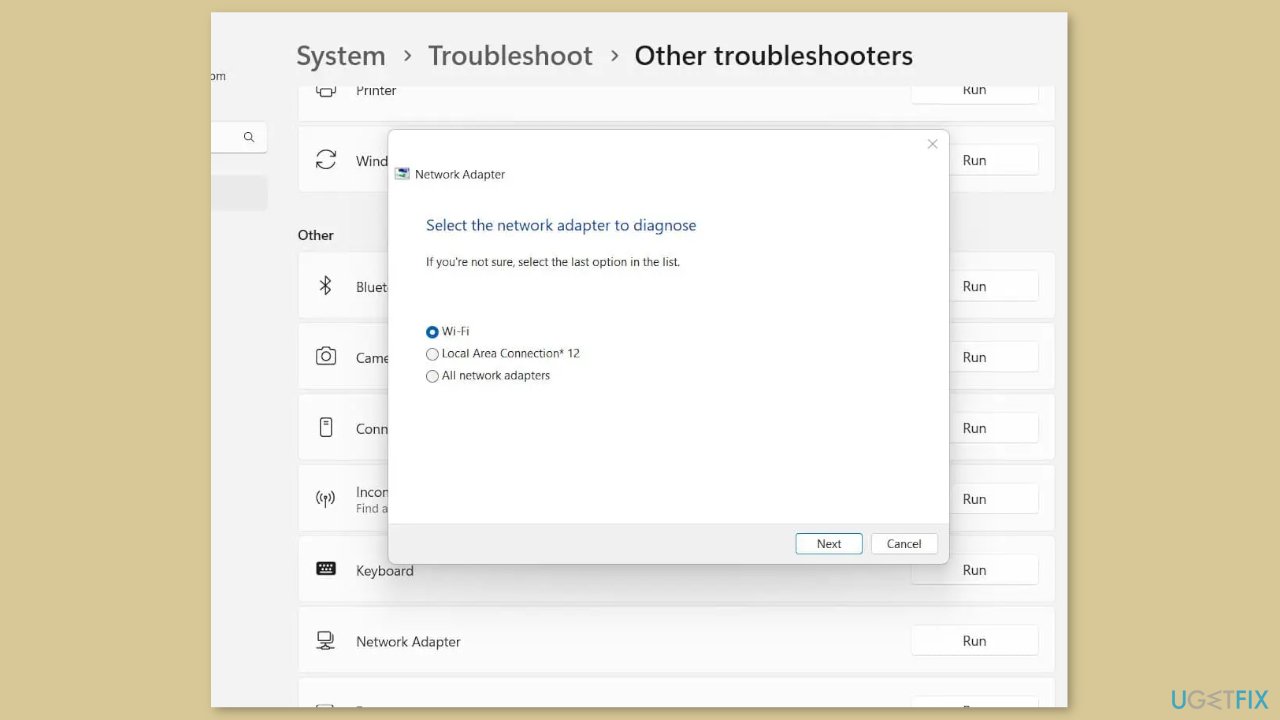
- Look for the Network Adapter troubleshooter and click on the Run button associated with it.
Windows 10:
- Open the Settings app.
- Go to Update & Security.
- Click on Troubleshoot.
- Click on Additional troubleshooters.
- Select the Network Adapter troubleshooter.
- Click on Run the troubleshooter.
Method 2. Re-enable the Network Adapter
Disabling and then re-enabling your network device can help resolve the error if it's caused by a glitch with your networking device.
- Press the Windows key + I simultaneously to open the Settings app.
- Click on the Network & internet tab.
- Click on the Advanced network settings option.
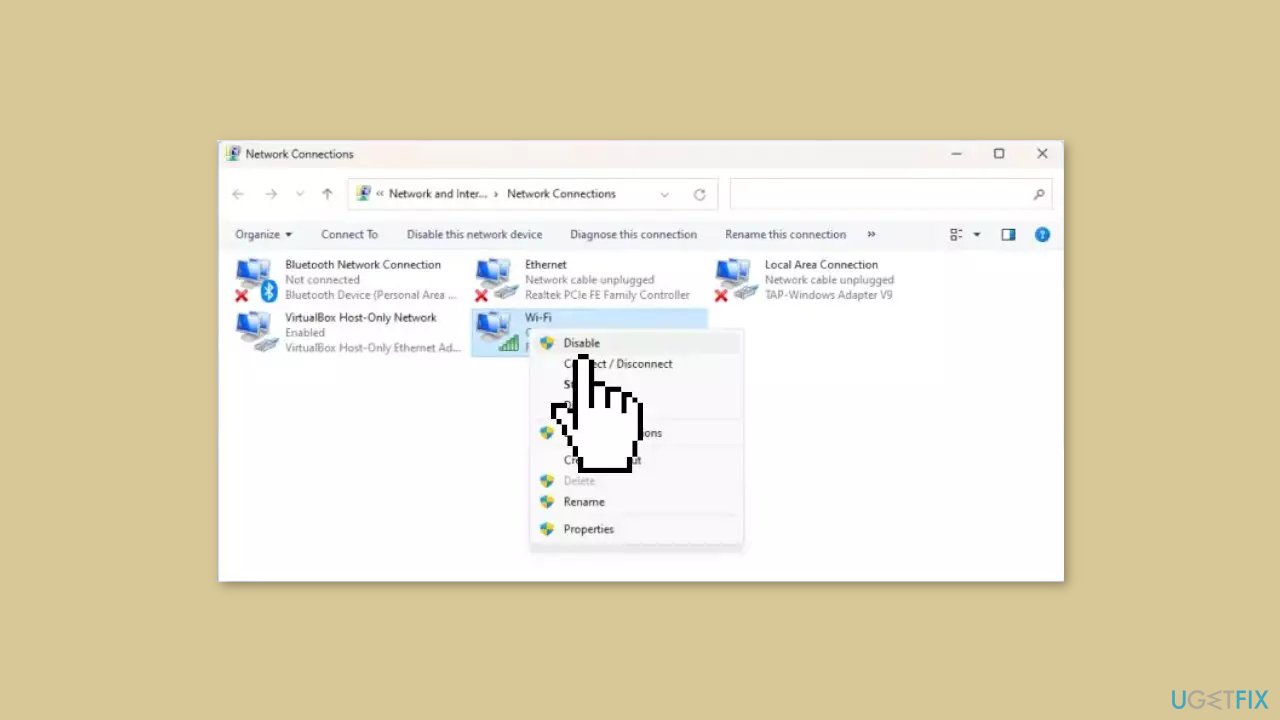
- Click on More network adapter options.
- Right-click on your WiFi connection.
- Select the Disable option from the context menu.
- Wait for some time.
- Right-click on your network connection again.
- Choose the Enable option from the context menu.
Method 3. Update the Network Driver
An outdated or defective network adapter driver is one of the most common reasons behind network crashes. If this is the case, updating your network drivers can resolve the issue:
- Press the Windows key + I simultaneously to open the Settings app.
- Click on the Windows Update tab.
- Click on the Advanced options button.
- Click on the Optional Updates option.
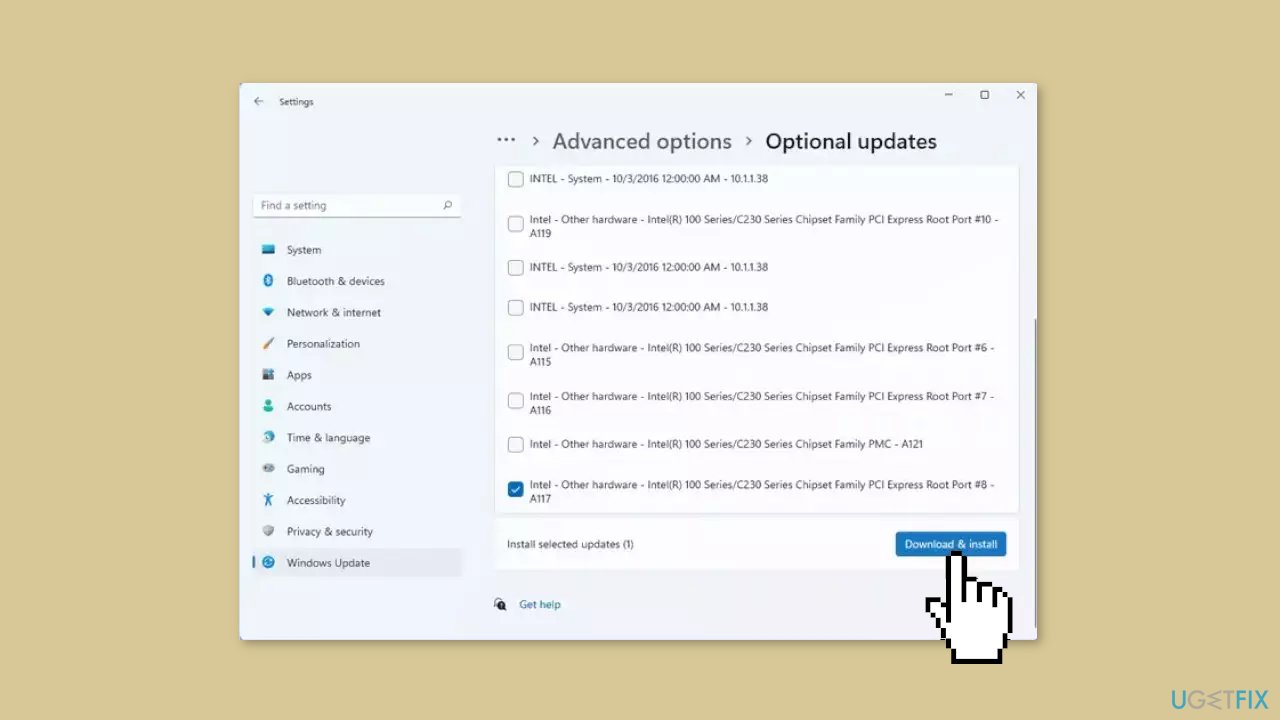
- Check if there are any device driver updates available.
- If there are, you will be able to see them in this section.
- Find the network driver updates and click on the Download & install button.
Method 4. Reset Network
- Right-click on the Start button and go to Settings
- Click on Network & internet in the navigation bar on the left
- Choose Advanced network settings
- Under More settings, click on Network reset
- Click on Reset now
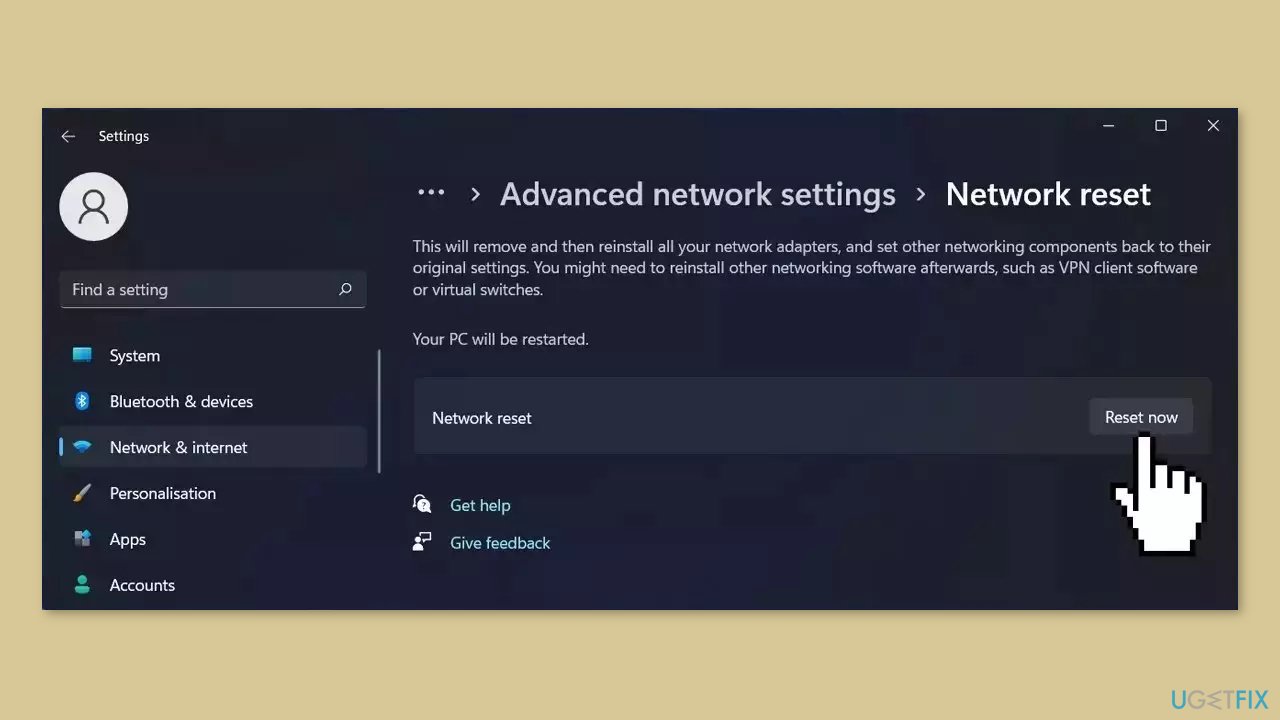
- Your PC will reboot
Method 5. Reset Windows
If none of the previous solutions resolve the issue, consider resetting Windows. Keep in mind that this is a time-consuming process, as the Windows reset will remove all your apps and require reinstallation.
- Press the Windows key + I to open Windows Settings.
- Press on Update & security.
- Click on Recovery in the left pane.
- In the right pane, click on Reset PC next to Reset this PC.
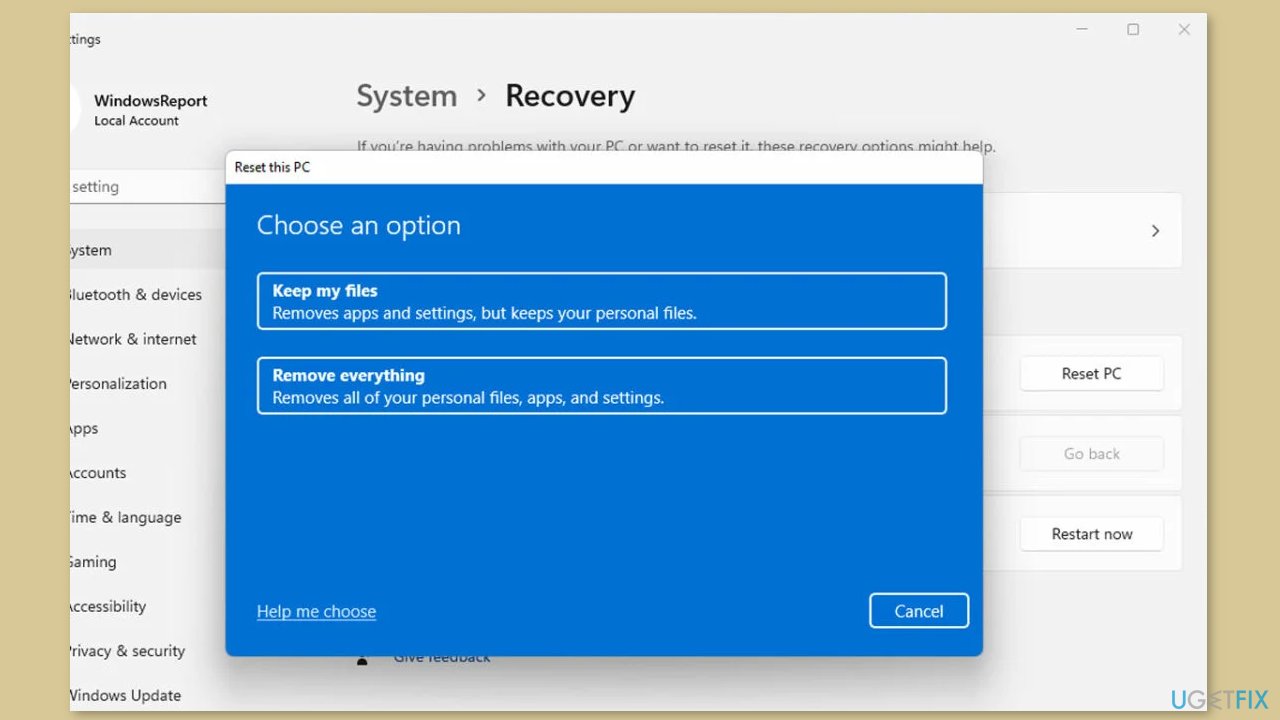
- Click on either Keep my files (if you want the computer to be reset without losing any of the user data stored on it) or Remove everything (if you want the computer to be reset and any and all user data stored on it to be deleted.
- If presented with a warning, simply click on Next.
- When prompted to do so, click on Reset.
Bottom line
To fix network adapter crashing in Windows, you can update drivers and software, disable conflicting applications, and reset network settings. If these steps do not resolve the issue, consider using a maintenance tool to automatically fix system errors.
Frequently asked questions
Common causes include outdated or corrupted drivers, conflicts with third-party software, and hardware issues with the network adapter itself.
You can update your network adapter drivers by going to Device Manager, right-clicking on the network adapter, and selecting 'Update driver' to search automatically for updated driver software.
If resetting the network settings doesn't resolve the issue, consider uninstalling the network adapter from Device Manager and then restarting your computer to allow Windows to reinstall the driver automatically.




Report an issue
What's wrong with this guide? We review every report and update or remove content.
Report received — thank you. We'll review and fix it.
You need a free account to submit a report.
Be the first to comment