How to fix
Network adapter error (Code 31)
on Windows
Resolve Network Adapter error (Code 31) on Windows 10 and 11 easily. Follow our expert-tested solutions for a smooth connection, fixed in minutes.


What causes How to fix Network adapter error (Code 31) in Windows?
- Device not properly connected to the computer
- Cables and connections are damaged or insecure
- Drivers required for the device cannot be loaded
- Corrupted files affecting the network adapter
- Issues with the Windows registry
Repairs Windows system files, removes malware, and restores a clean OS state — without reinstalling.
Hello. Suddenly the network adapter stopped working properly on my Windows computer. I also receive an error with Code 31. What should I do?
A network adapter, also known as a network interface card (NIC), is a hardware device that is installed in a computer and enables it to connect to a network. In Windows, the main function of a network adapter is to provide a connection between the computer and the network, allowing the computer to communicate with other devices on the network and access network resources such as the Internet.
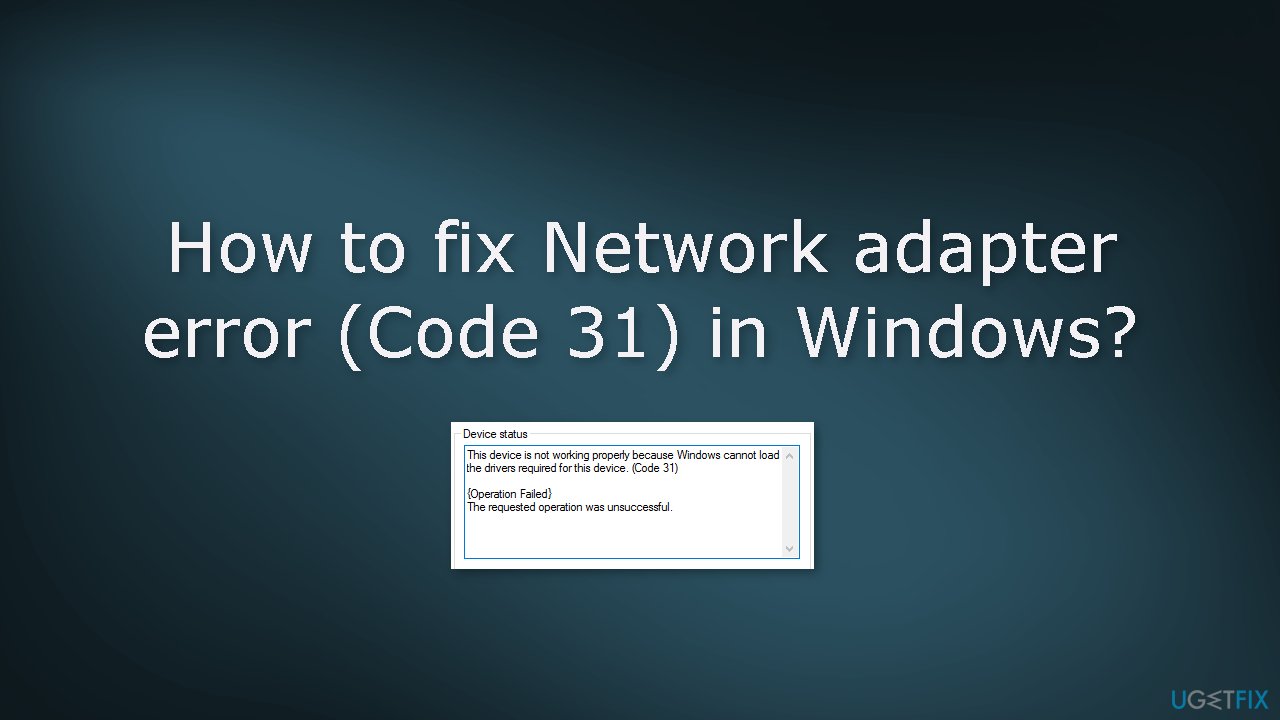
If you are experiencing an issue with your network adapter in Windows, it is possible that you may see an error (Code 31) indicating that the device is not working properly. This can be a frustrating problem as it can prevent you from accessing the internet or other network resources. The full error message reads as follows:
This device is not working properly because Windows cannot load the drivers required for this device. (Code 31)
There are a few different steps you can try to fix this issue and get your network adapter working properly again. The first thing you should do is to make sure that the device is properly connected to your computer. Check the cables and connections to ensure that they are secure and not damaged.
If everything appears to be in order, you can follow the 6 steps in this guide that should help you fix network adapter error (Code 31) in Windows. Keep in mind that the manual troubleshooting process can be lengthy. If you want to avoid it, you can use a maintenance tool like [d1]. It can fix most system errors, BSODs,[ref en-1] corrupted files, registry[ref en-2] issues, or clear cookies and cache.[ref en-3] Otherwise, follow the step-by-step instructions below.
Solution 1. Run Network Adapter Troubleshooter
- Click Start menu and go to Settings
- Click System and press Troubleshoot on the right
- Click Other troubleshooters and find the Network Adapter option
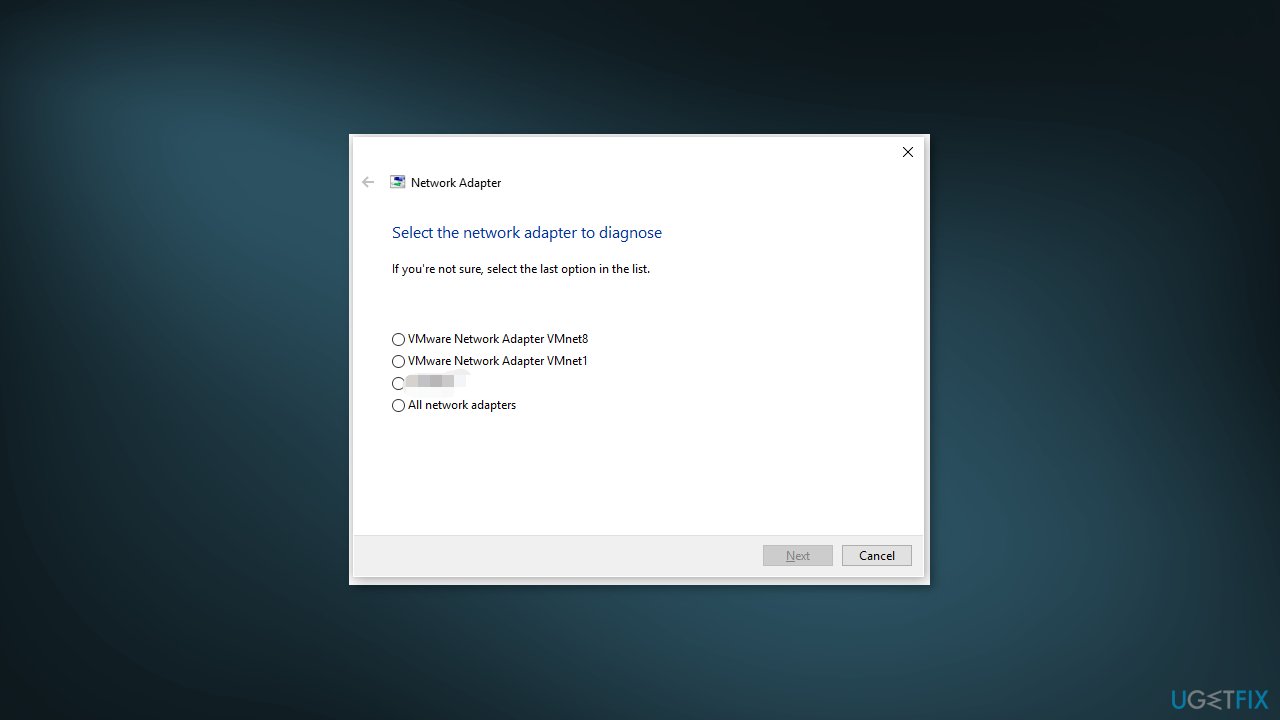
- Click on the Run button next to it
Solution 2. Fix Corrupted System Files
Use Command Prompt commands to repair system file corruption:
- Open Command Prompt as administrator
- Use the following command and press Enter:
sfc /scannow
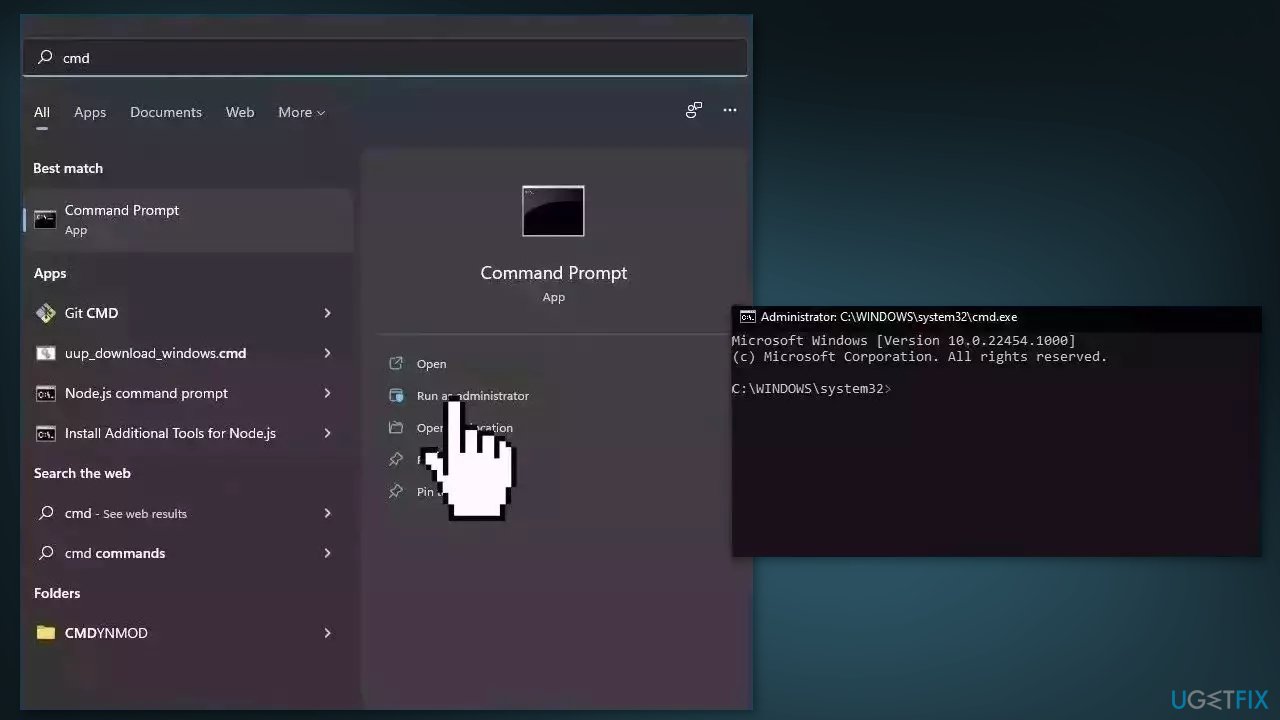
- Reboot your system
- If SFC returned an error, then use the following command lines, pressing Enter after each:
DISM /Online /Cleanup-Image /CheckHealth
DISM /Online /Cleanup-Image /ScanHealth
DISM /Online /Cleanup-Image /RestoreHealth
Solution 3. Update Network Adapter Driver
- Open Settings
- Click on Update & Security
- Click on Windows Update
- Click the Check for updates button
- Click the View optional updates option
- Click the Driver updates tab
- Select the driver you want to update
- Click the Download and install button
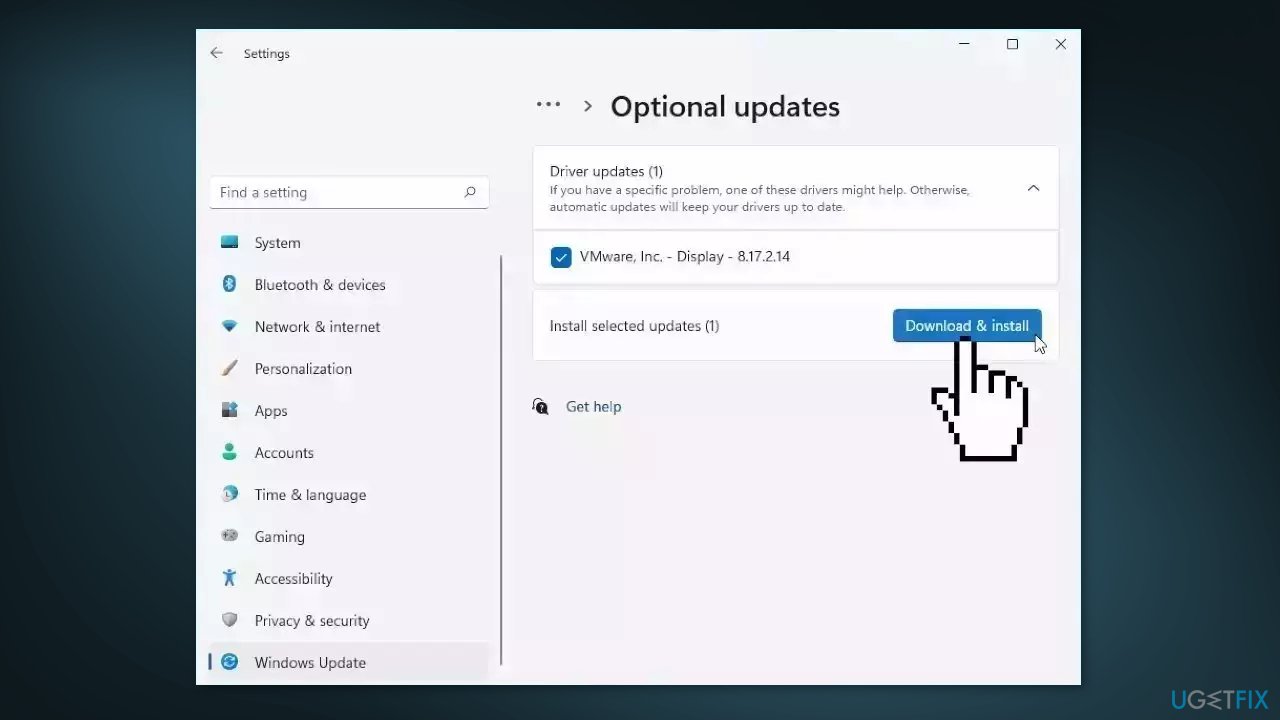
If the View optional updates link is not available after checking for updates, then Windows Update does not have any new drivers or any updates for other products at that particular time.
Solution 4. Reset the Network Adapter
- Press the Windows key + I on your keyboard and click on Network & Internet
- Go to the right pane and click on Advanced network settings
- On the next Settings page, go to the right pane and scroll down to the bottom
- Click on Network reset and then Reset now
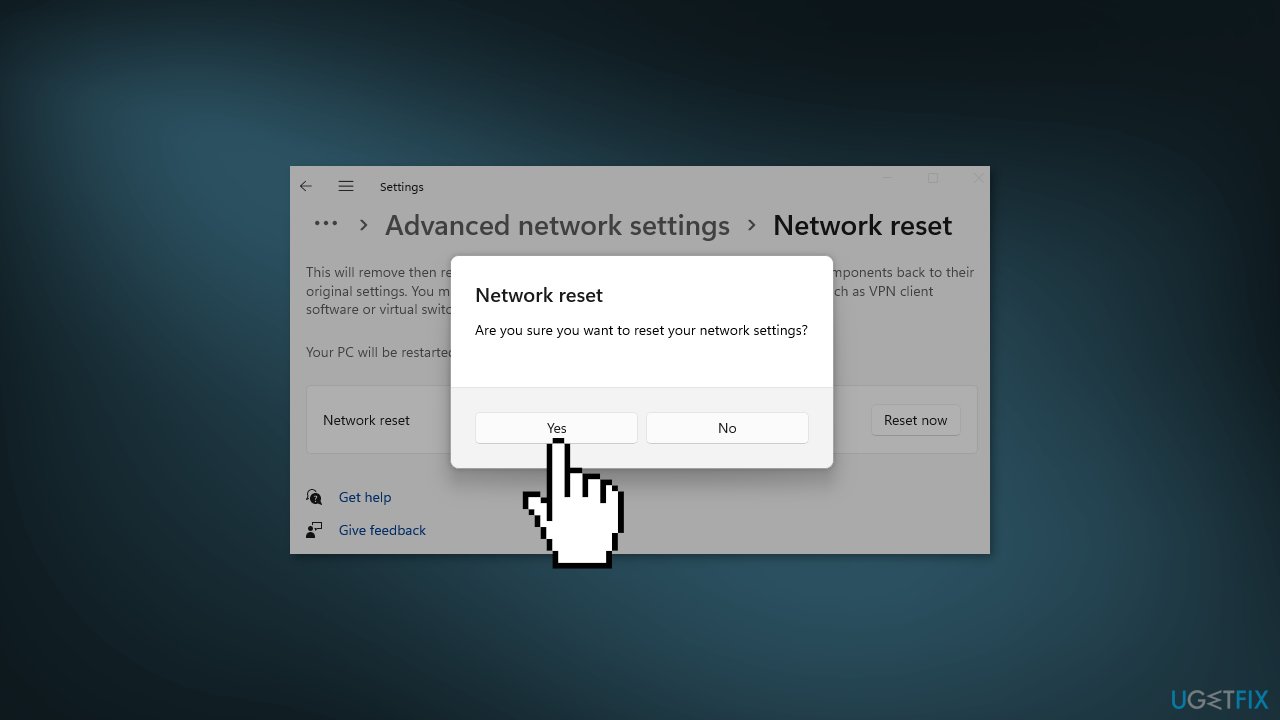
- Wait for the PC to restart and check if the issue is solved
Solution 5. Edit the Registry and Reinstall the Driver
- Press the Windows key + R to open the Run dialog
- Type regedit and hit Enter to open the Registry Editor
- Navigate to the following registry key:
HKEY_LOCAL_MACHINE\SYSTEM\CurrentControlSet\Control\Network
- At the location, on the right pane, right-click on the Config key REG_BINARY type
- Select Delete from the context menu
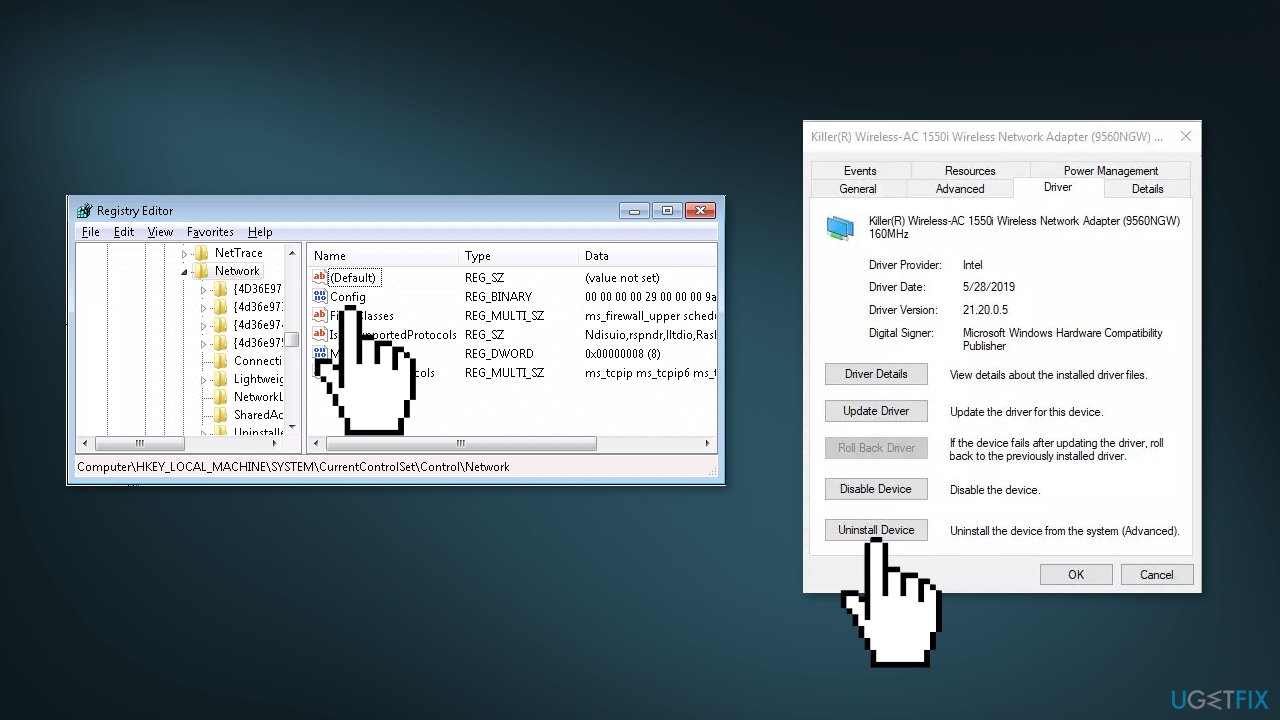
- Exit Registry Editor
- Open the Device Manager and expand Network adapters
- Right-click on your Network driver and select Uninstall device
- Download the latest version of your network driver from your computer manufacturer’s official website
- You can also use an automatic tool, like [rev id="DriverFix"] that can find the best drivers for your device
Solution 6. Use System Restore
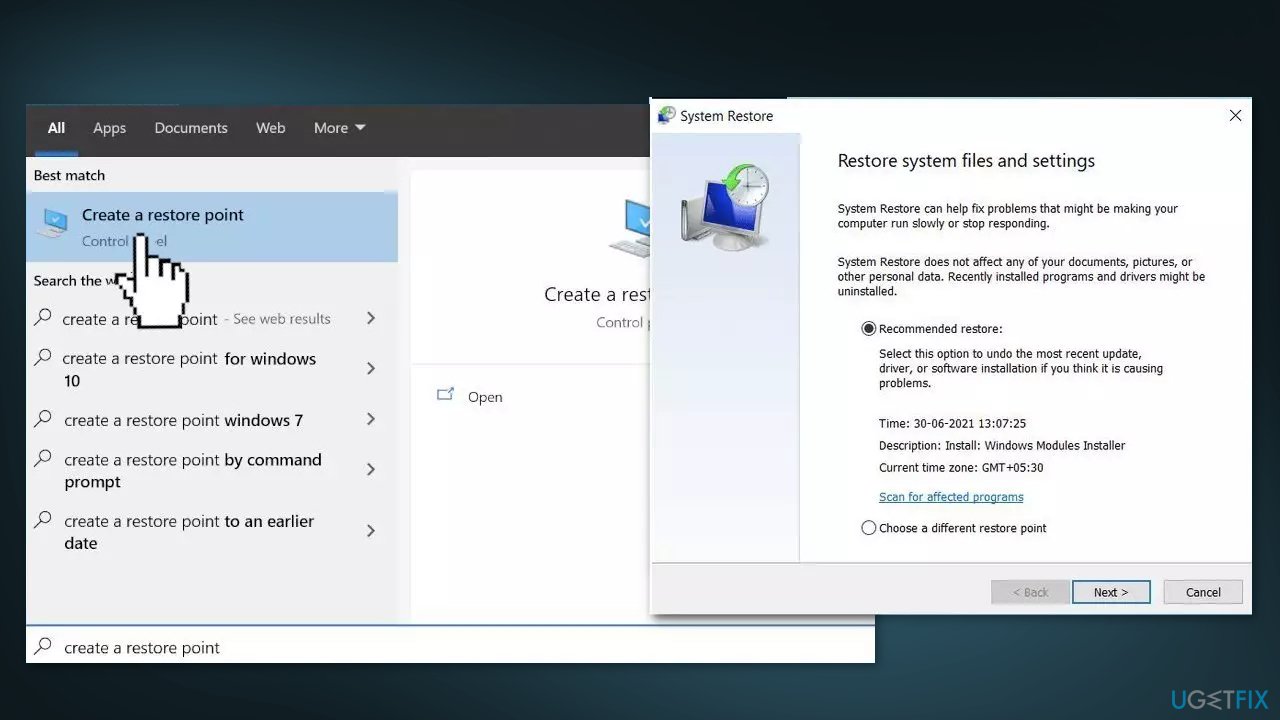
- Go to the Start menu, type
restore, and click on Create a restore point - Click System Restore, then follow the prompts until you can select a restore point
- Select the one you want (ideally before the error appeared) and go ahead with the process
Bottom line
To fix Network adapter error (Code 31) in Windows, you can run the Network Adapter Troubleshooter, check the device connections, and ensure that the drivers are correctly installed. If these steps do not resolve the issue, consider using a maintenance tool to address system errors.
Frequently asked questions
To fix Network adapter error (Code 31) in Windows 10, try updating the network adapter driver through Device Manager or uninstalling and reinstalling the device. Restart your computer afterward to see if the issue is resolved.
No, the methods for fixing Network adapter error (Code 31) in Windows 11 are similar to those in Windows 10, including updating drivers and running the network troubleshooter.
You can check for hardware issues by using the Device Manager to view the device status and running the built-in Windows troubleshooter for network adapters to diagnose potential hardware problems.




Report an issue
What's wrong with this guide? We review every report and update or remove content.
Report received — thank you. We'll review and fix it.
You need a free account to submit a report.
Be the first to comment