How to fix
Network adapter error (Code 37)
on Windows
Resolve Network adapter error (Code 37) in Windows 10 and 11 quickly with our expert-tested solutions. Get back online in minutes, zero traces left!


What causes How to fix Network adapter error (Code 37) in Windows?
- Faulty device driver
- Missing device driver
- Corrupted device driver
- Hardware issues
- System configuration problems
Repairs Windows system files, removes malware, and restores a clean OS state — without reinstalling.
Hello. I received the "Windows cannot initialize the device driver for this hardware. (Code 37)" message referring to the Network adapter. My Internet connection does not work as well. Is there a way to fix this?
A network adapter is a hardware component that enables computers to connect to a network, either wirelessly or through an Ethernet cable. It allows users to send and receive data across a network, such as an internet or a local area network (LAN). When the network adapter fails to initialize, users may experience slow or no internet connection, and their computer may not be able to communicate with other devices on the network.
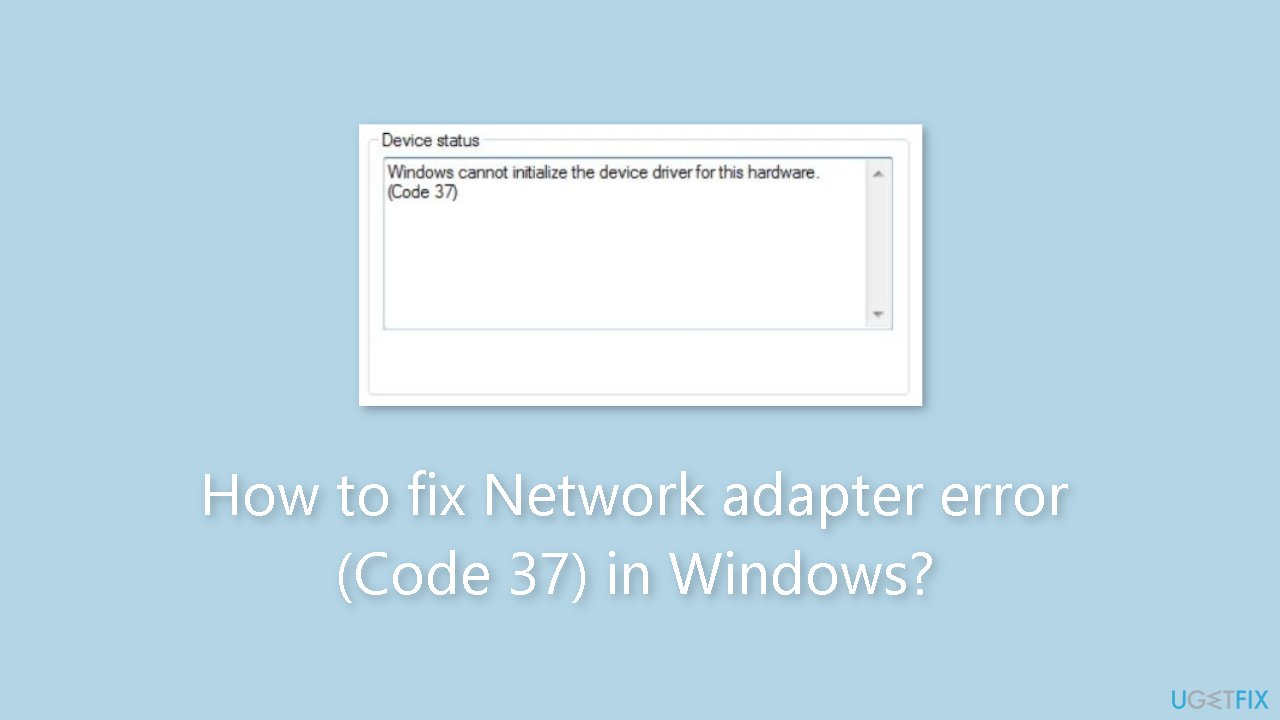
Code 37 is a common error in Windows that users may encounter when trying to use their network adapter. This error is usually caused by a faulty or missing device driver[ref en-1] for the network adapter. When the system fails to initialize the device driver, Windows cannot communicate with the adapter, causing it to malfunction.
The "Windows cannot initialize the device driver for this hardware" message is a common indication of the Code 37 error. This message indicates that the device driver for the network adapter is either missing or corrupted, preventing it from functioning correctly.
To resolve the Code 37 error, users can try a few possible solutions, such as reinstalling or updating the device driver for the network adapter, checking for hardware issues, or performing a system restore. However, the exact solution may vary depending on the cause of the error and the specific configuration of the user's computer.
In this guide, you will find 7 steps that should help you fix Network adapter error (Code 37) in Windows. However, you can also use a maintenance tool like [d1] that can fix most system errors, BSODs,[ref en-2] corrupted files, and registry[ref en-3] issues. Otherwise, follow the step-by-step instructions below.
Method 1. Restart your PC
Restarting the computer is often the first step in troubleshooting many types of errors in Windows, including Code 37 for network adapters. When a computer is restarted, it clears the system memory, stops all running processes and services, and reloads the operating system and device drivers. This process can help to reset any corrupted or misconfigured settings that may be causing the issue.
Restarting the computer can also help to initialize the network adapter correctly during the boot process. If there are any conflicts or errors during the initialization process, a restart can help to clear these issues and allow the adapter to function correctly.
Method 2. Install Windows Updates
- Press the Windows key + R to open the Run box
- Type ms-settings:windowsupdate in the text box and press Enter
- Click the Check for updates button
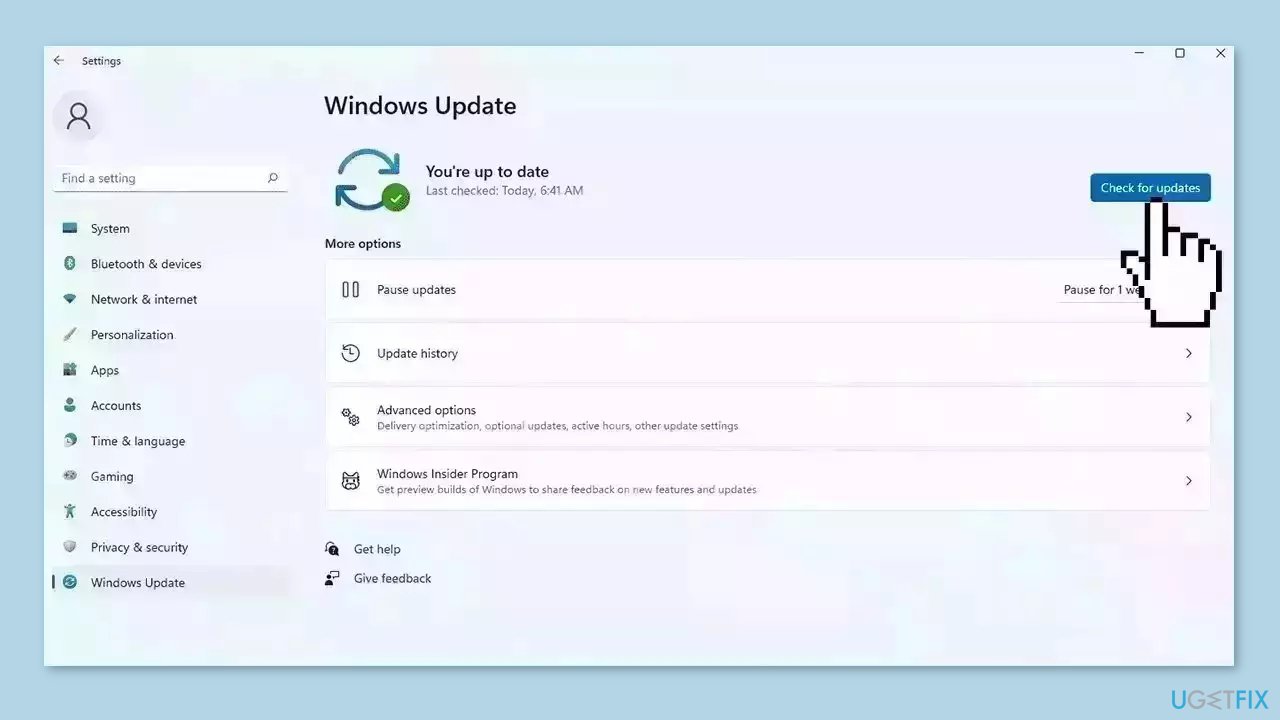
- If a new update is available, click the Download & Install all button.
- Restart your computer after the process is finished and check to see if the problem is fixed
Method 3. Fix Corrupted System Files
Use Command Prompt commands to repair system file corruption:
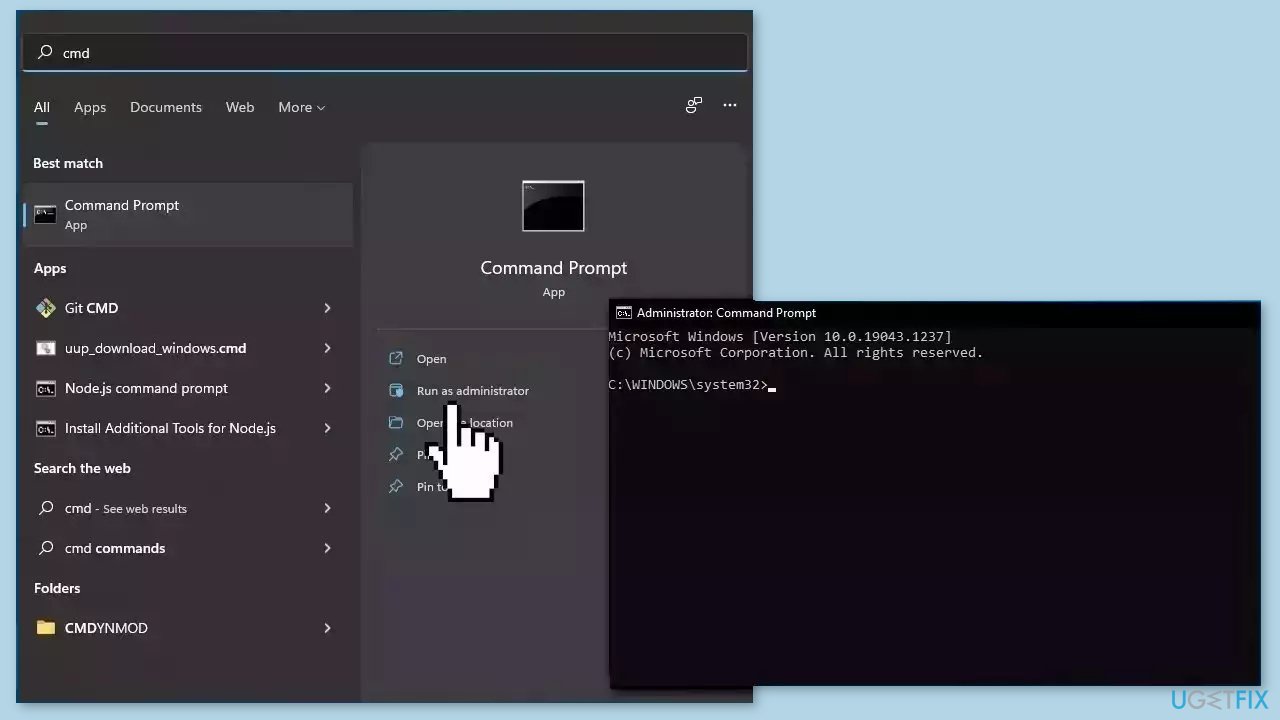
- Open Command Prompt as administrator
- Use the following command and press Enter:
sfc /scannow
- Reboot your system
- If SFC returned an error, then use the following command lines, pressing Enter after each:
DISM /Online /Cleanup-Image /CheckHealth
DISM /Online /Cleanup-Image /ScanHealth
DISM /Online /Cleanup-Image /RestoreHealth
Method 4. Update, Reinstall, or Rollback Driver
Try updating the Network driver to see if it resolves the issue. You can do this automatically by using [rev id="DriverFix"], which will scan your PC for missing and out-of-date device drivers. Or you can update them manually:
- Open Settings.
- Click on Update & Security.
- Click on Windows Update.
- Click the Check for updates button.
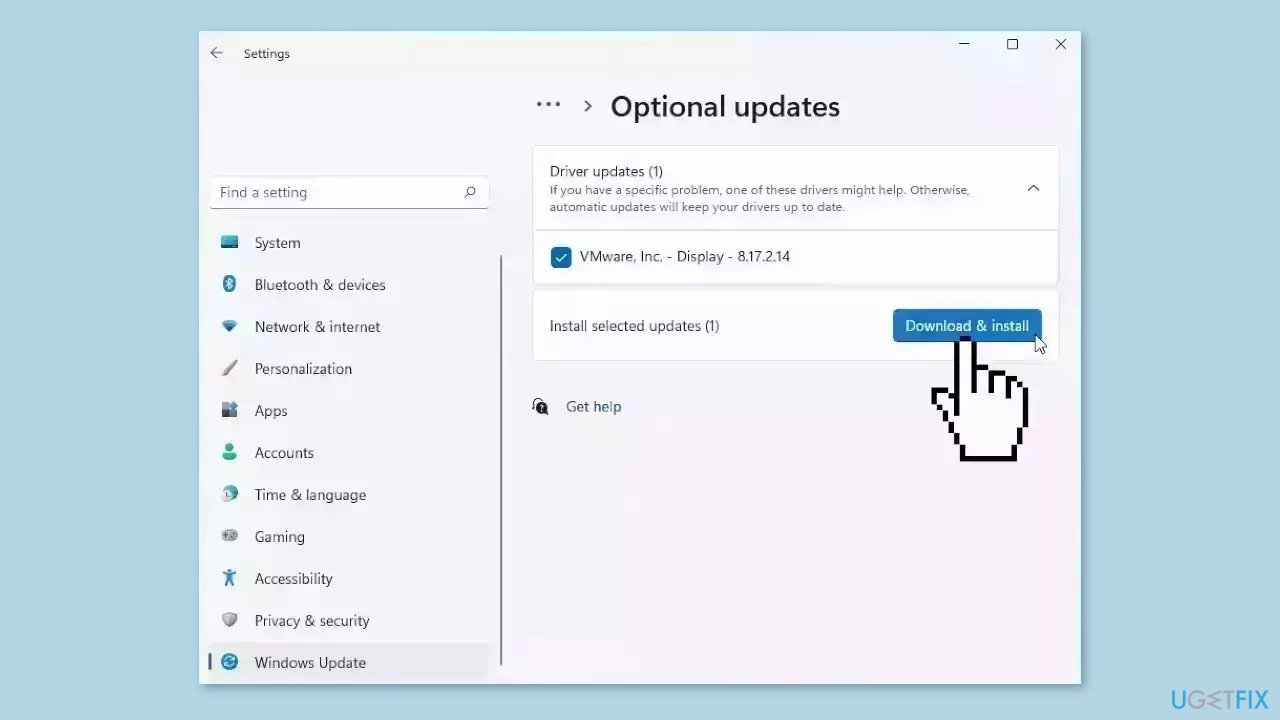
- Click the View optional updates option.
- Click the Driver updates tab.
- Select the driver you want to update.
- Click the Download and install button.
If the View optional updates link is not available after checking for updates, then Windows Update does not have any new drivers or any updates for other products at that particular time. If updating the driver did not work, you can reinstall it, which should get rid of any corruption:
- Open Device manager.
- Look for the Network adapters section and expand it.
- Find your Network adapter in the list.
- Right-click on it and press Uninstall device.
- Press Uninstall again in the confirmation box.
- Wait for the process to finish and restart your machine.
If none of the previous steps helped you solve Code 37, you can roll back the driver:
- Open Device manager.
- Look for the Network adapters section and expand it.
- Find your Network adapter in the list.
- Right-click on it and choose Properties.
- Go to the Driver tab.
- Select Roll Back driver.
Method 5. Scan for Hardware Changes
When Windows scans for hardware changes, it can identify and scan any absent hardware components that could be causing error code 37. This process reinstalls the missing components and improves their responsiveness.
- Open the Run dialog box by pressing the Windows key + R.
- Type devmgmt.msc and press Enter.
- Locate the Universal Serial Bus (USB) and right-click on it.
- Click on Scan for hardware changes.
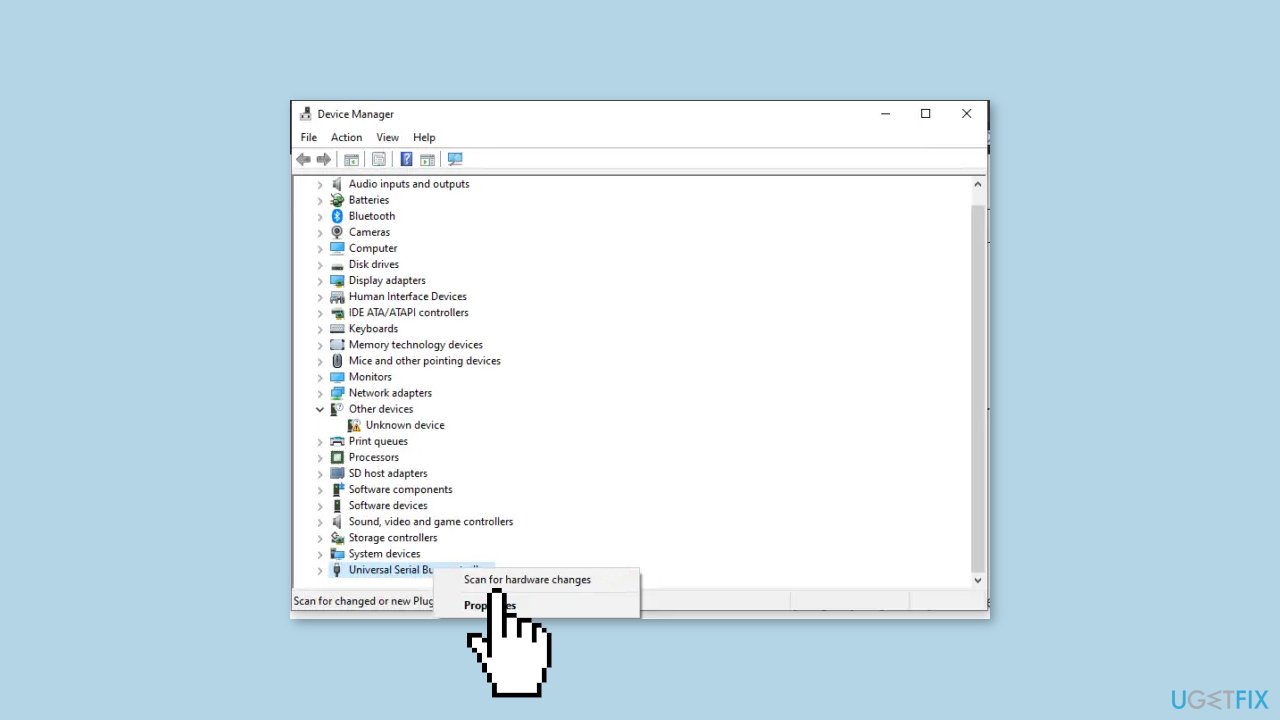
- Wait for the scanning process to complete.
- Restart your computer.
Method 6. Run the Hardware Troubleshooter
- Launch the Command Prompt as an administrator.
- Type or copy and paste the following command:
msdt.exe -id DeviceDiagnostic
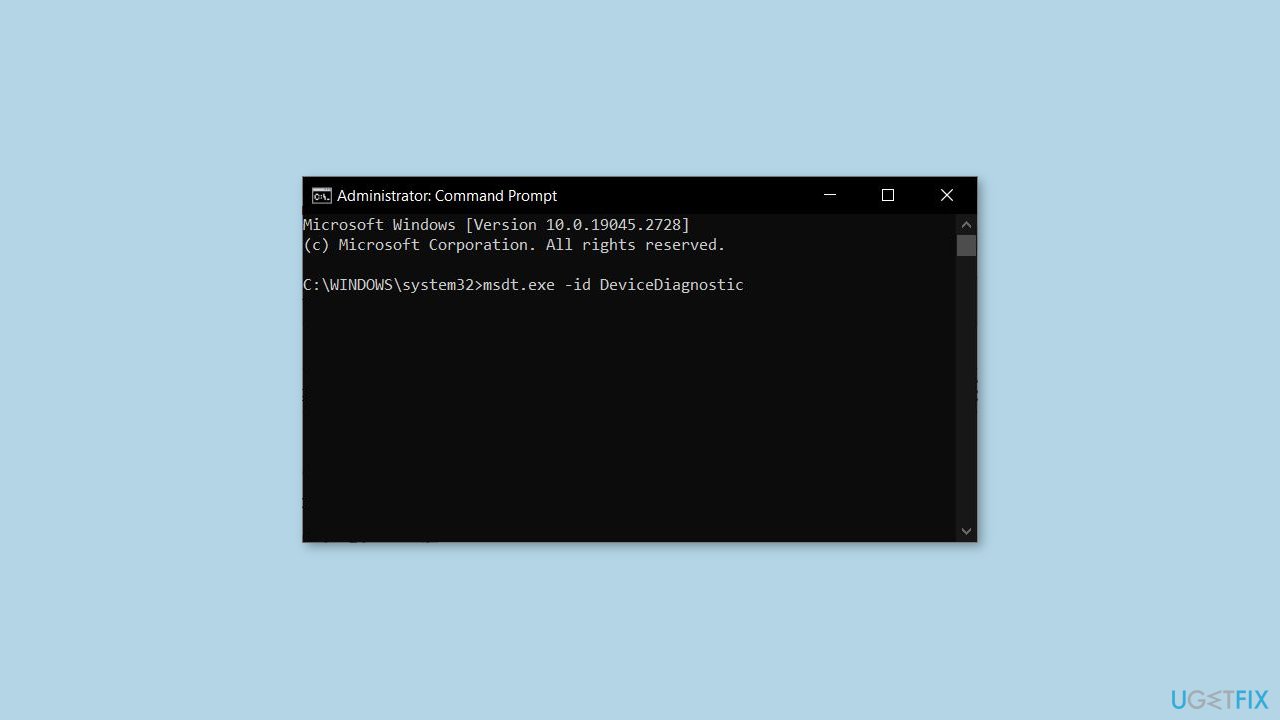
- Hit Enter and follow the on-screen prompts.
Method 7. Use System Restore
System Restore is a feature in Microsoft Windows that allows users to revert their computer's state to a previous point in time. This can be helpful if you have made changes to your system that are causing problems.
- Press the Windows key + R on your keyboard to open the Run box.
- Type SystemPropertiesProtection and press Enter.
- Go to the System Protection tab.
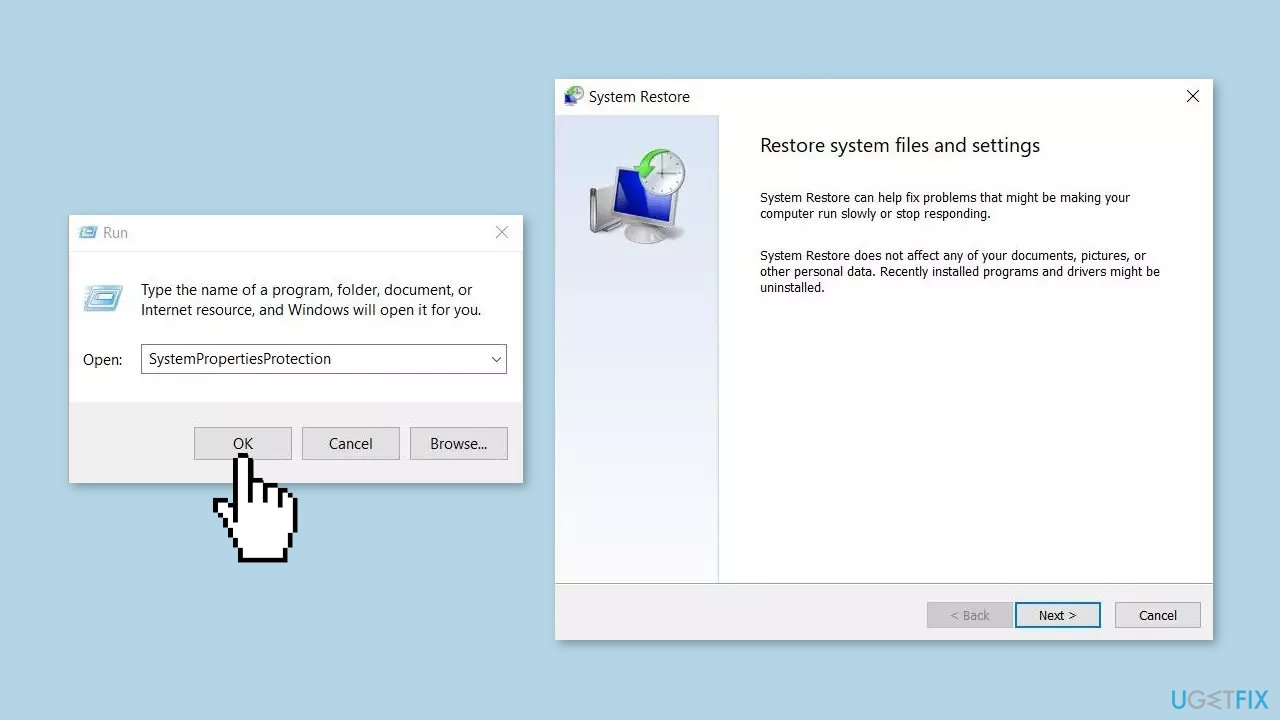
- You will see the System Restore… button. Click it to run System Restore.
- Follow the prompts until you can select a restore point.
- Select the one you want (ideally before the issue started occurring) and go ahead with the process.
Bottom line
To resolve the Code 37 error, users can try reinstalling or updating the device driver for the network adapter, checking for hardware issues, or performing a system restore. If these solutions do not work, consider using a maintenance tool to fix system errors.
Frequently asked questions
Network adapter error (Code 37) indicates that the driver for your network adapter is not functioning properly due to a corrupted or missing driver. This can prevent your device from connecting to the internet.
You can resolve this error by uninstalling the network adapter driver from Device Manager and then restarting your computer, which will prompt Windows to reinstall the driver automatically.
Yes, you can try updating the network adapter driver manually through Device Manager, or use the Windows Network Troubleshooter to detect and fix the issue.




Report an issue
What's wrong with this guide? We review every report and update or remove content.
Report received — thank you. We'll review and fix it.
You need a free account to submit a report.
Be the first to comment