How to fix
Network Adapter missing from Device Manager
on Windows
Resolve the missing Network Adapter issue in Windows 10 or 11 effortlessly. Follow our expert-tested tips for quick fixes and regain connectivity!


What causes How to fix Network Adapter missing from Device Manager in Windows?
- Network Adapter has failed or is failing
- Drivers for the Network Adapter are corrupted or outdated
- System updates or software installations interfere with the Network Adapter
- Underlying system file corruption
- Other Windows-related problems
Repairs Windows system files, removes malware, and restores a clean OS state — without reinstalling.
For an unknown reason at the time, my internet simply disappeared, and I was no longer connected. I checked the Device Manager and saw that the Network adapter is missing. I have now no clue how to proceed here, so I'd like to receive some tips to resolve this.
The internet is a fundamental part of modern life, powering everything from business communication to social interaction. At the core of any internet connection in a computer is a hardware component known as the Network Adapter. This crucial piece facilitates communication between your computer and the network.
In Windows operating systems, the Network Adapter is usually managed through a system application called Device Manager. Device Manager lists all hardware components installed in your computer, allowing you to view their status, update drivers, or troubleshoot issues.
However, some users experience a troubling issue where the Network Adapter is missing from Device Manager. When this happens, the internet connection usually ceases to function. There are several reasons why this could occur. One possibility is that the Network Adapter has failed or is failing, leading the operating system to not recognize it.
Another reason could be that the drivers for the Network Adapter are corrupted or outdated. System updates or software installations could also interfere with how the Network Adapter interacts with the operating system, causing it to disappear from Device Manager.
In rare cases, the issue might stem from underlying system file corruption or other Windows-related problems. These could disable the Network Adapter or cause Device Manager to not display it, even though the hardware is intact and functional.
There are solutions to resolve this issue, ranging from simple fixes like restarting your computer to more complex procedures like manually reinstalling drivers. Some issues may require advanced troubleshooting or even hardware replacement. A comprehensive guide to these solutions can be found below this article.
If you're looking for a quick and effective way to resolve this and similar issues, consider using the [d1] PC repair tool. This tool is designed to automatically fix system file damage and various Windows problems, making it an excellent choice for users seeking an immediate solution.
Fix 1. Restart your computer
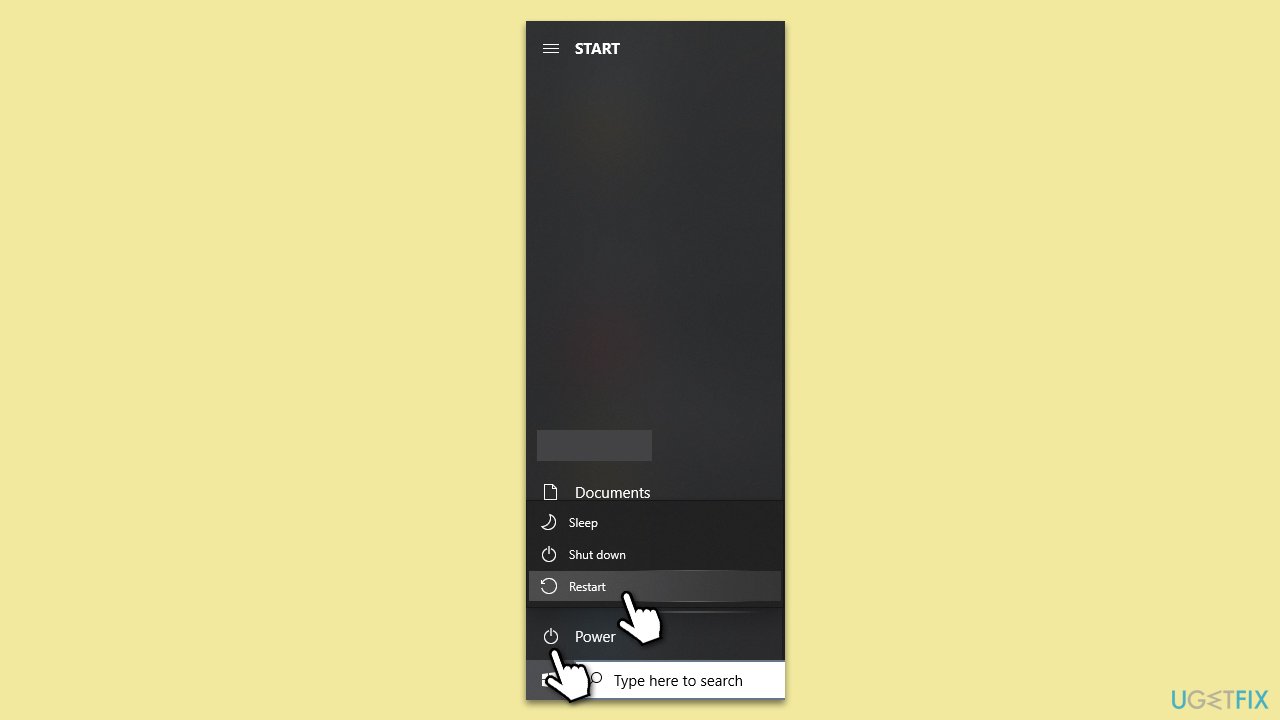
Restarting the computer can solve a variety of issues by refreshing the operating system and clearing any corrupt temporary data. It might bring back the missing Network Adapter in Device Manager.
- Click on the Windows Start menu.
- Select the power icon.
- Choose Restart.
Fix 2. Use Show the Hidden Drivers option
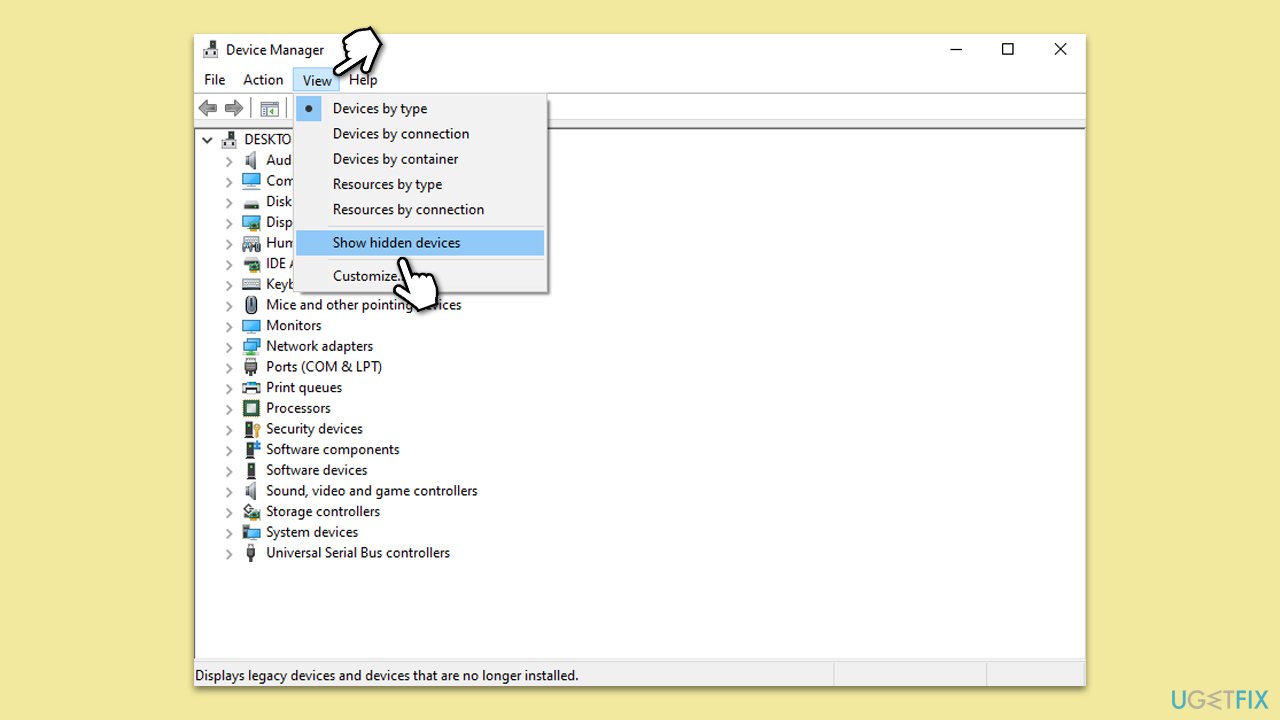
Sometimes, the drivers are hidden and not visible in the Device Manager. Displaying hidden drivers can make them accessible again.
- Type Device Manager in Windows search and press Enter.
- Click on View.
- Select Show hidden devices
- Look for your Network Adapter - it should now show up in the list.
Fix 3. Run Network troubleshooter
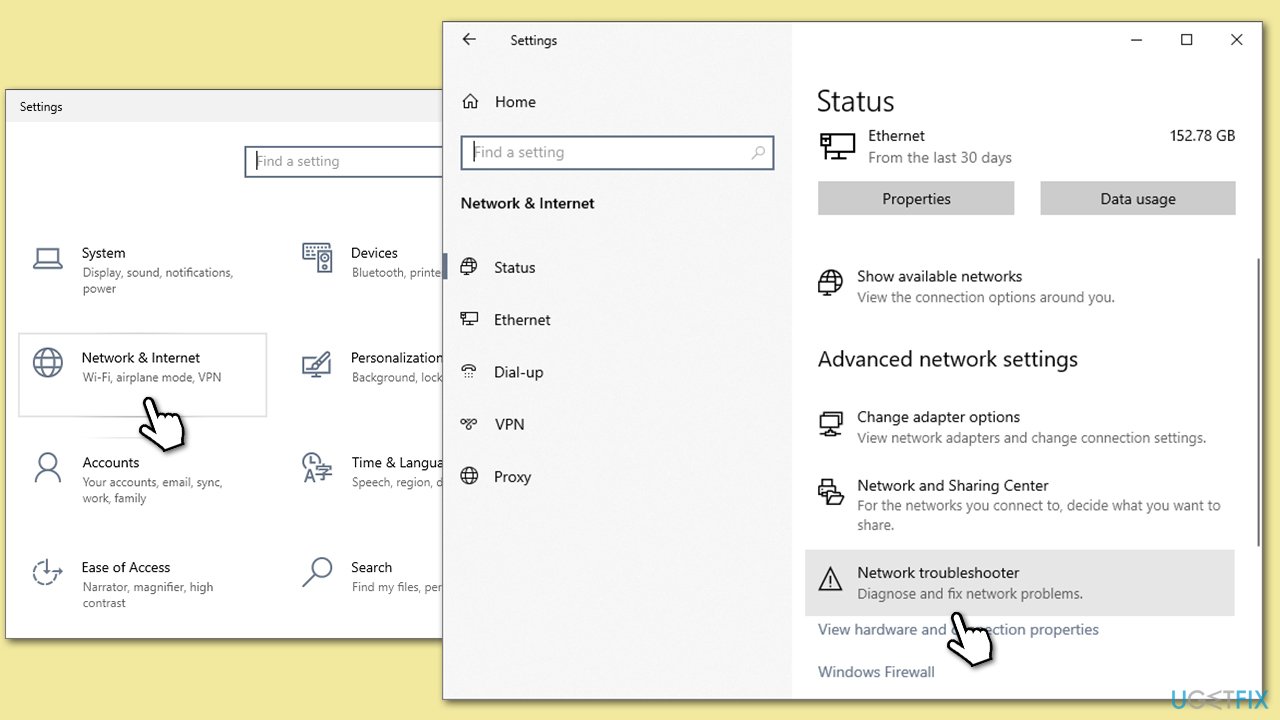
Windows has built-in troubleshooting tools designed to automatically detect and fix common issues with network connections.
- Right-click on Start and pick Settings.
- Go to the Network & Internet section.
- On the right side, find the Advanced network settings section.
- Click Network troubleshooter and wait.
- Apply the recommended fixes.
Fix 4. Update Network Adapter drivers
Outdated or corrupt drivers could be the reason why your Network Adapter is missing. There are several ways you could do this. First, we recommend making sure that all Windows updates are installed:
- Type Updates in Windows search and press Enter.
- Click Check for updates and wait.
- Install all the optional updates as well.
- Restart your system.
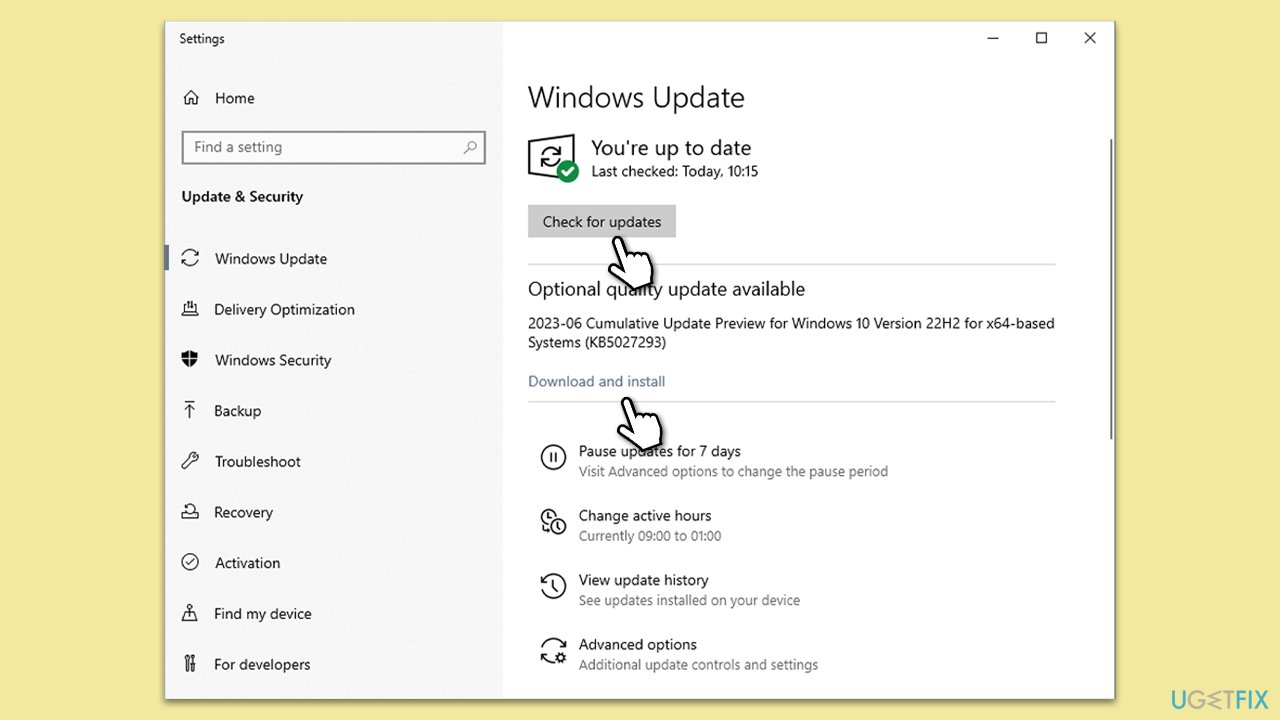
If that does not help the situation, you can either download the latest driver from your device manufacturer (you should know the brand and type of your network adapter) or use an automatic approach with tools like [rev id="DriverFix"].
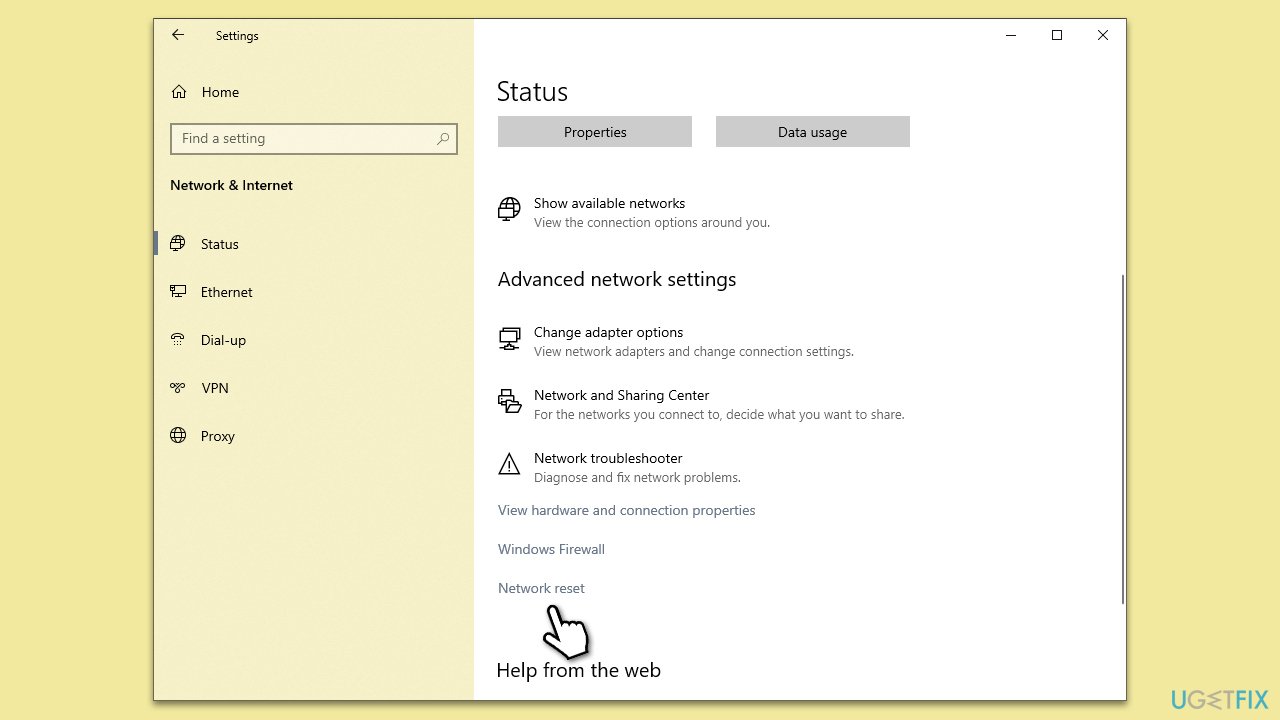
Fix 5. Use Network Reset
This feature reinstalls and sets network components back to their default settings.
- Open Settings.
- Go to Network & Internet.
- Under Advanced network settings, click Network reset.
- Confirm the action and then restart your PC.
Fix 6. Run ipconfig commands and reset Winsock
Resetting IP configurations and Winsock can resolve network issues by refreshing the network stack.
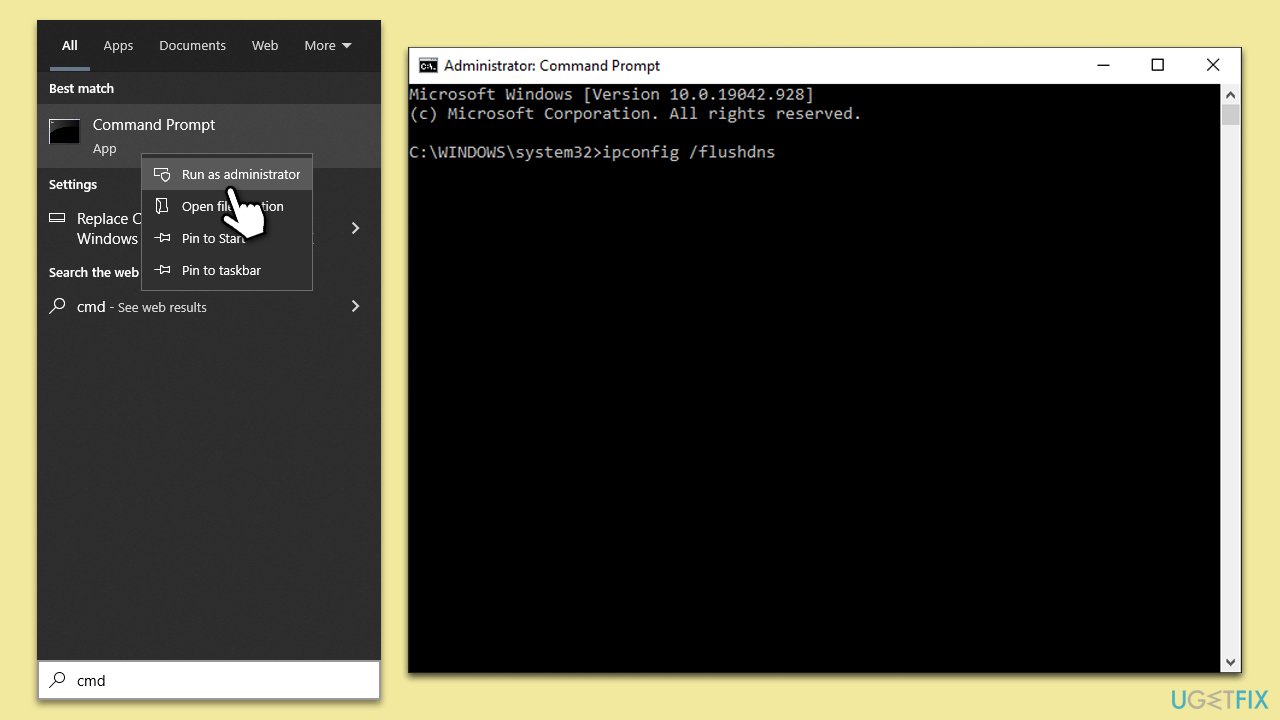
- Type in cmd in Windows search.
- Right-click on Command Prompt and select Run as administrator.
- User Account Control will ask you whether you allow making changes to the system - click Yes.
- Copy and paste each of the following commands, pressing Enter after each:
ipconfig /flushdns
ipconfig /registerdns
ipconfig /release
ipconfig /renew
netsh winsock reset - Restart your computer.
Fix 7. Run SFC and DISM
System File Checker (SFC) and Deployment Imaging Service and Management Tool (DISM) can repair corrupt system files that might be affecting your Network Adapter.
- Open Command Prompt as administrator.
- In the Command Prompt window, paste the following command and hit Enter:
sfc /scannow - Next, use the following commands, pressing Enter each time:
Dism /Online /Cleanup-Image /CheckHealth
Dism /Online /Cleanup-Image /ScanHealth
Dism /Online /Cleanup-Image /RestoreHealth
(Note: if you get an error executing this last command, add /Source:C:\RepairSource\Windows /LimitAccess to it and try again). - Reboot your device.

Fix 8. Check hardware
Faulty hardware can be the reason for missing Network Adapter. Ensure the Network Adapter is properly seated in its slot, or consider replacing it.
- Turn off your computer.
- Open the computer case.
- Check or reseat the Network Adapter.
- Turn on your computer and check Device Manager.
Bottom line
To fix the missing Network Adapter issue, you can try simple solutions like restarting your computer or more complex procedures such as manually reinstalling drivers. If these methods do not resolve the problem, consider seeking advanced troubleshooting or hardware replacement.
Frequently asked questions
First, try restarting your computer and checking Device Manager again. If it’s still missing, run the Network Troubleshooter from the Settings app under 'Network & Internet' to diagnose the issue.
You can restore the network adapter by updating your network drivers through the Device Manager or by downloading the latest drivers from the manufacturer's website. If that doesn't work, consider running the 'Hardware and Devices' troubleshooter.
Yes, ensure that your network adapter is enabled in the BIOS settings and check for any Windows updates that might resolve compatibility issues.




Report an issue
What's wrong with this guide? We review every report and update or remove content.
Report received — thank you. We'll review and fix it.
You need a free account to submit a report.
Be the first to comment