How to fix
“Network Discovery is turned off” error
on Windows
Resolve the "Network Discovery is turned off" error in Windows 10 and 11 effortlessly. Enjoy seamless connectivity with expert-tested solutions.

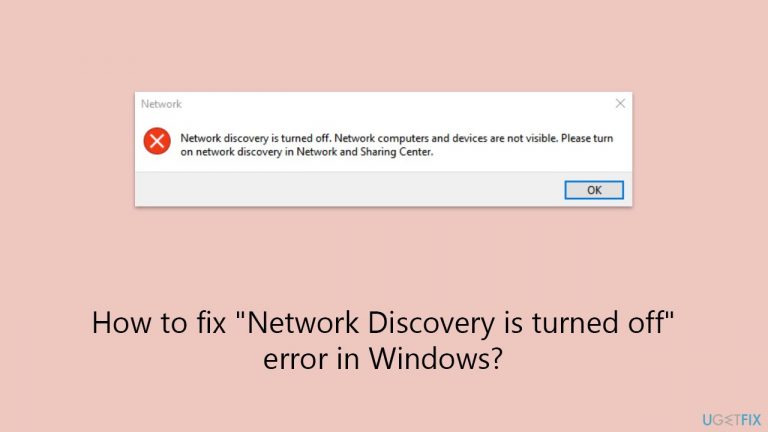
What causes How to fix “Network Discovery is turned off” error in Windows?
- Changes in network settings
- Recent updates
- Security software interventions
- Disabled essential services
- Firewall configurations blocking network discovery
Repairs Windows system files, removes malware, and restores a clean OS state — without reinstalling.
Hey everyone, I'm running into an issue on my Windows PC where it keeps saying "Network Discovery is turned off" every time I try to view other devices on my network. I'm not sure what caused this or how to fix it. Could really use some help getting Network Discovery working again.
Windows' essential Network Discovery function enables PCs and other devices to locate one another on a network. This function is essential for smooth communication between devices connected to the same network, as well as for sharing files and printers. If Network Discovery is enabled, your device can engage in network activities, be visible to other devices, and be able to locate others. But occasionally, users run into a problem where Network Discovery is turned off, which might impair sharing and connectivity.
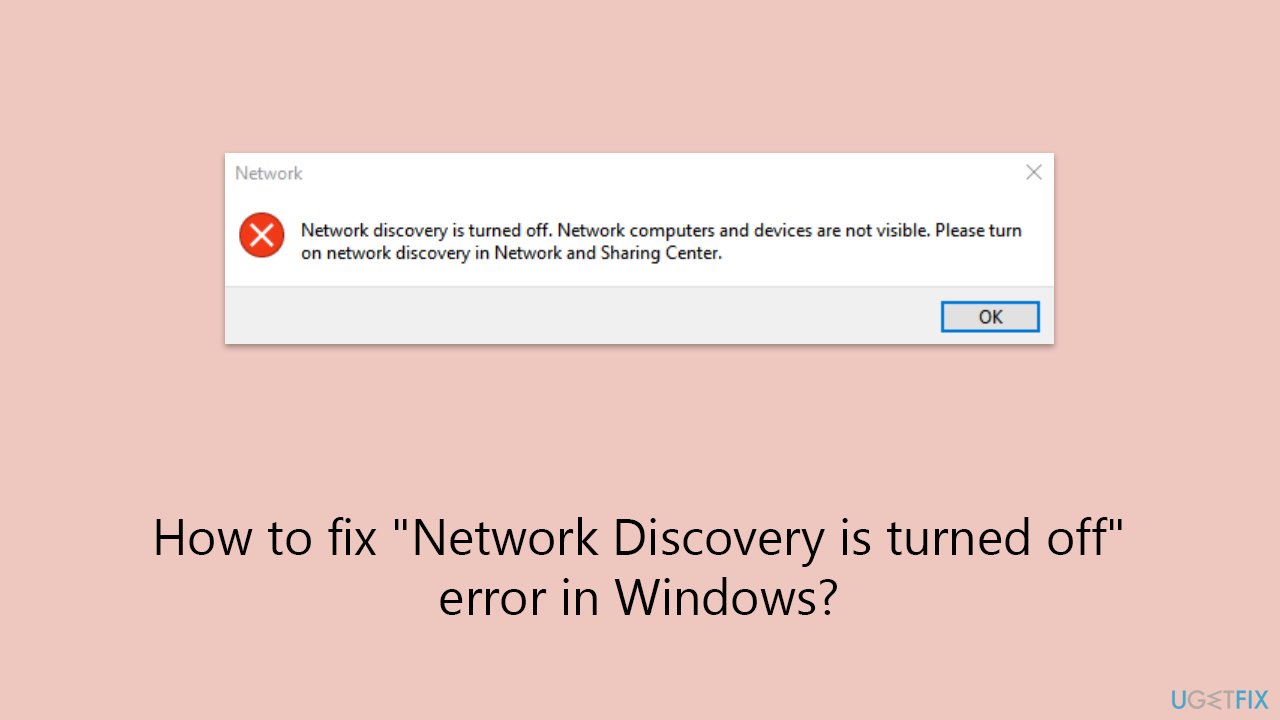
The "Network Discovery is turned off" error typically appears when attempting to access network resources like shared folders or printers, effectively isolating the device from network interactions. This error can arise from various scenarios including changes in network settings, recent updates, or security software interventions. It's a common problem that signals the device's inability to communicate over the network, necessitating a dive into settings to rectify the situation.
Addressing the "Network Discovery is turned off" error usually involves navigating the Windows settings to manually turn Network Discovery back on. However, the cause might be more complex, involving network policies, firewall settings, or services that are essential for network discovery and file sharing.
For example, services such as DNS Client, Function Discovery Resource Publication, SSDP Discovery, and UPnP Device Host play critical roles in the proper functioning of Network Discovery. If these services are disabled or malfunctioning, Network Discovery might not work as expected.
Furthermore, firewall configurations can block the necessary network discovery features. Adjusting firewall settings to allow for network discovery and file sharing is often required to resolve this issue. In environments with multiple network profiles (private, public, and domain), the settings for each can affect how Network Discovery operates, necessitating a review and adjustment of these profiles to ensure that Network Discovery is enabled for the correct network type.
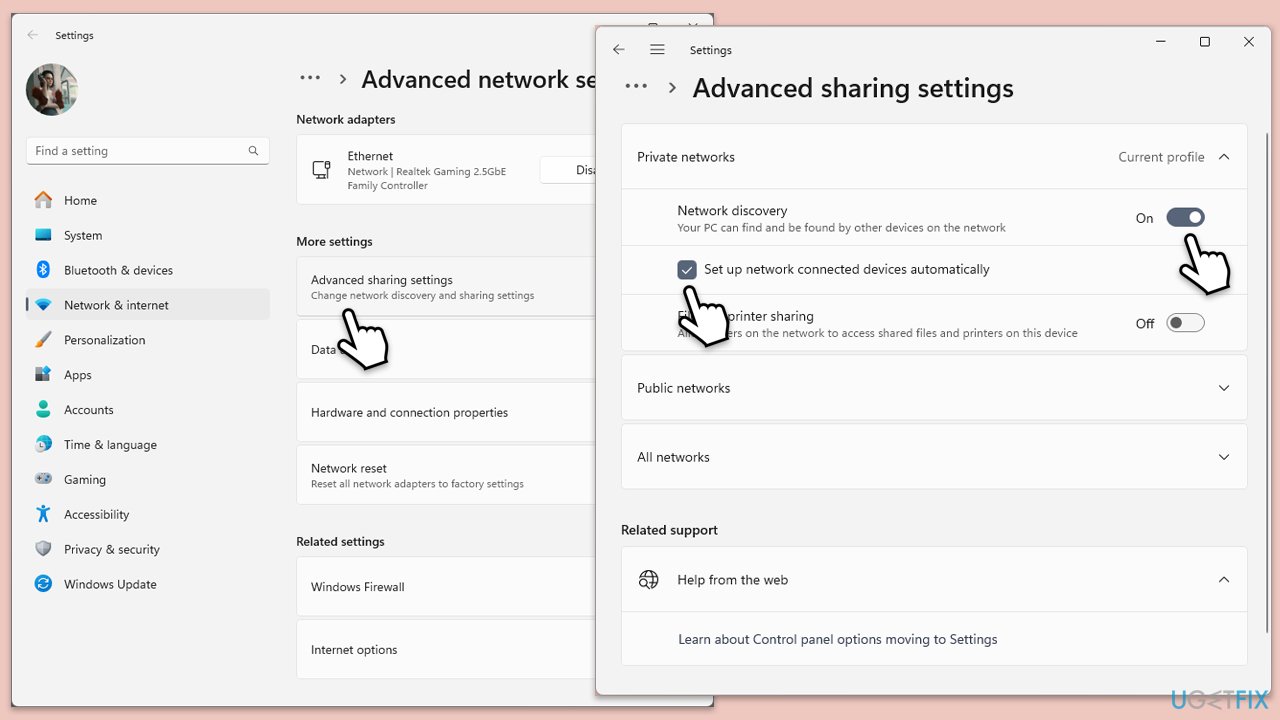
Fix 1. Enable Network Discovery in Network and Sharing Center
This enables your computer to see other devices and be seen on the network.
- Click on Start and pick Settings.
- Go to Network & Internet.
- Select Advanced sharing settings on the left pane.
- Expand your current network profile (Private, Guest, or Public).
- Turn on network discovery and also check Setup of network connected devices automatically checkbox.
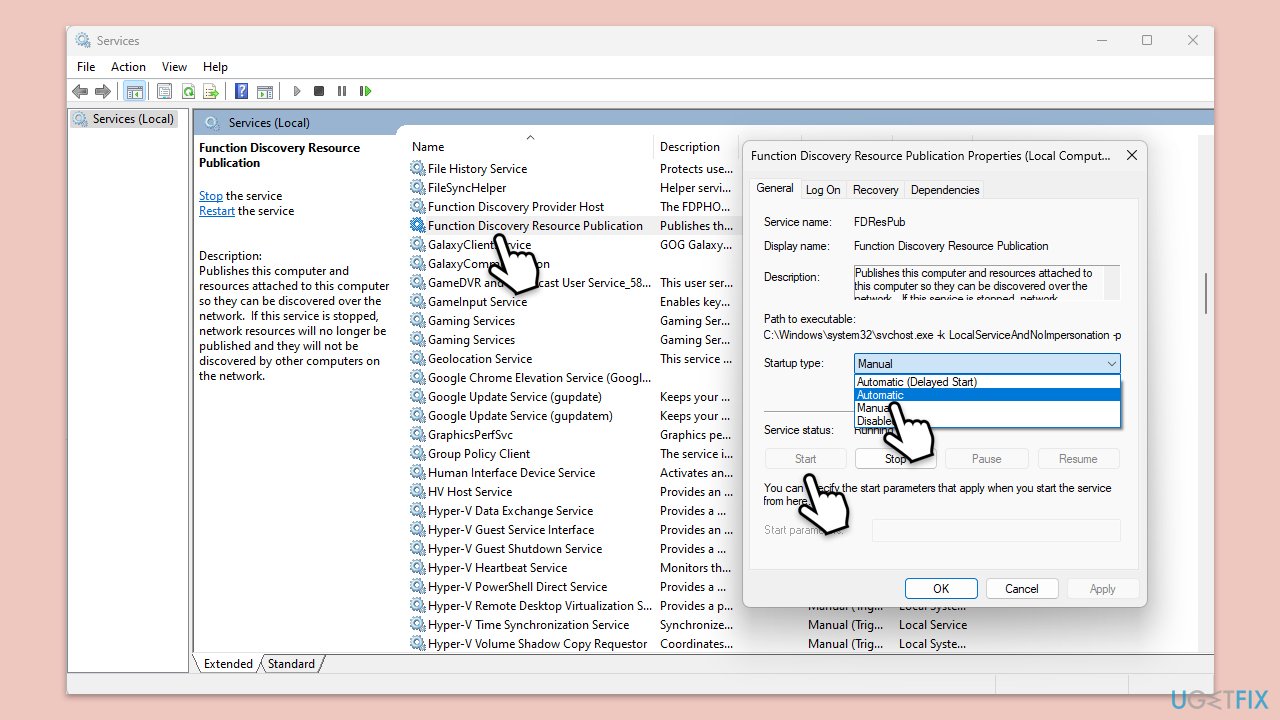
Fix 2. Start the necessary services
Certain services must be running for Network Discovery to work.
- Type Services in Windows search and press Enter.
- Find the following services:
DNS Client
Function Discovery Resource Publication
SSDP Discovery
UPnP Device Host - For each service, right-click it, select Properties, set Startup type to Automatic, and click Start if they are not running.
- Click OK and close the Services window.
Fix 3. Configure Windows Firewall
Ensuring Windows Firewall is not blocking Network Discovery.
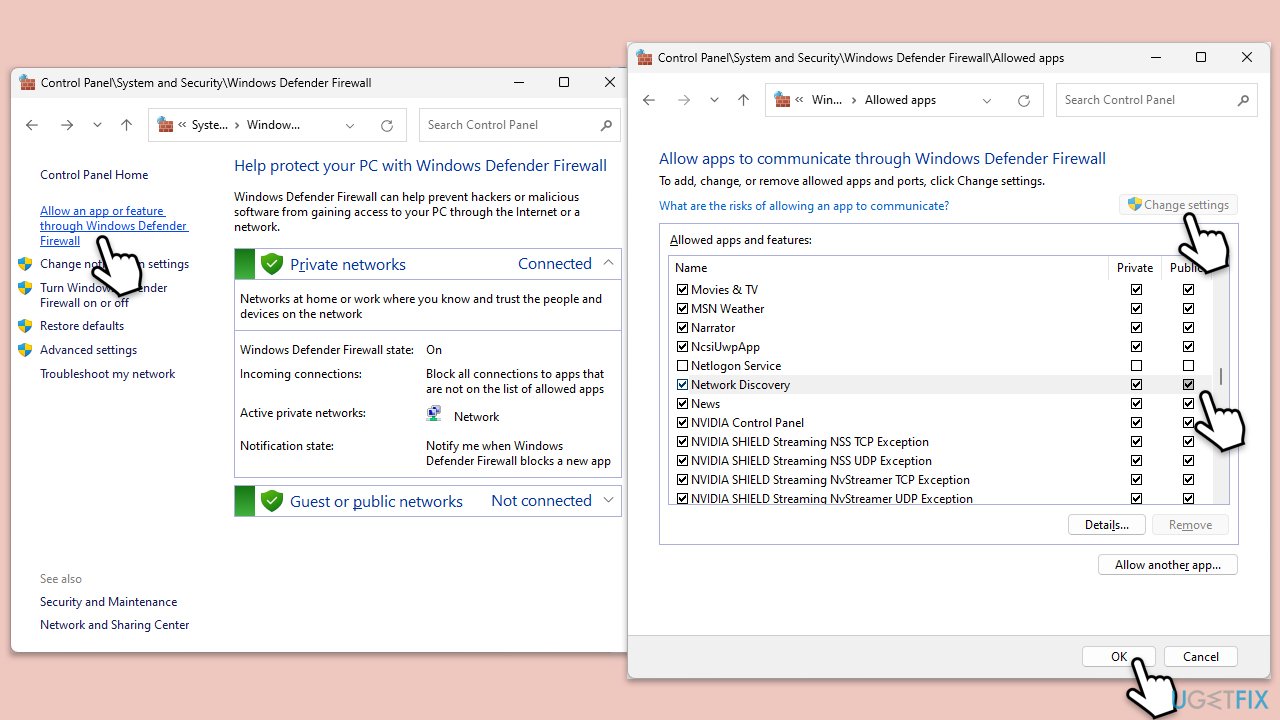
- Open the Control Panel, go to System and Security, then Windows Defender Firewall.
- Click Allow an app or feature through Windows Defender Firewall.
- Click Change settings (you might need administrator permission).
- Ensure Network Discovery is allowed for Private and Public networks.
- Click OK after enabled.
Fix 4. Use Network Troubleshooter
Running the built-in troubleshooters can resolve network issues.
Windows 11
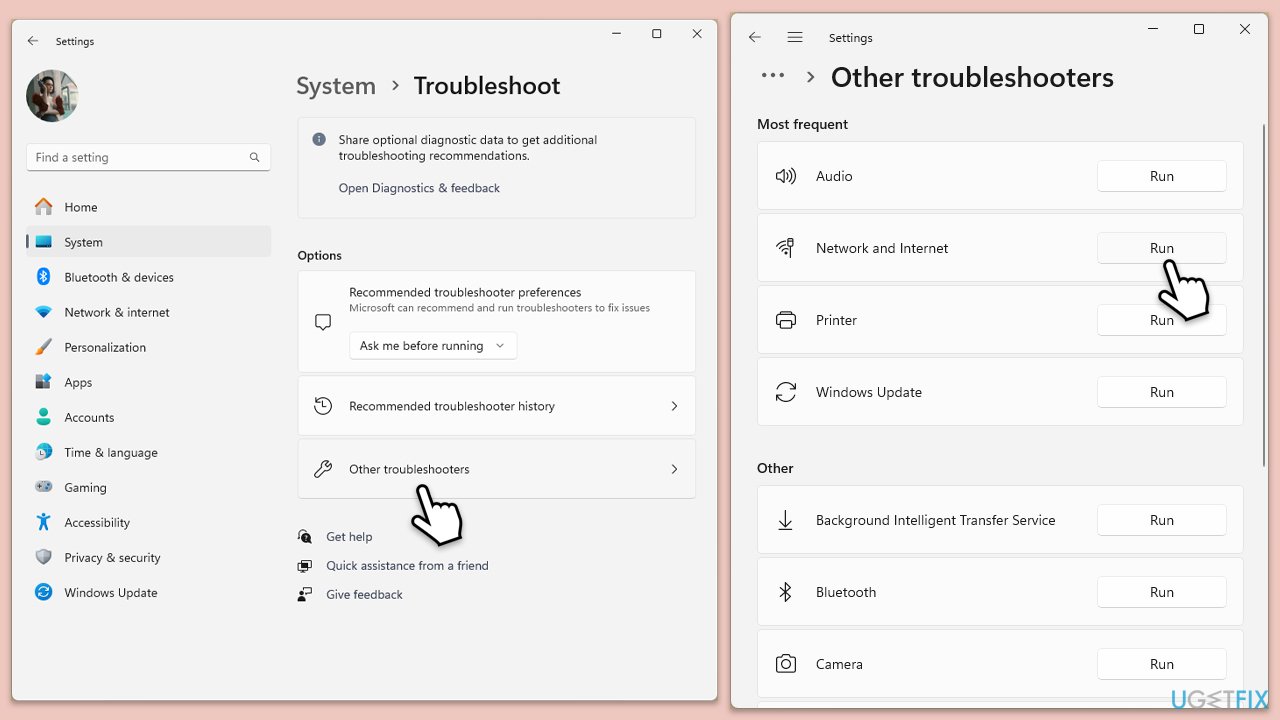
- Type Troubleshoot in Windows search and press Enter.
- Select Other troubleshooters.
- Find Network & Internet troubleshooter from the list and select Run.
- Wait till the process is finished and apply the offered fixes.
- Restart your device.
Windows 10
- Right-click on Start and pick Settings.
- Go to the Network & Internet section.
- On the right side, find the Advanced network settings section.
- Click Network troubleshooter and wait.
- The fixes will be automatically applied.
Fix 5. Turn off third-party security software
Third-party antivirus and firewall programs can interfere with network discovery.
- Temporarily disable any third-party antivirus or firewall software you are using.
- Check if this resolves the issue. If so, consider adjusting the software’s settings or switching to another program.
Fix 6. Reset network settings
This can resolve underlying network configuration issues.
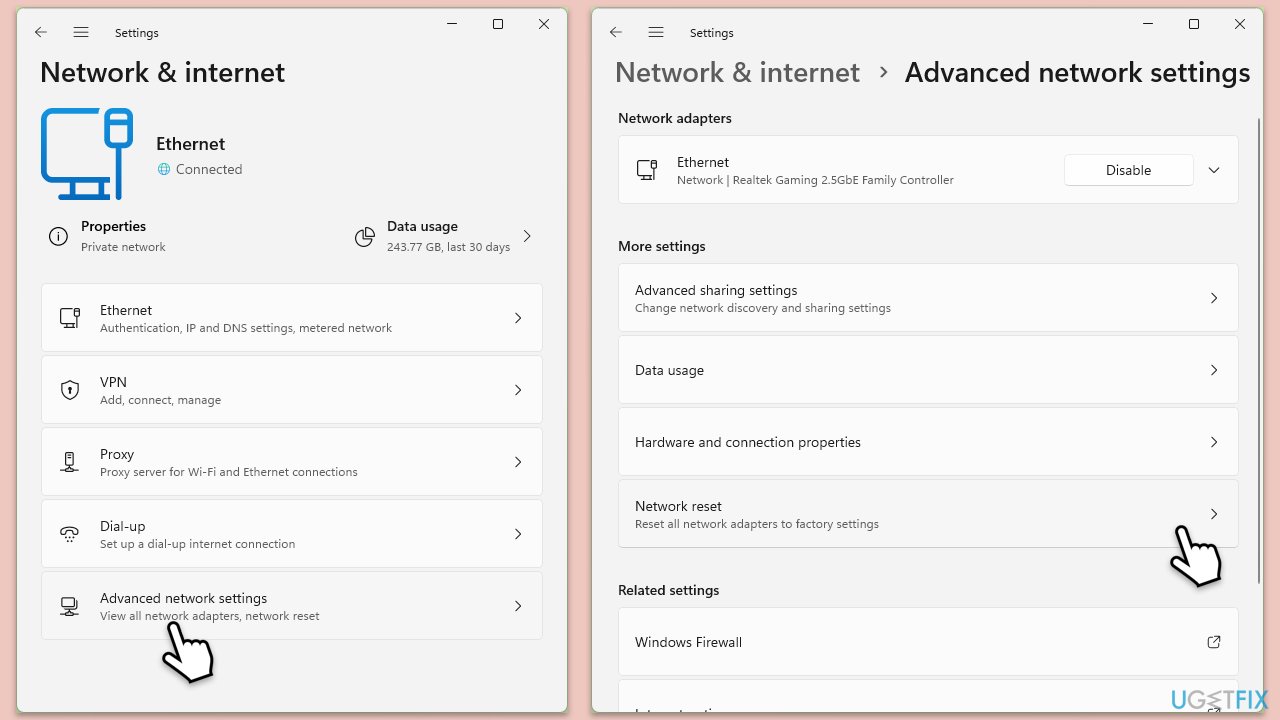
- Right-click on Start and pick Settings.
- Go to Network & Internet.
- Under Advanced network settings, click Network reset.
- Click Reset Now.
- Confirm the action and then restart your system.
Fix 7. Enable SMB 1.0/CIFS File Sharing Support
Some network devices require SMB 1.0 to be discovered.
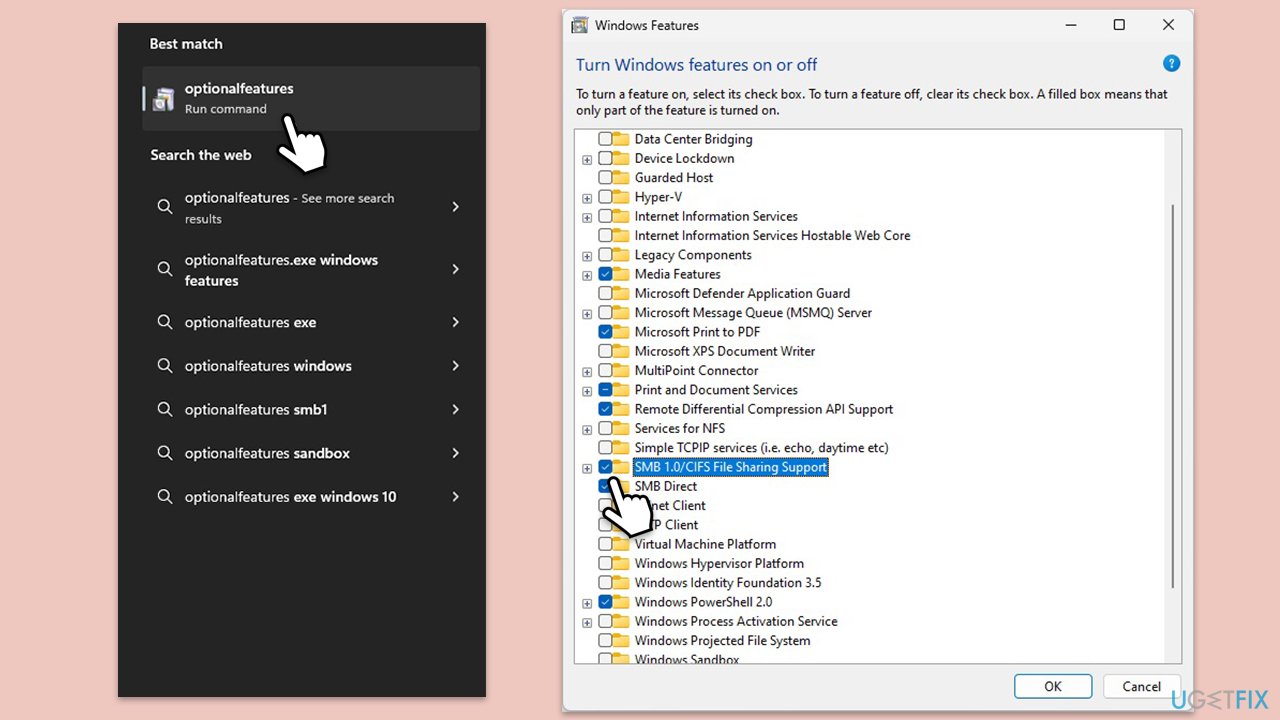
- In Windows search, type
optionalfeatures, and press Enter. - Scroll down to SMB 1.0/CIFS File Sharing Support, check the box, and click OK.
- Restart your computer.
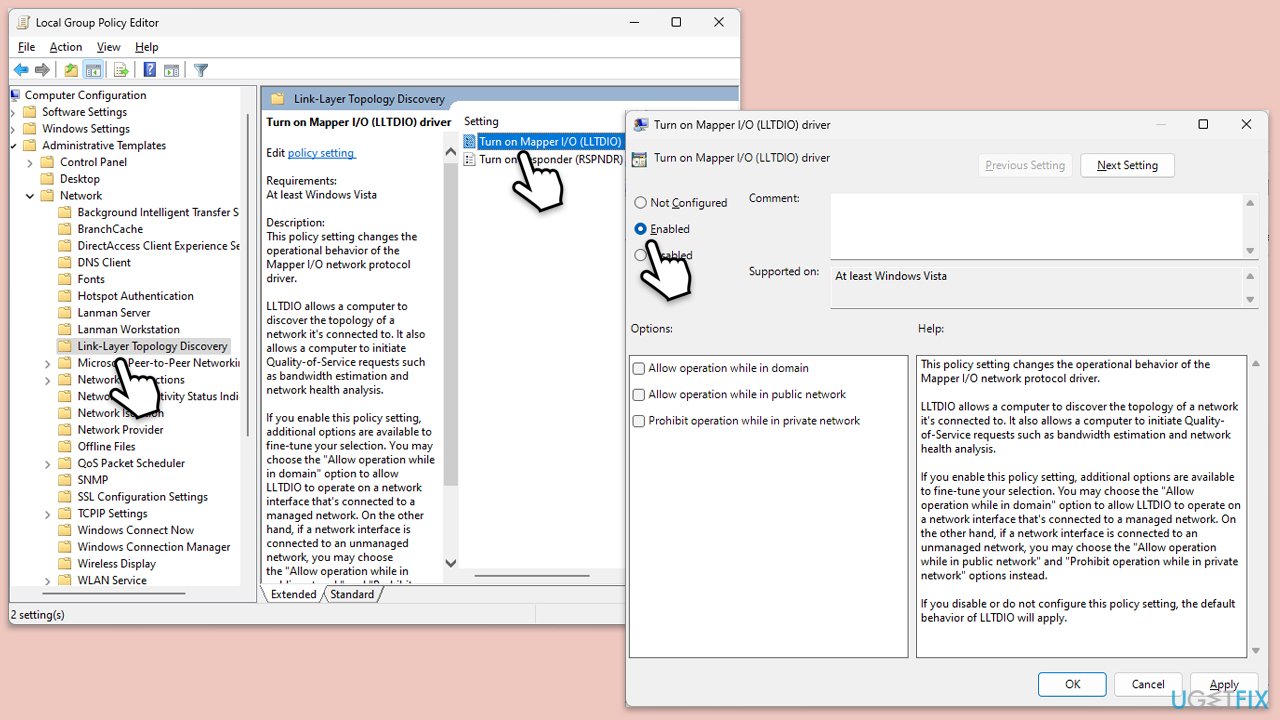
Fix 8. Modify Group Policy settings
For professional and enterprise versions, adjusting Group Policy settings can help.
- In Windows search, type
gpedit.msc, and press Enter. - Navigate to Computer Configuration > Administrative Templates > Network > Link-Layer Topology Discovery.
- Enable both Turn on Mapper I/O (LLTDIO) driver and Turn on Responder (RSPNDR) driver for all networks.
- Apply the changes and restart your computer.
Bottom line
To fix the 'Network Discovery is turned off' error, you may need to manually turn Network Discovery back on in Windows settings, adjust firewall settings, and ensure essential services like DNS Client and SSDP Discovery are enabled. If these steps do not resolve the issue, consider reviewing network profiles or consulting further troubleshooting resources.
Frequently asked questions
To fix this, go to Control Panel > Network and Sharing Center > Change advanced sharing settings, and enable Network Discovery under your current network profile.
In Windows 11, open Settings > Network & Internet > Advanced network settings, and ensure that Network Discovery is turned on in the File and Printer Sharing section.
This issue can occur due to incorrect network settings or a conflict with firewall settings; ensure that your network is set to Private and check your firewall configurations.




Report an issue
What's wrong with this guide? We review every report and update or remove content.
Report received — thank you. We'll review and fix it.
You need a free account to submit a report.
Be the first to comment