How to fix
Network Protocol error in Mozilla Firefox
on Windows
Resolve Network Protocol errors in Mozilla Firefox on Windows 10 or 11 quickly and efficiently. Expert-tested solutions await you!

What causes How to fix Network Protocol error in Mozilla Firefox?
- Connection problems
- Web address typos
- Problems with the website
- Cache accumulation
- Corrupted content
Repairs Windows system files, removes malware, and restores a clean OS state — without reinstalling.
Hello. While I was browsing the web through Mozilla Firefox I encountered a strange message "Network Protocol Error" seemingly out of nowhere. It is preventing me from accessing a website. What should I do?
Mozilla Firefox is a free and open-source web browser created in 2002. In 2012, Mozilla was recognized as the most trusted Internet company for privacy. As of 2022, Firefox is the fourth-most popular desktop web browser after Google Chrome. However, as with many other browsers, people can encounter various errors while trying to access websites. Users report receiving a Network Protocol error in Mozilla Firefox. The full message reads as follows:
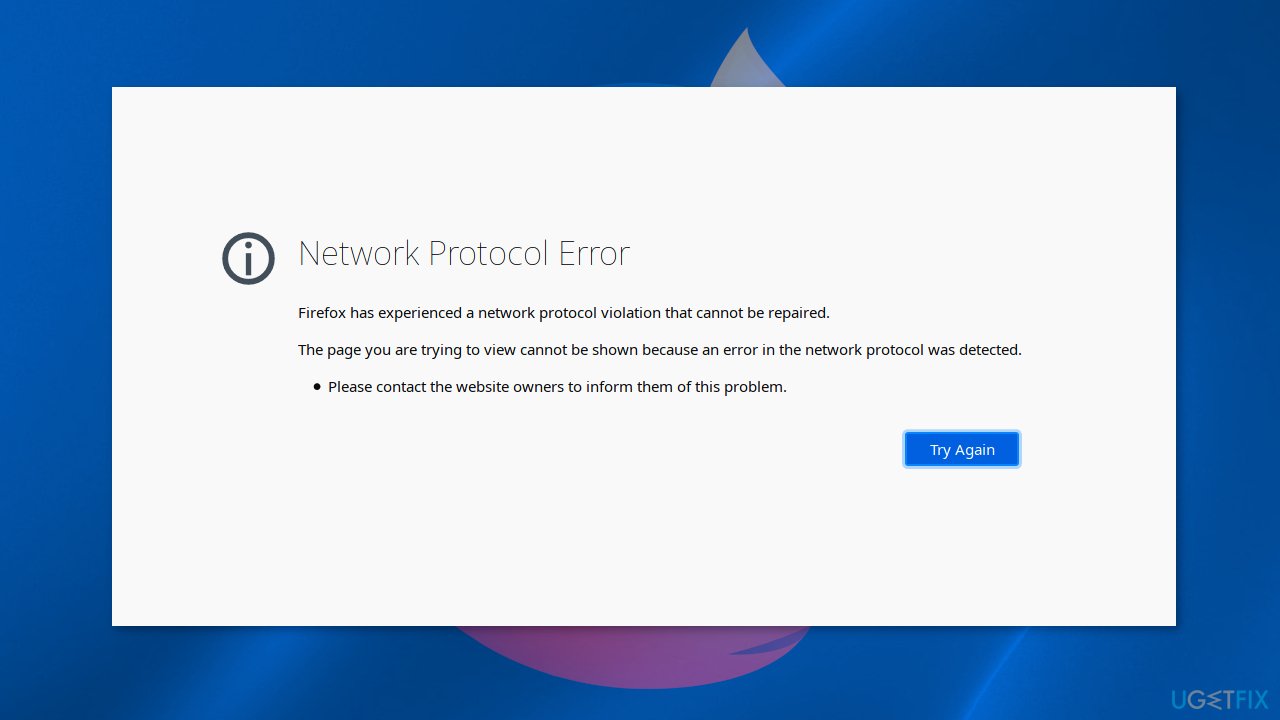
Network Protocol Error
Firefox has experienced a network protocol violation that cannot be repaired.
The page you are trying to view cannot be shown because an error in the network protocol was detected.
Please contact the website owners to inform them of this problem.
Browser errors can appear due to many reasons. Sometimes they are caused by connection problems, web address typos, and problems with the website itself. However, the Network Protocol error in Mozilla Firefox seems to be caused by cache[ref en-1] accumulation. In this guide, you will find instructions that will teach you two ways to clear the browser cache.
In such cases, a maintenance tool like [d1] can be very useful. It can automatically clear cookies and cache with a click of a button, which makes the process way faster. Besides, this powerful software can fix various system errors, BSODs,[ref en-2] corrupted files, and registry[ref en-3] issues which is especially helpful. Otherwise, you can follow the step-by-step guide provided below.
Method 1. Reload the Website
To fix "Network Protocol Error" or "Corrupted Content Error", you need to reload the webpage while bypassing the cache.
- Press Ctrl + F5 or Ctrl + Shift + R keys. It will reload the webpage fresh from the server, not from the Firefox cache
Method 2. Clear the Firefox Browser
Keep in mind that after completing this step, Firefox may sign you out of the logged-in websites.
- Go to Edit and choose Preferences
- Navigate to Privacy & Security tab on the left pane. Now clear the Firefox cache by clicking on the Clear Data option
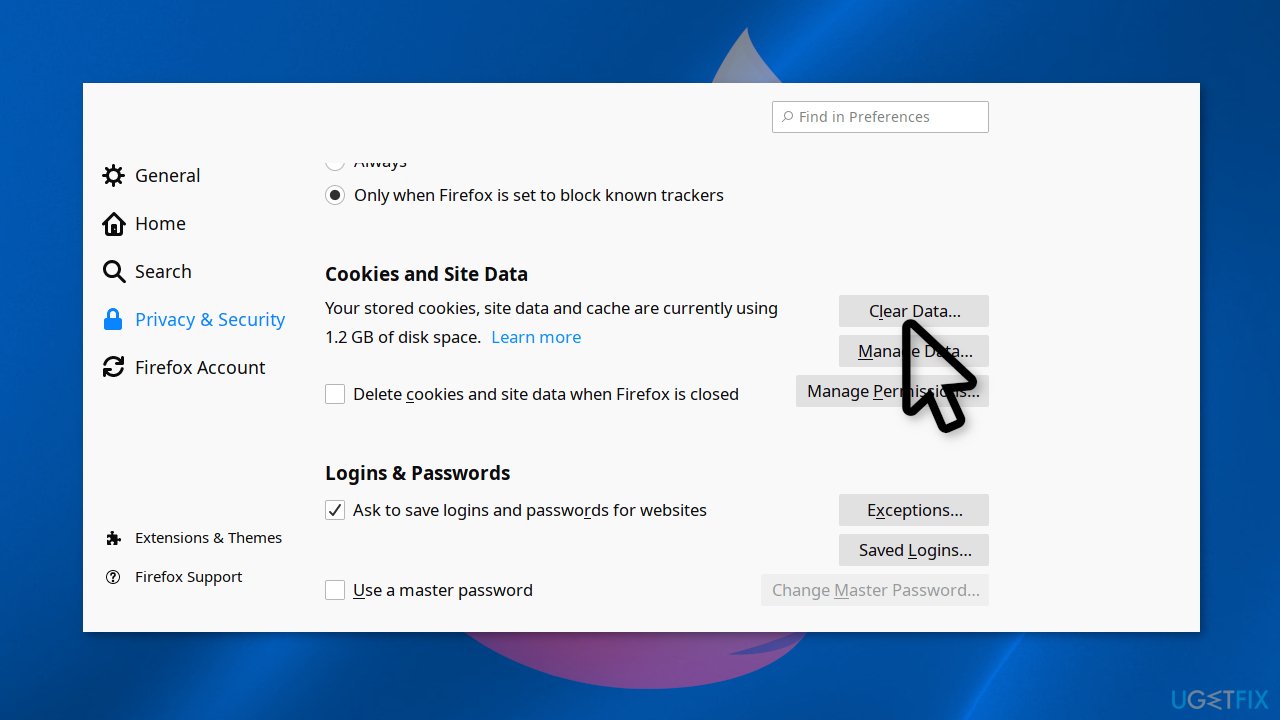
- Check both Cookies and Site Data and Cached Web Content options
- Click Clear
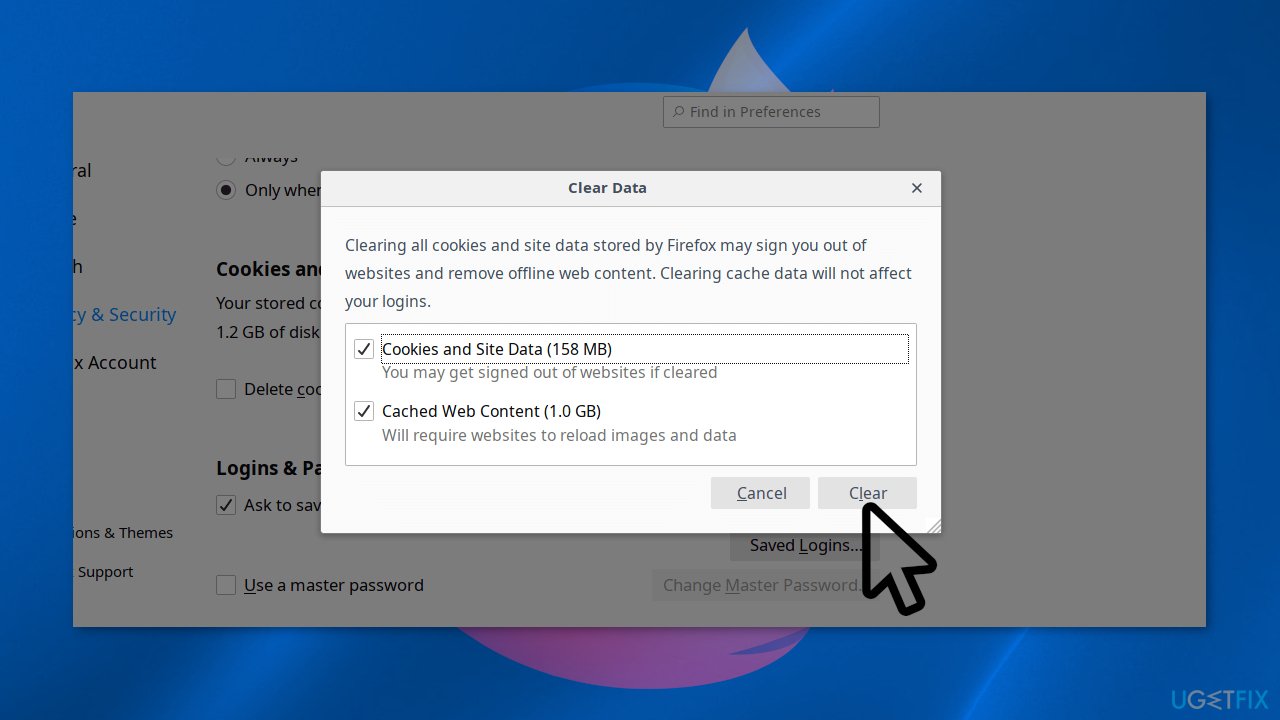
- Close the Firefox browser and restart your system
Bottom line
To fix the 'Network Protocol Error' in Mozilla Firefox, you can reload the website while bypassing the cache by pressing Ctrl + F5 or Ctrl + Shift + R. Alternatively, you can clear the Firefox browser cache, but be aware that this may sign you out of logged-in websites. If these methods do not resolve the issue, consider using a maintenance tool to clear cookies and cache automatically.
Frequently asked questions
The Network Protocol error can be caused by incorrect network settings, outdated Firefox versions, or issues with your internet connection on Windows 10 or Windows 11.
You can reset Firefox settings by going to the Help menu, selecting Troubleshooting Information, and then clicking on 'Refresh Firefox' to restore default settings on Windows.
Yes, ensure that your network adapter settings are configured correctly, and check that the proxy settings in Firefox match your Windows network configuration.




Report an issue
What's wrong with this guide? We review every report and update or remove content.
Report received — thank you. We'll review and fix it.
You need a free account to submit a report.
Be the first to comment