How to fix
“Network security key mismatch” error
on Windows
Resolve the "Network security key mismatch" error in Windows 10 and 11 effortlessly. Expert-tested solutions ensure a seamless connection, fixed in minu…

What causes How to fix “Network security key mismatch” error in Windows?
- Incorrect password entry
- Change to the network's security settings
- Interference from third-party security software
- Outdated network drivers
- Router issues
Repairs Windows system files, removes malware, and restores a clean OS state — without reinstalling.
Hello. When I try to connect to my wi-fi network on Windows I get the "Network security key mismatch" error. I am sure I am typing in the correct password. What do I do?
Users of the Windows operating system frequently run across the "Network security key mismatch" error when attempting to join to a Wi-Fi network. The security key entered to connect to the wireless network does not match the security key configured on the network, according to this error notice. A password, the security key ensures that only people with permission can access the network.
Users are unable to connect to the intended Wi-Fi network when this error occurs. This may result in an interruption of internet service, prohibiting users from using the internet to browse the web, access online services, and connect with other networked devices. For people who depend on a reliable internet connection for business, recreation, or other important activities, this issue is especially significant.
Several things, including an incorrect password entry, a change to the network's security settings, or interference from third-party security software, might lead to the "Network security key mismatch" message. Users who encounter this error could feel annoyed, especially if they can't quickly diagnose and fix the problem.
There are a number of potential fixes for this error. These include updating network drivers,[ref en-1] restarting the router, verifying that the right security key is input, temporarily deactivating any third-party security programs, conducting a network reset in Windows settings, and so forth.
In this guide, you will find 5 steps that should help you fix "Network security key mismatch" error. You can also run a maintenance tool like [d1] that can fix most system errors, BSODs,[ref en-2] corrupted files, and registry[ref en-3] issues. Otherwise, follow the step-by-step instructions below.
Method 1. Restart the Router
Whenever you come across internet problems like the "network security key mismatch" error, your initial step should be to reboot your router. This process erases the router's memory and renews its link to the internet. Hence, proceed by restarting your router and attempting to reconnect to your wireless network. Should the error persist, explore the alternative solutions provided below.
Method 2. Forget the Wireless Network
- Press the Windows key + I to open the Settings app.
- Select Network & internet from the left sidebar and then click on Wi-Fi from the right pane.
- Choose the Manage known networks option.
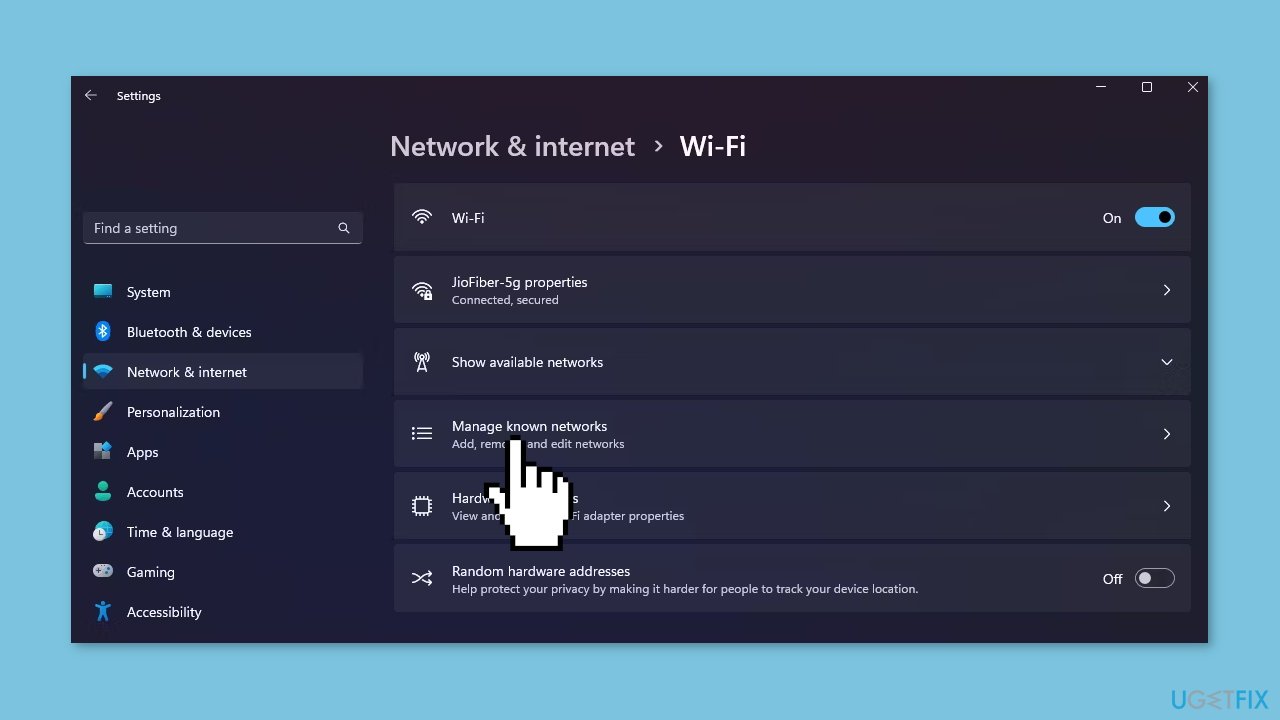
- Click the Forget button next to the connection that is causing the error.
- Afterward, restart your computer.
- Try to reconnect to the wireless network by entering the network security key.
Method 3. Disable Your Third-Party Antivirus Software
- To deactivate the security program, right-click on its icon located in the system tray area.
- From the context menu, select the Disable option.
- If necessary, refer to the user manual of your security program for more comprehensive guidance on disabling it.
Method 4. Reinstall the Network Driver
- Press the Windows key + X hotkey.
- From the menu that appears, select Device Manager.
- Expand the Network adapters node.
- Right-click on your network adapter.
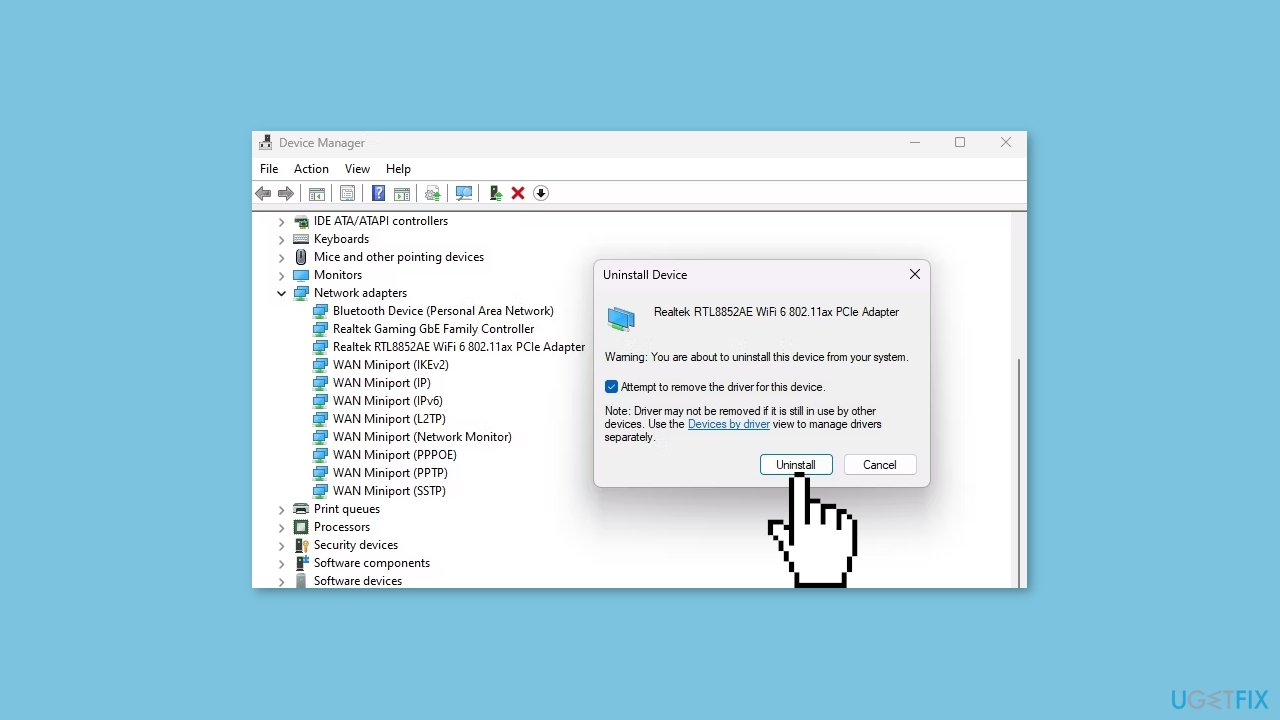
- Choose the Uninstall device option and then click the Uninstall button.
- Restart your computer.
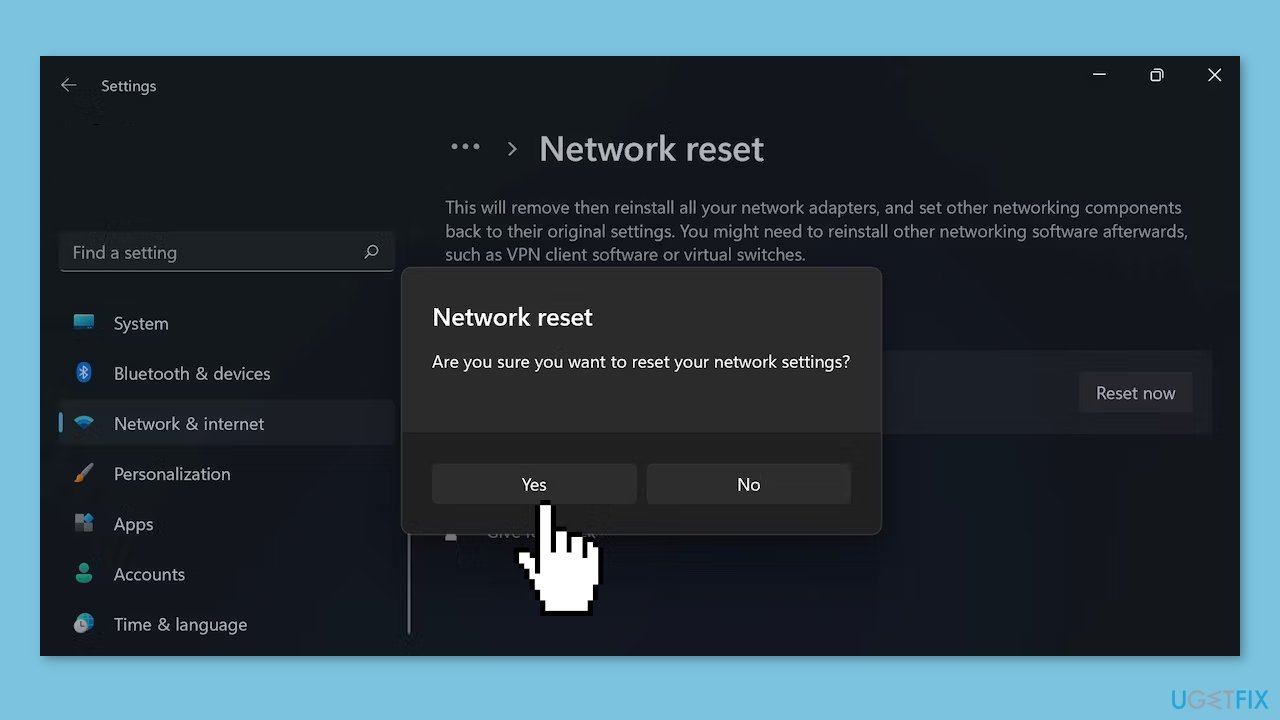
Method 5. Reset Network
- Open Windows Settings. You can use the keyboard shortcut Windows key + I.
- Choose Network & Internet from the left-hand menu.
- Scroll down and click on Advanced network settings to access network reset.
- Within the More settings section, click on Network reset.
- Lastly, click on Reset now.
Bottom line
To fix the 'Network security key mismatch' error, you can try restarting the router, verifying the correct security key, updating network drivers, and temporarily disabling third-party security programs. If these steps do not resolve the issue, consider conducting a network reset in Windows settings or using a maintenance tool to address potential system errors.
Frequently asked questions
First, ensure that you are entering the correct Wi-Fi password. If the issue persists, try forgetting the network and reconnecting to it with the correct credentials.
Go to your router settings and verify that the security type (WPA2 or WPA3) is supported by Windows 11, as outdated settings may lead to a mismatch error.
Yes, you can reset your network settings by going to Settings > Network & Internet > Status, then clicking on 'Network reset' to restore default configurations.




Report an issue
What's wrong with this guide? We review every report and update or remove content.
Report received — thank you. We'll review and fix it.
You need a free account to submit a report.
Be the first to comment