How to fix
NETWORK_BOOT_DUPLICATE_ADDRESS Blue Screen error
on Windows
Resolve the NETWORK_BOOT_DUPLICATE_ADDRESS BSOD error on Windows 10 and 11 quickly with expert-tested solutions. Fix it in minutes!

What causes How to fix NETWORK_BOOT_DUPLICATE_ADDRESS Blue Screen error in Windows?
- Duplicate IP address on the network
- Malware presence
- Corruption of system files
- Issues with Windows updates
- System damage
Repairs Windows system files, removes malware, and restores a clean OS state — without reinstalling.
Help me solve NETWORK_BOOT_DUPLICATE_ADDRESS Blue Screen error! I got to experience crashes a few times on my computer, but I am afraid that a few times more and the PC will not recover. Can you help me somehow?
NETWORK_BOOT_DUPLICATE_ADDRESS Blue Screen error is the issue with the possible value 0x000000BC that appears in Windows when there are issues with the IP address assigned to the machine when booting of the network. It states that there is a duplicate for the same IP address, so the system reboots with a blue screen of death[ref en-1] to avoid a major or permanent failure of the system.
This error indicates that once the TCP/IP sent the ARP for its IP address, the response was gotten from another machine - the indication of the same IP address. This can be a fatal error, and it appears on various versions of the operating system, including Windows 7, 8, and 10.
Blue Screen of Death errors can raise many questions and answer none of them at the same time. The system shows the error when there is a danger of the permanent crash of the machine. These errors can be caused by malware[ref en-2] and corruption of files, system pieces, and programs. It is advised to optimize what is possible and clear any virus leftovers, so the fix for the error can be applied.
You can solve system file damage issues with [d1] and a full system scan. This is the program that helps to recover any altered pieces and can possibly help to find more options for the solution when fixing the unfortunate Blue screen error with the code NETWORK_BOOT_DUPLICATE_ADDRESS.
The particular error can cause some symptoms before the error appears. It also can be more difficult to fix when other issues cause problems with the machine. You might want to solve any possible Windows update bugs[ref en-3] or system damage issues and then follow the proper guide that shows how to solve the issue.
It is certain that the error is major and needs to be addressed as soon as possible because, if unsolved, it can lead to glitches and unrecoverable damage, so follow the guidelines for this NETWORK_BOOT_DUPLICATE_ADDRESS Blue Screen error in Windows.
1. Check for Windows updates
- Go to the Settings panel.
- Choose Update & Security.
- Select Check for Updates to download and install updates.
- Once done, restart your computer to complete the update process.
2. Check for malware
- Click on Start.
- Type Security in search.
- Press Enter.
- When the Windows Security app opens, select Virus & threat protection.
- Click Scan options.
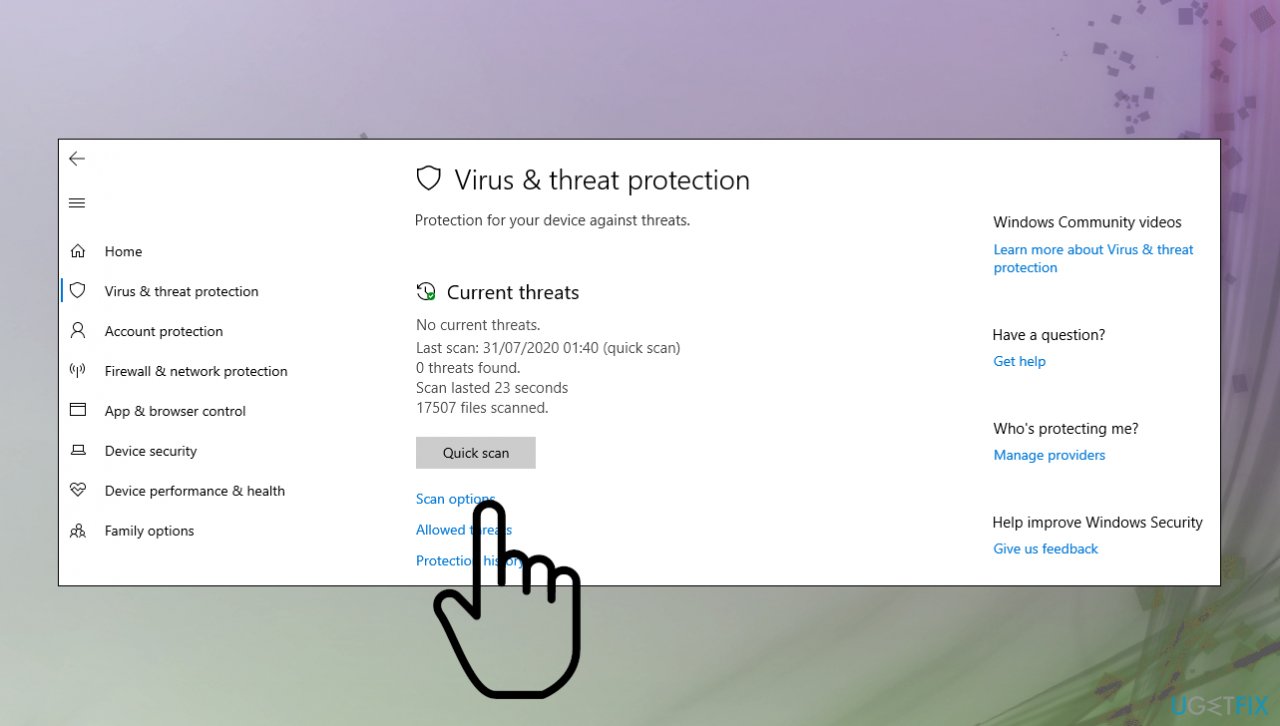
Network ip duplicate blue screen scan options - Check Full scan.
- Select Scan Now.
- Click Clean Threat.
- Select Remove.
- Click Start actions.
3. Troubleshoot BSOD
- Go to Settings.
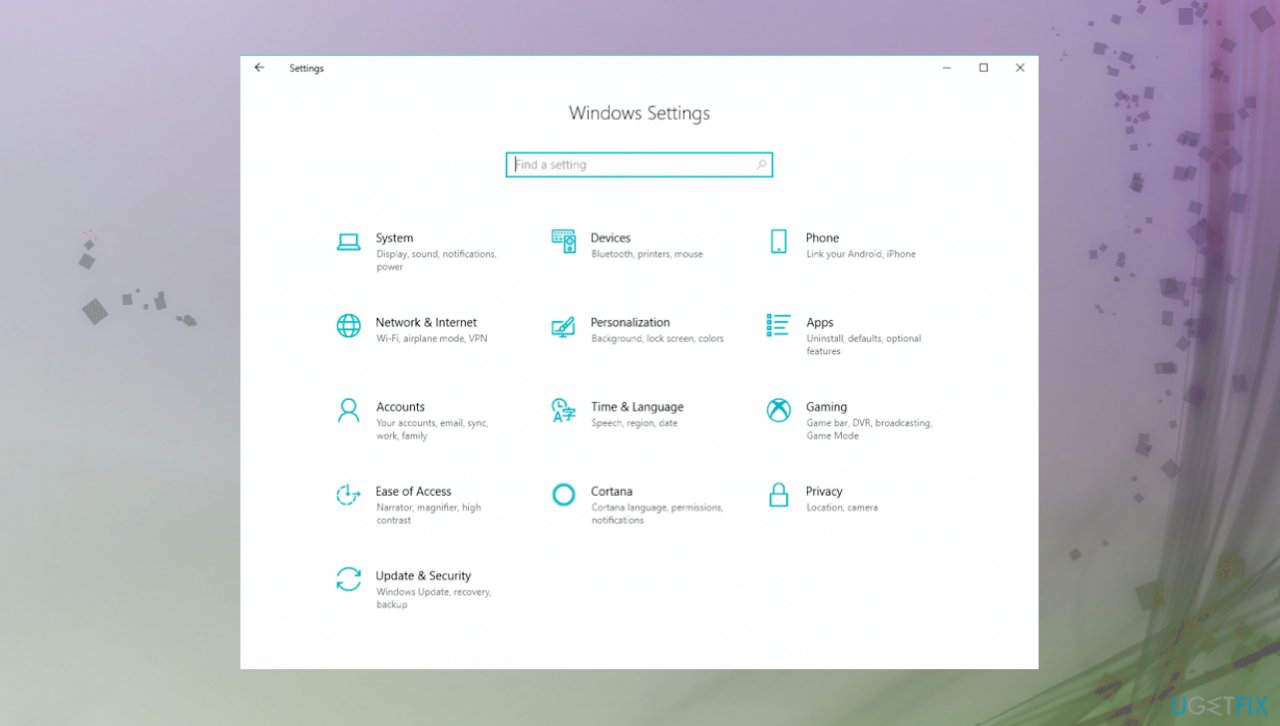
Network ip duplicate blue screen settings - Go to the Update & Security section.
- Select Troubleshoot from the menu.
- Select BSOD from the right pane and click Run the troubleshooter.
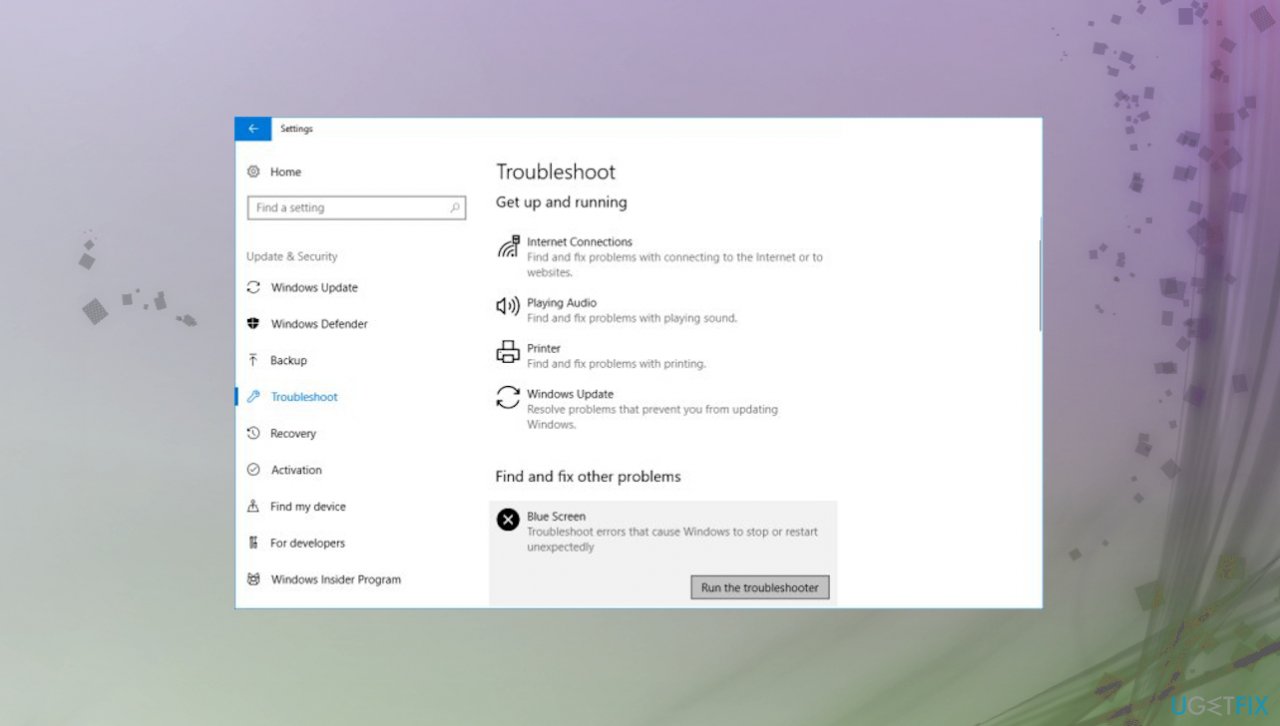
Network ip duplicate blue screen trpubeleshoot - Follow the instructions and apply any fixes if presented.
4. Repair corrupted system components
- Open the Start menu.
- Search for Command Prompt.
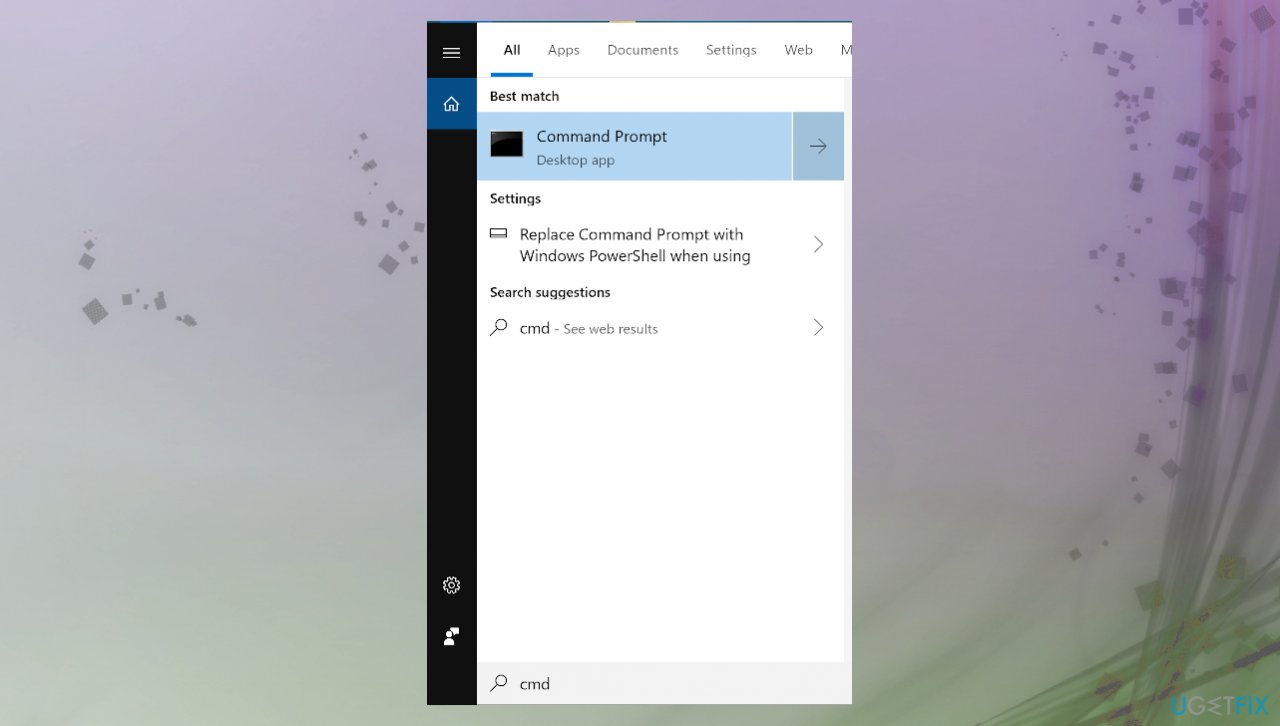
Network ip duplicate blue screen cmd - Select Run as administrator.
- Type the following command in Command Prompt and press Enter:
sfc /scannow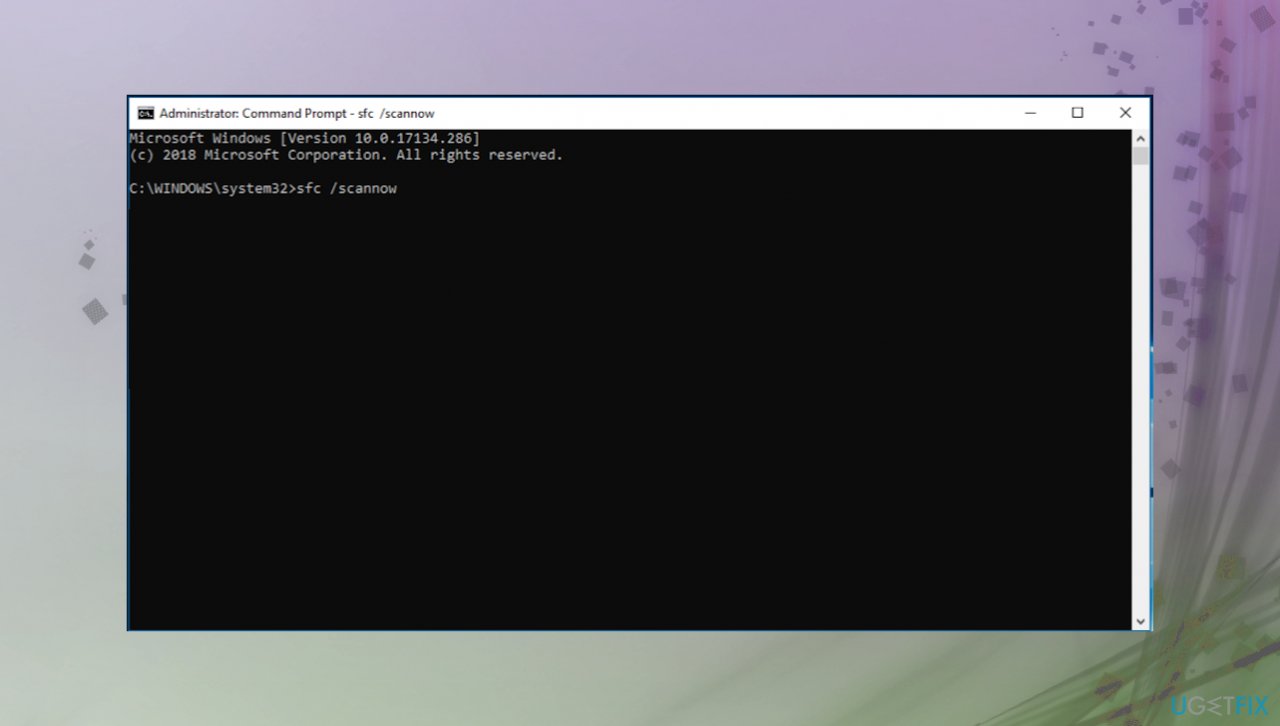
Network ip duplicate blue screen sfc - Wait for the command to find and fix corrupt files on your PC.
- Restart the PC.
5. Update faulty drivers
- Press Windows key + S and type device manager.
- Hit the Enter button.
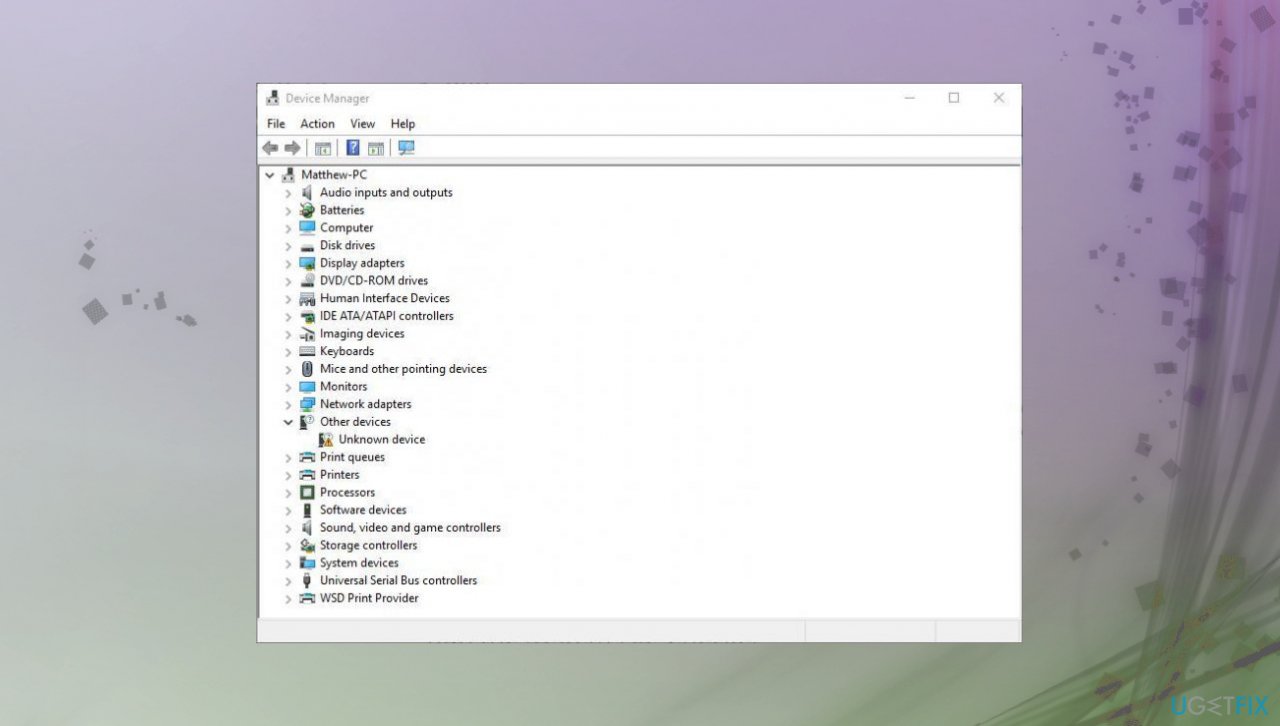
Network ip duplicate blue screen device manager - Look for the exclamation marks near any devices, or can choose network adapters first.
- If found, right-click and select the Update driver option.
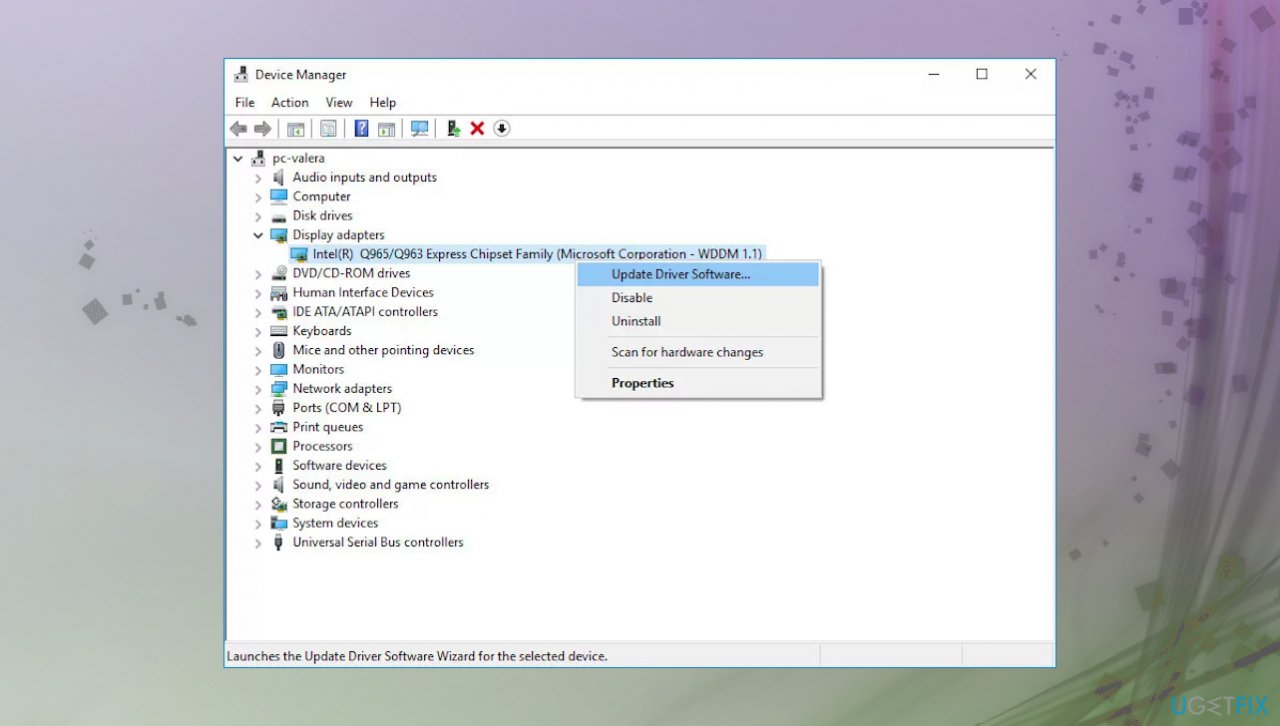
Network ip duplicate blue screen update driver - Select Search automatically for updated driver software.
- After these steps, the newer version (if available) of the following driver will automatically download.
- Restart Windows.
Bottom line
To fix the NETWORK_BOOT_DUPLICATE_ADDRESS error, you should optimize your system, clear any virus remnants, and perform a full system scan to recover altered files. If the issue persists, consider addressing any Windows update bugs or other system damage. If none of these solutions work, further troubleshooting may be necessary.
Frequently asked questions
This error is typically caused by multiple devices on the same network receiving the same IP address, often due to misconfigured network settings or a faulty DHCP server.
You can troubleshoot this error by restarting your router, renewing your IP address using the Command Prompt, or checking for any conflicting devices on your network.
To prevent this error, ensure that your DHCP server is functioning correctly and consider setting static IP addresses for critical devices on your network.




Report an issue
What's wrong with this guide? We review every report and update or remove content.
Report received — thank you. We'll review and fix it.
You need a free account to submit a report.
Be the first to comment