How to fix
“Next/Previous” arrows missing in Photos App
on Windows
Restore missing "Next/Previous" arrows in the Windows 10/11 Photos App with expert-tested solutions for seamless navigation. Fixed in minutes!


What causes How to fix “Next/Previous” arrows missing in Photos App?
- Recent upgrade to the latest Windows 10 version
- Installation of Windows 11
- Folder not showing in the Folders section of the Photos app
- Corrupted system files or functions
- Presence of potentially unwanted programs (PUP) or malicious applications
Repairs Windows system files, removes malware, and restores a clean OS state — without reinstalling.
Windows Photo is failing for me. Help! The app is not showing next or previous arrows. I cannot get those arrows in any of the folders I go through. Apps troubleshooting gives no results. Can you provide insights or solutions for me?
"Next/Previous" arrows missing in Photos App issue seems to be a common problem. Users seem to have recently encountered the problem after the upgrade to the latest Windows 10 version or even the installation of Windows 11.[ref en-1] The problem can be frustrating and annoying for everyday users.
The default Photo app presents these options, but depending on various instances, the issue can occur. It is common for such functions to fail after upgrading the operating system or updates of the particular Windows 10 versions.[ref en-2] The option might not be present at all and occur only sometimes while you browse your files and folders.
It seems that the issue is related to the fact that the particular folder users try to browse the contents of is not showing in the Folders section on the Photos app directly. You can skip through photos with the help of arrow keys on the keyboard if the "Next/Previous" arrows are missing in Photos App. If the problems occur due to the latest Windows updates, the quickest problem solution would be reversing the update or finding the more recent upgrade for the OS.
Often the cause for the failure of common functions can be related to particular system files and functions corrupted or affected by the unwanted intruder[ref en-3] like PUP or malicious applications. These leftovers and damaged pieces on the machine can trigger additional issues and even lead to crucial issues with the performance. You can solve these problems with repair tools like [d1].
Other options for the solutions and ways that could help you fix "Next/Previous" arrows missing in Photos App might include checking or changing settings related to display, photos app directly. Do not skimp through the instructions and follow the list thoroughly. At least one of the methods should help you.

Option 1. Switch the program to open photos
- Right-click the picture you want to browse.
- Click open and change to Drawing.
- If the Drawing is normal, there may be a problem with the Photos app.
Option 2. Reset the Photos app
- Click Windows and I keys.
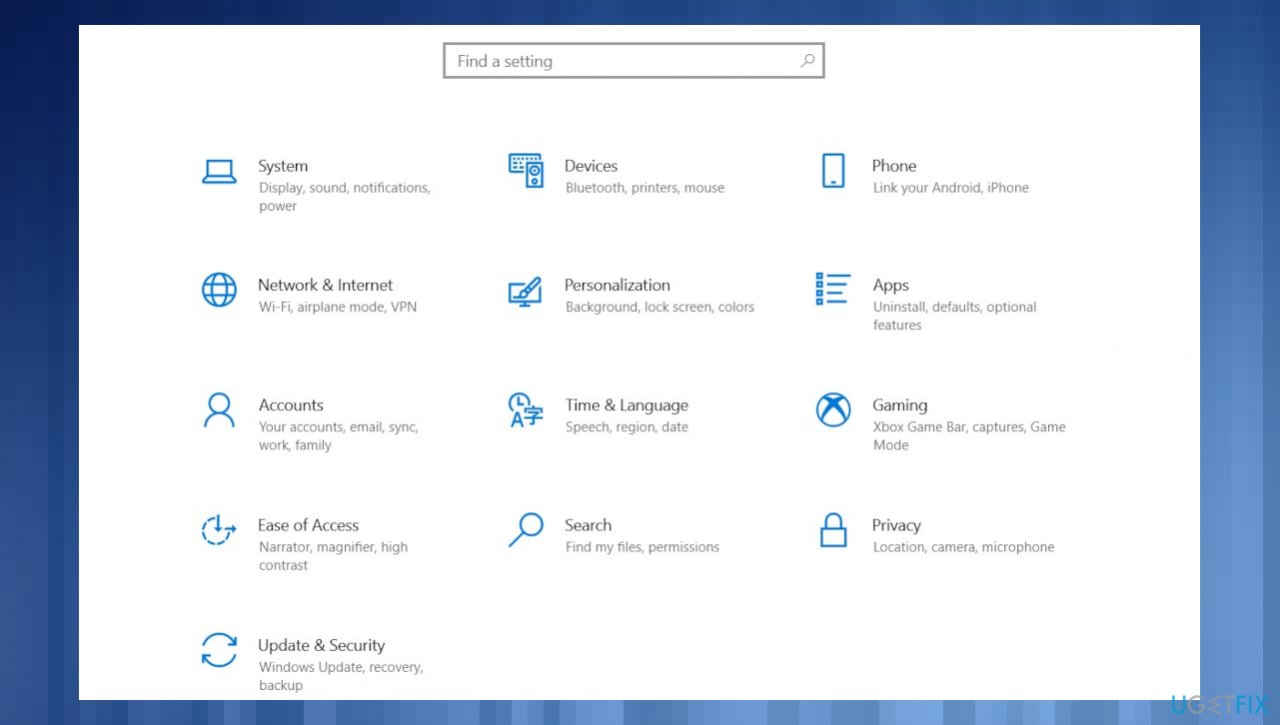
Next previous arrows not showing up on windows settings - In Settings hit Apps.
- Then choose Applications and features.
- Find the Photos app.
- Click Advanced options and choose Reset.
Option 3. Troubleshoot the app
- Go to Settings.
- Choose Update & Security.
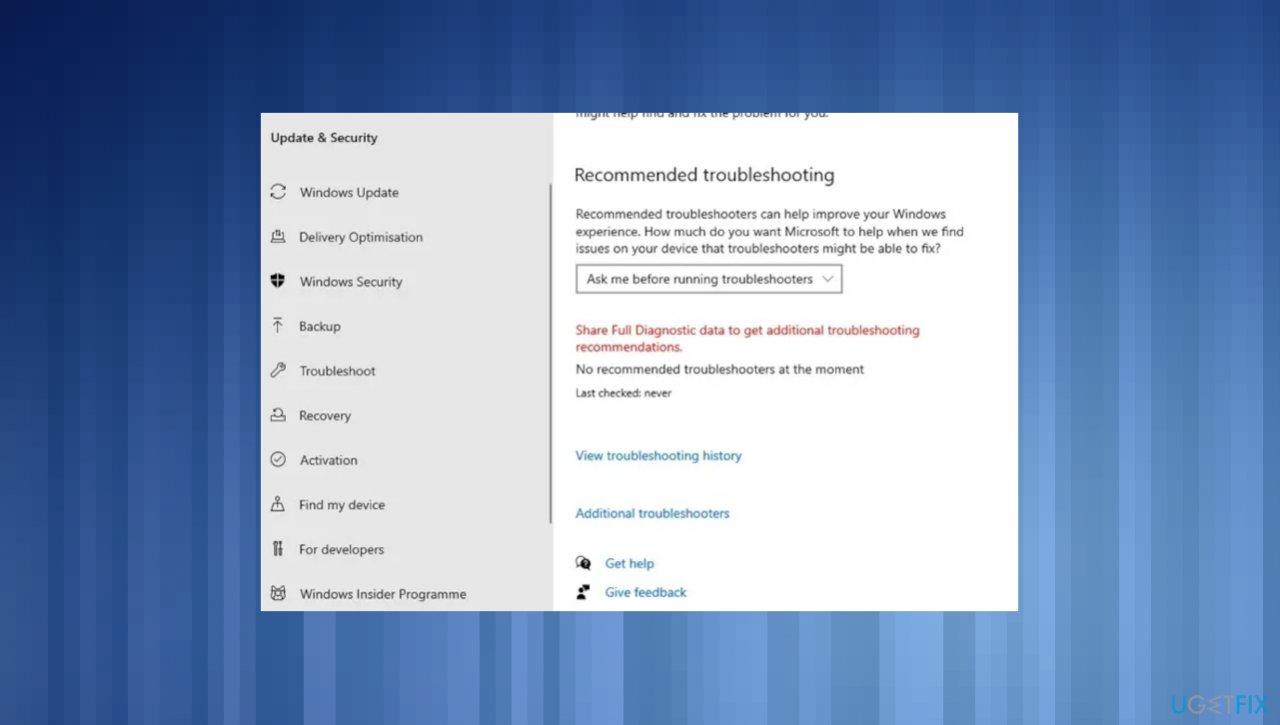
Next previous arrows not showing up on windows troubleshooting - Select Troubleshoot.
- Click Additional troubleshooters.
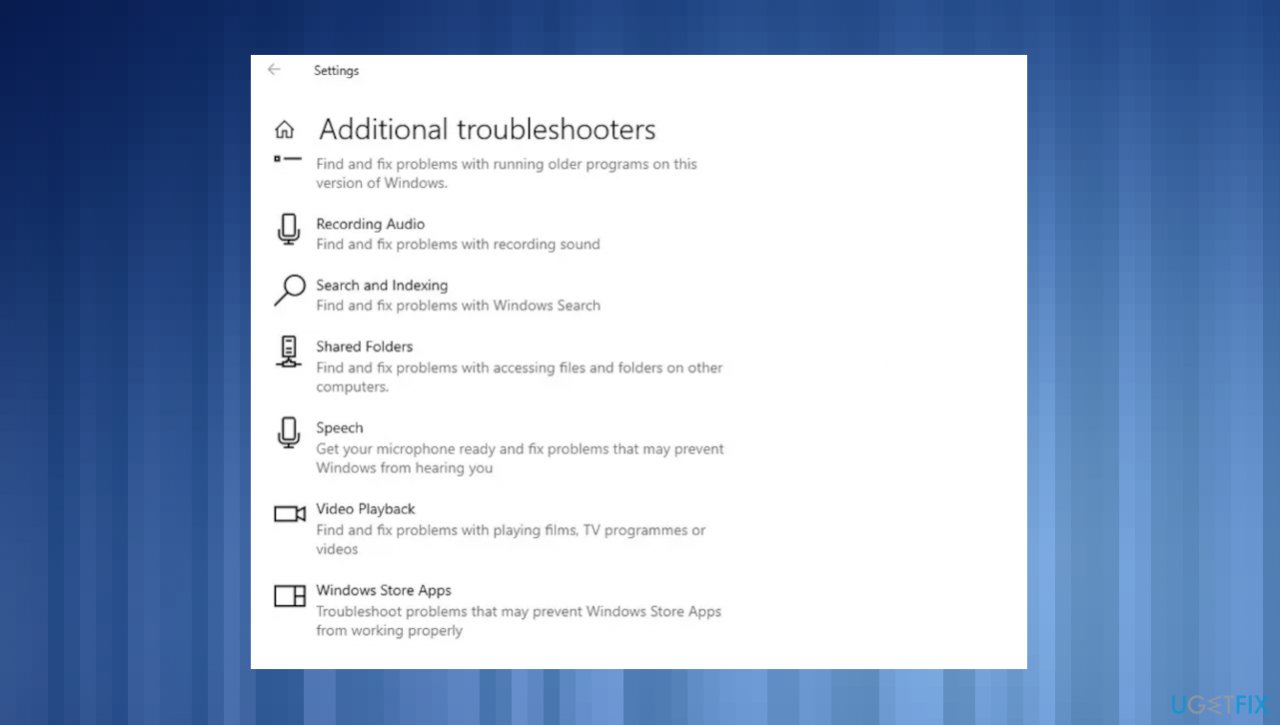
Next previous arrows not showing up on windows assidtional toruble - Scroll down to Windows Store Apps and click Run the troubleshooter.
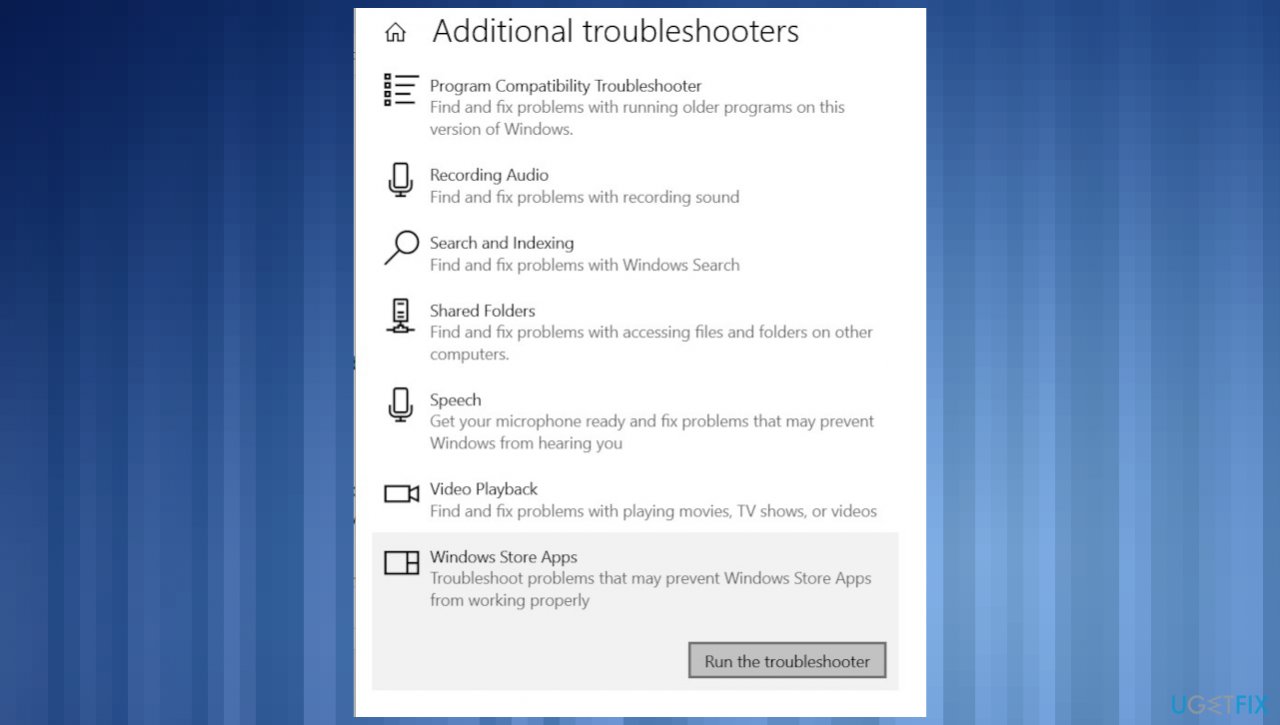
Next previous arrows not showing up on windows run troubleshooter
Option 4. Update the OS
- Even with the recent Windows 11 built this issue can be resolved with the upgrade. The recent January 2022 upgrade solves the issue even though this problem was never addressed.
- Right-click Start button and pick Settings.
- You can also hit Windows and I button to go straight to Settings window.
- Go to Update & Security.
- On the right, locate and click View update history.
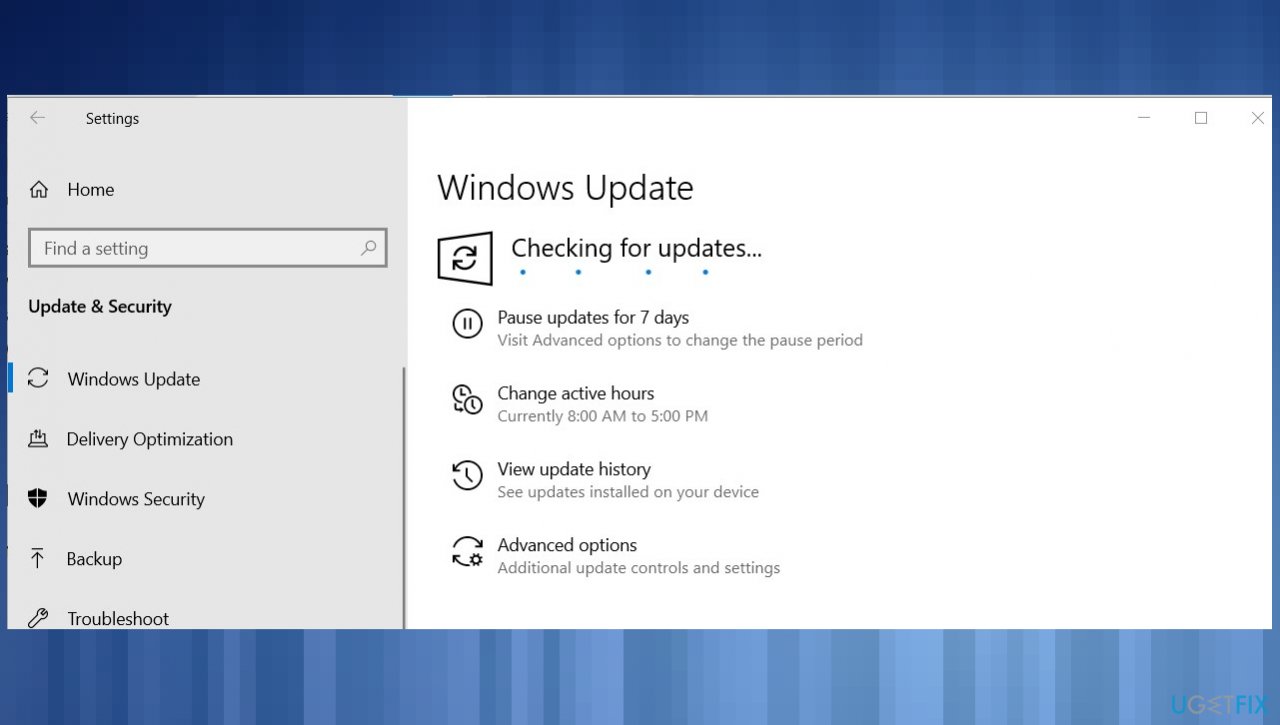
Next previous arrows not showing up on windows update - You can also Check for the latest updates.
- Install any pending OS update.
Option 5. Uninstall inbuilt apps
- Open the Start menu, type Windows PowerShell.
- Right-click on Windows PowerShell and select Run as administrator.
- Enter the below command to reinstall the Photos app:
get-appxpackage *Microsoft.Windows.Photos* | remove-appxpackage
Bottom line
To fix the missing 'Next/Previous' arrows in the Photos app, you can try reversing the latest Windows update, checking display settings, or using repair tools for system issues. If these methods do not resolve the problem, consider switching the program used to open photos.
Frequently asked questions
This issue can occur due to a corrupted app cache or outdated software. Try resetting the Photos app or updating Windows to fix the problem.
To reset the Photos app, go to Settings > Apps > Apps & features, find Photos, click on it, and select 'Advanced options' to reset the app.
Yes, reinstalling the Photos app can resolve various glitches, including missing navigation arrows, by restoring default settings.




Report an issue
What's wrong with this guide? We review every report and update or remove content.
Report received — thank you. We'll review and fix it.
You need a free account to submit a report.
Be the first to comment