
How to fix "No applicable app licenses found" error in Minecraft?

Prefer to fix it yourself? The manual steps follow.
- 7methods
- 5 to 30 minutes
- Easy
Applies to The Minecraft Launcher (Java and Bedrock Edition) and Minecraft Dungeons installed from the Microsoft Store, the Xbox app or the minecraft.net installer on Windows 11 and Windows 10; the same message appears with other Store and PC Game Pass games
7 methods in this guide
How can I fix the "No applicable app licenses found" error when trying to launch Minecraft? Why does it say this? I do have a license for the game, which I purchased quite some time ago.
"No applicable app licenses found" is a Windows message, not a Minecraft one: the Minecraft Launcher is a Microsoft Store app, and Windows found no licence for it on this PC. If you bought the game, the licence exists, so start by signing out of the Microsoft Store and back in with the account that owns Minecraft.
The message means Windows could not confirm, through the Microsoft Store, that your account may run the Minecraft Launcher. Open the Microsoft Store, sign out, then sign in with the Microsoft account that bought Minecraft and restart the PC (Fix 1). If it stays, clear and reset the Store (Fix 2), update the launcher and Gaming Services (Fix 3), then repair or reinstall the launcher (Fix 4 to Fix 6).
| Error | No applicable app licenses found. in a small error window with a red cross and an OK button. |
|---|---|
| Where it appears | Right when you open the Minecraft Launcher or Minecraft Dungeons on Windows, before the launcher window shows. |
| Main cause | The Microsoft Store cannot find or confirm the licence of the app for the account signed in to Windows and the Store. |
| Fastest fix | Sign out of the Microsoft Store and sign back in with the account that owns Minecraft, then restart (Fix 1). |
| Also written as | "No applicable app license found", "No applicable licenses found", "no license found", and in other languages "Не найдено соответствующих лицензий для приложения" or "Nenhuma licença de aplicativo aplicável encontrada". |
| Affects | Windows 11 and Windows 10 PCs with the Store version of the Minecraft Launcher. The same message comes from other Store apps, PC Game Pass games and winget. |
| Vendor status | Mojang's bug tracker lists it for Minecraft Launcher 2.2.7957 (MCL-20724), closed as a duplicate of MCL-20316, which is marked Resolved. The Minecraft Help Center has no page for this exact message. |
| Not the cause | Your worlds, your Java installation or your graphics driver. The check fails before Minecraft itself starts. |
| Time to fix | 5 minutes for the sign-out, up to 30 minutes when the launcher needs a reinstall. |
Facts checked on 15 October 2026. Steps written for Windows 11 (25H2 and 26H2) and Windows 10 22H2 with the Microsoft Store version of the Minecraft Launcher.
What "No applicable app licenses found" means in Minecraft
Since the move to the new launcher, Minecraft on Windows is installed as a Microsoft Store app, even when you download it from minecraft.net or the Xbox app. The Minecraft Help Center says it plainly: "The Minecraft Launcher relies on the Microsoft Store app". Each time a Store app starts, Windows asks for its licence. When no licence fits the signed-in account, Windows stops the app and shows this window:
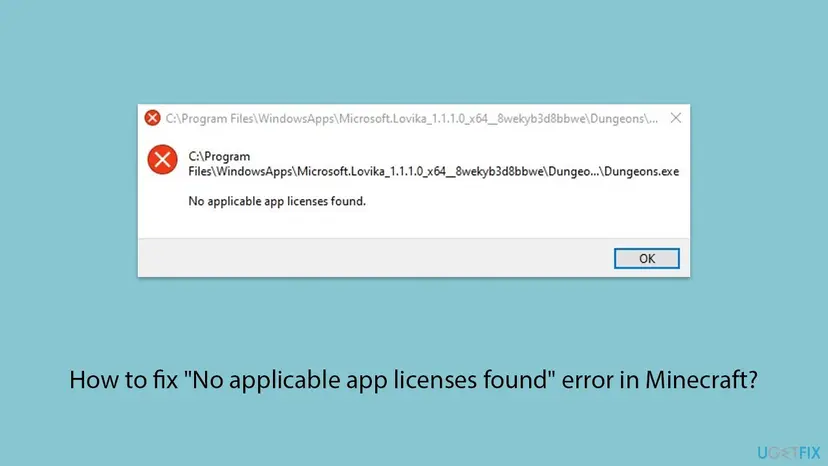
- Exact text
- No applicable app licenses found.
- Shown by
- Windows, for an app installed from the Microsoft Store (the title bar is the app's path under C:\Program Files\WindowsApps)
- Meaning
- No licence for this app was found for the account signed in to the Store on this PC
- Not about
- A damaged world, a missing Java runtime or a broken graphics driver
That is why the message so often surprises people who paid for the game years ago. The purchase is still on the Microsoft account. What failed is the local link between that account, the Store and the installed package. The fixes below rebuild that link from the top down.
Why the Minecraft Launcher says no licence was found: the causes, ranked
Microsoft and Mojang publish no numbers for this message, so the order below is our reading of the Minecraft Help Center, of Microsoft's answers about the same message for other Store apps and of what users report. The first three causes take minutes to rule out.
| Cause | How often | How to tell | Fix |
|---|---|---|---|
| The Microsoft Store is signed in with another account, or its sign-in expired. | Most often | The Store profile picture shows another e-mail, or Minecraft is missing from Library > Games. | Fix 1 |
| The Store cache or the Store app's data holds an old answer about the licence. | Often | Other Store apps or games also fail, or the error came after a Windows update. | Fix 2 |
| The Minecraft Launcher, Gaming Services or the Store itself is out of date. | Often | Library in the Store lists pending updates for these apps. | Fix 3 |
| The launcher's package is damaged. | Sometimes | Only Minecraft fails, every time, while other Store apps open. | Fix 4 to Fix 6 |
| Windows itself misses Store updates. | Rarely | Windows Update shows pending updates or has not run for weeks. | Fix 7 |
| The account has no licence at all: the game was never bought on it, or a PC Game Pass membership ended. | Rarely, but final | Minecraft is not in your purchases, or Game Pass shows as expired. | Buy the game or renew the membership |
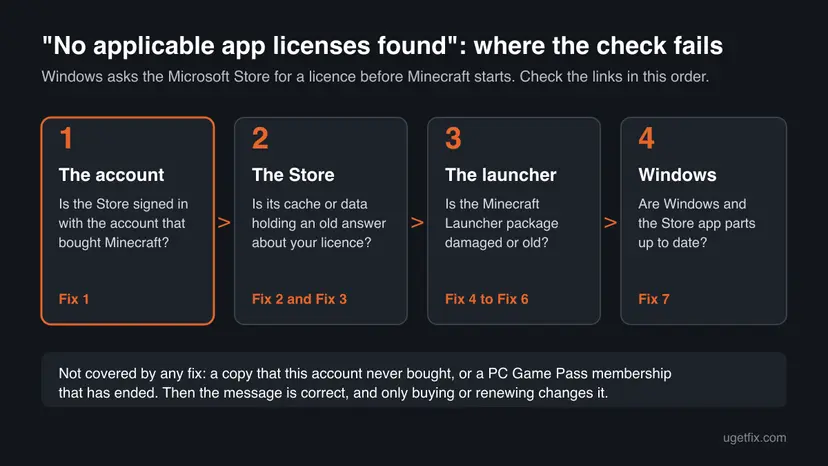
In the Mojang bug report MCL-20724, the user restarted the laptop without success, then opened the launcher later and it "booted up smoothly as normal". A short outage of the Microsoft licence service can look the same. If you are in a hurry, try once more after 30 minutes before you reinstall anything.
How to fix "No applicable app licenses found" in the Minecraft Launcher on Windows 11 and 10
Fix 1 to Fix 3 work on the licence and the Store and keep everything installed. Do them first. Fix 4 to Fix 6 repair or replace the Minecraft Launcher, and Fix 7 brings Windows up to date. Try to open the launcher after each fix.
| What you see or have | Start with |
|---|---|
| You use more than one Microsoft account, or the PC is shared. | Fix 1 |
| Other Store apps or Game Pass games also show the message. | Fix 2 |
| The Store's Library lists updates for Minecraft, Gaming Services or the Xbox app. | Fix 3 |
| Only the Minecraft Launcher fails, and the Store works. | Fix 4, then Fix 5 |
| Repair and reset changed nothing. | Fix 6 |
| Windows Update has not run for weeks. | Fix 7 |
| You play Minecraft through PC Game Pass. | Check the membership, then Fix 1 |
Fix 1. Sign out of the Microsoft Store and sign in with the account that owns Minecraft
5 minutesLow riskEveryone with the message. This is the first check, even if you are sure the right account is signed in.
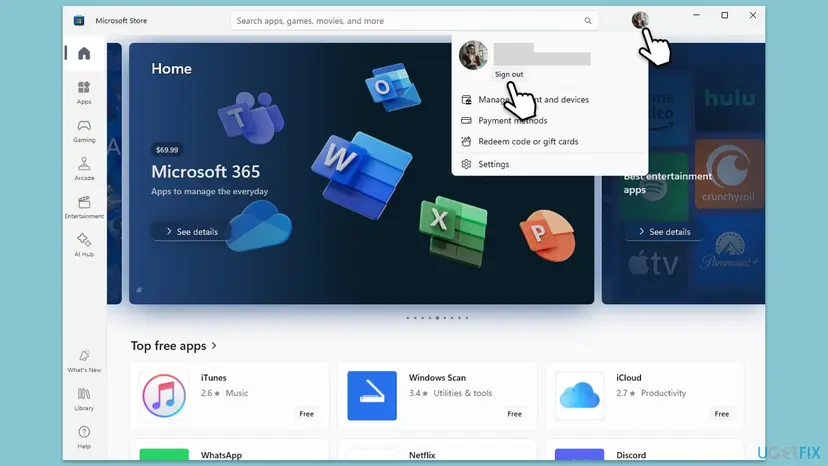
The licence belongs to the Microsoft account that bought Minecraft, and Windows reads it through the account signed in to the Microsoft Store. The Minecraft Help Center asks you to sign out of the Store and sign in with the account you want to use when the launcher will not install, and the same step makes the Store fetch your licences again.
- Open the Microsoft Store from the Start menu.
- Select your profile picture at the top of the window and note the e-mail shown.
- Select Sign out.
- Select the profile icon again and sign in with the Microsoft account that bought Minecraft.
- Open Library, select Games and check that Minecraft or the Minecraft Launcher is listed.
- If you also use the Xbox app, check that it is signed in with the same account.
- Restart the PC and open the Minecraft Launcher.
It worked if: The launcher opens without the window, and Minecraft is listed under Library > Games in the Store.
If not: If Minecraft is missing from the Library, you are on an account that does not own it. If it is listed and the error stays, go to Fix 2.
Fix 2. Clear the Microsoft Store cache, then repair or reset the Store
5 to 10 minutesLow riskThe sign-in is right but the message stays, or other Store apps fail too.
The Minecraft Help Center recommends resetting the Store cache with WSReset for launcher problems, because the launcher relies on the Store. If the cache keeps an old answer about your licences, clearing it makes the Store ask again. Repair and Reset go one step further and rebuild the Store app's own data; your purchases stay on your account.
- Clear the Store cache. Press Windows + R, type wsreset.exe and select OK. A blank Command Prompt window opens; after a short while it closes and Microsoft Store opens by itself.

After wsreset, the Store opens and loads again. Screenshot: Windows 11 26H2. - Open System components. If the problem stays, select Start > Settings > System > System components. Next to Microsoft Store, select the three dots and Advanced options. If Microsoft Store is not listed there, look for it in Settings > Apps > Installed apps.
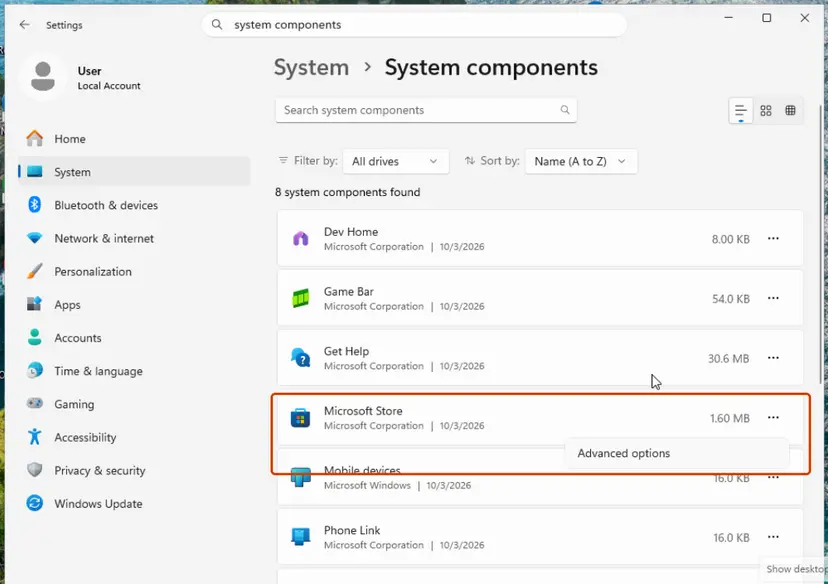
Microsoft Store is listed under System components. Screenshot: Windows 11 26H2. - Repair first. Scroll to Reset and select Repair. Repair keeps the app's data. Open the Store and check whether it works.
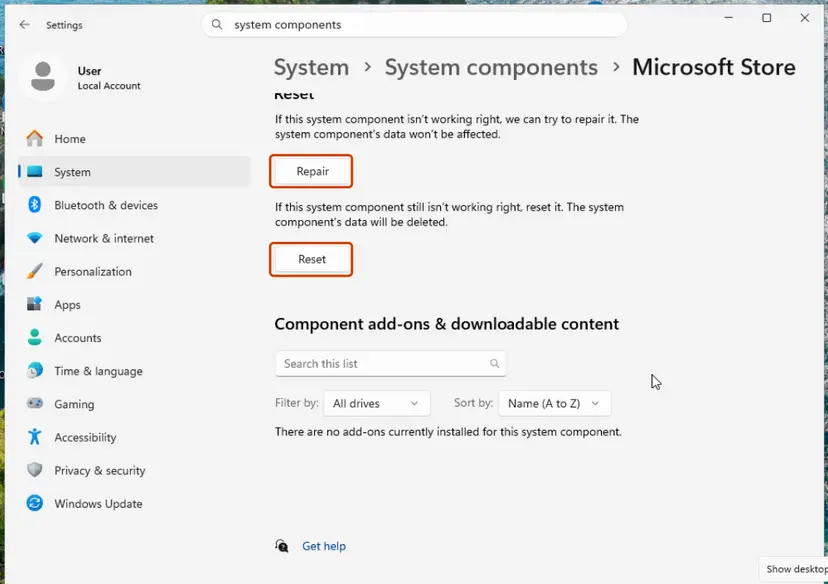
Repair keeps the app's data; Reset deletes it. Screenshot: Windows 11 26H2. - Reset if Repair did not help. Select Reset and confirm. This deletes the Store app's data on this PC; your purchases stay in your Microsoft account. Open the Store and sign in again.
These steps were written for Windows 11 26H2 (build 26300). The full page with the other versions and what each result means: Reset the Microsoft Store
It worked if: The Store opens again by itself after WSReset, and the launcher starts without the licence window.
If not: Sign in to the Store again if a reset signed you out, then go to Fix 3.
Fix 3. Update the Minecraft Launcher, Gaming Services and the Xbox app in the Store
5 to 15 minutesLow riskThe launcher worked before and stopped, or the Store's Library shows pending updates.
The Minecraft Help Center ties launcher update problems to the Store and to the Gaming Services app. An old launcher package or an old Gaming Services can fail the licence check that a newer Store expects.
- Open the Microsoft Store and select Library at the bottom left.
- Select Get updates and wait until the list is checked.
- Select Update all, or update Minecraft Launcher, Gaming Services, Xbox and Microsoft Store one by one.
- Wait until every update shows Open instead of a progress bar.
- Restart the PC and open the Minecraft Launcher.
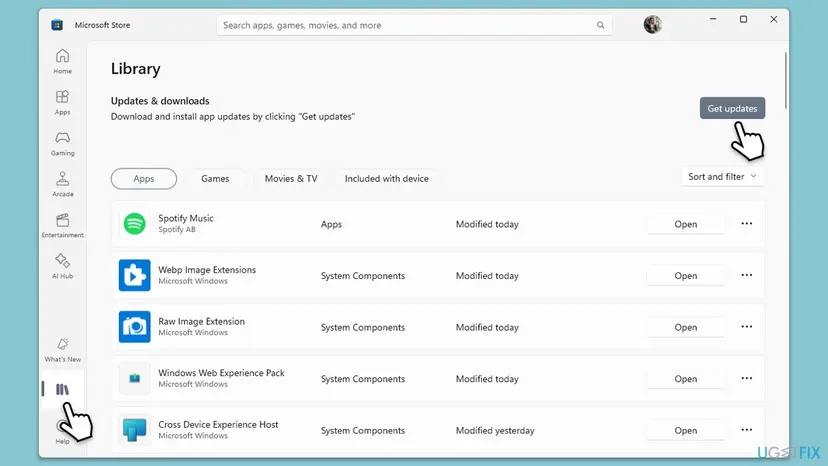
It worked if: The Library shows no pending updates, and the launcher opens.
If not: If only the Minecraft Launcher still fails, go to Fix 4.
Fix 4. Repair or reset the Minecraft Launcher in Settings
5 minutesLow riskThe Store works and other Store apps open, but the Minecraft Launcher still shows the message.
The Minecraft Help Center lists repairing the launcher app in Windows as its first fix for a launcher that will not open. Repair checks the package files and keeps the launcher's data. Reset clears the launcher's local data, including its sign-in, which also removes an old copy of the licence state.
In the list of installed apps, look for Minecraft Launcher. Run Repair first, open the launcher, and use Reset only if Repair did not help.
- Open Installed apps. Select Start > Settings > Apps > Installed apps.
- Open the app's advanced options. Find the app in the list, select the three dots next to it and select Advanced options. Some apps do not have this option: for those, see the section about desktop programs below.
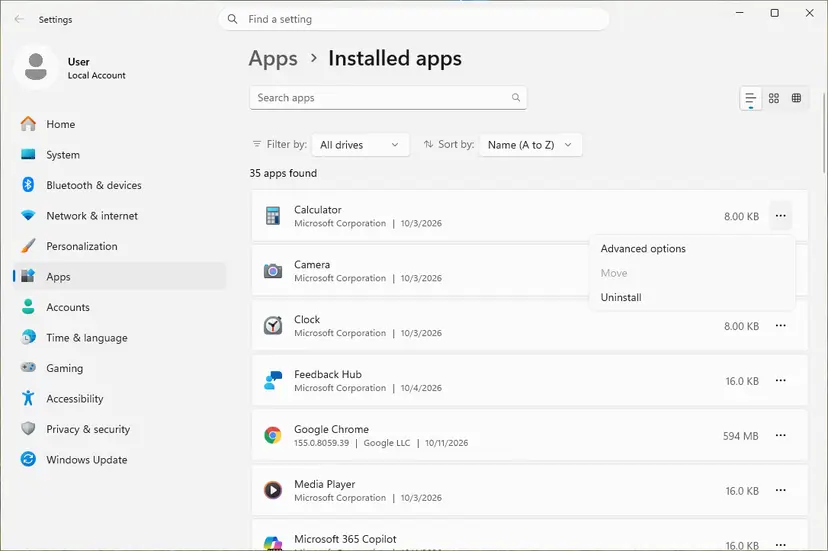
The three dots next to an app open Advanced options. Screenshot: Windows 11 26H2. - Repair first. On the page that opens, select Repair if it is there. The app's data stays. Open the app and check whether it works.

Repair keeps the app data. Reset deletes it. Screenshot: Windows 11 26H2. - Reset if Repair did not help. Select Reset. This deletes the app's data on this PC, including sign-in details and settings. Open the app and set it up again.
These steps were written for Windows 11 25H2 and 26H2. The full page with the other versions and what each result means: How to repair or reset an app in Windows
It worked if: The launcher opens and asks you to sign in, or goes straight to the Play screen.
If not: Go to Fix 5 and register the launcher package again.
Fix 5. Register the Minecraft Launcher package again with PowerShell
5 minutesLow riskRepair and Reset did not help, and you do not want to download the launcher again yet.
Registering a Store app again tells Windows to read its package from the install folder once more and link it to your account. Microsoft's answers about this message for other Store apps list the same step. It touches only the package, not your worlds.
Use Minecraft as the part of the name between the asterisks, so the command finds the launcher's package.
- Open PowerShell. Select Start, type PowerShell and select Windows PowerShell. Open it the normal way, not as administrator: in an administrator window the app is registered to the administrator account instead of yours.
- Find the app's package. Type the command below with a part of the app's name between the asterisks and press Enter. If the app is installed, PowerShell prints its details, including Name and InstallLocation. If nothing is printed, the app is not installed for your account: see the section below.
Get-AppxPackage -Name '*WindowsCalculator*'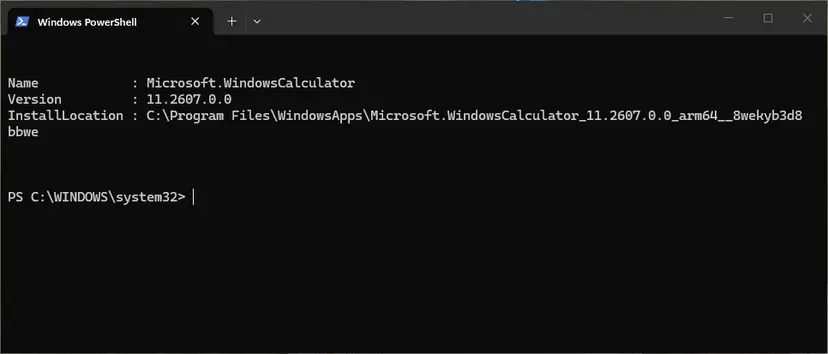
Get-AppxPackage shows the package name and where it is installed. Screenshot: Windows 11 26H2. - Re-register the app. Paste the three commands below, with the same name between the asterisks, and press Enter. They read the folder the app is installed in and register its manifest again. If no red text appears, it worked.
$InstallLocation = Get-AppxPackage -Name '*WindowsCalculator*' | Select-Object -ExpandProperty InstallLocation $ManifestPath = $InstallLocation + '\Appxmanifest.xml' Add-AppxPackage -Path $ManifestPath -Register -DisableDevelopmentMode - Open the app. Close PowerShell and start the app from Start. If it still fails, restart the PC and try once more.
These steps were written for Windows 11 25H2 and 26H2, Windows 10 22H2. The full page with the other versions and what each result means: How to re-register Microsoft Store apps with PowerShell
It worked if: PowerShell finishes without red error lines, and the launcher opens from Start.
If not: Go to Fix 6 and reinstall the launcher.
Fix 6. Uninstall the Minecraft Launcher and install it again
15 to 30 minutesRead the warningFix 1 to Fix 5 did not help, and the account clearly owns Minecraft.
A fresh install replaces the launcher package and creates a new link to your licence. The Minecraft Help Center gives this as its second fix, with a backup of your worlds first.
Uninstalling the launcher can remove local game data. Back up your worlds with the steps in the Backup & Restore section of the Minecraft Help Center before you start. Worlds and Realms stored online are not affected.
- Back up your worlds as the callout above says.
- Select Start > Settings > Apps > Installed apps (on Windows 10, Apps & features).
- Find Minecraft Launcher, select the three dots or the app, then Uninstall, and confirm.
- Restart the PC.
- Download the launcher again from minecraft.net/en-us/download, or install it from the Xbox app by searching for Minecraft Launcher and selecting Get or Install.
- Sign in with the Microsoft account that owns Minecraft and start the game.
It worked if: The new launcher opens, signs in and shows your editions on the left.
If not: If the installer itself fails, sign out and back in to the Store (Fix 1) and run WSReset (Fix 2), as the Help Center advises, then try again. Otherwise go to Fix 7.
Fix 7. Install the pending Windows updates
10 to 30 minutesLow riskWindows Update shows pending updates, or the PC has not been updated for weeks.
The Microsoft Store and its licence parts come partly through Windows itself. A PC that misses updates can have a Store that newer app packages do not work well with. Windows 10 left support on 14 October 2025, so a Windows 10 PC only gets these fixes with Extended Security Updates.
- Select Start > Settings > Windows Update (on Windows 10, Settings > Update & Security > Windows Update).
- Select Check for updates.
- Install everything offered, and under Advanced options > Optional updates also install any pending updates.
- Restart the PC when asked, then open the Minecraft Launcher.
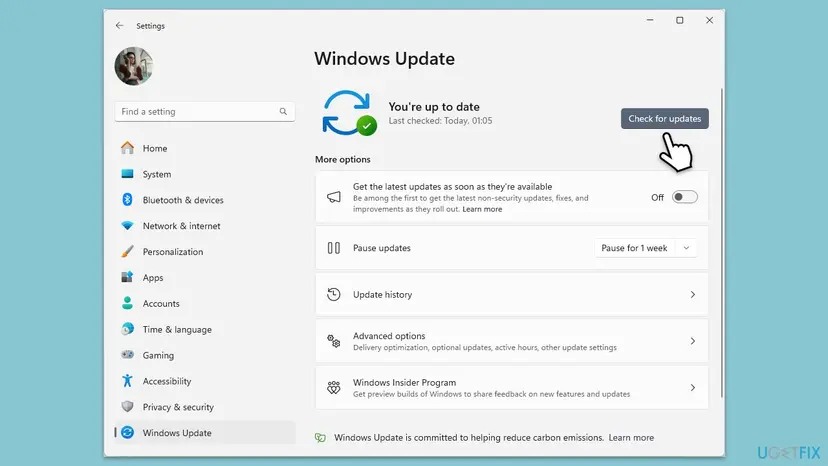
It worked if: Windows Update says "You're up to date", and the launcher starts.
If not: Read "If the licence error is still there" below.
If the licence error is still there
When the right account is signed in, the Store is reset and the launcher is new, the problem is either the account or the Windows installation. Find out which one with these checks:
- Check the purchase. Sign in at minecraft.net or in the Store and confirm that the account owns Minecraft: Java & Bedrock Edition. A gift code that was never redeemed, or a purchase on a family member's account, is a licence on another account.
- Check PC Game Pass. If you play through Game Pass, the membership must be active. A lapsed membership gives a licence error that no repair fixes.
- Test a second Windows account. Create a new local account with Create a new user account to test a problem, sign in to the Store there with the same Microsoft account and open the launcher. If it works there, your old Windows profile is the problem.
- Repair Windows system files with Run DISM and SFC to repair Windows system files if other Store apps fail too.
- Contact Minecraft Support through the Contact Support link of the Minecraft Help Center, with the exact message, the launcher version, your Windows version and the account e-mail.
If even a new Windows account fails, a repair install that keeps your files is the last step: Reinstall Windows without losing files. The message is never a sign of failing hardware.
How to keep the licence error from coming back
- Keep one Microsoft account signed in to Windows, the Microsoft Store, the Xbox app and the Minecraft Launcher.
- Leave automatic app updates on in the Store, so the launcher and Gaming Services stay current.
- Install Windows updates regularly and restart after them.
- If you share the PC, let each person sign in to the Store with their own account before they play.
- Keep a recent backup of your worlds, so a reinstall never puts them at risk.
Sign in to the Microsoft Store first and let it finish syncing your Library before you open the Minecraft Launcher. Starting the launcher before the Store knows your account is a common way to see this message once.
Frequently asked questions
What does "No applicable app licenses found" mean in Minecraft?
It means Windows found no licence for the Minecraft Launcher for the account signed in to the Microsoft Store on this PC. The launcher is a Store app, so Windows checks its licence each time it starts. The message is about that check, not about your worlds or your graphics card. If you bought Minecraft, the licence is still on your Microsoft account, and signing out and back in to the Store with that account (Fix 1) is the usual way to make Windows find it again.
Why does it say this when I already bought Minecraft years ago?
Because the check happens on this PC, not in your purchase history. The purchase stays on your Microsoft account, and the launcher relies on the Microsoft Store to read it. If the Store is signed in with another account, its cache is out of date, or the launcher package is damaged, Windows cannot see the licence you own. Fix 1 to Fix 3 restore that link without any new purchase.
Do I have to buy Minecraft again?
No, not if your Microsoft account owns it. A licence error is not a lost purchase. Check that Minecraft shows under Library > Games in the Microsoft Store when you are signed in with your account. If it does, the fixes on this page are enough. You need to buy it only if the account never owned the game, for example when it was bought on a family member's account, or when you played through a PC Game Pass membership that has ended.
Does reinstalling the Minecraft Launcher delete my worlds?
It can remove local game data, which is why the Minecraft Help Center asks you to back up your worlds before you uninstall the launcher. Fix 1 to Fix 5 do not touch your worlds. Reset in Fix 4 clears the launcher's own settings and sign-in, not your saves. Before Fix 6, use the Backup & Restore steps of the Help Center, and keep that copy until Minecraft runs again.
Is this the same error as in Game Pass and other Microsoft Store games?
Yes, the same Windows message appears with other Store apps and PC Game Pass games, for example Minecraft Dungeons, whose window is shown above. The cause is the same licence check, so Fix 1 to Fix 3 and Fix 7 work for them too. For Game Pass games, also check that the membership is active. Our 0x803f8007 guide covers a close licence error in the Xbox app.
winget says "Program 'winget.exe' failed to run: No applicable app licenses found". Is that the same?
It is the same Windows licence message, shown in PowerShell for winget instead of in a window for Minecraft. winget comes with App Installer, which is a Microsoft Store app too, so its licence is checked the same way. Sign in to the Store, run WSReset and update App Installer from Library > Get updates, as in Fix 1 to Fix 3. Minecraft does not need winget to run.
Can I fix it without the Microsoft Store?
Not on Windows. Even when you download the launcher from minecraft.net, it installs as a Store app and relies on the Store for its licence. If the Store itself does not open, fix that first with Fix 2. The Minecraft Help Center also lets you install the launcher from the Xbox app, which uses the same Store services in the background. Copies from unofficial launchers or cracked versions are not covered here, and we do not help to bypass the licence check.
The message appeared once and then went away. Should I worry?
No. In Mojang's bug report MCL-20724 the launcher showed the message several times and then opened normally later, with no change by the user. A short problem with the licence service, a Store update in the background or a sign-in that was not finished can all cause one failed check. If it comes back every day, do Fix 1 and Fix 3 to clean up the account and the updates.
I searched in another language or with other words. Is this the right page?
Yes, if the window says "No applicable app licenses found" or the same text in your language. Readers reach it with the translated message, such as "nenhuma licença de aplicativo aplicavel encontrada minecraft", "не найдено соответствующих лицензий для приложения", "마인크래프트 관련 앱 라이선스를 찾을 수 없습니다" or "no se encontraron licencias de aplicacion aplicables". Others ask "how do i fux", "how to fix this", "jak to naprawić", "kenapa ini", "day la cai j", "làm sao", "что делать" or "ايه الحل". The fixes do not depend on the Windows language: account first, then the Store, the launcher and Windows. Searches for "images" or other programs are not covered beyond the pictures on this page.
Sources
- Minecraft Help Center: Troubleshooting Installing the Minecraft Launcher (help.minecraft.net)
- Minecraft Help Center: Fix Minecraft Launcher Crashes and Freezes on Windows PC (help.minecraft.net)
- Mojira (Mojang bug tracker): MCL-20724, Window Pop-up "No Applicable App Licenses Found" On Launcher Startup (bugs.mojang.com)
Did this fix work?
One click, no account. It tells the next reader which guides are worth their time.
Questions and experiences: fix "No applicable app licenses found" error in Minecraft
Still broken, or found a fix we did not cover? Ask here: members and our editors answer. Reading is open; writing needs a free account.
…