How to fix
No Bootable Device found error
on Windows
Resolve the "No Bootable Device Found" error on Windows 10 or Windows 11 effortlessly. Expert-tested solutions for a quick fix, with screenshots.


What causes How to fix No Bootable Device found error?
- Cable connecting to a storage device might not be properly attached
- Storage device failure
- Corrupted master boot record (MBR)
- Improper BIOS settings
- Faulty hardware components
Repairs Windows system files, removes malware, and restores a clean OS state — without reinstalling.
Hello, I have been using my Dell laptop for a couple of years now and did not have any problems with it. However, it recently crashed with Blue screen, rebooted, and then did not load properly again. Instead, I see this error: "PXE-MOF: Exiting PXE ROM. No bootable device - insert boot disk and press any key." As a result, I can't use my laptop. Please help.
While No Bootable Device found error is relatively rare, it can cause serious issues to the users who do experience it. The issues occur on Windows operating systems, and, most commonly, on laptops from various brands, although desktops can also suffer from this problem.
The No Bootable Device found error essentially means that Windows operating system cannot find a storage device, such as hard drive, solid-state drive, DVD, CD, or USB flash, to boot the system on. To load the OS, Windows need to extract the necessary drivers and other files from partitioned[ref en-1] device storage which holds a master boot record (MBR)[ref en-2] data.
In most cases, users experience the issue after they reboot their computer or after a Blue Screen of Death (BSOD)[ref en-3] occurs. Nonetheless, some also claimed that No Bootable Device error could occur seemingly out of nowhere.
There are a variety of different versions of the No Bootable Device found error, as it can be related to different things. For example, in some cases, the error will hint that the cable connecting to a storage device might not be properly attached:
Realtek PCIe EE Family Controller Series v1.35
PXE-E61: Media test failure, check cablePXE-MOF: Exiting PXE ROM.
No Boot Device Found. Press any key to reboot the machine
Unfortunately, even if No Bootable Device found a black screen is rebooted, it will not change anything, and users will simply be returned to the same error message. The issue can be extremely frustrating, as it prevents users from using their machines as intended. Thus, there is a great need to fix No Bootable Device found error as soon as possible.
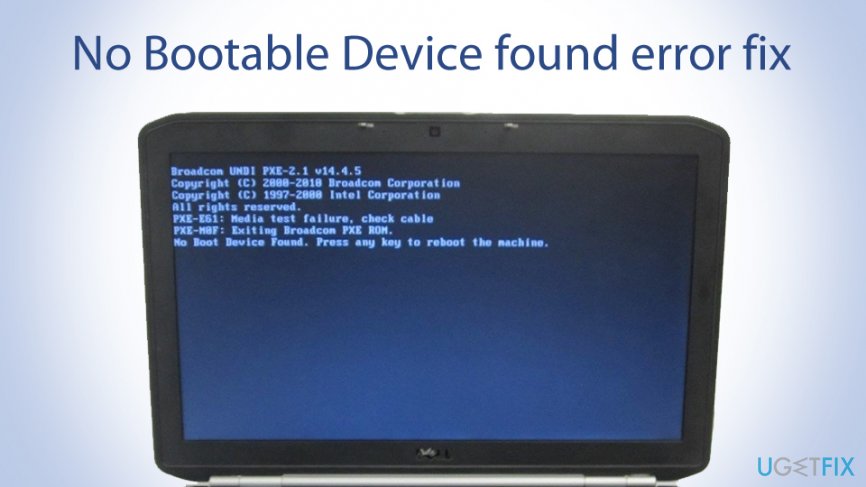
The reason for No Bootable Device found error to occur can vary - it might be hard drive failure, incorrect boot sequence, faulty MBR, inactive primary partition, malware infection, and much more. Since reasons for this issue to occur vary, you might have to try several solutions before you are able to fix the error.
Step 1. Physically check your hardware connections
The first thing you should do is making sure that your hard drive or solid-state drive is connected to the motherboard of your PC. Of course, this option is only available to desktop users, as dissembling a laptop can cause permanent damage if you are not completely sure what you are doing - so rather trust this to an experienced technician.
Important: make sure you power off your machine completely before you open the lid of your case, as you could suffer burns or suffer an electric shock.
- Open up your case
- The cable you are looking for should be connected to your HDD or SSD (it's called SATA cable)
- Ensure that the connection is set up properly between your motherboard and the HDD/SSD
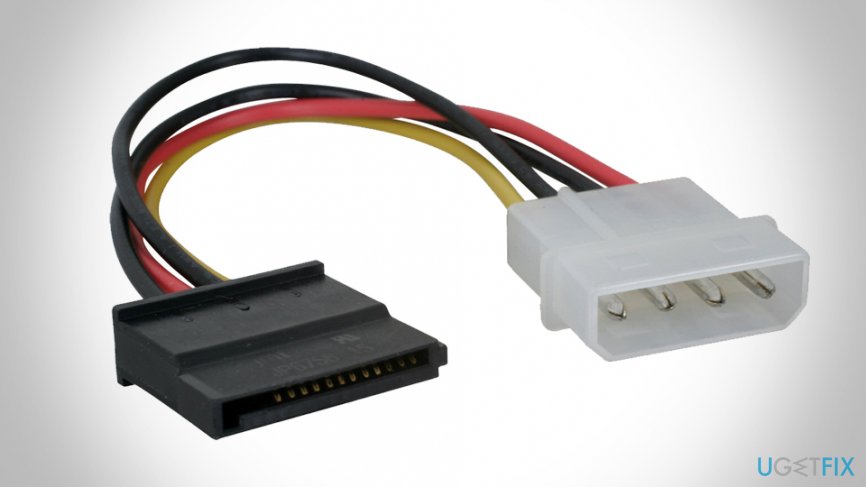
How to fix no bootable device found error check sata cable connection - If the connections were established well, take cables out and put them back again.
Step 2. Ensure a correct boot order is selected via BIOS
Incorrect boot order could cause No Bootable Device found a black screen. Here's how to make sure that you are running a correct boot order:
- Pres Power button and hold it a few seconds until the screen goes blank and starts a reboot sequence
- During the bootup process, press F12, F2, F8, Del (depending on your laptop model. If you are using a PC, look for the information online based on your motherboard brand), or another button to enter BIOS environment
- Press right arrow key to access Boot tab
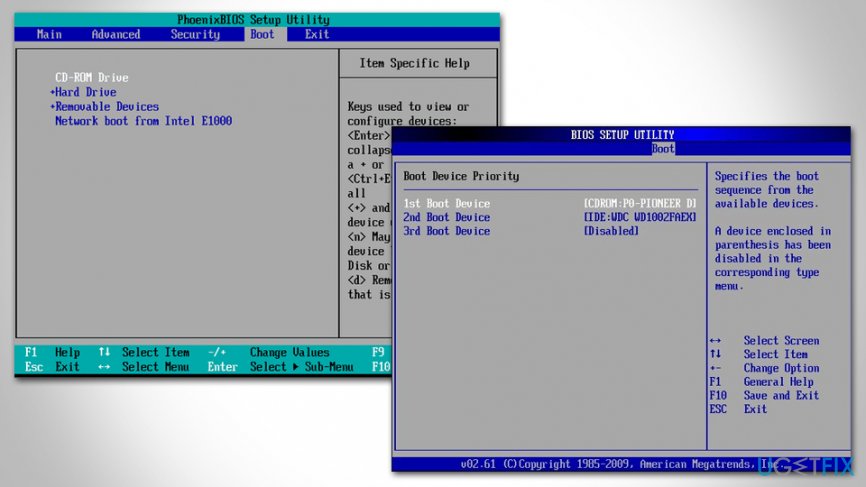
How to fix no bootable device found error ensure correct boot sequence - Select Hard Drive/Solid State Drive as your primary boot device
- Save changes, exit BIOS and then reboot
- Check if No Bootable Device found error persists.
Step 3. Use Windows Creation Tool to create installation media
For the next solutions, you will have to download Windows installation media files and create a bootable USB or DVD. Since you cannot use the computer which experiences the "No Bootable Device found error" error, you will have to use another device for the purpose.
- Download Media Creation Tool from the official Microsoft website
- Once the tool downloads, double-click it
- Agree to Terms and conditions and press Next
- In the next screen, select Create installation media (USB flash drive, DVD or ISO file) for another PC an press Next
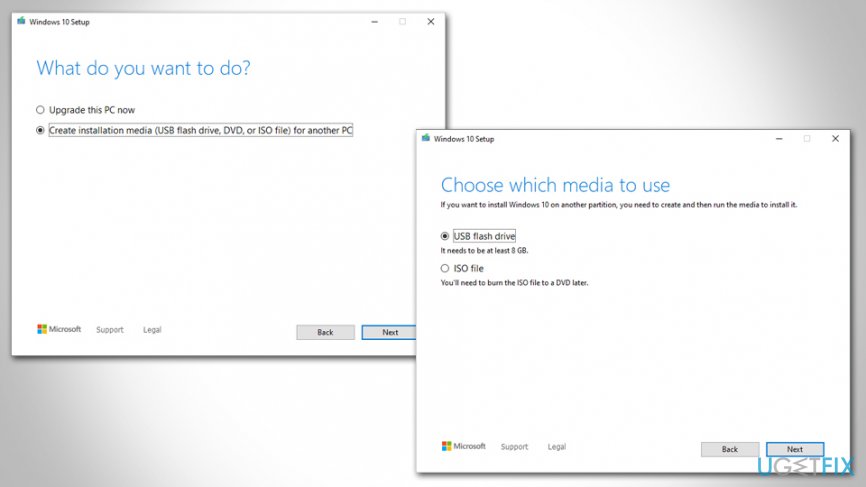
How to fix no bootable device found error create bootable windows installation media - Then, pick USB flash drive or ISO file for a DVD (you will have to burn the latter, so it is easier to use USB flash instead)
- Insert an empty USB flash device (it should be able to fit at least 8GB of data) into the USB slot
- Press Next on the Windows 10 Setup and follow on-screen instructions to finish the process.
Step 4. Boot the computer from Windows installation media USB/DVD
- Access BIOS as explained in Step 2
- Go to Boot tab once again
- Change your boot sequence to DVD-ROM or USB Flash by using built-in instructions
- Exit and reboot the PC
- Proceed with the next step.
Step 5. Fix Master Boot Record and Boot Configuration Data
- After a reboot, you will be presented with Windows Setup window
- Press Repair your computer at the bottom-left
- Next, select Troubleshoot > Advanced options > Command Prompt
- Once Command Prompt opens, type in the following lines, pressing Enter after each:
Bootrec /fixmbr
Bootrec /fixboot
Bootrec /scanos
Bootrec /rebuildbcd - Restart your machine and see if this method works for you.
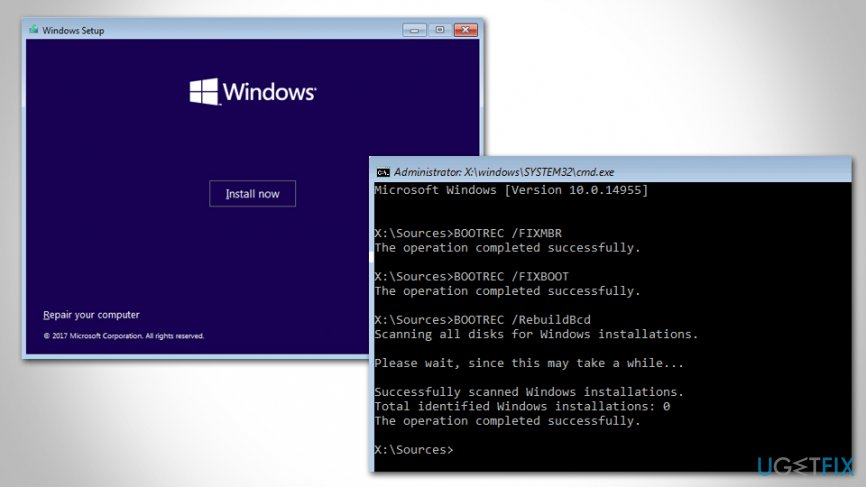
How to fix no bootable device found error fix mbr
Step 6. Fix the inactive partition
- Access Command Prompt by using bootable Windows installation media USB/DBD as explained above
- Type in the following commands, pressing Enter after each:
diskpart
list disk
select disk 0 (make sure that the "0" disk represents the one which Windows is installed on)
list partition
select partition 1 (your's might not be "1" - ensure that you are selecting system reserved partition)
active - Finally, exit the Command Prompt and reboot your PC.
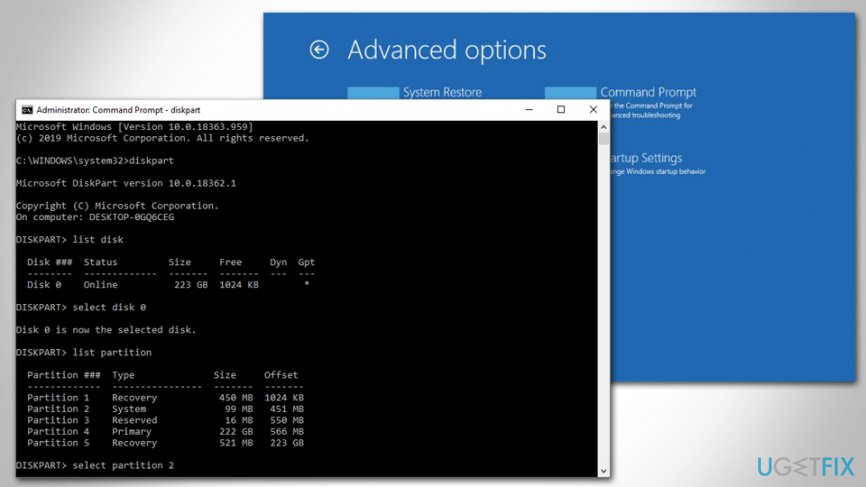
How to fix no bootable device found error fix inactive partition issues
No Bootable Device found error fix: additional steps
Your MBR and BCD data might have been corrupted by a malware infection. Therefore, we highly recommend scanning the machine with anti-malware software that would find and eliminate the infection permanently. Also, since malware can cause significant damage to the Windows system, we recommend performing a scan with [d1].
Finally, if nothing helped you to fix "No Bootable Device found" error, the culprit is most likely a corrupted hard drive. In such a case, you should replace it with a new/working one or contacting experienced IT support that could do that for you.
Bottom line
To fix the No Bootable Device found error, users can check the connections of their storage devices, verify BIOS settings, and run diagnostics on hardware components. If these steps do not resolve the issue, it may be necessary to seek professional assistance or consider replacing the affected hardware.
Frequently asked questions
First, check your BIOS settings to ensure the correct boot order is set, prioritizing your hard drive. If the issue persists, consider running the Windows Startup Repair from a bootable USB drive.
You can start by checking if your hard drive is properly connected and recognized in the BIOS. If everything looks good, use the Windows installation media to access recovery options and attempt a Startup Repair.
Yes, you can try using the Command Prompt from the Windows recovery environment to rebuild the Boot Configuration Data (BCD) using the commands 'bootrec /fixmbr' and 'bootrec /rebuildbcd'.




Report an issue
What's wrong with this guide? We review every report and update or remove content.
Report received — thank you. We'll review and fix it.
You need a free account to submit a report.
Be the first to comment