How to fix
“No results found”
on Windows
Resolve the "No results found" issue on Windows 10 Search quickly and effectively. Our expert-tested solutions will have you searching seamlessly in no …

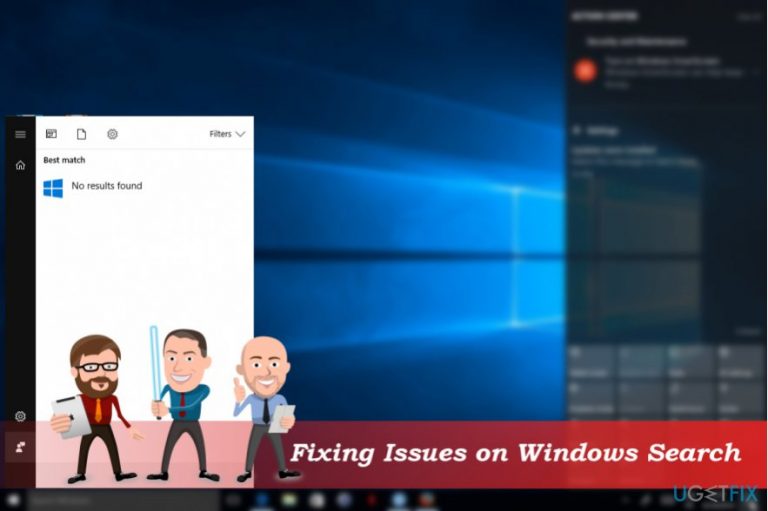
What causes How to fix “No results found” on Windows 10 Search?
- Cortana's malfunction
- Disabled search indexing
- Recent Windows updates
- Incorrectly installed updates
- System clog
Repairs Windows system files, removes malware, and restores a clean OS state — without reinstalling.
Search function doesn’t work at all. Whatever I’m trying to look for, the only search result I receive is a message “No results found.” I’m using Windows 10 operating system. This is really annoying issue to me, so is there anything that could be done? Please help me.
Windows 10 Search is an outstanding feature, as it allows users to not only find what they are looking for within the computer but also see the suggested results from the internet. Without a doubt, this function is especially useful for less computer-savvy individuals, as typing "Control Panel" is much more comfortable rather than digging within the system files and finding it manually.
Unfortunately, Windows 10 Search sometimes fails to work properly and responds with an error:
No results found
While it might be true in some cases when you are looking at something that does not exist on your PC, when the feature never works, it definitely creates a lot of troubles. Whatever the PC owner may be looking for, the only search result delivered is a short notification without any type of explanation. However, we will try to tackle the problem and help you fix “No results found" on Windows 10 Search.
If Windows 10 has been working fine up until the installation of Windows updates or other major Windows system changes, this failure may be a short-term one, and the resolution for “No results found" error could be system reboot or installation of all available Windows 10 updates. However, some regular system clog or incorrectly installed updates are not the only reasons why Windows Search may stop working.
In most of the cases, the culprit is either Cortana’s[ref en-1] malfunction or disabled search indexing.[ref en-2] In the latter case, people may also get the “Search Indexing Was Turned Off” error message when trying to use Windows 10 search. As each case is different, we will provide several methods that may help to fix "No results found" error.
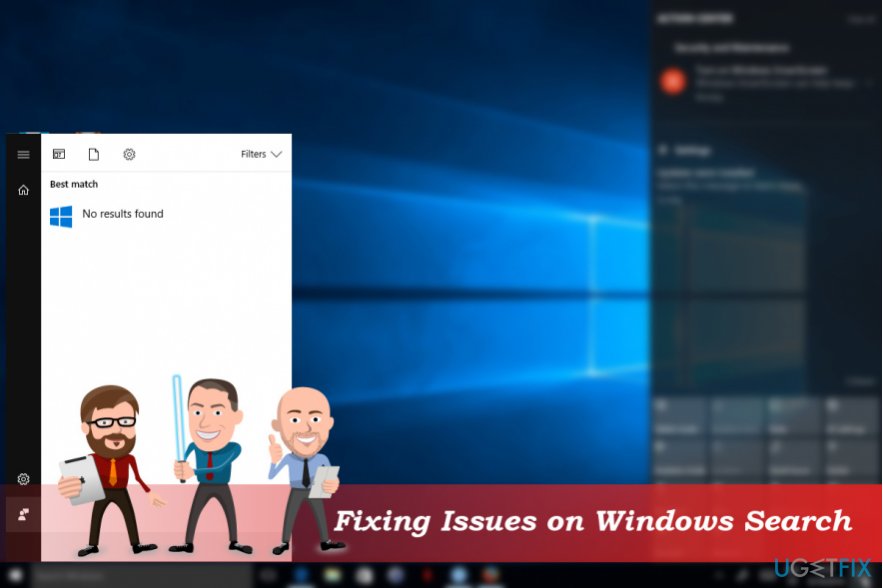
Fix “No results found” message on Windows 10 Search
As we have stated before, you should try to reboot your PC and check if that did not resolved the issues with Windows Search. If that did not help, please refer to the following fixes:
Fix 1. Install Windows Updates
- Right-click on Start button and pick Settings.
- Select Update & Security and click Check for Updates button.
- Wait for the scan to be completed and select Install Updates.
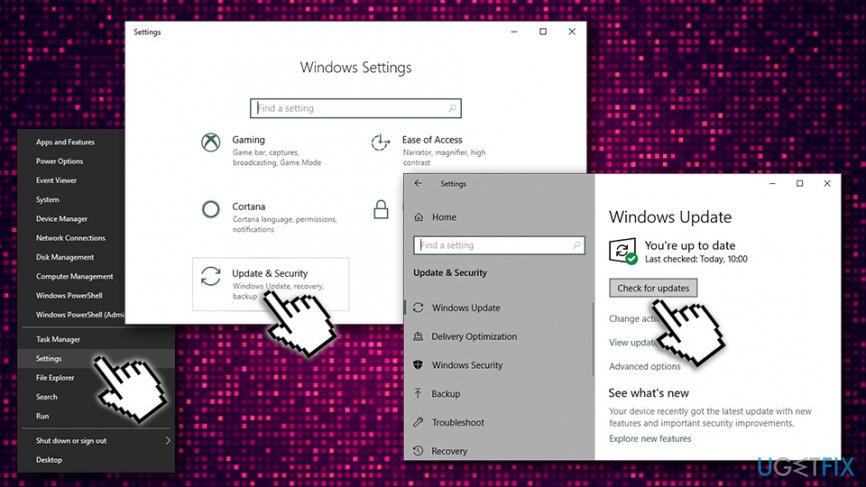
Fix no results found on windows 10 search update operating system - Finally, reboot the system.
Fix 2. Temporarily disable Cortana’s process
This method will help to isolate the problem. If the disabled Cortana fixed not working Windows Search, then you should run Cortana’s troubleshooter and fix all issues regarding its functionality. To disable the process, please follow these steps:
- Press Ctrl + Shift + Esc to open Task Manager.
- Open Processes tab and find all processes related to Cortana.
- Click them and select End Task.
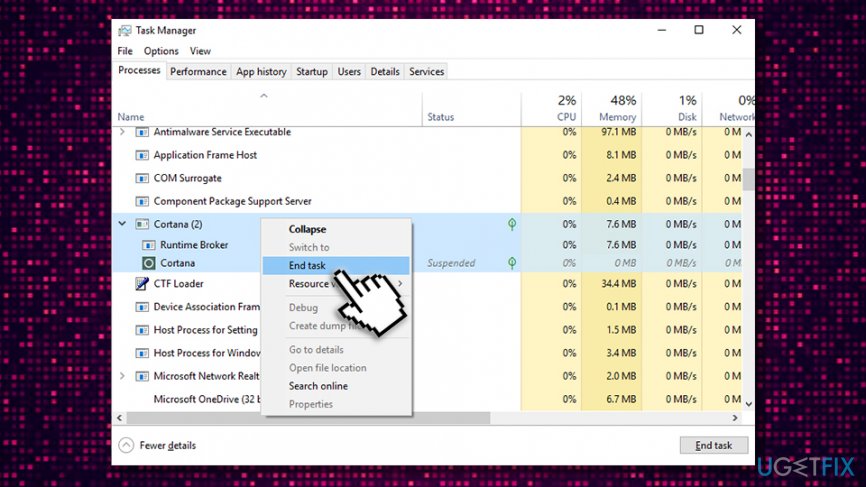
Fix no results found on windows 10 search disable cortanas process - If that did not help to fix the search, enable the process.
You may do the same with the File Explorer[ref en-3] process as it may also be negatively influencing Windows 10 search.
Fix 3. Run Search and Indexing Troubleshooter
- Go back to Settings and Update & Security.
- Open Troubleshoot section and locate Search and Indexing.
- Click twice on the Search and Indexing Troubleshooter.
- When prompted pick Files don't appear in search results option and click on Next.
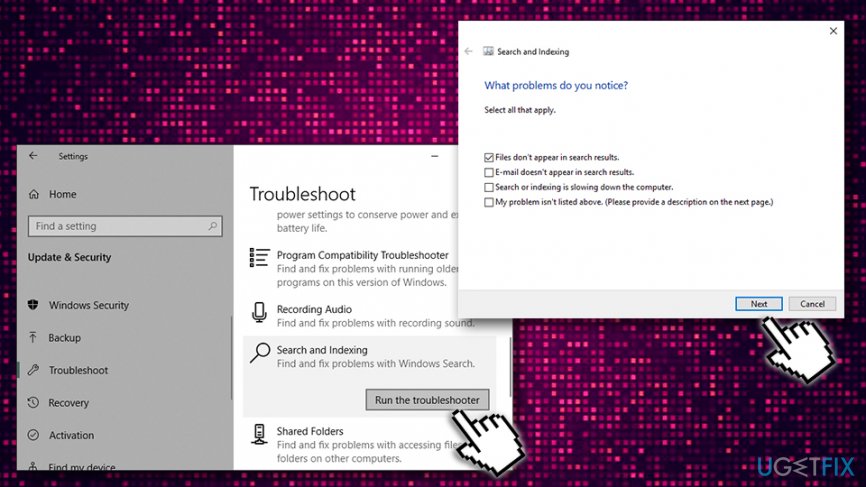
Fix no results found on windows 10 search run troubleshooter
Now the scan should be executed. Wait a while and check if Windows detected any issues related to search and indexing. They should be automatically fixed by Windows. If, however, the problems haven’t been fixed automatically, you can run a scan with [d1] PC repair software.
Fix 4. Make sure Windows Search service is running
- Press Windows key + R and type in services.msc
- Click OK
- Scroll down to locate Windows Search service - double click it
- Click on the Startup type drop-down menu and select Automatic
- Tap on Start, Apply and OK
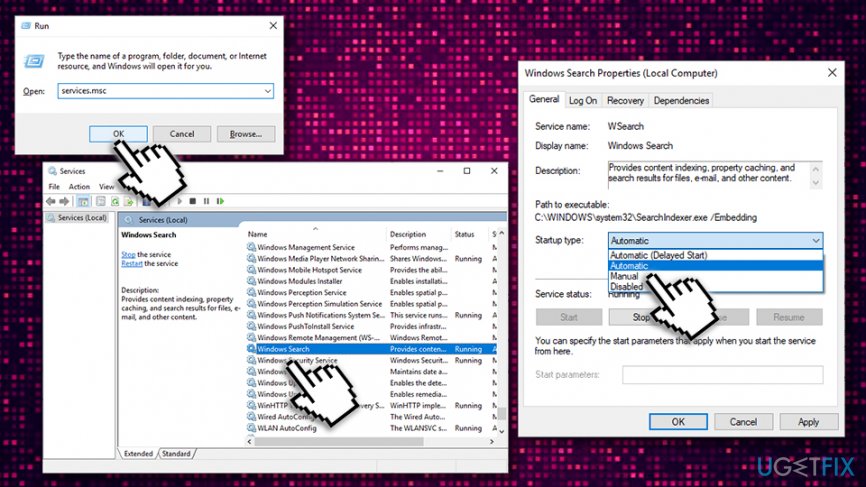
Fix no results found on windows 10 search make sure windows search service is running
Fix 5. Rebuild Search Indexing
If none of the above steps helped to fix “No search results” message on Windows 10 Search, the last recommendation would be to rebuild the Search Indexing. In most of the cases, indexing triggers search failure.
- Click on Start button and scroll down to find Windows System option
- Click on it, then select Control Panel to open it
- Under View by, select Small Icons
- Now click on Indexing Options and then Advanced
- Under Troubleshooting, pick Rebuild and wait while indexing is being rebuilt.
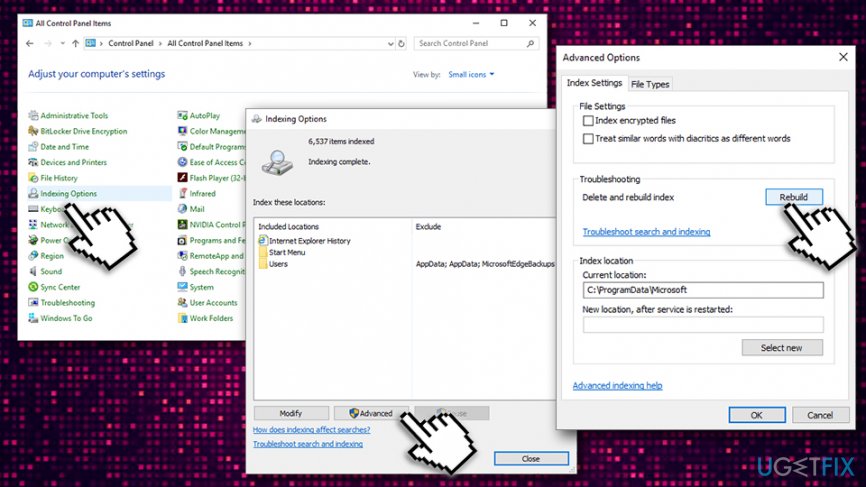
Fix no results found on windows 10 search rebuild indexing
Bottom line
To fix the 'No results found' error on Windows 10 Search, you can try rebooting your PC, installing all available Windows updates, or addressing issues with Cortana and search indexing. If these methods do not resolve the issue, further troubleshooting may be necessary.
Frequently asked questions
Try rebuilding the search index by going to Settings > Search > Searching Windows, and click on 'Advanced Search Indexer Settings' to find the option to rebuild the index.
In Windows 11, you can reset the Search app by going to Settings > Apps > Apps & features, finding the Search app, and selecting 'Advanced options' to reset it.
Yes, a corrupted user profile can lead to various search issues; creating a new user account in Windows 10 or Windows 11 may resolve the problem.




Report an issue
What's wrong with this guide? We review every report and update or remove content.
Report received — thank you. We'll review and fix it.
You need a free account to submit a report.
Be the first to comment