How to fix
Not Working Download Function in Chrome browser
on Windows
Resolve the download issues in Chrome on Windows 10 or 11 effortlessly. Get expert-tested solutions and fix it in minutes for seamless browsing.

What causes How to Fix Not Working Download Function in Chrome browser?
- Browser extensions causing conflicts
- Download accelerators interfering
- Adblockers affecting functionality
- Invisible web scripts disrupting downloads
- Outdated Windows causing issues
Repairs Windows system files, removes malware, and restores a clean OS state — without reinstalling.
Despite what I want to download, be it an email attachment or mp3 file, nothing happens. Closed and opened the browser again – still the same issue. Microsoft Edge seems to be working fine. I’d appreciate your advice.
Not Working Download Function in Chrome issue is quite a common phenomenon regardless of your operating system – Mac of Windows. It is quite a common occurrence in older as well latter versions of the former operating system. The causes of such phenomenon can be explained from different perspectives.
Since every user uses Chrome browser in their own way, naturally, it gets more customized. Likewise, the download function failure might occur as a result of the browser extensions you use.
If you tend to cram your browser with ample of download accelerators, shady adblockers, and video quality enhancers, it is very likely that they may impose “side effects” on your browser. As a result, the fault for this issue might lie in them.
Alternatively, even if you are aware of browsing hazards, you might still unintentionally pick an invisible web script which might meddle with the smooth download process.
For browser malware prevention purposes, it is useful from time to time to clear browsing data on your Google Chrome or reset browser settings. In order to fix malfunctioning download function in Chrome browser, you should also check your Windows Update status. Let us review the solution methods in more detail.
Option 1. Install Windows Updates
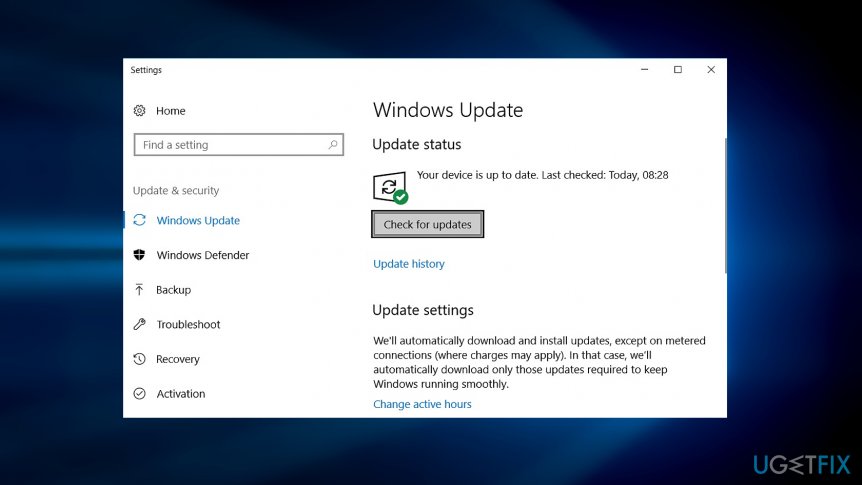
This issue again suggests how it is crucial to keep your system up-to-date.[ref en-1] It does not only contribute to overall immunity of OS against malware[ref en-2], but it may also maintain proper PC performance.
- Click on the Start button and type updates. Windows 7 and XP users can access Windows Update settings via Control Panel.
- Afterward, opt for Check for Updates.
- Makes sure all available updates are installed properly.
Option 2. Clear browsing data
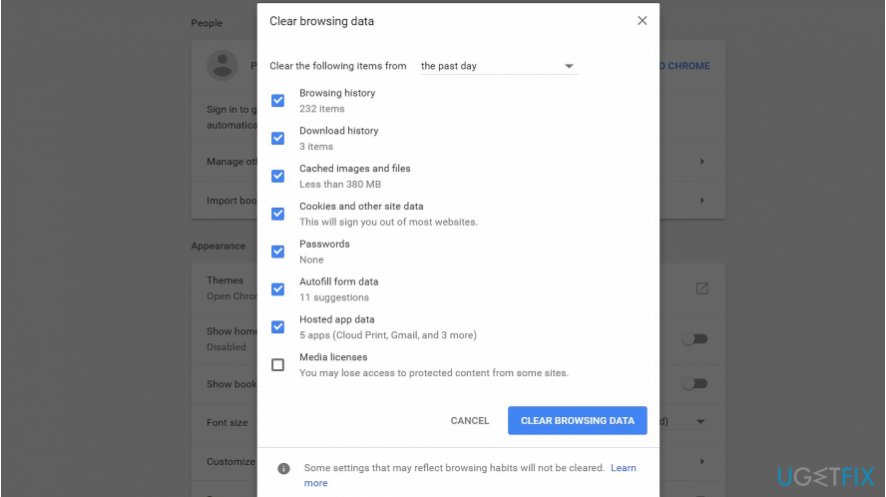
According to users, who encountered this error, clearing browsing data was an effective solution.
- Open Chrome, click on the three vertical dots on the top right corner of the toolbar.
- Opt for History.
- Then click on Clear browsing data on the left side of the window. Depending on your preferences, you can select the type of data and time frame the data will be deleted.
Option 3. Remove Chrome browser user profile
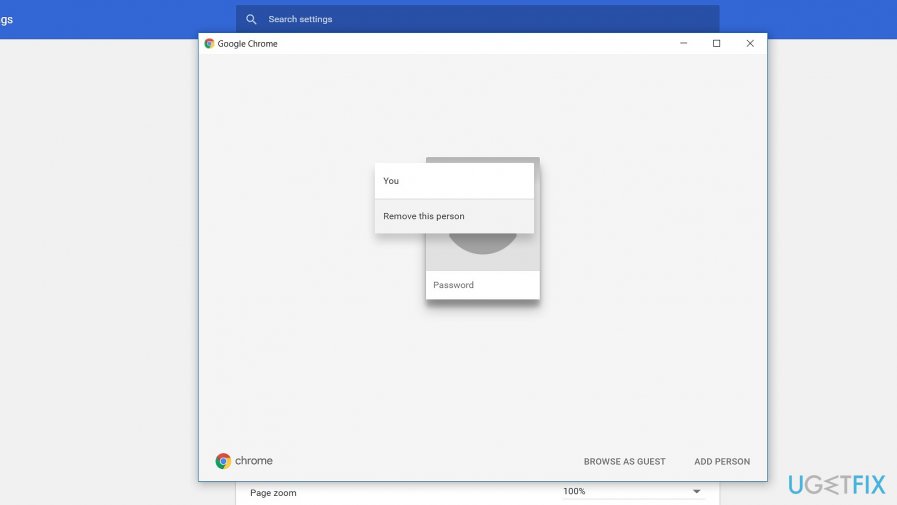
If potentially malicious web scripts settle on the browser and clearing the browser data does not help, remove current Chrome user profile.
- Open Chrome, click on the three vertical dots on the top right corner of the toolbar.
- Later on, choose Settings.
- Under people headline, click on Manage other people.
- Click on the picture and then on the three vertical dots. Choose Remove this person.
- This action will remove all current bookmarks extensions, clean browsing data and any other information identifying the user. This is an efficient method of getting rid of adware and other rogue browser files.
Option 4. Reset browser settings
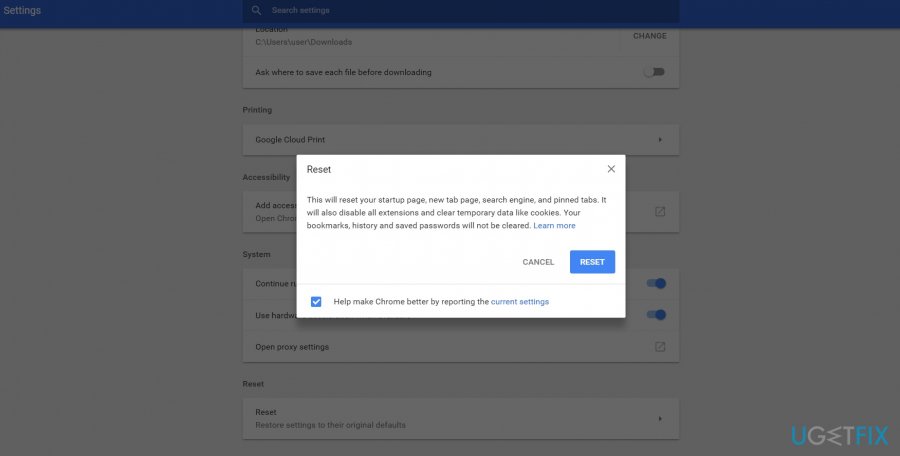
If this method does not work, reset Chrome browser settings.
- Go to Settings, scroll down until you see Advanced. Click on it and scroll down.
- At the end, you will see Reset option, click on it. Recovering factory settings will also eliminate files of less aggressive browser hijackers.
Option 5. Check for hardware defects
In case, the download option does not work in other browsers, the fault may lie in damaged or malfunctioning hardware. In that case, “explorer.exe not responding” error[ref en-3] might pop up occasionally. The wrong pair of memory cards might be responsible for this issue.
Bottom line
To fix the not working download function in Chrome, you should install Windows updates and clear your browsing data. If these solutions do not resolve the issue, consider resetting your browser settings or reviewing your installed extensions for potential conflicts.
Frequently asked questions
First, check your internet connection and ensure it's stable. If the issue persists, try resetting Chrome settings or disabling any conflicting extensions.
You can attempt to clear the cache and cookies in Chrome, as this often resolves download problems. Additionally, make sure that your antivirus or firewall is not blocking downloads.
Yes, navigate to Chrome's settings and verify that the 'Ask where to save each file before downloading' option is enabled, as this can sometimes help troubleshoot download problems.




Report an issue
What's wrong with this guide? We review every report and update or remove content.
Report received — thank you. We'll review and fix it.
You need a free account to submit a report.
Be the first to comment