How to fix
Not Working Microsoft Photos App
on Windows
Resolve issues with the Microsoft Photos app on Windows 10 quickly and effectively. Get expert-tested solutions that fix the problem in minutes.

What causes How to Fix Not Working Microsoft Photos App on Windows 10?
- Invalid value for Registry
- Photos app not listed in 'Open with' options
- Corrupted Photos app installation
- Issues with default app settings
- Missing Photo Viewer option
Repairs Windows system files, removes malware, and restores a clean OS state — without reinstalling.
I can‘t open .jpg files in Windows 10. This problem started out of nowhere, and I don‘t know what to do.
I opened Settings app and checked what apps for photo viewer are installed on my PC. Strangely, I did not find the option to view files using photo viewer.
Could you please tell me how to add a jpg to the photo viewer default apps?
Microsoft Photos app is a pre-installed Windows 10 program, which serves as a .jpg and .png file opener. It allows editing the opened pictures by cropping them, adjusting the lightening, rotating, applying effects,[ref en-1] and so on.
Statistics have revealed that most of Windows 10 users prefer using the Photos app rather than a third-party tool due to its speed and simplicity. However, many people reported Photo app for failing to open photos and pictures.
While some of them encounter an „Invalid value for Registry“ error, the others can‘t find the Photos app among „Open with“ app options. If you are facing the latter problem, then try to open photos using the following methods:
Method 1. Restore Photo Viewer
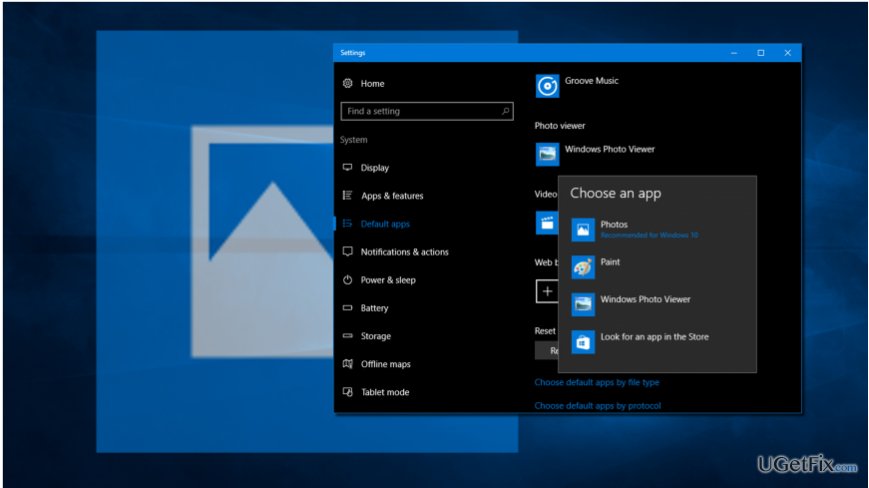
Photos app was known as Photo Viewer[ref en-2] in the older Windows version. If there are some problems with the Photos app, you may try to restore the Photo Viewer by performing some modifications on the registries.
1. Download the .reg file.
2. Click on Restore_Windows_Photo_Viewer_CURRENT_USER.reg file to run the tool.
3. When the confirmation window shows up, click "Yes."
4. When the process is finished, right-click on any photo stored on your PC and check if Photo Viewer is on the „Open With“ section.
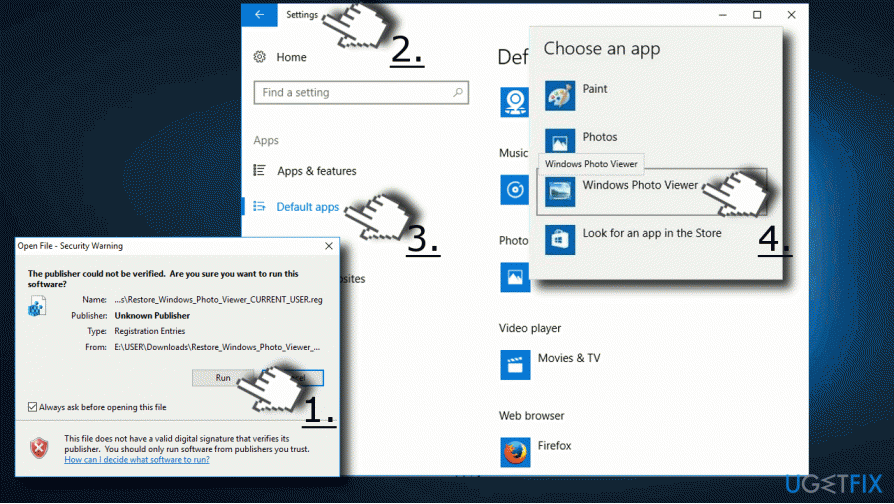
5. If you have found it, make sure to set Photo Viewer as a default application. Press "Windows key + I" to open "Settings."
6. Select "System" and go to "Default apps."
7. Locate Photo Viewer and click on "Photos."
8. Opt for "Windows Photo Viewer" and click "OK" to save the changes.
Method 2. Reinstall Photos app
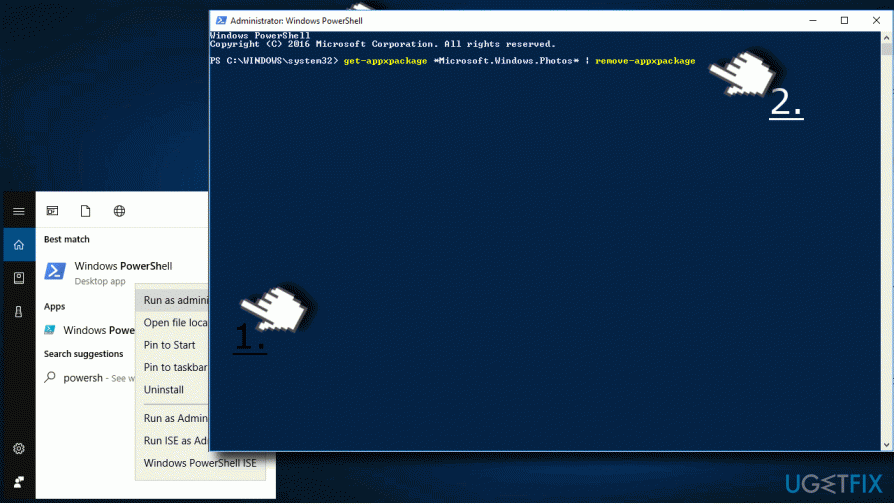
For this purpose, you will have to run an elevated PowerShell.[ref en-3] Be very cautious because removal or modification of the wrong keys may lead to serious problems. To reinstall Photos app, you should:
1. Press "Windows key + S" and type "PowerShell."
2. Right-click on "PowerShell" option and select "Run as Administrator."
3. Type the "get-appxpackage *Microsoft.Windows.Photos* | remove-appxpackage" command and press "Enter."
4. Then open Windows Store and download Photos app.
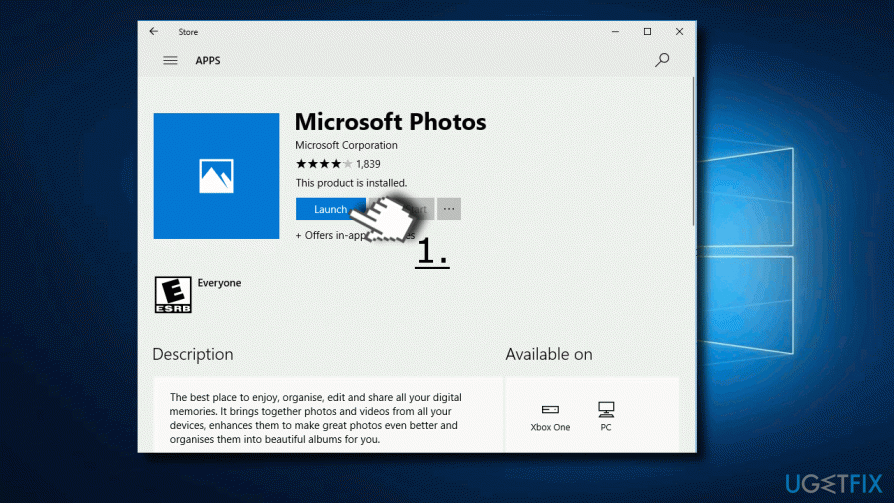
5. Run the setup file and follow the on-screen instructions to install it.
6. Once done, check if Photos app now successfully opens the .jpg files.
Method 3.Delete outdated Registry keys
1. Log on to your PC as administrator.
2. Click "Windows key + R," type "regedit," and press "Enter."
3. Use the left pane and navigate to the "HKEY_CURRENT_USER\\Software\\Classes\\Local Settings\\Software\\Microsoft\\Windows\\CurrentVersion\\AppModel\\Repository\\Families\\Microsoft.Windows.Photos_8wekyb3d8bbwe" directory.
4. Here you should see several entries each of which has a version number, for example, "/Microsoft.Windows.Photos_15.1201.10020.0_" or similar. If this folder contains 8 Microsoft Windows Photos App entries, it means that the outdated registry keys have been left intact after the application update. Therefore, the outdated keys have to be removed. (In some cases, people have four entries, two of which are outdated. In this case, the old two should also be removed.)
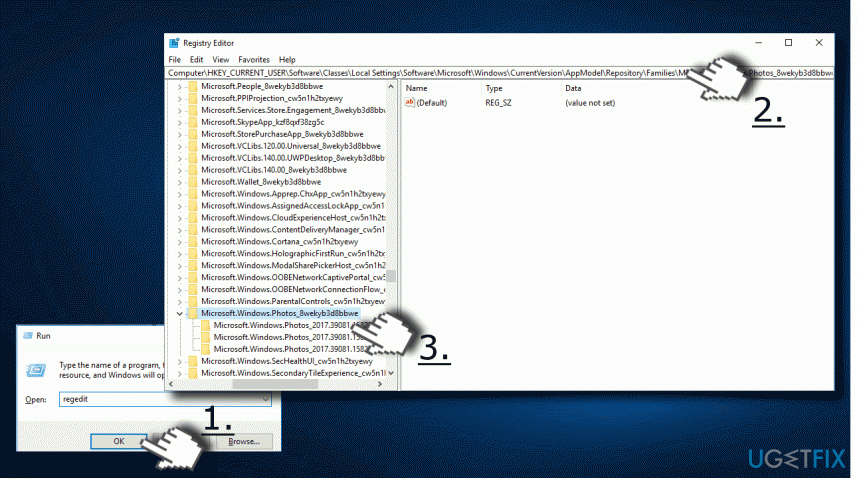
5. Select the old entry, right-click on it, and open "Properties."
6. Select "Security" and open "Permissions" tab.
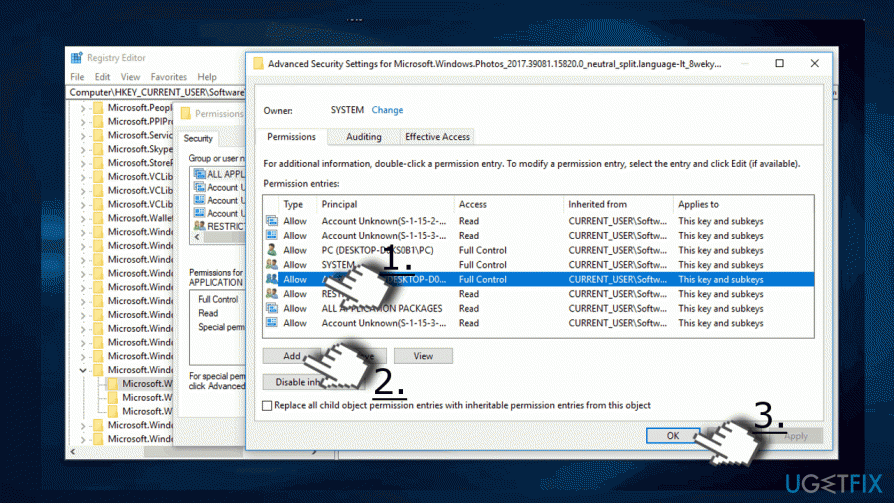
7. Click "Advanced" in "Select User or Group" window.
8. Select "Find Now," pick your username, and click "OK." Steps 5-8 explain how to take the property of the obsolete entry. Without doing so, you won’t be allowed to delete the outdated entries.
9. Then right-click on the old entry and select "Delete."
10. Repeat the same steps with each four outdated Windows Photos Apps’ entries.
11. Finally, close everything and reboot your PC.
Bottom line
To fix the Microsoft Photos app not working, you can restore the Photo Viewer by modifying the registry or reinstall the Photos app using PowerShell. If these methods do not resolve the issue, further troubleshooting may be necessary.
Frequently asked questions
Try resetting the Microsoft Photos app by going to Settings > Apps > Apps & features, selecting Photos, and clicking on 'Advanced options' to find the reset option.
You can repair the app by navigating to Settings > Apps > Apps & features, selecting Microsoft Photos, and clicking on the 'Repair' button.
If reinstalling doesn't work, consider running the Windows Store Apps troubleshooter, which can help identify and fix issues with Microsoft Photos.




Report an issue
What's wrong with this guide? We review every report and update or remove content.
Report received — thank you. We'll review and fix it.
You need a free account to submit a report.
Be the first to comment