How to fix
Notepad “Access Denied” when editing Hosts file
on Windows
Easily resolve the "Access Denied" error when editing the Hosts file on Windows 10 or Windows 11. Expert-tested methods for quick fixes.

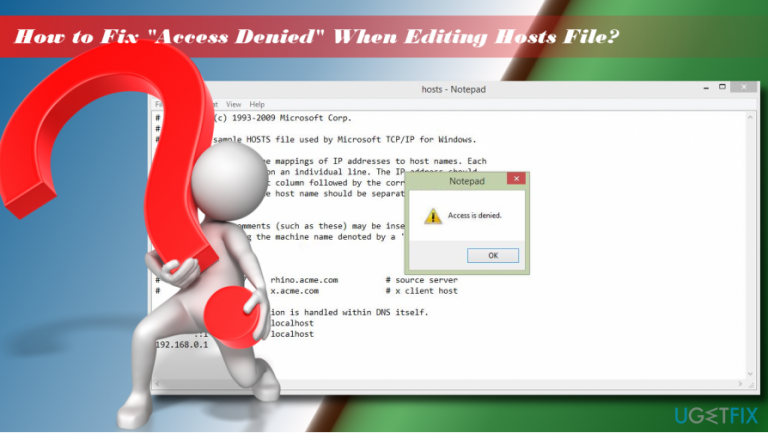
What causes How to fix Notepad “Access Denied” when editing Hosts file on Windows?
- User does not have permission to edit the Hosts file
- Hosts file is hidden and not visible
- Windows OS restricts access to the Hosts file
- Ransomware may have modified the Hosts file
- File may be in use by another application
Repairs Windows system files, removes malware, and restores a clean OS state — without reinstalling.
I was recently infected with ransomware, and I read on the instructions online that I need to modify the file in order to regain normal internet access. After I edit it and try to save it, however, it returns an error "Access denied." Any idea how to bypass that? Thanks.
Hosts file is a simple text file located inside C:\\Windows\\System32\\drivers\\etc\\ folder on Windows XP, 7, 8, and 10 operating systems. In some cases, it might be hidden, so users might not immediately see it, as they would have to enable the "View hidden items" feature via File Explorer. Essentially, Hosts file was used for Name to IP address resolution, although modern DNS[ref en-1] features quickly replaced it.
However, Hosts file still manages to find various uses in modern times, and is especially useful for people from the IT field, such as web developers or networking administrators, as they can develop websites locally or filer various content.
Unfortunately, the Hosts file can also be abused by cybercriminals to prevent users from accessing specific websites (for example, Djvu ransomware[ref en-2] is known to use this feature to stop victims from visiting sites that would help them with malware removal or file retrieval process). In such a case, users might want to edit the Hosts file to bypass these malware-set restrictions.
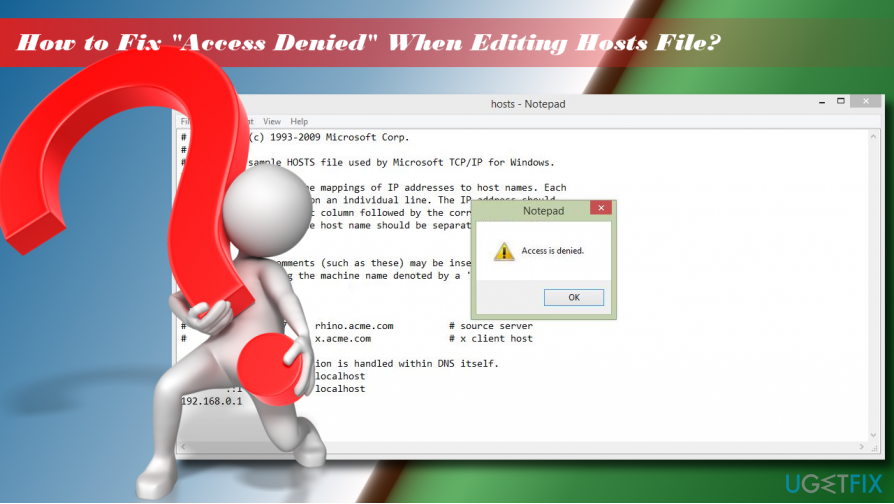
However, many users find themselves in a situation where access is denied when editing hosts file on Windows. The pop-up message is very simple and does not provide any explanations:
Access is denied
OK
Before the emergence of the DNS, hosts files have been used for resolving hosts names. These files have a distinct syntax, which is easily recognizable on every operating system, including Windows, macOS, or Linux.[ref en-3] Therefore, the modification of the hosts file should be initiated in a very careful manner to prevent file damage. Due to this, the hosts file is often hidden, and access to it is restricted by the Windows OS itself.
In most of the cases, the “Access is denied” error aborts editing hosts file because the user does not have permission. The hosts file is located in the Windows installation directory, also known as root drive. The file is protected from unauthorized access, so if you’re not an authorized user of the target PC, you may encounter “Access is denied” error on Notepad.
Luckily, you can fix Access denied when editing hosts file error relatively easily - simply follow the steps provided below.
Fix 1. Launch Notepad as administrator
If access is denied when editing hosts file, the first thing you should try is to access the file as an administrator:
- Open Windows search and type Notepad.
- Right-click on Notepad option and select Run as administrator.
- After the program launches, select File > Open.
- Navigate to the C:\\Windows\\System32\\drivers\\etc folder (make sure to change Text Documents (*.txt) to All Files).
- Select hosts file and click Open.
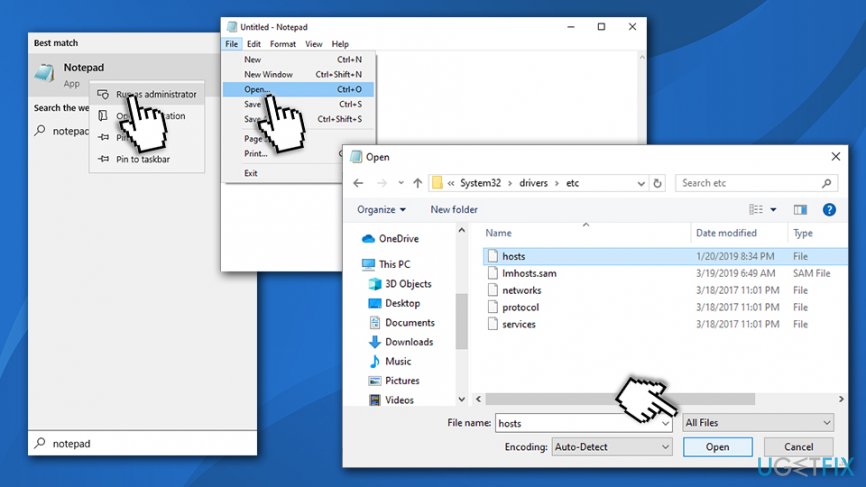
Fix access denied when editing hosts file run as administrator - Edit the hosts file and save it.
Fix 2. Run Notepad using Command Prompt
- Type in cmd into the search box.
- Right-click on Command Prompt result and select Run as administrator.
- Copy and paste the following commands into the window and press Enter after each:
cd C:\\Windows\\System32\\drivers\\etc
notepad hosts
- Make the changes to the hosts file, save them and close Command Prompt.
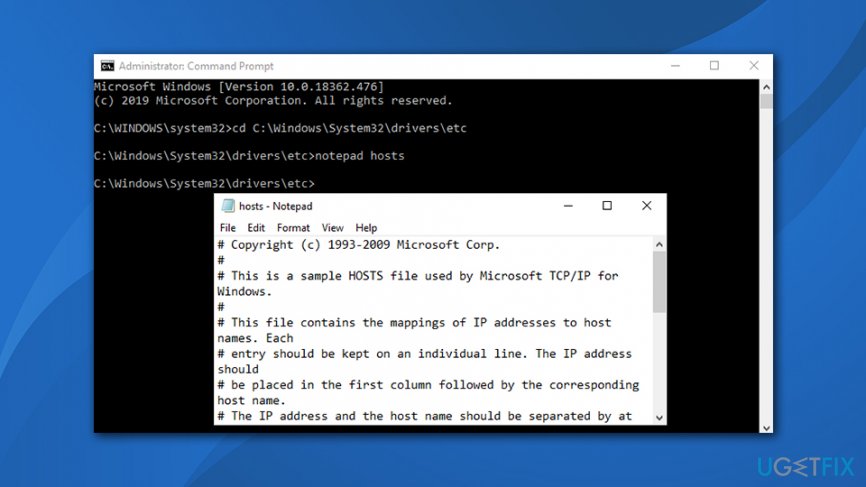
Fix access denied when editing hosts file open hosts file via command prompt
Fix 3. Transfer hosts file to another location
To fix "Access denied" alert while editing hosts file, try to move hosts file to a different location. Then edit it and move back to the initial location:
- Navigate to the C:\\Windows\\System32\\drivers\\etc and find your hosts file.
- Copy it to a different location, for example Desktop or any folder out of the Windows install directory.
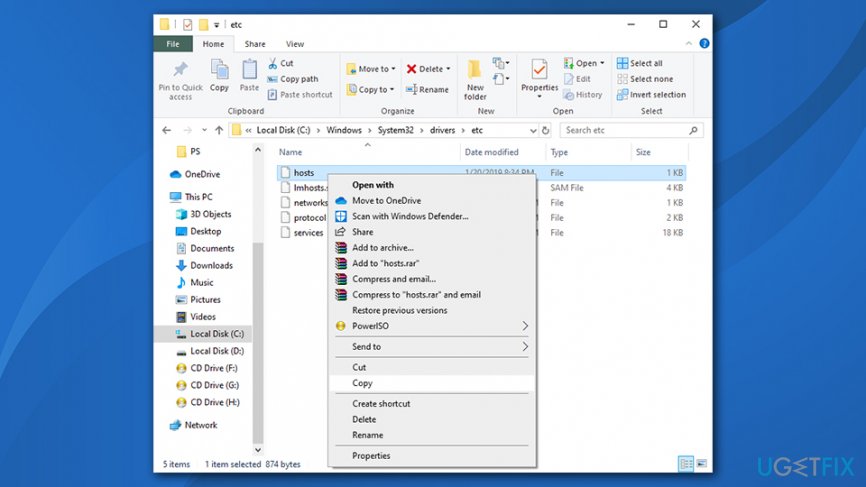
Fix access denied when editing hosts file copy to another location - Then open the hosts file with Notepad and modify it.
- Save the changes. Then cut the file and paste it back to the C:\\Windows\\System32\\drivers\\etc directory.
Fix 4. Unmark Read-only option
Hosts file is set to Read-only by default. It means that the file cannot be edited in a regular way. To get permission to modify it, you should:
- Navigate to the C:\\Windows\\System32\\drivers\\etc directory.
- Find your hosts file, right-click it, and select Properties.
- Open Attributes section and uncheck the Read-only option.
- Click Apply and OK to save changes.
Fix 5. Modify security settings of the hosts file
- Navigate to the C:\\Windows\\System32\\drivers\\etc directory.
- Find your hosts file, right-click it, and select Properties.
- Open Security tab and click Edit.
- Check the list of users that have access to hosts file. If your user name is included in that list, click it and set Permissions to Full control.
- If your user name is not included in that list, click the Add button and enter your user name.
- Click Check Names and hit OK.
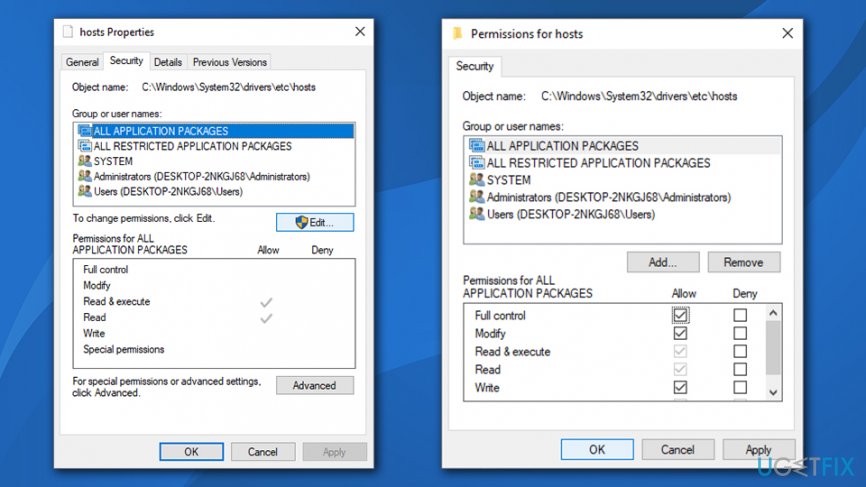
Fix access denied when editing hosts file give full control - Now your user name should be added to the list. Click it and mark the Full control open next to your name.
- Click Apply and OK to save the changes.
Note: if your system was infected with ransomware or other malware which modified your hosts file, there is a high chance that your system files were affected as well. Due to this, the OS might experience slowdowns, errors, or even crashes, consequently pushing a thought of many to reinstall Windows altogether. To avoid that, we highly advise using [d1] - it can fix virus damage easily and stabilize the system without having to reinstall it.
Bottom line
To fix the 'Access Denied' error when editing the Hosts file, users can try running Notepad as an administrator, ensuring the file is not in use, or adjusting file permissions. If these solutions do not work, consider checking for malware or restoring the system to a previous state.
Frequently asked questions
The 'Access Denied' error occurs because the Hosts file requires administrative privileges to be edited. You need to run Notepad as an administrator to make changes.
To run Notepad as an administrator in Windows 11, right-click on the Notepad icon, select 'Run as administrator', and then open the Hosts file from the File menu.
If you still face issues, ensure that your user account has sufficient permissions and check if any security software is blocking access to the Hosts file.




Report an issue
What's wrong with this guide? We review every report and update or remove content.
Report received — thank you. We'll review and fix it.
You need a free account to submit a report.
Be the first to comment