How to fix
Notepad closing automatically
on Windows
Resolve Notepad crashing issues on Windows 10 or Windows 11 effortlessly. Follow our expert-tested solutions and get back to writing in minutes!

What causes How to fix Notepad closing automatically in Windows?
- Error in the Windows registry
- Conflict with another application
- Corrupted system files
- Malicious software affecting system stability
- Compatibility issues due to software updates
Repairs Windows system files, removes malware, and restores a clean OS state — without reinstalling.
Hi, I have a problem with Notepad. I use the app for work quite a lot, and sometimes it's automatically closing, seemingly for no reason. How can I fix this because it really messes up my workflow?
Notepad, an integral utility embedded within the Windows Operating System, serves as a fundamental tool for users who require simple text-editing functions. Its unpretentious interface and straightforward functionality make it the go-to application for basic text-related tasks, such as note-taking, coding in plain HTML, or editing system files.
It's an essential tool, universally recognized for its simplicity and reliability, yet in recent times, users have been reporting a frustrating issue where Notepad appears to be closing automatically.
This unexpected behavior manifests under varying circumstances for different users. For some, Notepad abruptly terminates immediately upon launching; for others, it functions briefly before inexplicably crashing. It’s a disruptive anomaly, interrupting workflows and leaving users understandably perplexed.
Interestingly, several users have indicated that this is not an isolated issue, reporting that multiple other apps are also closing unanticipatedly. One user even observed that the Notepad application closes promptly after the Windows lock screen is activated, hinting at a potential connection between these system operations.
Numerous factors could trigger such erratic behavior. It may be symptomatic of an underlying system problem, possibly an error in the Windows registry, or a conflict with another application. It could also be a result of corrupted system files or perhaps even malicious software affecting the system's stability. Certain software updates could also be causing compatibility issues. This situation highlights the importance of regular system diagnostics and routine software maintenance.
There are several potential solutions users could employ to fix this issue. These include running a system file checker, scanning for malware, disabling any conflicting software, and ensuring all software, including Windows itself, is up to date. If these methods prove ineffective, the user may need to resort to more extensive measures such as a system restore or a complete OS reinstallation.
For those seeking a more streamlined solution, using a dedicated PC repair tool like [d1] can expedite the process. These tools are specifically designed to detect and repair corrupted system files, thereby rectifying issues such as the spontaneous closing of Notepad.
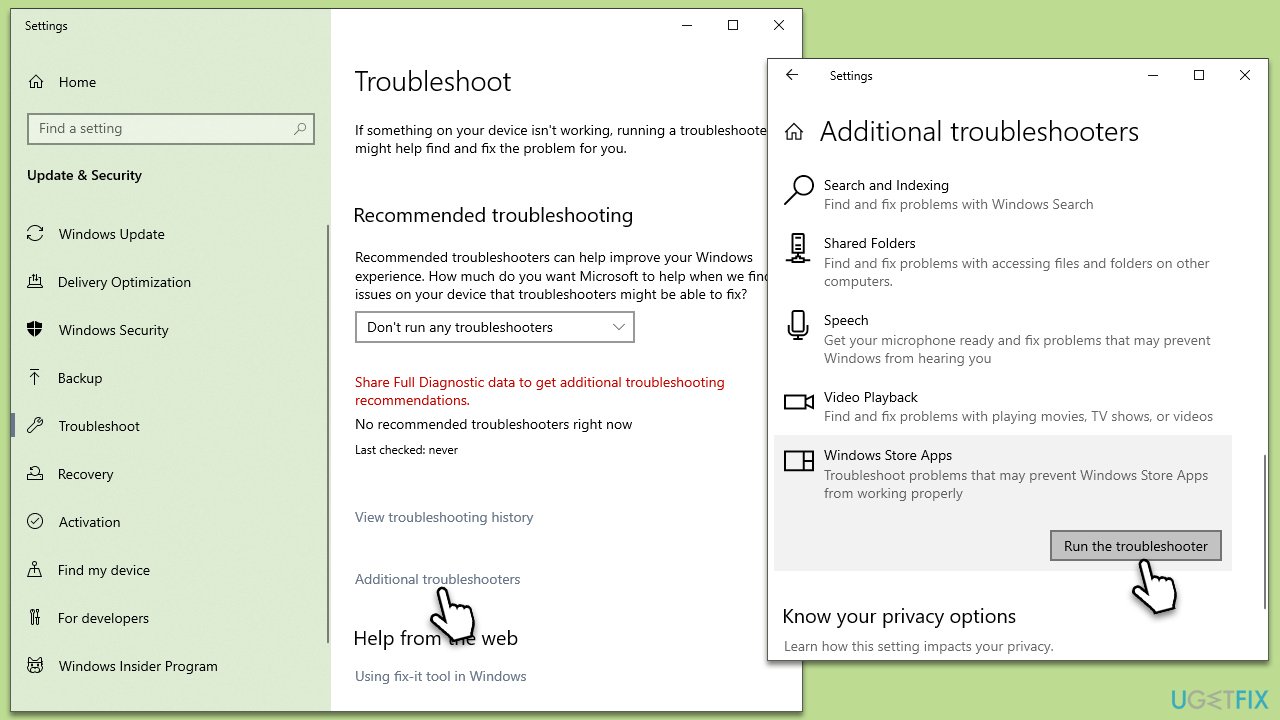
Solution 1. Run the troubleshooter
Running the troubleshooter can help identify and rectify the issues causing the problem. The Windows Troubleshooter works by diagnosing and automatically fixing common software problems.
- Type in Troubleshoot in Windows search and press Enter.
- Select Additional Troubleshooters/Other troubleshooters.
- Pick Windows Store Apps from the list and click Run the troubleshooter/Run.
- Wait till the scan is finished, and then apply the recommended fixes.
- Restart your system.
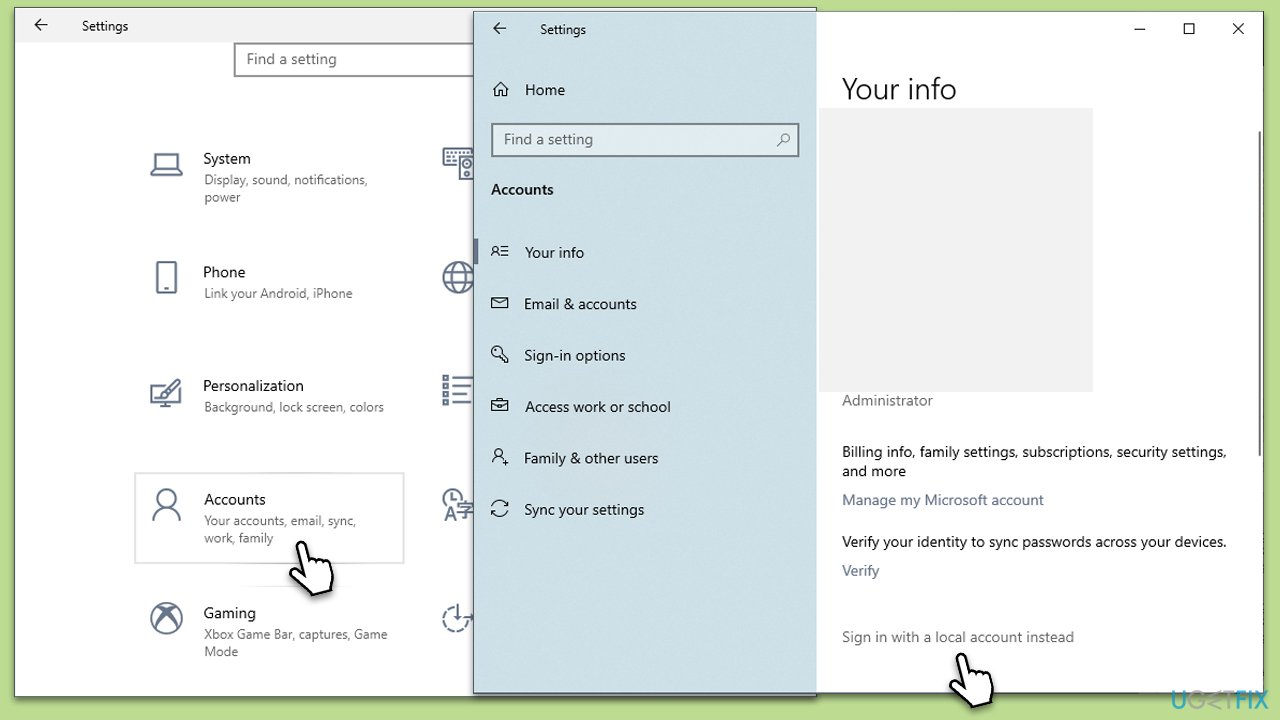
Solution 2. Log in with the local account
There could be an issue with your Microsoft account causing the problem. Switching to a local account can help isolate this.
- Click on Start and pick Settings.
- Go to the Accounts section.
- Under Your Info, click the Sign in with a local account instead option.
- Type in the name, password, and password hint - make sure this is different from your Microsoft account.
- Click Next and then Sign out and finish.
- Once signed out, get in with your local account.
- Go to Settings > Accounts and log in using your Microsoft account this time.
Solution 3. Run SFC and DISM
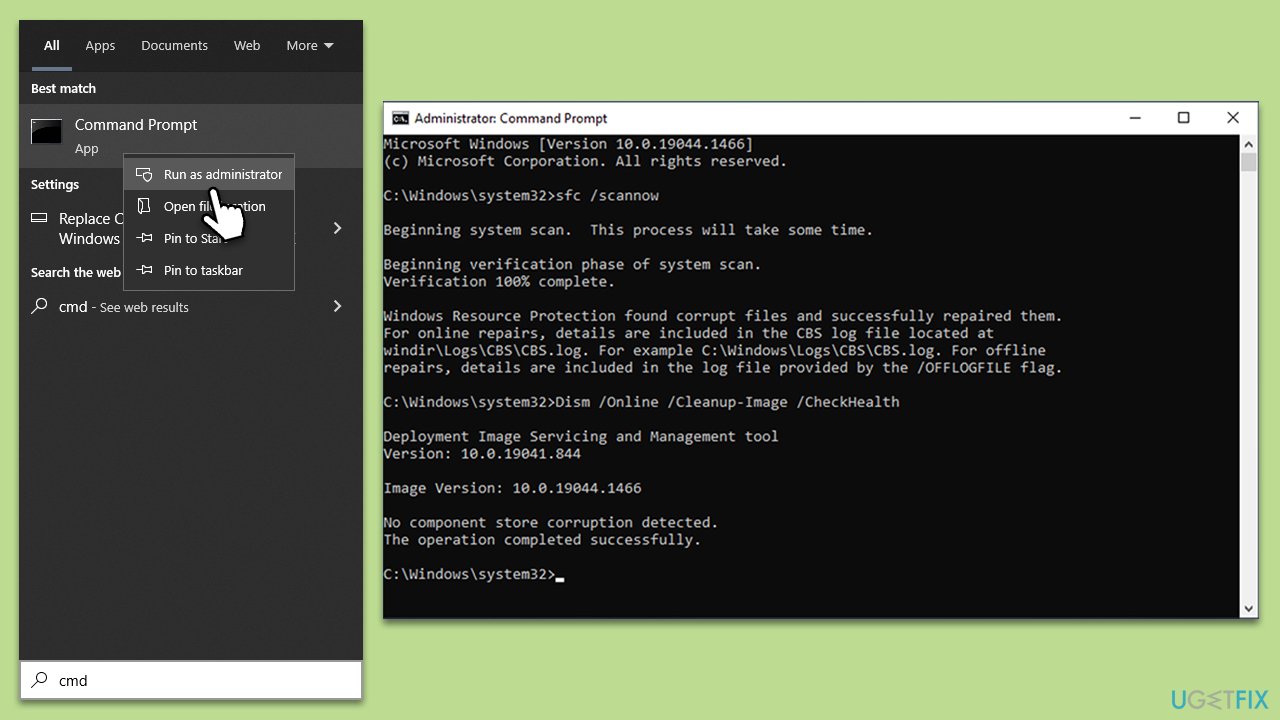
System File Checker (SFC) and Deployment Image Servicing and Management (DISM) are tools that can find and repair corrupted system files.
- Type cmd in Windows search.
- Right-click on Command Prompt and pick Run as administrator.
- User Account Control window will show up - click Yes when prompted.
- Then, copy and paste the following command, pressing Enter after:
sfc /scannow - Wait till the scan is finished. If Windows finds system file integrity violations, it will attempt to fix them. After this, use the set of the following commands, pressing Enter each time:
DISM /Online /Cleanup-Image /CheckHealth
DISM /Online /Cleanup-Image /ScanHealth
DISM /Online /Cleanup-Image /RestoreHealth - (Note: if you get an error executing this last command, add /Source:C:\RepairSource\Windows /LimitAccess to it and try again).
- Close down the Command Prompt and restart your device.
Solution 4. Repair or reset Notepad
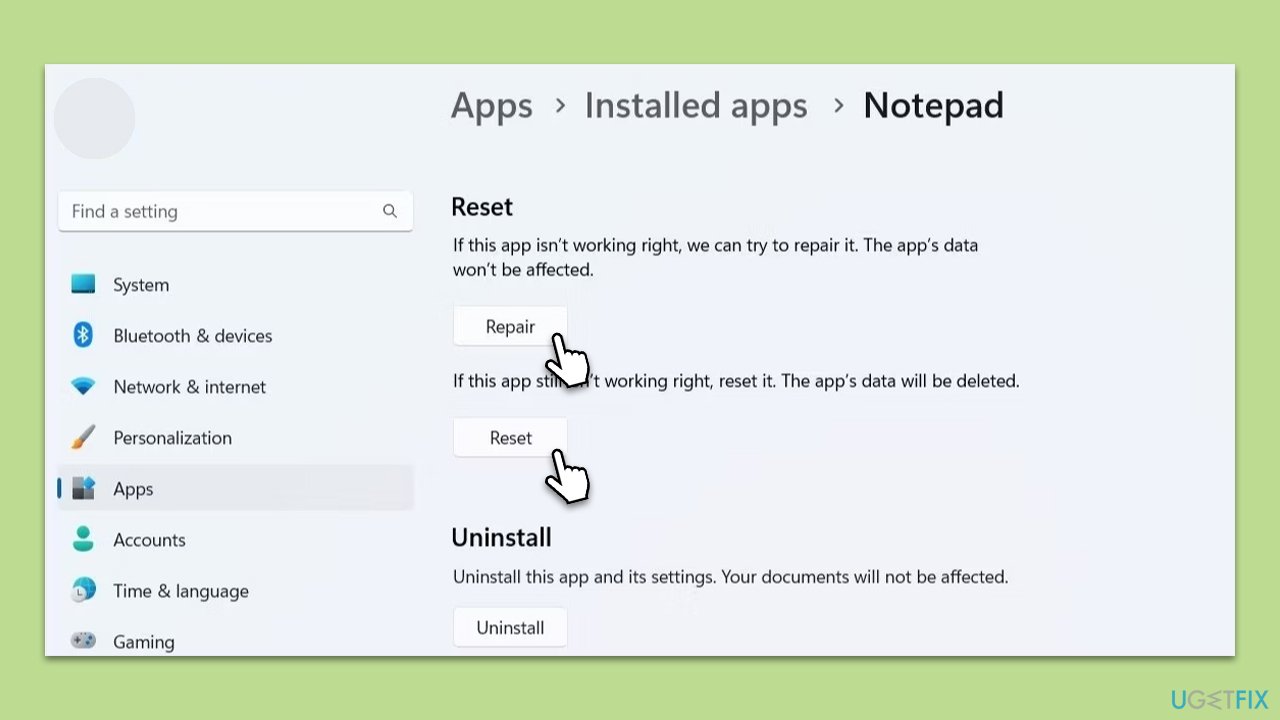
If Notepad itself is malfunctioning, you can reset or repair it.
- Open Windows Settings.
- Choose Apps and then select Apps & Features.
- Find Notepad on the list and click on Advanced options.
- Here, click Terminate and then Repair.
- If that does not help, try using Reset instead.
Solution 5. Install all Windows updates
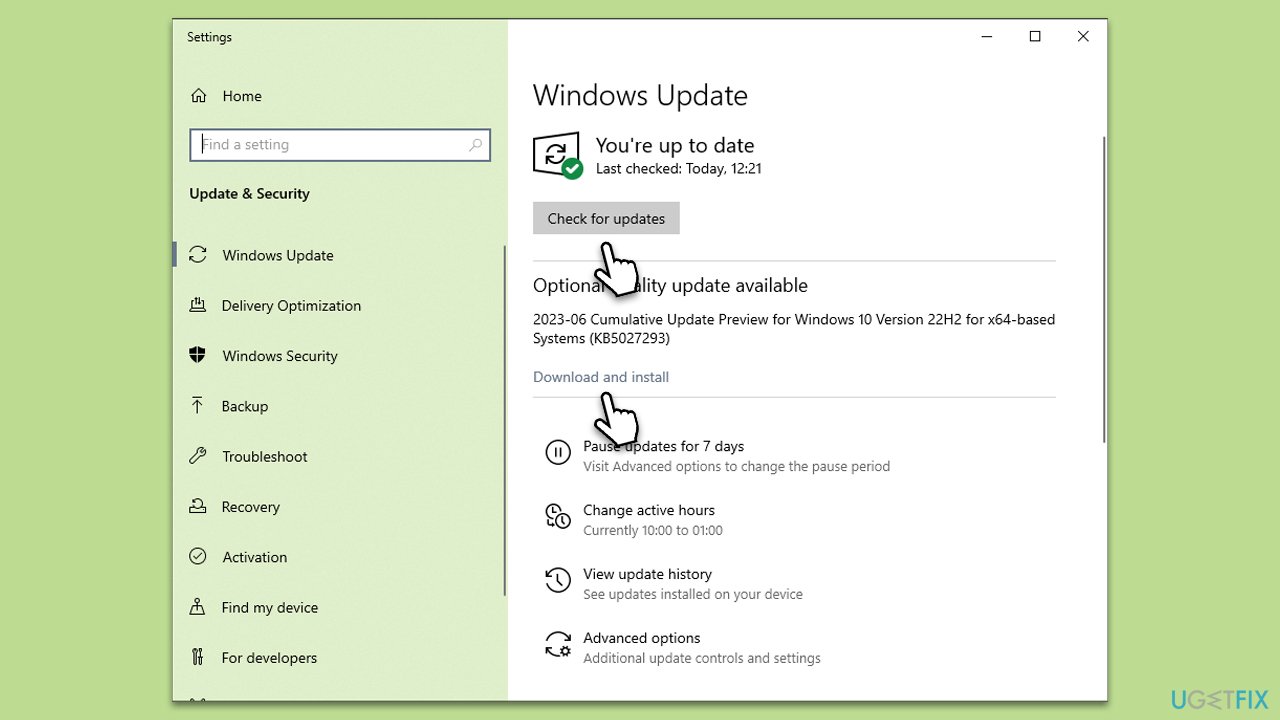
Keeping your Windows system up to date can resolve many software compatibility issues.
- Type Updates in Windows search and press Enter.
- Here, click Check for updates.
- Wait till Windows downloads and installs all the files.
- If optional updates are available, install them as well.
- Reboot your system.
Solution 6. Reinstall Notepad
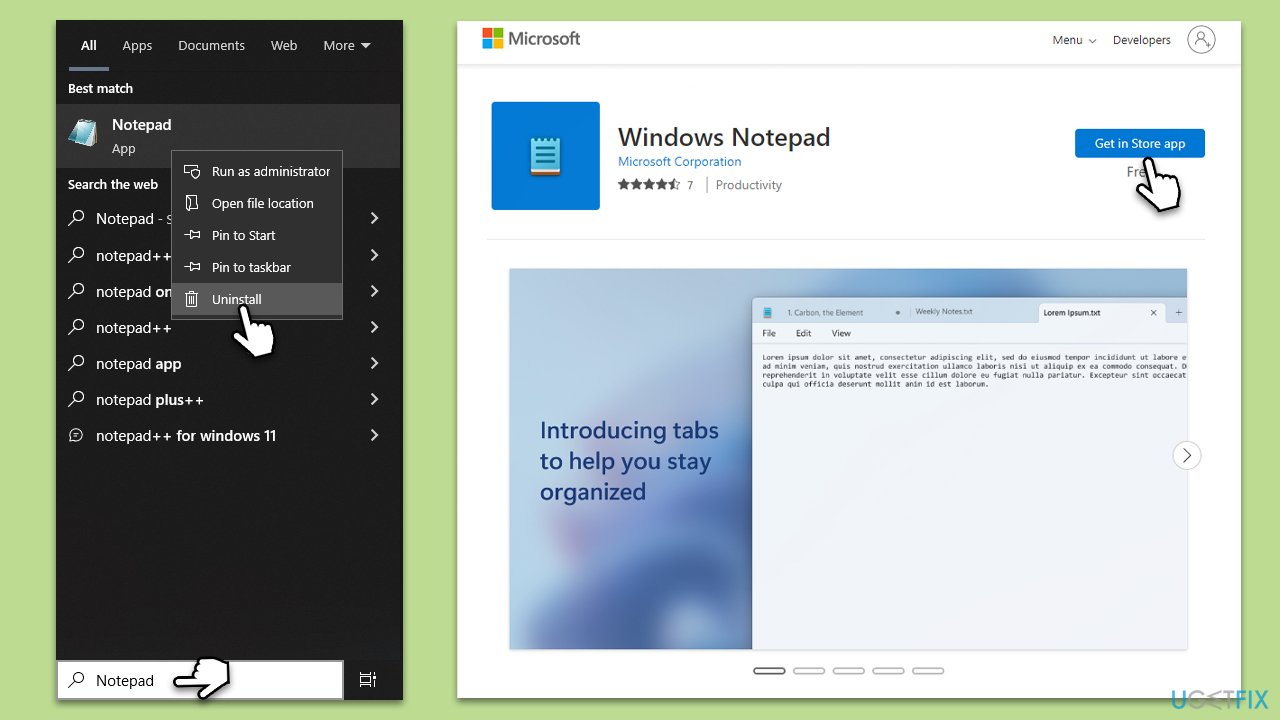
Reinstalling Notepad may fix the problem if it's caused by the application itself.
- Type Notepad in Windows search.
- Right-click on Notepad and select Uninstall.
- Follow the prompts to finish the uninstall process.
- Restart your system once done.
- Download Notepad from Microsoft Store and reinstall it.
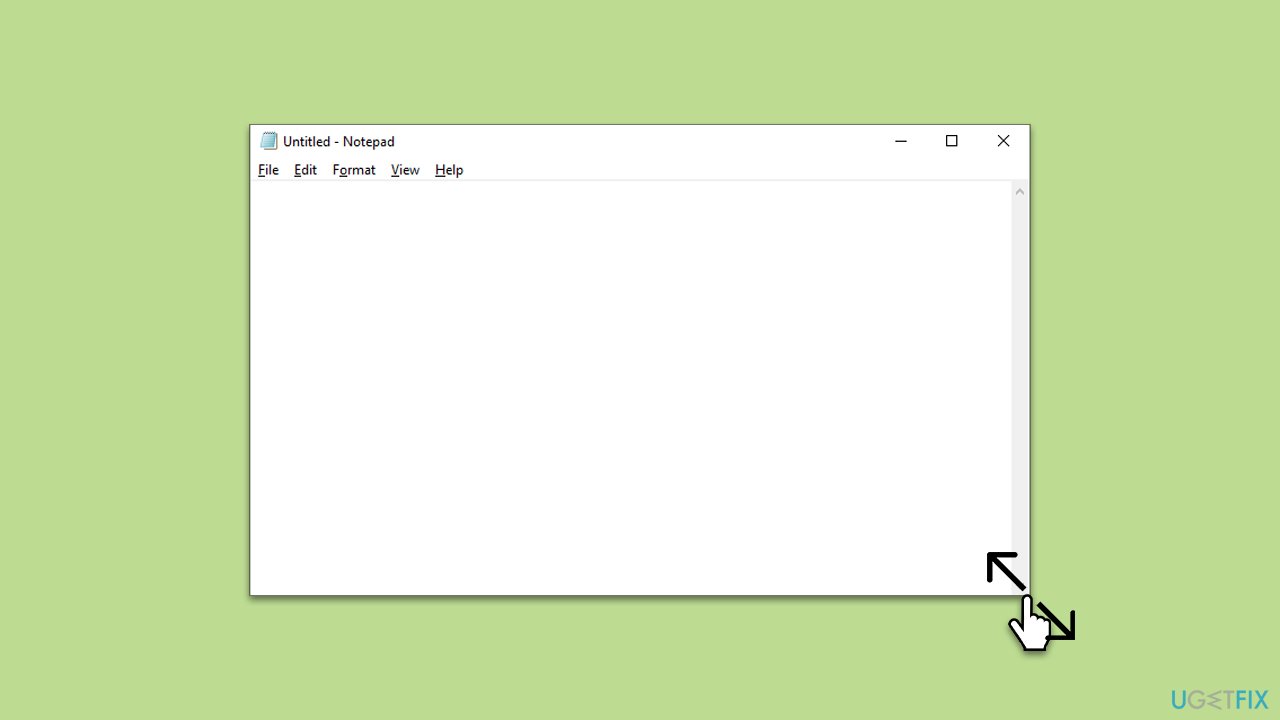
Solution 7. Change the window size of the Notepad window [workaround]
As a workaround, some users have found that changing the window size can stop Notepad from closing automatically.
- Open Notepad.
- Grab a corner of the window with your mouse.
- Drag to resize the window.
- Use Notepad as normally.
Bottom line
To fix Notepad closing automatically, users can run a system file checker, scan for malware, disable conflicting software, and ensure all software is up to date. If these methods do not resolve the issue, consider performing a system restore or a complete OS reinstallation.
Frequently asked questions
Notepad may close automatically due to corrupted settings or conflicts with other applications. Try resetting Notepad settings or running Windows 10 in Safe Mode to troubleshoot the issue.
To prevent Notepad from crashing on Windows 11, ensure that your system is updated and consider disabling any third-party extensions that may interfere with its performance.
If Notepad is unresponsive and closes unexpectedly in Windows, try repairing the app via the Settings menu or reinstalling it from the Microsoft Store.




Report an issue
What's wrong with this guide? We review every report and update or remove content.
Report received — thank you. We'll review and fix it.
You need a free account to submit a report.
Be the first to comment