How to fix
“Notice From Microsoft Corporation” Tech-Support-Scam
on Windows
Stop tech support scams targeting Windows 10 and Windows 11 users. Discover effective fixes and regain control now. Expert-tested solutions await!

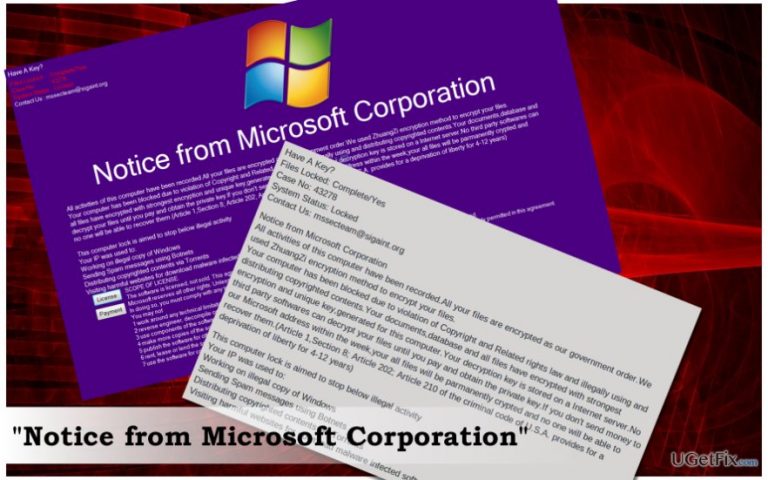
What causes How to Fix “Notice From Microsoft Corporation” Tech-Support-Scam?
- Tech-Support-Scam alert
- Lock screen and ransomware
- False accusation of using illegal Windows copy
- Exploitation of intimidation tactics
- Files appended with .Harzhuangzi extension
Repairs Windows system files, removes malware, and restores a clean OS state — without reinstalling.
My Windows screen got locked by "Notice From Microsoft Corporation" notification. I’m accused of using illegal copy of Windows, but that’s not true. I purchased the license and never download illegal software. Many files are also blocked. What should I do? Pay the money for Microsoft to avoid the penalty that did not deserve???
The first thing that you should do if your PCs screen got locked by the "Notice From Microsoft Corporation" alert is to calm down. Do not panic and do not make hasty decisions because they may result in money loss.
What is "Notice From Microsoft Corporation?"
The "Notice From Microsoft Corporation" is an elaborate Tech-Support-Scam alert, which performs as a lock screen and ransomware in tandem. It is also known as MSSecTeam virus and is actively striking Windows OS users for the past couple of months. The "Notice From Microsoft Corporation" pretends to be an official warning generated by Microsoft corporation by rendering Microsoft’s logo and other officially-looking information, such as email address ([email protected]), articles from the US criminal code, etc. However, all information is a hoax.
The MSSecTeam virus exploits a tricky tactics to intimidate people. In the "Notice From Microsoft Corporation" alert, a target Windows user is accused of using an illegal copy of Windows and, consequently, the screen and files stored on the system are locked by the government’s order. After reading all provided information and setting up a background, the user may get seriously frightened because the screen is locked by "Notice From Microsoft Corporation" alert and many files appended with a .Harzhuangzi file extension.
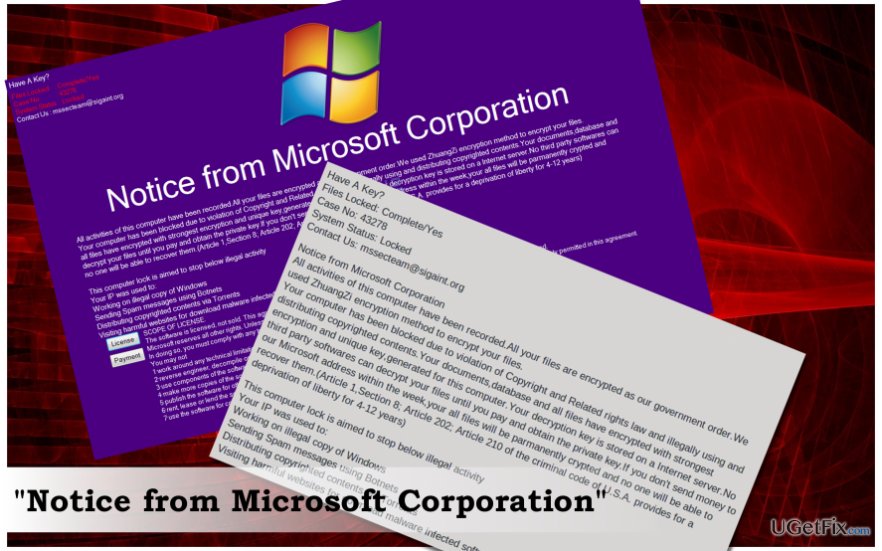
Do not contact with the scammers
"Notice From Microsoft Corporation" is a tech-support-scam, screen locker, and ransomware in one. The victim is urged to transfer 5 bitcoins (507 USD) to supposed Microsoft Corporation. To do so, the PC owner has to download Tor network and contact Microsoft’s support staff via [email protected] email. However, you should not heed the instructions provided by MSSecTeam virus developers. Instead of that, concentrate on the "Notice From Microsoft Corporation" scam removal.
"Notice From Microsoft Corporation" virus dissemination techniques
The MSSecTeam scam is typically distributed via malicious email attachments, corrupted domains, freewares downloaded from unknown sources and similar unfair methods. Malware analysts have already revealed that the "Notice From Microsoft Corporation" scam spreads via CashBillPending(Autosaved)1.pdf.exe file. To prevent the malicious file from being executed, you have to ensure that a proper anti-malware tool, such as [d1], is running on your system. Besides, avoid visiting malicious websites or opening emails from unknown senders.
Fixing "Notice From Microsoft Corporation" scam
DO NOT contact with the supposed Microsoft Corporation staff and do not send them money under any circumstances. According to experts, the password that scammers provide for people who transfer the payment, or rather its processing is malfunctioning. Therefore, neither the "Notice From Microsoft Corporation" screen locker, nor the encrypted files will be fixed. To solve this mess, you should immediately remove the malware from the system and then download a software encryption tool, known as StupidDecrypter, developed by Michael Gillespie.
- Press the Power button at the Windows login screen.
- Press and hold the Shift button.
- Select Restart.
- Now click Troubleshoot → Advanced Options → Startup Settings.
- Press Restart and wait for the Windows Startup Settings window to show up.
- Select Enable Safe Mode with Networking.
- Once the system fully boots up, run a scan with your anti-malware, for example, [d1].
- Finally, download StupidDecrypter, follow the on-screen instructions, and set it to decrypt all files encrypted by "Notice From Microsoft Corporation" virus.
You can use other powerful anti-malware or antivirus, but make sure that it’s fully updated and supplemented with the latest security definitions.
Bottom line
To resolve the issue, first calm down and avoid making hasty decisions. Focus on removing the 'Notice From Microsoft Corporation' scam instead of contacting the scammers or paying the ransom. If none of the suggested fixes work, consider seeking professional technical support.
Frequently asked questions
Immediately close the browser window and do not call any phone number provided in the message. Run a full antivirus scan to ensure your system is not compromised.
You can report the scam to Microsoft through the Windows Security app or by visiting the Microsoft website and submitting a report. Additionally, consider reporting the scam to your local authorities.
No, you should never provide personal information or payment details in response to such notices, as they are typically fraudulent attempts to steal your data.




Report an issue
What's wrong with this guide? We review every report and update or remove content.
Report received — thank you. We'll review and fix it.
You need a free account to submit a report.
Be the first to comment