How to fix
Notification Center not opening
on Windows
Resolve the Notification Center issues on Windows 10 and Windows 11 effortlessly. Get expert insights and troubleshooting tips to fix it fast, with scre…

What causes How to fix Notification Center not opening in Windows?
- Windows updates not installed
- Corrupted system files
- Conflicts with third-party software
- Action Center not registered properly
Repairs Windows system files, removes malware, and restores a clean OS state — without reinstalling.
Hello. I don't receive any notifications and the Notification Center is not opening on my Windows laptop. Is it possible to fix this?
In Windows, the Notification Center acts as a centralized hub for all types of notifications. It is in charge of displaying alerts such as app updates, system messages, incoming emails, calendar events, and other relevant notifications from both built-in Windows apps and third-party apps. When a new notification arrives, it appears briefly in the lower-right corner of the screen before being saved in the Notification Center, which can be accessed via the system tray.
The Notification Center not opening issue in Windows can have a significant impact on users' overall experience and productivity. Users may miss important alerts and information if the Notification Center becomes unresponsive or does not open at all.
For example, they may be unaware of incoming emails, system updates, or reminders, potentially leading to delays in responding to time-sensitive matters. Furthermore, the inability to access the Action Center can impede users' ability to quickly adjust important settings, which can be especially inconvenient for users who frequently toggle between different functions based on their needs.
Several solutions to the problem may be considered. It may entail checking for Windows updates to ensure that the operating system has the most recent bug fixes and improvements. Running system maintenance tools such as SFC (System File Checker) or DISM (Deployment Image Service and Management Tool) may assist in repairing potential corruption in system files that may be causing the issue. Additionally, checking for conflicts with third-party software or performing a clean boot may be required to identify the root cause.
In this guide, you will find 6 steps that should help you fix Notification Center not opening in Windows. You can also run a repair tool like [d1] that can fix most system errors, BSODs,[ref en-1] corrupted files, registry[ref en-2] issues, or clear cookies and cache.[ref en-3] Otherwise, follow the step-by-step instructions below.
Method 1. Re-register the Action Center
- Open PowerShell as an administrator.
- Copy the following command:
Get-AppXPackage | Foreach {Add-AppxPackage -DisableDevelopmentMode -Register "$($_.InstallLocation)\AppXManifest.xml"}
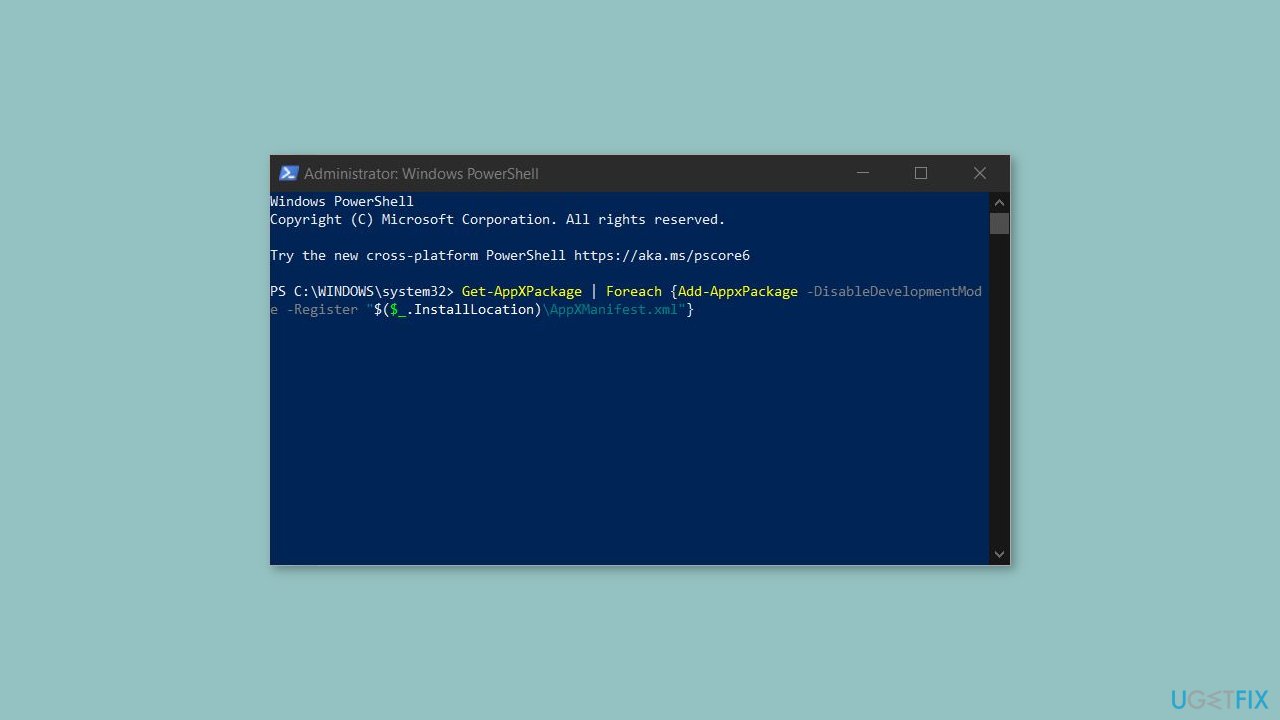
- Paste the copied command into the PowerShell window.
- Press the Enter key to execute the command.
- Wait for the process to complete. This might take some time depending on your system.
- Once the process is done, restart your PC to ensure changes take effect.
- After restarting, check if the issue has been resolved.
Method 2. Restart Windows Explorer
- Press Ctrl + Shift + Esc on your keyboard simultaneously.
- The Task Manager will open.
- In the Task Manager window, locate the Windows Explorer process in the list of running processes.
- Right-click on the Windows Explorer process.
- From the context menu that appears, select Restart.
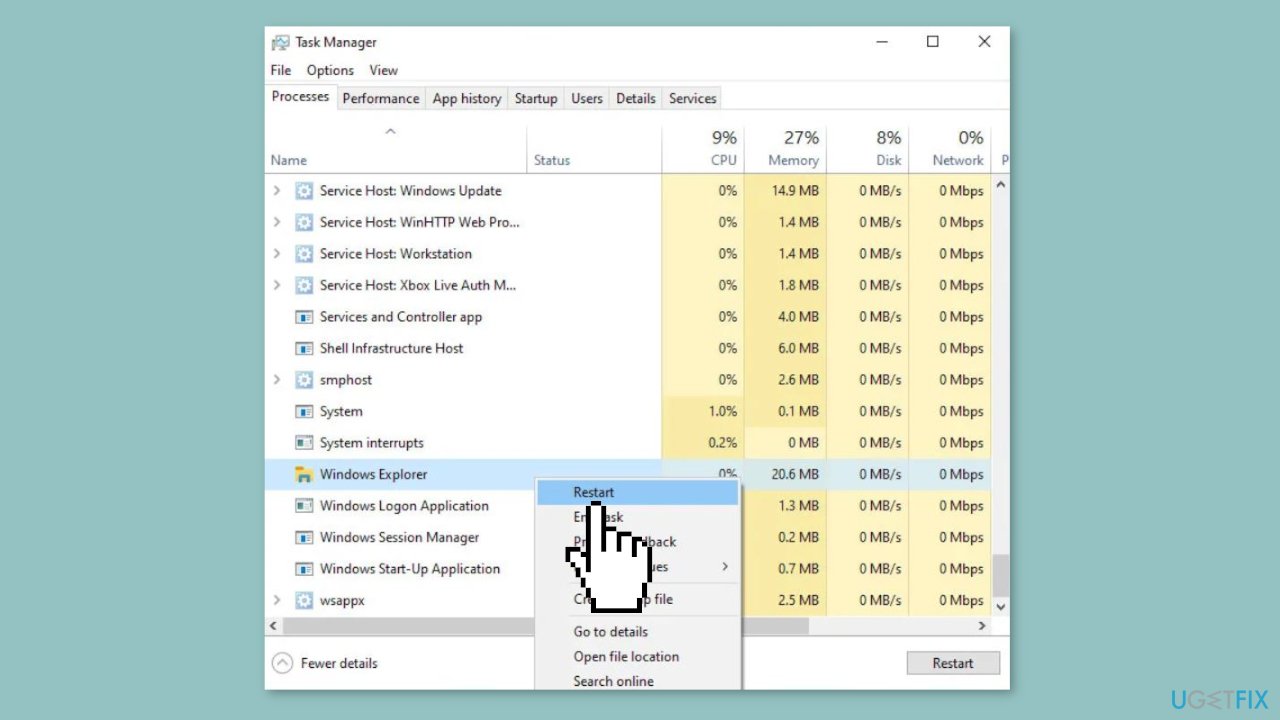
- The Windows Explorer process will be restarted, and your desktop icons and taskbar may temporarily disappear and then reappear.
Method 3. Install Windows Updates
- Press the Windows key + I on your keyboard to open the Settings window.
- From the left sidebar, click on the Windows Update tab.
- Click on the Check for updates button.
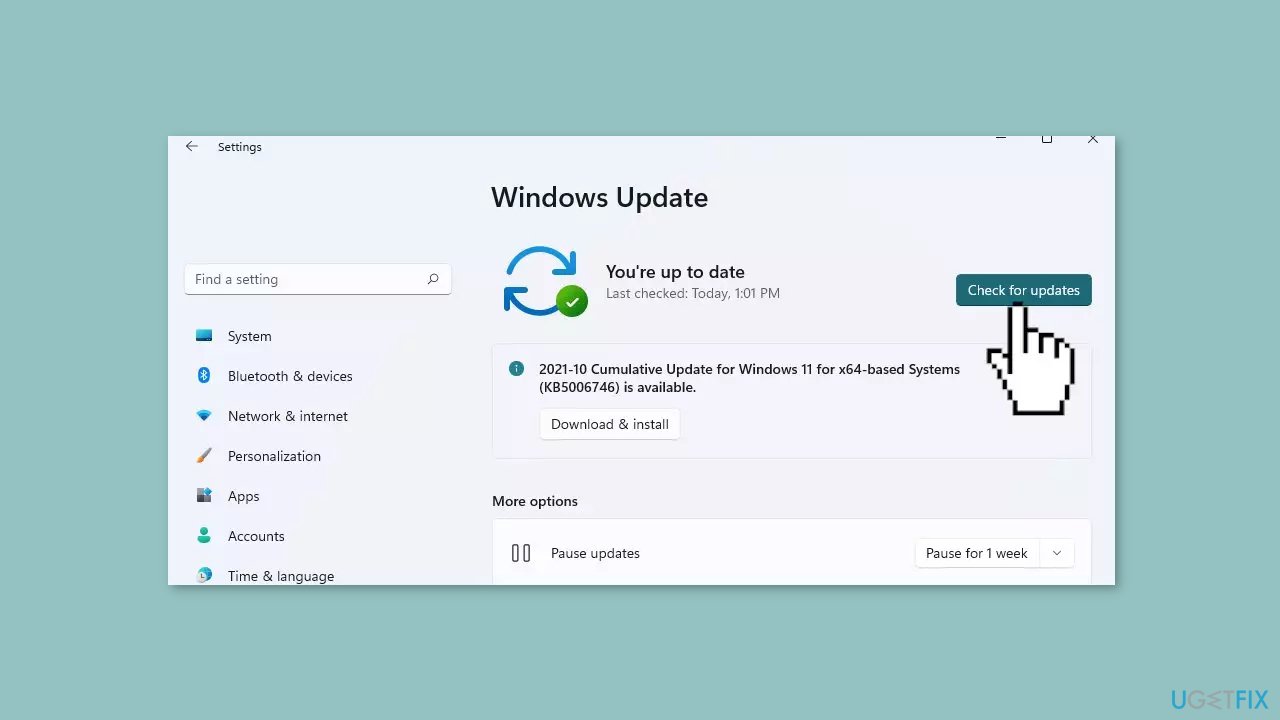
- Wait while Windows checks for available updates.
- If new updates are found, download and install them.
- Follow the on-screen instructions to complete the update process.
Method 4. Modify the Registry
- Press the Windows key + R on your keyboard simultaneously.
- The Run dialog box will appear. Type in regedit and click OK.
- The Registry Editor will open.
- Navigate to the following file path:
Computer\HKEY_CURRENT_USER\Software\Policies\Microsoft\Windows\Explorer
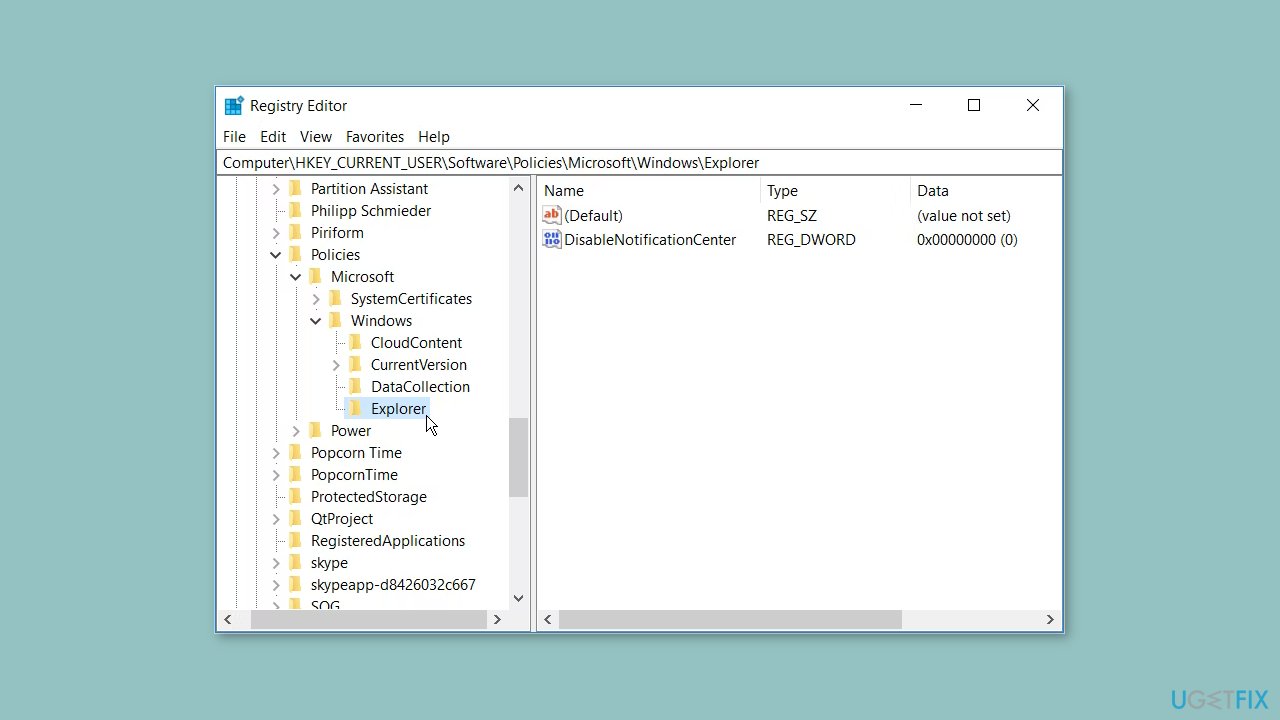
- Look for the key named DisableNotificationCenter.
- If it exists, double-click on it.
- Change the value data to 0.
- If the Explorer key doesn't exist, right-click on the Windows key in the left pane.
- Click on New and then select Key.
- Name the new key as Explorer.
- Right-click on the blank space in the right pane.
- Click on New and then select DWORD (32-bit) Value.
- Name the new value as DisableNotificationCenter.
- After making the necessary changes, close the Registry Editor.
- Restart your computer to apply the changes.
Method 5. Fix Corrupted System Files
Use Command Prompt commands to repair system file corruption:
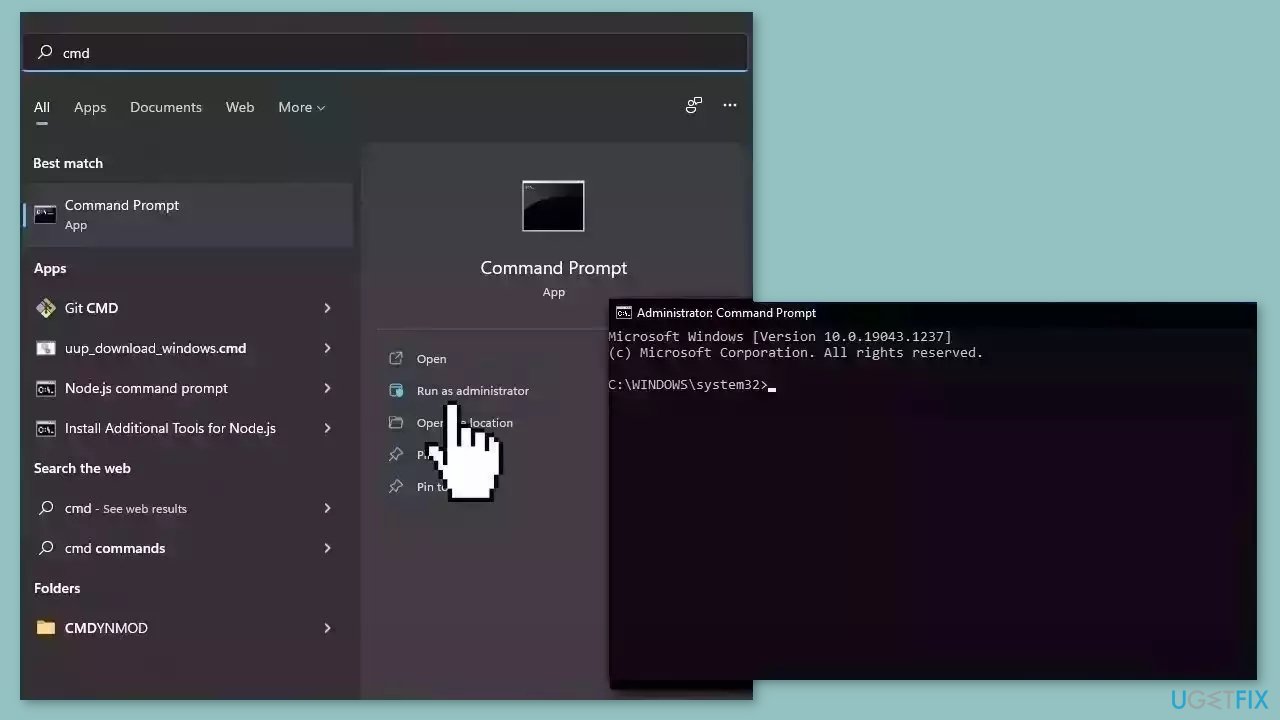
- Open Command Prompt as administrator
- Use the following command and press Enter:
sfc /scannow
- Reboot your system
- If SFC returned an error, then use the following command lines, pressing Enter after each:
DISM /Online /Cleanup-Image /CheckHealth
DISM /Online /Cleanup-Image /ScanHealth
DISM /Online /Cleanup-Image /RestoreHealth
Method 6. Perform an in-place Upgrade
- Download the Windows ISO file from the official Microsoft website.
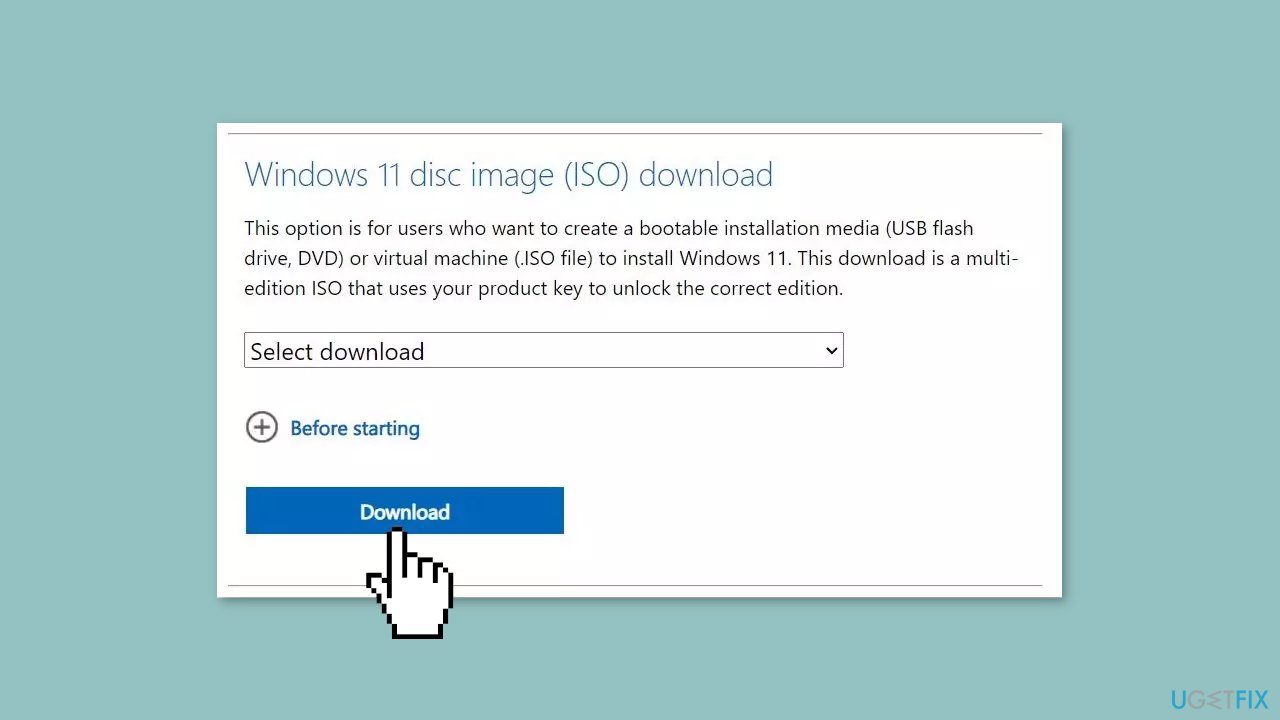
- Open File Explorer and navigate to the location where the Windows image file was downloaded.
- Right-click on the downloaded file and select the Mount option from the context menu.
- In File Explorer's navigation pane, click on the ISO drive that appears after mounting the file.
- Locate and click on the setup.exe file to initiate the Windows setup.
- A User Account Control (UAC) prompt will appear. Click on Yes to proceed.
- In the Windows setup window, click on the Change how Setup downloads updates option.
- Select the Not right now radio button and click on the Next button.
- Read the End User License Agreement (EULA) page and click on the Accept button.
- On the Choose what to keep page, select the Keep personal files and apps option.
- Click on the Next button, and then click on the Install button to begin the installation process.
- The setup will start installing a new copy of Windows. If you have an SSD, the installation should not take more than 15 minutes.
- Your system will restart multiple times during the installation process.
- After the setup finishes installing updates, it will redirect you to the login screen.
- Enter your password and press the Enter key to continue.
- Wait for the setup to prepare your system for the first boot, and you will automatically enter the desktop.
Bottom line
To fix the Notification Center not opening in Windows, you can check for Windows updates, run system maintenance tools like SFC or DISM, and re-register the Action Center. If these methods do not resolve the issue, consider performing a clean boot or using a repair tool.
Frequently asked questions
Try restarting the Windows Explorer process in Task Manager, as this can often resolve issues with the Notification Center not functioning properly.
Ensure that the 'Focus Assist' feature is turned off, as it can sometimes block notifications and prevent the Notification Center from opening.
You can reset the Windows notifications settings by going to Settings > System > Notifications & actions and toggling the options off and on again.




Report an issue
What's wrong with this guide? We review every report and update or remove content.
Report received — thank you. We'll review and fix it.
You need a free account to submit a report.
Be the first to comment