How to fix
NSc.exe Bad Image error
on Windows
Resolve the NSc.exe Bad Image error on Windows 10 and 11 effortlessly. Follow our expert-tested guide for quick solutions that work—fixed in minutes!

What causes How to fix NSc.exe Bad Image error in Windows?
- Norton software bug
- System compatibility issues
- Other software conflicts
- Corrupted or damaged NSc.exe file
Repairs Windows system files, removes malware, and restores a clean OS state — without reinstalling.
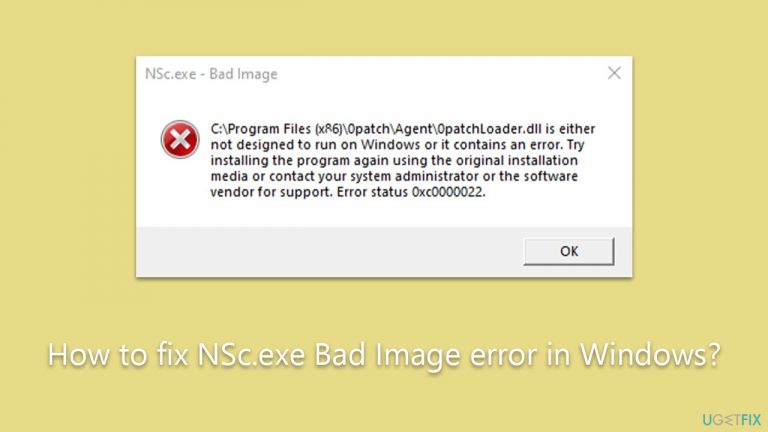
Every time I load my computer, I receive an error NSc.exe - Bad Image. This is not going away for a while now, and I doubt it will on its own, so I'm seeking help with this...
Norton, developed by Symantec Corporation, is a well-known computer security software that serves to protect devices from various threats such as viruses, malware, and phishing attacks. With a comprehensive suite of protective utilities, including antivirus, anti-spyware, and firewall features, Norton has carved out a significant space for itself in the cybersecurity landscape. As much as it is essential to keep one's computer protected against potential threats, using such security software is almost a necessity in today's digitally interconnected world.
However, even the best protective tools can occasionally run into problems. Some users may encounter a specific issue known as the NSc.exe Bad - Image error when launching Norton on their Windows computers. The NSc.exe file is a part of Norton's software setup, responsible for numerous functions within the application. It plays a vital role in maintaining the software’s operability and interaction with the system.
The Bad Image error associated with NSc.exe is primarily due to a bug within the Norton software itself. This error may prevent the application from starting properly, causing inconvenience and potentially leaving your system vulnerable. Although the main reason behind this error tends to be a Norton bug, there may be other contributing factors. These could include system compatibility issues, other software conflicts, or Windows updates that may corrupt or damage the NSc.exe file.
Despite these complexities, it is crucial not to panic when such an error occurs. A number of solutions can address this problem, ranging from simple software updates to more comprehensive system checks and fixes. Detailed instructions on how to fix this issue and resume the smooth operation of your Norton security software will follow below. Remember, while software issues can be frustrating, they are usually fixable with the right knowledge and a little patience.
Fix 1. Install all Windows updates
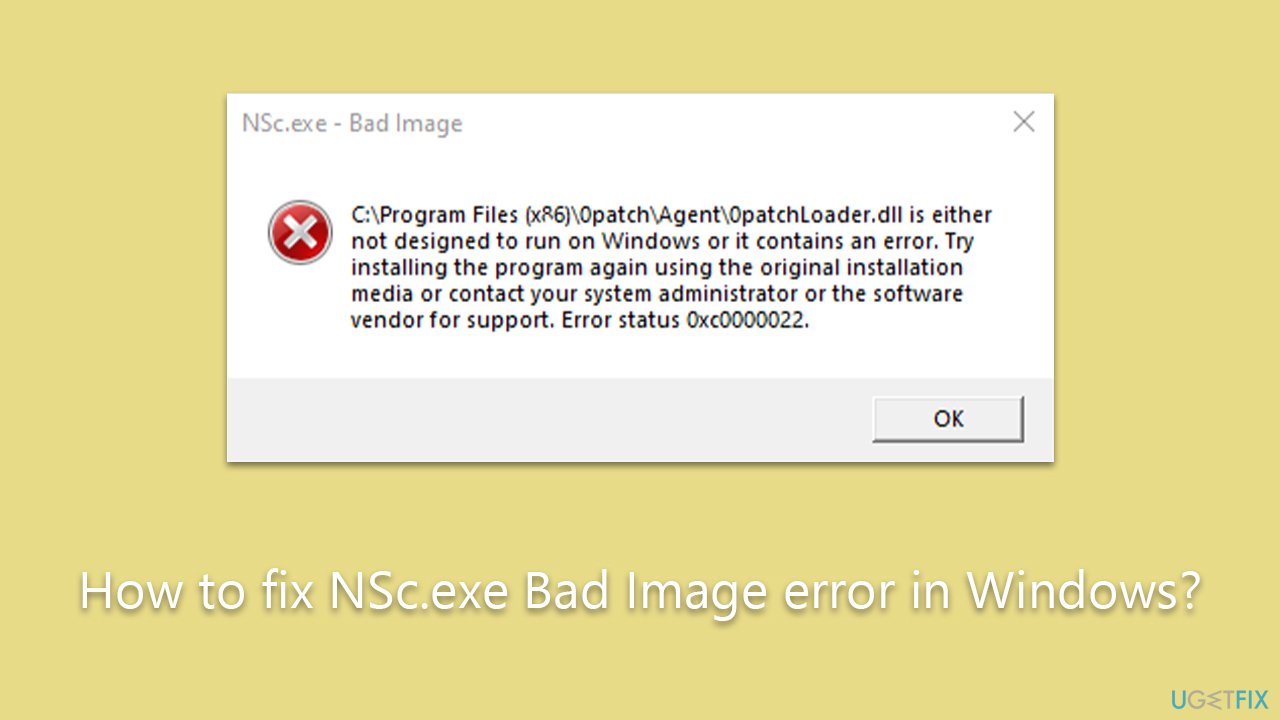
Windows updates could also resolve issues with third-party applications, so it's important to install them:
- Type Updates in Windows search and hit Enter.
- Click on Check for Updates.
- If updates are available, install them (don't forget to install optional updates).
- Restart your device.
Fix 2. Update Norton
Many users said that they have managed to fix the NSc.exe Bad Image error by updating Norton to the latest version. This is because it has been several times identified by Norton experts that the issue lies within the software itself, hence they release hotfixes to remediate the situation.
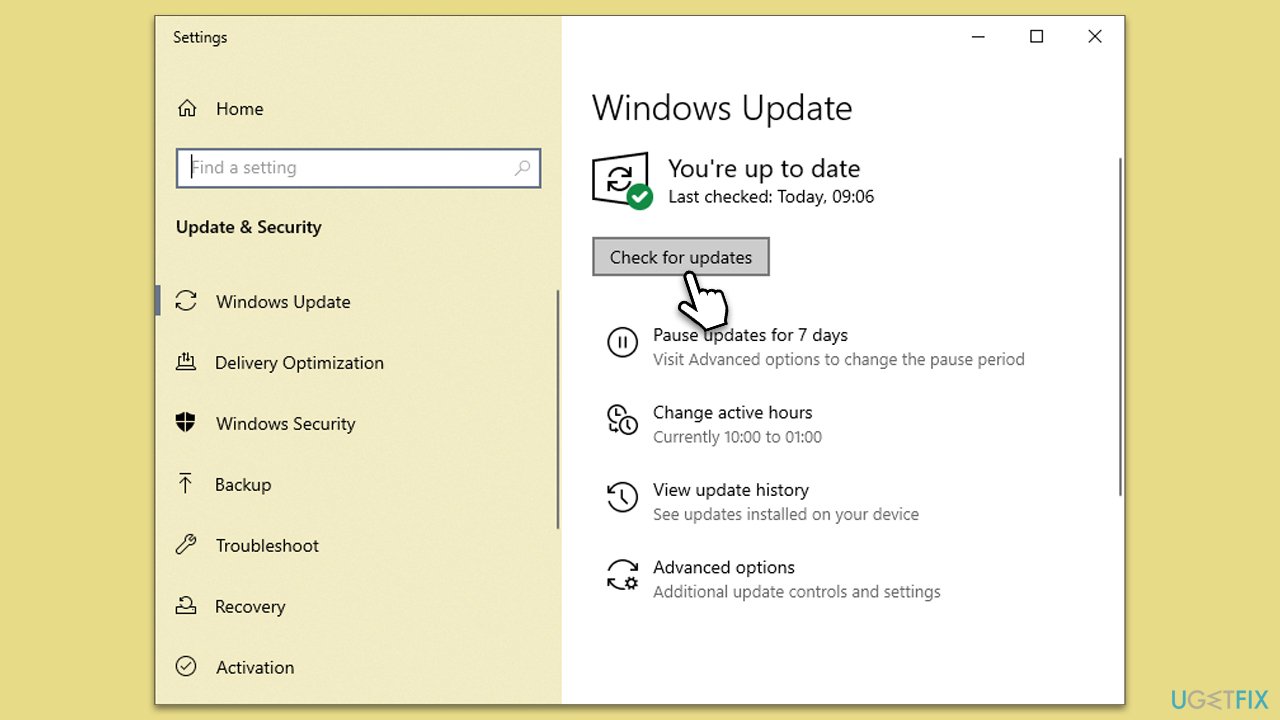
- Open Norton Security's main window.
- Under Device Security, click LiveUpdate.
- Wait till the installation is finished and click OK.
- Reboot your system.
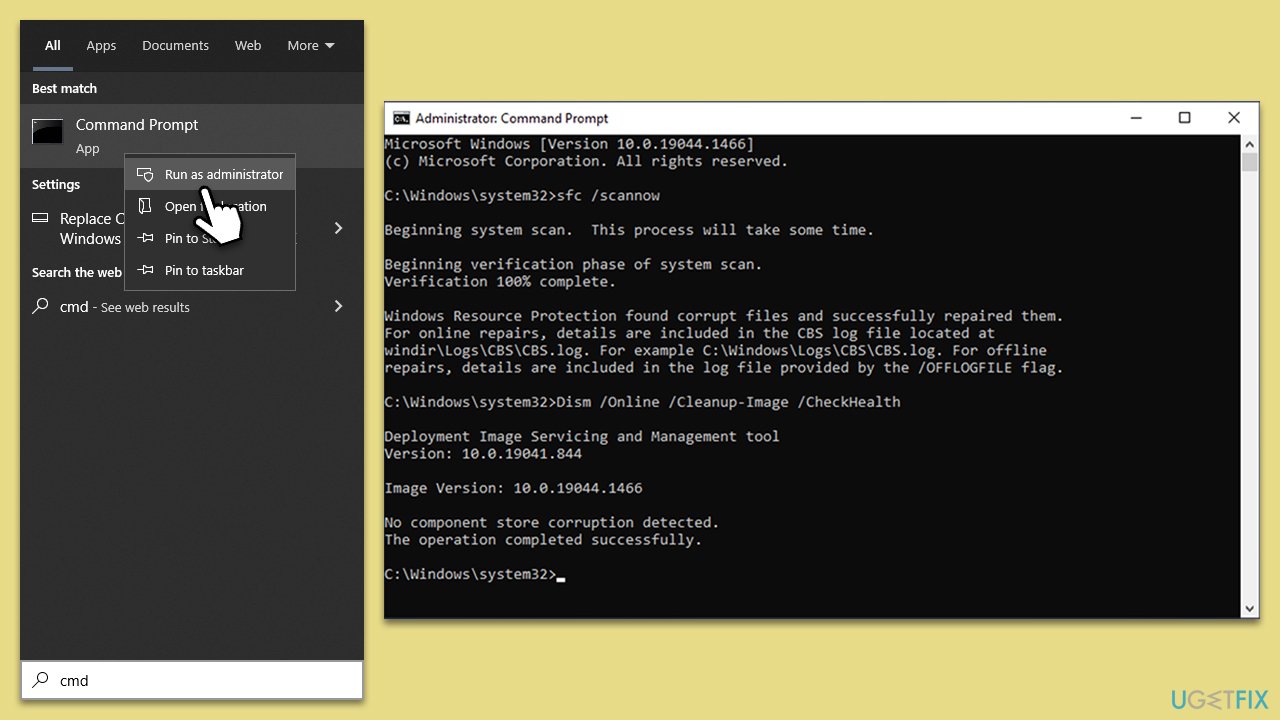
Fix 3. Run SFC and DISM
To ensure that system files aren't damaged, use commands via the elevated Command Prompt:
- Type cmd in Windows search.
- Right-click on the Command Prompt result and select Run as administrator.
- The User Account Control (UAC) window will ask whether you want to allow changes to your computer - click Yes.
- Next, copy and paste the following commands, pressing Enter after each:
sfc /scannow
DISM /Online /Cleanup-Image /CheckHealth
DISM /Online /Cleanup-Image /ScanHealth
DISM /Online /Cleanup-Image /RestoreHealth
(Note: if you get an error executing the last command, add /Source:C:\RepairSource\Windows /LimitAccess to it and try again.) - Restart your system.
Fix 4. Use Media Creation Tool
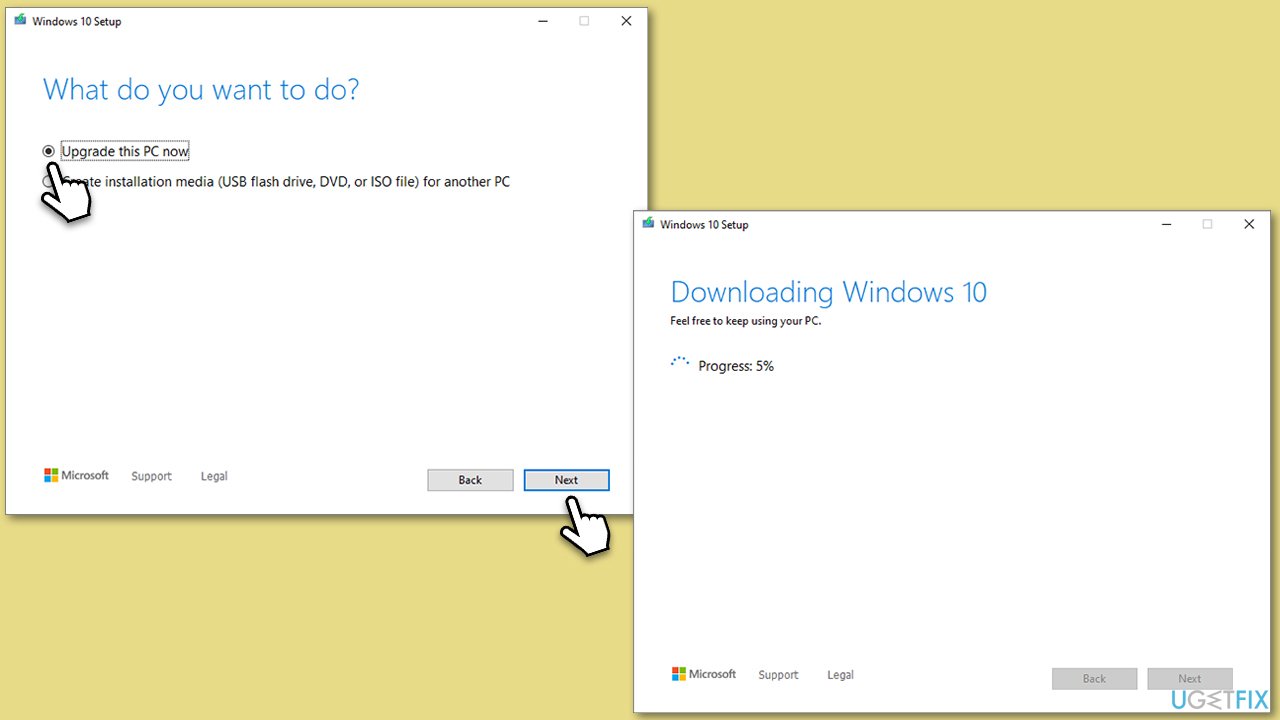
In some cases, the issue might be a bit deeper, and usage of the Media Creation Tool might be required. It will update your system to the latest version and repair any damages that couldn't be fixed otherwise.
- Visit the official Microsoft website and download Windows 10 installation media (Windows 11 version).
- Double-click the installer, select Yes when UAC shows up, and agree to the terms.
- Select Upgrade this PC now and click Next.
- Windows will start downloading the needed files.
- Agree to the terms once again and click Next.
- Before installing, make sure that you are happy with your choices (otherwise, you can click Change what to keep option).
- Finally, click Install to begin the upgrade process.
Fix 5. Reinstall Norton
If updating didn't solve the problem, completely uninstalling and then reinstalling Norton can work. This is because some of the Norton files on your system, like NSc.exe, might be corrupt or not working as they should.
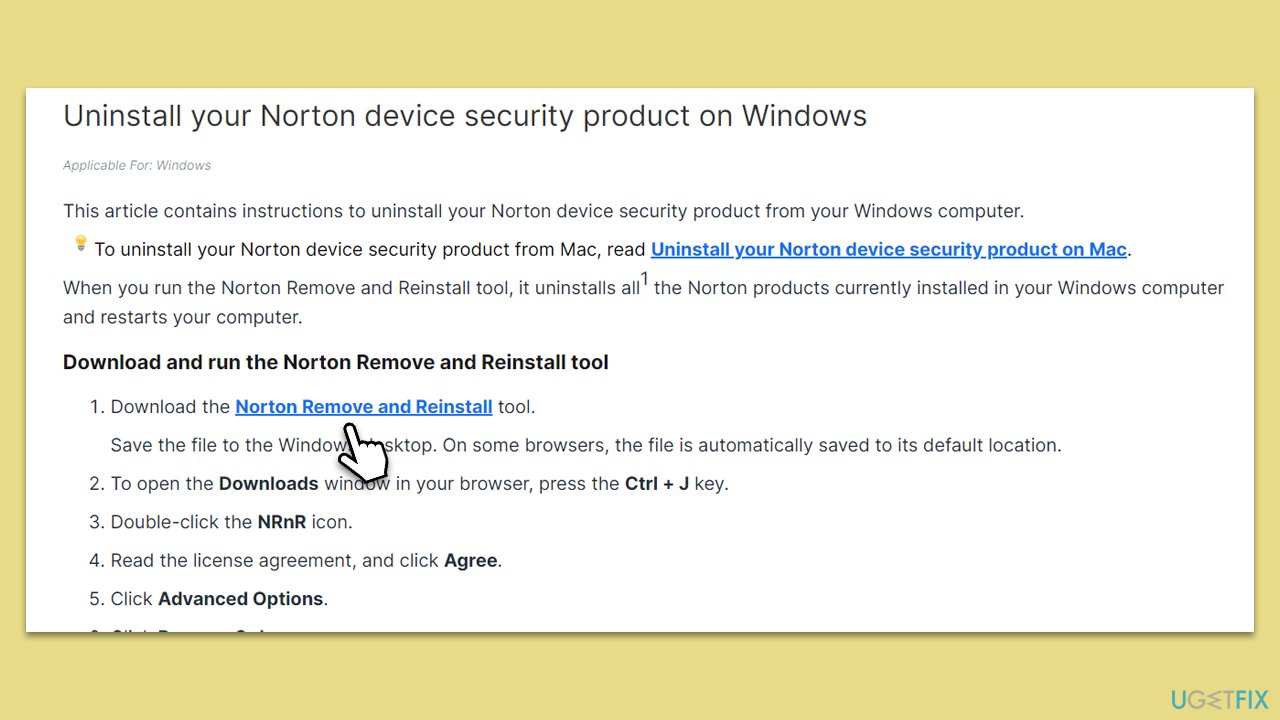
- Visit the official Norton website and download the Norton Remove and Reinstall tool.
- Run the tool on your system and follow the prompts - this will uninstall Norton.
- Restart your computer.
- Revisit the Norton website and download the latest version of the software.
- Install the downloaded software.
- Once installation is complete, restart your computer and check if the error has been resolved.
Bottom line
To fix the NSc.exe Bad Image error, you should install all Windows updates, perform software updates, and conduct system checks. If these solutions do not resolve the issue, further troubleshooting may be necessary.
Frequently asked questions
The NSc.exe Bad Image error typically occurs due to corrupted system files, malware infections, or issues with installed applications. Ensuring that your system is free from malware and repairing corrupted files can help resolve this issue.
You can fix the NSc.exe Bad Image error on Windows 11 by running the System File Checker tool and performing a DISM scan to repair any corrupted files. Additionally, uninstalling recently installed applications that may conflict with system processes can be beneficial.
Deleting the NSc.exe file is not recommended as it may affect the functionality of legitimate applications that rely on it. Instead, focus on repairing your system and ensuring your antivirus is up to date.




Report an issue
What's wrong with this guide? We review every report and update or remove content.
Report received — thank you. We'll review and fix it.
You need a free account to submit a report.
Be the first to comment