How to fix
NTFS_FILE_SYSTEM BSOD
on Windows
Resolve the NTFS_FILE_SYSTEM BSOD on Windows 10 quickly and effectively. Follow our expert-tested solutions to get your system running smoothly again.

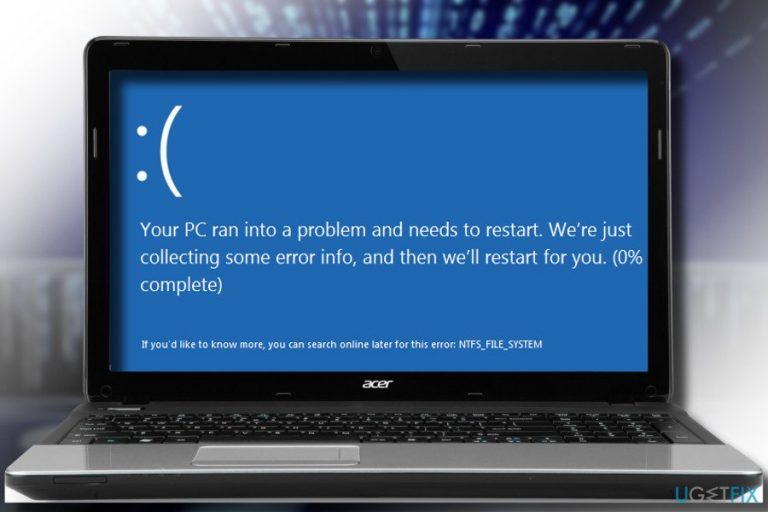
What causes How to fix NTFS_FILE_SYSTEM BSOD on Windows 10?
- Corrupted ntfs.sys file
- Virus infiltration
- Malware removal
- Software conflict
- Installation of updates
Repairs Windows system files, removes malware, and restores a clean OS state — without reinstalling.
I have a problem with my Windows 10 PC. The screen turns blue with a code NTFS_FILE_SYSTEM. Can’t find relevant information in this problem, so I would highly appreciate any help. Thanks!
NTFS_FILE_SYSTEM is a technical name of a hexadecimal error code 0x00000024, which occurs on Windows operating system due to corrupted NTFS.sys file. The error shows up in the form of a Blue Screen of Death (BSOD).[ref en-1] It locks the screen at boot, after installation of updates, software or any other individual circumstances.
NTFS_FILE_SYSTEM BSOD requires immediate system’s maintenance. There’s no way to postpone the patching as it will reoccur on random occasions and may continuously cause data loss. No, the error won’t wipe your data unless the system completely crashes. This BSOD may show up unexpectedly while you are writing an essay or filling up essential documents. Consequently, you will have to reboot the system forcefully and there’s no guarantee that autosave or similar feature will save your work.
To prevent this from happening, it’s a must to fix NTFS_FILE_SYSTEM error asap. In most of the cases, the problem is triggered by ntfs.sys file, which is an essential Windows component.[ref en-2] Statistically, it’s one of the least problematic Windows files, but it may get corrupt after virus infiltration, malware removal, software conflict or similar problems.
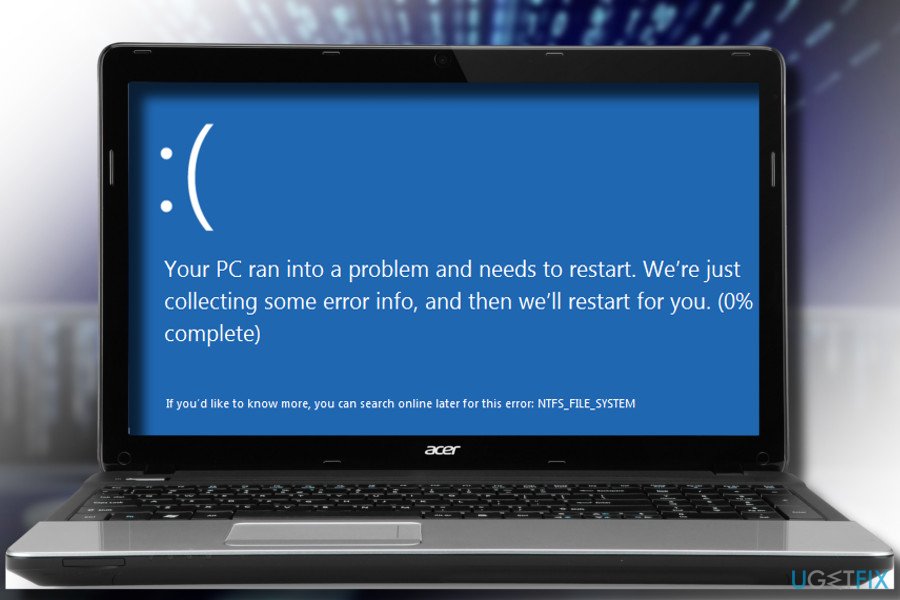
Our research team has initiated an in-depth analysis on ntfs.sys file and prepared a comprehensive guide on how to fix NTFS_FILE_SYSTEM BSOD on Windows 10. You can find all methods listed down below.
Check the system for malware
The original location of the ntfs.sys file is C:\\Windows\\System32\\drivers. Thus, once you encounter the NTFS_FILE_SYSTEM error, reboot your PC into Safe Mode with networking and check the mentioned location. For this purpose, you should open File Explorer and type the C:\\Windows\\System32\\drivers patch into the search. Then scroll through the list and look for the ntfs.sys file. If you found it, then it’s ok.
Besides, check the processes within Task Manager. If you detected multiple processes named as ntfs.sys and some of them are sucking up CPU power, you should immediately update your anti-virus and run a full system scan with it.
Although this file is not considered malicious, hackers can misuse it for hiding severe infections, such as Spyware, Trojan, Keylogger, Cryptocurrency miners,[ref en-3] and so on. Thus, launch [d1] or similar professional anti-malware tool and delete all malicious programs.
Run Driver Verifier
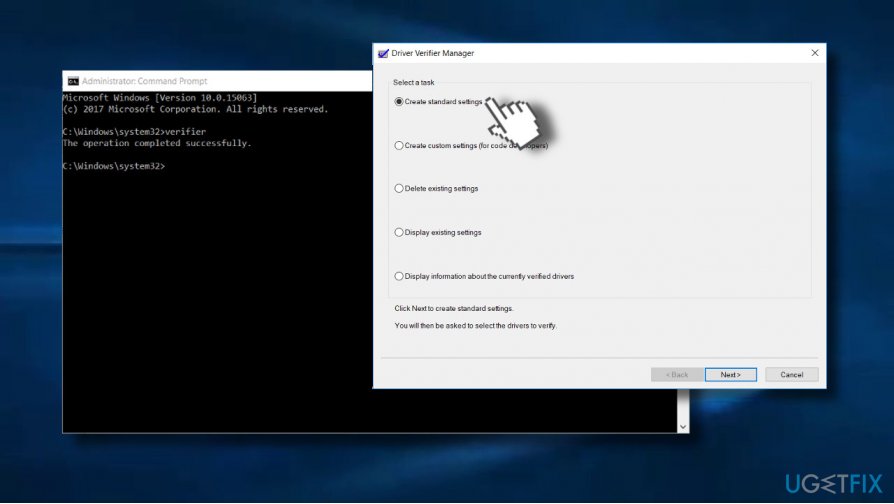
NTFS_FILE_SYSTEM lock screen may also happen due to driver issues. Since it’s not clear which driver may be malfunctioning, we would recommend running Driver Verifier tool, which will reveal the condition of all system’s drivers.
- Press Windows key + X and select Command Prompt (Admin).
- Click Yes on the UAC.
- Type verifier and press Enter to execute the command.
- On the new window, select Create standard settings and then click Next.
- Click Automatically select all drivers installed on this computer.
- Finally, click Finish button to start the verification process. You should get a report about the status of the drivers, so follow the instructions to fix all problems.
Update/Reinstall device drivers
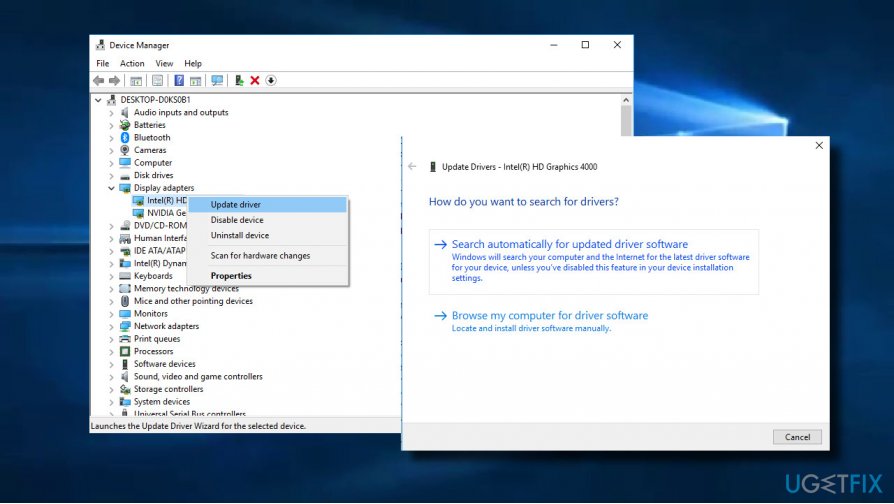
If Driver Verifier indicated a problem with system drivers, you should reinstall or at least update malfunctioning drivers. For this purpose, you have to:
- Right-click on Windows key and select Device Manager.
- Expand the needed driver category and right-click on the reported driver.
- Click Update driver and select Search automatically for updated driver software.
- Once the update is installed, reboot the system.
Enable System Restore
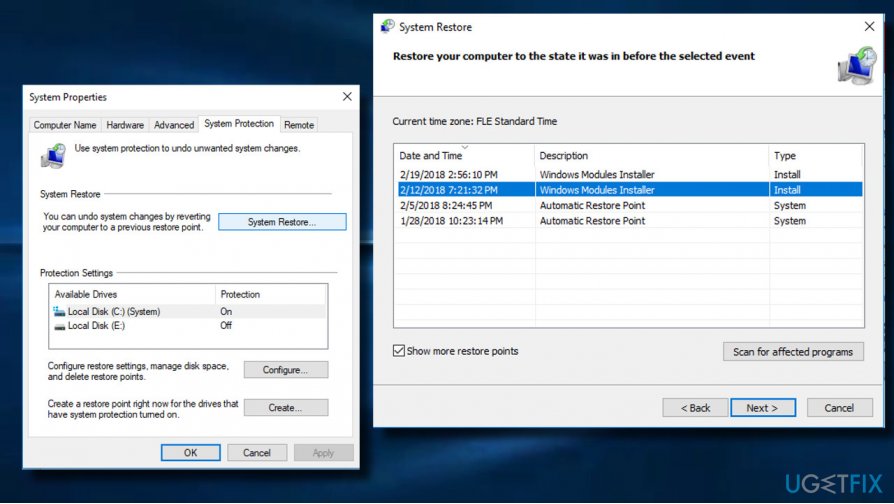
If the NTFS_FILE_SYSTEM error occurred soon after system’s changes, you might try to enable System Restore Point.
NOTE: System Restore Point feature is only available if you enabled it some time ago.
- Go to Start menu and enter system restore in Windows search box.
- Select Create a Restore Point.
- Click on System Restore button and click Next.
- Select the system restore point that was created before the BSOD started interrupting you and select Next.
- In case you see only one restore point available, mark Show more restore points check box.
- Select the restore point and click Next.
- Restart your computer to finish your system restore.
Upgrade the system using Windows 10 installation media
Create Windows 10 installation media using a USB or DVD. Once you create the bootable Windows installation media, follow these steps:
- Plug-in or insert the Windows 10 installation media and reboot the PC.
- Press any key to boot from the installation media.
- Select language, time, currency, and keyboard/input method and press Next.
- Click Install Now (NOT Repair your computer) and select the type of OS you want to install.
- Finally, follow the on-screen instructions to finish up with the installation.
Bottom line
To fix the NTFS_FILE_SYSTEM BSOD, check for malware, verify the ntfs.sys file location, and monitor processes in Task Manager. If these methods do not resolve the issue, further investigation or professional assistance may be necessary.
Frequently asked questions
The NTFS_FILE_SYSTEM BSOD error on Windows 10 can be caused by corrupted system files, faulty drivers, or hardware issues such as a failing hard drive.
You can fix the NTFS_FILE_SYSTEM BSOD error by booting into Safe Mode, running the CHKDSK utility to check for disk errors, or updating your drivers.
To prevent the NTFS_FILE_SYSTEM BSOD on Windows 10, ensure that your system is updated, regularly check for driver updates, and perform routine maintenance on your hard drive.




Report an issue
What's wrong with this guide? We review every report and update or remove content.
Report received — thank you. We'll review and fix it.
You need a free account to submit a report.
Be the first to comment