How to fix
Ntosknl.exe BSOD error
on Windows
Resolve the ntoskrnl.exe BSOD error on Windows 10 or Windows 11 quickly and effectively. Expert-tested solutions to get your system running smoothly.

What causes How to fix ntosknl.exe BSOD error in Windows?
- Faulty RAM
- Corrupted boot volume
- Problematic drivers
- Overclocking of CPU or GPU
- Virus or malware infection
Repairs Windows system files, removes malware, and restores a clean OS state — without reinstalling.
So I sometimes get ntosknl.exe BSOD whenever I try to launch games. It can happen often or sometimes not happen at all for hours. What is going on and how can I fix it?
Ntoskrnl.exe file is an important part of Windows, and it is responsible for all the specific tasks, which include memory management, hardware abstraction, and process management.
However, it sometimes causes many BSODs, thereby causing crashes. A user experiencing a ntoskrnl.exe BSOD error may thus encounter frequent crashes, slowdowns, or problems at startup or when using applications.
The common causes of BSOD ntoskrnl.exe include a problem with the hardware, problematic drivers, or corrupted system files. More common culprits involve faulty RAM, corrupted boot volume, or some problem with new Windows updates.
Other causes could be overclocking of your CPU or GPU and any virus/malware infection. Some users face this error after updating any hardware driver or installing new hardware that conflicts with the previously set up or existing parameters in one's system.
The solutions that can be used to resolve this type of ntoskrnl.exe BSOD are running the Windows Memory Diagnostic Tool for checking RAM errors, running the SFC and DISM commands for repairing corrupted system files and updating or reinstalling device drivers.
In more extreme cases, it could require disabling overclocking or running a CHKDSK scan to identify issues with the hard drive. In such cases, it is helpful to restore your system back to one of its previously saved restore points. This is helpful in case the problem started recently.
If you want a short cut easy method, then execute a reliable [d1] repair utility that can search and repair more deeply seated system problems, which may be responsible for the error, including corrupt system files, and hardware conflicts, among other underlying causes that are responsible for the smooth functioning of your system.
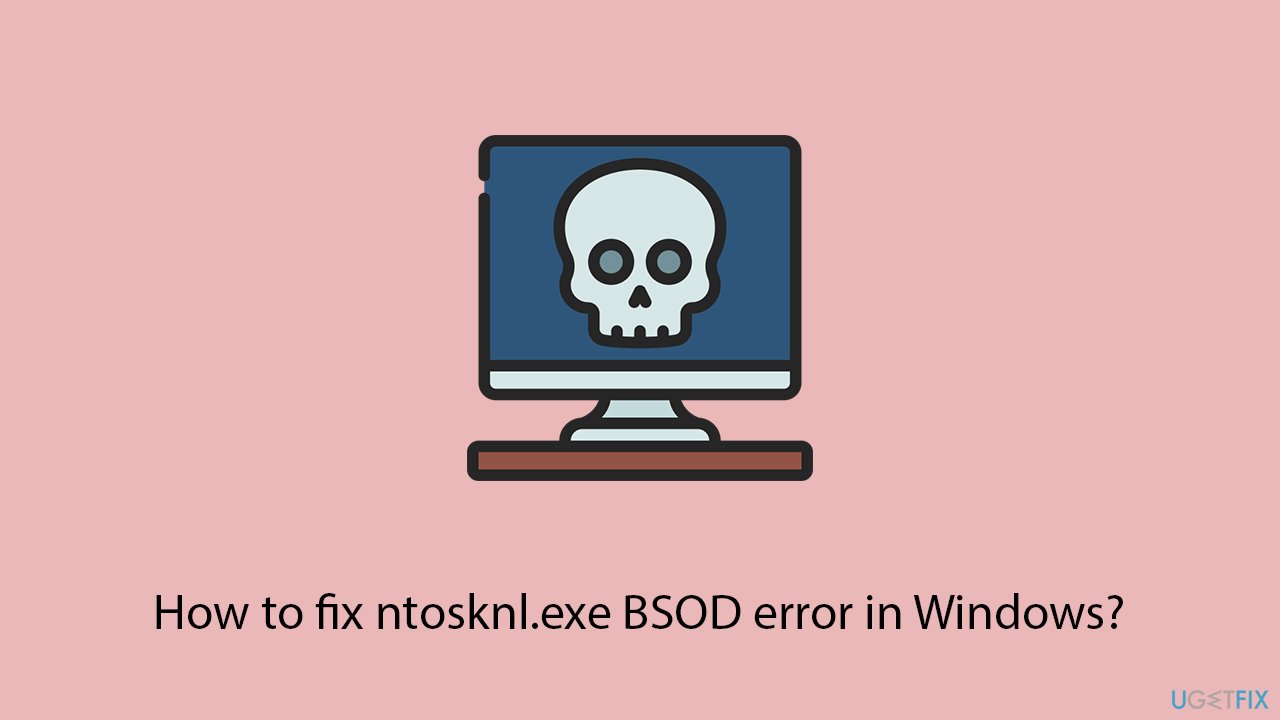
Fix 1. Run Windows Memory Diagnostic Tool
Corrupted or failing RAM can cause ntoskrnl.exe BSOD errors. Running the Memory Diagnostic Tool helps identify memory issues.
- Type Windows Memory Diagnostic into the Windows search bar and select it.
- Choose Restart now and check for problems. Your computer will restart, and the memory diagnostic will run.
- After completion, the computer will restart again, and the test results will be displayed after logging in.
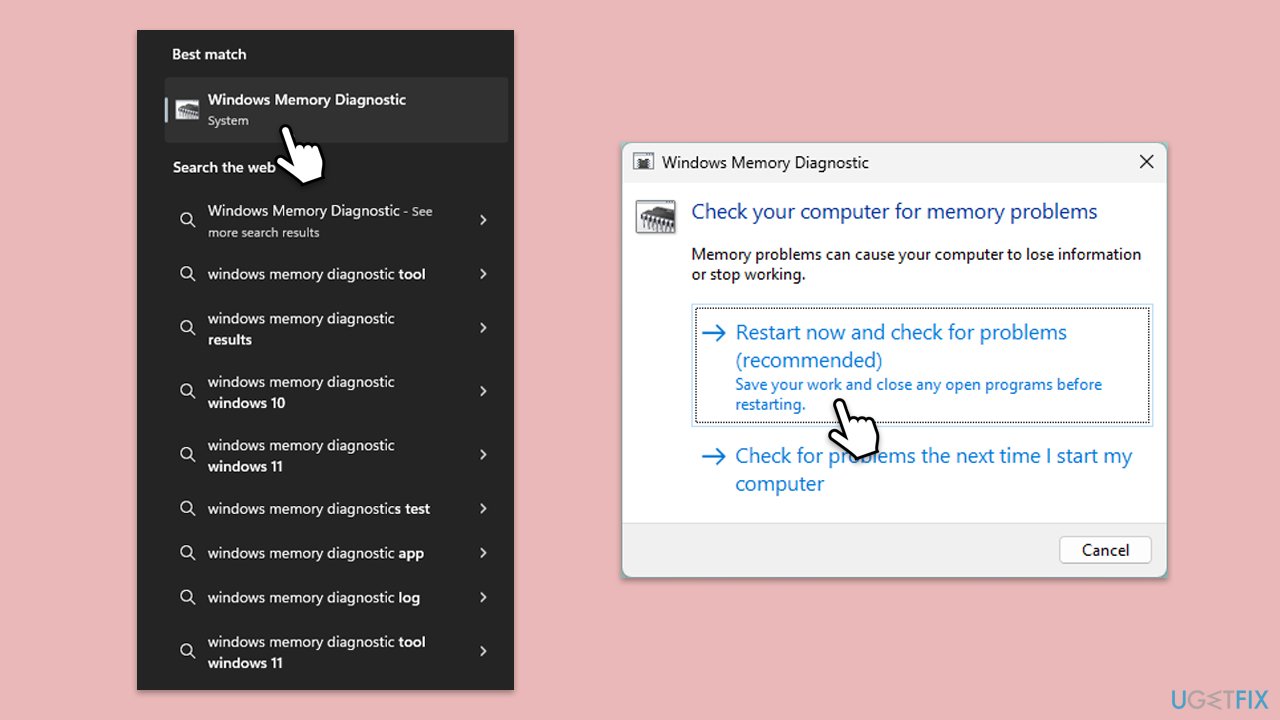
Fix 2. Run SFC and DISM
Corrupt system files can trigger BSOD errors - you can address this by running specific commands on elevated Command Prompt.
- Type in cmd in Windows search.
- Right-click on Command Prompt and select Run as administrator.
- User Account Control window will show up - click Yes when prompted.
- In the Command Prompt window, paste the following command and press Enter:
sfc /scannow - Wait for the scan to complete.
- Once the SFC scan is finished, run the following set of DISM commands, pressing Enter after each one:
DISM /Online /Cleanup-Image /CheckHealth
DISM /Online /Cleanup-Image /ScanHealth
DISM /Online /Cleanup-Image /RestoreHealth
(Note: if you get an error executing this last command, add /Source:C:\RepairSource\Windows /LimitAccess to it and try again). - After completing the DISM commands, restart your PC.
Fix 3. Check for hard drive issues using CHKDSK
A failing hard drive or bad sectors can cause the ntoskrnl.exe error. Running CHKDSK will scan your disk for errors and repair them.
- Open Command Prompt as administrator.
- Click Yes when UAC asks for access.
- Type in the following command and press Enter after:
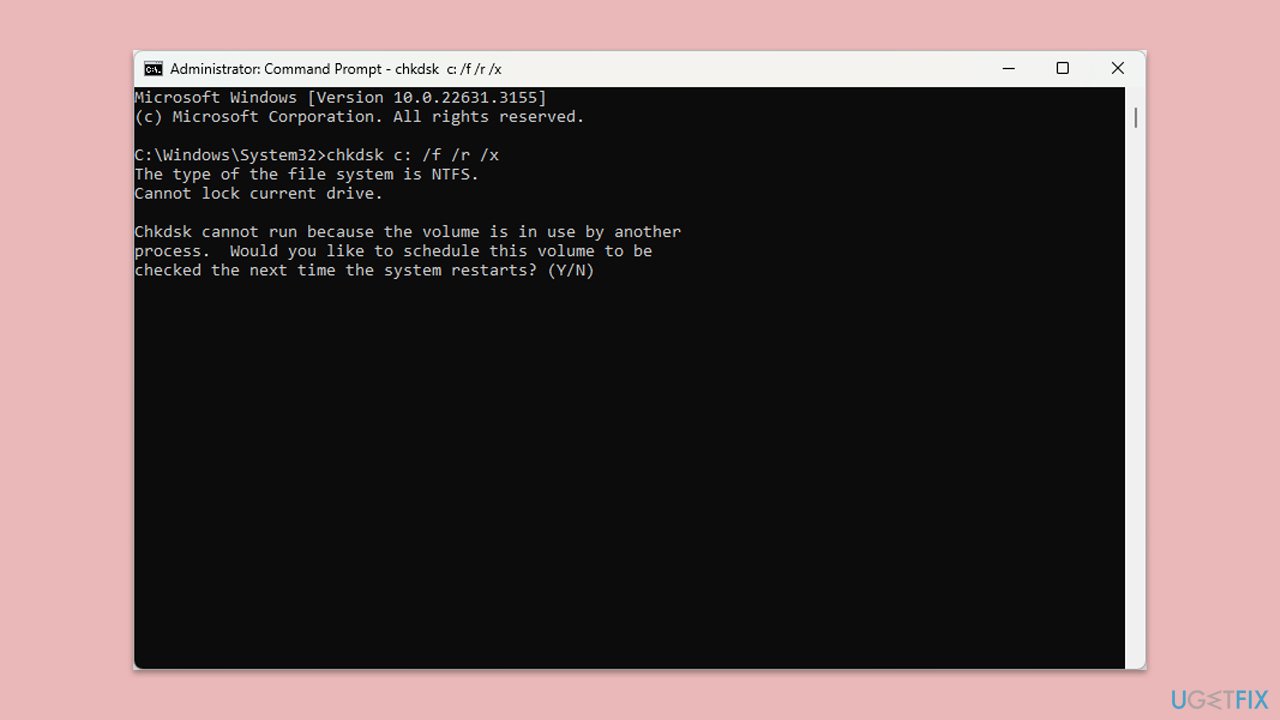
chkdsk c: /f
(Note: use chkdsk c: /f /r /x command if you use SSD as your primary partition). - If you receive an error, type in Y, close down Command Prompt, and restart your computer.
- After a restart, Windows will begin to scan your disk. After your system boots back up, you can find the results in the Event Viewer.
Fix 4. Update or reinstall drivers
Outdated or incompatible drivers can cause BSOD errors. Ensuring your drivers are up-to-date or reinstalling problematic drivers can help.
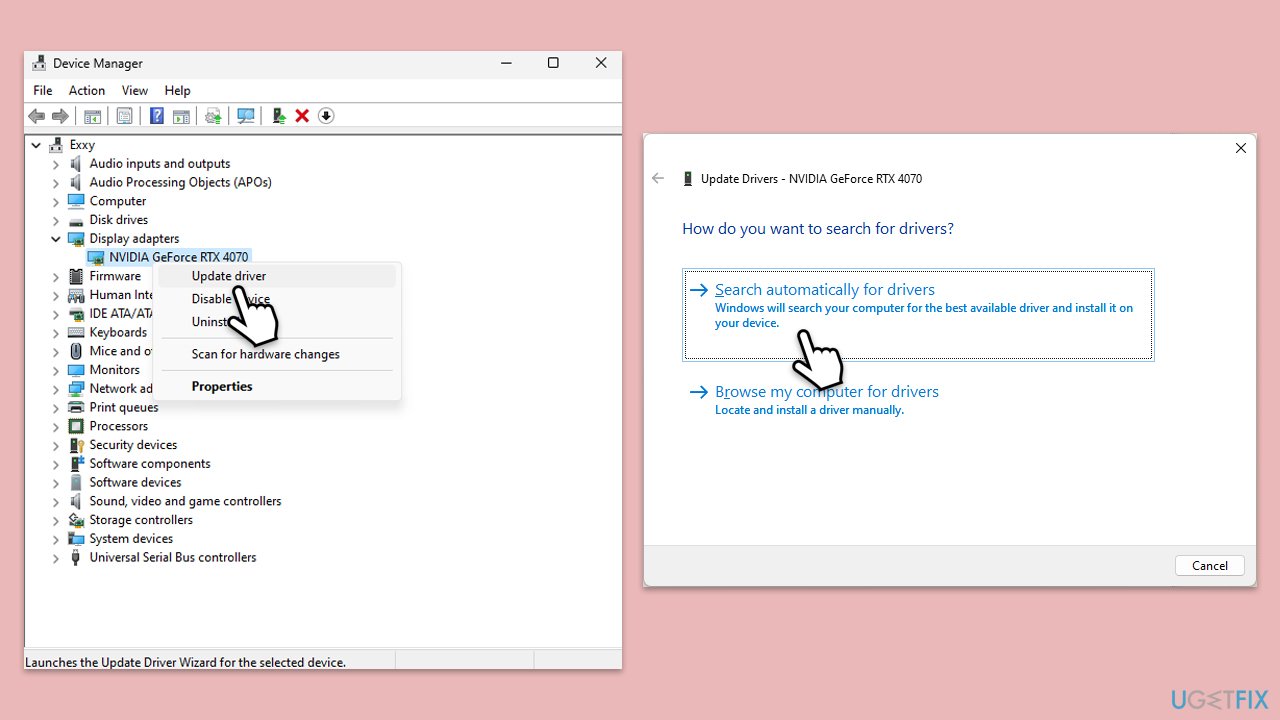
- Right-click and select Device Manager.
- Expand the relevant categories (e.g., Display adapters, Network adapters).
- Right-click on the device and select Update driver.
- Choose Search automatically for drivers. If no updates are found, try reinstalling the driver by selecting Uninstall device, then restarting your PC.
- If you want a quicker way of resolving driver issues, employ automatic tools such as [rev id="DriverFix"].
Fix 5. Roll back recent Windows updates
Sometimes, a faulty Windows update can cause system issues like the ntoskrnl.exe BSOD. Rolling back a recent update may resolve the problem.
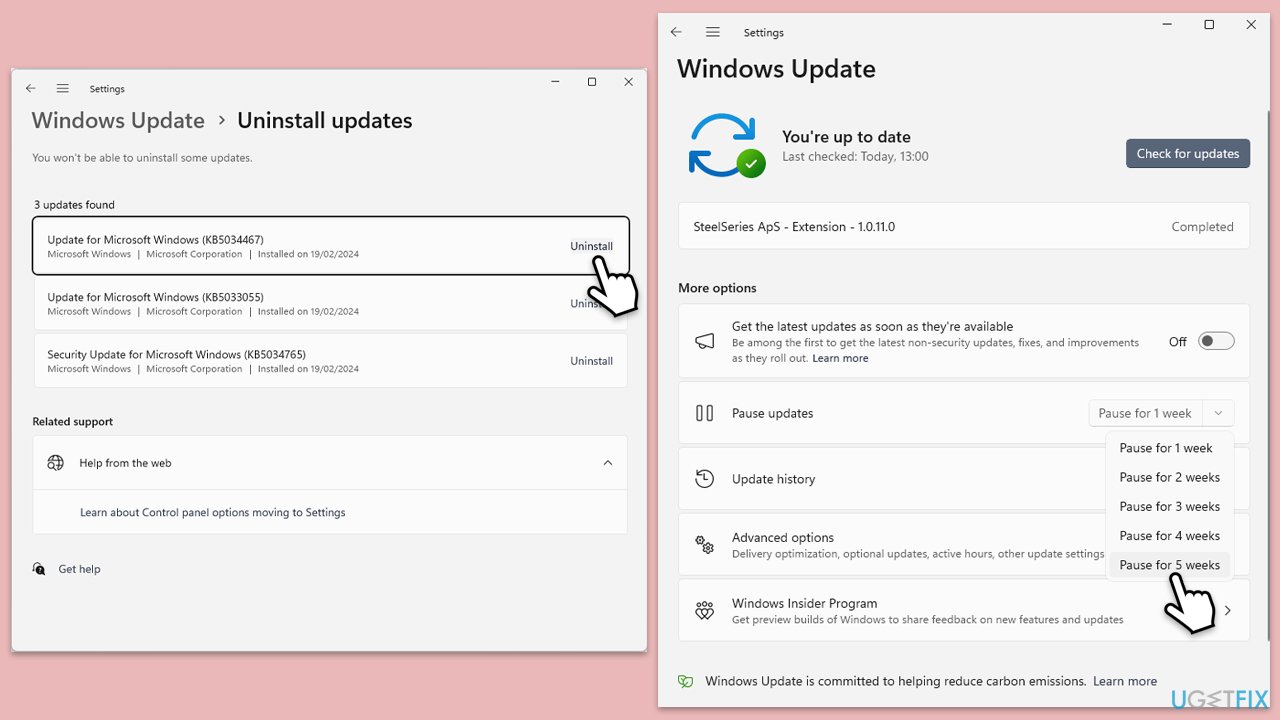
- Type Control Panel in Windows search and press Enter.
- Select Programs > Uninstall a program.
- Click on View installed updates on the left side of the window.
- Uninstall the most recent update.
- Proceed with on-screen instructions.
- Don't forget to pause the update.
Fix 6. Disable overclocking
If you've overclocked your CPU or GPU, it can lead to system instability and ntoskrnl.exe errors. Disabling overclocking settings can help restore stability.
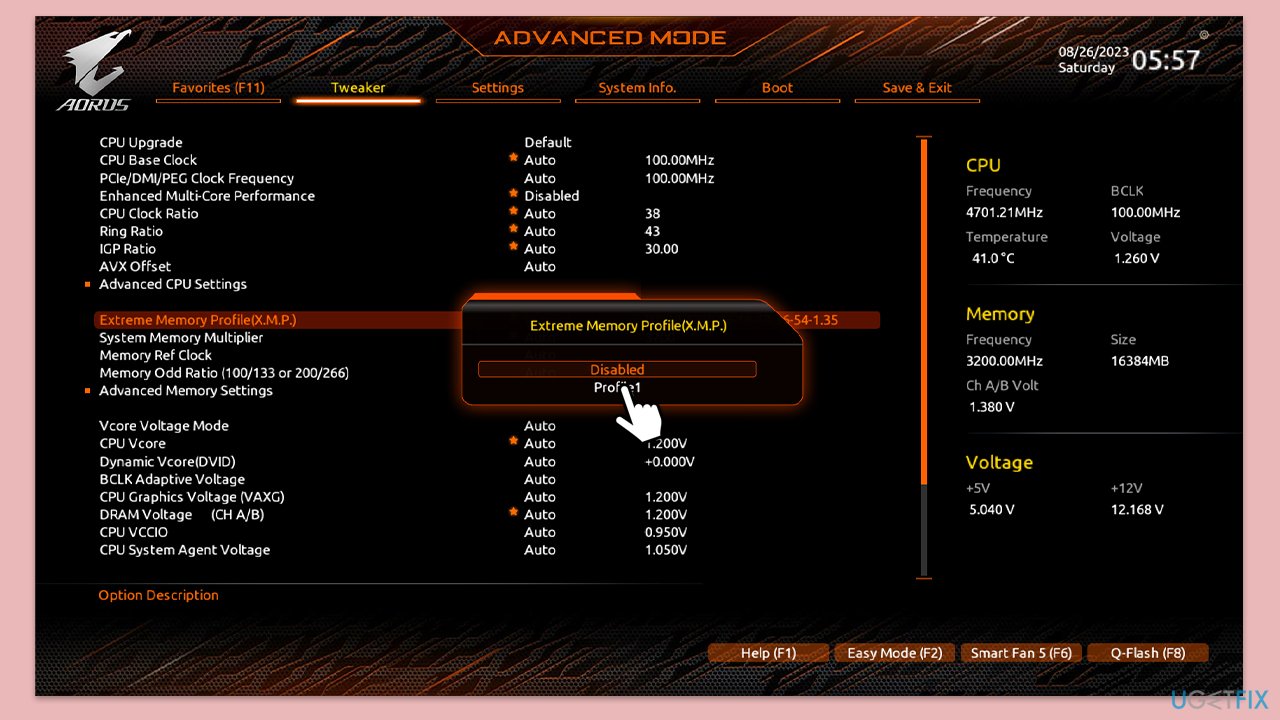
- Restart your computer and press the BIOS key as it begins to boot up (typically F2, F10, F12, or Del, depending on the manufacturer).
- In the BIOS interface, navigate to the Advanced, Performance, or Overclocking tab (the name varies by motherboard).
- Look for options such as CPU Configuration, Overclocking Settings, or similar.
- Reset these settings to default or disable the overclocking options, including XMP.
- Save and Exit from BIOS, which will reboot your computer.
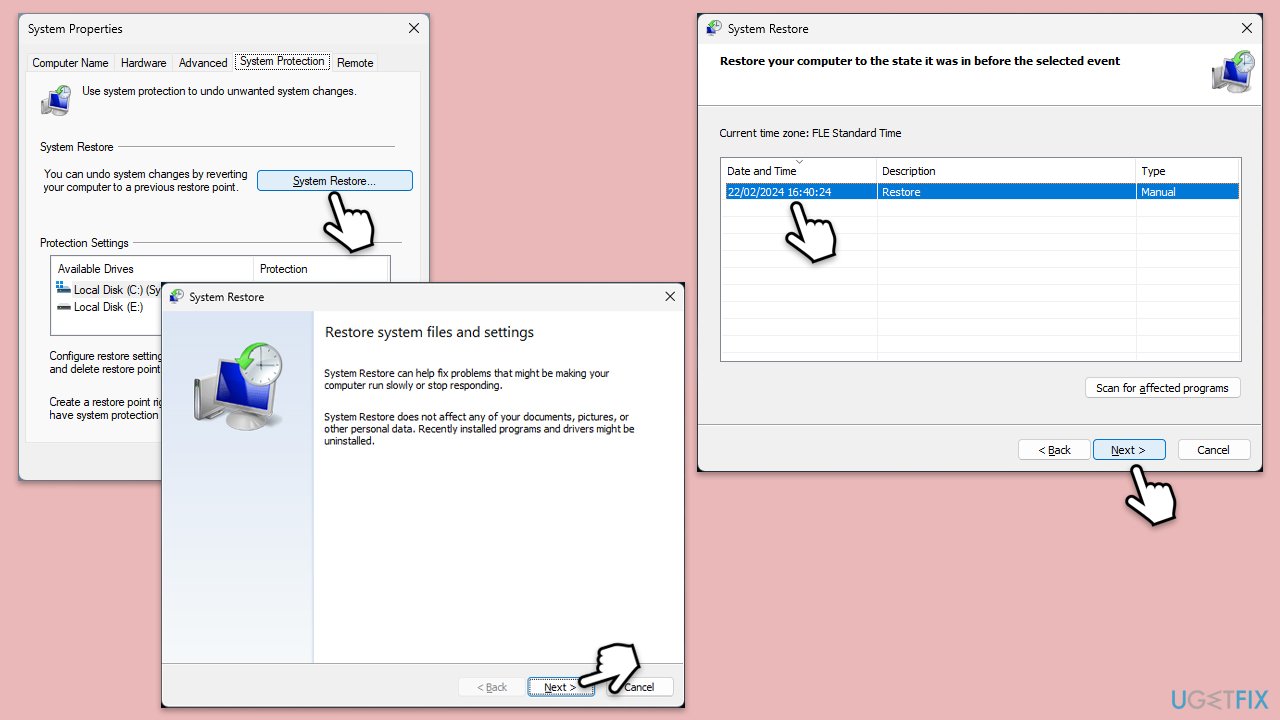
Fix 7. Perform a System Restore
If the error started recently, performing a system restore can revert your computer to a previous state where it was functioning correctly.
- Type in Create a restore point in Windows search and press Enter.
- Go to System Restore and click Next.
- Mark the Show more restore points checkbox (if available).
- Pick the time when the problem did not exist and click Next.
- Finalize the process - your computer will reboot.
Bottom line
To fix the ntoskrnl.exe BSOD error, you can run the Windows Memory Diagnostic Tool to check for RAM issues, use the SFC and DISM commands to repair corrupted system files, and update or reinstall device drivers. If these solutions do not resolve the issue, consider disabling overclocking or running a CHKDSK scan to identify hard drive problems.
Frequently asked questions
The ntosknl.exe BSOD error is often caused by corrupted system files, incompatible drivers, or hardware issues affecting the kernel mode of the operating system.
You can troubleshoot this error by performing a system file check using the 'sfc /scannow' command in Command Prompt, and updating all your device drivers to the latest versions.
Yes, disabling fast startup can help resolve the ntosknl.exe BSOD error, as it may prevent certain hardware from initializing properly during boot on Windows 10.




Report an issue
What's wrong with this guide? We review every report and update or remove content.
Report received — thank you. We'll review and fix it.
You need a free account to submit a report.
Be the first to comment