How to fix
Nvgpucomp64.dll BSOD
on Windows
Resolve the nvgpucomp64.dll BSOD issue in Windows 10 or 11 effortlessly. Get expert-tested solutions and fix your errors in minutes!

What causes How to fix nvgpucomp64.dll BSOD in Windows?
- Corrupted graphics drivers
- Out-of-date graphics drivers
- Software conflicts
- Graphics card hardware problems
- Recent software installations
Repairs Windows system files, removes malware, and restores a clean OS state — without reinstalling.
Hello, I keep getting crashes when playing Rocket League. I checked some information and it always comes to the nvgpucomp64.dll file (plus some numbers). What does it mean and how can I stop these crashes while gaming?
Blue Screen of Death (BSOD) is a common issue that Windows users might experience, indicating a significant problem that causes the computer to stop working suddenly. This screen usually appears with a blue background and a sad face, along with an error message that helps identify the problem. One specific type of BSOD error involves the file named nvgpucomp64.dll.
The nvgpucomp64.dll is associated with the graphics processes in your computer, often linked to Nvidia graphics drivers. This particular DLL file helps manage complex graphics computations, especially those related to gaming or intensive graphic applications. That's why it usually occurs when playing graphic-intensive video games. When there's an issue with this file, it might cause a BSOD, showing that something went wrong with the graphics components of your system.
There are multiple causes for the nvgpucomp64.dll BSOD. It could be the result of corrupted or out-of-date graphics drivers, software conflicts, or even graphics card hardware problems. This problem can occasionally also be brought on by recent software installations or modifications to the system settings.
To fix nvgpucomp64.dll crashes, the first step would often involve checking for driver updates or reinstalling graphics drivers to ensure they are not outdated or corrupt. It's also wise to scan for any system changes that might have affected the stability of the computer.
In case you feel overwhelmed by these issues or they persist despite trying general fixes, using a PC repair tool [d1] might be beneficial. Such a tool can automatically detect and fix underlying Windows issues, potentially resolving the problem without requiring extensive technical knowledge.
Fix 1. Update your graphics driver
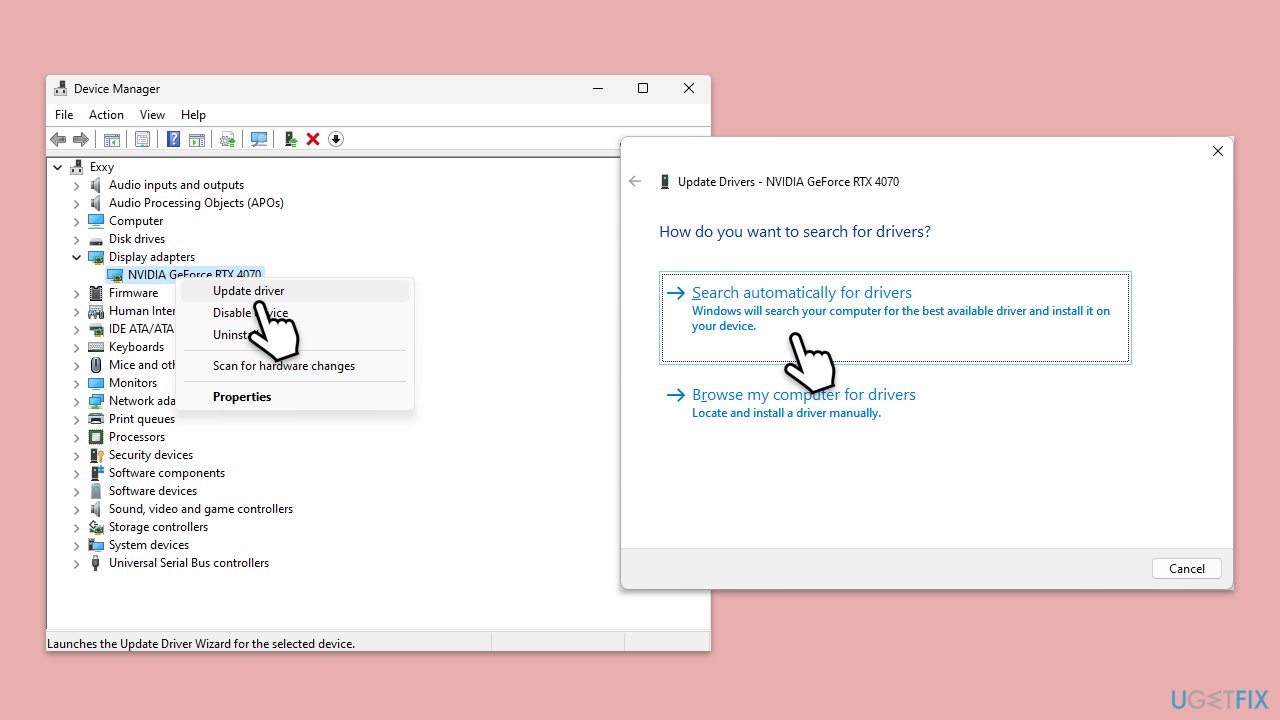
- Right-click on the Start button and select Device Manager from the menu.
- Expand the Display adapters section.
- Right-click on your graphics card and select Update driver.
- Pick Search automatically for drivers.
- If updates are found, allow them to install.
- Restart your computer after updating all necessary drivers.
To deal with all your driver problems using a hands-off approach, we recommend employing [rev id="DriverFix"].
Fix 2: Reinstall your graphics driver
- Open Device Manager.
- Expand the Display adapters section.
- Right-click on your graphics card and pick Uninstall device.
- Mark the box to delete all the driver software.
- Confirm the uninstallation.
- Restart your device.
Fix 3. Roll back your graphics driver
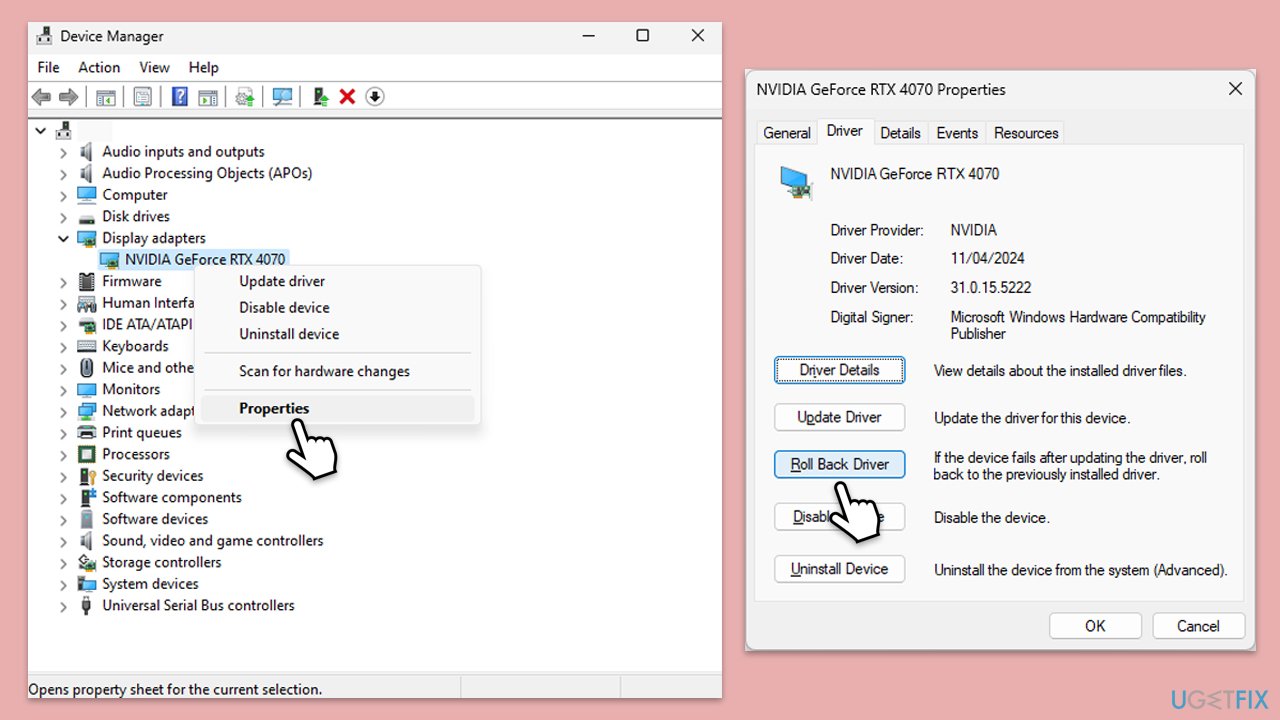
- Open Device Manager.
- Expand the Display adapters section.
- Right-click on your graphics card and select Properties, then go to the Driver tab.
- Click Roll Back Driver and follow the prompts.
- If the button is greyed out, a rollback isn't available for that driver.
- Restart your computer after rolling back.
Fix 4. Check for Windows updates and install any available patches
- Type Updates in Windows search and press Enter.
- When the new window opens, click Check for updates and wait.
- If there are optional updates available, install them as well.
- After updating, restart your computer.
Fix 5. Run a virus scan to check for malware
You can use Microsoft Safety Scanner or the built-in Microsoft Defender:
- Type Windows Security in the Windows search bar and hit Enter.
- Select Virus & threat protection.
- Pick Scan options.
- Choose Microsoft Defender Offline scan and click Scan now.
- Your computer will immediately reboot and begin a deep scan.
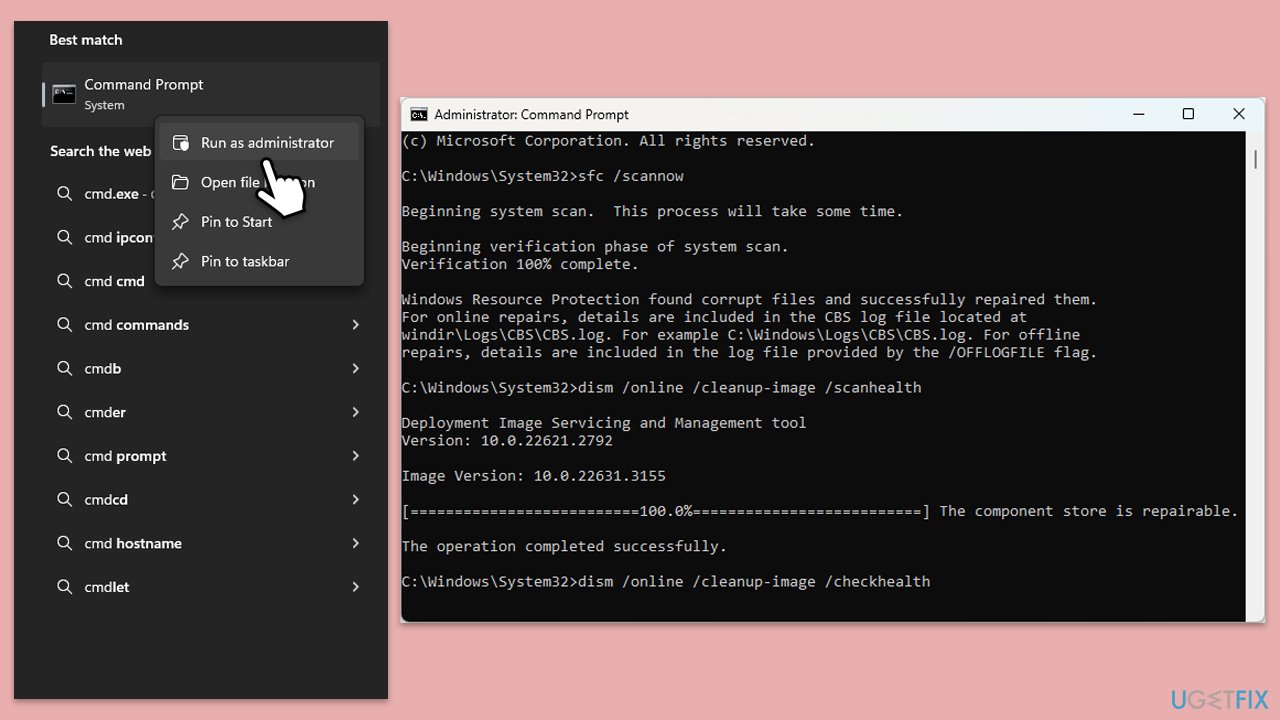
Fix 6. Use SFC and DISM to repair corrupted system files
- Type cmd in Windows search.
- Right-click on the Command Prompt result and select Run as administrator.
- When the UAC window pops up, click Yes.
- In the Command Prompt window, paste the following command and press Enter:
sfc /scannow - Wait for the scan to complete.
- Once the SFC scan is finished, run the following set of DISM commands, pressing Enter after each one:
DISM /Online /Cleanup-Image /CheckHealth
DISM /Online /Cleanup-Image /ScanHealth
DISM /Online /Cleanup-Image /RestoreHealth - After completing the DISM commands, restart your computer.
Fix 7. Check the hard drive for errors using the Check Disk utility
- Open Command Prompt as administrator.
- Click Yes when UAC asks for access.
- Type in the following command and press Enter after:
chkdsk c: /f
(Note: use chkdsk c: /f /r /x command if you use SSD as your primary partition). - If you receive an error, type in Y, close down Command Prompt, and restart your computer.
- After a restart, Windows will begin to scan your disk. After your system boots back up, you can find the results in the Event Viewer.
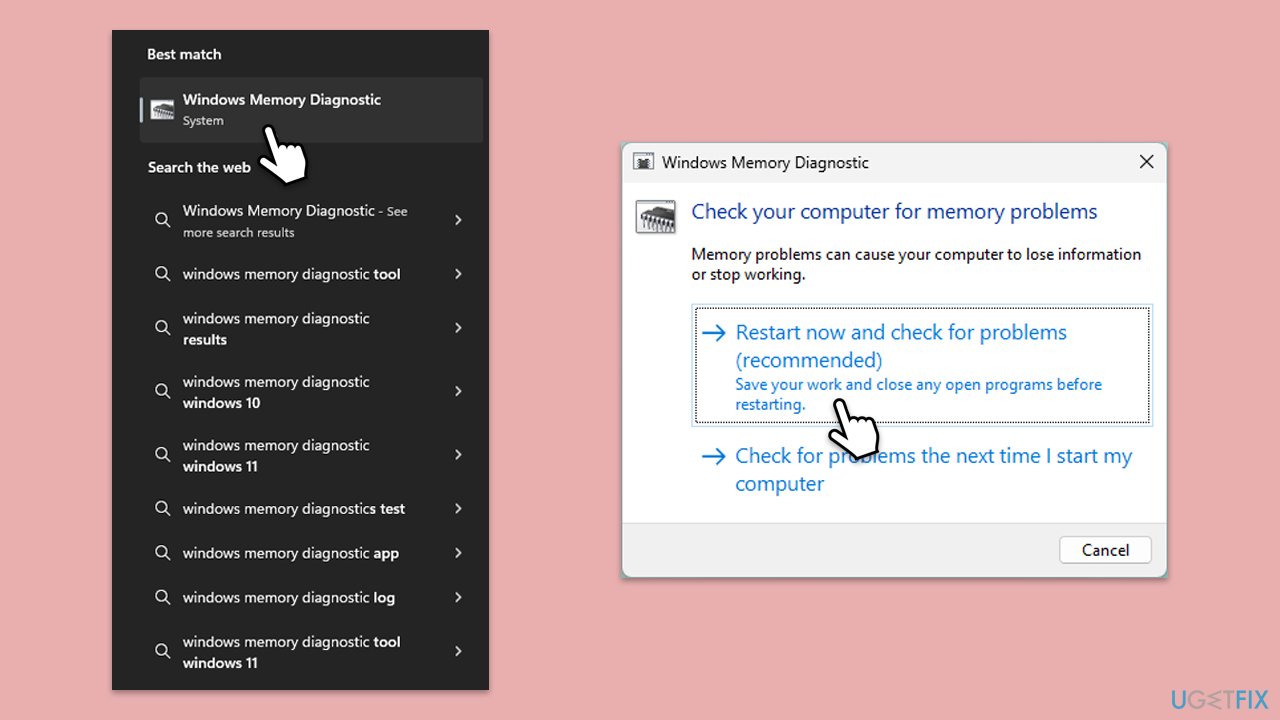
Fix 8. Test your computer's memory using Windows Memory Diagnostic
- Type Windows Memory Diagnostic in Windows search and press Enter.
- Select Windows Memory Diagnostics result.
- Click Restart now and check for problems (recommended) (note that your PC will restart immediately).The
- A memory test will run during startup and display any detected errors - this might take a while.
- Replace or repair faulty RAM module(s) if errors are found.
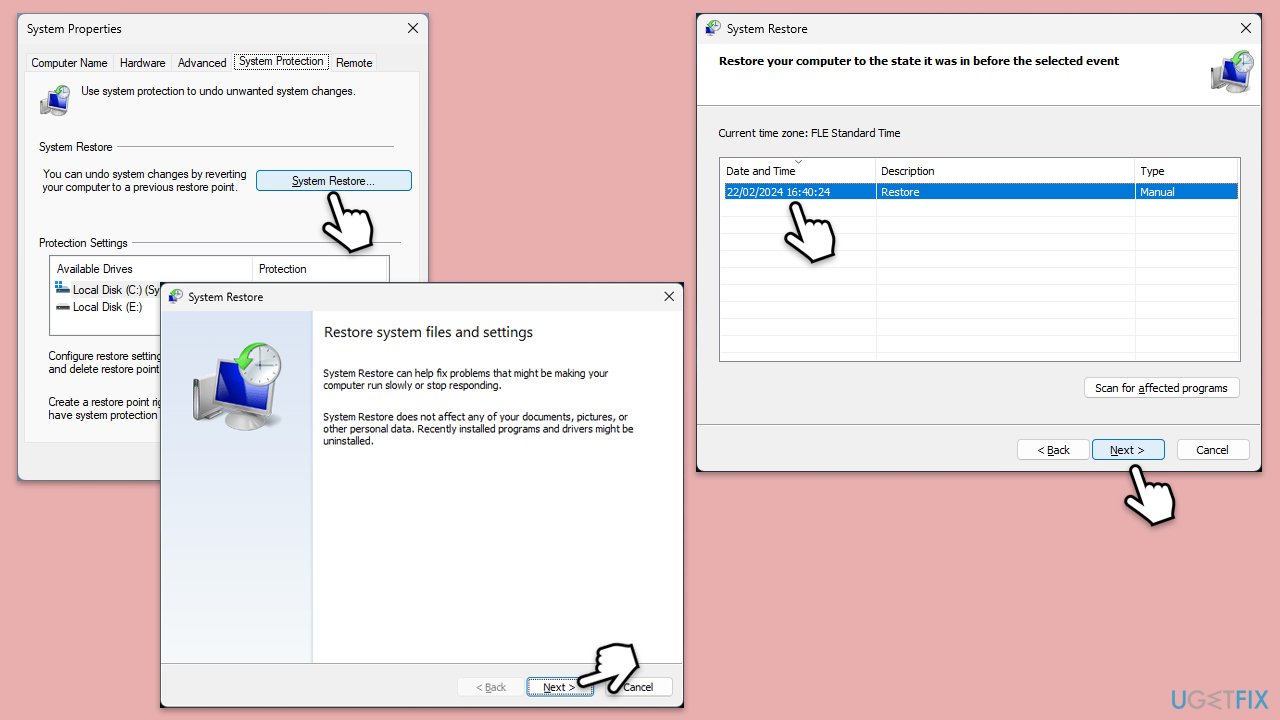
Fix 9. Restore your system to an earlier point using System Restore
- Type in Create a restore point in Windows search and hit Enter.
- Go to System Restore and click Next.
- Mark the Show more restore points option (if available).
- Pick the time when the problem did not exist and click Next.
- Finalize the process - your device will restart.
Fix 10. Disable Adaptive Boost Technology in BIOS
- Restart your computer and press the key to enter BIOS (commonly Delete, F2, F10, or Esc).
- Navigate to the Advanced, Performance, or Power Management tab using the arrow keys.
- Locate Adaptive Boost Technology under a menu like CPU Configuration or Advanced CPU Features.
- Select Adaptive Boost Technology and change the setting to Disabled.
- Press F10 to save and exit the BIOS.
- Confirm the save when prompted and allow the computer to restart.
Bottom line
To fix the nvgpucomp64.dll BSOD, you should update or reinstall your graphics drivers and check for any system changes that may have affected stability. If these steps do not resolve the issue, consider using a PC repair tool to automatically detect and fix underlying Windows problems.
Frequently asked questions
The nvgpucomp64.dll BSOD error is typically caused by outdated or corrupted NVIDIA graphics drivers, or issues with the NVIDIA GPU itself. It can also arise from system file corruption or conflicts with other software.
You can update your NVIDIA drivers by visiting the NVIDIA website and downloading the latest version compatible with your Windows 10 or Windows 11 system. Alternatively, use the Device Manager to automatically search for updated drivers.
If updating drivers does not fix the issue, consider performing a System Restore to revert your system to a point before the error occurred, or run the Windows Memory Diagnostic tool to check for hardware issues.




Report an issue
What's wrong with this guide? We review every report and update or remove content.
Report received — thank you. We'll review and fix it.
You need a free account to submit a report.
Be the first to comment