How to fix
NVIDIA Control Panel not saving settings
on Windows
Resolve NVIDIA Control Panel settings issues in Windows 10 and 11 effortlessly. Expert-tested methods to save your preferences, fixed in minutes!


What causes How to fix NVIDIA Control Panel not saving settings in Windows?
- Outdated graphics drivers
- Incorrect settings
- Conflicts with other software
- Antivirus software interference
Repairs Windows system files, removes malware, and restores a clean OS state — without reinstalling.
Hello. The NVIDIA Control Panel in Windows does not let me save settings when I change them. What should I do?
NVIDIA is a technology company that produces graphics processing units (GPUs) for use in personal computers, workstations, and gaming consoles. The company's GPUs are well-known for their high performance and are popular among gamers and professionals who need powerful graphics cards for their jobs.
The NVIDIA Control Panel is a software application that is included with graphics drivers.[ref en-1] It enables users to customize the settings of their NVIDIA graphics card to their liking. The software has a user-friendly interface that allows you to easily tweak settings like 3D settings, resolution, and performance.
The Control Panel is a must-have tool for Windows users with NVIDIA graphics cards. It gives you advanced control over graphics card settings like display, resolution, and performance. Users may, however, encounter issues with NVIDIA Control Panel not saving settings in Windows.
When NVIDIA Control Panel fails to save settings, it can have a variety of consequences for users. Users may not be able to fully utilize their graphics card, and they may not be able to enjoy high-quality graphics in games and other applications. This can be aggravating for gamers and professionals who rely on graphics cards to perform their jobs.
There could be a number of reasons why NVIDIA Control Panel does not save settings in Windows. Outdated graphics drivers, incorrect settings, conflicts with other software, and antivirus software interference are all common causes.
In this guide, you will find 4 steps that should help you fix NVIDIA Control Panel not saving settings in Windows. However, you can also try using a repair tool like [d1] that can fix most system errors, BSODs,[ref en-2] corrupted files, and registry[ref en-3] issues. Otherwise, follow the step-by-step instructions below.
Method 1. Change Corporation Folder Permissions
If you are unable to apply and save settings in the NVIDIA Control Panel, it is possible that you do not have sufficient permissions to modify NVIDIA graphics settings. As a result, make sure you're logged in with an administrator account. If you already have an administrator account and the problem persists, you can try changing the permissions on your computer for the NVIDIA Corporation folder.
- Press the Windows key + E to open File Explorer.
- Navigate to the following location: C:\ProgramData.
- Scroll down to the NVIDIA Corporation folder and right-click on it.
- From the appeared context menu, choose the Properties option.
- Move to the Security tab in the Properties window.
- Click on the Edit button.
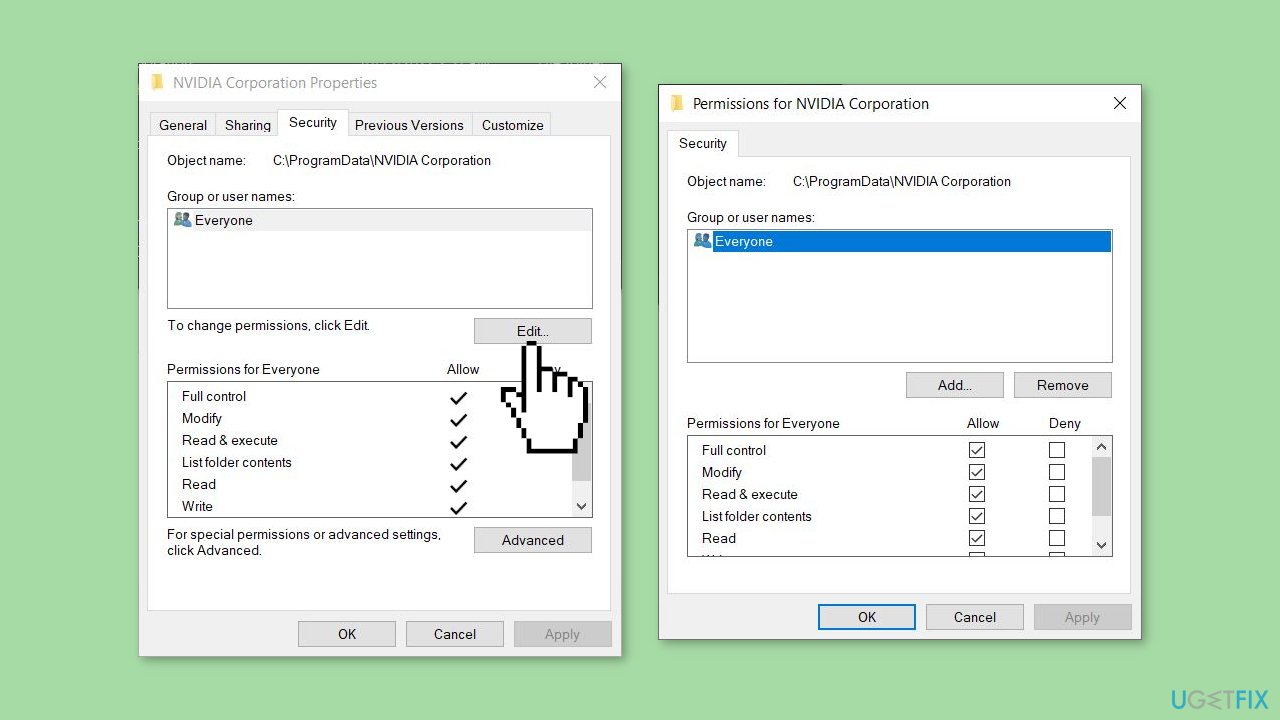
- In the opened dialog window, select your username.
- Tick the checkboxes present under the Allow column.
- Press the Apply > OK button to save changes and exit the Properties window.
- Open NVIDIA Control Panel.
- Check if you can save new settings or not.
- If the issue persists, use the next solution to fix it.
Method 2. Update NVIDIA Driver
- Press the Windows key + R to open Run.
- Enter devmgmt.msc and press Enter to open Device Manager.
- Expand the Display adapters category.
- Right-click on your NVIDIA driver.
- Select the Update driver option from the context menu.
- In the next prompt, choose the Search automatically for drivers option.
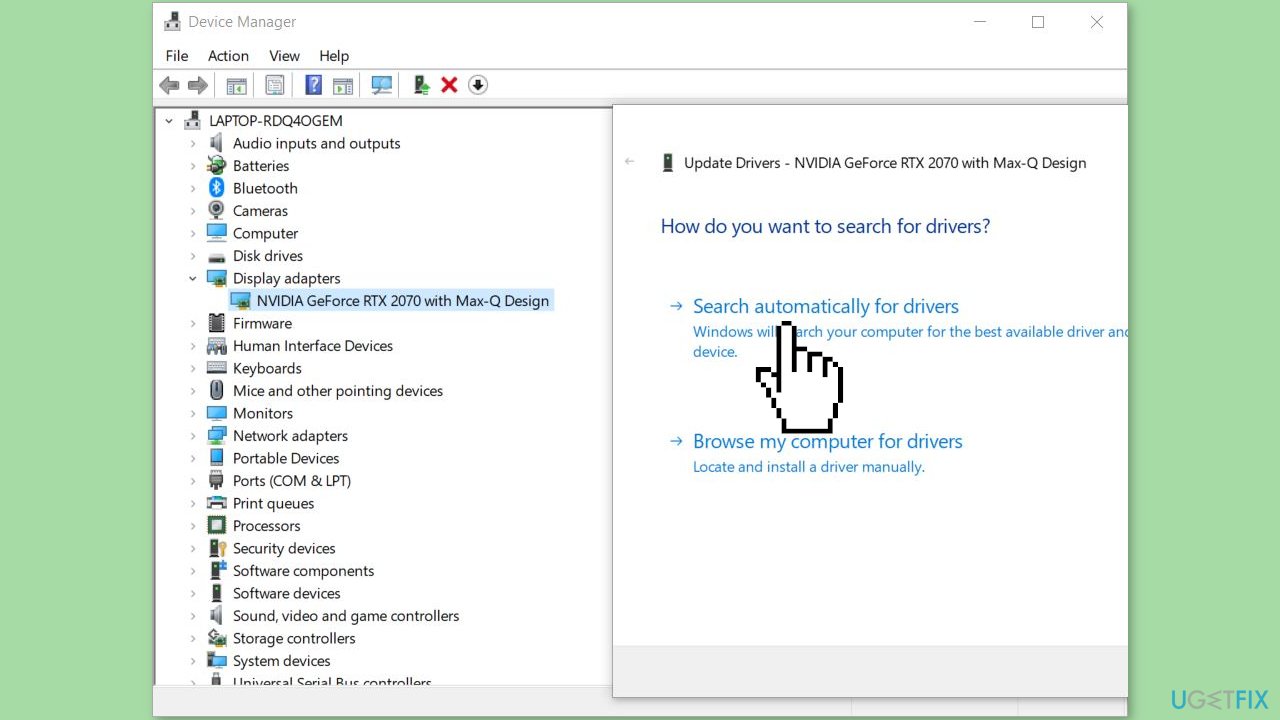
- Follow the onscreen instructions to update the driver.
- Once done, restart your computer.
- Check if you are able to save NVIDIA graphics settings or not.
Method 3. Reinstall NVIDIA Driver
If updating the driver did not resolve the issue, try to reinstall it:
- Launch Device Manager.
- Expand the Display adapters category.
- Right-click on your NVIDIA driver.
- Select the Uninstall device option.
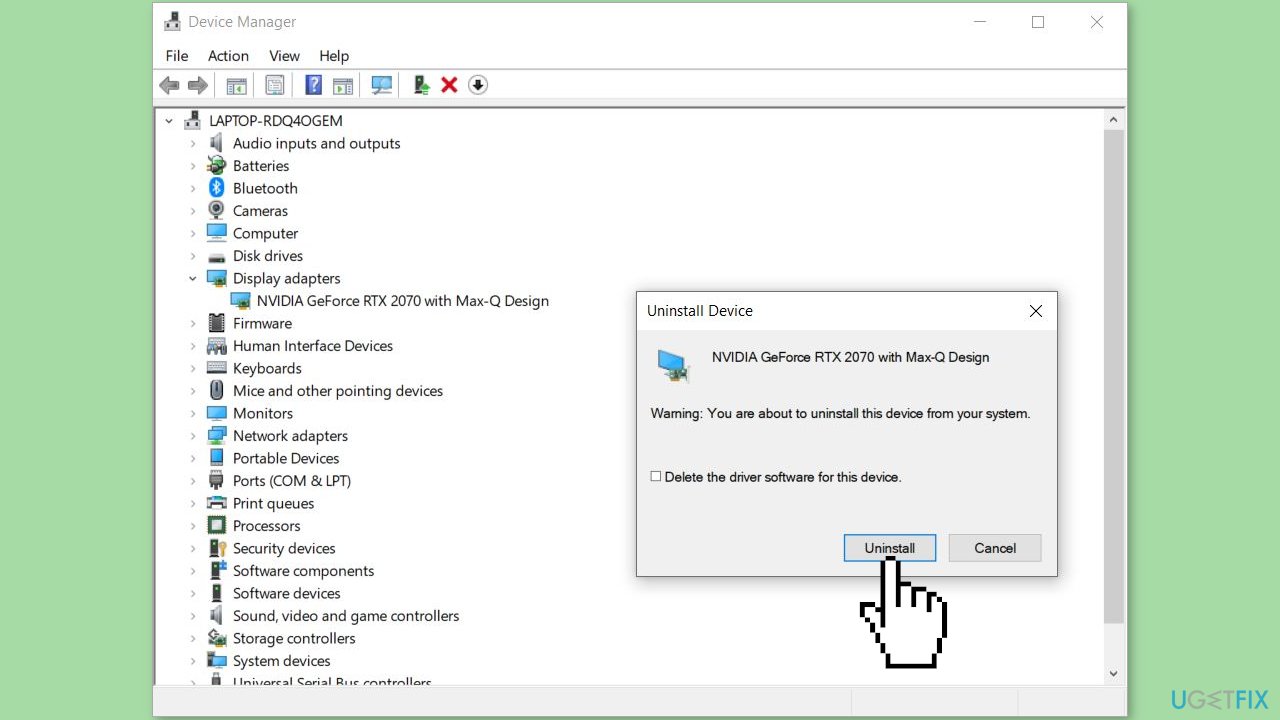
- Follow the prompted instructions to uninstall the driver.
- Once the uninstallation is complete, reboot your computer.
- Windows will automatically reinstall the missing NVIDIA driver on the next startup.
- Check if the problem is resolved.
You can also use a dedicated utility, like [rev id="DriverFix"] that can find the best drivers for your machine and install them automatically.
Method 4. Disable Third-Party Security Software
It's possible that your antivirus software is interfering with the NVIDIA Control app and preventing you from saving NVIDIA settings. This can happen because third-party antivirus tools may misinterpret an app-related process as a threat or virus, resulting in a false positive alarm. Each antivirus has its own set of rules and signatures for detecting threats and viruses on your computer, but they can be incorrect at times.
You can temporarily disable your antivirus to see if it is causing the issue. Open the NVIDIA Control Panel and see if you can save your settings. If you can save settings after turning off your antivirus, it means that your antivirus is the source of the problem. You can permanently resolve the issue by whitelisting NVIDIA Control Panel in your antivirus software.
- Navigate to the exception/exclusion/whitelist settings of your antivirus.
- For example, Avast users can move to the Home > Settings > General > Exclusions section and add NVIDIA Control Panel here.
- Similarly, you can add it to Home > Settings > Components > Web Shield > Exceptions in AVG.
Bottom line
To fix the issue of NVIDIA Control Panel not saving settings, you can change Corporation Folder Permissions, update your graphics drivers, check for software conflicts, and adjust antivirus settings. If these steps do not resolve the problem, consider using a repair tool to fix system errors.
Frequently asked questions
This issue can occur due to user permission problems or conflicts with other software. Ensure you have administrative rights and check for conflicting applications that may override your settings.
To reset the settings, open the NVIDIA Control Panel, navigate to the 'Manage 3D settings' section, and click 'Restore Defaults.' This can help resolve issues with settings not being saved.
If the NVIDIA Control Panel is missing, try reinstalling the NVIDIA graphics driver through Device Manager or downloading the latest version from the NVIDIA website to restore it.




Report an issue
What's wrong with this guide? We review every report and update or remove content.
Report received — thank you. We'll review and fix it.
You need a free account to submit a report.
Be the first to comment