How to fix
NVIDIA Control Panel only showing 3D settings
on Windows
Resolve the NVIDIA Control Panel issue on Windows 10 or 11 and access all features. Follow our expert-tested guide and get it fixed in minutes!


What causes How to fix NVIDIA Control Panel only showing 3D settings?
- System isn’t routing display output through the NVIDIA GPU
- Operating system defaults to integrated Intel graphics
- Monitor connected through motherboard’s video port instead of GPU
- BIOS settings interfering with GPU detection
- Outdated drivers
Repairs Windows system files, removes malware, and restores a clean OS state — without reinstalling.
When I accessed the NVIDIA Control Panel on my Windows 11 laptop for display adjustments I found only the 3D settings section visible while other settings for display or video remained absent. As a result, I remain unable to modify resolution or scaling settings. Any way to address this?
NVIDIA Control Panel is a critical utility for users who rely on dedicated graphics to manage performance, configure display settings, and control visual output. However, a recurring issue has left some Windows users confused: for reasons that aren't immediately obvious, NVIDIA Control Panel only shows the 3D Settings tab, while all other options - like Display or Video - go missing without explanation.
This has become a frustrating experience for users who expected full access to their GPU settings. In most cases, the issue is not caused by the control panel itself, but rather by how Windows is managing the hardware behind the scenes. NVIDIA Control Panel pulls its options based on the system’s recognition of the active GPU. So when it only shows 3D Settings, it often means the system isn’t currently routing display output through the NVIDIA GPU. And that’s where the deeper issue lies.
This can happen on laptops with hybrid graphics setups, where the operating system defaults to the integrated Intel graphics for display tasks. It may also be related to how the monitor is physically connected in desktop builds - users running their displays through a motherboard’s video port instead of the GPU can encounter the same behavior. In more advanced cases, BIOS settings or even third-party software can interfere with GPU detection, and outdated drivers continue to be one of the more common culprits.
From a broader perspective, when NVIDIA Control Panel doesn’t behave as expected, it usually points to driver mismatches, inactive hardware configurations, or system-level conflicts within Windows. If you're only seeing 3D Settings and nothing else, there's a strong chance your display isn't being handled by the NVIDIA GPU at all. Below, you’ll find some steps that might restore full access to your control panel. You may also want to try a comprehensive repair tool [d1] that can help fix any system-level issues preventing proper GPU detection.

Fix 1. Restart NVIDIA Control Panel
A temporary glitch in the NVIDIA Control Panel can cause it to display only 3D settings, and restarting the app can often refresh its interface to show all options.
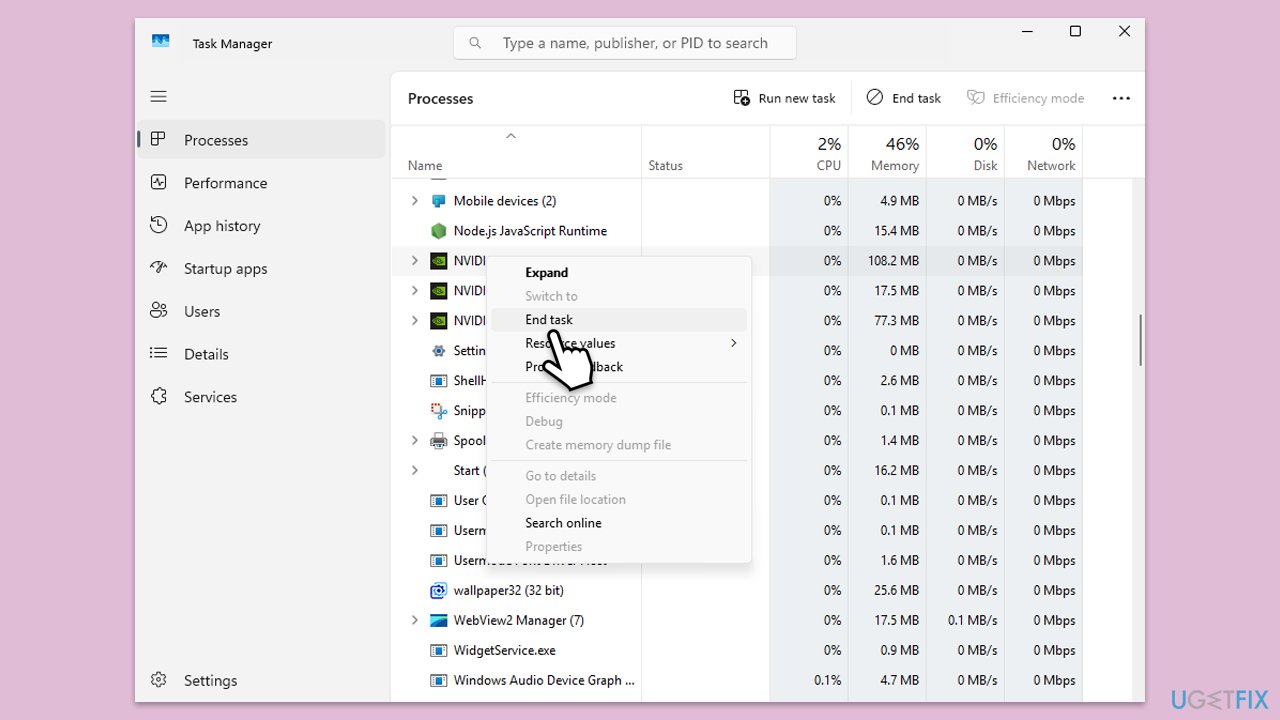
- Press Ctrl + Shift + Esc to open Task Manager.
- In the Processes tab, locate NVIDIA Control Panel under Background processes.
- Right-click it and select End task.
- Reopen the NVIDIA Control Panel from the Start menu or desktop shortcut.
Fix 2. Update NVIDIA graphics drivers
Outdated or corrupted drivers can limit the NVIDIA Control Panel’s functionality, causing missing settings. Updating to the latest driver version can resolve this.
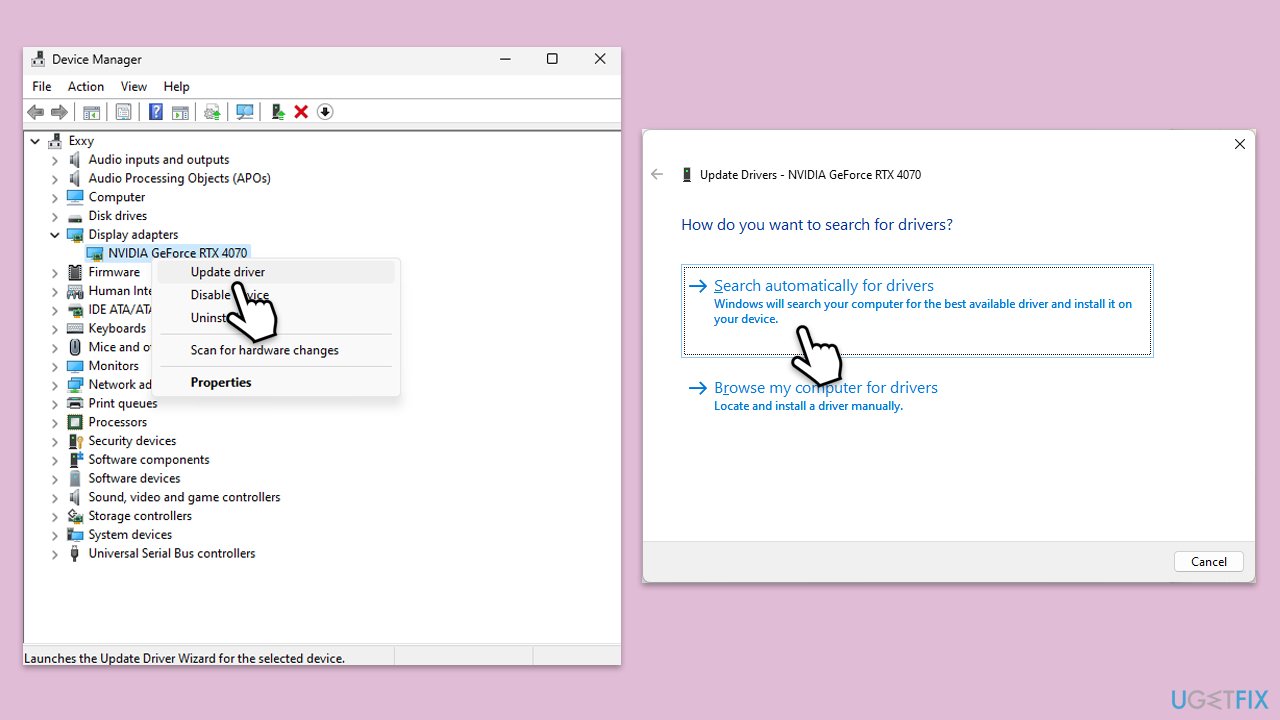
- Right-click on Start and pick Device Manager.
- Expand the Display adapters section.
- Right-click on your graphics card and choose Update driver.
- Select Search automatically for drivers.
- Follow the on-screen instructions to complete the process.
- Restart your PC after the update.
- For a quicker way of installing the latest drivers, you can use automatic software such as [rev id="DriverFix"].
Fix 3. Set NVIDIA as the default GPU in BIOS
If your system uses an integrated GPU by default, the NVIDIA Control Panel may only show 3D settings. Changing the default GPU in BIOS can restore full functionality.
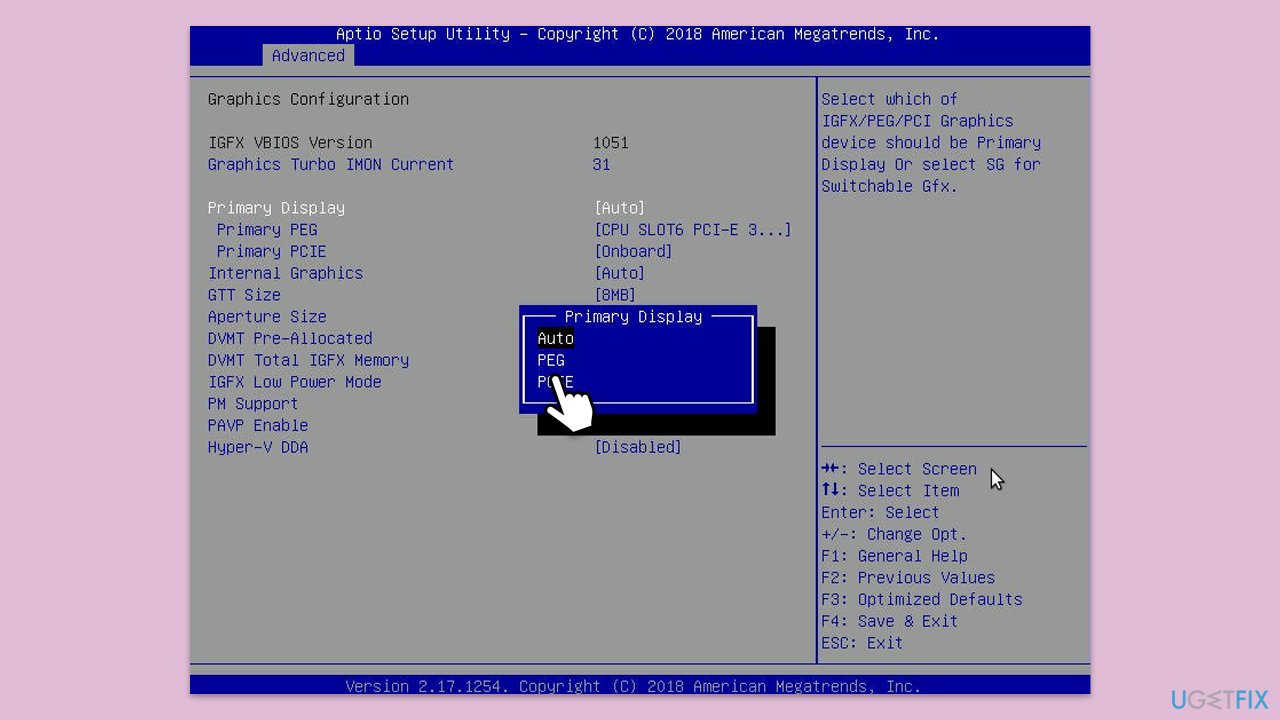
- Restart your computer and press F2, F8, F10, or Delete (depending on your board manufacturer) to enter BIOS.
- Navigate to the Advanced tab or a similar section like Video Configuration.
- Look for Primary Video Controller or Initiate Graphic Adapter and set it to PEG or GFX0 (NVIDIA GPU).
- Save changes by pressing F10 and restart your computer.
Fix 4. Disable the integrated GPU
Disabling the integrated GPU forces your system to use the NVIDIA GPU for all graphics tasks, which can make the missing Display and Video settings appear in the Control Panel.
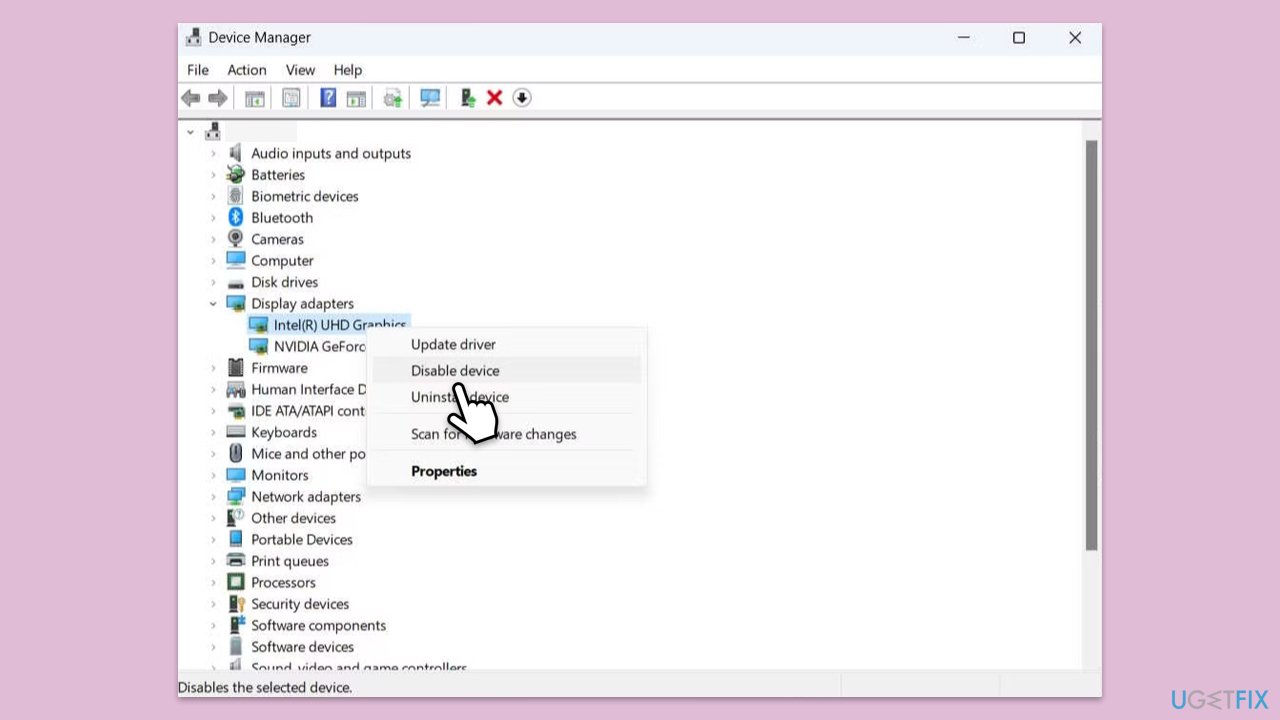
- Right-click on Start and pick Device Manager
- Expand the Display adapters section.
- Right-click on the integrated GPU and select Disable device
- Confirm the action and restart your computer.
Fix 5. Reinstall NVIDIA drivers with a clean installation
Corrupted driver installations can cause the NVIDIA Control Panel to malfunction. A clean reinstall ensures all components are properly set up.
- Download DDU from the official website.
- Extract the compressed file, you should find the installer inside.
- Next, while holding the Shift button, click on Start > Restart.
- After a reboot, go to Troubleshooter > Advanced options > Startup settings > Restart.
- Press 4 or F4 to access Safe Mode.
- After a restart, go to the location where you downloaded DDU.
- Click on Display Driver Uninstaller.exe to open the program.
- Close the Options window.
- Under Device type, pick GPU from the drop-down menu.
- Click Clean and restart.
- Your PC will reboot.
- Once done, use one of the methods described above to install the newest GPU drivers.

Fix 6. Check display connection
If your monitor is connected to the integrated GPU’s port (e.g., via the motherboard), the NVIDIA Control Panel may not show display settings. Connecting to the NVIDIA GPU’s port can help.
- Check your computer’s ports to identify the NVIDIA GPU’s output (e.g., HDMI or DisplayPort on the GPU).
- Disconnect your monitor from the current port and connect it to the NVIDIA GPU’s port.
- Restart your computer to apply the change.
- Open the NVIDIA Control Panel and check for the Display section.
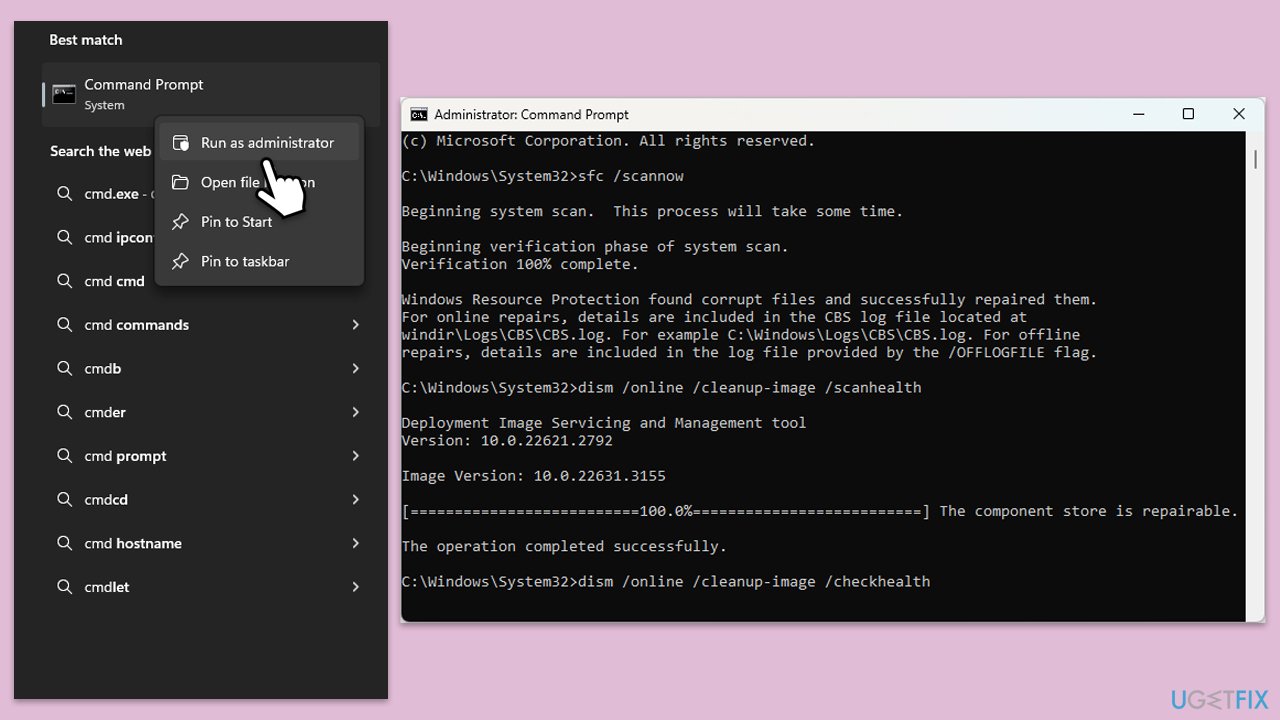
Fix 7. Run SFC and DISM scans
Corrupted system files can interfere with the NVIDIA Control Panel’s functionality, causing missing settings. SFC and DISM tools can repair these files.
- Type cmd in Windows search.
- Right-click on Command Prompt and pick Run as administrator.
- User Account Control window will show up - click Yes when prompted.
- In the Command Prompt window, paste the following command and hit Enter:
sfc /scannow - Next, use the following commands, pressing Enter each time:
Dism /Online /Cleanup-Image /CheckHealth
Dism /Online /Cleanup-Image /ScanHealth
Dism /Online /Cleanup-Image /RestoreHealth
(Note: if you get an error executing this last command, add /Source:C:\RepairSource\Windows /LimitAccess to it and try again). - Wait for the DISM scan to complete (this may take up to 20 minutes or more) and review the results.
- Restart your computer and attempt to install the update again.
Fix 8. Switch to NVIDIA-only mode (for laptops with MUX switch)
Some laptops laptops with hybrid graphics (e.g., NVIDIA Optimus) default to the integrated GPU, limiting the Control Panel. Switching to NVIDIA-only mode can restore settings.
- Check your laptop’s manual for a MUX switch or manufacturer app (e.g., ASUS Armoury Crate).
- Open the app and look for System Configuration or GPU Mode settings.
- Set the mode to Discrete GPU or NVIDIA-only (dGPU mode).
- Restart your laptop to apply the changes.
Bottom line
To restore full access to the NVIDIA Control Panel, ensure that the display output is routed through the NVIDIA GPU, check the physical connection of the monitor, and update any outdated drivers. If these steps do not resolve the issue, consider checking BIOS settings or looking for conflicts with third-party software.
Frequently asked questions
This issue may occur due to outdated graphics drivers or incorrect installation of the NVIDIA software. Make sure to update your drivers via the Device Manager or NVIDIA's official site to resolve this.
To restore missing features, try reinstalling the NVIDIA drivers and ensuring that the correct version is installed for your hardware. Additionally, check if the NVIDIA services are running in the background.
Ensure that your graphics card is properly seated and recognized in Windows. If problems persist, consider performing a clean installation of the NVIDIA drivers using the custom installation option.




Report an issue
What's wrong with this guide? We review every report and update or remove content.
Report received — thank you. We'll review and fix it.
You need a free account to submit a report.
Be the first to comment