How to fix
NVIDIA DSR is broken after Windows 11 24H2 update
on Windows
Resolve the NVIDIA DSR issue after the Windows 11 24H2 update effortlessly. Expert-tested solutions to get your graphics back on track in minutes.

What causes How to fix NVIDIA DSR is broken after Windows 11 24H2 update?
- Windows 11 24H2 update compatibility issues
- NVIDIA driver conflicts
- Limitations on resolution settings post-update
- Full-Screen Optimization affecting performance
- System-level issues with DSR functionality
Repairs Windows system files, removes malware, and restores a clean OS state — without reinstalling.
So, after updating to the Windows 11 24H2, NVIDIA DSR is now broken for me. Everything worked fine before it got upgraded. Is there something that can be done to fix it?
NVIDIA's Dynamic Super Resolution (DSR) is a sophisticated feature that runs games at higher resolutions and then scales them down to your monitor's native resolution, providing sharper images and less aliasing.
But since the Windows 11 version 24H2 update, many users have been experiencing problems where DSR no longer works properly. Instead of being able to use higher resolutions like 1620p or 4K, users are typically limited to their native screen resolution, for example, 1080p, and get blurrier graphics and a worse gaming experience.
The issue, familiar in technical communities, affects both standard DSR and Deep Learning Dynamic Super Resolution (DLDSR). Games like Ghost Recon Wildlands and Jurassic World Evolution were affected by this, with resolution settings not being able to cross native limits.
The problem seems to be caused by Windows 11 24H2 update's brought-in compatibility issues, possibly tied to NVIDIA drivers on system-level. Some have said that if they roll back to Windows 11 23H2, DSR gets fixed, showing the update is a prime causative factor.
To fix NVIDIA DSR broken after Windows 11 24H2 update, a few solutions can be tried. Updating or reinstalling NVIDIA drivers can resolve issues of compatibility that followed the update. Restarting DSR settings in the NVIDIA Control Panel or checking the Windows display settings will also help restore the feature.
Disabling Full-Screen Optimization for specific games or restoring the system to an earlier point before the update may also fix the issue. For those who want a quicker solution, using a reputable [d1] repair tool can automatically fix most system-related issues, including those affecting DSR functionality.
Fix 1. Update NVIDIA drivers
Windows updates can sometimes cause compatibility issues with existing graphics drivers. Installing the latest NVIDIA drivers ensures your system is using a version optimized for the most recent Windows build.
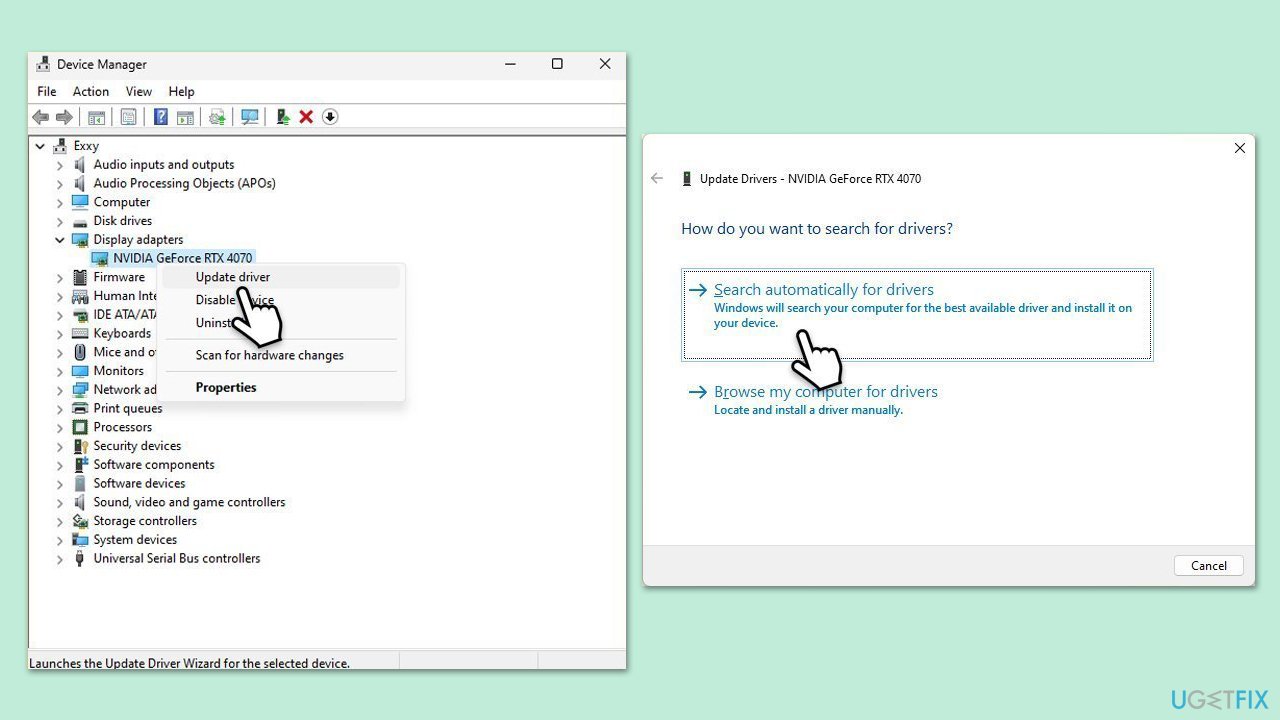
- Right-click on Start and pick Device Manager.
- Expand the Display adapters section.
- Right-click on your graphics card and choose Update driver.
- Select Search automatically for drivers.
- Follow the on-screen instructions to complete the process.
- Restart your PC after the update.
- If you want a quicker way of installing correct drivers, use automatic software such as [rev id="DriverFix"].
Fix 2. Reinstall NVIDIA drivers
Corrupt or partially updated drivers can prevent DSR from working. A clean reinstall removes faulty files and resets settings to default.
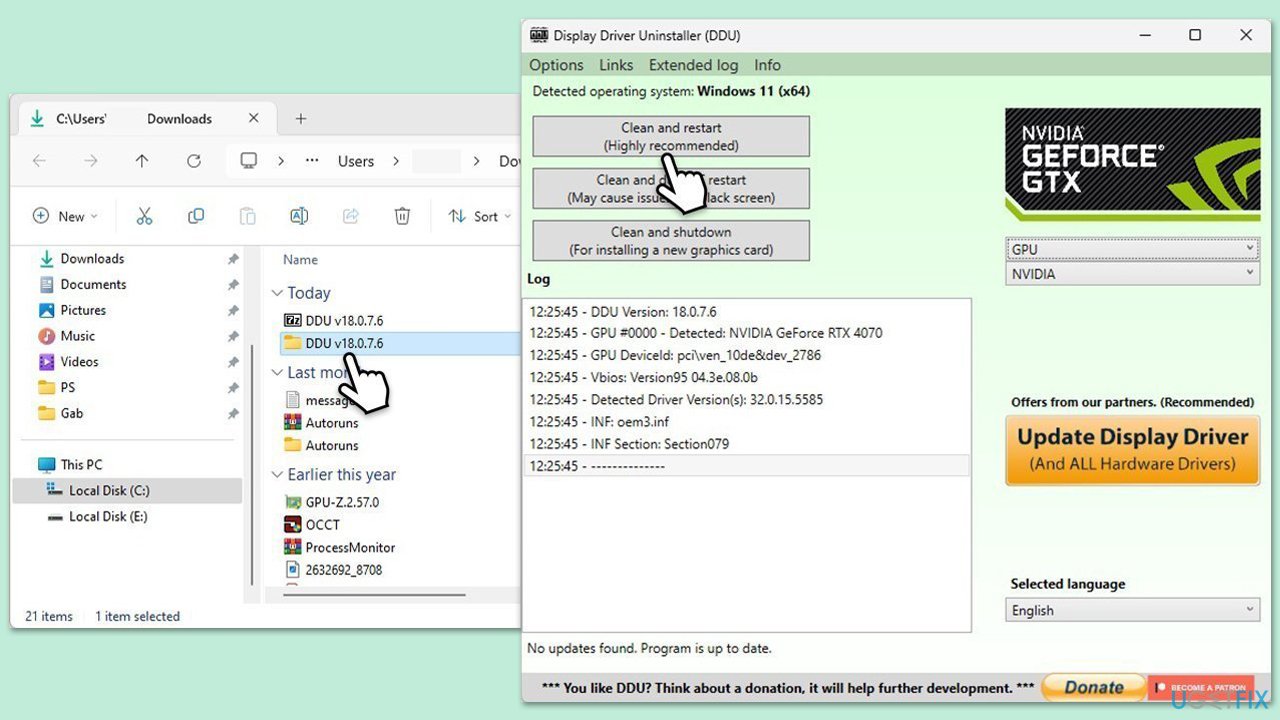
- Download DDU from the official website.
- Extract the compressed file, you should find the installer inside.
- Next, while holding the Shift button, click on Start > Restart.
- After a reboot, go to Troubleshooter > Advanced options > Startup settings > Restart.
- Press 4 or F4 to access Safe Mode.
- After a restart, go to the location where you downloaded DDU.
- Click on Display Driver Uninstaller.exe to open the program.
- Close the Options window.
- Under Device type, pick GPU from the drop-down menu.
- Click Clean and restart.
- Your computer will reboot.
- Install the newest drivers.
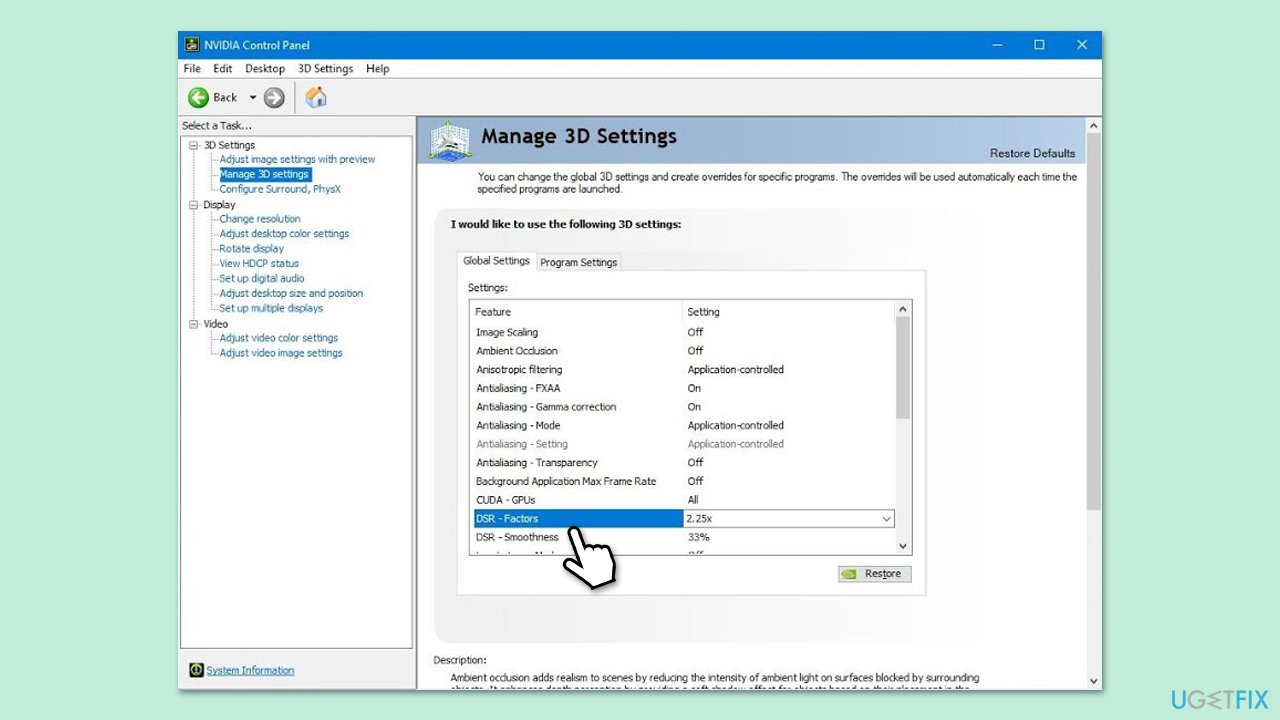
Fix 3. Re-enable DSR in NVIDIA Control Panel
The Windows update may have reset your graphics settings. Re-enabling DSR can restore its functionality.
- Right-click your desktop and open NVIDIA Control Panel.
- Go to Manage 3D settings under the 3D settings section.
- Scroll to DSR - factors and check the resolution options.
- Apply the changes and restart your system.
- If it was already enabled, disable it, restart your PC, and re-enable again.
Fix 4. Disable Fullscreen optimizations
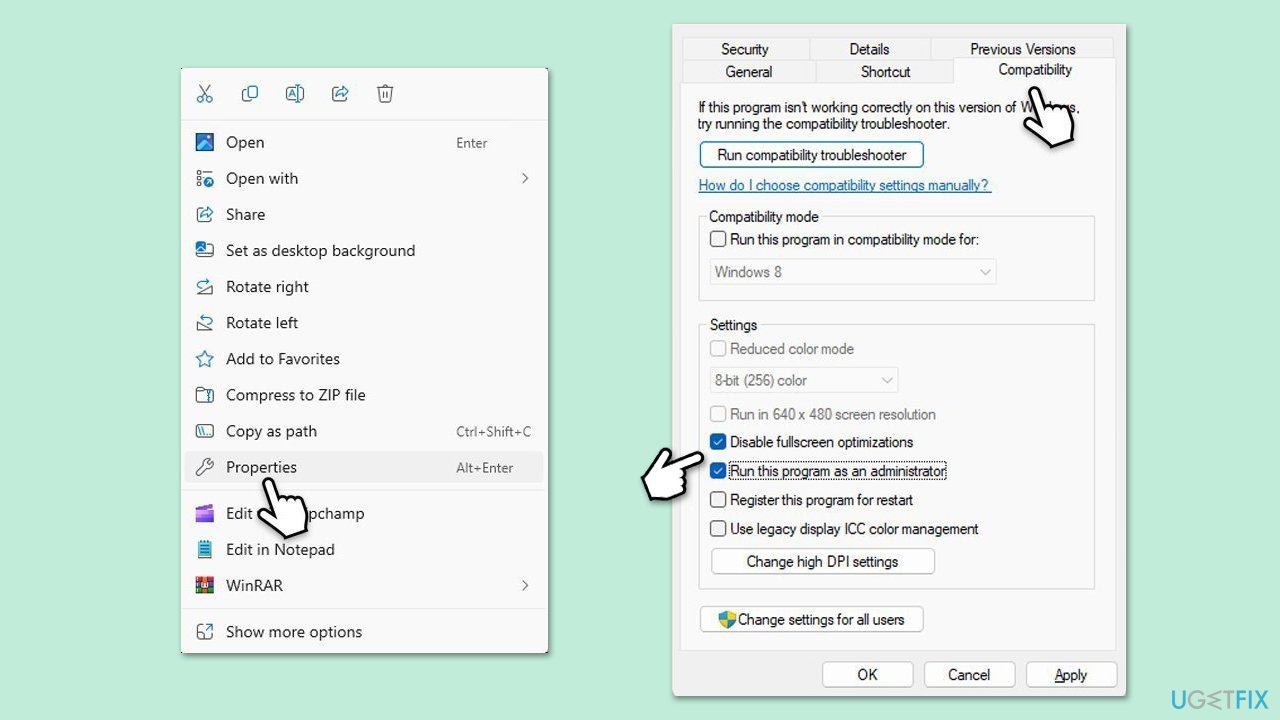
Some users found that full-screen optimization interferes with resolution scaling and display modes.
- Right-click the game's shortcut or executable file.
- Select Properties.
- Go to the Compatibility tab.
- Check the box next to Disable fullscreen optimizations.
- Also, mark the Run this program as an administrator checkbox.
- Click Apply, then OK.
Fix 5. Change display settings in Windows
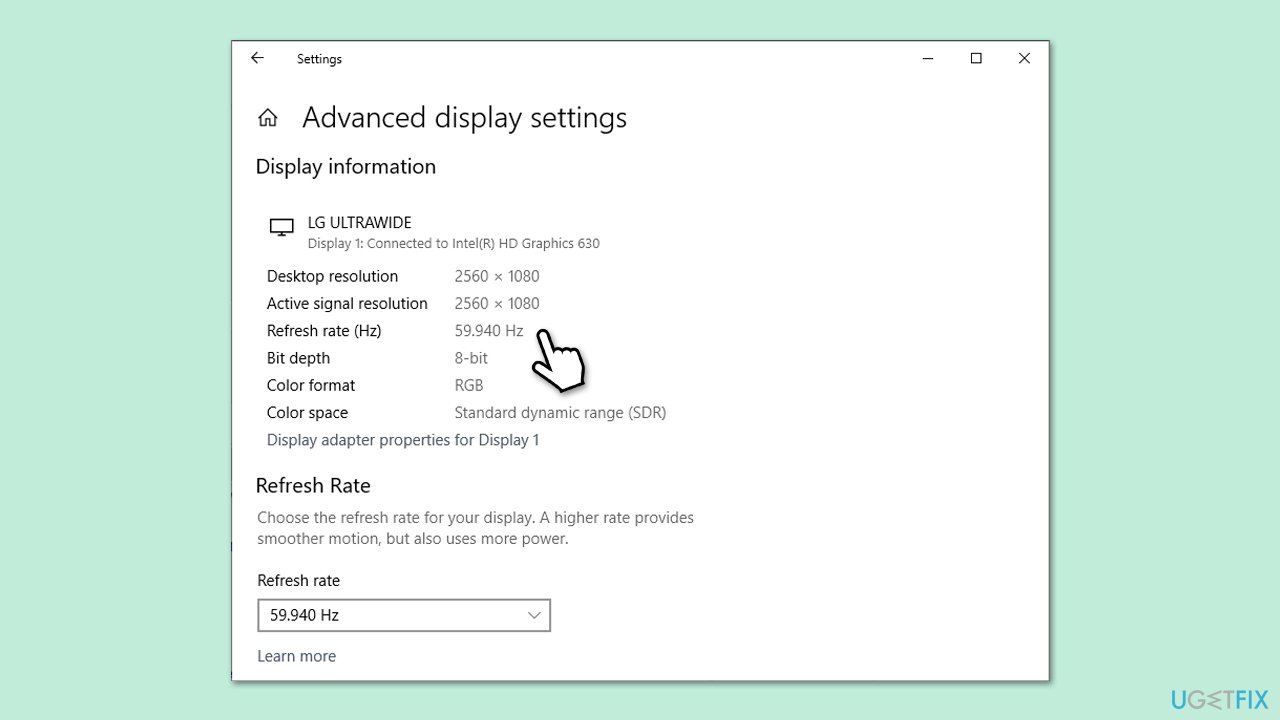
Incorrect or auto-adjusted settings after a major update may interfere with resolution rendering.
- Right-click on Start and pick Settings.
- Go to System > Display.
- Scroll down and click Advanced display settings.
- Make sure the correct display and resolution are selected.
- Restart your computer.
Fix 6. Uninstall problematic Windows update
In some cases, the update itself may be causing the issue, and rolling it back can help.
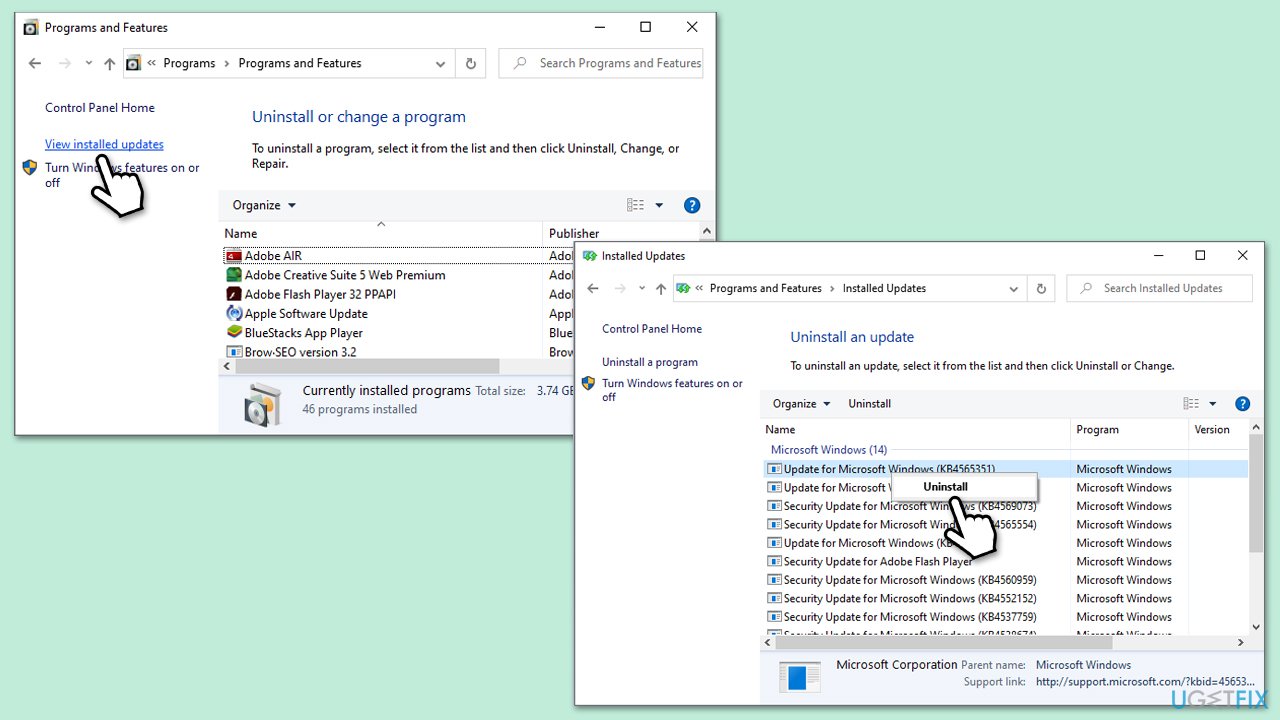
- Type Control Panel in Windows search and hit Enter.
- Go to Programs > Uninstall a program.
- On the left side, click View installed updates.
- Sort all the updates by date.
- Right-click on the most recent update and select Uninstall.
- Proceed with on-screen instructions.
- Then, type Updates in Windows search and press Enter.
- Click Pause the updates for 7 days (in Windows 11, you can pick a different time period).
Note that you can't uninstall major updates such as 24H2 in a regular way. You can check out our dedicated article on how to bypass these restrictions.
Bottom line
To fix the NVIDIA DSR issue after the Windows 11 24H2 update, you can try updating or reinstalling NVIDIA drivers, restarting DSR settings in the NVIDIA Control Panel, or checking Windows display settings. If these solutions do not work, consider disabling Full-Screen Optimization for specific games or restoring your system to an earlier point before the update.
Frequently asked questions
Try reinstalling the NVIDIA graphics driver to ensure compatibility with the latest Windows 11 update. Additionally, check your NVIDIA Control Panel settings to re-enable DSR options.
Yes, you can roll back the update by going to Settings > Windows Update > Update history > Uninstall updates, but this may not be a permanent solution.
While this article focuses on Windows 11, some users on Windows 10 have also reported similar DSR issues, suggesting that driver updates may be needed for both operating systems.




Report an issue
What's wrong with this guide? We review every report and update or remove content.
Report received — thank you. We'll review and fix it.
You need a free account to submit a report.
Be the first to comment