How to fix
Nvidia GeForce Now error 0x000001FA
on Windows
Resolve Nvidia GeForce Now error 0x000001FA on Windows 10 or 11 effortlessly. Follow our expert-tested guide for quick fixes and smooth gaming!

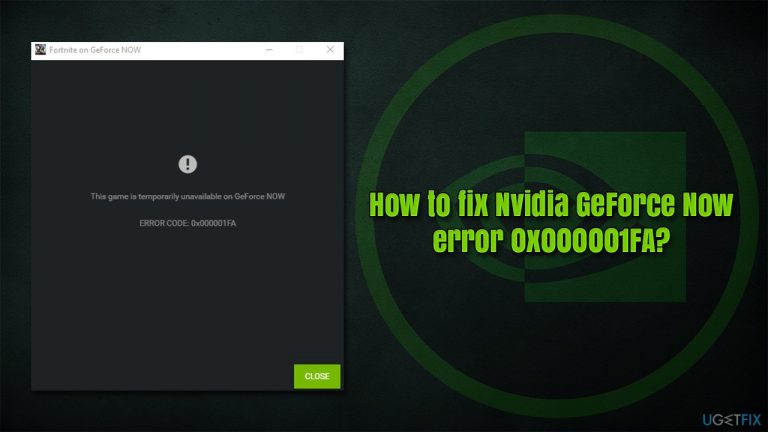
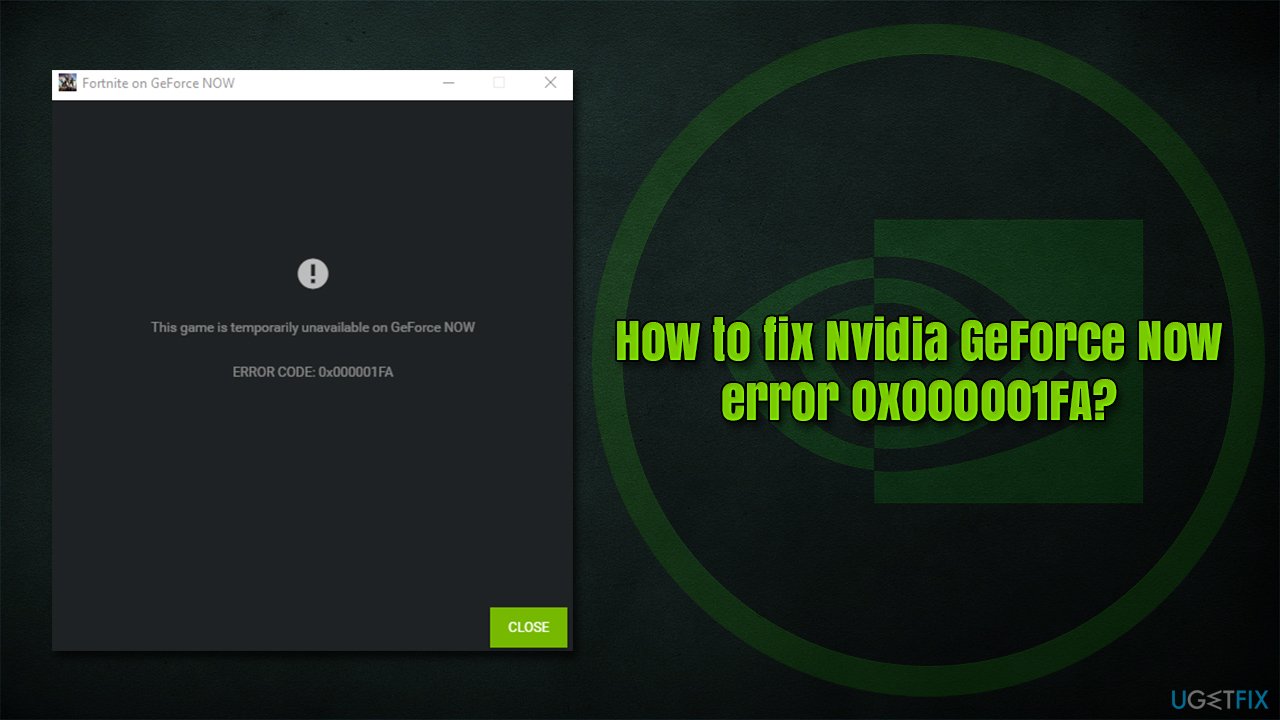
What causes How to fix Nvidia GeForce Now error 0x000001FA?
- Game is temporarily unavailable
- Technical issues on the service's part
- Client issues connecting to a remote server
- Compromised DNS caches
- Corrupted files
Repairs Windows system files, removes malware, and restores a clean OS state — without reinstalling.
Hello, I tried to load Fortnite today and I instead received the "This game is temporarily unavailable on GeForce Now Error Code 0x000001FA)" error. Yesterday I could play with no problems and today I get this annoying message every time I try. Please help me fix this, as I can't play the game...
GeForce Now is a cloud gaming service[ref en-2] similar to Stadia or Xbox Pass Ultimate. With the gaming equipment getting more and more expensive in the wake of the global pandemic, online services that allow users to "borrow" powerful hardware via the cloud are becoming more popular. With the help of technology, even the oldest laptop can be used to play the newest video games without hiccups.
Just like with any other tech, cloud gaming is not perfect and users might run into problems while using it - one of such issues is the Nvidia GeForce Now error code 0x000001FA. Players said that they were unable to launch games, such as Fortnite,[ref en-3] Call of Duty Black Ops 2, or Rust. Many also said that they were having lag, keyboard disconnects, and similar problems when playing the game before the error showed up.
The error can be very frustrating for people, as GeForce Now is a monthly paid subscription service. Users feel like they are robbed of the time they can't enjoy games properly. Luckily, there are several ways that could fix the 0x000001FA error once and for all, allowing game access once again.
Let's start from the fact that, in some cases, the error message means exactly what it says - the game is temporarily unavailable. Technical issues on the part of the service can always be one of the reasons why that service might be interrupted, and there's nothing that can be done about it from the users' side.
However, there are also plenty of instances where the client has issues connecting to a remote server for one reason or another, e.g., compromised DNS[ref en-1] caches or corrupted files. If the main reason for the error is the latter, we strongly recommend you run a scan with [d1] repair tool that would be able to replace damaged system components automatically, providing an easy error 0x000001FA fix.
Solution 1. Check for the service status
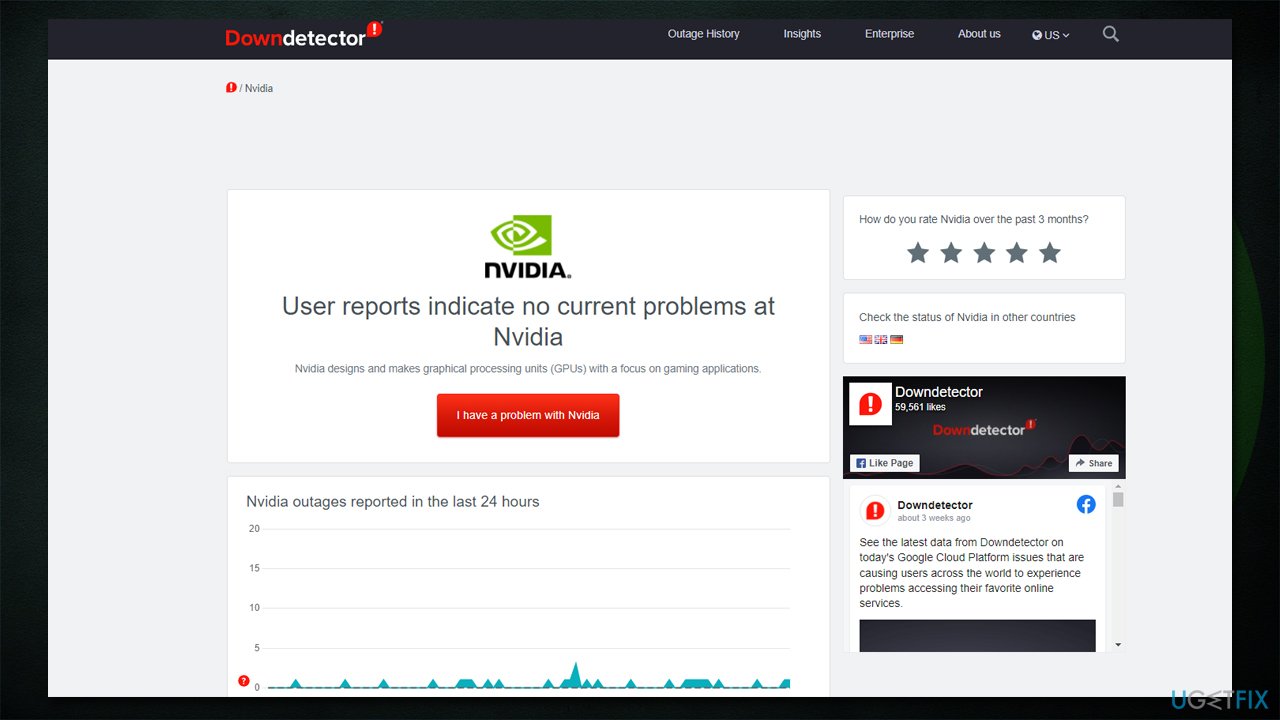
The first step when troubleshooting the error is ensuring the problem doesn't lie within the service provider itself. If that is the case, then nothing can help you remove the error apart from GeForce Now itself.
There are plenty of dedicated websites which provide accurate information of various services, games included. For example, one of the most popular ones is DownDetector. So if you are having problems with the game launch due to the 0x000001FA error, you should visit this or another diagnostic site for information.
Solution 2. Reset your internet connection
Lost packets and other interruptions within the internet connection can cause the error. You can easily reset it via elevated Command Prompt:
- Type cmd in Windows search
- Right-click the Command Prompt result and select Run as administrator
- Here, copy and paste the following commands, pressing Enter after each:
ipconfig /flushdns
ipconfig /registerdns
ipconfig /release
ipconfig /renew
netsh winsock reset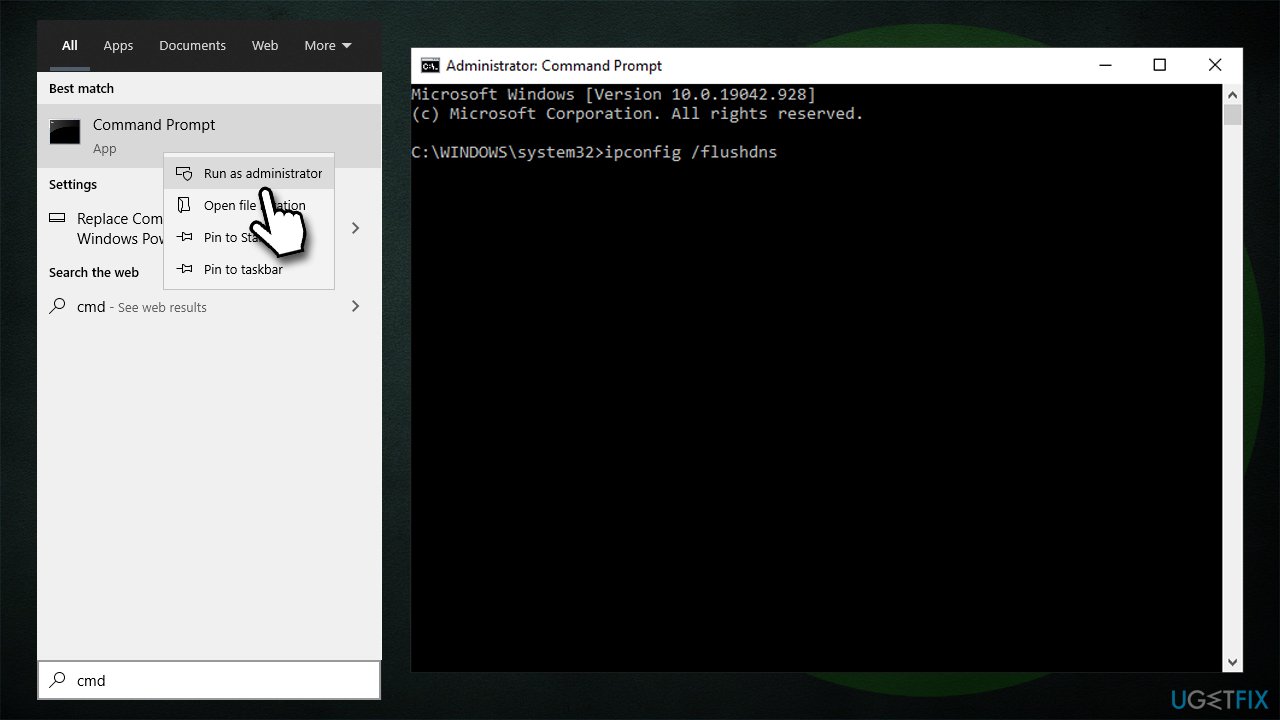
How to fix nvidia geforce now error 0x000001fa reset internet connection - Restart your PC.
Solution 3. Try a different DNS provider
If the corrupted DNS settings are causing the issue, you might want to try an alternative.
- Right-click on Start and select Settings
- Go to Network and Internet section
- Click on Change adapter options
- Right-click on your internet connection and pick Properties
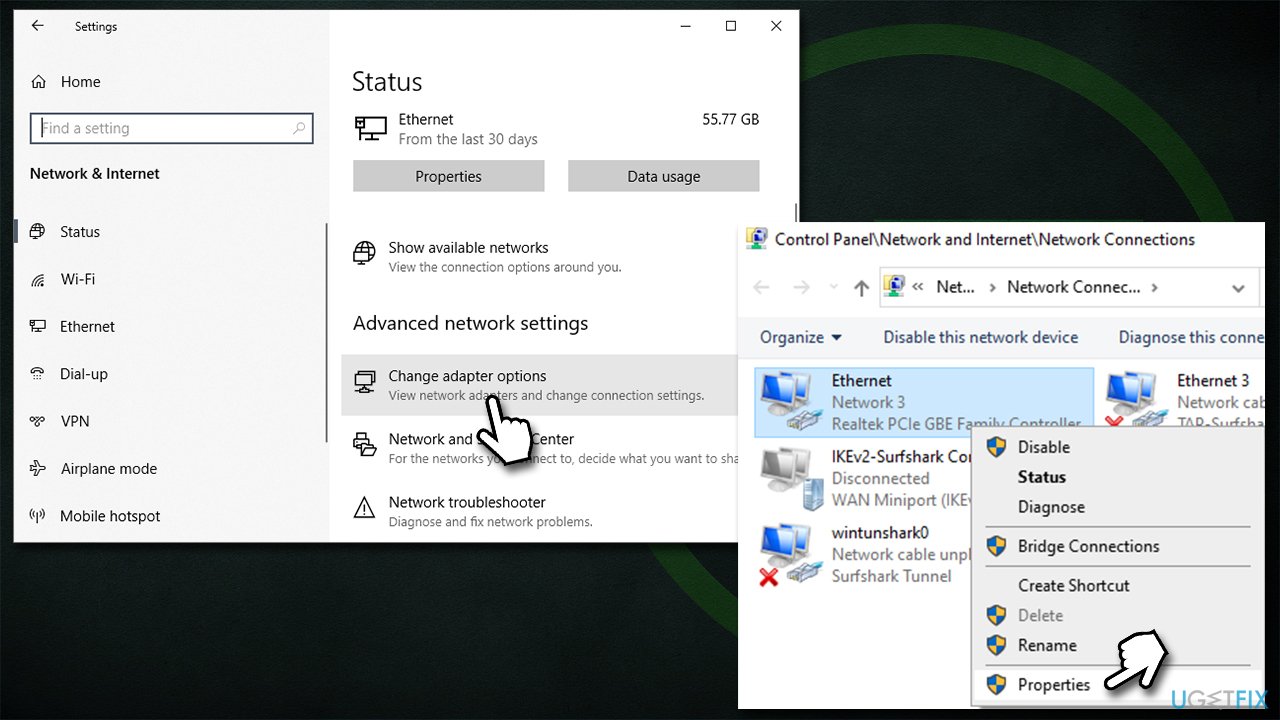
How to fix nvidia geforce now error 0x000001fa use different dns - Click Internet Protocol Version 4 (TCP/IPv4) once and go to Properties
- Select Use the following DNS server addresses option and set your DNS to Google's:
Preferred DNS server: 8.8.8.8
Alternate DNS server: 8.8.4.4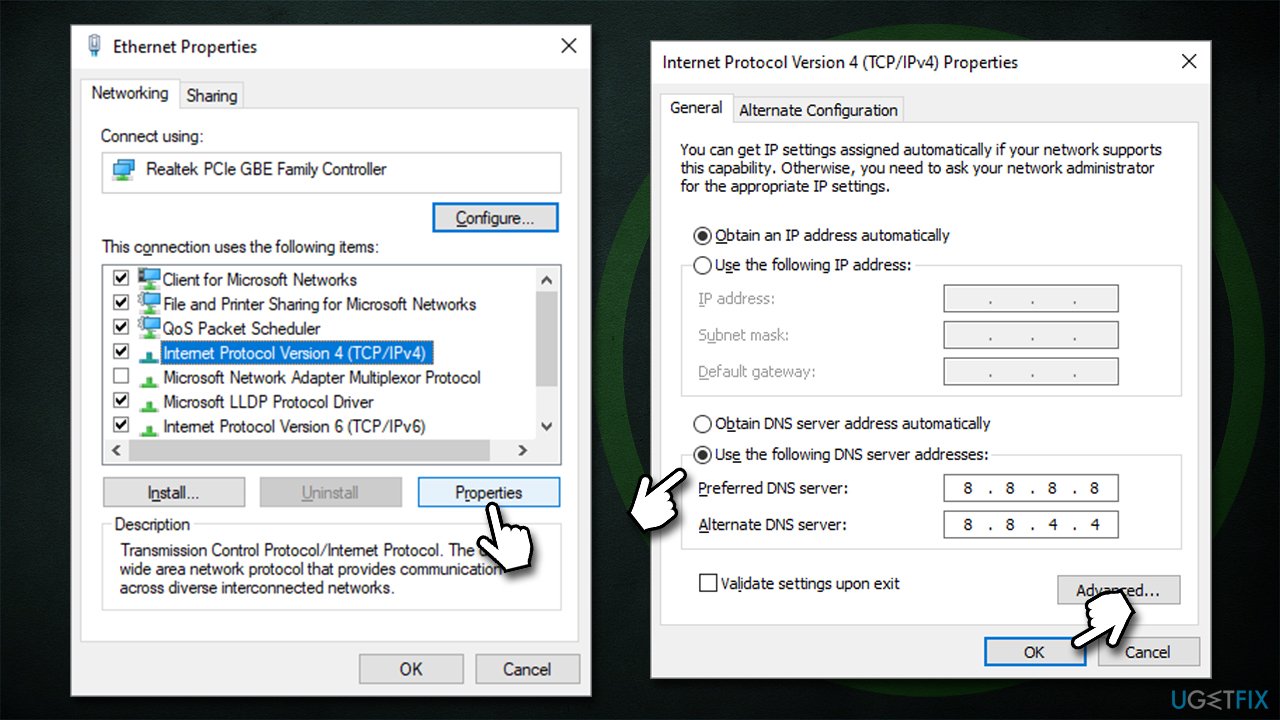
How to fix nvidia geforce now error 0x000001fa use different dns2 - Click OK.
Solution 4. Disable or use VPN
If you have a third-party VPN installed and connected when trying to use GeForce Now, try disconnecting it and see if that would resolve the issue.
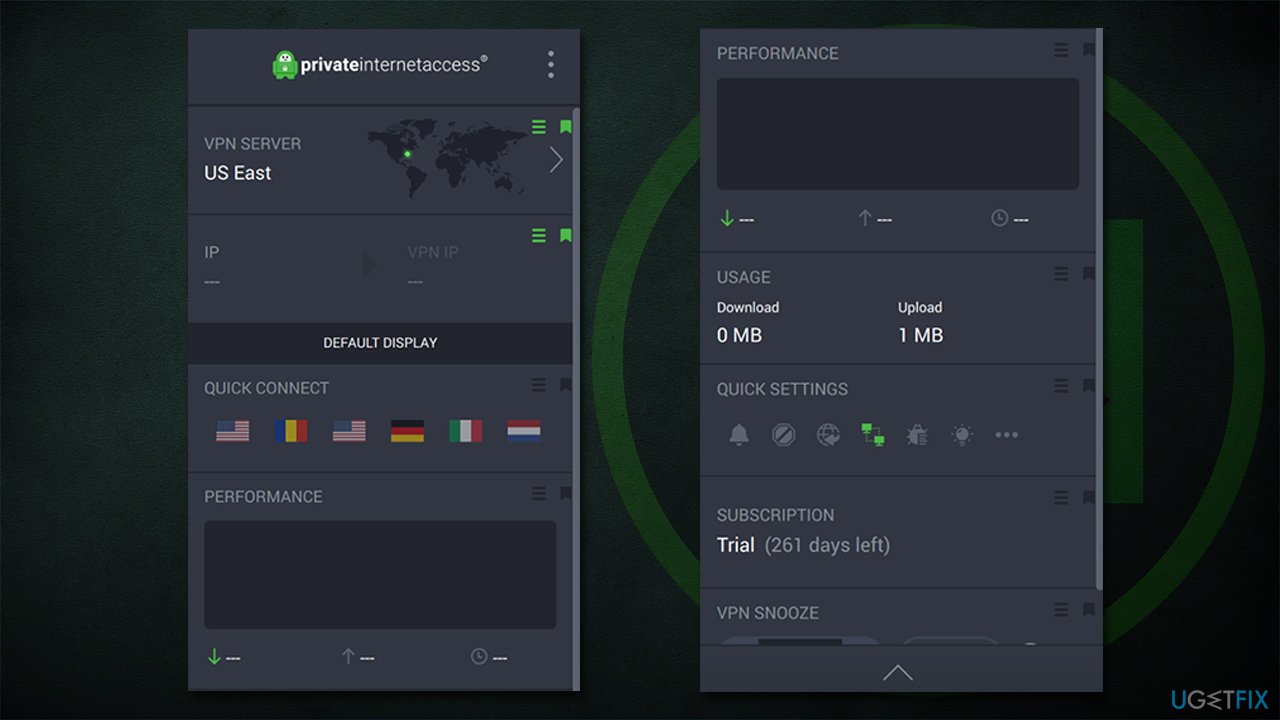
If you don't have a VPN client and are facing this issue, you can try installing [rev id="Private Internet Access"] or another reputable VPN and running the game with it. Even if it does not help you solve the issue, it can often improve the connection speed to particular servers.
Solution 5. Reset your router
- Shut down your computer fully
- Go to your physical router or modem and hold the Power button until it turns off
- Unplug the device from the electric socket
- Wait for about a minute, then plug it back in and launch it
- Keep in mind that some devices take minutes to load up, so be patient.
Other solutions you could try
There are several other issues that could be the cause of the error. While the below methods might be rather obvious, sometimes the fix is right there.
- Restart your computer
- Make sure your time settings are correct
- Disable or uninstall third-party anti-malware software
- Install all the available Windows updates.
Bottom line
To fix the 0x000001FA error, users can check the game's availability, troubleshoot connection issues, and clear DNS caches. If these solutions do not resolve the problem, further investigation into corrupted files may be necessary.
Frequently asked questions
The error 0x000001FA typically indicates a compatibility issue or a problem with your graphics drivers. It's essential to ensure your Nvidia drivers are up to date for optimal performance.
To resolve this error, try reinstalling the Nvidia GeForce Now application and updating your graphics drivers through the Nvidia website or GeForce Experience.
Yes, temporarily disabling Windows Firewall can help identify if it's blocking the application, but ensure to re-enable it afterward for security.




Report an issue
What's wrong with this guide? We review every report and update or remove content.
Report received — thank you. We'll review and fix it.
You need a free account to submit a report.
Be the first to comment