How to fix
NVIDIA GeForce Overlay not working
on Windows
Solve NVIDIA GeForce Overlay issues on Windows 10 or 11 effortlessly. Get your gaming back on track with our expert-tested solutions. Fixed in minutes!

What causes How to fix NVIDIA GeForce Overlay not working in Windows?
- Incorrect settings within the NVIDIA control panel or the game
- Permission issues within Windows
- Outdated graphics drivers or Windows updates
- Conflicts with other applications running in the background
- NVIDIA Overlay feature not enabled
Repairs Windows system files, removes malware, and restores a clean OS state — without reinstalling.
Hi. Recently, I have been having a problem with the Nvidia overlay - it is not working in game. I always used it for things like checking the FPS, recording gameplay, and even taking screenshots. Can you please advise on what to do?
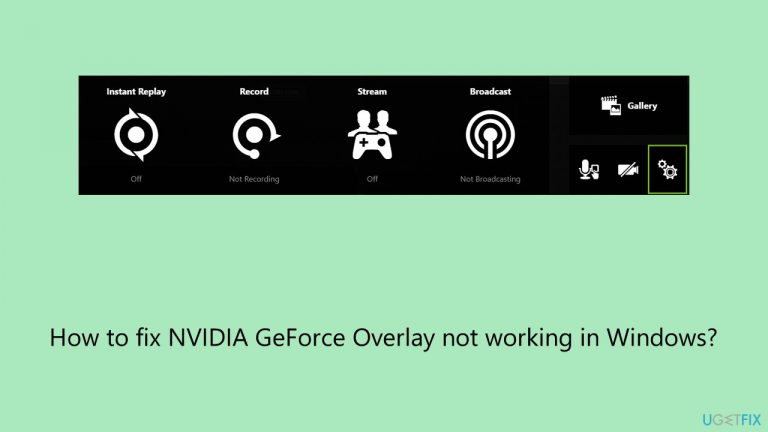
NVIDIA GeForce Overlay is a feature integral to the gaming experience for many users, allowing them to access various in-game tools and functions with ease. This overlay, activated by pressing Alt + Z during gameplay, provides gamers with quick access to features like screen recording, broadcasting, and performance monitoring, enhancing their gaming sessions significantly.
However, an increasing number of users have reported encountering issues where the NVIDIA Overlay fails to work as expected, particularly during gaming sessions. This issue, characterized by the overlay not working when the Alt + Z keys are pressed, poses a significant inconvenience for gamers who rely on these tools for an optimized gaming experience.
The root causes of the NVIDIA GeForce Overlay not working can vary, but they are often linked to a few common factors. First and foremost, incorrect settings within the NVIDIA control panel or the game itself can prevent the overlay from functioning properly. It's crucial to ensure that the overlay feature is enabled and configured correctly in settings.
Additionally, permission issues within Windows may block the overlay's functionality. This typically involves the need for administrative privileges or allowing the NVIDIA application through Windows Firewall or antivirus software.
Another frequent contributor to this problem is outdated graphics drivers or Windows updates. Keeping your graphics drivers and Windows version up-to-date is essential for the smooth running of not only the overlay but also the games themselves. Compatibility issues can arise when using older drivers with newer games or operating systems.
Furthermore, conflicts with other applications running in the background, such as screen recording or streaming software, can interfere with the overlay's operation. It's advisable to monitor and manage background applications that might conflict with the NVIDIA Overlay. The best way to diagnose this problem in this case is to run Clean Boot.
For those seeking a more straightforward approach, using a PC repair tool [d1] can be an effective method to address any underlying Windows issues that might be affecting the overlay's functionality.

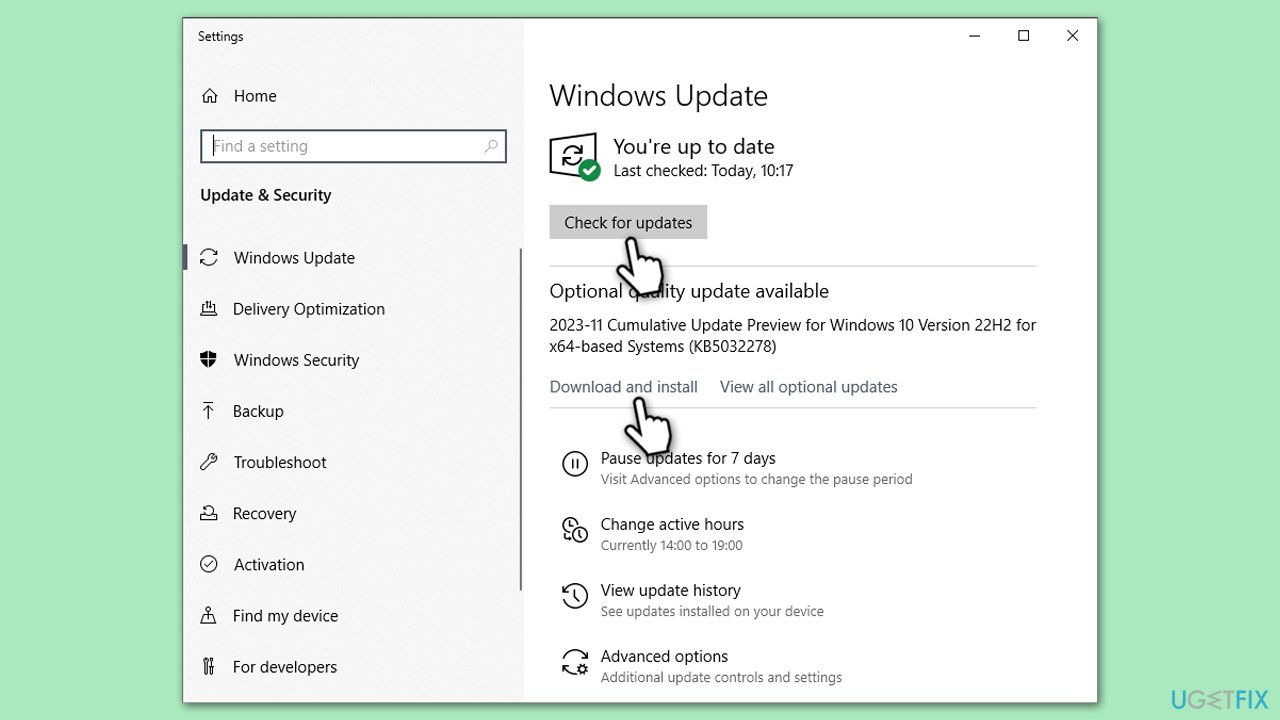
Fix 1. Install all Windows updates
Installing the latest Windows updates can resolve compatibility issues and improve system stability, which may help in getting the NVIDIA Overlay to work. Updates often include patches for software conflicts and enhancements that can directly impact the performance of applications like GeForce Experience.
- In Windows search, type Updates and click Enter.
- Click on Check for updates.
- If updates are available, click Install now and follow the on-screen instructions.
- Make sure you install all optional updates as well.
- After the updates are installed, restart your computer.
Fix 2. Update your GPU drivers
GPU drivers handle everything related to graphic-intensive tasks, which includes the support of GeForce Overlay.
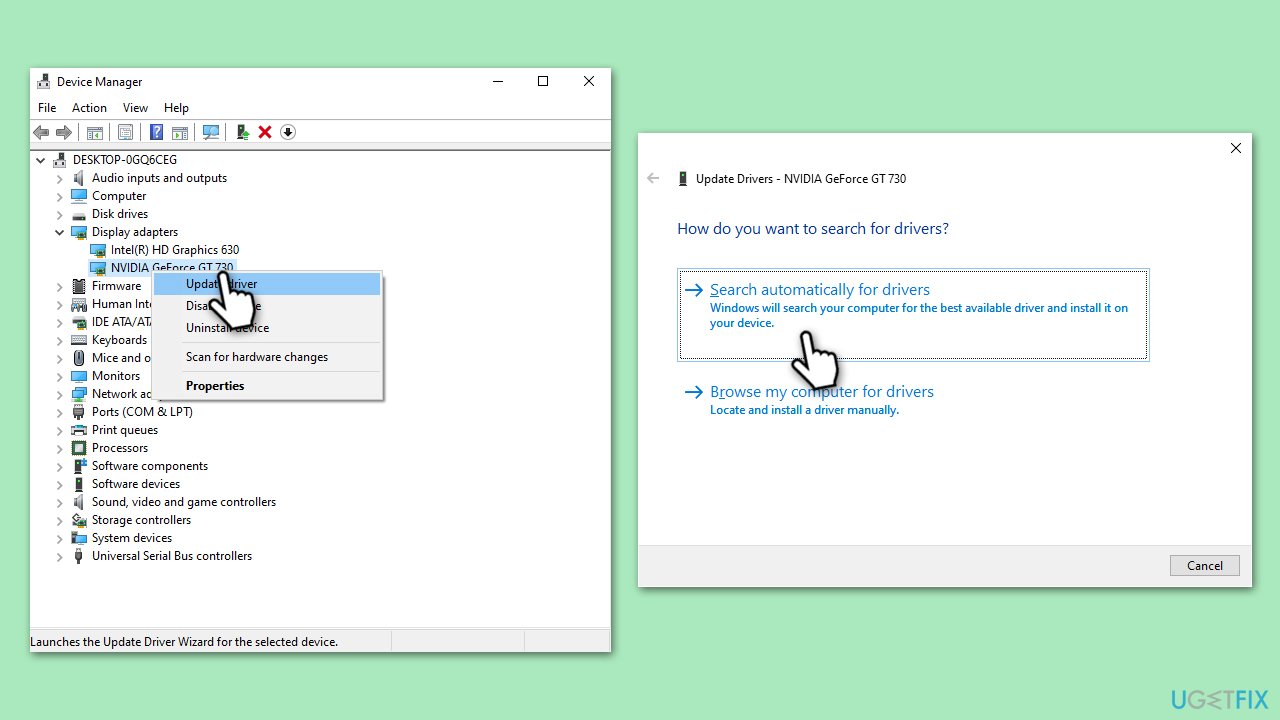
- Right-click on Start and pick Device Manager.
- In the Device Manager window, expand the Display adapters category to reveal your graphics card.
- Right-click on your graphics card and select Update driver.
- Choose the option to Search for drivers automatically. Windows will search for and install the latest drivers for your graphics card.
- Follow the on-screen instructions to complete the driver update process.
- After the update is finished, restart your computer.
Fix 3. Make sure Overlay is enabled in Settings
Sometimes, the NVIDIA Overlay might be disabled in the settings. Ensuring it is enabled is a straightforward fix that can often resolve the issue.
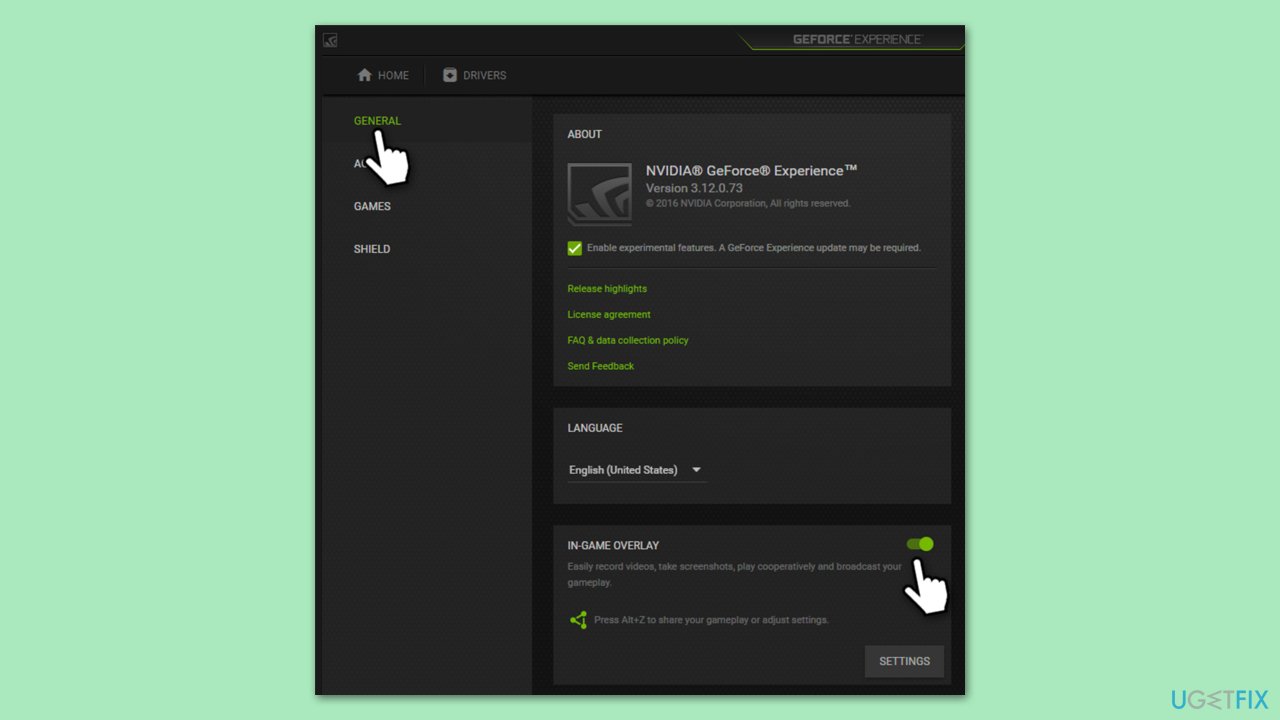
- Open GeForce Experience.
- Click on the Gear icon to open Settings.
- Navigate to the General tab.
- Scroll down to find the In-Game Overlay option.
- Make sure the switch next to it is turned on.
- If it was off, turn it on and try using the overlay again.
Fix 4. Set GeForce Experience as administrator
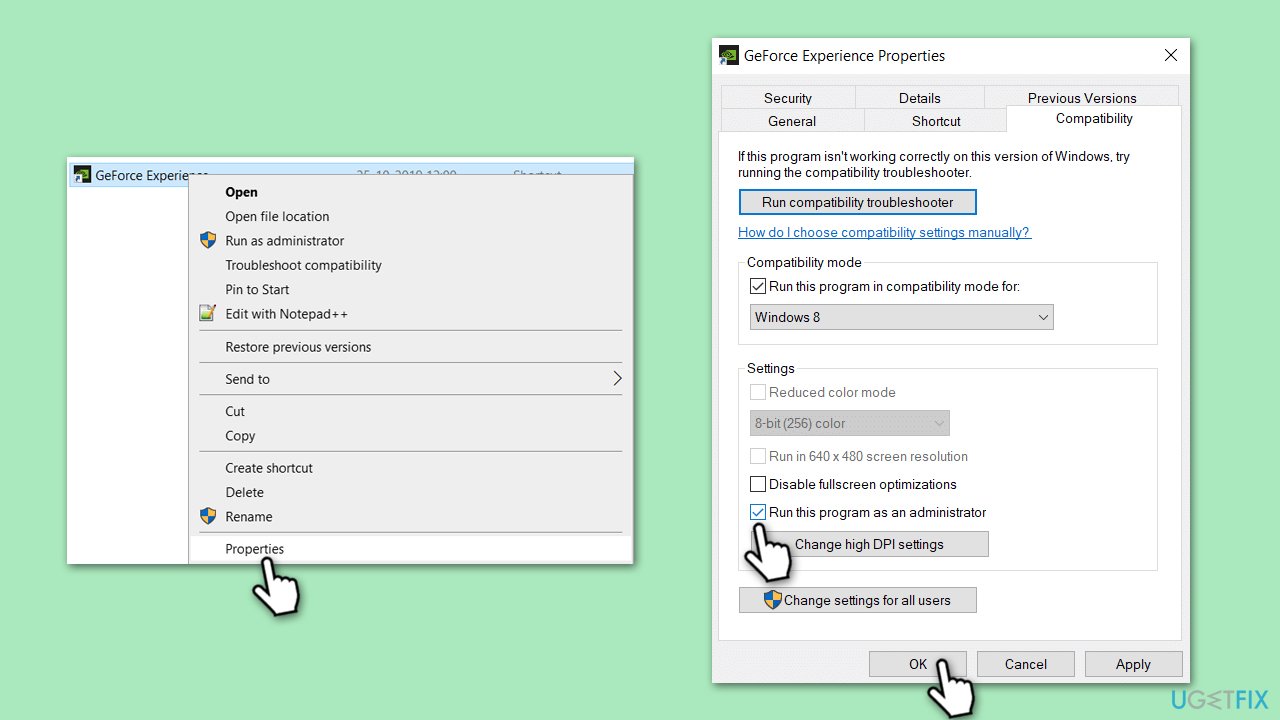
Running GeForce Experience as an administrator can resolve permission-related issues that might prevent the overlay from functioning. This grants the application the necessary permissions to operate correctly on your system.
- Locate the GeForce Experience shortcut on your desktop or in the Start Menu.
- Right-click on it and select Properties.
- Go to the Compatibility tab.
- Check the box next to Run this program as an administrator.
- Click Apply and then OK.
- Open GeForce Experience and try accessing the overlay again.
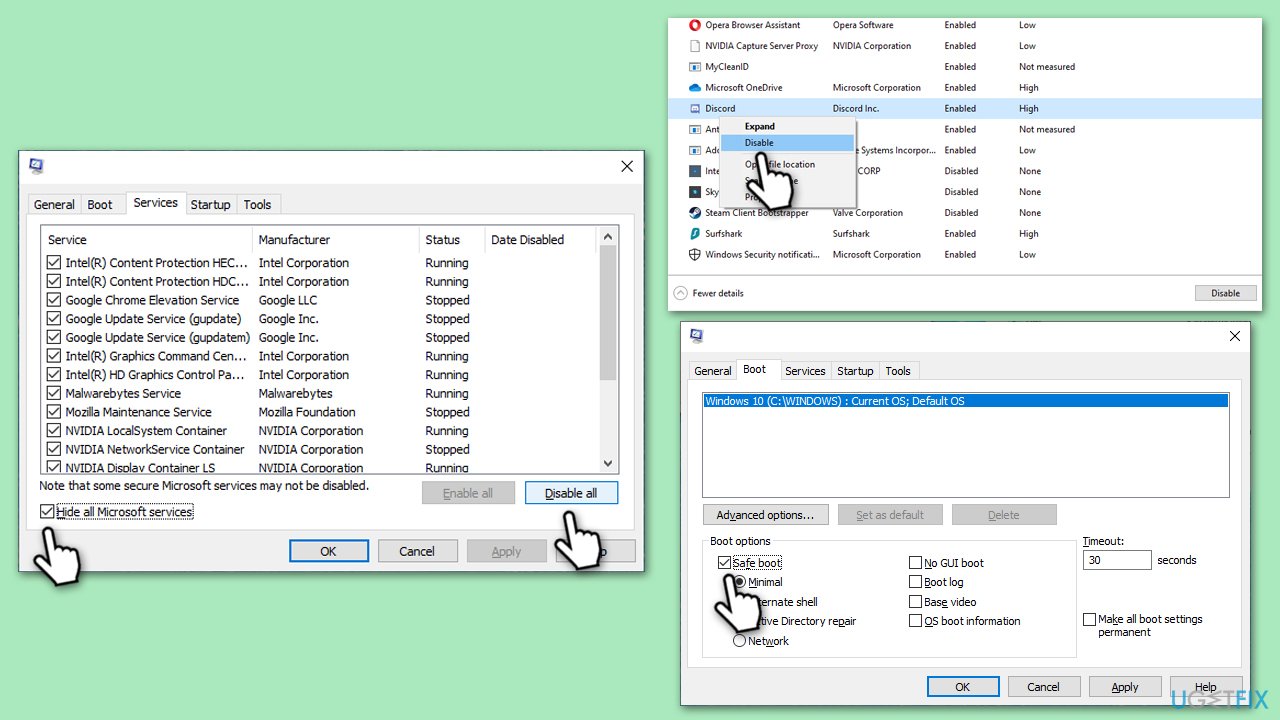
Fix 5. Perform Clean Boot
A Clean Boot starts Windows with a minimal set of drivers and startup programs, helping to identify if background programs are interfering with the NVIDIA Overlay.
- Type msconfig in Windows search and hit Enter.
- Go to the Services tab and tick the Hide all Microsoft services checkbox.
- Select Disable all.
- Go to the Startup tab and click Open Task Manager.
- Here, right-click on each of the non-Windows entries and select Disable.
- Close down the Task Manager.
- Go to the Boot tab and tick the Safe boot option.
- Restart your computer.
- Test to see if the overlay is working. If it doesn't, one of the disabled items was causing the issue.
- To identify the problematic service or program, re-enable services and startup items one at a time or in small groups.
- After each change, restart your computer to check if the error reappears.
Fix 6. Install Media Feature Pack
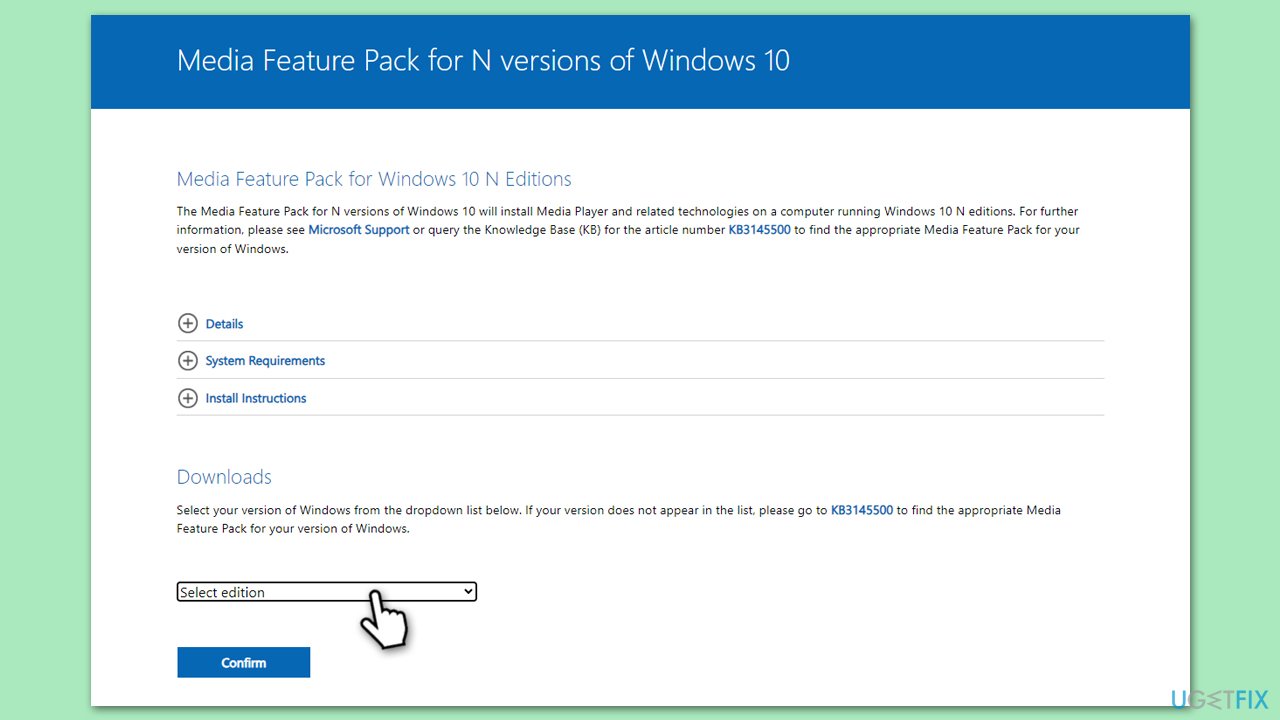
For users with Windows N editions, the Media Feature Pack adds media-related technologies that the NVIDIA Overlay might rely on.
- Visit the official Microsoft website to download the Media Feature Pack.
- Select your Windows version and download the appropriate pack.
- Install the Media Feature Pack following the on-screen instructions.
- Restart your PC and check if the overlay issue is resolved.
Fix 7. Repair Visual C++ Redistributables
Visual C++ Redistributables are essential components for running many applications. Repairing them can fix underlying issues affecting the overlay.
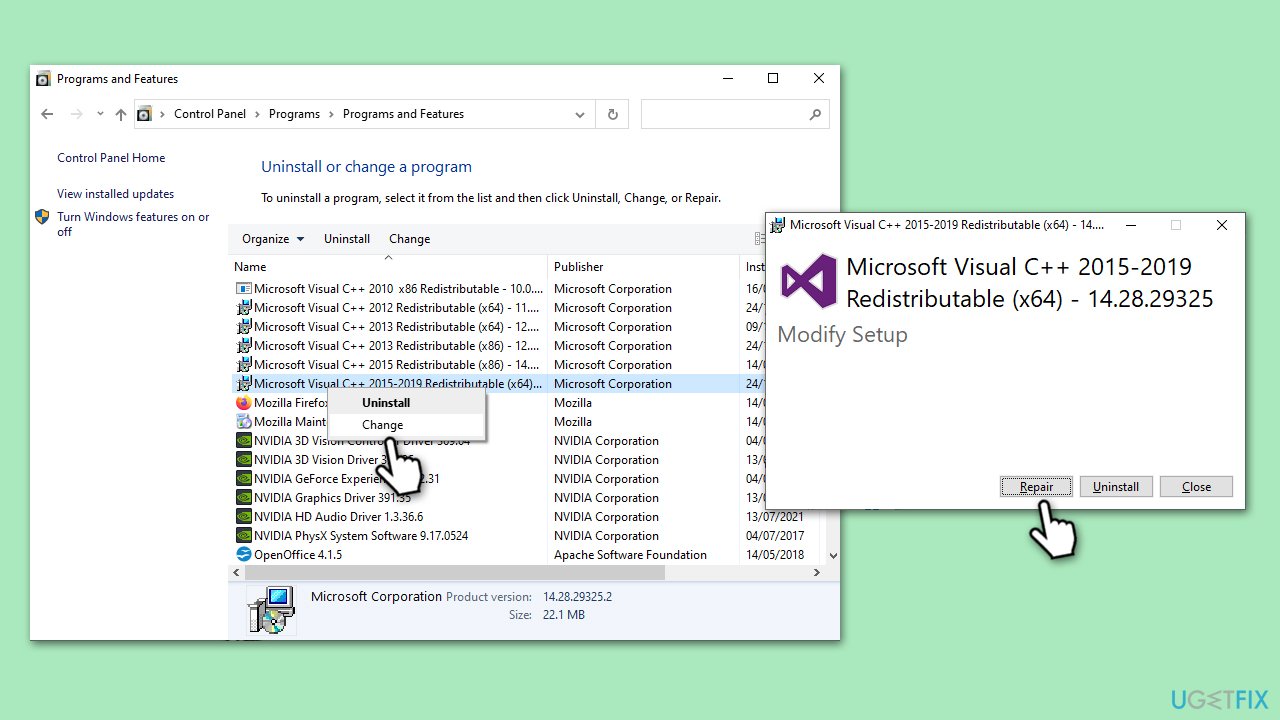
- Go to Control Panel and click on Programs and Features.
- Find Microsoft Visual C++ Redistributable in the list.
- Right-click on it and select Change.
- Click on the Repair option and follow the on-screen instructions.
- Repeat this for each Visual C++ Redistributable listed.
- Restart your computer after repairing it.
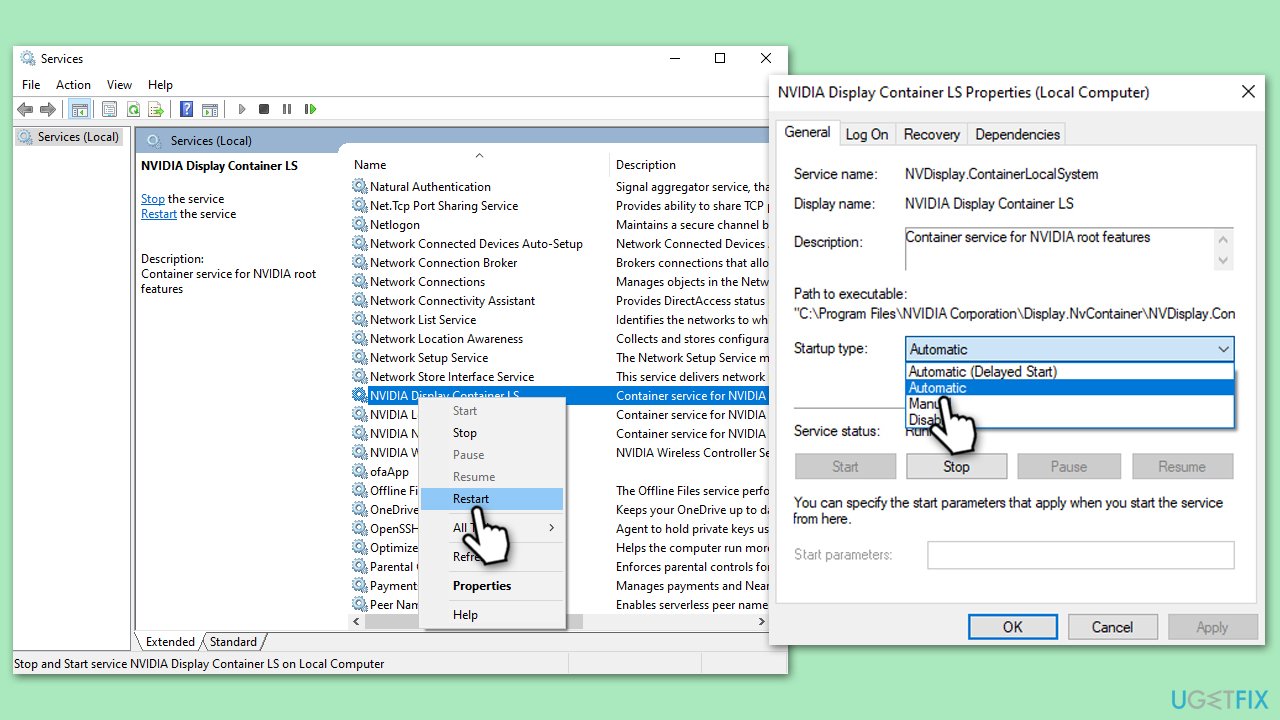
Fix 8. (Re)start Nvidia-related services
Restarting NVIDIA services can resolve issues where these services might not be running correctly, affecting the overlay.
- Type Services in the Windows search bar and hit Enter.
- Find all services starting with NVIDIA.
- Right-click on each and select Restart if they are running.
- If they aren't running, double-click to open Properties.
- Under Startup type, pick Automatic from the drop-down menu, then click OK.
- After restarting all NVIDIA services, try using the overlay again.
Fix 9. Reinstall GeForce Experience
If all else fails, reinstalling GeForce Experience can ensure you have a clean, updated version without any corrupt files that might be causing the issue.
- Go to Control Panel and open Programs and Features.
- Find GeForce Experience in the list and uninstall it.
- Download the latest version of GeForce Experience from the NVIDIA website.
- Install the application following the on-screen instructions.
- Restart your PC and try using the NVIDIA Overlay again.
Bottom line
To fix the NVIDIA GeForce Overlay not working, ensure the overlay feature is enabled in settings, check for administrative privileges, update your graphics drivers and Windows version, and manage background applications that may conflict. If these steps do not resolve the issue, consider running a Clean Boot for further diagnosis.
Frequently asked questions
First, ensure that the GeForce Experience app is updated to the latest version and restart your computer. If the issue persists, check if the overlay feature is enabled in the app's settings.
Try disabling and re-enabling the in-game overlay feature in GeForce Experience settings, and ensure that your game is running in fullscreen mode. Additionally, check if your graphics drivers are up to date.
This issue may arise due to compatibility problems with certain games or applications, so try running them as an administrator. Also, ensure that your graphics drivers are updated and that Windows is not blocking the overlay feature.




Report an issue
What's wrong with this guide? We review every report and update or remove content.
Report received — thank you. We'll review and fix it.
You need a free account to submit a report.
Be the first to comment