How to fix
Nvvsvc.exe Runtime error
on Windows
Solve nvvsvc.exe runtime errors on Windows 10 and 11 efficiently. Follow our expert-tested solutions for a seamless experience with zero traces left.

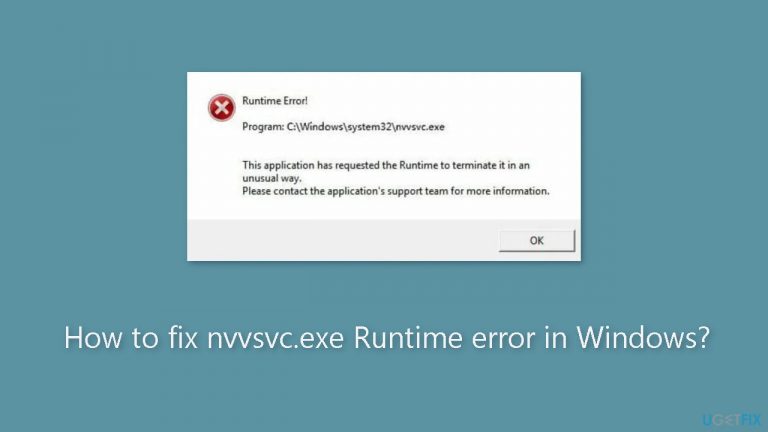
What causes How to fix nvvsvc.exe Runtime error in Windows?
- Corrupt registry entries
- Misconfigured Windows registry
- False information about Nvidia drivers
- Hardware conflicts
- Software conflicts
Repairs Windows system files, removes malware, and restores a clean OS state — without reinstalling.
Hello. I started receiving a Runtime error caused by nvvsvc.exe quite frequently on my Windows PC. What should I do?
Users who depend on Nvidia graphics cards for their computing requirements may experience severe disruptions as a result of the frequent nvvsvc.exe runtime error in Windows. An essential Nvidia Graphics card driver file called Nvvsvc.exe is in charge of controlling display drivers[ref en-1] and rendering graphics on Windows systems. Furthermore, it is essential to the operation of the Nvidia control panel, which enables users to customize different graphics settings.
Corrupt registry entries are one of the main reasons of nvvsvc.exe runtime issues. Runtime issues linked to nvvsvc.exe can occur when the Windows registry is misconfigured or includes false information about Nvidia drivers. These issues might appear in a variety of ways, such as application freezing and crashing or system instability. The infamous "blue screen of death" (BSOD), which causes the entire system to crash, can occasionally result from nvvsvc.exe runtime issues.
Runtime issues with nvvsvc.exe can have a negative effect on users that can be highly upsetting and unpleasant. Users may frequently crash graphics-intensive programs or games, which can result in the loss of work or gaming progress. The computer may become unreliable for routine activities due to system instability, which could result in data loss. Additionally, as the BSOD frequently denotes a serious system issue, users may become alarmed and anxious when they experience it as a result of this error.
Users might think about a number of potential fixes to fix nvvsvc.exe runtime issues. The Windows registry may need to be fixed or cleaned up, the Nvidia graphics drivers may need to be updated, the system may need to be scanned for malware or viruses, and there may be hardware or software conflicts that need to be resolved.
In this guide, you will find 3 steps that should help you fix nvvsvc.exe Runtime error in Windows. You can also run a maintenance tool like [d1] that can fix most system errors, BSODs,[ref en-2] corrupted files, and registry[ref en-3] issues. Otherwise, follow the step-by-step instructions provided below.
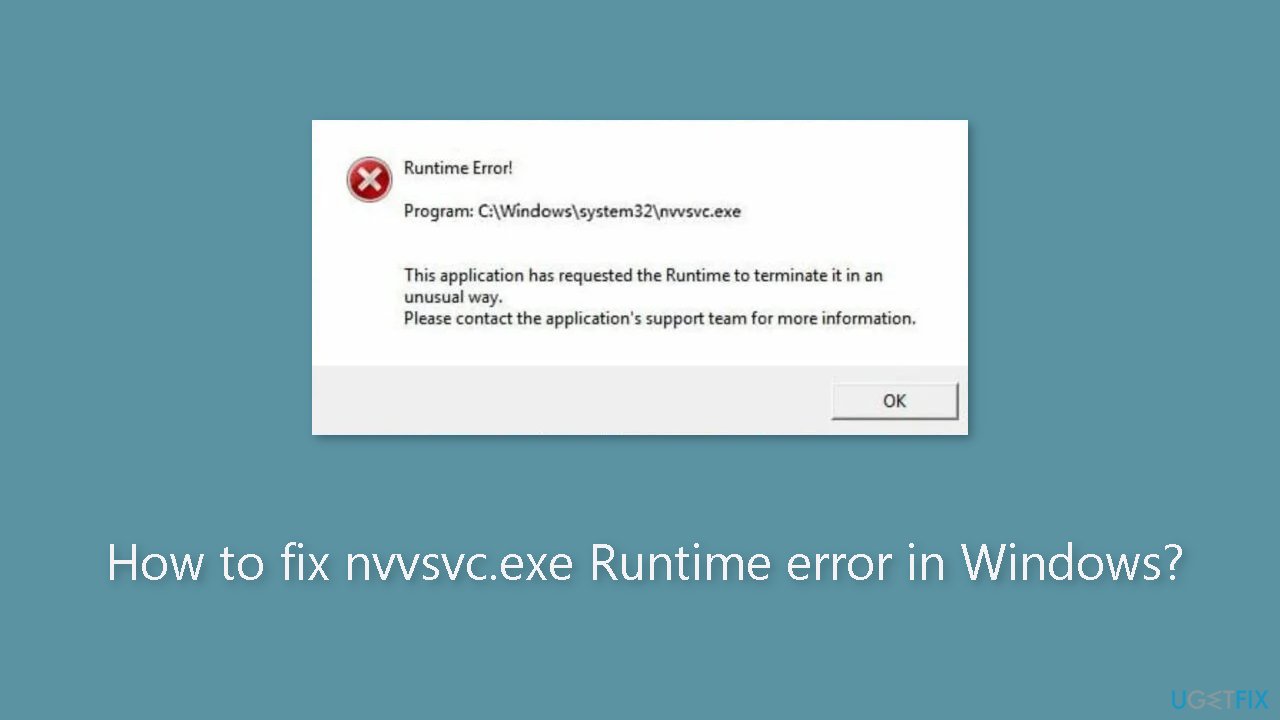
Solution 1. Reinstall the Graphics Driver
- Press the Windows key.
- Type device manager in the search bar.
- Hit Enter.
- Expand the Display Adapter section.
- Right-click on the Nvidia driver from the drop-down menu.
- Click on Uninstall.
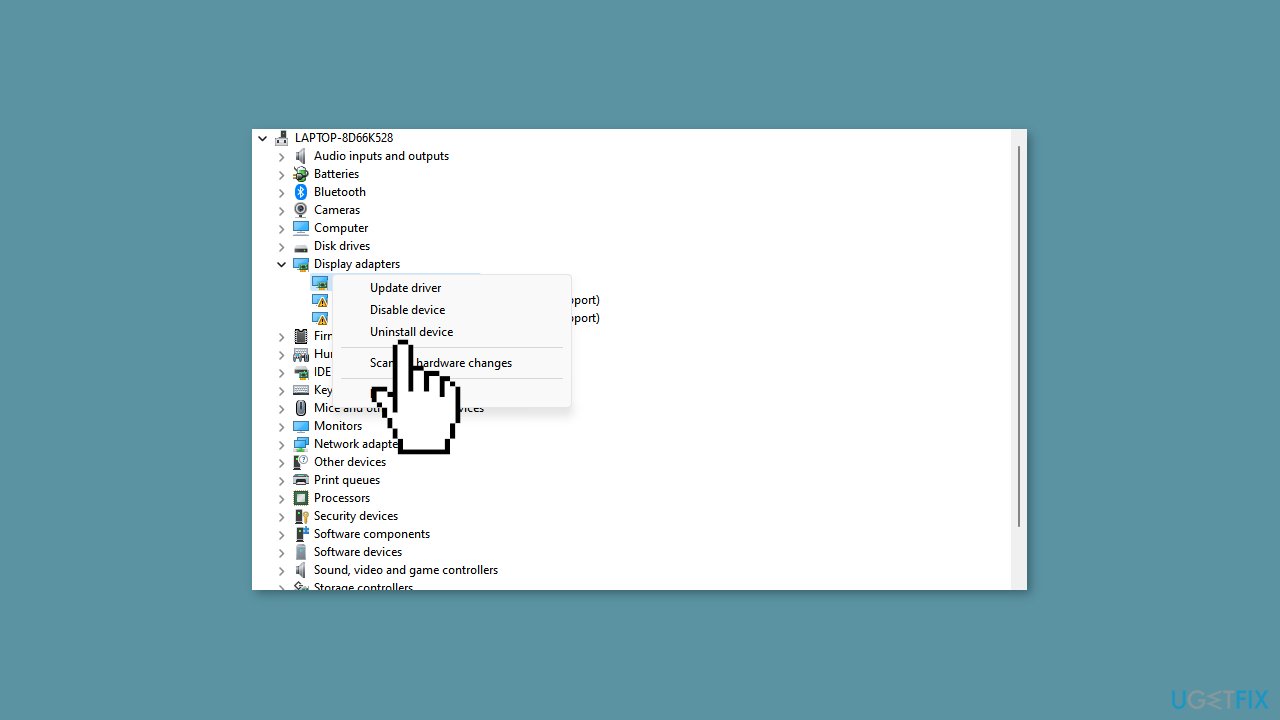
- Confirm your actions by clicking Uninstall again.
- Wait for Windows to complete the uninstallation process.
- After the drivers are removed, visit Nvidia's driver downloads page.
- Download the latest version of your Nvidia driver.
- Run the installer for the downloaded driver.
- Follow the on-screen instructions to complete the installation process.
You can also use a dedicated utility like [rev id="DriverFix"] that can find the best drivers for your machine and install them automatically.
Solution 2. Run System Restore
- Left-click on the Start menu.
- Type restore and click on Create a restore point.
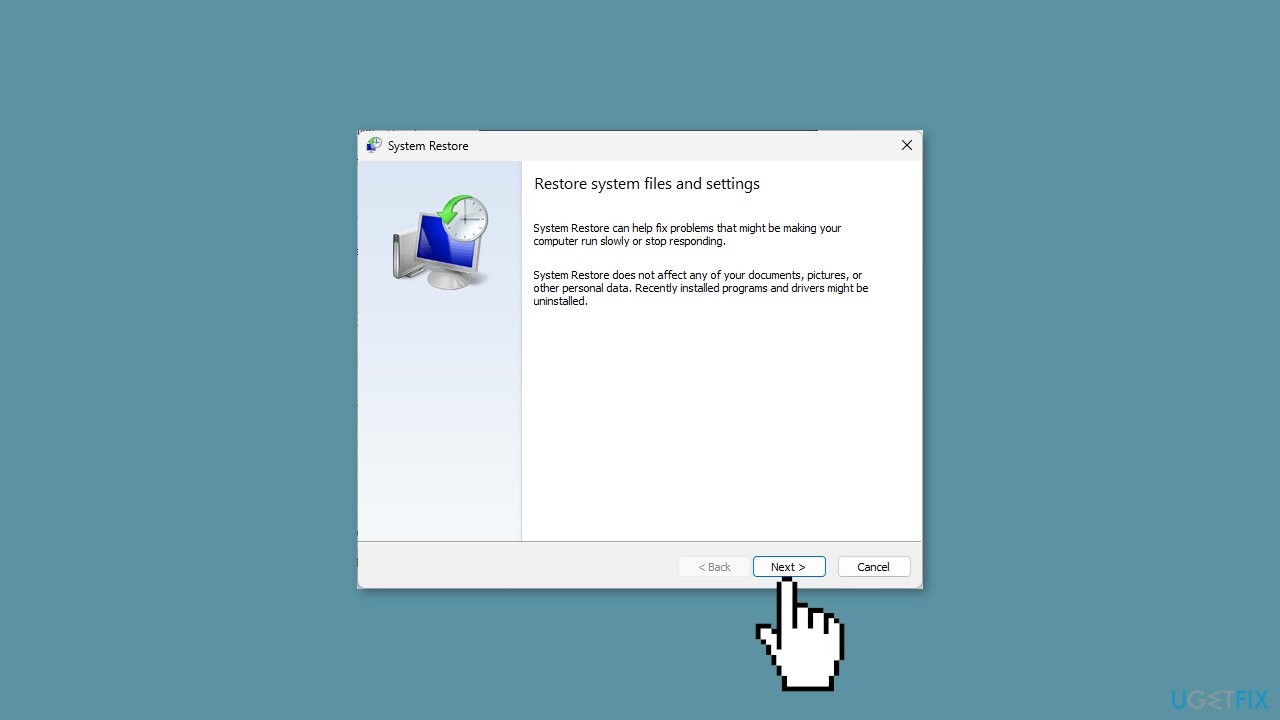
- In the System Properties window, locate and choose the System Restore button.
- In the Restore Files and Settings box, click Next.
- Select the desired Restore Point to which you want to restore your PC.
- Click Next again.
- To initiate the system restore, click Finish.
Solution 3. Disable Nvidia Display Driver Service Startup
Disabling the Nvidia driver service startup will prevent it from being active when not in use.
- Left-click on the Start menu.
- Type services and click on Run as administrator.
- Locate the Nvidia Display Driver service in the Services window.
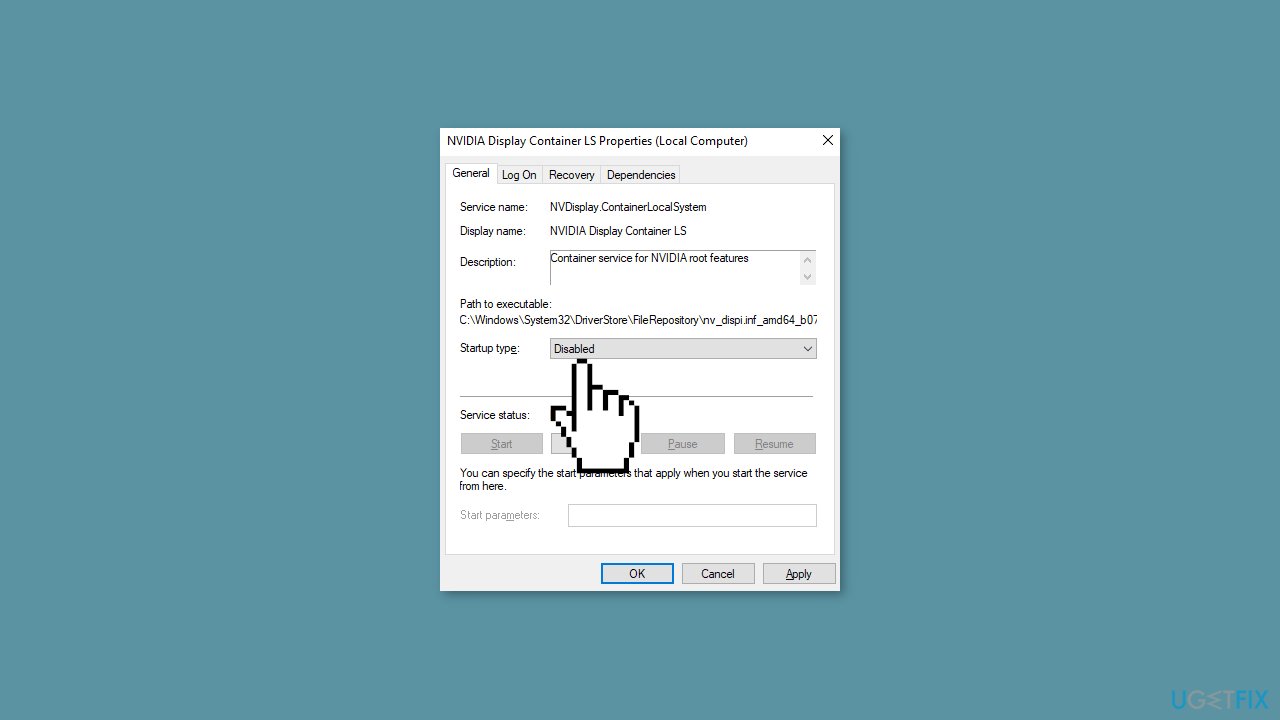
- Double-click on the Nvidia Display Driver service.
- In the properties window that appears, go to the Startup type dropdown menu.
- Select Disabled from the dropdown menu.
- Click OK to save the changes.
Bottom line
To fix the nvvsvc.exe runtime error, consider repairing or cleaning the Windows registry, updating Nvidia graphics drivers, and scanning the system for malware or viruses. If these steps do not resolve the issue, you may want to run a maintenance tool that can address system errors and corrupted files.
Frequently asked questions
The nvvsvc.exe Runtime error is often caused by outdated or corrupted NVIDIA graphics drivers, or issues with the NVIDIA services running on your system.
You can resolve this error by updating your NVIDIA drivers through the Device Manager or by downloading the latest version directly from the NVIDIA website.
While disabling the nvvsvc.exe service may stop the error temporarily, it can also affect the functionality of your NVIDIA graphics card, so it is recommended to fix the underlying issue instead.




Report an issue
What's wrong with this guide? We review every report and update or remove content.
Report received — thank you. We'll review and fix it.
You need a free account to submit a report.
Be the first to comment