How to fix
OBS Studio not launching
on Windows
Resolve OBS Studio launch issues on Windows 10 or 11 quickly and effectively. Follow our expert-tested tips for seamless streaming in minutes.

What causes How to fix OBS Studio not launching in Windows?
- Software updates are needed
- System settings may need modification
- Corrupted installation files
- Conflicts with other software
- Insufficient system resources
Repairs Windows system files, removes malware, and restores a clean OS state — without reinstalling.
Hello. When I try to open OBS Studio on Windows it does not work. Is there anything I can do?
Users who depend on OBS Studio, a well-known program, to record and stream their games or other content, may find the problem of it not starting on Windows to be very annoying. OBS Studio is well-known for its adaptability and capabilities that serve gamers, live streamers, and content producers. It interferes with users' ability to complete their intended duties, such as recording a game session, making videos, or live broadcasting, when it doesn't launch. There could be a number of serious repercussions and detrimental impacts for users from this problem.
Time and productivity losses are among the most obvious effects of OBS Studio not launching. It can be annoying for users to have to waste important minutes trying to fix the issue or reinstall the program, particularly if they have a streaming or recording schedule to stick to. Content producers, gamers, and live streamers may have to reschedule or cancel their scheduled activities as a result of this productivity lag.
The possible loss of recorded content is a significant additional issue. Users run the danger of losing all recorded material if OBS Studio crashes during or after a recording session. This can be extremely harmful for content creators who devote a lot of time and energy to their creations. Users may miss out on significant moments or events that they intended to record and share, which can be detrimental not only to content but also to possibilities and engagement.
Reputation and following can also be impacted by people not being able to use OBS Studio because of startup problems. In the realm of content development and streaming, consistency is essential. When viewers anticipate frequent uploads or live streams and run into problems, their viewership and subscriber trust may suffer. Individuals who experience difficulties initiating OBS Studio may be at a disadvantage in comparison to others who are able to utilize the software without any complications.
Users may think about reinstalling OBS Studio, checking for software updates, modifying system settings, or searching for incompatibilities with other applications as possible solutions to this problem. Asking the OBS Studio community or forums for assistance can often yield insightful advice on how to fix the issue. Users may need to think about system updates or alterations if the problem is occasionally connected to hardware incompatibilities or limits.
In this guide, you will find 7 steps that should help you fix OBS Studio not launching in Windows. You can also use a maintenance tool like [d1] that can fix most system errors, BSODs, corrupted files, and registry issues. Otherwise, follow the step-by-step instructions below.

Solution 1. Run OBS Studio in Compatibility Mode
- Right-click an OBS Studio desktop shortcut or the OBS Studio.exe application file in its installation folder and choose Properties.
- Click on Compatibility in the tab bar.
- Choose Run this program in compatibility mode and select Windows 8 from the setting’s drop-down menu.
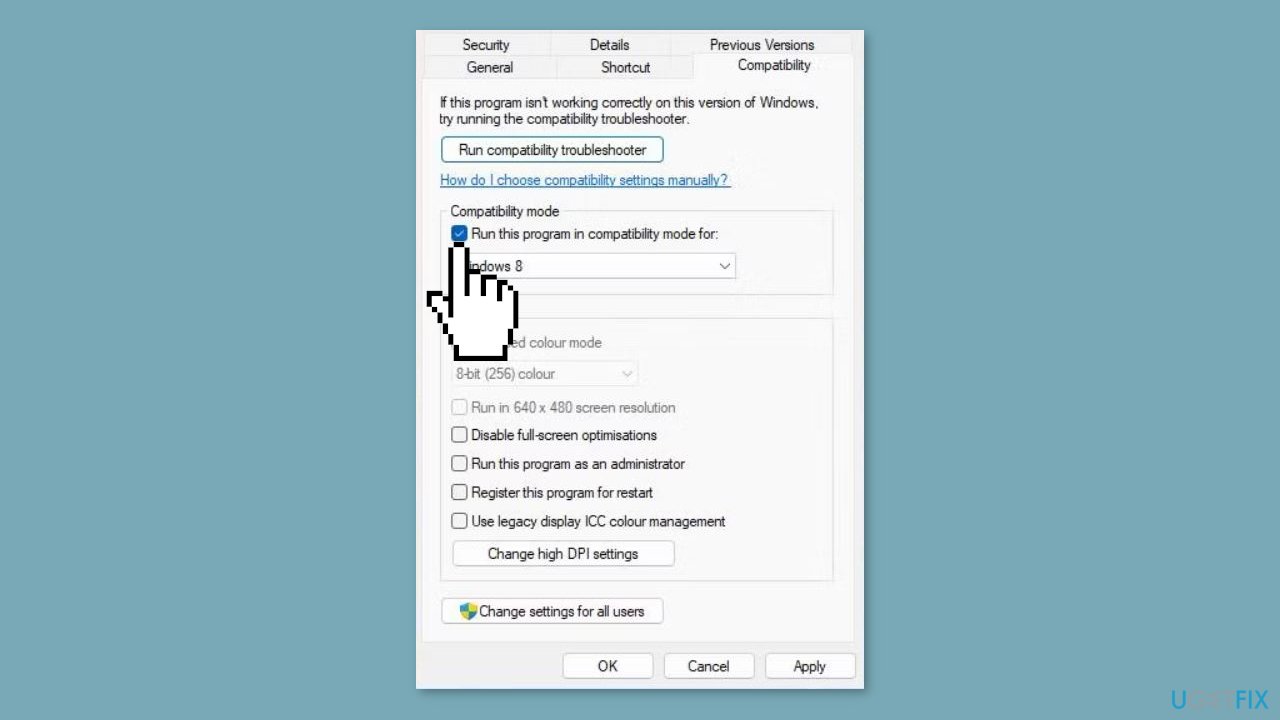
- Click Apply to apply the selected compatibility option.
- Click OK to close the compatibility settings.
- Now, launch OBS Studio to check if it starts.
Solution 2. Set OBS Studio to Run as Administrator
- Right-click an OBS Studio desktop shortcut or the OBS Studio.exe application file in its installation folder and choose Properties.
- Open the Compatibility tab.
- Choose Run this program as an administrator on the Compatibility tab.
- Click OK to confirm your selection.
Solution 3. Roll Back Graphics Driver
- Press the Windows key + R to open the Run dialog.
- In the Run dialog, type devmgmt.msc and press Enter. This action will open the Device Manager.
- Click on Display Adapter to view the graphic card you are currently using.
- Double-click on the graphics card to open the Properties panel.
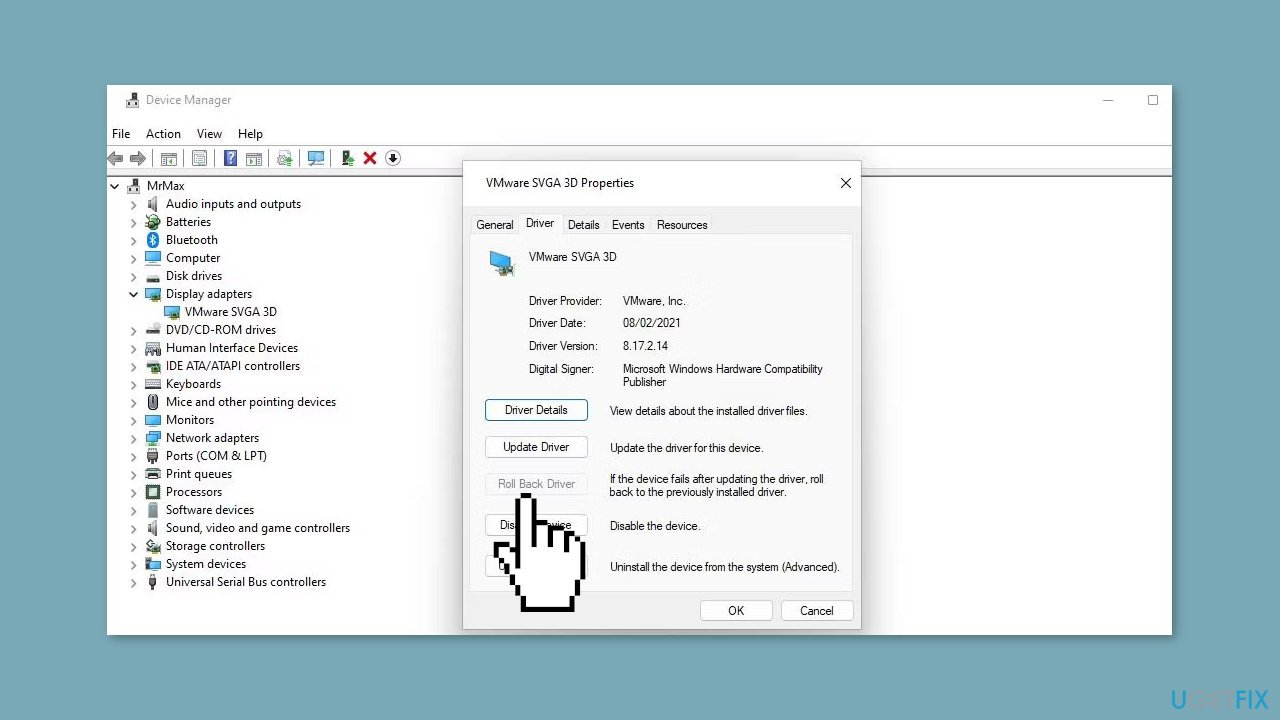
- Inside the Properties panel, click on the Driver tab to access options for updating and deleting drivers.
- To roll back the driver, select Roll Back Driver and follow the process. You can also update the driver from this location.
Solution 4. Update Display Adapter
- Press the Windows key + R to open the Run box.
- Type devmgmt.msc and click OK to open Device Manager.
- In the Device Manager window, expand the Display adapters section. It will list all the integrated and dedicated graphics drivers installed on your computer.
- Right-click on the display driver you want to update and choose Update Driver.
- Select Search automatically for drivers. Windows will scan for available driver updates and download them.
- Restart your PC.
Solution 5. Delete the Configuration Data Folder
- Right-click on Start on the Windows taskbar to open the Power User menu.
- Choose the Run accessory shortcut.
- In the Run dialog, type %appdata%.
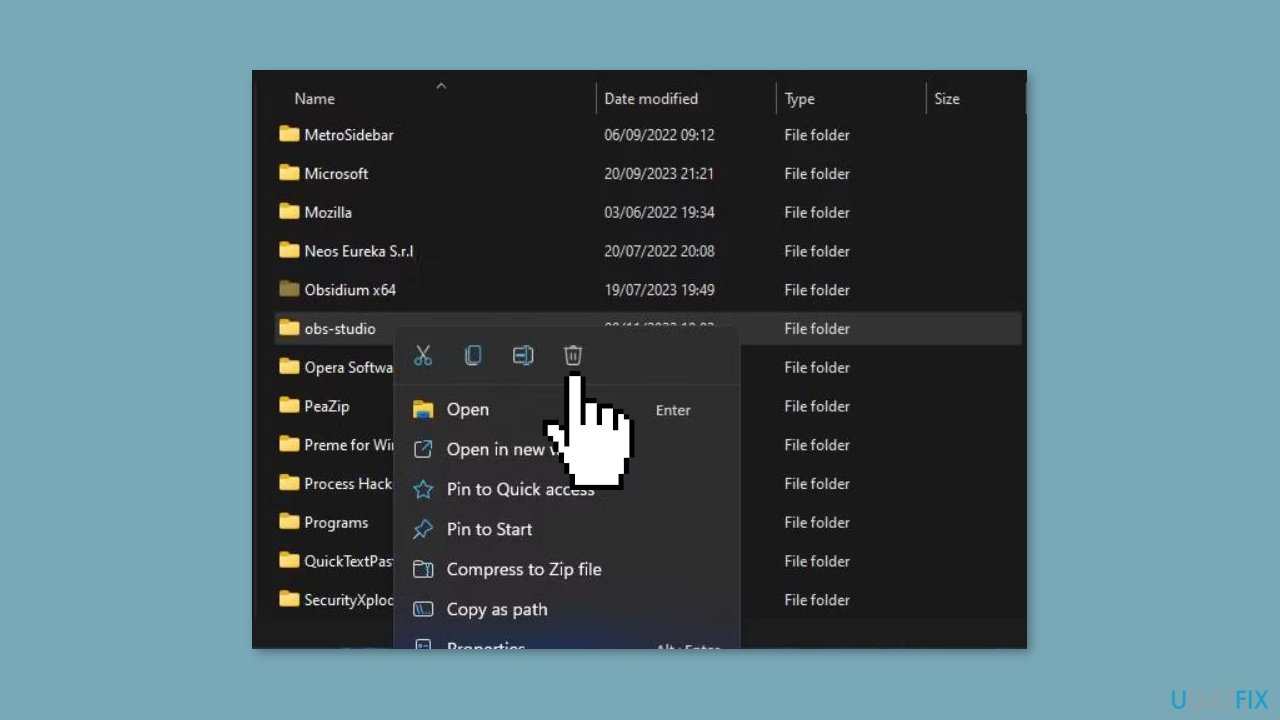
- Select OK to access a Roaming directory within File Explorer.
- Right-click the OBS Studio data folder and choose the Delete option from the context menu.
Solution 6. Try Clean Boot
- Open the Search menu, type in system configuration, and press Enter.
- Under the Services tab, tick the Hide all Microsoft services box.
- Click on Disable all button.
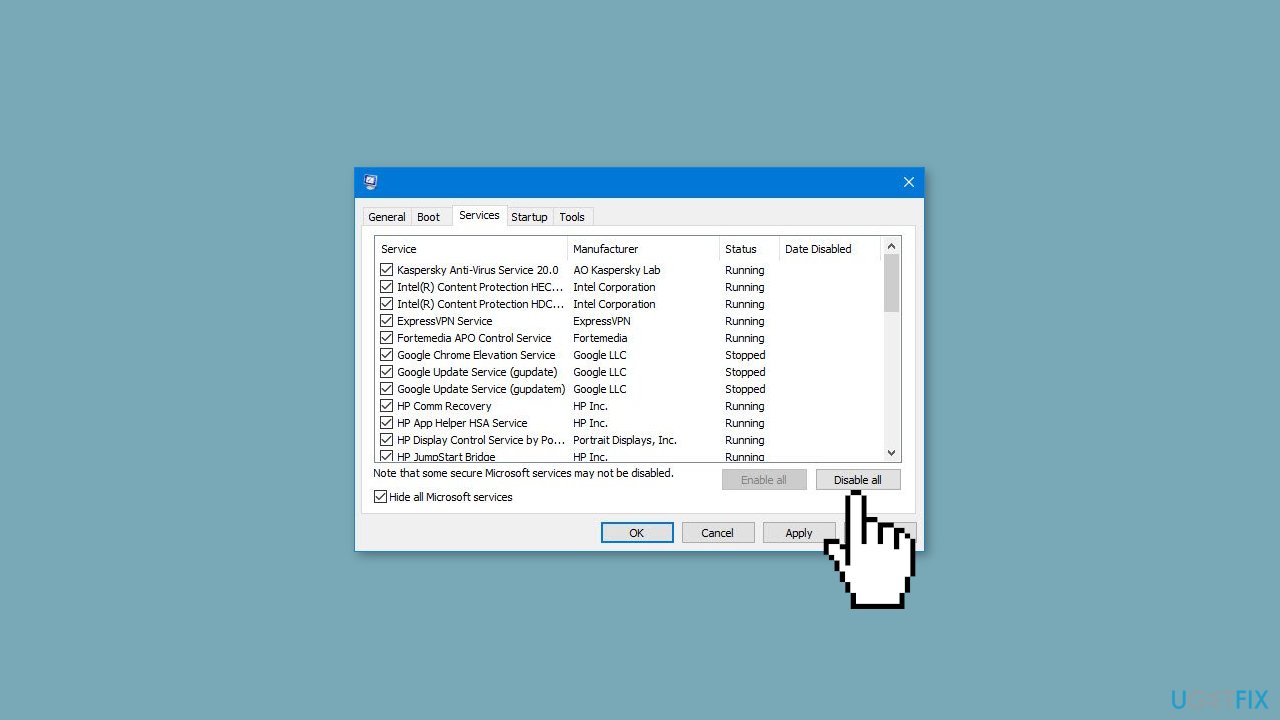
- Head over to the Startup tab and click on Open Task Manager.
- Select a third-party program and click on Disable at the top.
- Repeat this step to disable all third-party apps and programs.
- Restart your PC to enter the clean boot state and see if the issue persists.
- If the issue disappeared in the clean boot state, then you can be certain that a third-party app is causing it.
- Go through all recently installed apps or programs and remove them one by one.
Solution 7. Reinstall OBS Studio
- Right-click on Start on the taskbar and choose the Power User's menu Run shortcut.
- Type appwiz.cpl into the Run dialog.
- Click OK to open the Programs and Features window.
- Select a software package to remove.
- Click the Uninstall button.
- Now download the OBS Studio installer again.
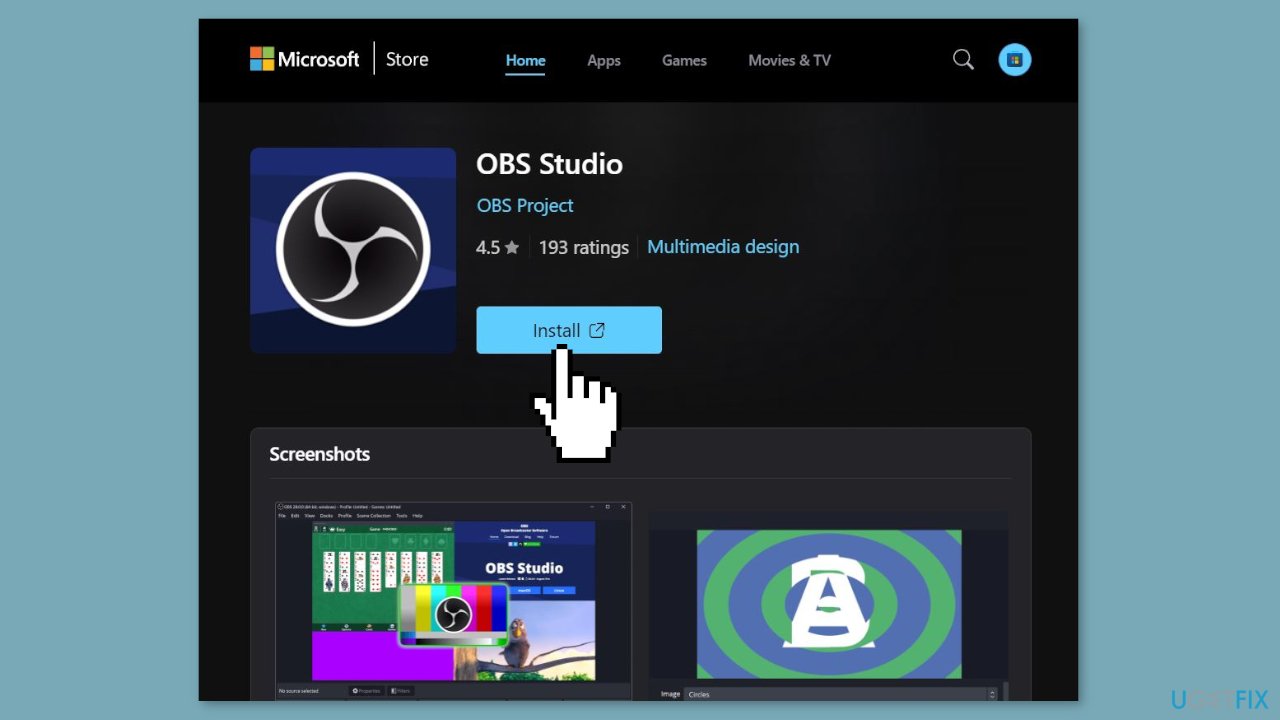
- Double-click the OBS-Studio-29.1.3-Full-Installer-x64.exe file in the folder it downloaded to start the setup wizard.
- Select to install OBS from there.
Bottom line
To resolve the issue of OBS Studio not launching, users can consider reinstalling the software, checking for updates, or modifying system settings. If these solutions do not work, further troubleshooting may be necessary.
Frequently asked questions
Try reinstalling OBS Studio to ensure compatibility with the new Windows 10 updates, and check for any pending updates for your graphics drivers.
Ensure that your Windows 11 is fully updated and run OBS Studio as an administrator to see if that resolves the crashing issue.
Yes, check your firewall and antivirus settings to ensure they are not blocking OBS Studio from launching.




Report an issue
What's wrong with this guide? We review every report and update or remove content.
Report received — thank you. We'll review and fix it.
You need a free account to submit a report.
Be the first to comment