How to fix
Oculus app “We encountered an error” issue
on Windows
Resolve the Oculus app "We encountered an error" issue on Windows 10 or 11 with our expert-tested tips. Enjoy seamless VR in no time! Fixed in minutes.

What causes How to fix Oculus app “We encountered an error” issue in Windows?
- Installation difficulties due to software errors
- Incompatibility with system settings
- Outdated drivers
- Corrupted files or registry issues
Repairs Windows system files, removes malware, and restores a clean OS state — without reinstalling.
Hello. When I try to install the Oculus app I get the "We encountered an error during installation" error message. What should I do?
Users of the Rift and Quest 2 may find it frustrating to run into the "We encountered an error during installation" problem with the Oculus Windows software. This program is essential for those who want to connect their virtual reality headsets to their computers and for Quest 2 users who want to utilize their VR headsets to access apps and games from the Rift marketplace. However, this particular error message can impede the installation procedure and present customers with a big obstacle.
Users who are impacted by this problem may face significant effects, especially if they depend on their Oculus devices for immersive experiences. First and foremost, it makes it difficult for new users to set up their VR headsets, preventing them from using the vast amount of virtual reality content made available by Oculus. People who have invested in Oculus technology but are unable to fully enjoy it because of installation difficulties may find it especially aggravating.
Furthermore, this error may cause issues for current Oculus users who may need to reinstall the Oculus app for a variety of reasons, such as debugging or software updates. Users might not be able to access their VR content or fix technical difficulties with their headsets if they are unable to reinstall or repair the app.
Although there may be ways to fix this issue, doing so calls for a certain level of technical know-how and familiarity with Windows settings and Oculus software. To fix the problem, users might have to change their system settings, update their drivers, or take other troubleshooting actions.
In this guide, you will find 6 steps that should help you fix Oculus app “We encountered an error” issue in Windows. You can also run a maintenance tool like [d1] that can fix most system errors, BSODs,[ref en-1] corrupted files, and registry[ref en-2] issues. Otherwise, follow the step-by-step instructions below.
Solution 1. Run the Oculus Installer File as an Administrator
- Right-click the OculusSetup.exe file.
- Select Run as administrator.

Solution 2. Disable Proxy Server
- Press the Windows key + I to open the Settings menu.
- Go to the left pane and select Network & internet.
- Select Proxy from the right-side menu.
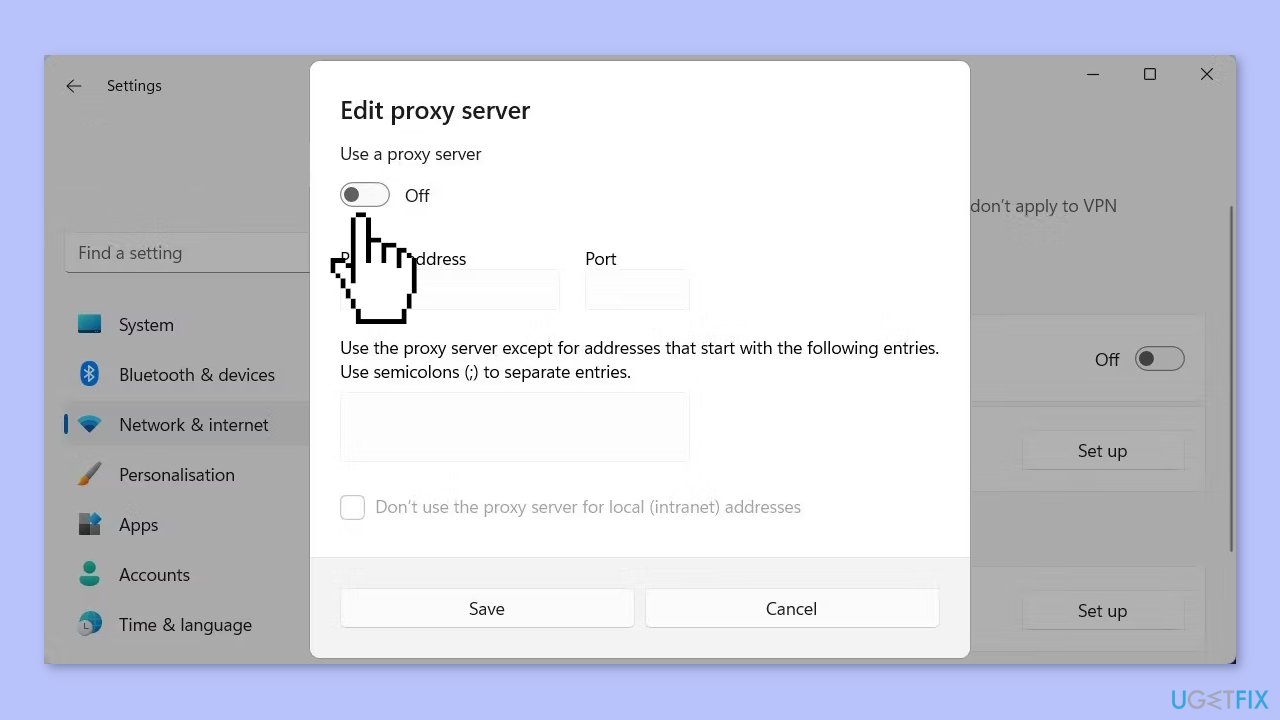
- Under Automatic proxy setup, turn off Automatically detect settings.
- Scroll down to Manual proxy setup and click on the Setup button (next to Use a proxy server).
- Next, toggle off the Use a proxy server slider.
Solution 3. Temporarily Disable Microsoft Defender
- Open the Settings app from your Start menu or by pressing the Windows key + I.
- In the Settings menu, select the Update & Security section.
- On the left side, click Windows Security.
- Clicking Open Windows Security on this page will launch the app of the same name, where Microsoft Defender is located.
- Within the Windows Security app, you can access various features of Microsoft Defender.
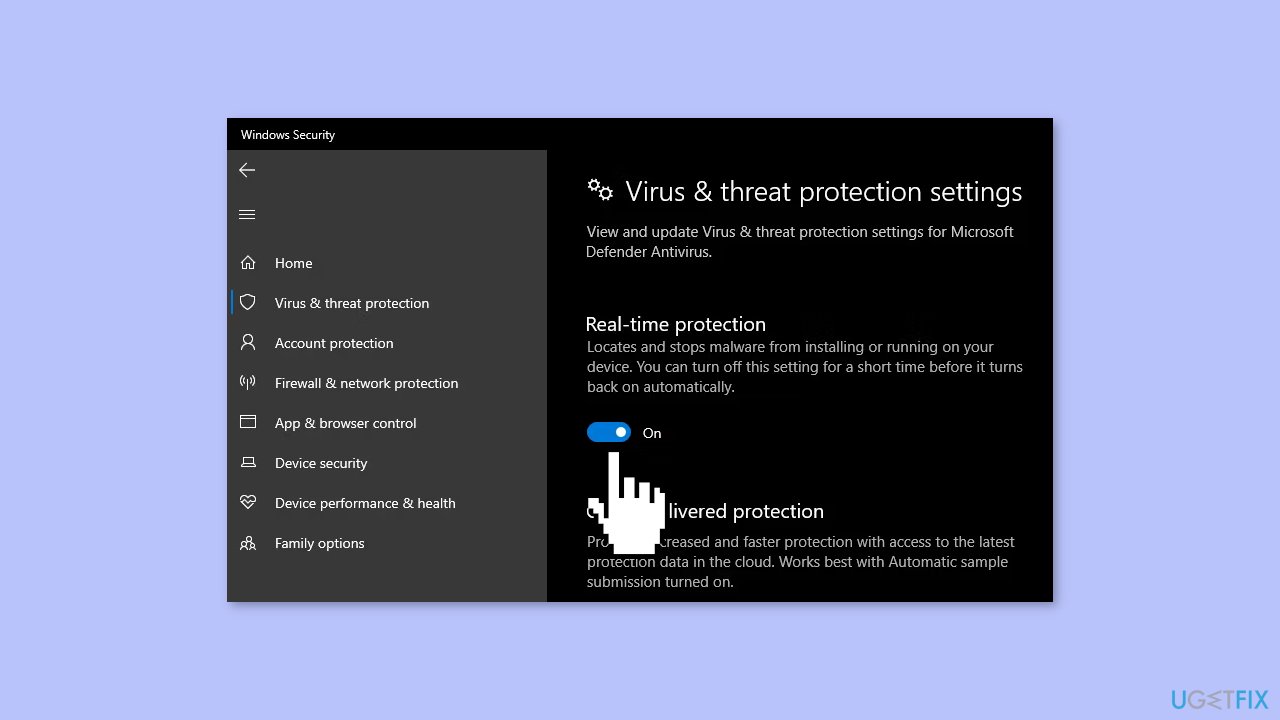
- Select Virus & threat protection to open the antivirus module.
- Under Virus & threat protection settings, click Manage settings.
- On the resulting page, disable the slider for Real-time protection, which is the primary protection service for Microsoft Defender. This action will prompt a User Account Control (UAC) confirmation, so ensure you have administrator privileges on your computer.
Solution 4. Turn Off the Windows Firewall
- Click on Start and search for Windows Security.
- Select the result from the top of the list.
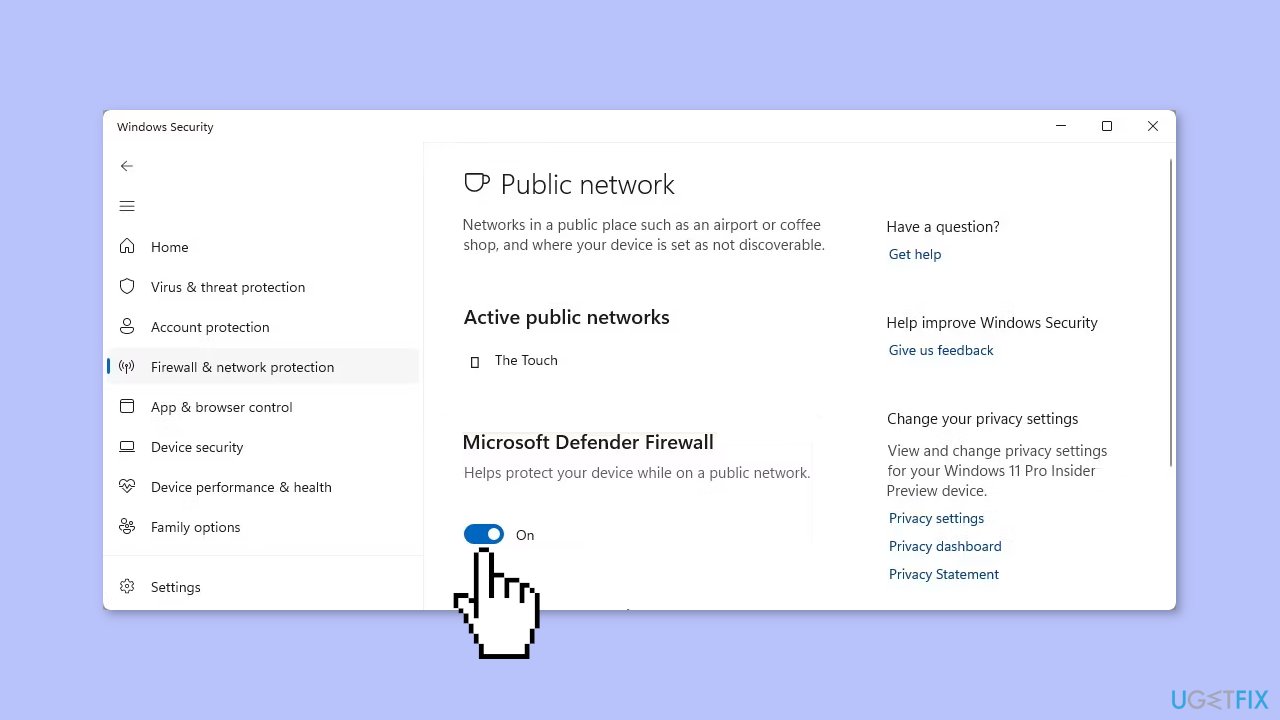
- Once you are in Windows Security, click on the Firewall & network protection option.
- Select the Public network or Private network profile and turn off the firewall for that selection.
- The UAC prompt will require you to accept it, so make sure your computer is set up as an admin account. If a UAC prompt appears on the screen, click Yes to continue.
Solution 5. Install .NET Framework 4.6.1
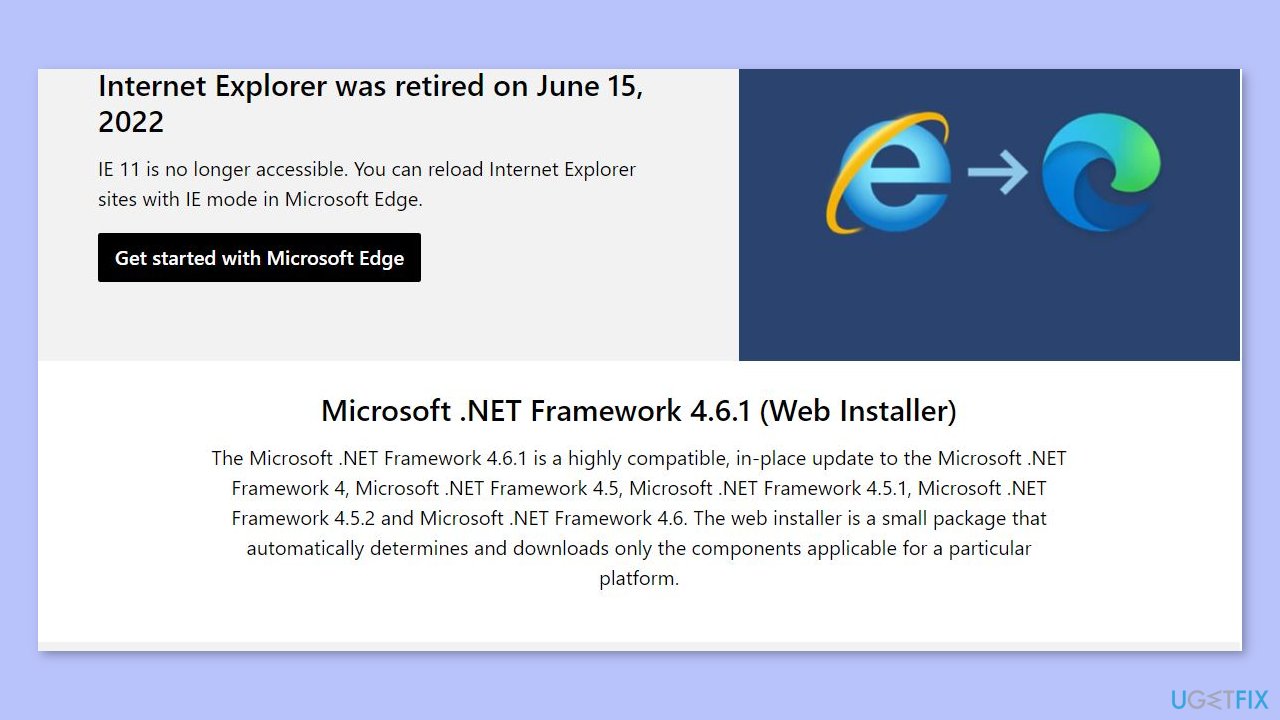
- Open the Microsoft .NET Framework 4.6.1 webpage.
- Click the Download option for .NET Framework 4.6.1.
- Navigate to the directory containing the downloaded .NET Framework setup file.
- Double-click the NDP461-KB3102438-Web.exe file to bring up the setup window.
- Select to install .NET Framework 4.6.1 if needed.
Solution 6. Remove Oculus App Duplicates
- Press the Windows key + X keys and select to open Run from the Power User menu.
- Input %appdata% inside Run and click OK.
- Right-click any Oculus subfolder in the Roaming directory and select Delete.
- Repeat the previous step to delete any Oculus subfolders left behind at these folder locations:
C:\Users<User Folder>\AppData\LocalLow
C:\Users<User Folder>\AppData\Local
C:\Users<User Folder>\AppData
Bottom line
To fix the Oculus app 'We encountered an error' issue, users may need to change system settings, update drivers, or run a maintenance tool to address corrupted files and registry issues. If these steps do not resolve the problem, further troubleshooting may be required.
Frequently asked questions
Try restarting your computer and ensuring that your Windows 10 is up to date, as updates can fix compatibility issues with the Oculus app.
Yes, uninstalling and then reinstalling the Oculus app on Windows 11 can resolve the 'We encountered an error' issue by refreshing any corrupted files.
Make sure that your Windows 10 firewall and antivirus settings are not blocking the Oculus app, as this can lead to errors during startup.




Report an issue
What's wrong with this guide? We review every report and update or remove content.
Report received — thank you. We'll review and fix it.
You need a free account to submit a report.
Be the first to comment