How to fix
Office application error 0xc0000143
on Windows
Resolve the Office application error 0xc0000143 on Windows 10 and 11 effortlessly. Expert-tested solutions ensure quick fixes and zero traces left.

What causes How to fix Office application error 0xc0000143 in Windows?
- Problem with the Office installation
- Corrupted DLL files
- Conflicts with other software
- Incompatible system configurations
- Outdated application versions
Repairs Windows system files, removes malware, and restores a clean OS state — without reinstalling.
Hello. When I try to open Outlook or another Office application I get the 0xc0000143 error code. How do I fix this?
Microsoft Office is a well-known productivity suite that is widely used in both personal and professional settings. It includes programs for word processing (Word), spreadsheet management (Excel), email and calendar management (Outlook), and presentation creation (PowerPoint). Office applications are essential tools for many users, allowing them to efficiently perform a wide range of tasks.
Error 0xc0000143 is a common problem encountered by Windows users when attempting to open one of the Microsoft Office suite applications, such as Outlook, Word, Excel, or PowerPoint. This error usually indicates a problem with the Office installation or the DLL (Dynamic Link Library) files that are associated with it.
When users encounter the 0xc0000143 error while attempting to open an Office application, their productivity and workflow can suffer significantly. Depending on which application is affected, they may be unable to access their email, create or edit documents, analyze data, or deliver presentations. This can result in frustration, work delays, missed deadlines, and the potential loss of important information.
Generally, troubleshooting the Office installation and repairing or reinstalling the affected application are required to resolve the 0xc0000143 error. Users may need to check for the most recent updates, repair any corrupted files, or perform a clean reinstallation of the Office suite. In some cases, conflicts with other software or incompatible system configurations may cause the error, necessitating additional troubleshooting steps.
In this guide, you will find 5 steps that should help you fix Office application error 0xc0000143. You can also try a maintenance tool like [d1] that can fix most system errors, BSODs,[ref en-1] corrupted files, registry[ref en-2] issues, or clear cookies and cache.[ref en-3] Otherwise, follow the step-by-step instructions below.
Solution 1. Update the Application
- Open the Microsoft Office app you want to update, such as Microsoft Word or Microsoft Excel.
- Navigate to the File tab at the top left of the app window.
- In the menu that appears, click Account on the left sidebar.
- Look for the Product Information section and check the Update Options dropdown.
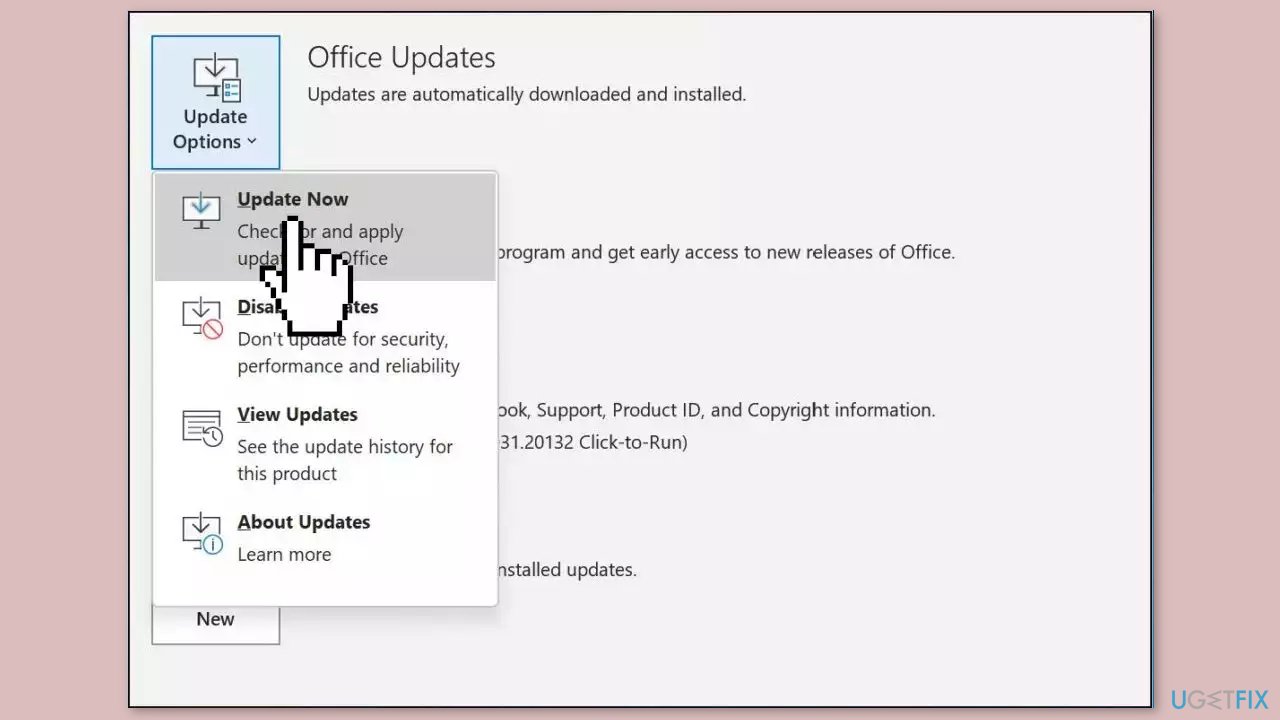
- Click on Update Now to check for and install any available updates.
- Follow the on-screen prompts to complete the update process.
- Once the update is complete, restart the app to ensure that the changes take effect.
Solution 2. Clear Temporary Windows Files
- Go to My Computer.
- Right-click on Drive C.
- Click on the Properties menu.
- The Local Disk C Properties box will appear.
- Click on Disk Cleanup.
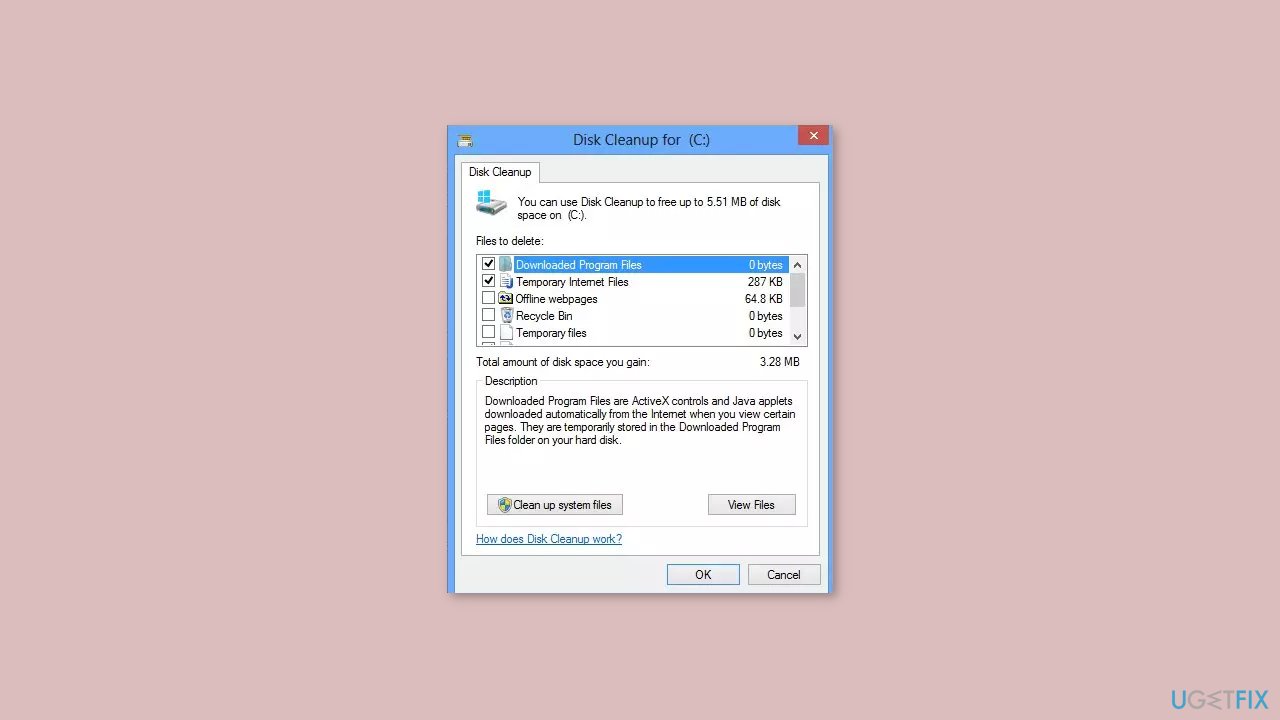
- A box will appear asking for the files you want to delete.
- Select the files you want to delete from your system.
- Click OK.
- The Disk Cleanup system will ask for confirmation.
- Click on Delete Files to proceed.
Solution 3. Repair Office Installation
- Press the Windows key + I to open Windows Settings.
- Click on the Apps option.
- Look for the Installed apps tab and click on it.
- Scroll down or use the search bar to find the Microsoft Office app.
- Click on the three horizontal dots located next to the app name.
- Choose the Modify option from the dropdown menu.
- In the new window, select the preferred repair option.
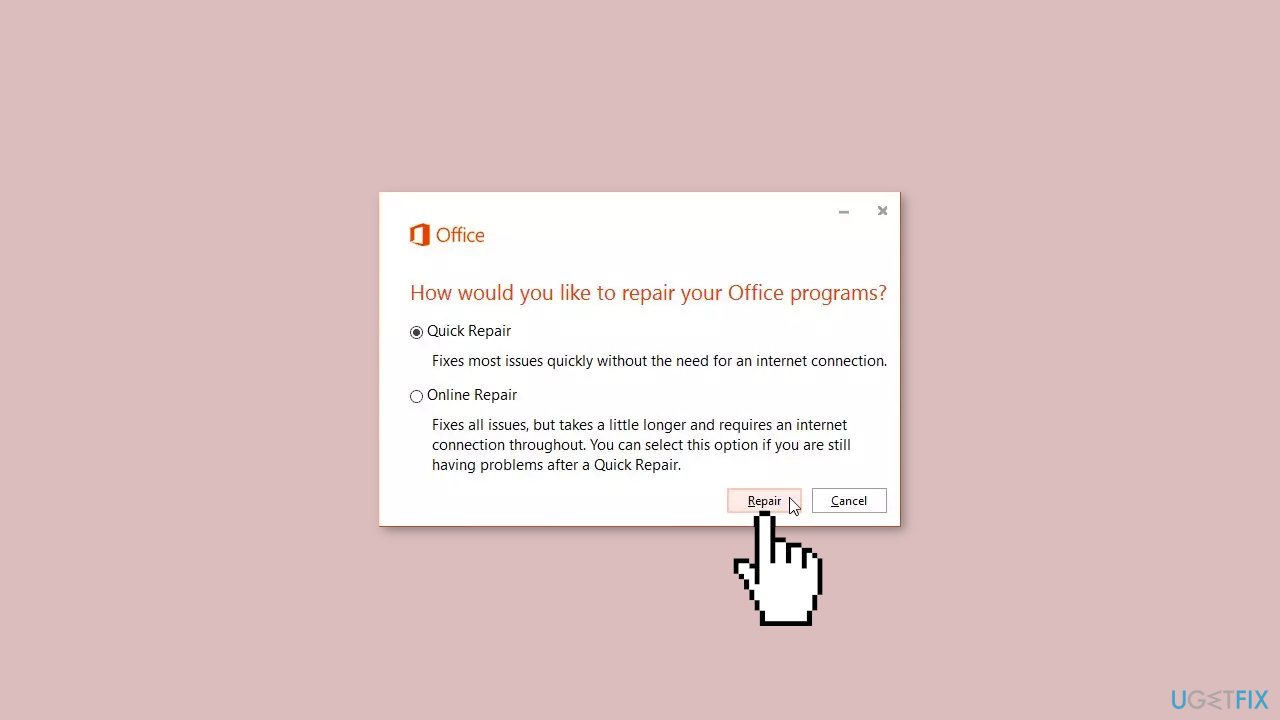
- Click on the Repair button to initiate the repair process.
- Wait for the repair process to complete.
- Once the repair process is complete, close the settings window.
Solution 4. Try Clean Boot
- Open the Search menu, type in system configuration, and press Enter.
- Under the Services tab, tick the Hide all Microsoft services box.
- Click on Disable all button.
- Head over to the Startup tab and click on Open Task Manager.
- Select a third-party program and click on Disable at the top.
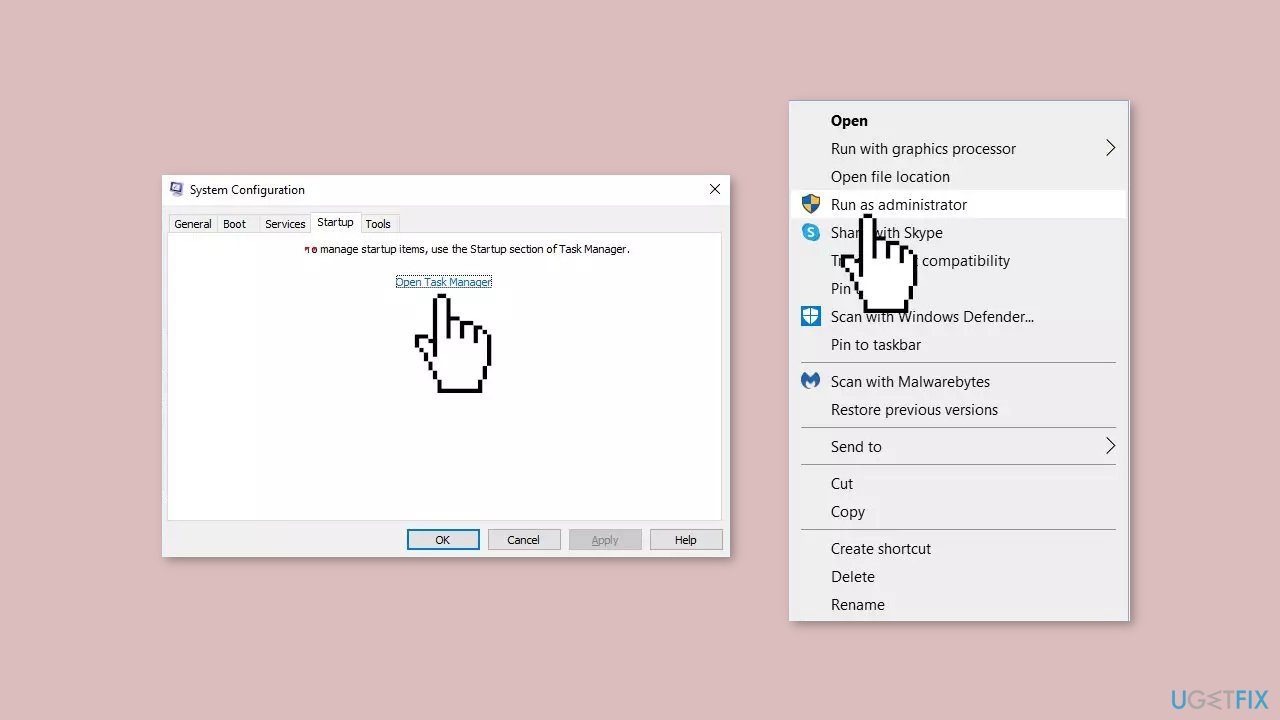
- Repeat this step to disable all third-party apps and programs.
- Restart your PC to enter the clean boot state.
- If the issue disappeared in the clean boot state, then you can be certain that a third-party app is causing it.
- Go through all recently installed apps or programs and remove them one by one.
Solution 5. Reinstall Office
- Open Windows Settings and click on the Apps option.
- Look for the Installed apps tab and click on it.
- Find the Microsoft Office app and click on the three vertical dots located next to it.
- Choose the Uninstall option from the dropdown menu.
- Follow the on-screen instructions to complete the uninstallation process.
- Restart your computer to ensure all remnants of the old installation are removed.
- Open a web browser and go to the Microsoft account website.
- Sign in to your Microsoft account.
- Navigate to your subscription page.
- Look for the Microsoft Office or Microsoft 365 subscription and click on Manage.
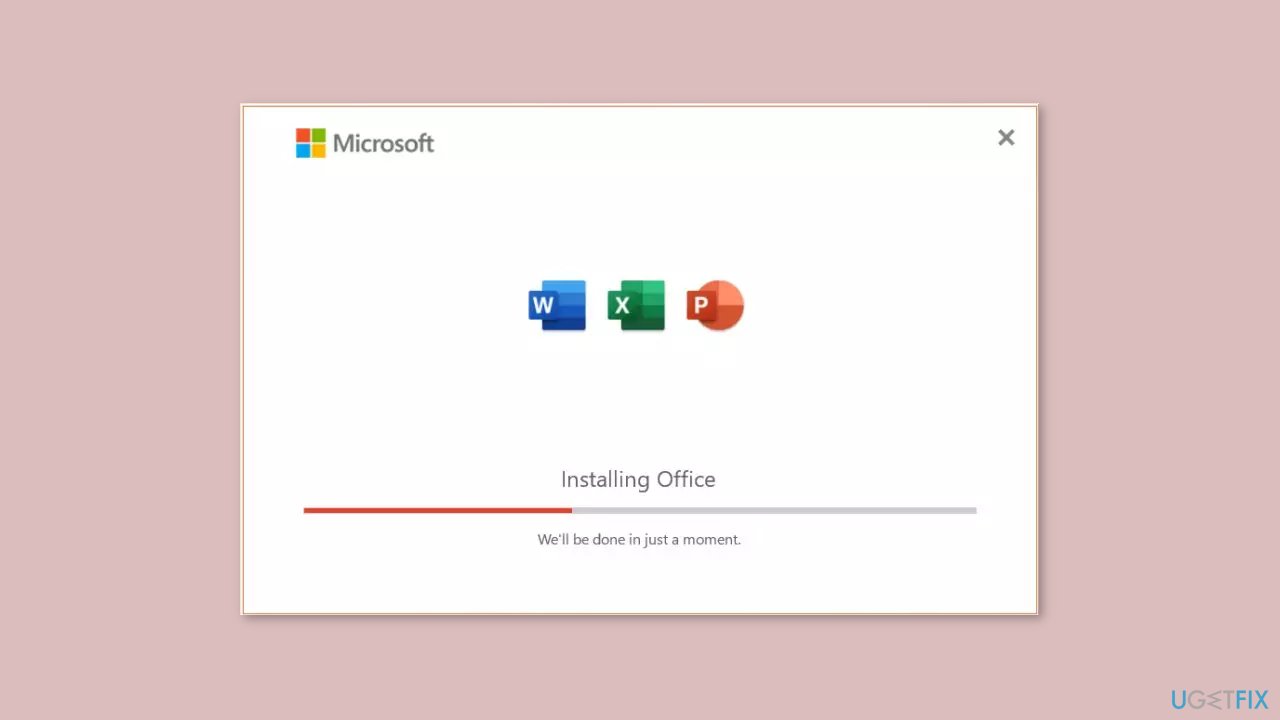
- Click on Install Office and download the installer file.
- Once the installer file is downloaded, run it to begin the installation process.
- Follow the on-screen instructions to install Microsoft Office on your computer.
Bottom line
To resolve the 0xc0000143 error, users can update the Office application, repair corrupted files, or perform a clean reinstallation of the Office suite. If these steps do not work, consider using a maintenance tool to fix system errors or check for additional troubleshooting options.
Frequently asked questions
The error code 0xc0000143 typically indicates that there is a problem with the Office application installation or a conflict with other software on your Windows system.
You can repair your Office application by going to Settings > Apps > Apps & features, selecting your Office application, and choosing the 'Modify' option to run a repair.
Yes, uninstalling and then reinstalling the Office application can resolve error 0xc0000143, especially if the installation files were corrupted on your Windows 11 system.




Report an issue
What's wrong with this guide? We review every report and update or remove content.
Report received — thank you. We'll review and fix it.
You need a free account to submit a report.
Be the first to comment