How to fix
Office installation error code 12002-4
on Windows
Resolve Office installation error code 12002-4 on Windows 10 and Windows 11 effortlessly with our expert-tested solutions. Fixed in minutes!


What causes How to fix Office installation error code 12002-4 in Windows?
- Interrupted downloads due to unstable internet connection
- Overly protective security software blocking the installer
- Misconfigured proxy connections affecting communication with servers
- VPN connections interfering with the installation process
- Corrupted system files or outdated network drivers
Repairs Windows system files, removes malware, and restores a clean OS state — without reinstalling.
I'm trying to install Microsoft Office on my Windows 11 PC, but I keep getting error code 12002-4. I've checked my internet connection, and it's stable. I've also disabled my antivirus and firewall temporarily, but the installation still fails.
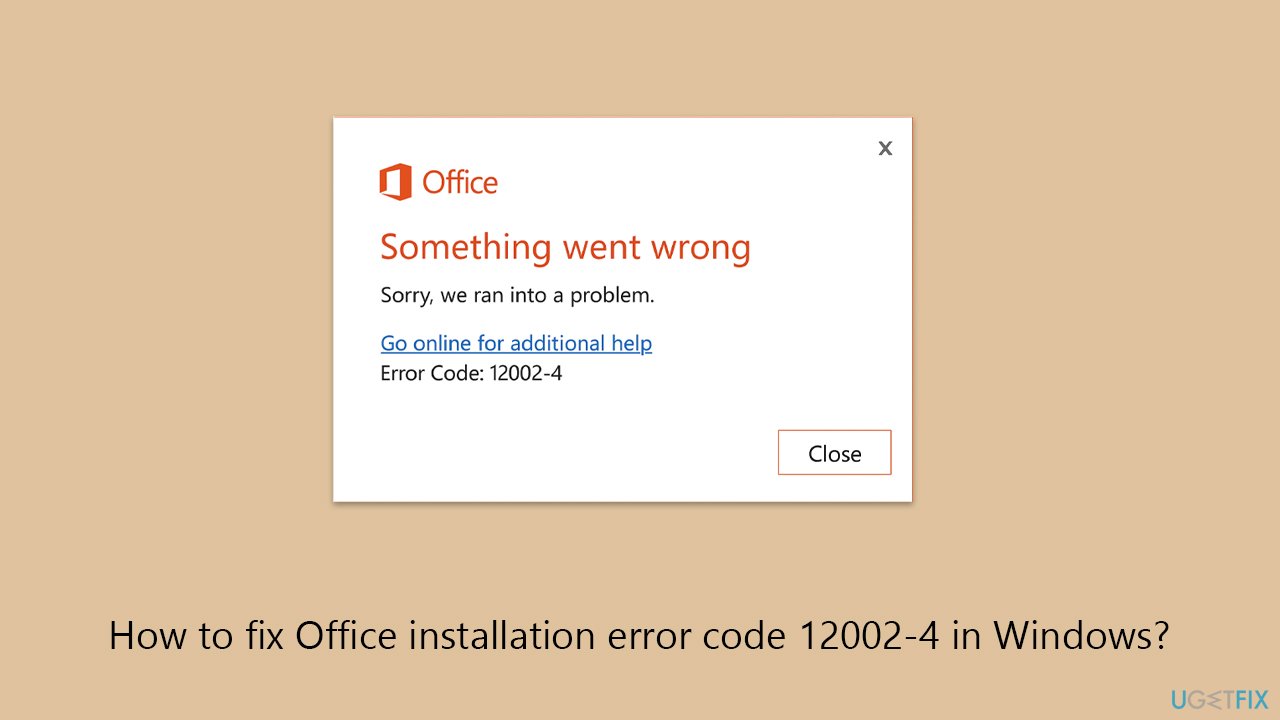
Having Microsoft Office installed on Windows should be a simple process, but several users experience the Office error 12002-4 instead. This particular error seems to appear when the installer is unable to complete its task, usually because of problems involving connections or conflicts in system settings. It is visible in Windows 10 as well as Windows 11 and seems to impact users on different versions of Office.
The 12002-4 error is typically related to interrupted downloads. Your internet may be suitable for browsing, but the Office installation process needs to be uninterrupted connectivity to Microsoft servers. Any delay or interruption in that connection, no matter how short, may result in a failed installation. It could be caused by an inconsistent Wi-Fi connection, background network congestion, or even temporary issues with your ISP's routing.
Another frequent culprit is overly protective security software. Firewalls and antivirus suites will occasionally recognize the Office installer as a threat, shutting down its network connection and triggering Office error 12002-4. Temporarily disabling such protection while installing has solved the issue for numerous users, but care is advised.
In addition, misconfigured proxy connections or the operation of VPN connections can mislead the installer. These services might intervene in the manner the system is communicating with Microsoft's servers, leading to error code 12002-4 or other network failures.
In more complex scenarios, the problem might be caused by corrupted system files, outdated network drivers, or annihilated Windows components. For those still at a loss after trying easy fixes, using [d1] repair software might be a smart move. It's especially useful in finding and repairing hidden problems that block installations or break Windows routines behind the scenes.
Fix 1. Run Network troubleshooter
The network troubleshooter checks for problems with network adapters, network gateway availability, and improper IP configurations.
- Click on Start and pick Settings.
- Go to the System section and select Troubleshoot.
- Pick Other troubleshooters.
- Find Network & Internet and click Run.
- Apply all the recommended actions.

On Windows 10, follow these steps:
- Right-click on Start and pick Settings.
- Go to the Network & Internet section.
- On the right side, find the Advanced network settings section.
- Click Network troubleshooter and wait.
- The fixes will be automatically applied.
Fix 2. Uninstall previous Office versions
Make sure that all of the leftover files are removed from your computer if Office was previously installed.
- Type PowerShell in Windows search.
- Right-click on the result and pick Run as administrator.
- When UAC shows up, click Yes.
- In the new window copy and paste the following command, pressing Enter after:
Get-AppxPackage -name “Microsoft.Office.Desktop” | Remove-AppxPackage - Restart your system.
- Download the adequate version of MS Office and install it.

Fix 3. Use the offline installer
If the online installer fails, the offline installer provides a more stable setup process.
- Go to office.com and sign in with your account (ensure it's the same account used for subscription purchases).
- Select Install Office, then choose Install Office again on the Installs page.
- In the Download and Install window, click on Other options.
- Check the box to download the offline installer and select your preferred language. Click Download.
- Save the installation file to a drive with sufficient storage space; it will create a virtual drive.
- Double-click the downloaded file, which will appear in File Explorer.
- Click on the virtual disk, then double-click either Setup32.exe or Setup64.exe to initiate the installation.

Fix 4. Repair corrupted files
Many Windows problems are frequently caused by corrupted system files. You may always use the DISM and SFC commands from the elevated Command Prompt to fix them.
- Type cmd in Windows search.
- Right-click on Command Prompt and select Run as administrator.
- The User Account Control (UAC) window will ask whether you want to allow changes to your computer - click Yes.
- In the Command Prompt window, paste the following command and hit Enter:
sfc /scannow - Next, use the following commands, pressing Enter each time:
Dism /Online /Cleanup-Image /CheckHealth
Dism /Online /Cleanup-Image /ScanHealth
Dism /Online /Cleanup-Image /RestoreHealth
(Note: if you get an error executing this last command, add /Source:C:\RepairSource\Windows /LimitAccess to it and try again). - Reboot your device.

Fix 5. Turn off proxy settings and VPN
Proxies and VPNs can interfere with Office’s ability to communicate with Microsoft’s servers.
- Right-click on Start and pick Settings.
- Go to Network & internet > Proxy.
- Turn off Use a proxy server.
- Go back to the Network settings, and pick VPN.
- If using it, disconnect it.
- Try installing Office again.

Fix 6. Perform a Clean Boot
A clean boot helps remove software conflicts that arise during application installation or use by starting Windows with the bare minimum of drivers and startup apps.
- Type msconfig in the Windows search box and press Enter.
- Pick the Services tab.
- Mark Hide all Microsoft services and select Disable all.
- Select the Startup tab and click Open Task Manager.
- In the Task Manager, right-click on each of the items and select Disable, then close the Task Manager.
- Go to the Boot tab, mark the Safe Boot option, then click Apply and OK.
- On the System Configuration window, click OK.
- Restart your computer and attempt to install Office.

Bottom line
To fix the Office installation error code 12002-4, users can run the network troubleshooter, disable antivirus and firewall temporarily, and check proxy or VPN settings. If these solutions do not resolve the issue, using repair software may help identify and fix hidden problems.
Frequently asked questions
The error code 12002-4 typically occurs due to network connectivity issues or incorrect proxy settings while trying to install Office on Windows 10.
To fix the error on Windows 11, ensure your internet connection is stable, and consider disabling any VPN or proxy settings that might be interfering with the installation.
Yes, you can use the Microsoft Support and Recovery Assistant tool, which can help diagnose and fix installation issues, including error code 12002-4 on both Windows 10 and Windows 11.




TL;DR: Error code 12002-4 usually indicates interrupted downloads. Bottom line: Ensure your internet connection is stable and consider using the offline installer for a more reliable setup. If issues persist, check for any firewall or proxy settings interfering with the installation.
Oh my goodness, I’m SO glad you mentioned the offline installer!!! I’ll definitely give that a try because my internet is never reliable when it’s important!! And I’m really not good with computers, so any tips about the firewall or proxies feel like a foreign language to me lol. This has been going on for DAYS and I’m about to pull my hair out!!! Thank you for your help, Sara!!
Hi Sara,
Great summary! I completely agree that a stable internet connection is key for smooth installations. If someone continues to see the error after checking that, it can also be helpful to clear the Windows update cache or temporarily disable antivirus software, just to be sure there's no interference. Thanks for sharing your insights!
Happy to help if anyone needs more assistance!