How to fix
Offspon.exe error
on Windows
Resolve the Offspon.exe error on Windows 10 and 11 effortlessly. Quick fixes and expert advice ensure smooth performance—fixed in minutes!

What causes How to fix Offspon.exe error in Windows?
- Rotating advertising displayed by OffSpon.exe
- OffSpon.exe preventing shutdown
- High CPU and GPU consumption
- Frequent attempts to connect to the internet
- Persistent error warnings
Repairs Windows system files, removes malware, and restores a clean OS state — without reinstalling.
Hello. I keep getting the "OffSpon.exe stopped working" error on my Windows PC. What does it mean? Is there a way to fix it?
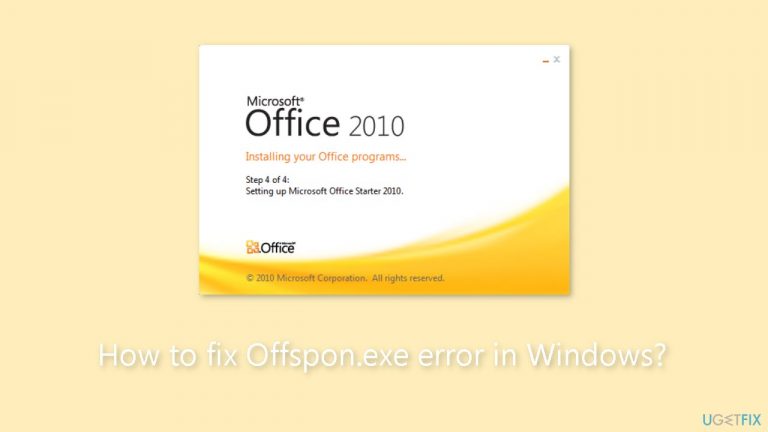
Rotating advertising are displayed to users of the free Office version by the OffSpon.exe program, a component that is included with the Microsoft Office 2010 Starter edition. Despite being generally regarded as secure, this process has been known to generate a number of problems that can have a big impact on how users interact with their Windows machines.
The "OffSpon.exe stopped working" error message is one of the frequent problems that users have noticed. This problem can prevent Office Starter version from operating normally and make it challenging for users to access or edit their documents. Another problem message that people run through is "OffSpon.exe preventing shutdown," which is particularly annoying because it makes it difficult to restart or shut down the machine properly.
In addition to these error messages, the OffSpon.exe process may also be to blame for the PC user's high CPU and GPU consumption. This occurs as a result of the process' constant rotation of adverts and potential frequent attempts to connect to the internet. High resource utilization can cause the computer to lag, interfere with other open programs, and make computing in general less responsive.
The result of all these problems is that users may become irritated and utilize their computers less effectively. The user's computer experience may become less fun and productive due to persistent error warnings, sluggish system performance, and invasive advertisements.
To address these problems, users may consider several potential solutions. In this guide, you will find 4 steps that should help you fix the issue of Offspon.exe errors in Windows. You can also run a maintenance tool like [d1] that can fix most system errors, BSODs, corrupted files, and registry issues. Otherwise, follow the step-by-step instructions below.

Method 1. End the Process
- Press the Windows key + X.
- Select Task Manager.
- Locate the OffSpon.exe process.
- Right-click it.
- Select the End task option.

Method 2. Enter Safe Mode
- Press the Windows key + I.
- Select Recovery in the right pane.
- Click the Restart now button before Advanced startup.
- After your PC restarts, select Troubleshoot.
- Select Advanced options.

- Choose Startup Settings.
- Click the Restart button.
- Finally, press the corresponding key to Enable Safe Mode or Safe Mode with Networking after your PC restarts.
Method 3. Try Clean Boot
- Open the Search menu, type in system configuration, and press Enter.
- Under the Services tab, tick the Hide all Microsoft services box.

- Click on Disable all button.
- Head over to the Startup tab and click on Open Task Manager.
- Select a third-party program and click on Disable at the top.
- Repeat this step to disable all third-party apps and programs.
- Restart your PC to enter the clean boot state and see if the issue persists.
- If the issue disappeared in the clean boot state, then you can be certain that a third-party app is causing it.
- Go through all recently installed apps or programs and remove them one by one.
Method 4. Uninstall OffSpon.exe
- Press the Windows key + R.
- Type appwiz.cpl.
- Click the OK button.
- Right-click Microsoft Office Starter 2010.

- Select Uninstall.
- Click the Yes button when asked for confirmation.
- Wait for the process to complete.
Bottom line
To fix the OffSpon.exe error, users can end the process through Task Manager and enter Safe Mode. If these methods do not resolve the issue, consider running a maintenance tool to address system errors.
Frequently asked questions
The Offspon.exe error is typically caused by corrupted files, issues with the Microsoft Office installation, or conflicts with antivirus software. Ensuring that your system is updated and performing a repair on Office can help resolve the issue.
To repair Offspon.exe in Windows 11, go to Settings, select Apps, find Microsoft Office, and choose the Repair option. This process will fix any corrupted files associated with the program.
Disabling Offspon.exe is not recommended, as it is related to the functionality of Microsoft Office. Instead, it's better to address the underlying issue causing the error.




Report an issue
What's wrong with this guide? We review every report and update or remove content.
Report received — thank you. We'll review and fix it.
You need a free account to submit a report.
Be the first to comment