How to fix
One or more network protocols are missing error
on Windows
Resolve the "One or more network protocols are missing" error on Windows 10 or 11 with expert-tested solutions. Get back online in minutes!

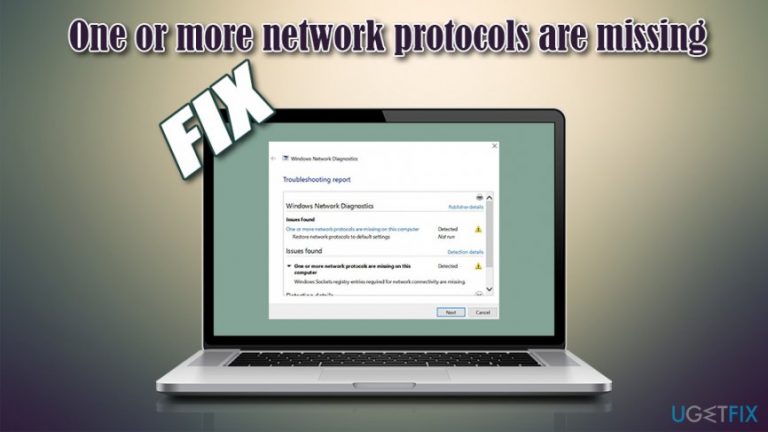
What causes How to fix One or more network protocols are missing error?
- Network protocol not installed
- Corrupted network adapter settings
- Outdated network drivers
- Misconfigured network settings
- Firewall or antivirus interference
Repairs Windows system files, removes malware, and restores a clean OS state — without reinstalling.
Hello, I'm having some issues when using the internet, so I hope that you could help me. Each time when I’m trying to open websites, I’m informed that the connection has timed out. Then I used Troubleshoot Problems function on WiFi settings, which gave me the answer, “One or more network protocols are missing.” I don’t know what does that means and what I should do to fix that. Could you please help me?
"One or more network protocols are missing," or better known as "Network Protocol missing," are relatively common errors that users encounter when they are trying to access the internet either by using WiFi or Ethernet connections.[ref en-1] In most cases, users encounter this issue after clicking on the "Diagnose" button at the bottom-right corner of their screens on Windows computers, which prompts a scan via Windows Network Diagnostics (Network Troubleshooter).
To understand One or more network protocols are missing error, one must first understand what a network protocol is. A network protocol is one of the most crucial components when it comes to internet usage - everyone uses it continually without even realizing it. Network protocol simply defines how two or more different device communicates over a provided network. To ensure proper data communication, both parties (senders and receivers) should have adequate protocols installed for the connection to be successful.
Therefore, if one of such protocols is not installed on the receiver computer, a "One or more network protocols are missing" error can occur, preventing users from accessing all websites via Google Chrome, Mozilla Firefox, Safari, or another web browser. Now, this can be frustrating, to say the least, as this basically means that users are unable to use the internet normally. Thus, there is a need to fix One or more network protocols are missing error as soon as possible - we can help you with that.
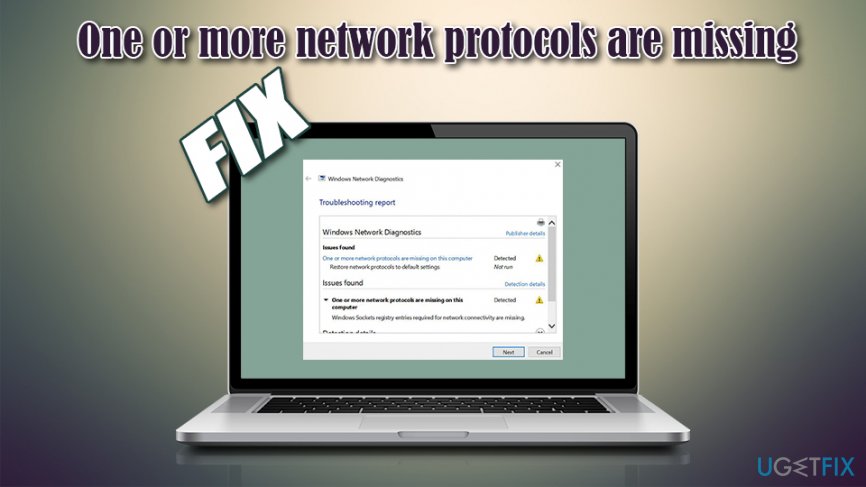
When users encounter the One or more network protocols are missing error, they are informed that the Connection has Timed-out. After running Network diagnostics, they are presented with the following information:
Windows Network Diagnostics
Issues found
One or more network protocols are missing on this computer
Restore network protocols to default settingsIssues found
One or more network protocols are missing on this computer
Windows Sockets registry entries required for network connectivity are missing
Troubleshooters[ref en-2] are great at pointing users towards One or more network protocols are missing on this computer fix, although not many know where how to perform these steps. In other words, while Troubleshooters are great tools to diagnose Windows problems, they cannot fix them all the time, and users need to perform them manually.
Talking about automatic repairs, we highly advise you using [d1] - this tool can fix many Windows-related errors within just a few minutes. If that did not work, proceed with manual solutions below - at least one of them should help you fix One or more network protocols are missing error.
Fix 1. Reset TCP/IP via Command Prompt
As mentioned within the error, setting network protocols to default can help you fix One or more network protocols are missing error. For that, access administrator Command Prompt:
- Open Windows search and type cmd
- Right-click on Command Prompt result and select Run as administrator
- In the new window, type in the following command, pressing Enter after:
netsh winsock reset
- Restart your computer
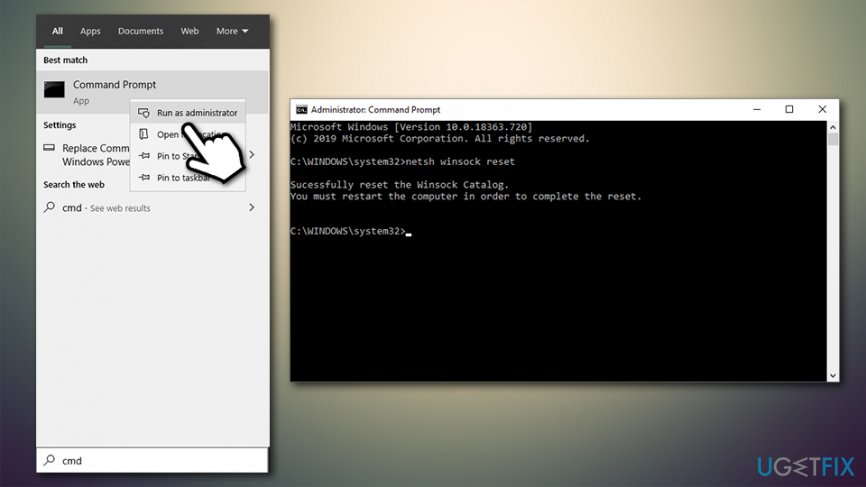
Fix one or more network protocols are missing reset winstock
Fix 2. Set IPv4 to obtain DNS and IP automatically
This is a fix that helped most users to fix the issue - change adapter options to detect IP/DNS[ref en-3] automatically:
- Right-click on Start button and select Network Connections
- On the right side of the window, click on Change adapter options
- In this window, right-click on the connection you are using and pick Properties
- Click on Internet Protocol version 4 (TCP/IPv4) once and then select Properties
- Select Obtain an IP address automatically and Obtain DNS server automatically options
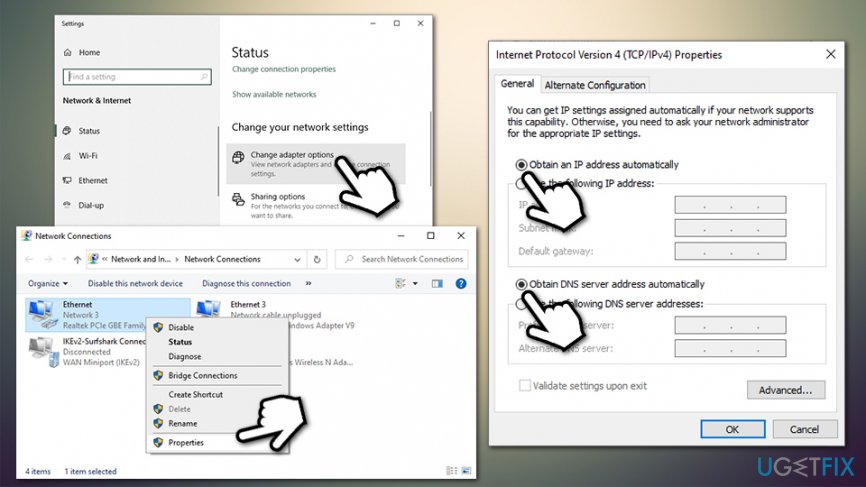
Fix one or more network protocols are missing change network settings - Click OK
Fix 3. Disable IPv6 (Internet Protocol Version 6)
- Just as in previous step, go to Network Connections > Change adapter options
- Select the relevant connection, right-click and pick Properties
- Find Internet Protocol Version 6 (TCP/IPv6) and untick the marker next to it
- Click OK
Fix 4. Disable NetBIOS
Some users reported that disabling NetBIOS helped them tackle the issue. Here's how to do it:
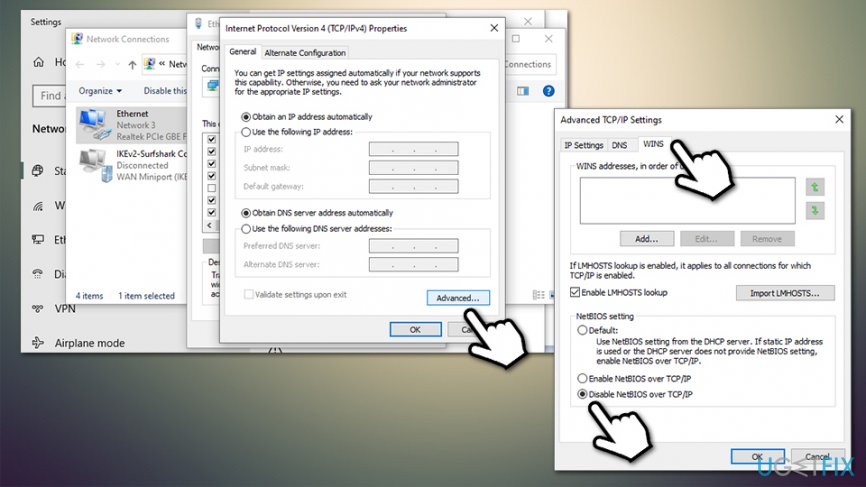
- Go to Network Connections > Change adapter options > select your connection > Properties once again
- Select Internet Protocol version 4 (TCP/IPv4) and press Properties
- At the bottom of the window, select Advanced...
- In the advanced settings, select WINS tab
- Pick the Disable NetBIOS over TCP/IP option
Fix one or more network protocols are missing disable netbios - Click OK
Fix 5. Reinstall Network adapter drivers
Network adapters drivers can sometimes get corrupt or start malfunctioning. To fix that, you should simply reinstall your network adapter drivers:
- Right-click on Start and select Device Manager
- Expand Network adapters section
- Right-click on your network adapter and select Uninstall driver
- When the warning shows up, click Uninstall once again
- Reboot your computer
- After a restart, launch Device Manager again
- At the top of the window, press Scan for hardware changes
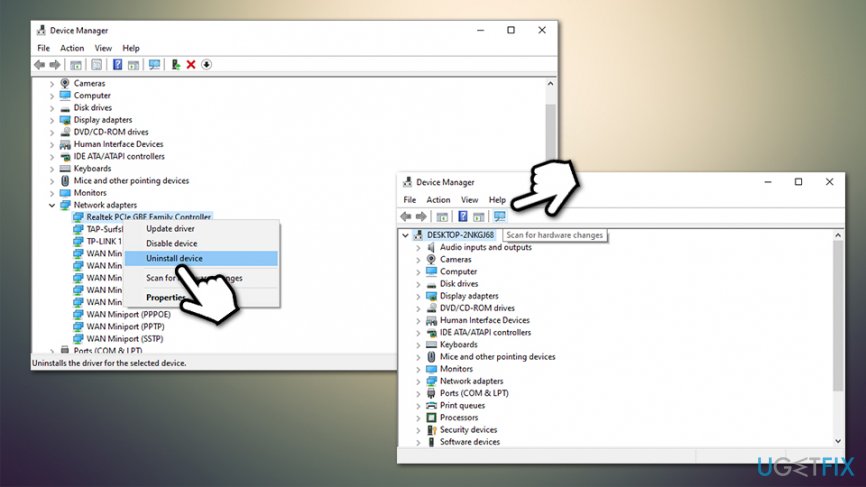
Fix one or more network protocols are missing reinstall network drivers - Windows should automatically detect and install missing drivers
Fix 6. Restart Network Adapter
- Hold Windows key + Press R
- Type ncpa.cpl in the run dialogue and click OK
- Find your network adapter on the list, right-click on it, and select Disable
- After that, right-click on it one more time and select Enable
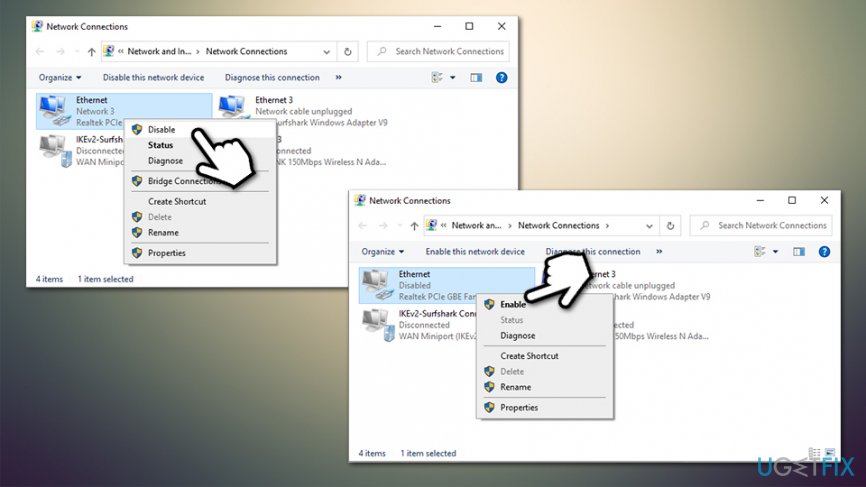
Fix one or more network protocols are missing reenable connection
Fix 7. Reinstall Antivirus
In case you have recently switched to another anti-virus, it may be the reason why you are facing One or More Network Protocols are Missing Error as it may be blocking access to the Internet. In order to reinstall your antivirus, you have to :
- Hold Windows key + Press R
- Type appwiz.cpl in the run dialog and click OK
- Locate your antivirus on the list, right-click on it, and select Uninstall
- After that, reboot your PC
- Finally, download the antivirus, run it, and install again
Let us know if any of the One or more network protocols are missing error fixes has helped you. The majority of users reported that these methods have helped to solve this issue. If you haven’t yet tried to fix One or More Network Protocols are Missing Error by checking the PC with a professional anti-malware tool, it’s about time to do so.
Bottom line
To fix the 'One or more network protocols are missing' error, users can try reinstalling network drivers, resetting network settings, or running the Windows Network Troubleshooter. If these solutions do not resolve the issue, consider checking for firewall or antivirus settings that may be blocking network protocols.
Frequently asked questions
This error typically occurs due to corrupted network drivers, misconfigured network settings, or issues with the network adapter. It can prevent you from connecting to the internet or accessing network resources.
To fix this error, you can try resetting your network settings by going to Settings > Network & Internet > Status, then selecting 'Network reset'. Alternatively, updating or reinstalling your network drivers may also resolve the issue.
Yes, running the Network Troubleshooter can quickly identify and fix common network issues; you can find it by navigating to Settings > Update & Security > Troubleshoot > Additional troubleshooters.




Report an issue
What's wrong with this guide? We review every report and update or remove content.
Report received — thank you. We'll review and fix it.
You need a free account to submit a report.
Be the first to comment