How to fix
One side of headphones not working
on Windows
Resolve headphone issues on Windows 10 or 11 effortlessly with our expert-tested tips. Get back to your music in minutes, with zero traces left!

What causes How to fix one side of headphones not working in Windows?
- Malfunctioning audio jack
- Damaged headphone cable
- Bad headphone driver
- Audio improvements causing issues
- Balancing adjustments misconfigured
- Driver misconfigurations
Repairs Windows system files, removes malware, and restores a clean OS state — without reinstalling.
Hello. My headphones suddenly stopped working on one side. Could this be a Windows issue?
Users may find it frustrating if their headphones only emit sounds from one side when using Windows. This issue arises when the audio output is restricted to the headphones' left or right side, creating an unbalanced and insufficient listening experience. This problem can be caused by anything from software configuration errors to hardware failures.
The effects of this problem may be highly detrimental to people. When watching films, listening to music, taking part in online meetings, or playing video games, it can significantly reduce the audio quality and overall immersion. Particularly with stereo audio settings where sounds are intended to be heard from specific directions, users may lose out on crucial nuances or cues. Since the intended depth and direction of sounds might be obscured, this problem can be especially annoying when attempting to enjoy entertainment that depends on spatial audio.
There are numerous potential causes for the issue. A malfunctioning audio jack, a damaged headphone cable, or a bad headphone driver[ref en-1] may occasionally be to blame. Software customizations like audio improvements, balancing adjustments, and driver misconfigurations might also cause the problem. This issue may be amplified by incompatibilities between the audio source and the headphones.
In this guide, you will find 6 steps that should help you fix one side of headphones not working. You can also run a repair tool like [d1] that can fix most system errors, BSODs,[ref en-2] corrupted files, and registry[ref en-3] issues. Otherwise, follow the step-by-step instructions below.
Solution 1. Install Windows Updates
- Press the Windows key + R to open the Run box.
- Type ms-settings:windowsupdate in the text box and press Enter.
- Click the Check for updates button.
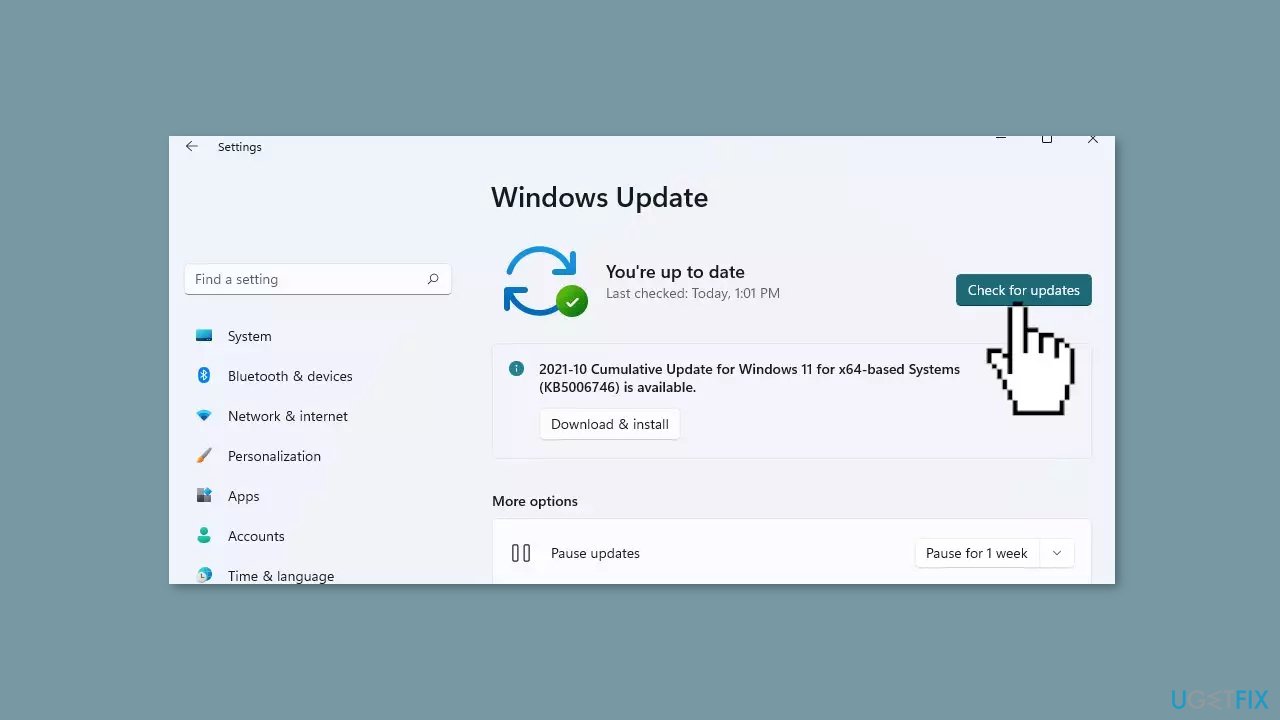
- If a new update is available, click the Download & Install all button.
- Restart your computer after the process is finished and check to see if the problem is fixed.
Solution 2. Run the Audio Troubleshooter
- Access the Windows Settings app. (You can use various methods to open the Settings app on Windows.)
- Navigate to the Update & Security section.
- Choose the Troubleshoot tab located on the left-hand side of the screen.
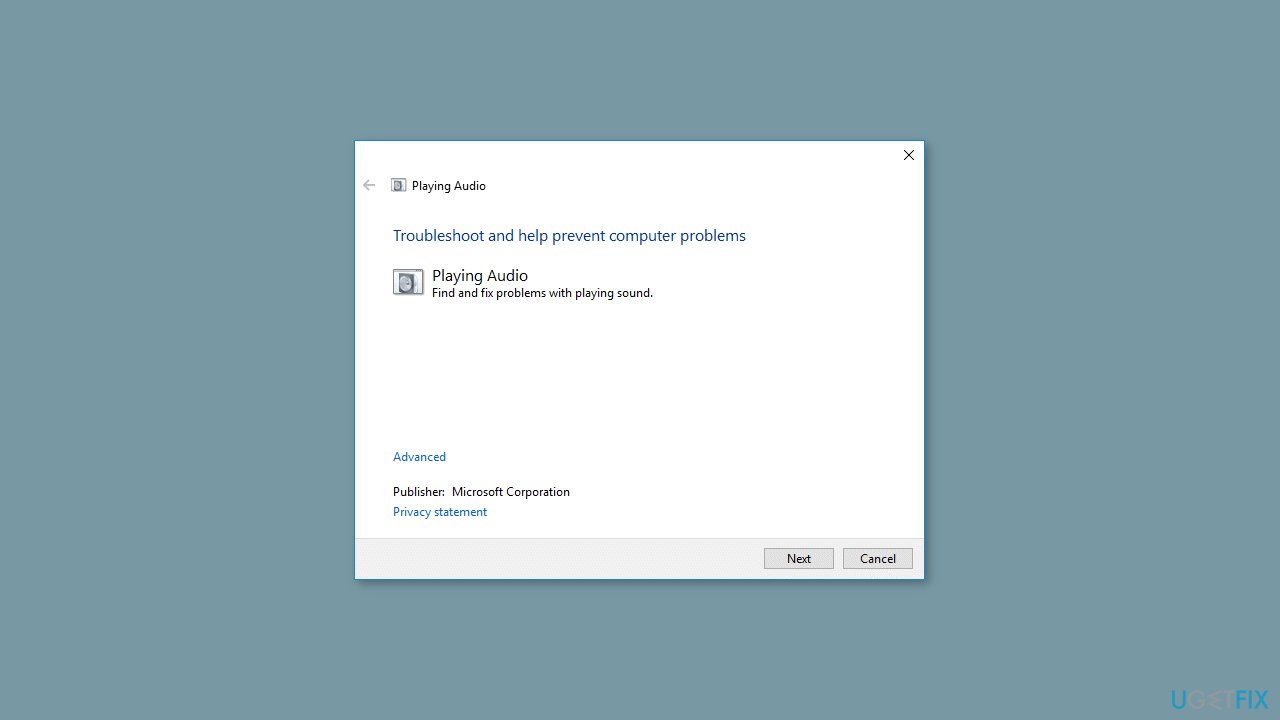
- Locate the Audio troubleshooter in the right pane and give it a click.
- Then, click on the Run the troubleshooter button to initiate the troubleshooting process.
Solution 3. Unmute One Side of your Headphones
- Open the Windows Settings app.
- Click on the System tab located on the left side.
- From the System options, select Sound.
- Under the Sound settings, go to the Advanced section.
- Find and click on the option labeled More sound settings.
- Navigate to the Playback tab.
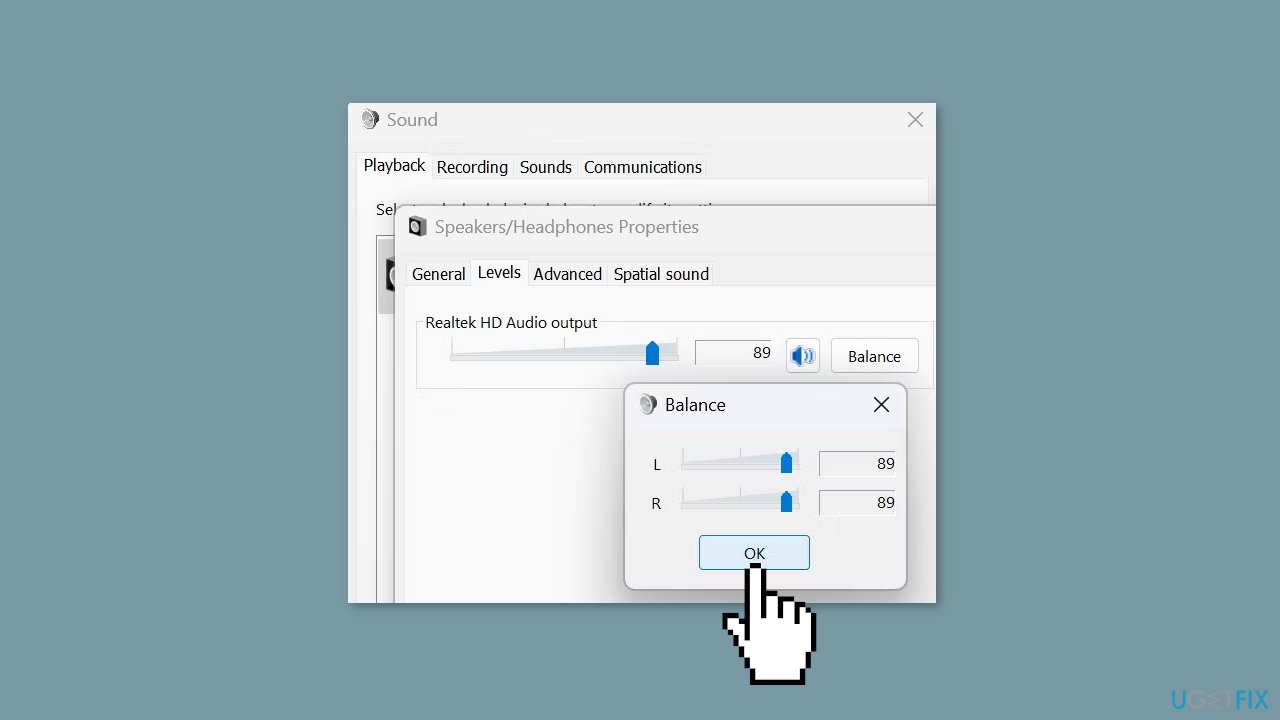
- Locate your headphones device in the list.
- Right-click on your headphones device.
- From the context menu, choose Properties.
- Go to the Levels tab.
- Locate and click on the Balance button.
- Make sure that neither the left nor right side is muted.
- If the volume levels on the left and right sides are unequal, balance them out by adjusting the sliders accordingly.
Solution 4. Disable Audio Enhancements
- Open the Sound settings.
- Navigate to the Playback section.
- Find your headphones device and right-click on it.
- Choose Properties from the context menu.
- Go to the Advanced tab in the properties window.
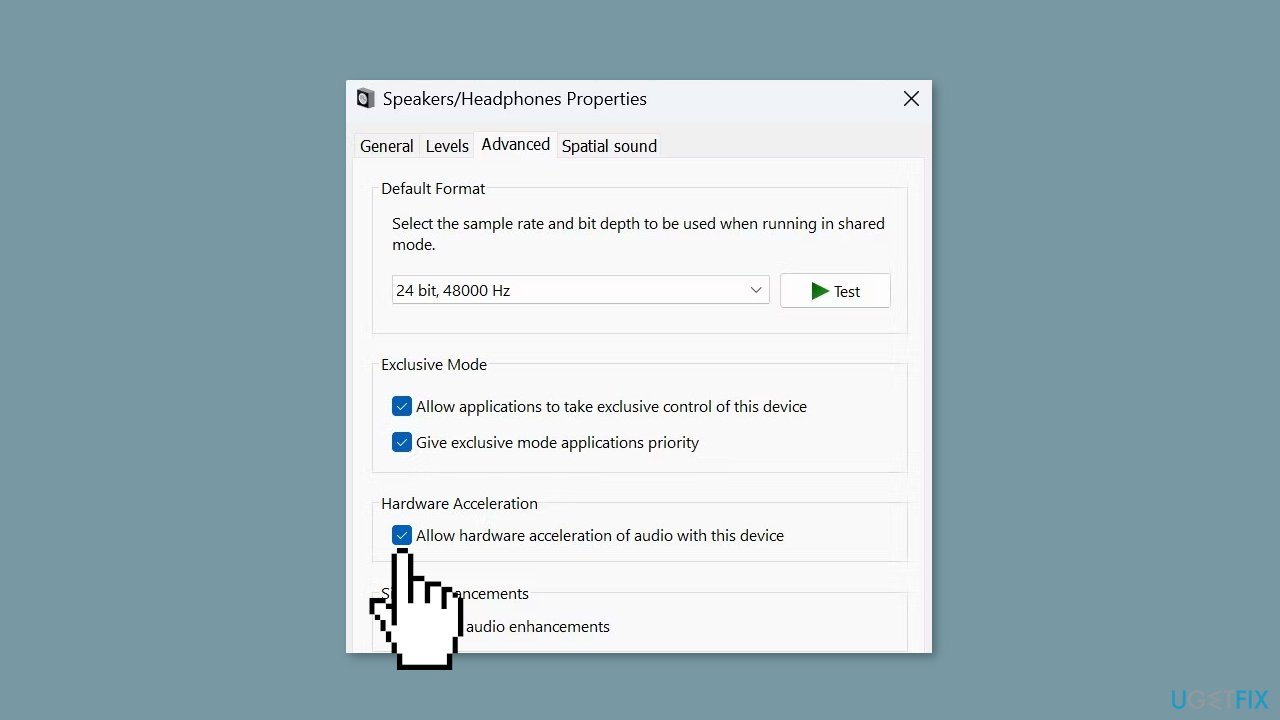
- Locate the checkbox next to Enable audio enhancements.
- Uncheck the box to disable audio enhancements.
Solution 5. Disable Mono Audio
- Launch the Settings app.
- Click on the Accessibility tab in the left sidebar.
- Within the Accessibility options, go to the Hearing section.
- Select the Audio subsection.
- If the Mono audio option is currently turned on, switch off the toggle next to it.

Solution 6. Update Audio Drivers
- Click the Windows key.
- Type Device Manager in the search bar.
- Click on Device Manager to open it.
- In Device Manager, locate and click on Audio inputs and outputs to expand the category.
- Right-click on your headphone driver.
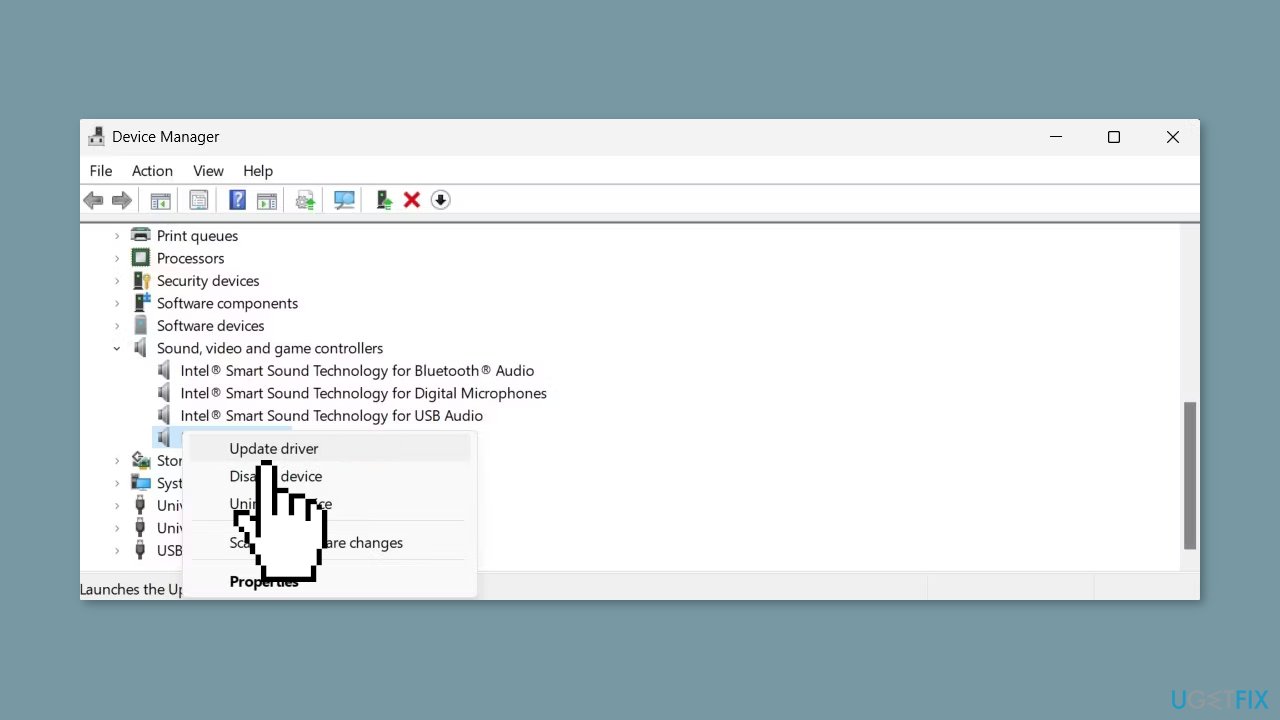
- Select Update driver from the context menu.
- Click Search automatically for drivers.
- Restart your PC.
- The drivers will be automatically reinstalled after the restart.
You can also use a dedicated utility, like [rev id="DriverFix"] that can find the best drivers for your machine and install them automatically.
Bottom line
This guide provides several solutions to fix the issue of one side of headphones not working, including installing Windows updates and running the audio troubleshooter. If these steps do not resolve the problem, consider using a repair tool or checking for hardware issues.
Frequently asked questions
First, ensure that the headphone jack is securely connected to your device and try using the headphones on another device to rule out hardware issues.
Go to Settings > System > Sound, then click on 'Device properties' under Output and check the balance settings to ensure both left and right audio channels are set equally.
Yes, you can update your audio drivers by going to Device Manager, expanding 'Sound, video and game controllers', right-clicking your audio device, and selecting 'Update driver'.




Report an issue
What's wrong with this guide? We review every report and update or remove content.
Report received — thank you. We'll review and fix it.
You need a free account to submit a report.
Be the first to comment