
How to fix OneCore-DeviceAssociationService error ID 3503 in Windows?

Prefer to fix it yourself? The manual steps follow.
- 8methods
- 5 minutes to decide whether it matters, 10 to 30 minutes if a device really fails
- Intermediate
Applies to Windows 11, Windows 10
8 methods in this guide
- What the error means
- Events 3502, 3505, 3509
- Causes, most likely first
- When you can ignore it
- The fixes
- 1. Read the event details
- 2. Check the shutdown timing
- 3. Remove and pair again
- 4. Check the pairing services
- 5. Reinstall the adapter driver
- 6. Reinstall the printer
- 7. Test without fast startup
- 8. Remove the latest update
- If a device still fails
- Keep the log readable
- FAQ
Hello, I think there is something wrong with my PC after I updated it to version 24H2. I was looking into something in the Event Viewer and noticed that there are tons of errors like OneCore-DeviceAssociationService, ID 3503. They were not present yesterday (before I updated) and now they are coming up non-stop. Is this something I should be worried about?
OneCore-DeviceAssociationService is the Event Viewer source of the Windows service that pairs your PC with wireless and network devices. Its error 3503 names no device and, in every report we read, is logged in the last seconds of a shutdown, so it needs no repair when your devices work. Act only when a device really fails to pair, and start by reading the event's Details tab.
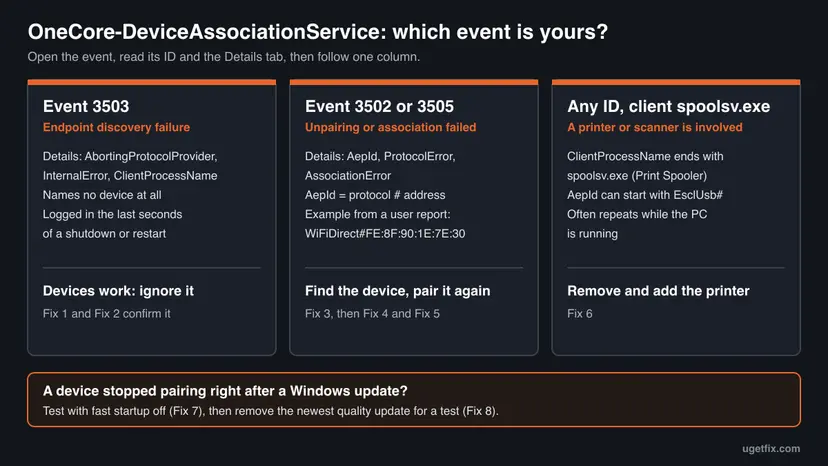
If Bluetooth devices, printers and casting all work, you can ignore OneCore-DeviceAssociationService errors 3503 and 3502. Event 3503 holds no device name and appears while Windows shuts down. Open the event, select the Details tab and read ClientProcessName and, in events 3502 and 3505, AepId, which holds the protocol and address of the device (Fix 1). Only when that device fails to pair, remove it and pair it again (Fix 3).
| Error | Source OneCore-DeviceAssociationService (provider Microsoft-Windows-DeviceAssociationService), level Error. Event 3503: "Device Association Service detected an endpoint discovery failure." Event 3502: "Device disassociation (unpairing) failed." |
|---|---|
| Where it appears | Event Viewer, Windows Logs > System. Event 3503 is written during a shutdown or restart. Events 3502, 3505 and 3509 can repeat while the PC runs. |
| Main cause | Not confirmed by Microsoft. For 3503, users who timed it found the service still looking for devices while other services had already stopped. For 3502 and 3505, one device or printer that Windows cannot pair or remove. |
| Fastest fix | None needed when your devices work. Otherwise read the Details tab of the event to find the device (Fix 1), then remove that device and pair it again (Fix 3). |
| Also written as | OneCore Device Association Service error, one core device association error 3502, DeviceAssociationService 3503, event ID 3503, event ID 3502, event 3505, event 3509, "The Device Association Service detected an error discovering endpoints". |
| Affects | Reports begin with Windows 11 24H2 (builds 26100.1591 and 26100.2454) and continue in 2026. Users in one thread did not see it on 23H2. The service itself has existed since Windows 8. |
| Microsoft's status | No known issue entry, no KB article and no fixed build that we could find. Replies on Microsoft Q&A treat it as a logging issue when all devices work. |
| Names a device | Event 3503: no. Events 3502 and 3505: yes, in the AepId field, for example WiFiDirect#FE:8F:90:1E:7E:30. |
| The service | Device Association Service, service name DeviceAssociationService. Microsoft's description: "Enables pairing between the system and wired or wireless devices." |
| Time to fix | 5 minutes to read the event and decide. 10 to 30 minutes for a device that really fails to pair. |
Facts checked on 14 October 2026. Steps written for Windows 11 (24H2, 25H2 and 26H2), with the Windows 10 22H2 paths where they differ.
What OneCore-DeviceAssociationService error 3503 means
OneCore-DeviceAssociationService is the name Event Viewer shows in the Source column for the event provider Microsoft-Windows-DeviceAssociationService. The events come from the Device Association Service, which Microsoft describes in one sentence: it "enables pairing between the system and wired or wireless devices". Pairing a Bluetooth mouse, adding a network printer and casting to a wireless display all pass through it.
Event 3503 says that one search for devices was cut short. On current builds its whole text is one sentence: "Device Association Service detected an endpoint discovery failure". On the first 24H2 builds users quoted it as "The Device Association Service detected an error discovering endpoints." An endpoint here is a device that Windows can find over a wireless or network protocol.
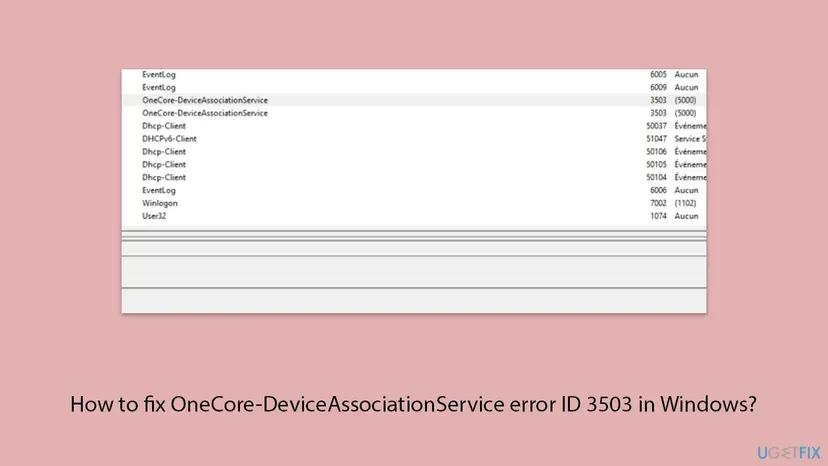
Its details hold four fields: AbortingProtocolProvider, InternalError, ClientProcessName and ClientPid. In the event XML that users posted on Microsoft Q&A, the first one reads "internal DAS error" and the second one is 3. No address, no device name and no driver appear in it. Advice that claims to know which device caused your 3503 is guessing.
- Other spellings. OneCore Device Association Service, one core device association error, OneCore-DeviceAssociation and DeviceAssociationService all mean this one source. DAS in the event data is short for Device Association Service.
- An event number, not an error code. 3503 and 3502 are IDs inside this one source. Other programs use the same numbers for unrelated messages, so always read the Source column too.
- Other languages. The text is translated with Windows. German: "Der Gerätezuordnungsdienst hat einen Fehler bei der Endpunktermittlung erkannt." Dutch, for 3502: "Apparaat onkoppelen (ontkoppelen) is mislukt." The ID stays the same.
- Not Autopilot. Microsoft also uses the words device association for a Windows Autopilot feature for company PCs. That feature has nothing to do with these events.
Events 3502, 3503, 3505 and 3509: what each one tells you
Most readers of this page search for 3502, not 3503. The two come from the same source but say different things, and only some of them point at a device. Microsoft publishes no list of these events, so the table is built from event text and event XML that users posted on Microsoft Q&A. Fix 1 shows how to print the full list from your own PC.
| Event ID | Text | Fields in the details | Names a device |
|---|---|---|---|
| 3503 (task 5000) | Device Association Service detected an endpoint discovery failure. | AbortingProtocolProvider, InternalError, ClientProcessName, ClientPid | No |
| 3502 (task 7000) | Device disassociation (unpairing) failed. | AepId, ClientProcessName, ClientPid, AssociationError, ProtocolError | Yes, in AepId |
| 3505 (task 7000) | A user quoted it as "Device Association Failed - Enumerate Ceremonies". We could not confirm the exact text. | AepId, ClientProcessName, ClientPid, AssociationError, ProtocolError | Yes, in AepId |
| 3509 | Not confirmed. A Microsoft community support reply says it generally indicates a device connection failure. | ClientProcessName is reported. The other fields are not confirmed. | Not confirmed |
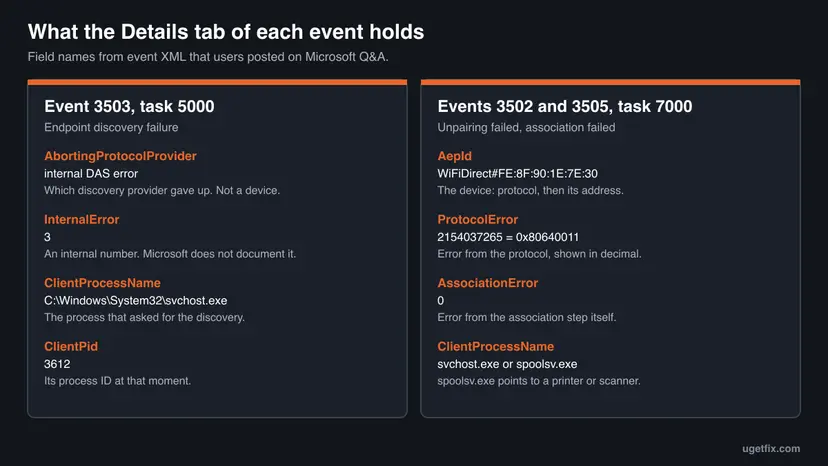
- AepId is the identity of an association endpoint, the name Microsoft's device documentation uses for a device found over a wireless or network protocol. In the reports it has the form protocol, a
#sign, then an address. - Two real examples.
WiFiDirect#FE:8F:90:1E:7E:30came from a laptop that could not cast to a wireless display.EsclUsb#{4fac19e4-6bad-5001-bf83-cd0f7905279b}came with the client processspoolsv.exe, the Print Spooler, so a printer or scanner was involved. - ProtocolError is shown in decimal. The value 2154037265 from both reports is 0x80640011 in hexadecimal. We found no Microsoft page that explains that code.
- 2147549183 in the 3505 report is 0x8000FFFF, which Microsoft lists as E_UNEXPECTED, "Unexpected failure". It tells you that the step failed, not why.
- ClientProcessName is the program that asked the service to act.
svchost.exeis a Windows service host and tells you little.spoolsv.exepoints to printing.
Microsoft does not document the values of InternalError, AssociationError or AbortingProtocolProvider. We also found no Microsoft page that shows how an AepId looks for a Bluetooth device. Read the part before the # as the protocol and the part after it as the address, and treat anything more exact as unknown.
Why the OneCore Device Association Service error appears
Microsoft has not published a cause. The order below follows how well each explanation is supported: by event data, by a reply from Microsoft's community support, or only by user reports. A forum report is never proof, and each row says what it rests on.
| Cause | What points to it | Evidence | Fix |
|---|---|---|---|
| Shutdown order: the service is still searching for devices while the services it talks to have stopped. | Only 3503, always in pairs or threes, always seconds before the PC goes off. Every device works. | User reports on Microsoft Q&A and a German forum that timed the events. Not confirmed by Microsoft. | Nothing to fix. Fix 2 confirms the timing. |
| One device that Windows cannot pair, reconnect or remove. | 3502 or 3505 with an AepId, and that device does not connect or cannot be removed. | Event XML with the device address. Steps from a Microsoft community support specialist. | Fix 3, Fix 4, Fix 5 |
| A printer or scanner. | ClientProcessName ends with spoolsv.exe, or the AepId starts with EsclUsb#. | Event XML posted by users. No statement from Microsoft. | Fix 6 |
| A stored entry for a device that is gone, such as an old Bluetooth, USB or virtual device. | 3502 repeats every few seconds while everything works. | A Microsoft Q&A reply suggests it. In the thread nobody found the device. | Fix 1, then Fix 3 if the device is still listed |
| A Windows update that changed pairing. | A device paired before the update and fails after it. | A Microsoft community support specialist named one update as a possible cause, with "may be related". | Fix 7, Fix 8 |
- A hypervisor driver, as a report only. One Microsoft Q&A user saw 3503 together with a Service Control Manager error 7000 for the driver
l1vhlwf(Nested Network Virtualization). The same user later saw both errors on a PC without that Windows feature, so the link is unproven. - A firewall rule, as a report only. One forum user stopped the events with an inbound allow rule for Device Association Framework Provider Host. A second user who made the same rule still got them. We do not recommend opening the firewall for a log entry.
- Network adapters, as a guess. Forum users suspect an unused Wi-Fi adapter or a network driver that stops early. Nobody showed evidence for it.
- Corrupted system files and malware. Nothing in any source ties them to these events. A system file check does no harm, but do not expect it to change the log.
When you can ignore the error and when you cannot
Event Viewer records what Windows components say about themselves, and the level Error is chosen by the component, not by its effect on you. A healthy Windows 11 PC logs errors at every shutdown. What counts is whether something you use is broken.
- You see only 3503, two or three rows at a time, at the moments you shut down or restart.
- Bluetooth devices connect, printers print and casting works.
- You found the events while looking for the cause of something else, such as a crash or a slow start. They are not that cause.
- The events started with the upgrade to Windows 11 24H2 and nothing else changed.
- A device shows "Try connecting your device again" or will not pair, and a new 3505 or 3502 appears at each attempt.
- A paired device cannot be removed in Settings.
- 3502 or 3509 repeats every few seconds, so that the System log fills up and older entries are lost.
- The restart hangs for minutes each time, as one user on Microsoft Q&A reported. Then go through Fix 2 and Fix 4.
These events are almost never it. For a PC that went off by itself, the events to read are Kernel-Power 41 and EventLog 6008: see Event ID 6008.
How to deal with OneCore-DeviceAssociationService errors 3503 and 3502
Fix 1 and Fix 2 are the diagnosis. They take five minutes, change nothing and tell you whether there is anything to repair. Fix 3 to Fix 6 are for a device or printer that really fails. Fix 7 and Fix 8 are only for a pairing problem that began right after an update. Do not work through all of them for a log entry.
| What you see | Start with |
|---|---|
| Only 3503, and every device works. | Fix 1 and Fix 2, then stop |
| 3502 or 3505, and you do not know which device it is about. | Fix 1 |
| A Bluetooth device will not pair or reconnect. | Fix 3, then Fix 4 and Fix 5 |
The details show spoolsv.exe, or a printer or scanner misbehaves. | Fix 6 |
| 3502 or 3509 floods the log every few seconds. | Fix 1 to find the device, then Fix 3 or Fix 6 |
| Pairing worked until a Windows update was installed. | Fix 7, then Fix 8 |
| No device can be added at all, or the Add a device window closes. | Fix 4 |
Fix 1. Read the event details to see which device and which program it names
5 minutesNo riskEveryone who found these errors and wants to know what they are about.
The text of these events is one short sentence, and everything useful sits in the fields behind it. The ID tells you whether a device is named at all, AepId tells you which one, and ClientProcessName tells you which program asked.
- Press Win + R, type
eventvwrand select OK. - Expand Windows Logs and select System.
- Double-click one error whose Source is OneCore-DeviceAssociationService.
- Note the Event ID and the Logged time on the General tab.
- Open the Details tab and read the fields under EventData.
- For 3502 and 3505, copy the value of AepId. The part before the
#is the protocol, the part after it is the address of the device. - Read ClientProcessName. If it ends with
spoolsv.exe, the event is about a printer or scanner.
PowerShell (as administrator): every event of this source in the last 7 days, with its fields on one line
Get-WinEvent -FilterHashtable @{ LogName='System'; ProviderName='Microsoft-Windows-DeviceAssociationService'; StartTime=(Get-Date).AddDays(-7) } |
  ForEach-Object {
    $x = [xml]$_.ToXml()
    [pscustomobject]@{
      Time = $_.TimeCreated
      Id   = $_.Id
      Data = ($x.Event.EventData.Data | ForEach-Object { $_.Name + '=' + $_.'#text' }) -join ' | '
    }
  } | Format-List
To open PowerShell as administrator, right-click Start and select Terminal (Admin). On Windows 10, search for PowerShell, right-click Windows PowerShell and select Run as administrator. If the command says that no events were found, the PC has logged none in that week. Raise the -7 to look further back.
PowerShell: the full list of events this source can write on your build, with their text
(Get-WinEvent -ListProvider Microsoft-Windows-DeviceAssociationService).Events |
Format-Table Id, Description -WrapBoth use documented features of Get-WinEvent: the ProviderName key of a hash table filter and the Events property of a listed provider. The provider name and the field names come from event XML that users posted on Microsoft Q&A. We had no PC with these errors to run the first command against, so check the output against the Details tab once.
- Match an address to a device. For a Bluetooth or Wi-Fi Direct address, remove the colons and search the installed devices:
Get-PnpDevice | Where-Object InstanceId -like '*FE8F901E7E30*'. No result means that Windows has no installed device with that address. It was a device nearby, or one that was removed. - A second log. A reply on Microsoft Q&A points to Applications and Services Logs > Microsoft > Windows > DeviceAssociationFramework > Operational, where a warning at the same time can hold a device instance ID. In that thread it showed nothing useful, so do not count on it.
- Check that the log exists.
Get-WinEvent -ListLog *DeviceAssoc*lists the logs with that word in their name on your PC, with the number of records in each.
It worked if: You know the event ID, the client process and, for 3502 and 3505, the protocol and address of the device the event is about.
If not: If you have only 3503, there is no device to find. Go to Fix 2 to check the timing, and stop there if your devices work.
Fix 2. Check whether the errors are logged only while Windows shuts down
5 minutesNo riskYou have event 3503, or any of these errors, and every device you use works.
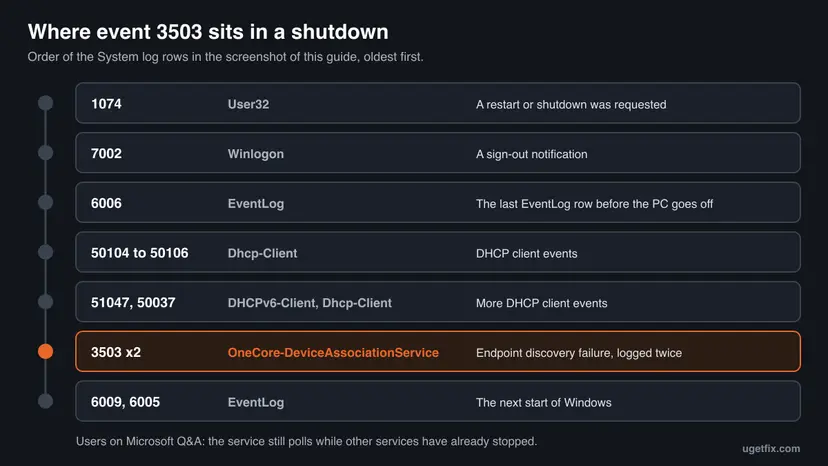
Users who timed event 3503 found it about two seconds before the PC powered off, when other services had already stopped. If your errors sit only in that window, nothing fails while you work, and there is nothing to repair.
PowerShell (as administrator): shutdown and start markers next to the device association errors, oldest first
Get-WinEvent -FilterHashtable @{ LogName='System'; Id=12,13,1074,6005,6009,3502,3503,3505,3509; StartTime=(Get-Date).AddDays(-7) } |
  Sort-Object TimeCreated |
Format-Table TimeCreated, Id, ProviderName -AutoSize- Run the command above in PowerShell as administrator.
- Find a row with ID 1074 from User32. It marks a shutdown or restart that somebody or something requested.
- Find the next row with ID 13 from Microsoft-Windows-Kernel-General: "The operating system is shutting down".
- Check whether your 3503 rows stand between those two rows and the next ID 12, which marks the following start.
- Repeat for two or three shutdowns in the list.
- Ignore rows with these numbers from other providers. Event IDs repeat across sources, which is why the table shows ProviderName.
| What the list shows | What it means | Next |
|---|---|---|
| Every 3503 sits between a 1074 and the next start. | Shutdown noise. The service was stopped in the middle of a search. | Stop here if your devices work. |
| 3502, 3505 or 3509 rows in the middle of a session. | Something failed while the PC was in use. | Fix 1 for the device, then Fix 3 or Fix 6. |
| The same error every few seconds for hours. | A retry loop for one device or printer. | Fix 1, then Fix 6 if it names spoolsv.exe. |
| No 1074 before the errors, and an ID 41 from Kernel-Power after them. | The PC went off without a shutdown. That is a different problem. | The Event ID 6008 guide linked above. |
A shutdown with fast startup on is a partial hibernation, and a restart is always a full one. One forum user saw no 3503 on a tablet with fast startup on. So the errors can appear after restarts only, which fits the shutdown explanation.
It worked if: Every 3503 in the list falls into the seconds between a requested shutdown and the next start, and you can leave it alone.
If not: If errors appear while you work, read which device they name (Fix 1) and continue with Fix 3 for a wireless device or Fix 6 for a printer.
Fix 3. Remove the device that fails and pair it again
5 minutesLow riskA Bluetooth or wireless device will not pair or reconnect, or events 3502 and 3505 name a device you know.
Windows keeps a record of every paired device. Event 3502 means removing such a record failed, and 3505 means creating one failed. Removing the device in Settings and pairing it from scratch replaces a record that may be damaged.
- Windows 11: open Start > Settings > Bluetooth & devices > Devices. Windows 10: open Start > Settings > Devices > Bluetooth & other devices.
- Windows 11: select More options next to the device, then Remove device and Yes. Windows 10: select the device, then Remove device and Yes.
- Put the device into pairing mode. A Microsoft support specialist advises holding the pairing button of a mouse for 5 to 10 seconds, until its light blinks.
- Windows 11: select the Bluetooth quick setting on the taskbar, then the Manage Bluetooth devices chevron, and pick the device under New devices.
- Windows 10: select Add Bluetooth or other device, then Bluetooth, and pick the device.
- Follow any instructions on screen and select Done.
- Open Event Viewer and check whether a new 3505 or 3502 was logged at the time of the attempt.
- The device is not in the list. On Windows 11, set Bluetooth devices discovery to Advanced under Settings > Bluetooth & devices > Devices. With the default setting Windows hides some kinds of devices.
- Basics first. Microsoft's checklist: the device is charged, switched on and in range, Airplane mode is off, and the device is not next to a USB 3.0 port, which can interfere with Bluetooth.
- Let Windows check. Windows 11: Settings > System > Troubleshoot > Other troubleshooters, then Run next to Bluetooth. Windows 10: Settings > Update & Security > Troubleshoot, select Bluetooth, then Run the troubleshooter.
- A device that is paired to something else. Many headsets and mice reconnect to the last phone or PC they knew. Switch Bluetooth off on that other device for the test.
If the device you remove is your only keyboard or mouse, keep a wired one at hand. Without it you cannot confirm the pairing or sign in if the new pairing fails.
It worked if: The device shows as connected in Settings, works, and no new 3505 or 3502 with its address is logged at the time you paired it.
If not: If Remove device fails, or pairing ends with "Try connecting your device again", check the services in Fix 4 and then reinstall the adapter in Fix 5.
Fix 4. Check that the pairing services are running
5 minutesLow riskNo device can be added at all, pairing fails for every device, or the window for adding a device closes by itself.
Pairing needs three Windows services at once. The Device Association Service creates the pairing, the Bluetooth Support Service handles discovery and association of Bluetooth devices, and the Device Install Service installs what was found. If one is disabled, pairing fails.
PowerShell: the state and startup type of the three services
Get-Service -Name DeviceAssociationService, bthserv, DeviceInstall |
Format-Table Name, DisplayName, Status, StartType -AutoSize- Press Win + R, type
services.mscand press Enter. - Find Device Association Service and read its Status and Startup Type columns.
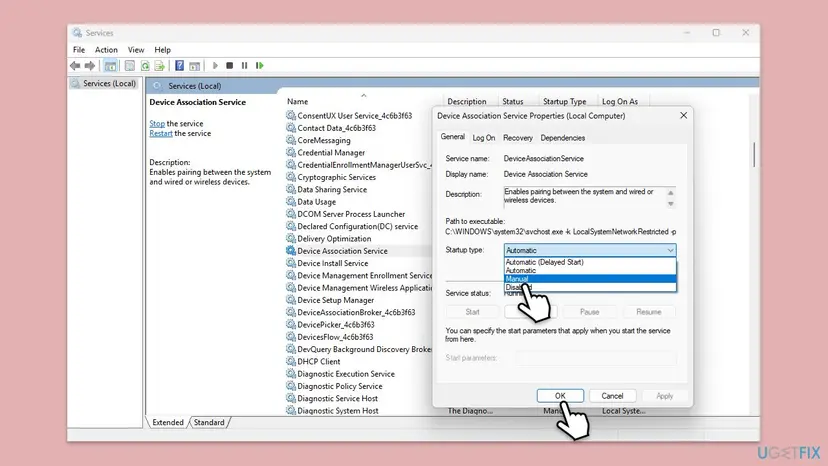
- If the startup type is Disabled, double-click the service, set Startup type to Automatic and select Apply.
- If the service is not running, right-click it and select Start. If it is running, select Restart.
- Do the same check for Bluetooth Support Service and Device Install Service. Do not leave either of them Disabled.
- Try to pair the device again.

Every step of the Services window, with the startup types explained: Check and restart Windows services
Other sites tell you to set the Device Association Service to Manual or Disabled. Users on Microsoft Q&A report that Windows 11 24H2 sets it back to Automatic at the next restart, so Manual changes nothing. Disabled does hold, and it stops the errors, but it also stops the service that pairs devices. Microsoft's own advice for pairing problems is the opposite: the service must run.
It worked if: All three services show Running or start without an error, and the device can be added.
If not: If a service will not start, note the error text Windows shows and continue with Fix 5. For a service that fails on every PC start, see the section on what to collect below.
Fix 5. Reinstall the Bluetooth or Wi-Fi adapter driver
10 minutesLow riskPairing fails for several devices, or the device named in the event still fails after Fix 3 and Fix 4.
The service only coordinates pairing. The radio work is done by the driver of the Bluetooth or Wi-Fi adapter, and a driver left in a bad state after an upgrade can fail every association. Microsoft's Bluetooth guide ends with exactly this step.
- Right-click Start and select Device Manager.
- Expand Bluetooth and find the adapter. Its name often contains the word radio, or the name of the maker, such as Intel, Realtek or MediaTek.
- First try the mild way: right-click the adapter and select Update driver, then Search automatically for updated driver software.
- If nothing changes, right-click the adapter and select Uninstall device, then Uninstall.
- Shut the PC down, wait a few seconds and turn it on again. Windows installs the driver again.
- If the adapter does not come back, open Device Manager and select Action > Scan for hardware changes.
- Pair the device again as in Fix 3.
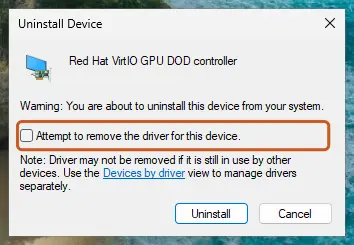
The driver steps for both Windows versions, including rollback and optional driver updates: Update, roll back or reinstall a driver
- Casting and Wi-Fi Direct. If the AepId starts with
WiFiDirect#, the device talks over the Wi-Fi adapter. Do the same steps under Network adapters for the wireless adapter. - The maker's driver. If Windows installs nothing or the same driver fails again, Microsoft's advice is to download the driver from the website of the PC or adapter maker and install it by hand.
- A wired keyboard and mouse. While the Bluetooth adapter is uninstalled, Bluetooth input devices do not work. Have wired ones ready.
It worked if: The adapter is back in Device Manager without a warning sign, and the device pairs without a new 3505.
If not: If pairing broke right after a Windows update, go to Fix 7 and Fix 8. If the adapter is missing after the restart, the problem is the adapter, not this service.
Fix 6. Remove and add the printer or scanner the event points to
15 minutesLow riskClientProcessName in the event ends with spoolsv.exe, the AepId starts with EsclUsb, or the errors repeat while a printer is installed.
The Print Spooler asks the Device Association Service about network and USB printers and scanners. When a stored printer entry cannot be associated or removed, the spooler retries, and each retry is one more 3502 or 3509 in the log.
- Windows 11: open Start > Settings > Bluetooth & devices > Printers & scanners. Windows 10: open Start > Settings > Devices > Printers & scanners.
- Windows 11: select the printer, select Remove and confirm with Yes. Windows 10: select the printer and select Remove device.
- Type
servicesin the search box on the taskbar and open Services. - Double-click Print Spooler, select Stop, then OK.
- Open the folder
%WINDIR%\system32\spool\PRINTERSand delete the files in it. They are waiting print jobs. - In Services, double-click Print Spooler again, select Start, check that Startup type is Automatic and select OK.
- Turn the printer on and connect it.
- Windows 11: select Add device next to Add a printer or scanner. Windows 10: select Add a printer or scanner, pick the printer, then Add device.
- Watch the System log for an hour and compare the number of new errors with before.
Deleting the files in the PRINTERS folder removes every document that is waiting to be printed, for all printers. Print or cancel what you need first. Custom printer settings, such as a default paper tray, are also gone after the printer is removed.
- The printer app of the maker. In a Microsoft Q&A thread about 3509 with an HP printer, a community answer suggests removing the maker's full software, installing only the basic driver and adding the printer by its IP address. It is a reasonable test, not a confirmed fix.
- Test by switching the printer off. The same answer asks whether the errors stop when the printer is off or disconnected for a day. That is the cheapest way to prove or clear the printer.
- The troubleshooter. Microsoft's printer guide starts with the printer troubleshooter in the Get Help app. Run it before removing anything if the printer also fails to print.
It worked if: The printer prints, and the errors with spoolsv.exe as the client process stop or become rare.
If not: If the same errors continue with the printer removed and switched off, the printer is not the source. Go back to Fix 1 and read the AepId of the newest event.
Fix 7. Test pairing with fast startup turned off
5 minutesNo riskA device pairs after a restart but fails after a normal shutdown and power-on, or pairing became unreliable for no clear reason.
With fast startup, a shutdown saves the state of Windows drivers and loads it back at the next power-on, so a Bluetooth driver in a bad state survives. A Microsoft community support specialist lists turning it off among the steps for event 3505.
- Press Win + R, type
powercfg.cpland select OK. - In the left pane, select Choose what the power buttons do.
- Select Change settings that are currently unavailable, then Yes when Windows asks for permission.
- Under Shutdown settings, clear Turn on fast startup (recommended).
- Select Save changes.
- Shut the PC down with Start > Power > Shut down and turn it on again.
- Try to pair the device as in Fix 3.
- If nothing changed, tick the box again the same way. Fast startup was not the cause.
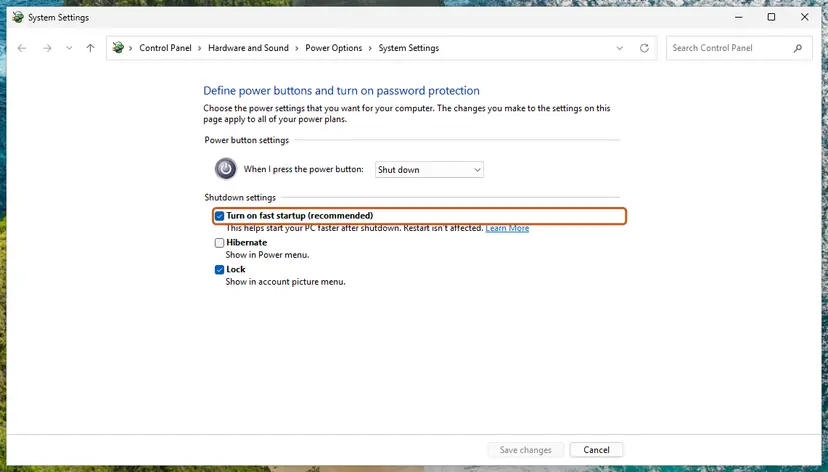
The full procedure, and what to do when the box is missing: Turn off Fast Startup This setting does not remove event 3503. It only helps when a device fails to pair after a shutdown.
It worked if: The device pairs and reconnects after a full shutdown and power-on, and no new 3505 is logged.
If not: If pairing still fails and the trouble began right after a Windows update, go to Fix 8.
Fix 8. Remove the latest Windows quality update as a test
20 minutesRead the warningA device paired fine until a Windows update was installed, and Fix 3 to Fix 5 did not bring it back.
For one pairing failure with event 3505 on Windows 11 24H2, a Microsoft community support specialist wrote that the January 2025 cumulative update KB5050009 may be related and advised removing it first. The same test tells you whether your update is involved.
A quality update carries security fixes, and without it the PC is less protected. Use this as a test of a few days, not as a permanent state. If pairing does not come back, install the update again at once. If it does come back, report it through the Feedback Hub and install the next month's update when it arrives.
- Open Settings > Windows Update > Update history and note the KB number and date of the newest quality update.
- Compare that date with the first 3505 or 3502 error from Fix 1. If the errors are older than the update, stop: the update is not the cause.
- Scroll to Related settings and select Uninstall updates.
- Select Uninstall next to that update and restart the PC.
- Pause updates for a week, so that the same update is not installed again at once.
- Pair the device again as in Fix 3.
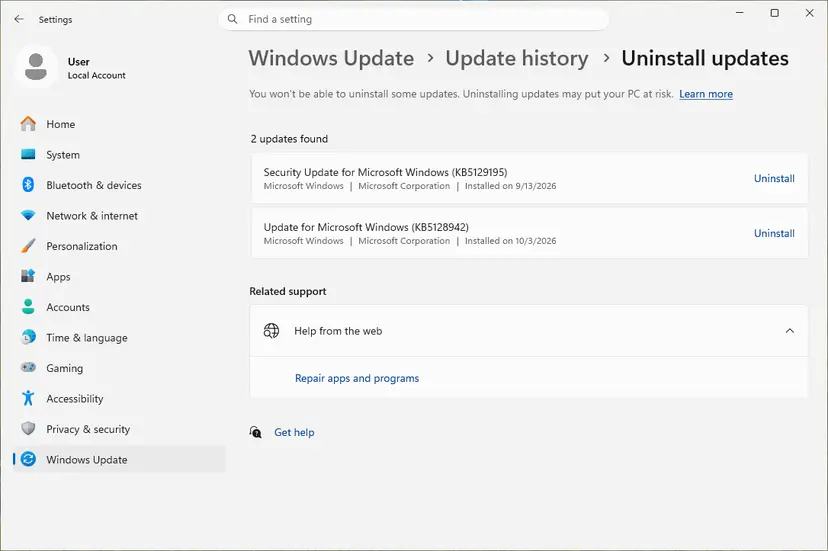
The paths for Windows 10 and the way to pause updates: How to uninstall a Windows update The upgrade to 24H2 itself is a feature update and is not removed this way. If a driver changed on the same day, a restore point from before it can undo both: Undo recent changes with System Restore
It worked if: The device pairs again with the update removed, which shows that the update is involved.
If not: If nothing changes, install the update again through Windows Update and collect the details listed in the next section for the device maker or Microsoft.
If a device still fails to pair: what to collect and when it is hardware
If your only symptom is the log entry, there is nothing more to do, and no setting we can honestly recommend makes event 3503 go away. If a device still does not pair after Fix 3 to Fix 8, collect the facts below before you contact the device maker or Microsoft.
- The output of the first command in Fix 1, saved as text. It holds the ID, the time and every field of each event.
- The Windows version and build. Press Win + R, type
winverand note the version and the OS build number. - The adapter and its driver. In Device Manager, the name of the Bluetooth or Wi-Fi adapter and the Driver Version and Driver Date from its Driver tab.
- What changed. The KB number and date of the last update, and whether a driver, a printer app or security software was installed that week. Reliability Monitor (
perfmon /rel) shows this day by day. - The exact moment. Whether the error comes when you pair, when you remove, at shutdown or all the time.
| Sign | Why it points away from Windows |
|---|---|
| The same device also fails to pair with a phone or another PC. | The fault travels with the device. |
| Other Bluetooth devices pair with this PC without trouble. | The adapter and the service work. Only one device fails. |
| The Bluetooth adapter is missing in Device Manager or shows a warning sign after Fix 5. | Windows cannot start the adapter. No pairing can work until that is solved. |
| Pairing works close to the PC and fails a few metres away. | Range or interference. Microsoft names USB 3.0 ports as one source. |
| The PC has no Bluetooth at all. | Check with the maker whether the model supports it, as Microsoft's guide advises. |
Because no known issue is published, the route that reaches the Windows team is the Feedback Hub (Win + F). A report with the event XML and the build number is worth more than another forum reply. We could not confirm that Microsoft is working on a change.
How to keep these errors from getting in your way
- Judge by what works, not by the colour of the log. An error with no symptom is information.
- Read the Details tab before you change anything. The ID and two fields tell you whether a device is named.
- Remove devices you no longer own under Bluetooth & devices, so that Windows does not keep looking for them.
- Install driver updates for the Bluetooth and Wi-Fi adapter from Windows Update or from the PC maker.
- Filter the System log when you hunt for another problem. In Filter Current Log, a source or an ID can be left out of the view without deleting anything.
- Do not set the Device Association Service to Disabled. Pairing, printer setup and casting depend on it.
- Do not edit the registry to switch off drivers or services because a forum post said the errors stopped. The author of the best known such tip later found the errors on a PC without that driver.
- Do not clear the System log to hide the errors. They return at the next restart, and you lose the history you need for real problems.
- Do not open firewall rules for a log entry.
- Do not reset or reinstall Windows for event 3503. Reports show it on clean installs of 24H2 too.
A word on the log filling up. The System log overwrites its oldest entries when it is full. One 3502 every two seconds, as a user described on Microsoft Q&A in April 2026, is about 43,000 entries a day, and that does push useful history out. In that case finding the device or printer behind it (Fix 1, Fix 6) is worth the time even when everything works.
Frequently asked questions
What is the OneCore Device Association Service?
It is the Windows service that pairs the PC with devices. Its display name is Device Association Service and its service name is DeviceAssociationService. Microsoft describes it as the service that "enables pairing between the system and wired or wireless devices". OneCore-DeviceAssociationService is how Event Viewer shows the source of its events, and the full provider name is Microsoft-Windows-DeviceAssociationService. Bluetooth pairing, adding printers and scanners, and connecting to wireless displays all use it. It is a part of Windows, not a third-party program, and it should stay enabled.
Is OneCore-DeviceAssociationService error 3503 something to worry about?
No, as long as your devices work. Event 3503 reads "Device Association Service detected an endpoint discovery failure" and is logged while Windows shuts down or restarts. Its details name no device, only an internal error number. Reports started with Windows 11 24H2, on upgraded and on freshly installed PCs, and users describe no effect beyond the log entry. Microsoft has not published a known issue or a fix for it. Worry only when a Bluetooth device, a printer or a wireless display stops connecting. Then follow Fix 1 and Fix 3 for that device.
What does event ID 3502, "Device disassociation (unpairing) failed", mean?
It means the service tried to remove the stored pairing of one device and could not. Unlike 3503, this event names the device: open the Details tab and read AepId, which holds a protocol and an address, such as WiFiDirect followed by a MAC address. The field ClientProcessName shows which program asked. A reply on Microsoft Q&A says the event usually does not mean that something is broken. If the named device works, or is long gone, treat it as noise. If you cannot remove or reconnect a device, use Fix 3.
How do I find which device the error is about?
Open the event in Event Viewer, select the Details tab and look for AepId under EventData. Events 3502 and 3505 have it. The part before the # sign is the protocol and the part after it is the device address. The PowerShell command in Fix 1 prints these fields for every event of the last week. Event 3503 has no such field, so for 3503 there is no device to find. If ClientProcessName ends with spoolsv.exe, the request came from the Print Spooler, and the device is a printer or scanner.
Should I disable the Device Association Service or set it to Manual?
No. Users on Microsoft Q&A report that Windows 11 24H2 sets the service back to Automatic at the next restart when you choose Manual, so that change does nothing. Disabled stays in place and stops the errors, but it also stops pairing, and a Microsoft support specialist lists this service among those that must run for Bluetooth pairing to work. Microsoft's service guidance for Windows Server gives no recommendation to disable it either. Hiding a harmless log entry is not worth losing the ability to add devices.
Why did the errors start after the update to Windows 11 24H2?
We do not know for certain, and Microsoft has not said. The first reports are from August to December 2024, on builds 26100.1591 and 26100.2454, and users in one thread noted that the same PCs on 23H2 did not log the event. Users who watched the timing saw 3503 about two seconds before power-off and concluded that the service was still searching for devices when other services had stopped. That fits a change in shutdown order or in logging, not a fault in your hardware. It also explains why clean installs show it.
Does error 3503 slow down the shutdown or restart of my PC?
Usually not. Most users who reported the event saw no delay. One user on Microsoft Q&A did report a restart that hung for several minutes on a new workstation with 3503 as the only critical entry, but nobody showed that the event caused the hang instead of just being logged during it. If your restarts are slow, check the timing with Fix 2 and the services with Fix 4, and disconnect USB and network devices one at a time for a test.
What are events 3505 and 3509 from the same source?
They belong to the same family. Event 3505 appears when adding a device fails. A user who could not pair a Bluetooth mouse quoted its text as "Device Association Failed - Enumerate Ceremonies", and its details hold AepId and ProtocolError like 3502. For 3509 we could not confirm the text. A Microsoft community support reply says it generally indicates a device connection failure, and in one report its client process was spoolsv.exe, with a wireless printer installed. The command in Fix 1 that lists the provider's events shows the exact wording on your build.
Will a system file check, a driver update or a Windows reset remove the error?
For event 3503, we found no report that any of them did. Users with fully clean installs and with clean results from DISM and the system file checker still had it. A driver update or reinstall is worth doing only when a device really fails to pair, and then for the Bluetooth or Wi-Fi adapter, not for every device in Device Manager. Resetting Windows Update components, a clean boot and a Windows reset have no connection to this service. They cost time and settings, and the entry returns at the next restart.
Is this error a sign of malware?
No. The event comes from a Windows component, its provider is registered by Windows itself, and nothing in Microsoft's documentation or in the user reports connects it to malicious software. The process named in the event, svchost.exe in the System32 folder, is the normal host of Windows services. If you have other reasons to suspect an infection, such as unknown programs or changed browser settings, run a scan with Windows Security. Do not treat this log entry as evidence in either direction.
Sources
- Microsoft Learn: Security guidelines for system services in Windows Server 2016 (Device Association Service, Bluetooth Support Service, Device Install Service, Print Spooler) (learn.microsoft.com)
- Microsoft Learn: Enumerate devices over a network (association endpoints and protocol identifiers) (learn.microsoft.com)
- Microsoft Learn: Device information properties (System.Devices.Aep.AepId, DeviceAddress, IsPaired) (learn.microsoft.com)
Did this fix work?
One click, no account. It tells the next reader which guides are worth their time.
Questions and experiences: fix OneCore-DeviceAssociationService error ID 3503 in Windows
Still broken, or found a fix we did not cover? Ask here: members and our editors answer. Reading is open; writing needs a free account.
…