How to fix
OneDrive couldn’t be installed error 0x80040c97
on Windows
Resolve the OneDrive installation error 0x80040c97 on Windows 10 or 11 effortlessly. Get expert-tested solutions and fix it in minutes!

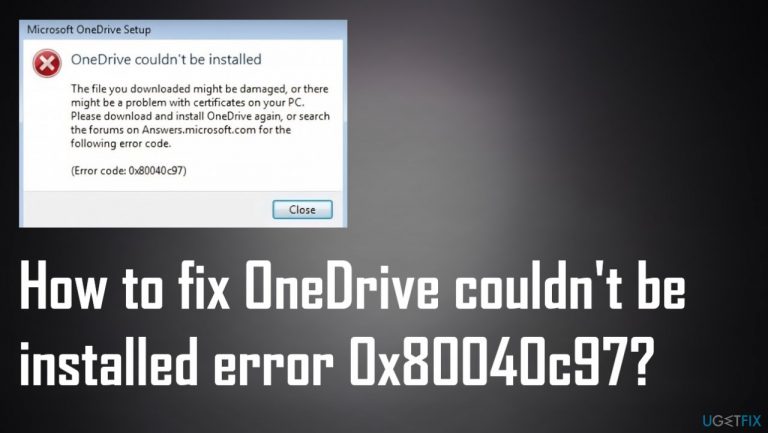
What causes How to fix OneDrive couldn’t be installed error 0x80040c97?
- Damaged setup files
- Corrupt setup files due to malware
- Corruption of network or protocol certificates
- Inappropriate configurations
- Damaged Windows Registry
- Interference from third-party applications
Repairs Windows system files, removes malware, and restores a clean OS state — without reinstalling.
Hello. I get this OneDrive couldn't be installed error 0x80040c97 on Windows 10, and cannot properly use the PC. It was all good a few days before. These pop-ups indicate various DLLs and corruption of those files. I have no idea what happened right now. Can you help me?
OneDrive couldn't be installed error 0x80040c97 is the issue with the storage services for files on the Windows 10 machines. The service is for Microsoft users and helps users to store, synchronize, share files. This feature, as anything on computers and particular Windows 10 devices,[ref en-1] still has bugs and issues. Many users[ref en-2] have reported these problems with the particular error code.
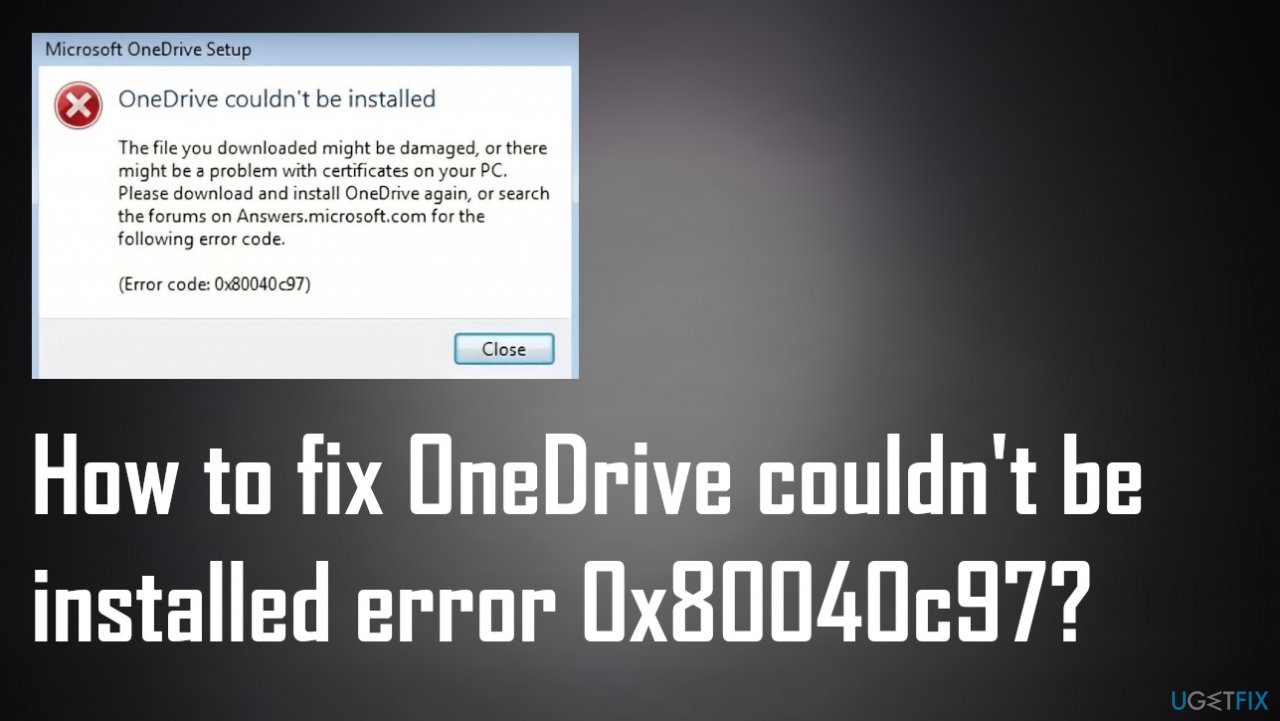
The particular installation error is persistent, and users cannot install the OneDrive successfully, and the machine gets affected. The error message might state about damaged files or problems with certificates of the PC, so there are a few possible reasons why the issue occurs in the first place. Damaged setup files - one of them.
The OneDrive error 0x80040c97 can occur due to the corrupt setup files, so the installation cannot properly happen. Files can be incomplete or damaged due to malware[ref en-3] or the unsuccessful download or third-party application interference. Corruption to particular certificates of the networks or protocols can also lead to issues like this error.
Inappropriate configurations can lead to connection issues and failure of functions, errors. Windows Registry is one of the common reasons why Windows machines receive errors because there are many ways to get those pieces in the registry damaged. This is where tools like [d1] can come for help because this program is helping to find and repair altered, corrupted, or damaged pieces on the system.
OneDrive couldn't be installed error 0x80040c97 appears on the machine where the third-party applications cause problems with these system functions. Some installed components or not properly downloaded files can trigger problems like this. Anti-virus tools often are incompatible with other programs.
You might want to check these issues with the programs, system functions. Microsoft installers sometimes indicate those suspicious apps or gets blocked by the AV tools. Sometimes, options for the solution in these error cases can be limited, and those common reasons do not apply to all users. You might want to follow the tips and tricks below, so you can properly fix OneDrive couldn't be installed error 0x80040c97 by finding the reason behind your issue.
1. Check for file corruption
- Search CMD to find the Command Prompt option.
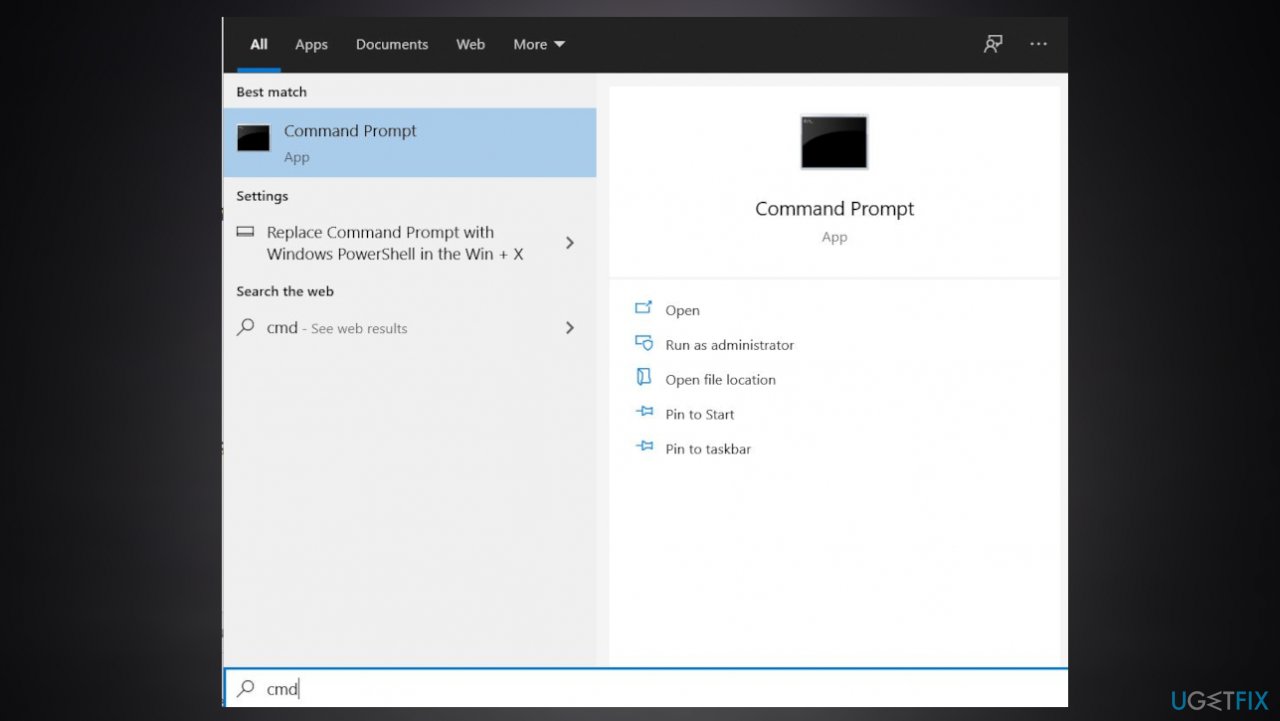
Onedrive couldnt be installed error 0x80040c97 command prompt - Run the Command Prompt as an administrator.
- Click Yes to allow changes to be made to your device.
- In the Command Prompt window, just after the cursor, type:
sfc /scannow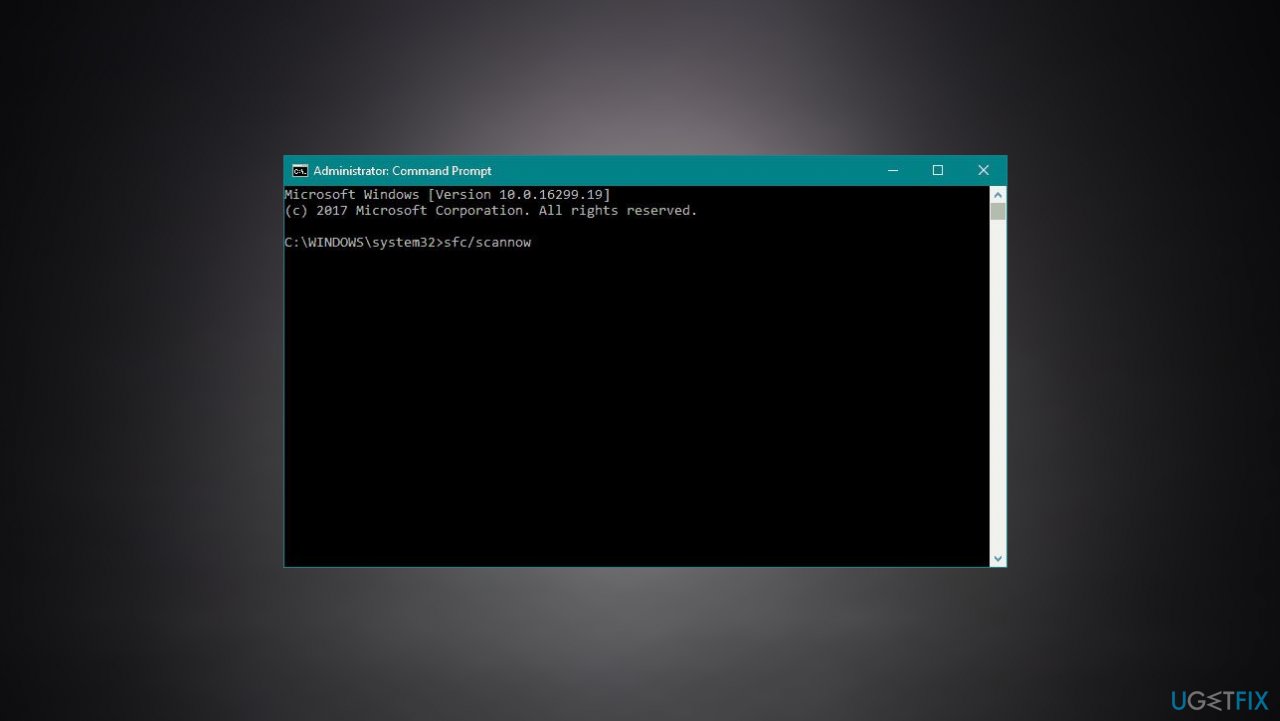
Onedrive couldnt be installed error 0x80040c97 sfc - Hit Enter to launch the command.
2. Temporarily disable Firewall
- Press the Win + S shortcut.
- Type Control Panel into the search box, and hit Enter.
- Open System and Security and select Windows Defender Firewall.
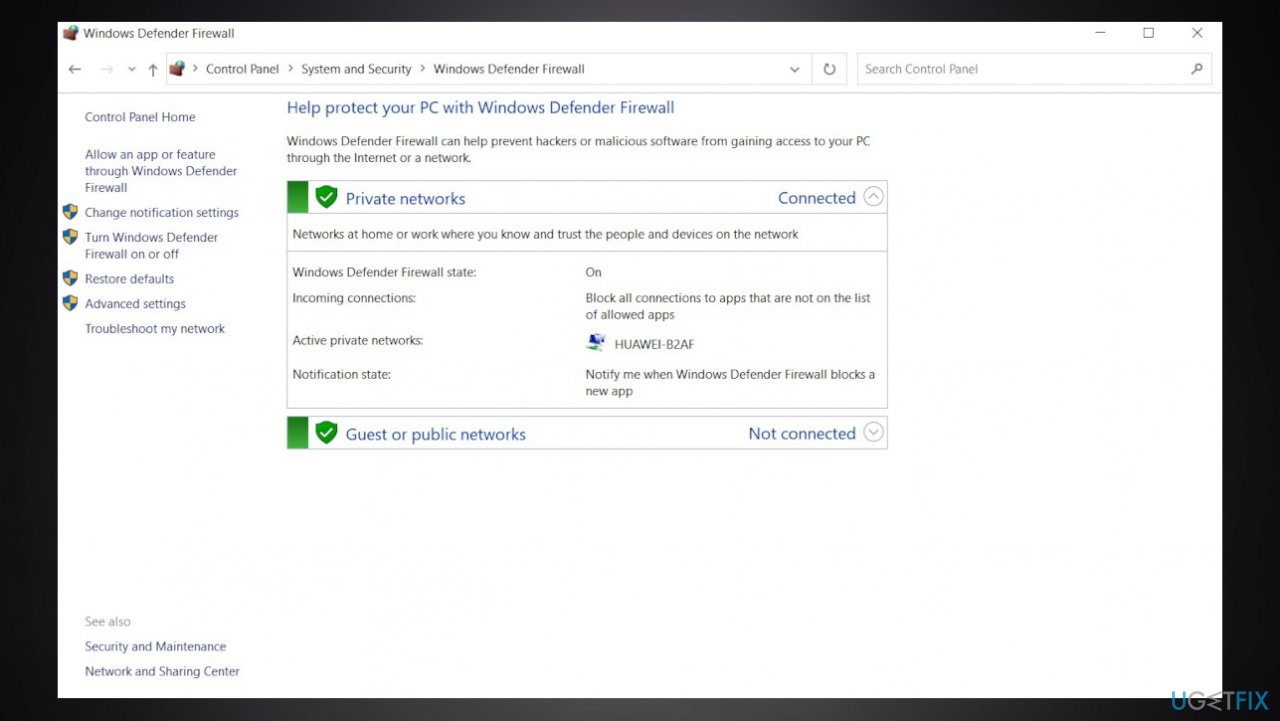
Onedrive couldnt be installed error 0x80040c97 defender settings - On the left pane, look for the option that says Turn Windows Defender Firewall on or off and select it.
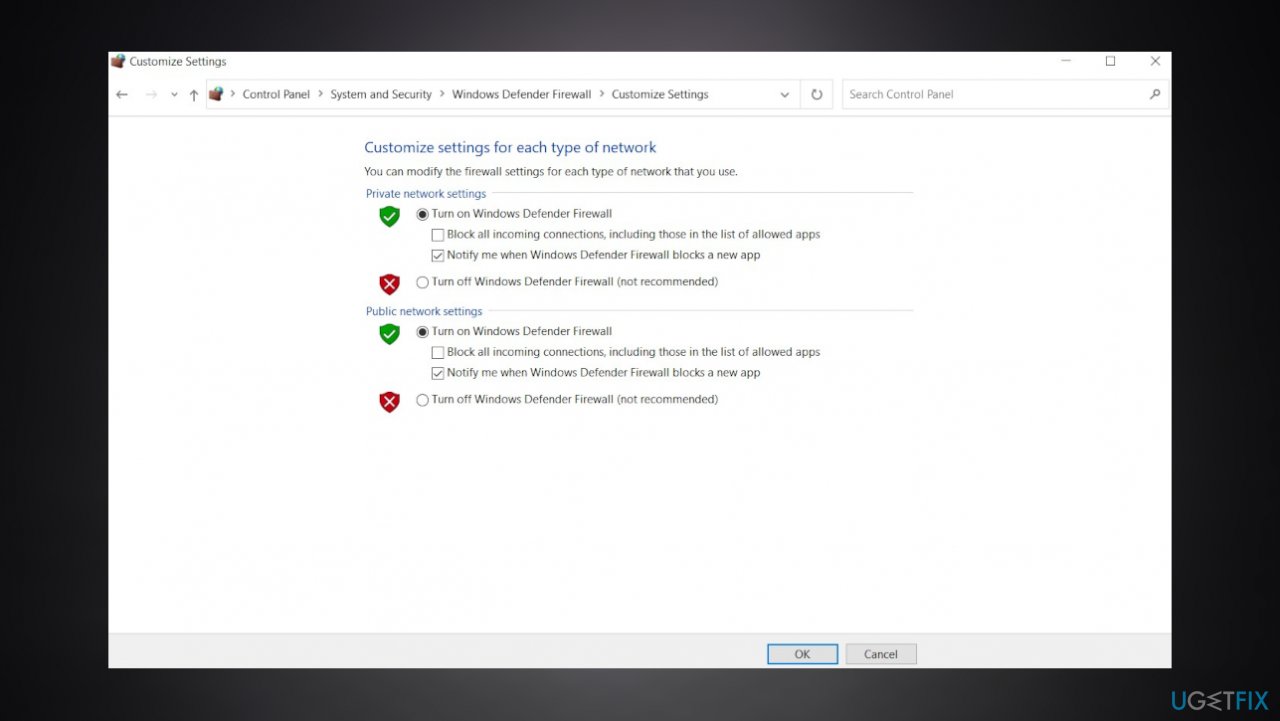
Onedrive couldnt be installed error 0x80040c97 private settings - Select the radio buttons next to Turn off Windows Defender Firewall under both Private and Public network settings.
3. Reset OneDrive
- Use the Win + R keyboard shortcut to launch the Run dialog box.
- Paste the command below and press Enter to reset OneDrive:
%localappdata%\\Microsoft\\OneDrive\\onedrive.exe /reset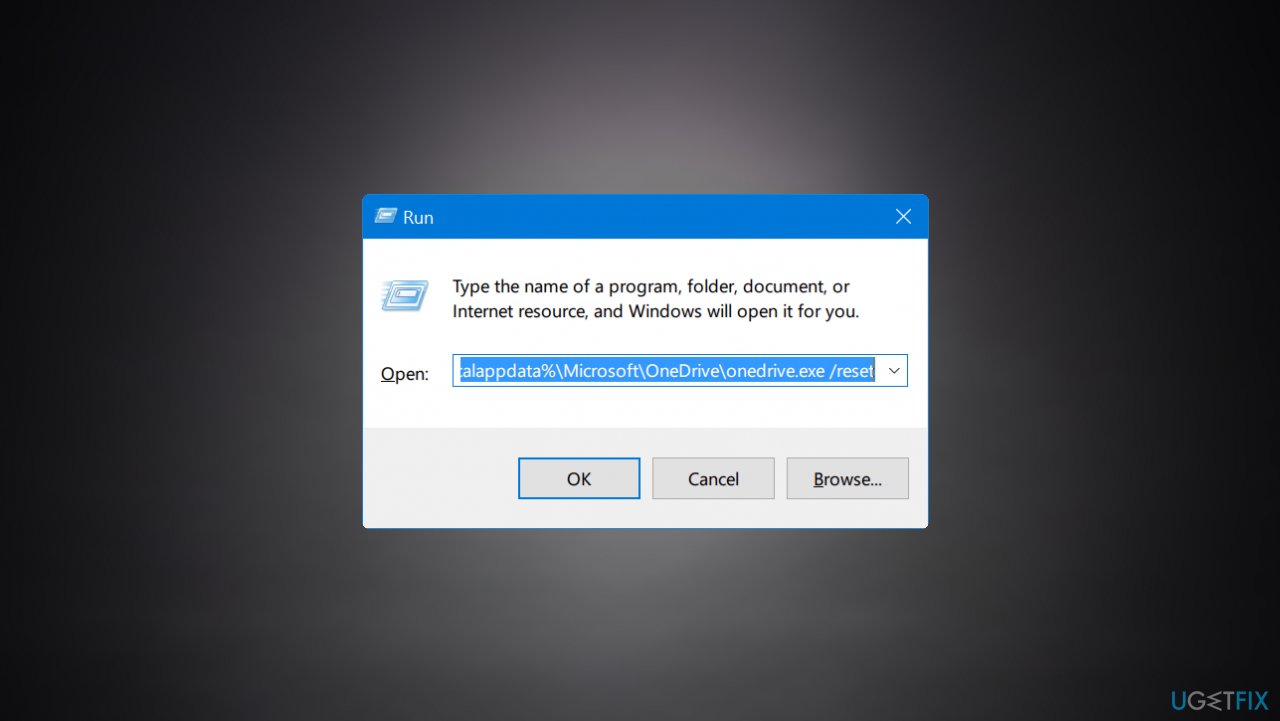
Onedrive couldnt be installed error 0x80040c97 appdatareset - The OneDrive icon in the Notification area should disappear and reappear again after a minute or two.
- The reset process may take a while, but once it’s done, the OneDrive app will be reset to its default values.
- If the OneDrive icon takes too long to reappear, open the Run box, paste the command:
%localappdata%\\Microsoft\\OneDrive\\onedrive.exe - Press the Enter key.
4. Terminate OneDrive Process and reinstall OneDrive
- Open the Task Manager using the Ctrl + Shift + Esc shortcut.
- Look for any running OneDrive tasks.
- Select them and click on End task to close the processes one by one.
- Run the Windows PowerShell.
- Click on the Start menu, type Powershell, and choose to run Windows PowerShell as an administrator.
- Click Yes.
- Type the command taskkill /f /im OneDrive.exe and hit the Enter key to execute it.
- This command will terminate all hidden background OneDrive processes, such as those related to the app’s installation, execution, and so on.
- Open the Control Panel.
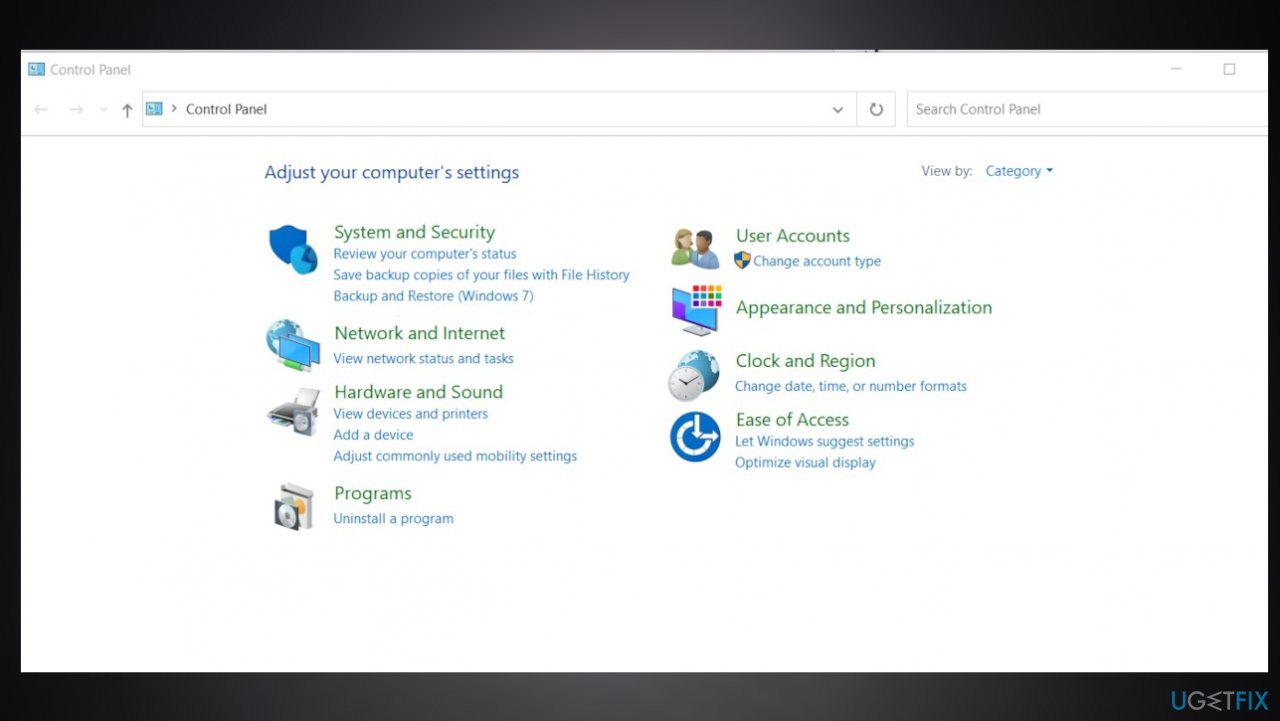
Onedrive couldnt be installed error 0x80040c97 control panel - Find the Program section and click on the Uninstall a program link.
- Locate the OneDrive application, right-click on it and select Uninstall.
- Follow any prompts to complete the uninstallation process.
- Restart your computer.
5. Change Windows Registry value
- Press Windows + R keys to open up the Run dialog box.
- Type regedit and hit Enter to open Registry Editor.
- Click on Yes to allow UAC (User Account Control) access when prompted on-screen.
- You should create a backup of your current Registry values.
- On the newly opened Registry Editor window, click File >> Export.
- Now navigate to the following or path:
HKEY_LOCAL_MACHINE\\Software\\Policies\\Microsoft\\Windows\\OneDrive - Here look for DisableFileSyncNGSC and double-click on it.
- Change the value to 0 (zero).
- Reboot your PC.
6. Update Windows
- Press the Windows + I shortcut on your keyboard to access Settings.
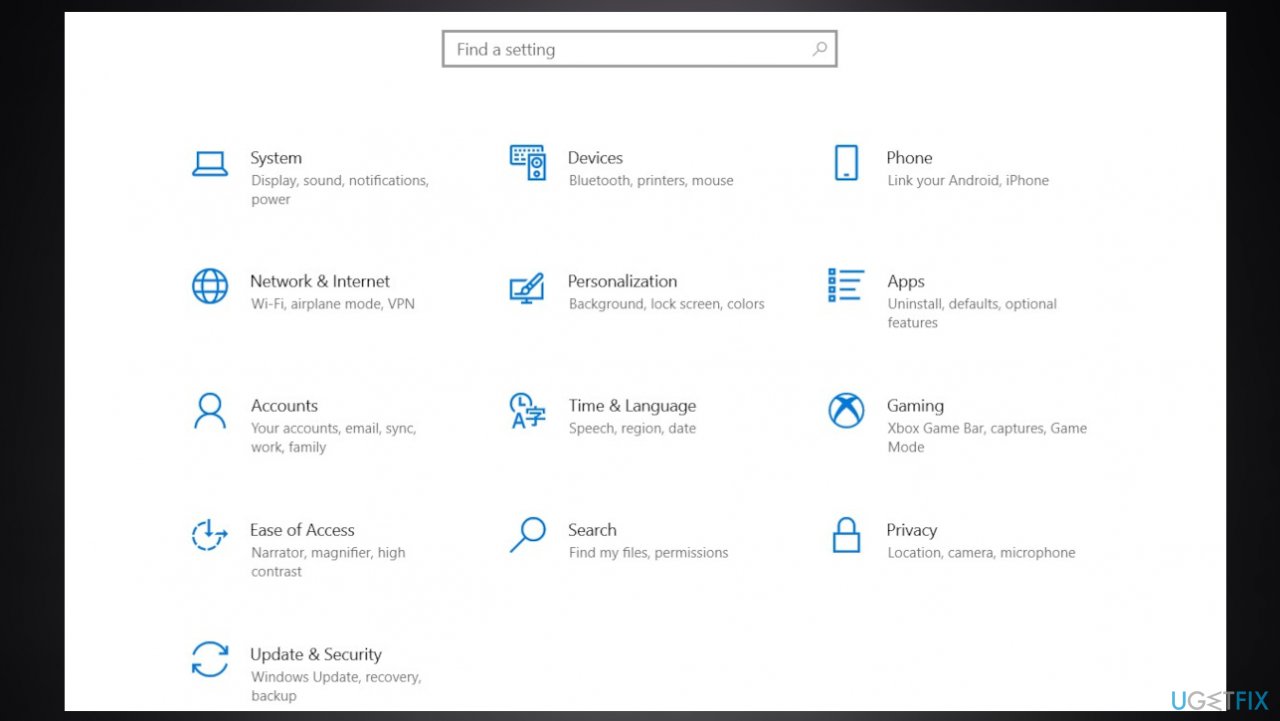
Onedrive couldnt be installed error 0x80040c97 settings - Go to Windows Updates.
- Select the option that says Check for updates.
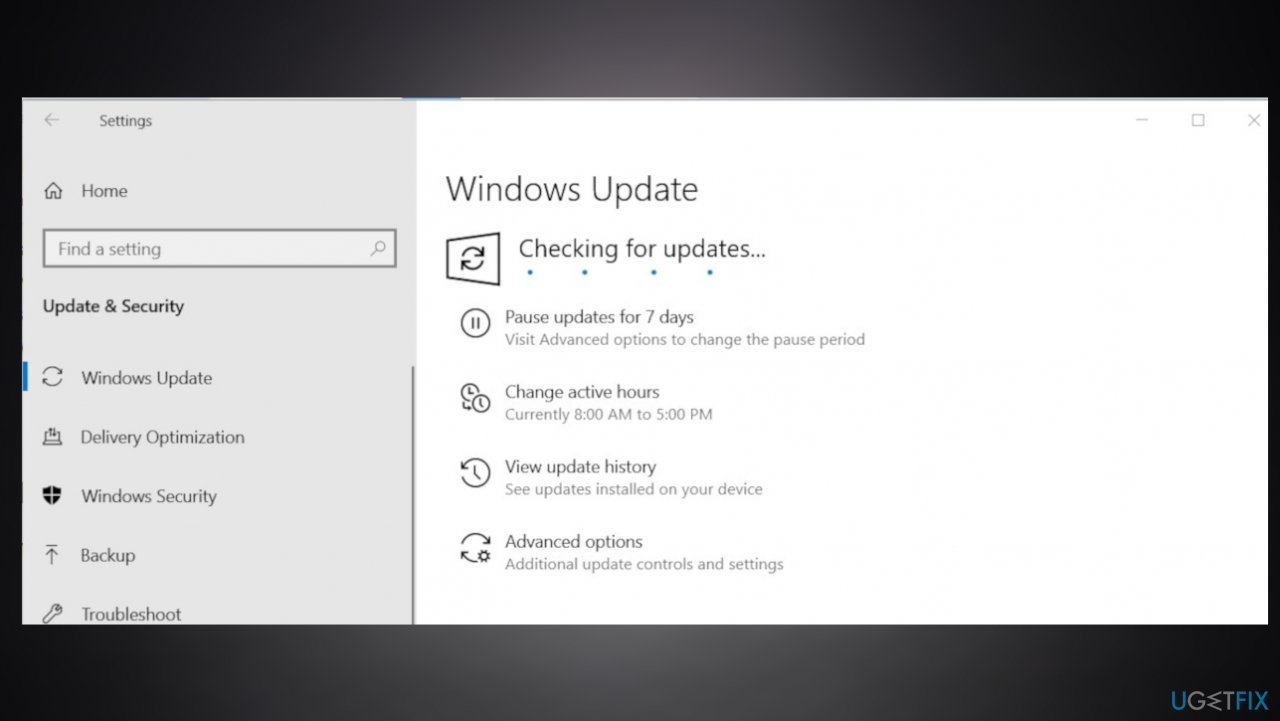
Onedrive couldnt be installed error 0x80040c97 updates - If updates are available, you’ll be given the option to download them.
Bottom line
To fix the OneDrive couldn't be installed error 0x80040c97, you can repair corrupted files using specific tools, check for third-party application interference, and ensure your system configurations are appropriate. If these solutions do not resolve the issue, consider seeking further technical support.
Frequently asked questions
This error typically occurs due to issues with the OneDrive installation files, corrupted system files, or conflicts with other software. Ensuring that your Windows is updated and reinstalling OneDrive can often resolve this issue.
To reinstall OneDrive on Windows 11, open Settings, go to Apps, find OneDrive in the list, and click Uninstall. After that, download the latest version of OneDrive from the official Microsoft website and install it.
Yes, you can try resetting the OneDrive app by pressing Win + R, typing 'onedrive.exe /reset', and hitting Enter. This action clears the OneDrive cache and can resolve the issue without a full reinstallation.




Report an issue
What's wrong with this guide? We review every report and update or remove content.
Report received — thank you. We'll review and fix it.
You need a free account to submit a report.
Be the first to comment