How to fix
OneDrive error 0x80040c81
on Windows
Resolve OneDrive error 0x80040c81 effortlessly on Windows 10 and 11. Get expert-tested solutions to restore your cloud access in minutes.

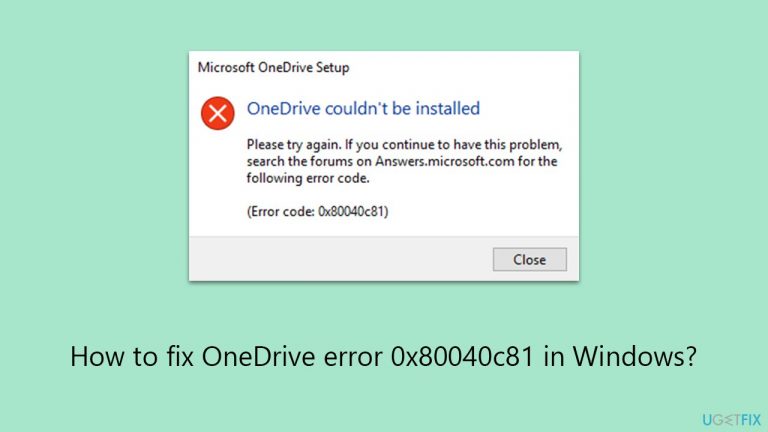
What causes How to fix OneDrive error 0x80040c81 in Windows?
- Conflicts in the Windows Registry
- Problems with old or damaged data in the OneDrive program
- Disruptions in the network connection
- Incompatibilities between OneDrive and other installed software
Repairs Windows system files, removes malware, and restores a clean OS state — without reinstalling.
Hi, I keep getting a 0x80040c81 error when trying to install OneDrive. What does that mean? How can I install OneDrive?
OneDrive is a reliable cloud storage option, a built-in part of the Windows operating system, and works well with the user's digital workspace. Although this program works well most of the time, making it simple to access and manage files across multiple devices, certain Windows users may periodically run into unique problems that prevent it from working properly.
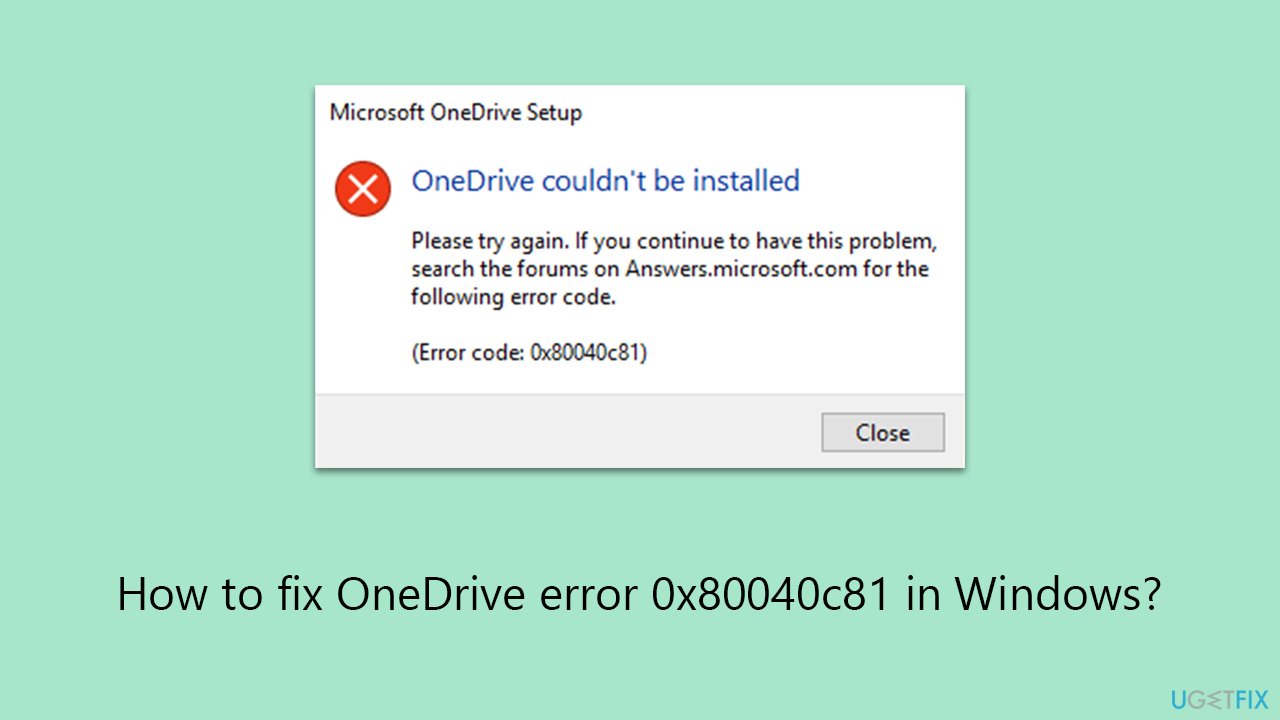
A prominent illustration of this kind of issue is the OneDrive error come 0x80040c81. Whenever you try to install, uninstall, or reinstall OneDrive, this issue usually appears. It may also show up if you're having trouble keeping your device's files synchronized with OneDrive's cloud storage.
There are a number of reasons why the 0x80040c81 problem occurs. Conflicts in the Windows Registry, problems with old or damaged data in the OneDrive program, or disruptions in the network connection could all be the cause. This issue may also be caused by incompatibilities between OneDrive and other installed software on your machine.
Effectively addressing this issue requires a combination of methods and strategies. Resetting OneDrive is a frequently suggested place to start. This procedure might fix problems with outdated or corrupt files and refresh the application.
OneDrive can be reset to restore its factory settings and assist in getting rid of the things that are creating the error code 0x80040c81. It is crucial to remember that this could not be a general fix and that other troubleshooting procedures might be required, depending on the particulars and root reasons of the error.
Using a professional PC repair tool, like [d1], could be helpful for individuals looking for a more thorough solution to fix not only the OneDrive error 0x80040c81 but also other underlying problems with the Windows operating system. These programs are made to automatically identify and fix a variety of system-related issues, improving your Windows system's overall stability and performance.
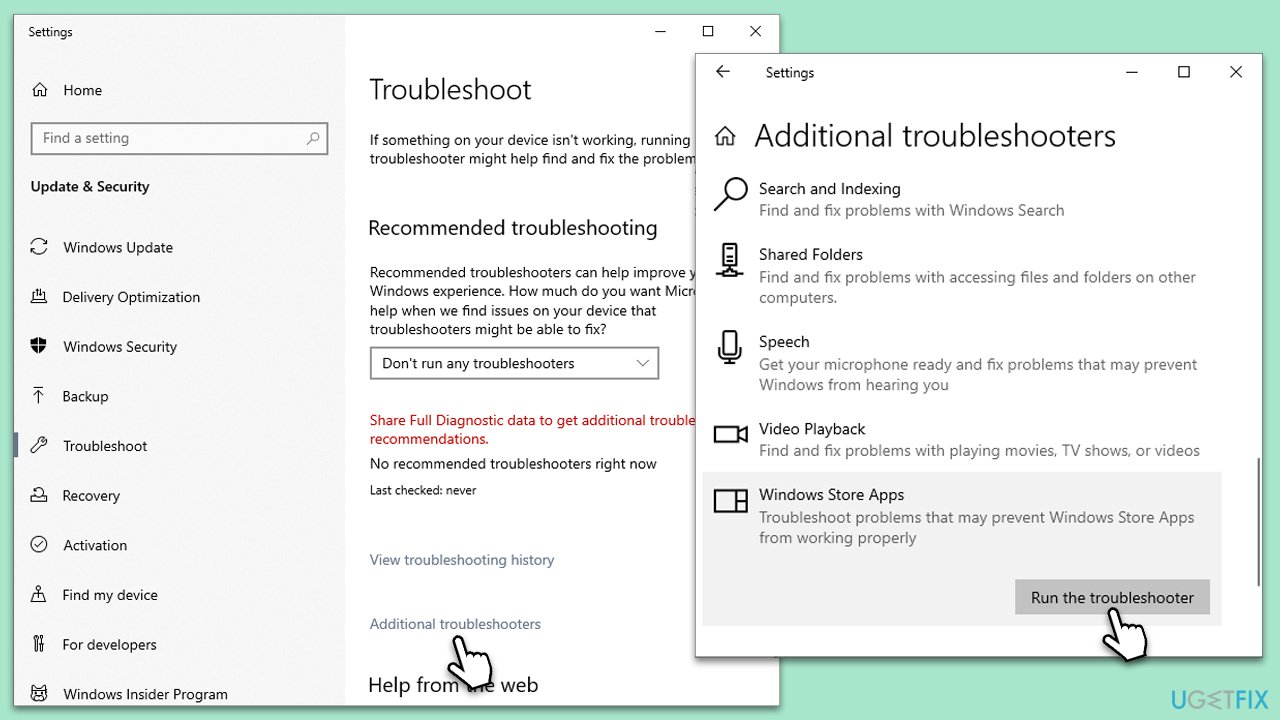
Fix 1. Run Windows Store apps troubleshooter
This troubleshooter can automatically detect and fix common problems that may prevent OneDrive from functioning correctly.
- Type troubleshoot in Windows search and hit Enter.
- Click Other troubleshooters/Additional troubleshooters.
- Select Windows Store App.
- Click Run/Run the troubleshooter.
- Wait till the scan is completed and changes implemented.
Fix 2. Reset OneDrive
Resetting OneDrive helped most of the users to fix the 0x80040c81 error. This process clears the local cache and re-establishes the connection with your cloud storage without affecting your personal files stored in OneDrive.
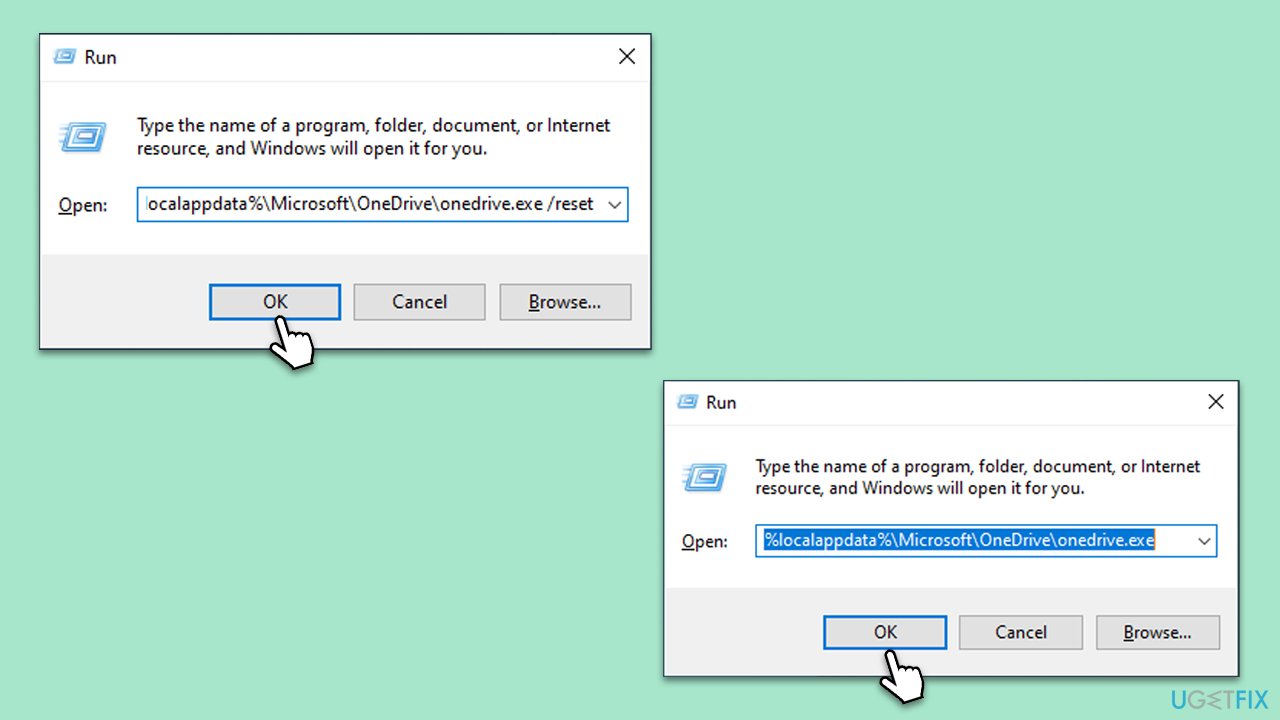
- Press Win + R on your keyboard.
- When the Run window opens, copy and paste the following text into it:
%localappdata%\Microsoft\OneDrive\onedrive.exe /reset
(Note: you might get an error here. In that case, use %programfiles(x86)%\Microsoft OneDrive\onedrive.exe /reset or C:\Program Files (x86)\Microsoft OneDrive\onedrive.exe /reset instead) - Press Enter or click OK.
- After this command is executed, the app should be reset, and OneDrive should open.
- If it doesn't, wait a few minutes, then open the Run window again and use the following command:
%localappdata%\Microsoft\OneDrive\onedrive.exe - Press Enter.
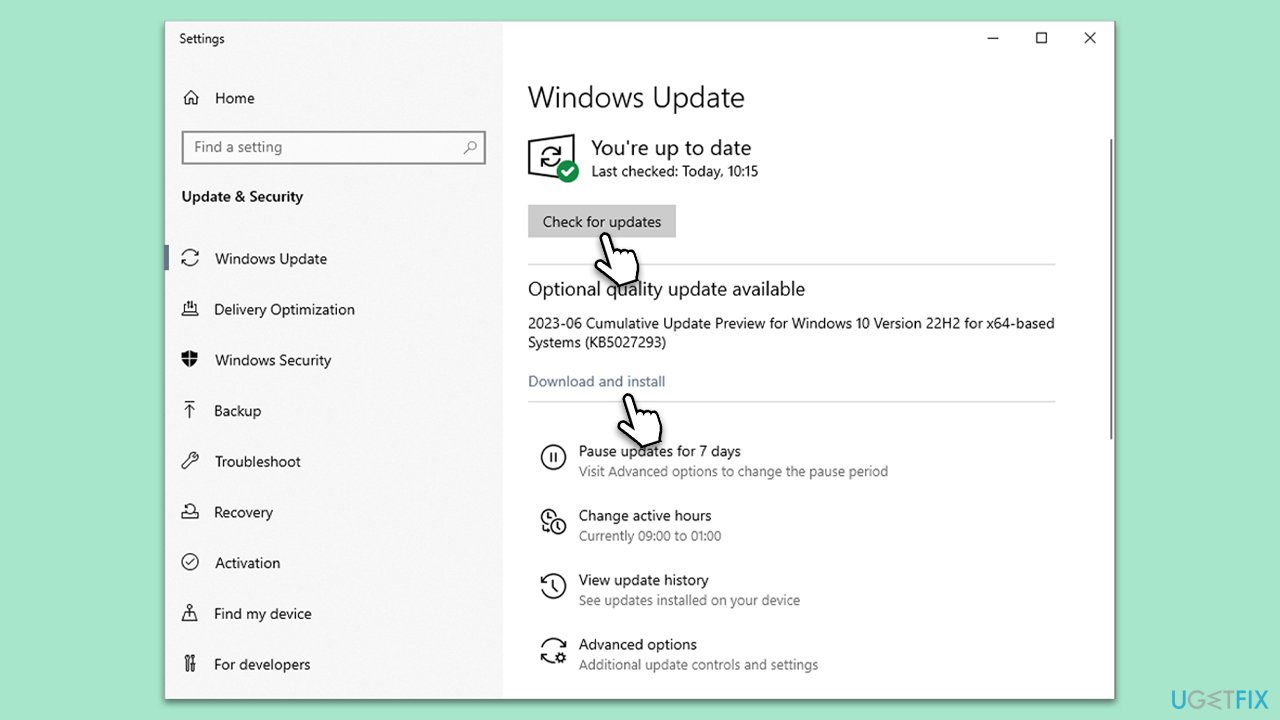
Fix 3. Install all Windows updates
Keeping Windows updated ensures that all components of your system, including OneDrive, function optimally. Updates can include critical bug fixes and performance improvements that might resolve the OneDrive error.
- Type Updates in Windows search and hit Enter.
- In the new window, click Check for updates.
- If optional updates are available, install them as well.
- When all the update processes are complete, restart your device.
Fix 4. Perform Clean Boot
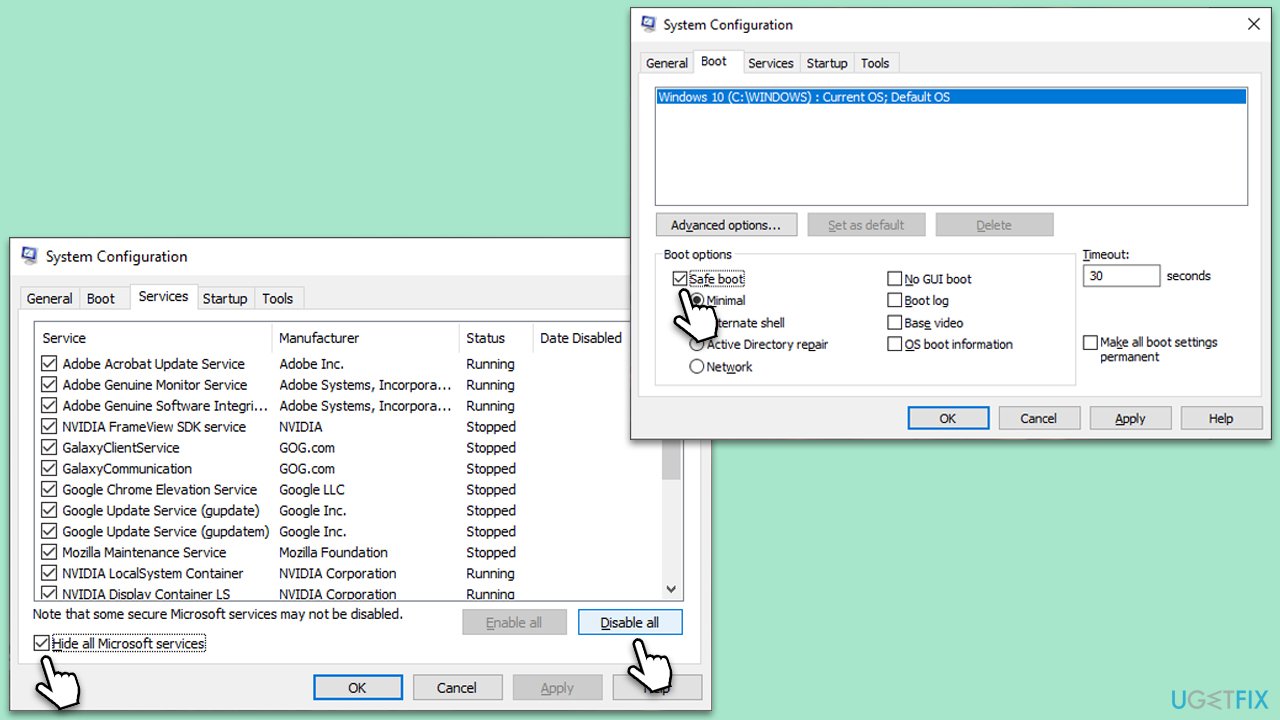
Starting the system in a Clean Boot state can help identify if background programs are interfering with OneDrive.
- Press Win + R, type msconfig, then press Enter.
- Select the Services tab and tick the Hide all Microsoft services checkbox.
- Pick Disable all.
- Go to the Startup tab and click Open Task Manager.
- Here, right-click on each of the non-Windows entries and select Disable.
- Close down the Task Manager.
- Go to the Boot tab and tick the Safe boot option.
- Once the computer is restarted, try the action that was causing the error.
- If resolved, you can start enabling services and startup items one by one (or in groups) to identify the culprit.
Fix 5. Use Command Prompt to uninstall OneDrive
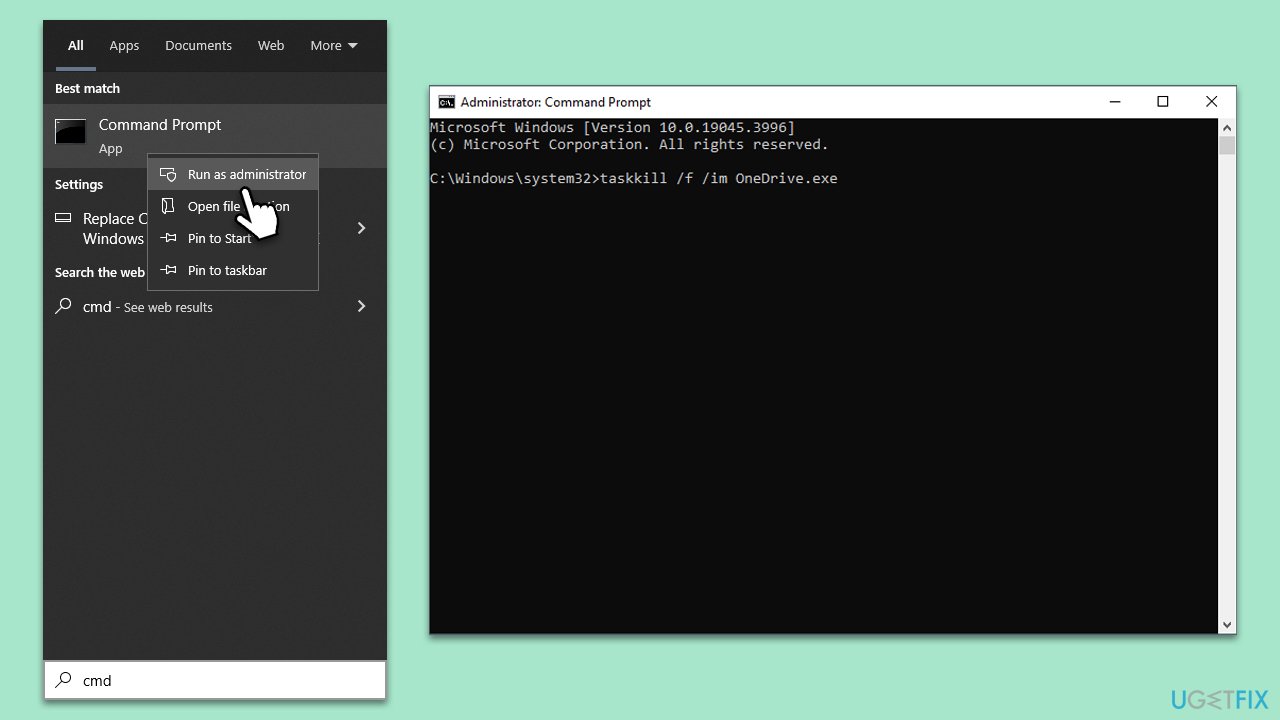
If OneDrive needs to be reinstalled, using Command Prompt to uninstall it can be an effective approach. This method completely removes OneDrive from your system, allowing for a fresh installation.
- Type cmd in Windows search.
- Right-click on Command Prompt and pick Run as administrator.
- User Account Control window will show up - click Yes when prompted.
- Type in the following and press Enter to terminate any leftover OneDrive processes:
taskkill /f /im OneDrive.exe - If you are using 64-bit Windows,* use the following command and hit Enter:
%SystemRoot%\SysWOW64\OneDriveSetup.exe /uninstall - If you are using 32-bit Windows,* use the following command and hit Enter:
%SystemRoot%\System32\OneDriveSetup.exe /uninstall - After that, restart your PC.
Fix 6. Use System Restore
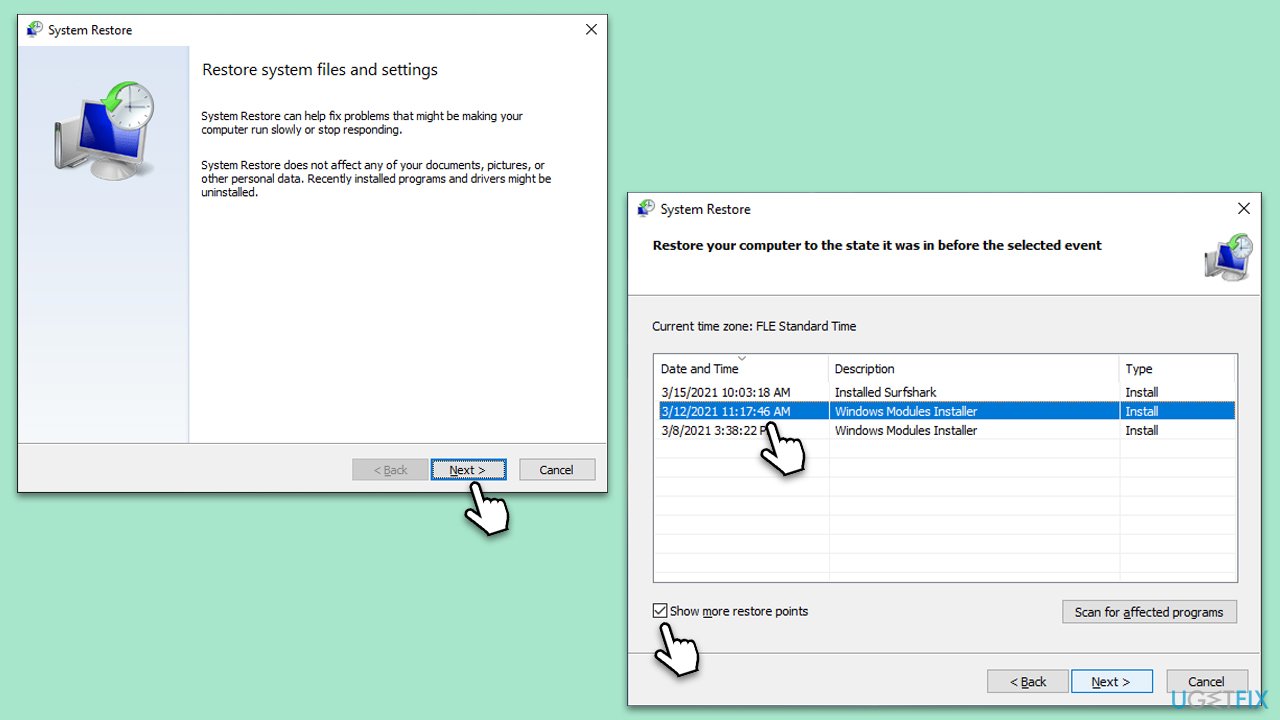
System Restore can revert your system's settings to a previous point in time, potentially fixing issues caused by recent changes. This process does not affect personal files but can reverse recent system changes that may have caused the OneDrive error.
- Type in Create a Restore point in Windows search and hit Enter.
- In the System Protection tab, pick System restore.
- Click Next.
- Click Show more restore points (if available).
- Pick the time before the problem occurred and click Next.
- Your computer will reboot.
Bottom line
To fix the OneDrive error 0x80040c81, you can start by resetting OneDrive, which may resolve issues with outdated or corrupt files. Additionally, running the Windows Store apps troubleshooter can help detect and fix common problems. If these solutions do not work, consider using a professional PC repair tool for a more comprehensive fix.
Frequently asked questions
The OneDrive error 0x80040c81 typically indicates a problem with syncing files due to file corruption or unsupported file types. This error can prevent users from accessing or syncing their OneDrive files properly.
To troubleshoot this error on Windows 11, try resetting the OneDrive app by running the command 'onedrive.exe /reset' in the Run dialog. If the issue persists, consider checking for Windows updates or reinstalling OneDrive.
Yes, files that are too large or have unsupported characters in their names can trigger the 0x80040c81 error in OneDrive on Windows 10. Ensure your file names are compliant and within the size limits.




Report an issue
What's wrong with this guide? We review every report and update or remove content.
Report received — thank you. We'll review and fix it.
You need a free account to submit a report.
Be the first to comment