
How to fix OneDrive error 0x8004da9a in Windows?

Prefer to fix it yourself? The manual steps follow.
- 6methods
- 5 to 30 minutes
- Intermediate
Applies to The OneDrive sync app on Windows 11 and Windows 10, with a personal Microsoft account or a work or school account
6 methods in this guide
Hi, I have an issue with logging in to OneDrive. The error code is 0x8004da9a. Is there something that can be done? I need to use it for my work.
OneDrive error 0x8004da9a appears when the OneDrive app cannot finish your sign-in, with the message There was a problem signing you in. Microsoft's support staff tie it mainly to the connection between your PC and Microsoft's sign-in service. Turn off any VPN or proxy first, then reset OneDrive if onedrive.com works in a browser.
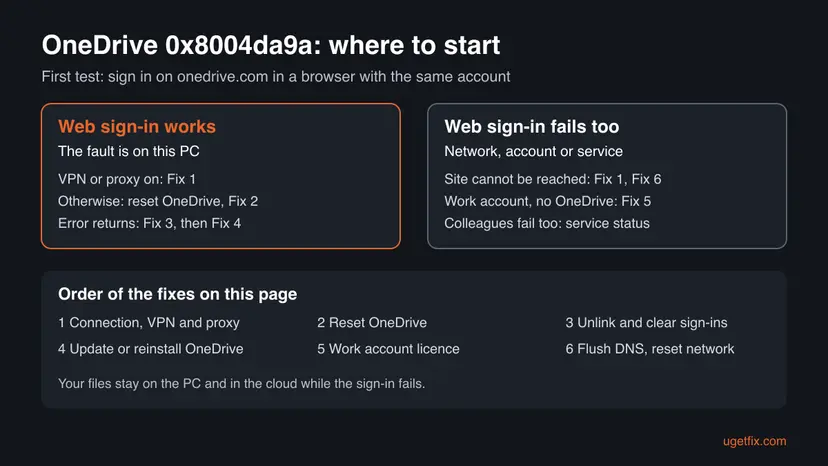
Open onedrive.com in a browser and sign in with the same account. If the web page does not load, turn off your VPN and any manual proxy and try another network (Fix 1). If the web sign-in works, reset the OneDrive app with Microsoft's /reset command and sign in again (Fix 2). If the error returns, remove the stored OneDrive sign-ins (Fix 3) or install the current OneDrive (Fix 4).
| Error | 0x8004da9a in a Microsoft OneDrive window: There was a problem signing you in with the line Please try again in a few minutes. (Error Code: 0x8004da9a) and a Try again button. |
|---|---|
| Where it appears | When the OneDrive sync app signs in on start, during the first setup, or when you add a second account. |
| Main cause | The sign-in cannot reach Microsoft: a network problem, a VPN or a proxy. Less often, broken sign-in data on the PC or an old OneDrive build. |
| Fastest fix | Turn off the VPN and manual proxy (Fix 1), then reset OneDrive with %localappdata%\Microsoft\OneDrive\onedrive.exe /reset (Fix 2). |
| Also written as | 8004da9a, error code: 0x8004da9a, OneDrive sign in error 0x8004da9a, There was a problem signing you in 0x8004da9a. |
| Affects | The OneDrive app on Windows 11 and Windows 10, personal and work accounts. Reports on Microsoft Q&A run from 2021 to 2025. |
| Vendor status | No Microsoft fix and no published description of the code. In March 2021 Microsoft staff linked a wave of reports to a service incident on the Service Health Dashboard. |
| Your files | Safe. The error blocks the sign-in and the sync, not the files on the PC or in the cloud. |
| Time to fix | 5 minutes for Fix 1 and Fix 2, up to 30 minutes for a clean reinstall. |
Facts checked on 15 October 2026. Steps written for Windows 11 (25H2 and 26H2) and Windows 10 22H2 with the current OneDrive sync app.
What OneDrive error 0x8004da9a means
Error 0x8004da9a is a OneDrive sign-in error. The OneDrive desktop app asked Microsoft's sign-in service to log you in, the request did not complete, and the app stopped with this code. A Microsoft moderator on Microsoft Q&A described it as a problem with the Microsoft account sign-in process, caused primarily by internet connection problems.
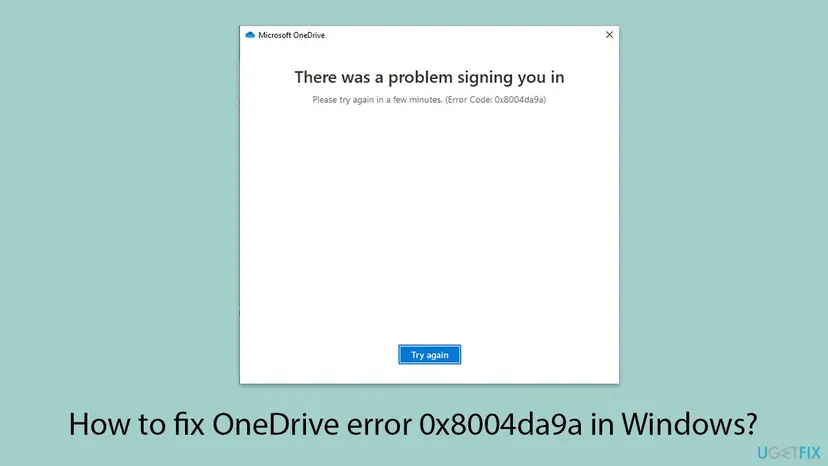
- The usual form: a Microsoft OneDrive window with There was a problem signing you in and Please try again in a few minutes. (Error Code: 0x8004da9a).
- When the web fails too: some users see the same code and then cannot open onedrive.com either, with the browser message This site can't be reached. That points to the network, not to OneDrive.
- With a work account: one user saw we're having trouble finding that site on the web, which a Microsoft agent tied to OneDrive for Business not being set up or not licensed for the account.
- Spellings people search: 0x8004da9a, 8004da9a and error code: 0x8004da9a. All of them are the same error.
The line Please try again in a few minutes matters. Sometimes the cause really is short: a dropped connection, or a problem on Microsoft's side. Try once more after five minutes before you change anything. If it fails again, the fixes below find the cause in order.
Why OneDrive shows 0x8004da9a: the causes, most common first
The order below follows the Microsoft support answers for this code. Every one of them starts with the same test: can you sign in on onedrive.com in a browser? The answer tells you whether to look at the network or at the app on this PC.
| How often | Cause | Typical sign | Fix |
|---|---|---|---|
| Most often | The connection to Microsoft's sign-in is blocked or unstable, often by a VPN or a proxy. | The error appears on one network but not on another. | Fix 1 |
| Often | OneDrive's own settings and sign-in state on this PC are damaged. | onedrive.com works in a browser, the app does not. | Fix 2 |
| Sometimes | Old stored sign-ins of this or another account. | The error returns after a reset, or a second account will not add. | Fix 3 |
| Sometimes | An old OneDrive build on the PC. | The About tab shows an old version; reinstalling as a normal user does not replace it. | Fix 4 |
| Work accounts | No OneDrive licence, or OneDrive is not set up for the account. | No OneDrive icon on office.com, or we're having trouble finding that site. | Fix 5 |
| Rarely | Broken DNS cache or network settings in Windows. | Other sites open, but Microsoft sign-in pages do not. | Fix 6 |
| Now and then | A Microsoft service incident. | Colleagues or other devices fail at the same time. | Wait, see the callout |
Sign in on onedrive.com with the same account. If it works, the problem is on this PC: start with Fix 1, then Fix 2. If your colleagues or your other devices fail at the same moment, the cause may be on Microsoft's side. A work account's IT admin can see incidents on the Service health page of the Microsoft 365 admin center.
How to fix OneDrive error 0x8004da9a
Fix 1 takes two minutes and is the one Microsoft's staff name first. Fixes 2 and 3 repair OneDrive's sign-in on this PC. Fix 4 replaces an old OneDrive build, Fix 5 is for work and school accounts, and Fix 6 is for a PC that cannot reach Microsoft's sign-in pages at all.
| What you see or what your PC has | Start with |
|---|---|
| A VPN, a proxy, a work network or a hotel or school Wi-Fi. | Fix 1 |
| onedrive.com works in a browser, only the app fails. | Fix 2 |
| The error comes back after a reset, or several accounts were used on this PC. | Fix 3 |
| The OneDrive version on the About tab is old, or the error started on an older work PC. | Fix 4 |
| A work or school account, and office.com shows no OneDrive. | Fix 5 |
| onedrive.com says This site can't be reached while other sites open. | Fix 6 |
| Colleagues fail at the same moment. | Wait and check the service status, see the causes |
Fix 1. Turn off the VPN and proxy and test another network
5 minutesLow riskEveryone, and first of all when you use a VPN, a proxy, a company network or a public Wi-Fi.
Microsoft's support answers for 0x8004da9a name the connection first and ask you to rule out VPN and proxy settings that block OneDrive. A VPN or proxy can stop the sign-in request while ordinary web pages still open.
- Disconnect your VPN app, or quit it, for this test.
- Select Start > Settings > Network & internet > Proxy.
- Under Manual proxy setup, check whether a proxy server is on. If you set it yourself, turn it off. If your workplace set it, leave it and ask IT.
- Connect the PC to another network for a test, for example a phone hotspot.
- Quit OneDrive (gear Help & Settings > Pause syncing > Quit OneDrive), start it from Start and sign in again.
If the sign-in works on the hotspot but not at home or at work, the network is the cause. Check the connection on that network with the steps below, or ask the network's owner whether Microsoft sign-in addresses are blocked.
- Check the connection status. Select Start > Settings > Network & internet. The status of your connection is at the top of the page. Select Properties next to the network name to see its details.

The top of Network & internet shows whether you are connected. Screenshot: Windows 11 26H2. - Check that Wi-Fi is on and connected. Select the Network, Sound or Battery icon on the right side of the taskbar. Make sure Wi-Fi is turned on and that your network shows Connected below its name.
- Run the Network troubleshooter. Open the Get Help app and type connect to network and internet in the search bar. Select Run network diagnostics and complete the steps it offers.
- Restart the modem and the router. Unplug the power cable of the router, then of the modem, and wait at least 30 seconds. Plug the modem back in and wait until its lights stop blinking, then plug in the router. Wait a few minutes and try to connect again.
These steps were written for Windows 11 25H2 and 26H2. The full page with the other versions and what each result means: How to check your internet connection in Windows
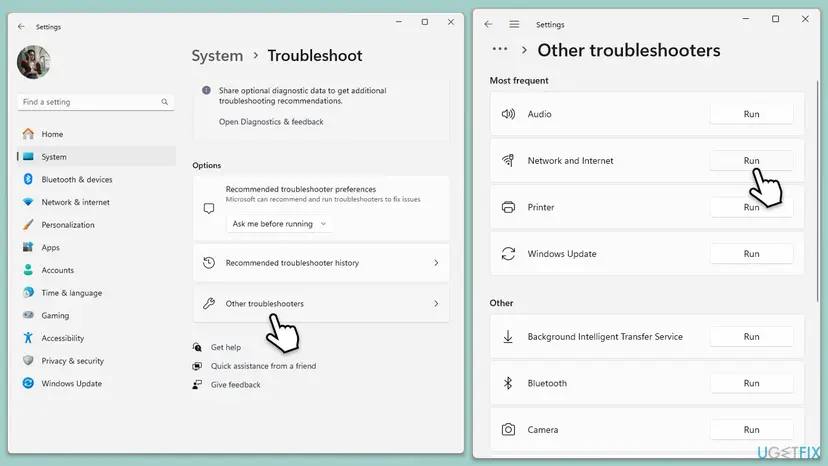
It worked if: OneDrive signs in on the other network or with the VPN off, and the 0x8004da9a window does not return.
If not: If the network is not the cause and onedrive.com works, go to Fix 2. If onedrive.com does not load on any network, go to Fix 6.
Fix 2. Reset OneDrive and sign in again
5 minutes, then a full syncLow riskonedrive.com works in a browser with the same account, but the OneDrive app on this PC does not.
Microsoft's support staff advise a reset whenever the account works on OneDrive online. A reset clears OneDrive's settings and cached data on this PC, so the next start begins the sign-in from zero instead of reusing a broken state. It does not delete your files.
- Open the Run box. Press the Windows key and R at the same time.
- Reset the Microsoft Store cache. Type the command below and select OK. A blank Command Prompt window opens and closes, then the Microsoft Store opens. Close it. This is the first step in Microsoft's instructions. If OneDrive still does not sync, continue.
wsreset.exe - Run the OneDrive reset command. Press the Windows key and R again. Copy the command below, paste it into the box and select OK.
%localappdata%\Microsoft\OneDrive\onedrive.exe /reset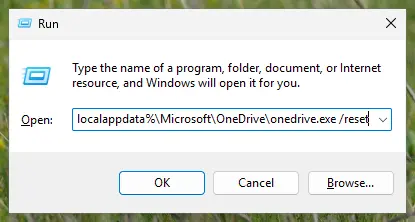
Type the reset command in the Run box and select OK. Screenshot: Windows 11 26H2. - If Windows cannot find it, try the second path. If you see a message that starts with Windows cannot find, open the Run box again and use this command instead.
C:\Program Files\Microsoft OneDrive\onedrive.exe /reset - If that fails too, try the third path. If you still see Windows cannot find, use this command. If none of the three works, the OneDrive sync app is not installed on this PC.
C:\Program Files (x86)\Microsoft OneDrive\onedrive.exe /reset - Start OneDrive again. Select Start, type OneDrive in the search box and select the OneDrive desktop app. OneDrive then starts a full sync.
These steps were written for Windows 11 25H2 and 26H2, Windows 10 22H2. The full page with the other versions and what each result means: How to reset OneDrive in Windows
After the reset, the OneDrive icon disappears and comes back after a few moments. If it does not come back, open OneDrive from Start and sign in with the account that works on onedrive.com.
If the first sign-in after the reset still fails, restart the PC and try once more. A connection that dropped during the first try can make a good reset look like it failed.
It worked if: OneDrive accepts your email address and password, shows the OneDrive folder location and starts syncing without the 0x8004da9a window.
If not: If the same error returns after a restart, go to Fix 3.
Fix 3. Unlink the PC and remove the stored OneDrive sign-ins
10 minutesLow riskThe error comes back after a reset, several Microsoft accounts were used on this PC, or a second account will not add.
A Microsoft support specialist suggested both steps for 0x8004da9a: unlink the PC and remove the OneDrive and Microsoft account entries from Credential Manager. A reset keeps those stored sign-ins, so a damaged one can bring the error back.
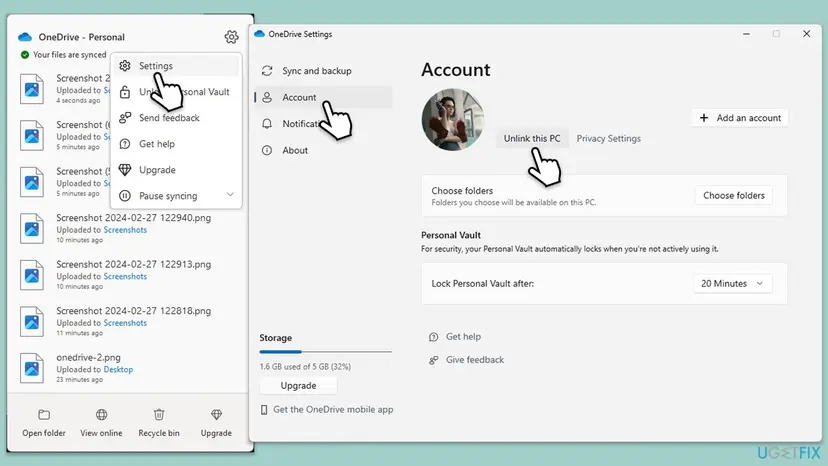
- If OneDrive opens at all, select the OneDrive cloud icon, the gear Help & Settings, then Settings. On the Account tab select Unlink this PC, then Unlink account.
- Quit OneDrive: gear Help & Settings > Pause syncing > Quit OneDrive.
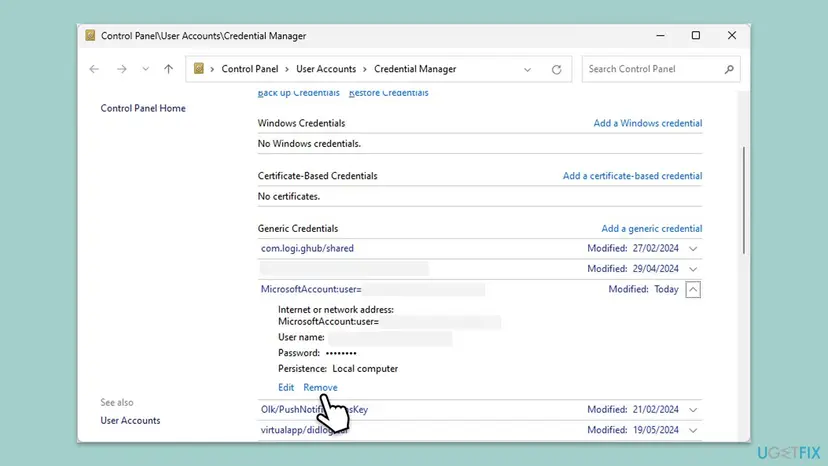
- Select Start, type Credential Manager and open it. Select Windows Credentials.
- Under Generic Credentials, expand each entry whose name contains OneDrive and select Remove.
- Remove an entry that starts with MicrosoftAccount:user= only when it holds the account that fails in OneDrive. Other apps may use it, and they will ask you to sign in again.
- Restart the PC, open OneDrive from Start and sign in. When it asks for the folder location, choose your old OneDrive folder so unchanged files are not downloaded again.
It worked if: OneDrive asks for your account, signs in and is still signed in after the next restart.
If not: Check the OneDrive version and reinstall it with Fix 4.
Fix 4. Update OneDrive or reinstall the current version
20 minutesLow riskFixes 1 to 3 did nothing, the OneDrive version is old, or OneDrive will not open properly.
Microsoft's moderator listed an outdated OneDrive as a cause. In a 2025 case, a user whose reset and sign-out did not help traced 0x8004da9a to an old OneDrive build that only the company's IT could remove.
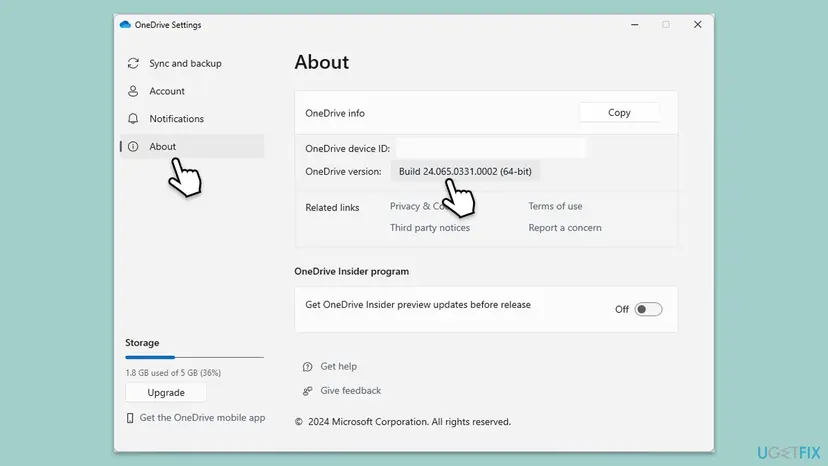
- Open the gear Help & Settings > Settings > About and note the OneDrive version.
- Compare it with Microsoft's OneDrive release notes. If yours is older than the current build, continue.
- Quit OneDrive: gear Help & Settings > Pause syncing > Quit OneDrive.
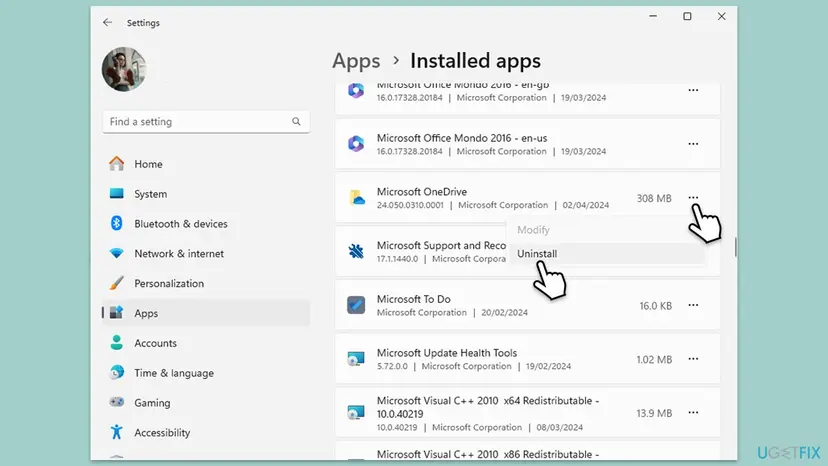
- Select Start > Settings > Apps > Installed apps (on Windows 10: Apps & features). Find Microsoft OneDrive, select the three dots and Uninstall.
- Restart the PC.
- Download the OneDrive app from Microsoft's OneDrive download page and run the file. Sign in when the setup asks.
- Open the About tab again and check that the new version number is shown.
If OneDrive was installed for all users of the PC, a normal user cannot remove it, and a new copy installed by you does not replace it. The 2025 user in the Microsoft Q&A thread had to wait for IT for this reason. Ask your IT admin to update or replace the OneDrive app.
Other ways to uninstall, and what to do when the uninstaller fails: Uninstall a program or app in Windows
It worked if: The new OneDrive shows the current build on the About tab, signs in and keeps the sign-in after a restart.
If not: With a work or school account go to Fix 5. Otherwise try Fix 6.
Fix 5. Work or school account: check the licence and the OneDrive site
10 minutes, plus the admin's timeLow riskYou sign in with a work or school account, and OneDrive fails in the browser or shows we're having trouble finding that site.
In a Microsoft Q&A case, a Microsoft agent tied that web message to OneDrive for Business not being configured, and asked the user to check whether the account has a licence that includes OneDrive. Without it, the app cannot sign in either.
- Sign in on office.com with your work or school account.
- Look for the OneDrive icon in the app list on the left and select it.
- If there is no OneDrive icon, your account may not have a OneDrive licence. Open your account's Subscriptions page and see which products are listed.
- Ask a colleague in the same organisation whether OneDrive works for them. If it does, the difference is in your account.
- Send your IT admin the error code, your account name and what you found. The admin can check your licence and open a ticket in the Microsoft 365 admin center.
Administrators in user reports add one more check: the OneDrive service option inside the user's licence in the admin center must be switched on. We could not confirm the exact wording of that switch on a Microsoft page, so your admin should look at the licence details for the user.
It worked if: The OneDrive icon appears on office.com, the web OneDrive opens, and the app then signs in.
If not: If the licence is fine and only this PC fails, return to Fix 2 and Fix 3, or try Fix 6.
Fix 6. Flush the DNS cache and reset the network settings
10 minutes plus a restartRead the warningOther websites open, but onedrive.com or the Microsoft sign-in page says This site can't be reached on this PC only.
A Microsoft moderator suggested a DNS change for a user who saw 0x8004da9a and could not open the OneDrive website. A stale DNS cache or broken network settings can send the sign-in to the wrong address while other sites still work.
The commands only clear cached addresses. The full network reset at the end removes saved Wi-Fi networks, VPN adapters and their settings. Write down your Wi-Fi password and VPN details before you run it.
- Open an elevated command window. Right-click Start and select Terminal (Admin), or type cmd in the search box, right-click Command Prompt and select Run as administrator. Select Yes when Windows asks for permission.
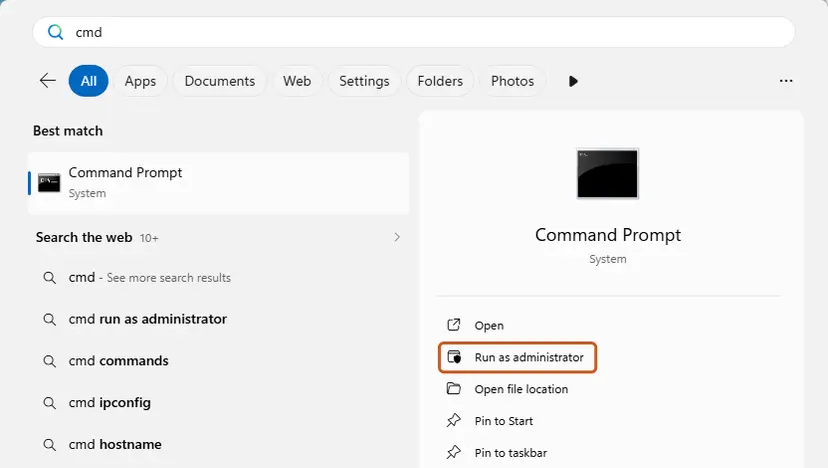
Search for cmd and choose Run as administrator. Screenshot: Windows 11 26H2. - Flush the DNS cache. Type the command below and press Enter. Windows forgets the website addresses it looked up earlier and asks for them again.
ipconfig /flushdns - Reset Winsock. Type the command below and press Enter. It returns the Windows sockets catalog to its default state.
netsh winsock reset
Both commands report success; the Winsock reset asks for a restart. Screenshot: Windows 11 26H2. - Reset TCP/IP. Type the command below and press Enter. If you entered an IP address or DNS server by hand, note it first: you may need to enter it again.
netsh int ip reset - Get a new IP address. Run these two commands one after the other. The connection drops for a moment between them.
ipconfig /release ipconfig /renew - Restart the PC. Restart Windows so the Winsock and TCP/IP resets take effect, then test the connection. If it still does not work, continue with the network reset below.
- Open Network reset. Open Settings > Network & internet > Advanced network settings and select Network reset.
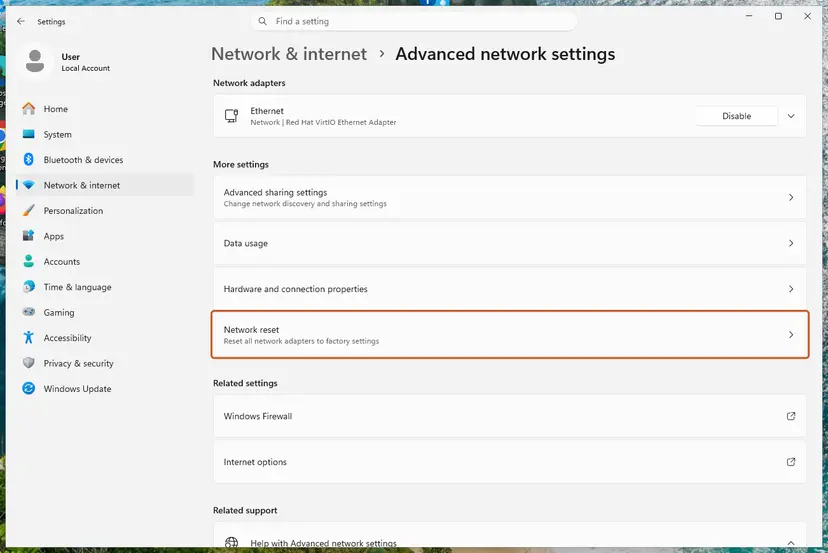
Network reset is under More settings in Advanced network settings. Screenshot: Windows 11 26H2. - Reset now. Select Reset now, then Yes to confirm. Windows removes and reinstalls all network adapters and restarts the PC.
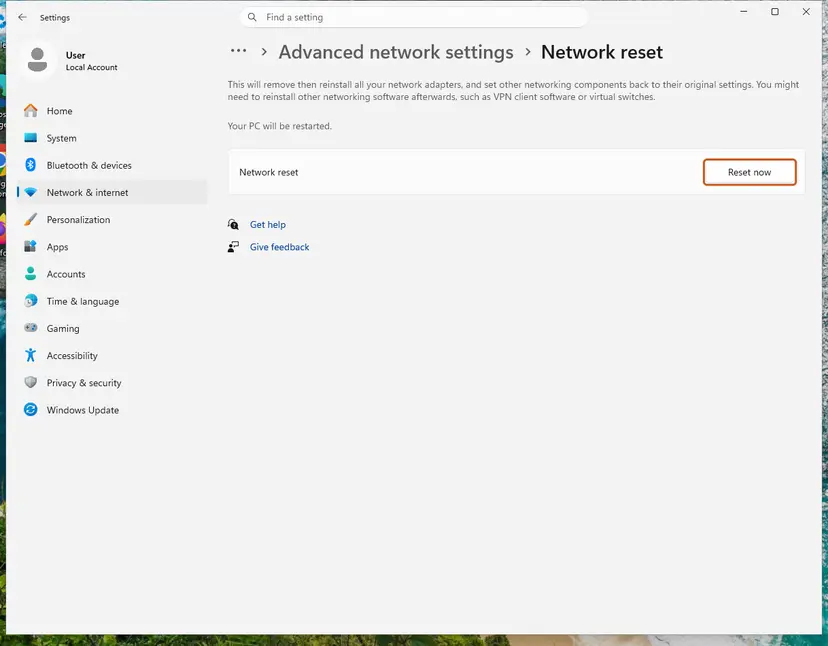
Network reset warns that VPN software or virtual switches may need to be reinstalled. Screenshot: Windows 11 26H2. - Reconnect. After the restart, connect to your Wi-Fi network again (you will need its password) and reinstall or reconfigure VPN software if it stopped working.
These steps were written for Windows 11 24H2 and later. The full page with the other versions and what each result means: Reset the network and flush DNS
It worked if: onedrive.com opens in the browser, and the OneDrive app signs in after the restart.
If not: Collect the details in the next section and contact Microsoft support or your IT admin.
If OneDrive still shows 0x8004da9a: what to collect and who can help
Microsoft has not published what 0x8004da9a means, so support asks the same questions every time. The Microsoft agents on Q&A asked for the items below. Collect them before you ask, so you do not have to repeat every test.
- The web test: whether onedrive.com signs in with the same account, and the exact message if it does not.
- Other accounts: whether a personal Microsoft account can sign in to OneDrive on the same PC.
- Colleagues and devices: whether others in your organisation, or your phone, have the same problem.
- The OneDrive version: gear Help & Settings > Settings > About.
- The network: VPN, proxy, company network or home Wi-Fi, and whether a phone hotspot changes anything.
- What you already tried: reset, removed sign-ins, reinstall, network reset, and what happened each time.
With a work or school account, your IT admin is the right contact: only an administrator can open a Microsoft 365 support ticket. With a personal account, use Contact Microsoft Support at the bottom of Microsoft's OneDrive help pages.
Are your OneDrive files safe while 0x8004da9a blocks the sign-in?
Yes. The error stops the sign-in and the sync, not the storage. Everything you synced before is still in the OneDrive folder on the PC and in the cloud. A reset only disconnects the sync connections and makes OneDrive compare everything again, which Microsoft's agent also said in the Q&A answer.
- Changes you make while signed out stay on the PC and upload when OneDrive signs in again.
- Files that are online-only (the cloud icon in File Explorer) cannot open until OneDrive runs. Open them on onedrive.com meanwhile.
- After a reset or reinstall, point OneDrive at the same folder. Files that did not change are then not downloaded again.
How to keep 0x8004da9a from coming back
In the reports, the error came back on networks that block the sign-in, on PCs with an old OneDrive build, and after old sign-ins stayed on the PC. Each of these can be avoided.
- Let OneDrive update itself, and check the About tab now and then.
- Pause the VPN when OneDrive has to sign in, or ask whether the VPN allows Microsoft sign-in.
- Unlink an account in OneDrive before you stop using it on this PC.
- After a password change, sign in to OneDrive once when it asks.
- Do not delete random entries in Credential Manager.
- Do not set a manual proxy you do not need.
- Do not install a second OneDrive copy over one that IT manages.
- Do not turn off the firewall or the antivirus for good to fix a sign-in.
Frequently asked questions
What does error code 0x8004da9a mean?
It means the OneDrive app could not finish signing you in to your Microsoft account. The window says There was a problem signing you in and asks you to try again in a few minutes. Microsoft has not published a full description. A Microsoft moderator on Microsoft Q&A wrote that the code usually points to a sign-in problem caused mainly by the internet connection. Start with the VPN and proxy check, then reset OneDrive.
How do I fix this problem quickly?
Do two things in this order. First, open onedrive.com in a browser and sign in with the same account, with any VPN turned off. If the web sign-in works, press Win + R, run %localappdata%\Microsoft\OneDrive\onedrive.exe /reset, wait for OneDrive to start again and sign in. That solves most cases in about five minutes. If the error returns, remove the stored OneDrive sign-ins as in Fix 3.
Is 0x8004da9a a OneDrive outage on Microsoft's side?
Sometimes. In March 2021 a Microsoft agent linked a wave of 0x8004da9a reports to an incident on the Service Health Dashboard, and that thread collected more than 200 people with the same question. If colleagues or your other devices fail at the same moment, wait and try again later. A work account's IT admin can check Service health in the Microsoft 365 admin center. If only your PC fails, follow the fixes on this page.
Will I lose my files if I reset or reinstall OneDrive?
No. A reset clears OneDrive's settings and makes it compare all files again, and an uninstall removes the program, not your files. The files stay in the OneDrive folder on the PC and in the cloud, where onedrive.com shows them. If you synced only some folders, choose them again after the reset. When OneDrive asks for a folder location, choose the old one so unchanged files are not downloaded again.
The reset command says Windows cannot find onedrive.exe. What now?
OneDrive can be installed in three places, and the first command covers only the per-user one. Try C:\Program Files\Microsoft OneDrive\onedrive.exe /reset next, then C:\Program Files (x86)\Microsoft OneDrive\onedrive.exe /reset. If none of the three paths works, the OneDrive sync app is not installed for this user. Install it from Microsoft's OneDrive download page, then sign in. Fix 2 lists all three commands in order.
Why can I sign in on onedrive.com but not in the OneDrive app?
Because the web page and the app keep their sign-in separately. The browser uses its own cookies, while the app uses its own settings and the sign-ins stored in Windows Credential Manager. When the web works, the account is fine and the problem is on this PC. Microsoft's support staff recommend a reset of the app in that case (Fix 2), and removing old OneDrive sign-ins if the reset is not enough (Fix 3).
Can a VPN or antivirus cause 0x8004da9a?
A VPN or proxy can, and Microsoft's agents ask you to rule them out first. Turn the VPN off for one test, as in Fix 1. Microsoft's moderator also mentioned third-party antivirus. If you want to test it, pause protection for one sign-in and turn it straight back on: Turn off Microsoft Defender protection for a moment. Never leave the antivirus or the firewall off, and if it was the cause, ask its maker how to allow OneDrive.
Do I need to run SFC, DISM or Windows Update for this error?
Not as a first step. None of the Microsoft answers we read for 0x8004da9a name damaged system files or a missing Windows update as the cause, so this page does not use them as fixes. Keeping Windows updated is still good practice. If Windows itself shows other faults, a system file repair is a safe extra step: Run DISM and SFC to repair Windows system files.
Why does only my work account show 0x8004da9a?
A work or school account depends on your organisation. If the account has no licence that includes OneDrive, or OneDrive was never set up for it, the app cannot sign in. One user in the Microsoft Q&A threads saw we're having trouble finding that site on the web for this reason. Check office.com for a OneDrive icon as in Fix 5, then ask your IT admin to check the licence.
Sources
- Microsoft Q&A: There was a problem signing you in (Error Code: 0x8004da9a), Microsoft moderator answer (learn.microsoft.com)
- Microsoft Q&A: OneDrive Error Code 0x8004da9a (reset advice, licence check and the 2021 service incident) (learn.microsoft.com)
- Microsoft Q&A: I receive Error Code 0x8004da9a trying to sign in to my OneDrive desktop app (2025, support specialist answers) (learn.microsoft.com)
Did this fix work?
One click, no account. It tells the next reader which guides are worth their time.
Questions and experiences: fix OneDrive error 0x8004da9a in Windows
Still broken, or found a fix we did not cover? Ask here: members and our editors answer. Reading is open; writing needs a free account.
…