How to fix
OneDrive error 0x8004de20
on Windows
Resolve OneDrive error 0x8004de20 in Windows 10 or 11 quickly and effectively. Follow our expert-tested solutions for a hassle-free experience.


What causes How to fix OneDrive error 0x8004de20 in Windows?
- Problem in the sign-in session
- User account setup issues
- Altered or expired Microsoft account password
- Temporary settings conflicts after a Windows update
- Corrupted credentials in Windows' Credential Manager
- Corrupted system files
Repairs Windows system files, removes malware, and restores a clean OS state — without reinstalling.
Hello. When I try to synchronize my files on OneDrive, I always get error code 0x8004de20. Can you help me with this?
Microsoft OneDrive is the default cloud storage for Windows users, depending on it for file syncing between devices and keeping important documents saved in the cloud. However, synchronization can fail, and it's not that unusual. When OneDrive fails to play along, users are left without access to their current files or have to deal with productivity slowdowns. One such issue that has been popping up in recent times is the OneDrive error 0x8004de20, which renders users unable to sign in to the app or successfully sync their files.
0x8004de20 error occurs usually due to a problem in the sign-in session or user account setup. It may also display as OneDrive "must be signed in," but the user already has a visible log-in to the Microsoft account. It may arise with both consumer and business accounts and may arise after a system update, password change, or extended period of inactivity within the OneDrive application.
If OneDrive error 0x8004de20 is experienced, the underlying cause may vary. For instance, if your Microsoft account password has been altered or has expired, OneDrive might not authenticate - in such a case, signing out and signing back should work. In case you face the error after a Windows update, temporary settings conflicts are at fault, which may require resetting OneDrive options.
If corrupted credentials are stored in Windows' Credential Manager, their deletion may fix the issue. If system files are corrupted as well, OneDrive could not be opened and system repair actions would be required.
For those who don't know what is the issue, using a reliable PC repair software like [d1] is a wise choice. It can scan and fix most types of system-level issues automatically. Below, manual instructions will also be provided for those who would prefer to resolve the issue by themselves.

Fix 1. Sign out and back into OneDrive
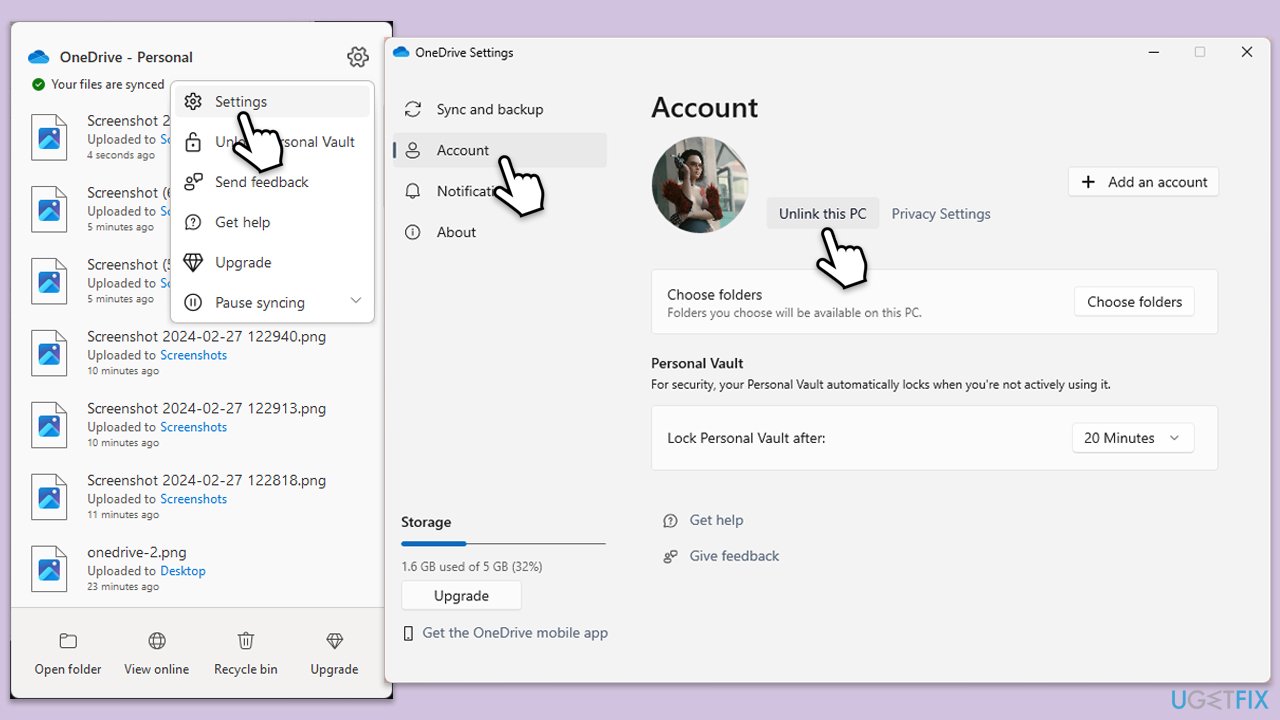
This error is often linked to expired or corrupted login sessions. Signing out and back in can refresh your account connection and reauthenticate your credentials.
- Right-click the OneDrive icon in the taskbar.
- Select Settings.
- Go to the Account tab.
- Click Unlink this PC.
- Sign in again with your Microsoft account.
Fix 2. Run the Windows Store apps troubleshooter
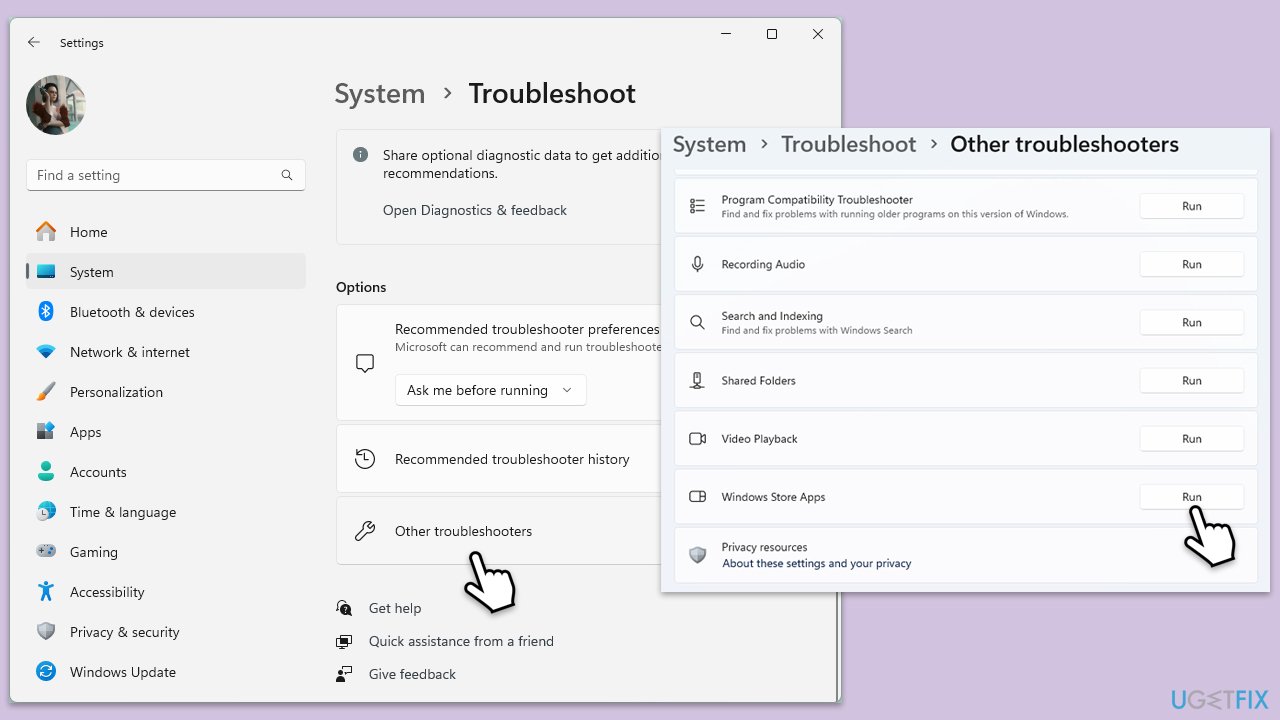
Windows includes a built-in troubleshooter for apps like OneDrive. It can detect and automatically fix certain problems.
- Type in Troubleshoot in Windows search and hit Enter.
- Select Additional Troubleshooters/Other troubleshooters option.
- Scroll down to find Windows Store Apps and click Run/Run the troubleshooter.
- Once done, apply the recommended fixes.
Fix 3. Remove stored credentials
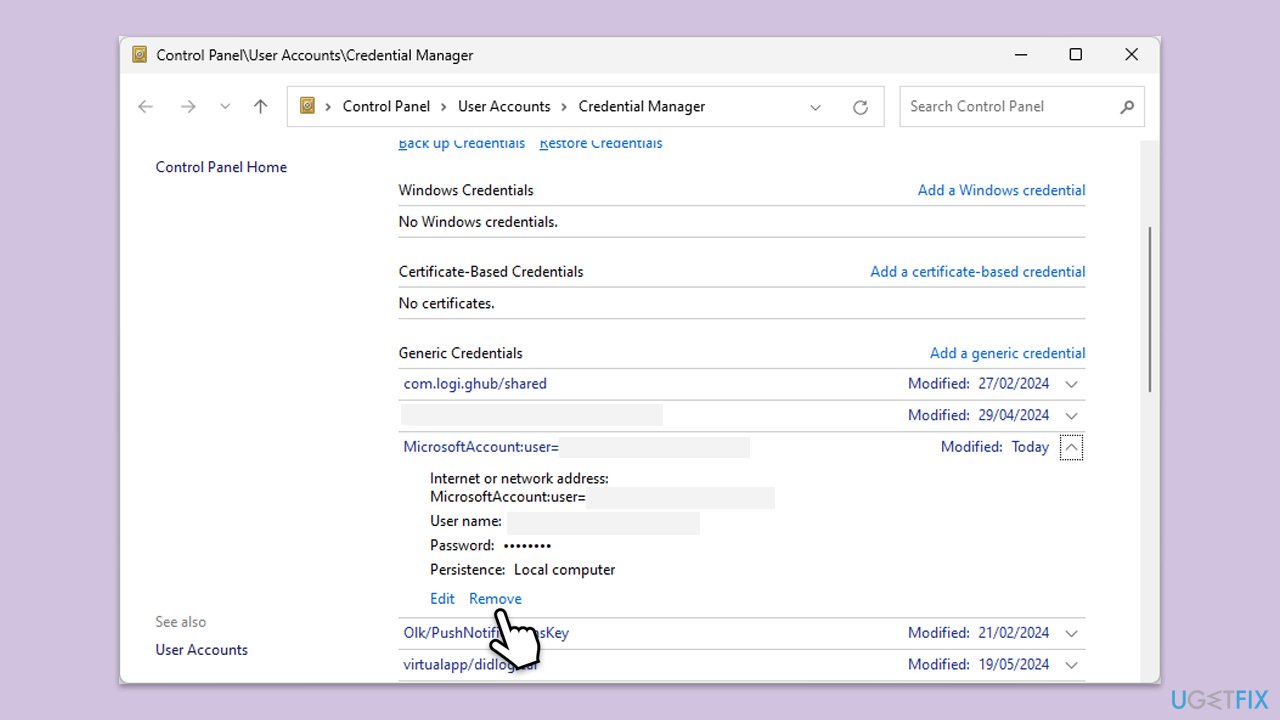
Saved credentials in Windows Credential Manager can become outdated or damaged. Removing them forces OneDrive to request fresh login data.
- Close OneDrive.
- Type Control Panel in Windows search and press Enter.
- Go to User Accounts > Credential Manager.
- Go to the Windows Credentials section.
- Scroll down to the Generic Credentials section.
- Remove all OneDrive credentials as required.
- Sign in again.
Fix 4. Update OneDrive manually
If you’re running an outdated version of OneDrive, syncing issues can occur. Installing the latest version ensures compatibility with current Windows builds.
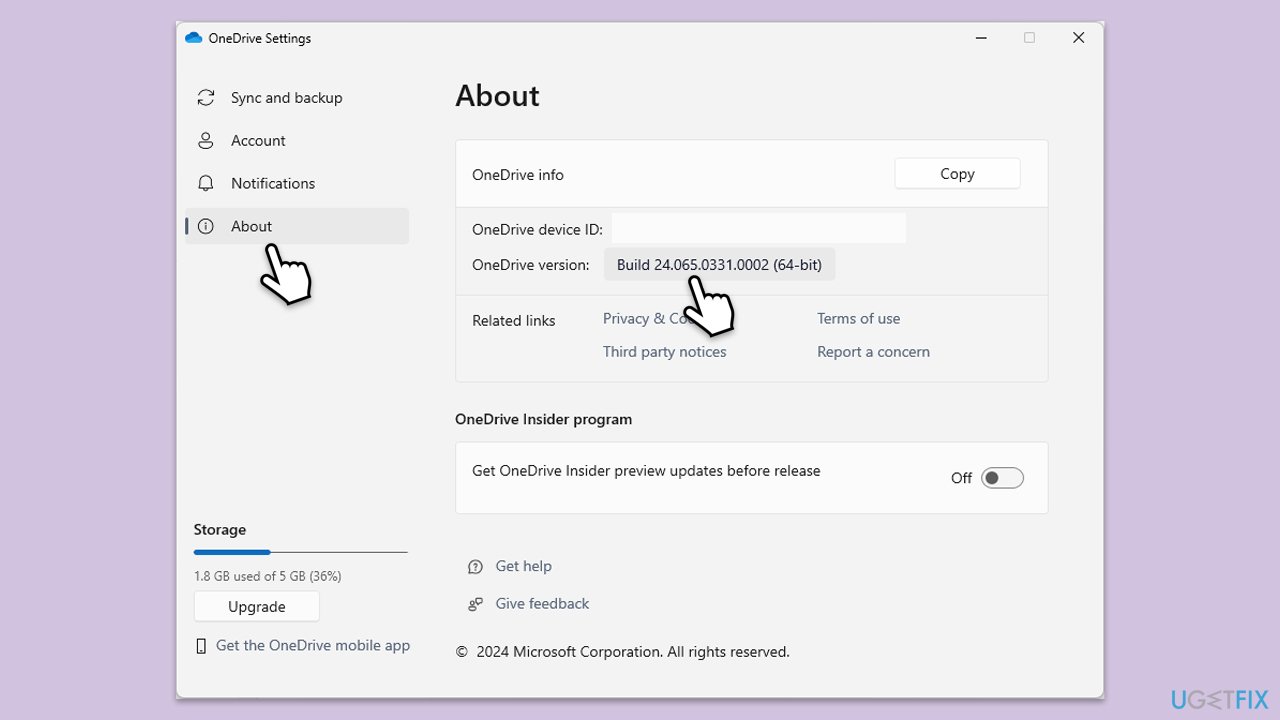
- Open the OneDrive app on your PC.
- Click on the Help & Settings icon in the notification area.
- Select Settings.
- In the settings menu, go to the About tab.
- Click on the OneDrive version - this should open the browser and the release notes from Microsoft.
- If the latest version listed there matches with the one on your app, you are up-to-date.
- If the version does not match, simply click on Download OneDrive for Windows, follow the installation instructions and it will install the latest version on your device.
Fix 5. Reconnect your Microsoft account
Sometimes Windows itself loses connection to the Microsoft account, affecting services like OneDrive. Reconnecting helps refresh account integration.
- Open Settings.
- Go to Accounts > Your info.
- If prompted, click sign in with a Microsoft account.
- Follow the prompts and restart your PC afterward.
Fix 6. Reset OneDrive
A full reset clears OneDrive settings and cache without removing your files. This can resolve issues caused by misconfigured sync settings or internal glitches.
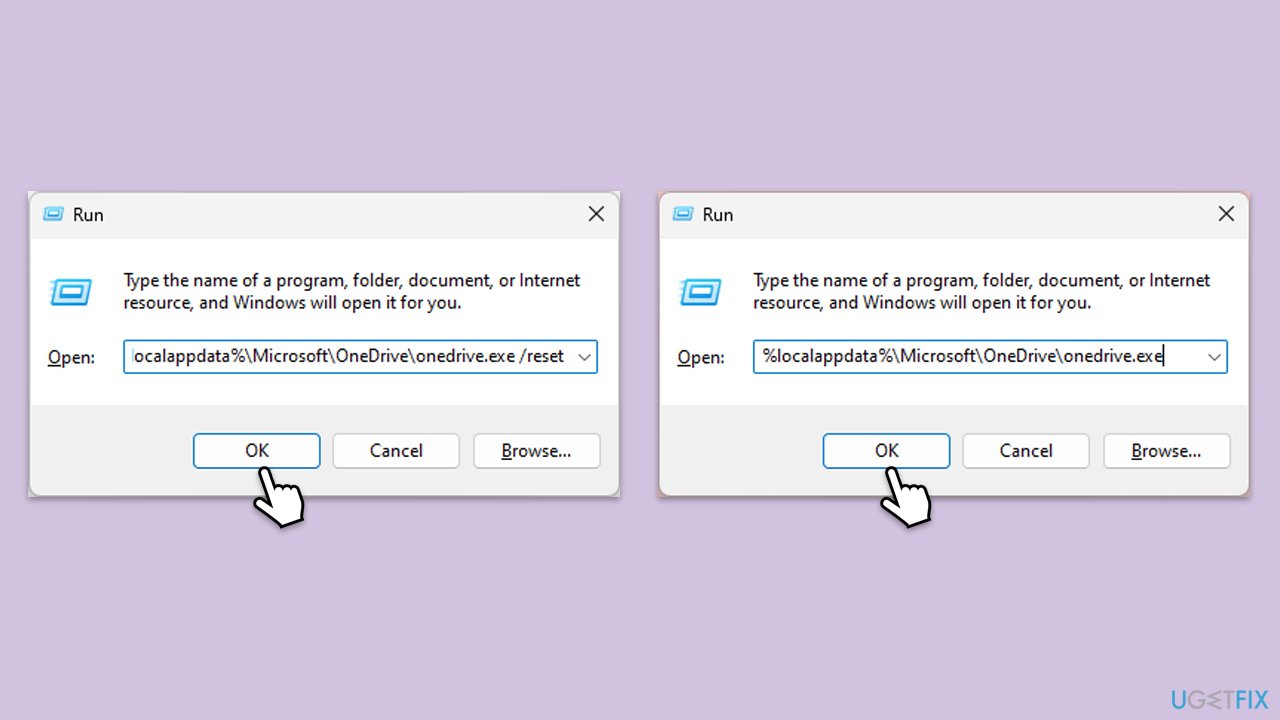
- Press Win + R on your keyboard.
- When the Run window opens, copy and paste the following text into it:
%localappdata%\Microsoft\OneDrive\onedrive.exe /reset
(Note: you might get an error here. In that case, use %programfiles(x86)%\Microsoft OneDrive\onedrive.exe /reset or C:\Program Files (x86)\Microsoft OneDrive\onedrive.exe /reset instead) - Press Enter or click OK.
- After this command is executed, the app should be reset, and OneDrive should open.
- If it doesn't, wait a few minutes, then open the Run window again and use the following command:
%localappdata%\Microsoft\OneDrive\onedrive.exe - Press Enter.
Fix 7. Create a new local user profile
Corrupt user profiles can interfere with cloud services. Creating a new profile helps determine if the issue is tied to your current account.
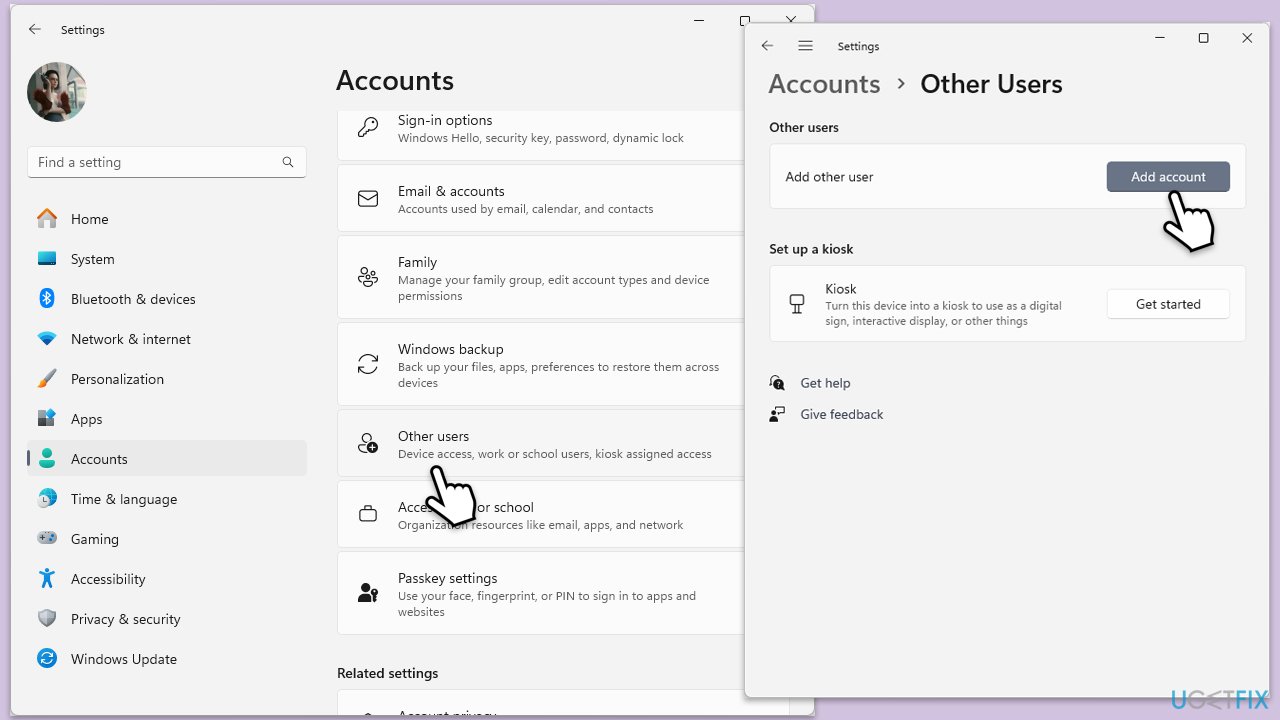
- Open Windows Settings.
- Go to Accounts then Family/Family & other users.
- Under Other users, click Add account/Add someone else to this PC.
- Follow the prompts to create a new user account. If you don't have Microsoft account details, you can choose I don't have this person's sign-in information followed by Add a user without a Microsoft account.
- Assign a username and password for the new account and complete the setup.
- Then go back to the Accounts section. Under Family/Family & other users, select the newly created account and click Change account type.
- Under Account type, pick Administrator and click OK.
Bottom line
To fix OneDrive error 0x8004de20, you can sign out and back into OneDrive, reset OneDrive options, delete corrupted credentials, or perform system repair actions. If these solutions do not resolve the issue, consider using reliable PC repair software to scan and fix system-level problems.
Frequently asked questions
OneDrive error 0x8004de20 typically occurs due to connectivity issues, outdated app versions, or problems with the Windows system files. Ensuring a stable internet connection and updating OneDrive can often resolve the issue.
To troubleshoot this error on Windows 11, try resetting OneDrive by entering 'onedrive /reset' in the Run dialog. Additionally, check your network settings and firewall to ensure they aren't blocking OneDrive.
Yes, you can fix OneDrive error 0x8004de20 on Windows 10 by clearing the cache and ensuring that your Windows updates are current. If the problem persists, consider unlinking and relinking your OneDrive account.




Report an issue
What's wrong with this guide? We review every report and update or remove content.
Report received — thank you. We'll review and fix it.
You need a free account to submit a report.
Be the first to comment