How to fix
OneDrive error 0x8004de2f
on Windows
Resolve OneDrive error 0x8004de2f on Windows 10 and 11 effortlessly. Follow our expert-tested guide and get your cloud storage back in minutes.


What causes How to fix OneDrive error 0x8004de2f in Windows?
- Bad or unreliable internet connection
- Problematic OneDrive configurations
- Cached credentials causing issues
- Microsoft account not authenticated
- Older version of OneDrive installed
Repairs Windows system files, removes malware, and restores a clean OS state — without reinstalling.
When trying to connect to OneDrive, I always get an error with the message, "There was a problem connecting to OneDrive. Check your internet connection, and then try again. (Error Code: 0x8004de2f)." There is nothing wrong with my internet - I tried loading a bunch of various websites and even speed test, and it's all good.
OneDrive is Microsoft's cloud storage which allows users to have their files backed up, synchronized, and accessible across devices. It is integrated into Windows and used to a great degree for personal as well as commercial use. OneDrive simplifies the sharing of files, collaborating, and keeping data from getting lost. However, like every other online application, it's not entirely immune to the random glitch. One such problem faced by some users is OneDrive error 0x8004de2f.
This error typically occurs when OneDrive is unable to sign in or sync properly. Users might receive a pop-up message or prompt that indicates something went wrong and does not permit the service to connect. This all manifests in OneDrive icon showing a warning, failure to sync, or repeated sign-in requests that don't resolve the issue.
The 0x8004de2f error can be caused by a variety of different issues. If a bad or unreliable internet connection causes the error, then network stability or switching to a better connection might fix it. If one of the problematic OneDrive configurations or cached credentials is the root of the error, then the removal of the cached data points might fix it.
If the Microsoft account used is not authenticated, then reconnecting login credentials or reconnecting the account can restore access. Otherwise, if an older version of OneDrive is installed, then installing the most recent build could solve compatibility problems causing the error.
For all of these potential reasons, there are manual solutions that can be created, and they are all detailed in the next steps. For others who need to enjoy the convenience of faster, automated Windows repair for problems like OneDrive error 0x8004de2f, employing a reliable [d1] repair program is advisable.

Fix 1. Check your internet connection
If you haven't done so yet, make sure you check your internet connection. Sometimes, the stability might be more important than the speed itself.
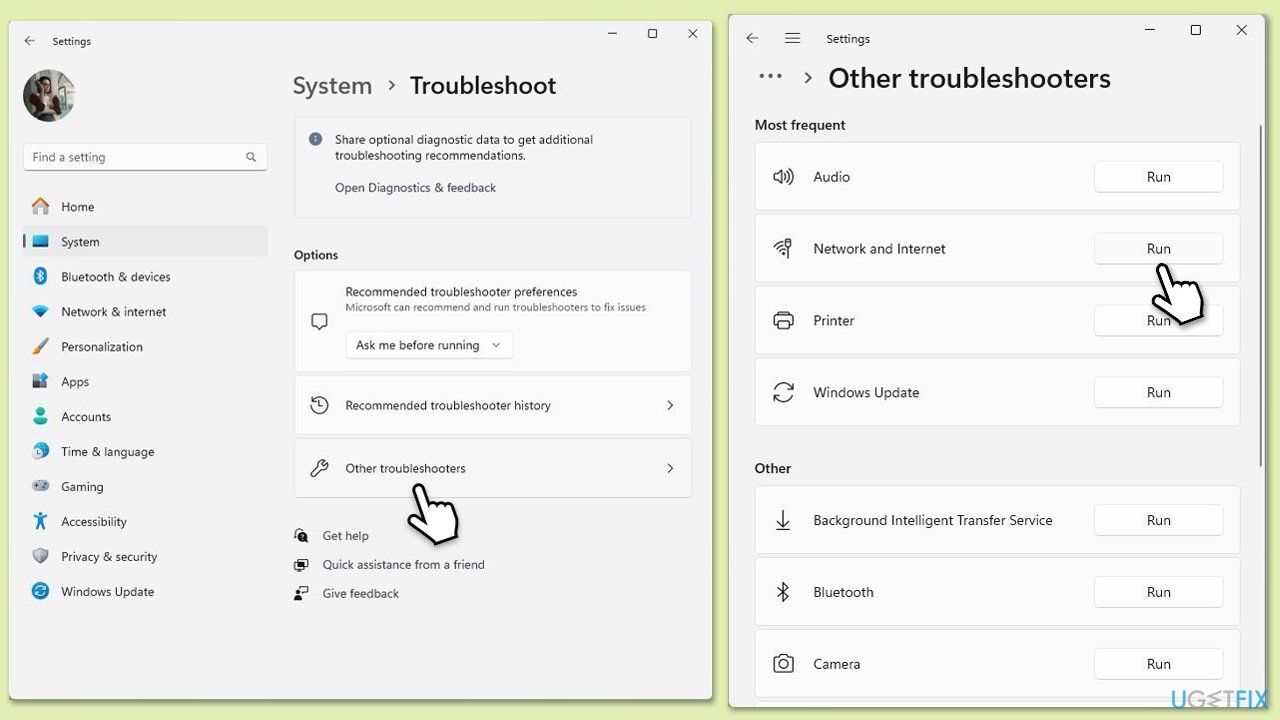
Windows 11
- Type Troubleshoot in Windows search and press Enter.
- Click Additional troubleshooters if you can't see them listed.
- Scroll down to find the Network and Internet option.
- Click and select Run the troubleshooter.
- Apply the offered changes and close down the troubleshooter - see if that helps solve your problem.
Windows 10
- Right-click on Start and pick Settings.
- Go to the Network & Internet section.
- On the right side, find the Advanced network settings section.
- Click Network troubleshooter and wait.
- The fixes will be automatically applied.
Fix 2. Enable TLS Protocols
OneDrive relies on TLS protocols to be running, so make sure they are enabled.
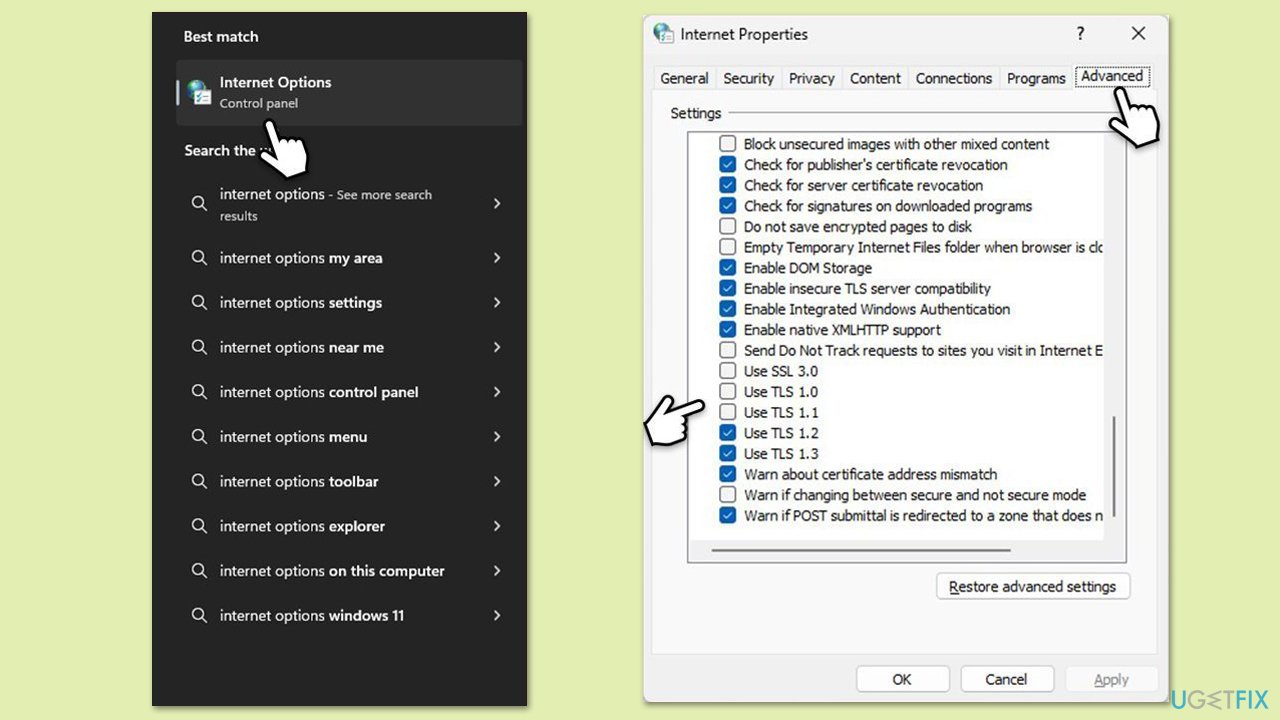
- Type Internet Options in Windows search and press Enter.
- Go to the Advanced tab.
- Scroll down to the Security section.
- Ensure the following settings are applied:
- SSL 3.1, TLS 1.0, and TLS 1.1 are disabled.
- TLS 1.2 and TLS 1.3 are enabled.
- Click Apply and then OK.
- Restart your PC and try using OneDrive again.
Fix 3. Try Clean Boot
Third party software conflicts (such as antivirus or VPN) can prevent OneDrive from connecting. If you enable Clean Boot, Windows will be launched with Microsoft-based services and processes only, removing software conflicts.
- Type msconfig in Windows Search and press Enter.
- Click on the Services tab and check the Hide all Microsoft Services box.
- Click Disable all to disable non-Microsoft services, then click the Startup tab.
- Open the Task Manager, disable all startup items, and close the Task Manager.
- Go to the Boot tab and mark the Safe boot option.
- Click OK on the System Configuration window and restart your computer.
- To find out which app(s) is causing conflicts, enable each of the processes (or you can do it in groups), restart, and see if the problem persists. Repeat until you find the faulty app, then either update or uninstall it.

Fix 4. Reset credentials
Clearing the credentials stored by OneDrive in the Windows Credential Manager can fix a number of related problems.
- Close OneDrive.
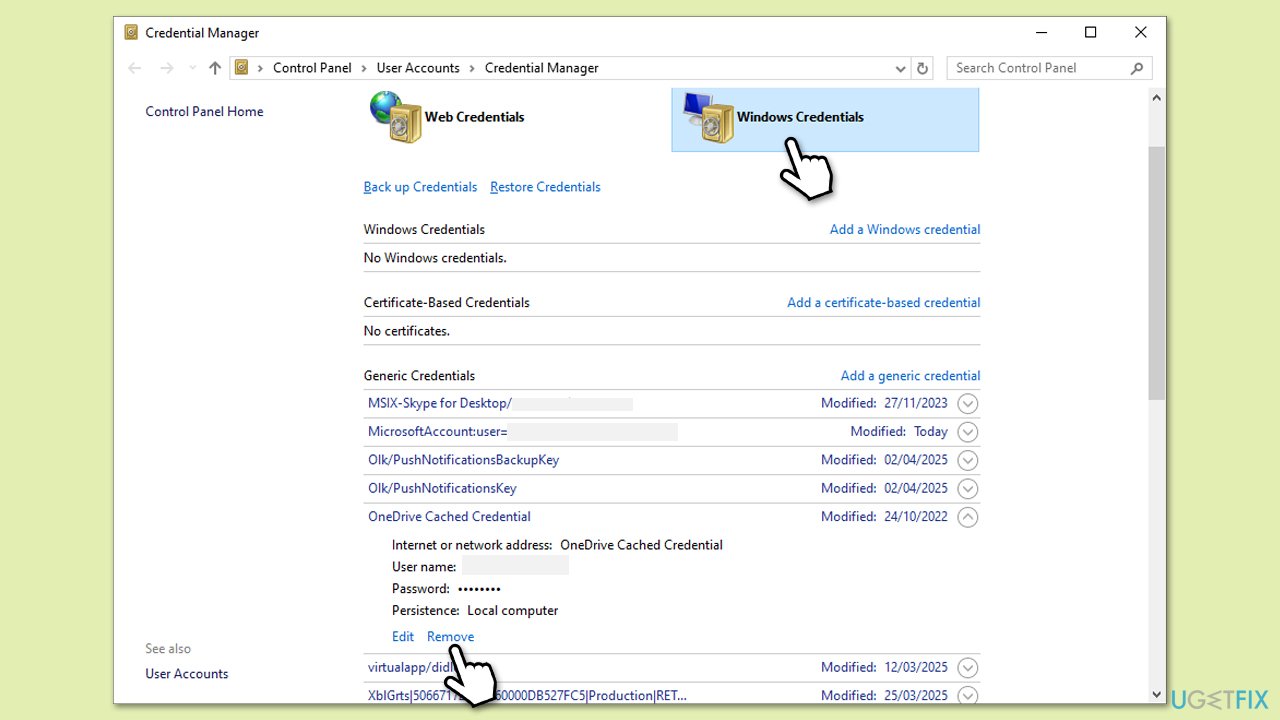
- Type Control Panel in Windows search and press Enter.
- Go to User Accounts > Credential Manager.
- Go to the Windows Credentials section.
- Scroll down to the Generic Credentials section.
- Remove all OneDrive credentials as required.
- Sign in again.
Fix 5. Update OneDrive manually
Make sure that your Windows is also updated to the latest version.
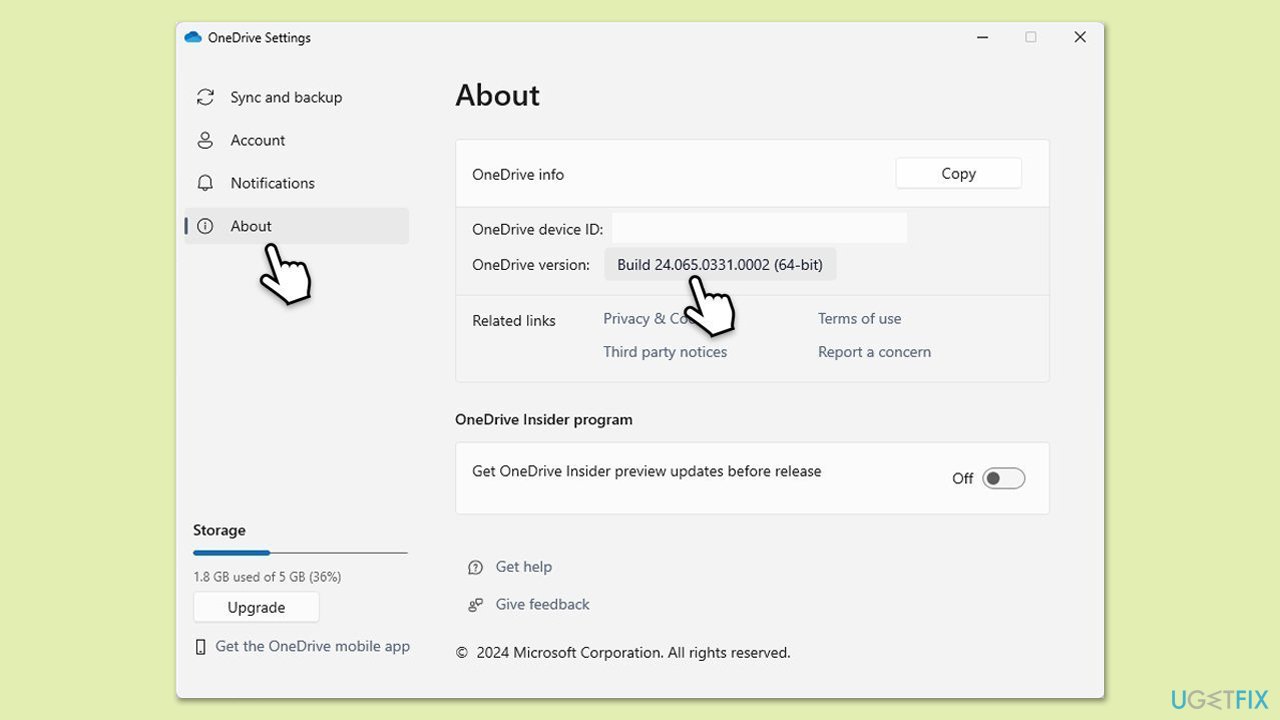
- Open the OneDrive app on your computer.
- Click on the Help & Settings icon in the notification area.
- Select Settings.
- In the settings menu, go to the About tab.
- Click on the OneDrive version - this should open the browser and the release notes from Microsoft.
- If the latest version listed there matches with the one on your app, you are up to date.
- If the version does not match, simply click on Download OneDrive for Windows, follow the installation instructions, and it will install the latest version on your device.
Fix 6. Reinstall OneDrive
If the error persists, reinstalling OneDrive can resolve deep-rooted issues. This will remove and replace OneDrive’s files without affecting your online data.
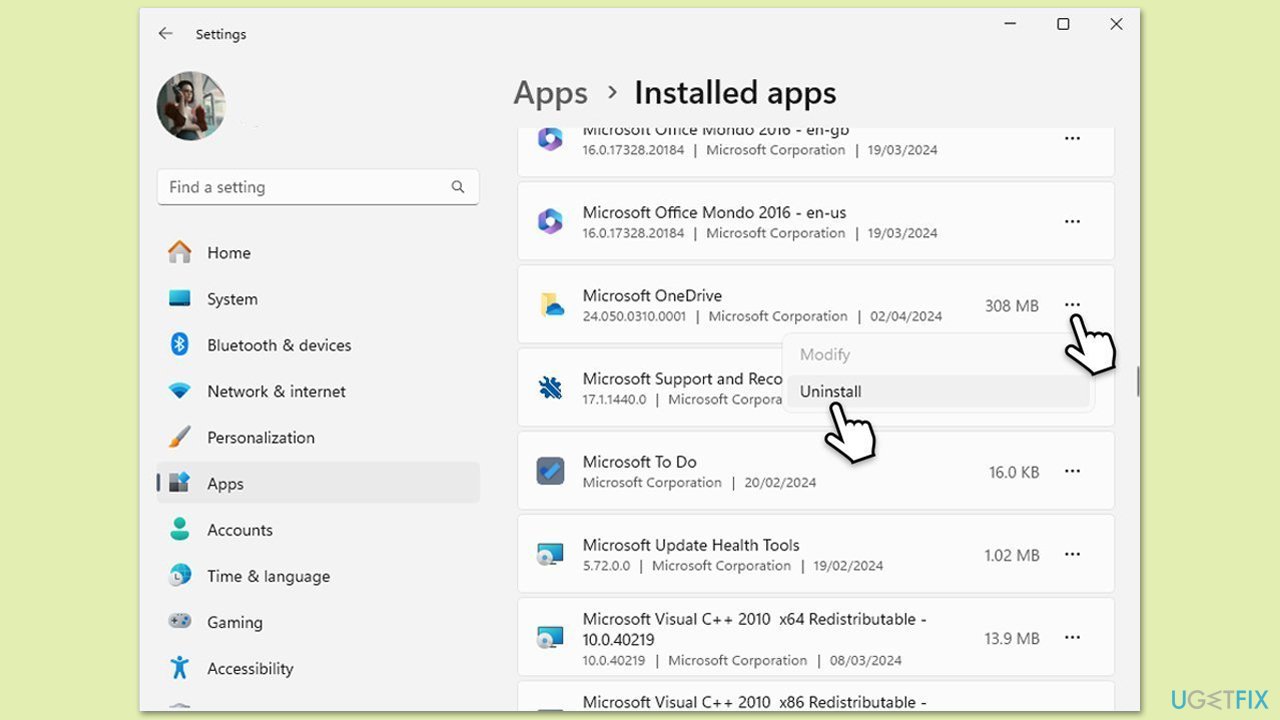
- Right-click on Start and pick Apps and Features/Installed apps.
- Scroll down and find Microsoft OneDrive.
- Click Uninstall and follow the prompts to remove the app.
- Next, open File Explorer and make sure Hidden items are visible.
- Navigate to the following locations and delete all contents from OneDrive folders located in the following directories (replace USERNAME with your username):
C:\Users\USERNAME\AppData\Local\
C:\Users\USERNAME\AppData\Local\Temp
C:\Users\USERNAME\AppData\LocalLow\Temp
C:\Windows\Temp - Restart your computer.
- Once rebooted, open your browser and go to the official Microsoft site to download OneDrive.
Bottom line
To fix OneDrive error 0x8004de2f, users can check their internet connection, remove cached data, reconnect their Microsoft account, or install the latest version of OneDrive. If these solutions do not resolve the issue, employing a reliable repair program is advisable.
Frequently asked questions
The OneDrive error 0x8004de2f is often caused by network connectivity issues, incorrect account settings, or problems with the OneDrive application itself.
To fix this error, you can try resetting the OneDrive app, checking your internet connection, or ensuring that your Windows 11 is up to date.
Yes, you can run the Microsoft Store Apps troubleshooter in Windows 10 to identify and fix issues related to OneDrive.




Report an issue
What's wrong with this guide? We review every report and update or remove content.
Report received — thank you. We'll review and fix it.
You need a free account to submit a report.
Be the first to comment