How to fix
OneDrive error 0x8004de34
on Windows
Fix OneDrive error 0x8004de34 on Windows 10 or 11 quickly and effectively. Get expert-tested solutions to restore your cloud storage seamlessly.

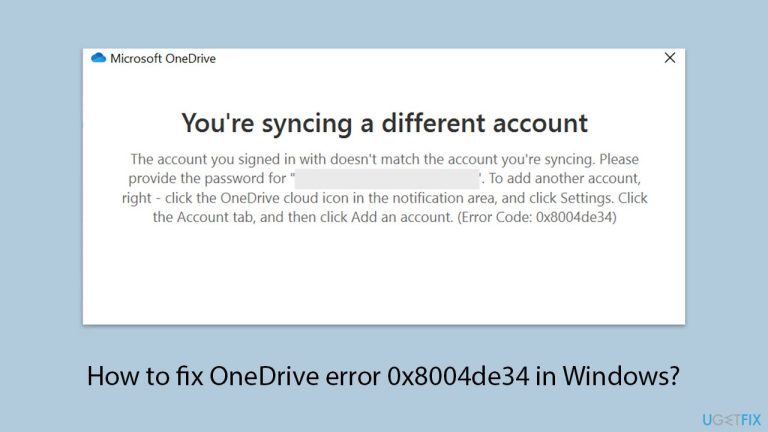
What causes How to fix OneDrive error 0x8004de34 in Windows?
- Faulty or outdated cached credentials
- Corrupted or stale cached credentials
- Missing or corrupted files in OneDrive client
- Network connectivity malfunction
- Interference from other applications
Repairs Windows system files, removes malware, and restores a clean OS state — without reinstalling.
For some reason, my OneDrive is forcing me to use old email account that is not accessible to me anymore. I always get error code 0x8004de34 when trying to log in due to this reason.
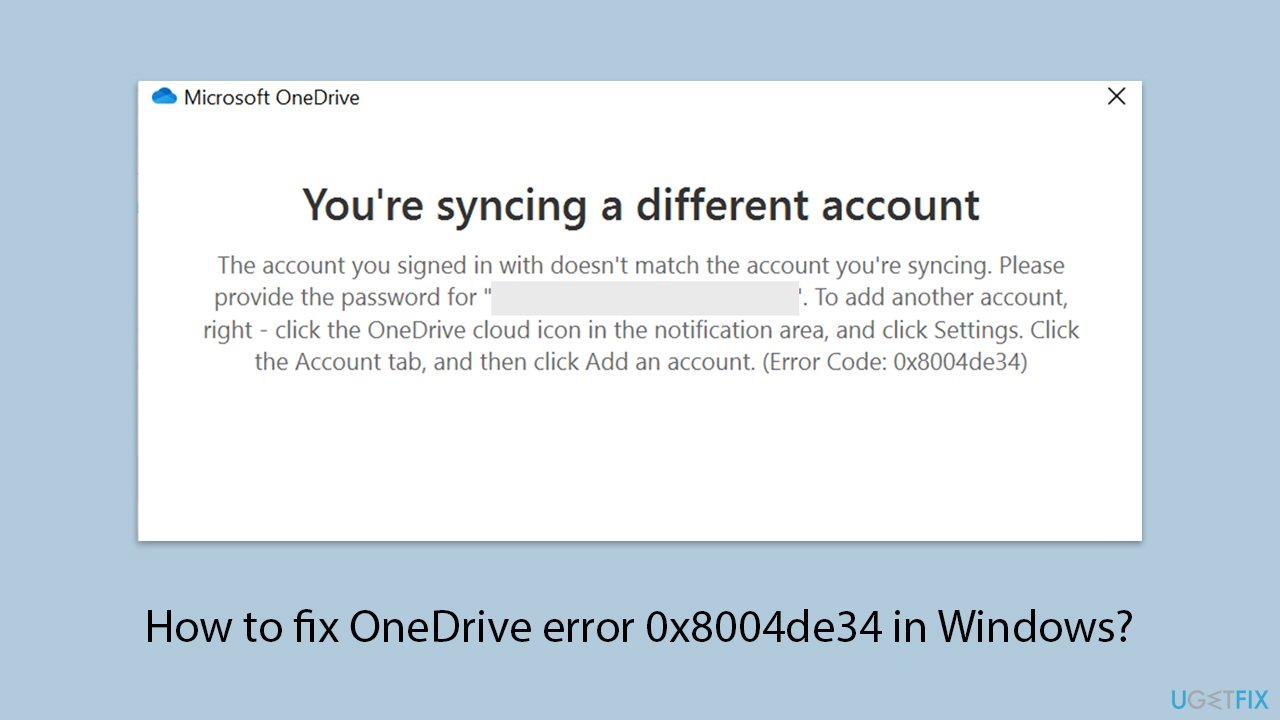
When faced with OneDrive error code 0x8004de34 on Windows, it can be annoying since it typically hinders access to essential files and impairs productivity. The error normally occurs during the process of signing in, where a message implies that there is a problem with account authentication.
The users who encounter error code 0x8004de34 typically cannot access their OneDrive account, and the error persists despite multiple attempts at logging in. In some instances, the error occurs after resetting the account password, resulting in a discrepancy between the stored credentials and the new password.
Some users have reported the error with no apparent modifications to their system or account configuration, making it challenging for them to identify the cause.
Many are the causes behind the 0x8004de34 error. OneDrive is often obstructed from providing the correct login credentials by faulty or outdated cached credentials. Corrupted or stale cached credentials prevent OneDrive from properly identifying login credentials.
Internal issues with OneDrive client like missing or becoming corrupted files often lead to such an issue. Any form of network connectivity malfunction or interference on the part of other applications renders OneDrive ineffective in properly verifying the user account.
In order to repair error code 0x8004de34, various possible repairs can be attempted by the users. One may delete cached credentials for OneDrive and attempt signing in later, which in most instances resolves sign-in issues.
Reinstalling the OneDrive client re-installs any corrupted or missing files and offers a fresh setup that might eliminate the error. Having a secure internet connection and disabling any interfering programs, such as antivirus software, temporarily can also resolve the problem.
For those who need a general utility to fix underlying system problems that may cause error code 0x8004de34, employing the [d1] repair tool may be extremely useful. The tool is designed to fix a variety of system-level problems, including system file corruption and registry issues, thereby improving overall system stability and potentially preventing such errors from occurring.
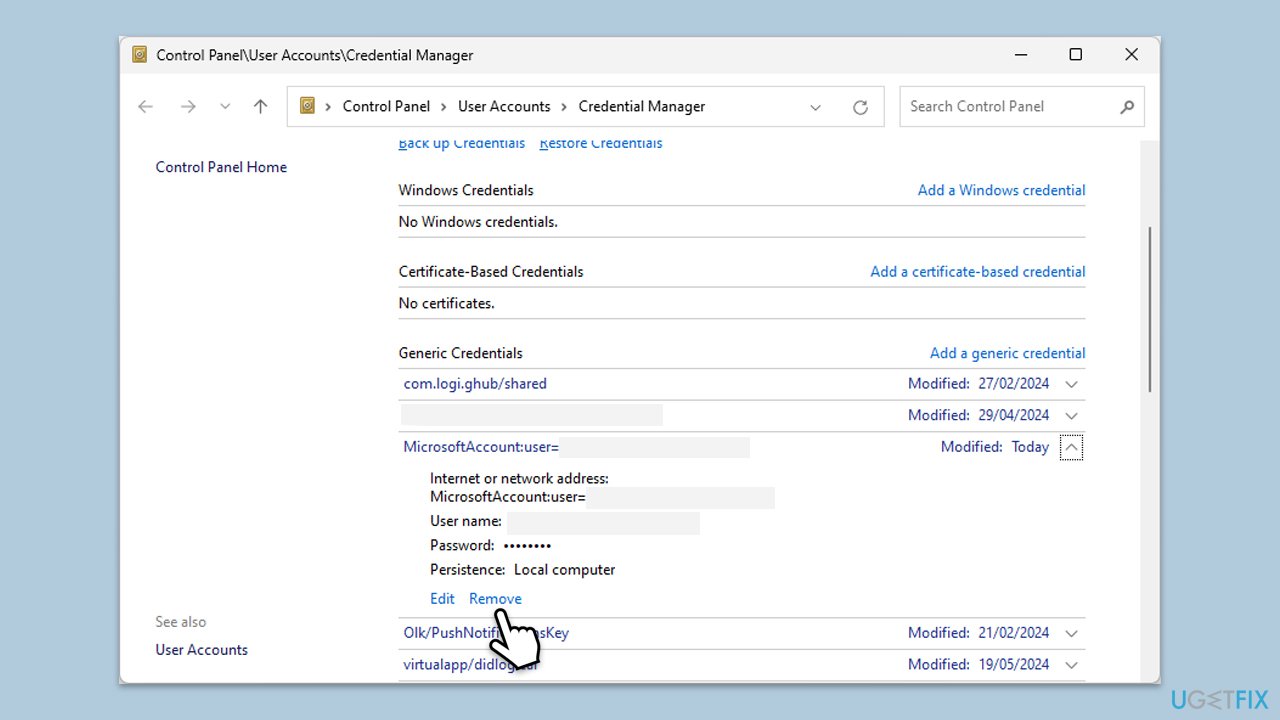
Fix 1. Clear OneDrive cached credentials
- Close OneDrive.
- Type Control Panel in Windows search and press Enter.
- Go to User Accounts > Credential Manager.
- Go to the Windows Credentials section.
- Scroll down to the Generic Credentials section.
- Remove all OneDrive credentials as required.
- Sign in again.
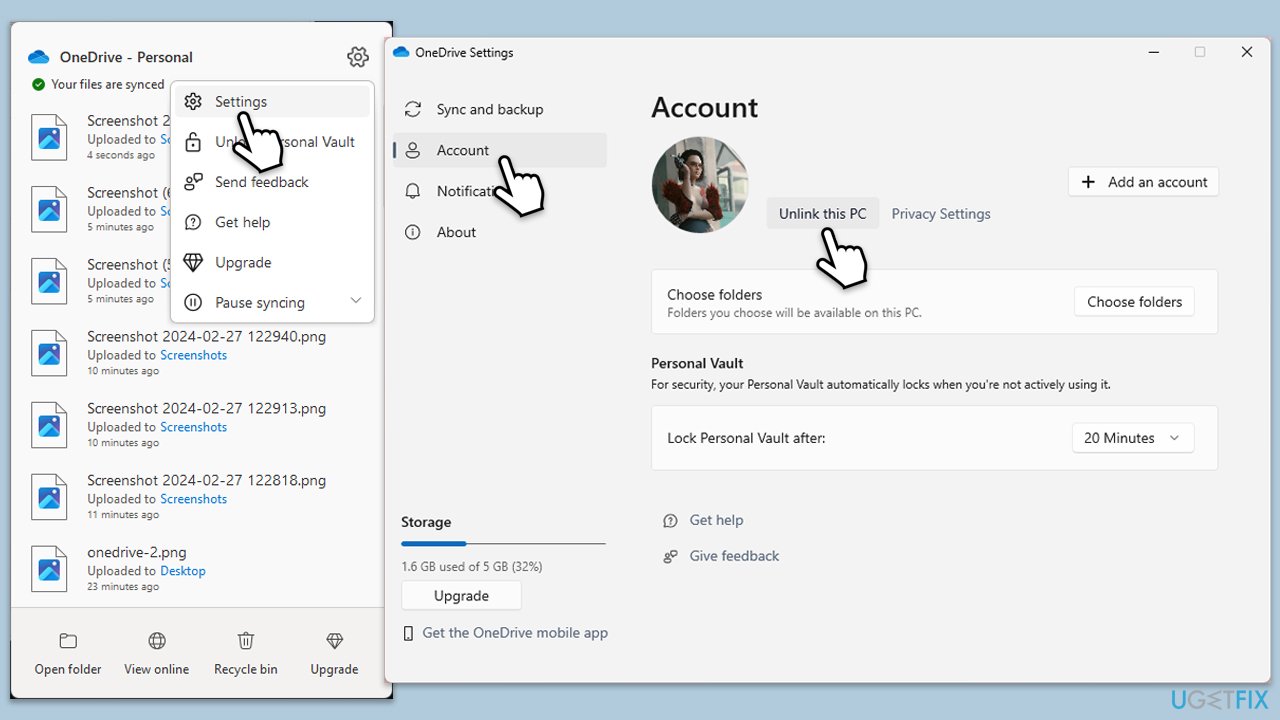
Fix 2. Sign out and sign back into OneDrive
- Click on the OneDrive icon in the system tray.
- Go to Help & Settings and then choose Unlink this PC.
- When prompted, confirm with Unlink this PC.
- After signing out, sign back in with your credentials.
Fix 3. Reset OneDrive
Resetting OneDrive clears its configuration and cache, resolving issues that may cause error 0x8004de34 without affecting your files.
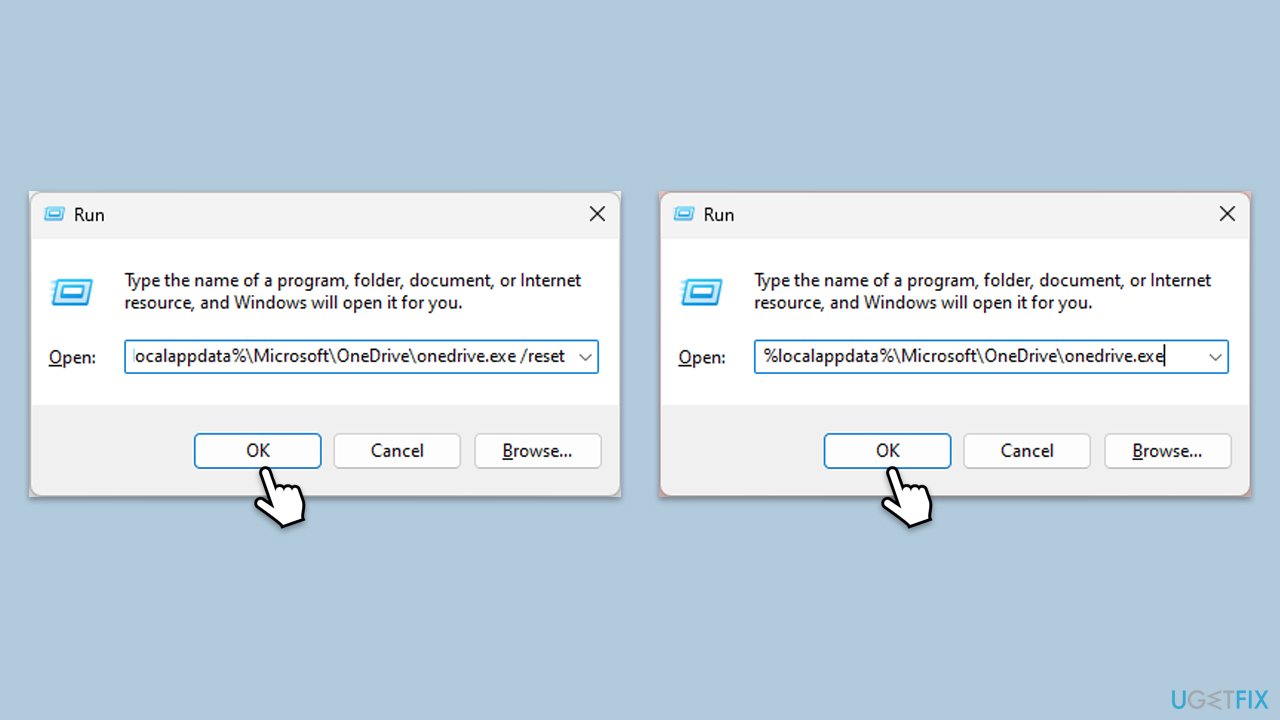
- Press Win + R on your keyboard.
- When the Run window opens, copy and paste the following text into it:
%localappdata%\Microsoft\OneDrive\onedrive.exe /reset
(Note: you might get an error here. In that case, use %programfiles(x86)%\Microsoft OneDrive\onedrive.exe /reset or C:\Program Files (x86)\Microsoft OneDrive\onedrive.exe /reset instead) - Press Enter or click OK.
- After this command is executed, the app should be reset, and OneDrive should open.
- If it doesn't, wait a few minutes, then open the Run window again and use the following command:
%localappdata%\Microsoft\OneDrive\onedrive.exe - Press Enter.
Fix 4. Reinstall OneDrive
If the OneDrive client is corrupted or missing essential files, reinstalling the app can fix error code 0x8004de34 by providing a fresh installation.
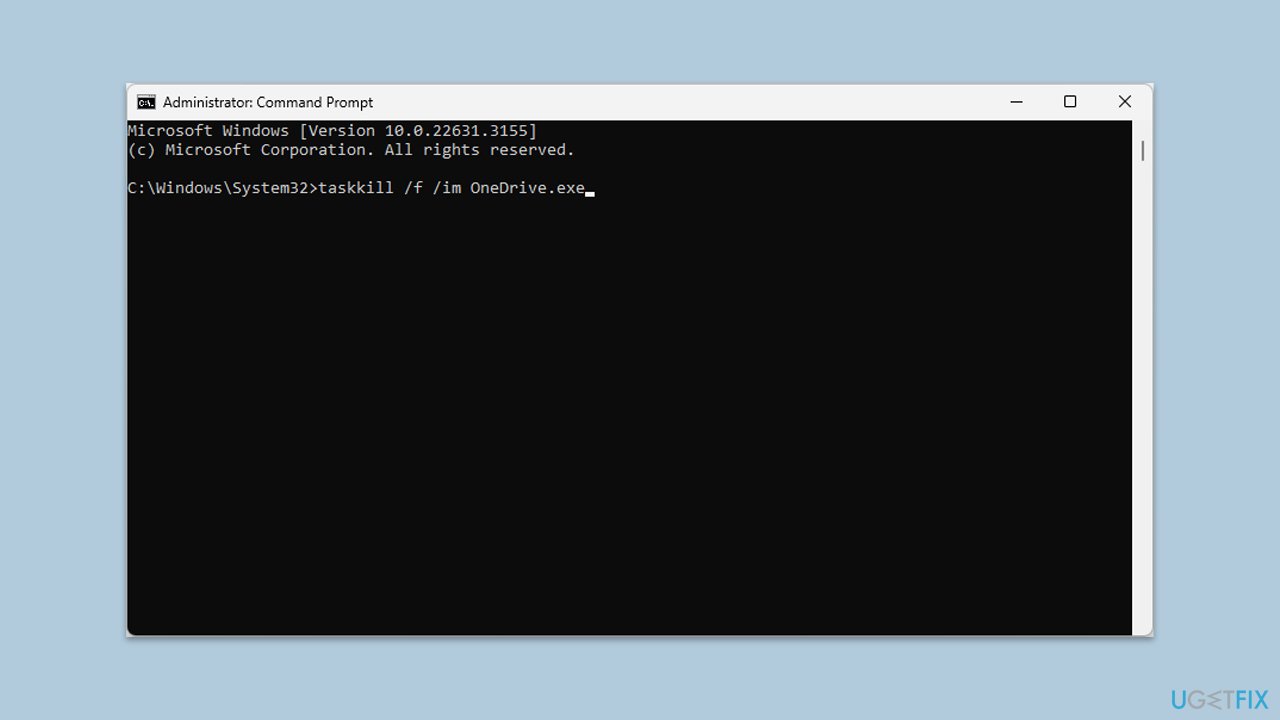
- Type cmd in Windows search.
- Right-click on Command Prompt and select Run as administrator.
- When UAC shows up, click Yes.
- Type in the following and press Enter to terminate any leftover OneDrive processes:
taskkill /f /im OneDrive.exe - If you are using 64-bit Windows, use the following command and hit Enter:
%SystemRoot%\SysWOW64\OneDriveSetup.exe /uninstall - If you are using 32-bit Windows, use the following command and hit Enter:
%SystemRoot%\System32\OneDriveSetup.exe /uninstall - After that, restart your PC.
- Reinstall OneDrive from the official Microsoft website.
Fix 5. Update OneDrive and Windows
Outdated software can cause compatibility issues, leading to sign-in errors. Keeping both OneDrive and Windows updated ensures access to the latest fixes.
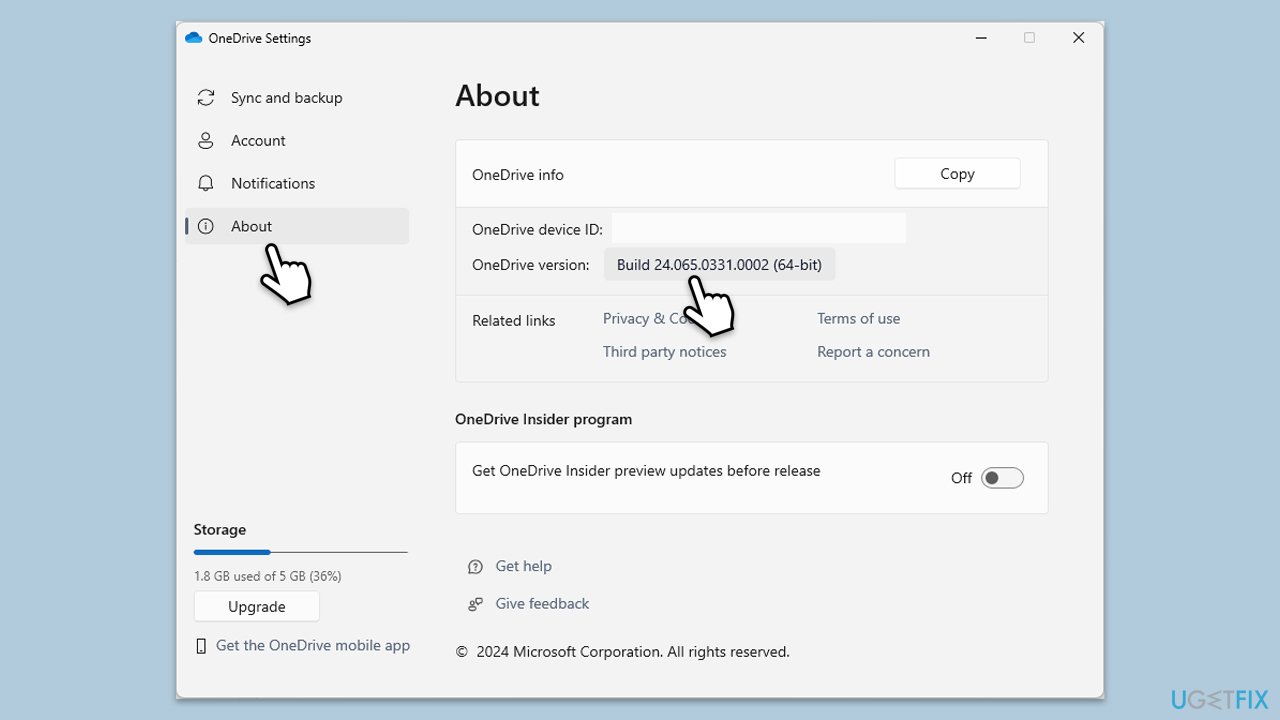
- Open the OneDrive app on your computer.
- Click on the Help & Settings icon in the notification area.
- Select Settings.
- In the settings menu, go to the About tab.
- Click on the OneDrive version - this should open the browser and the release notes from Microsoft.
- If the latest version listed there matches with the one on your app, you are up to date.
- If the version does not match, simply click on Download OneDrive for Windows, follow the installation instructions and it will install the latest version on your device.
To update Windows:
- Type Updates in Windows search and press Enter.
- Here, click Check for updates or Install updates, depending on which one is available.
- Wait till Windows downloads and installs all the necessary files.
- If optional updates are available, install them too.
- Restart your computer and try logging in again.
Fix 6. Modify the registry
Modifying the registry can help reset OneDrive's authentication settings and resolve the issue.
Caution: Editing the registry can affect system stability if done incorrectly. It's recommended to back up the registry before making changes.
- Press Win + R, type regedit, and press Enter.
- In the Registry Editor, navigate to the following path:
- HKEY_CURRENT_USER\Software\Microsoft\OneDrive
- Look for the UserSid or Accounts entries related to your OneDrive account.
- Right-click the entries and select Delete.
- Close the Registry Editor and restart OneDrive.
Fix 7. Repair Office installation
If OneDrive is part of an Office installation, corrupted Office files can contribute to error 0x8004de34. Repairing Office can resolve the issue.
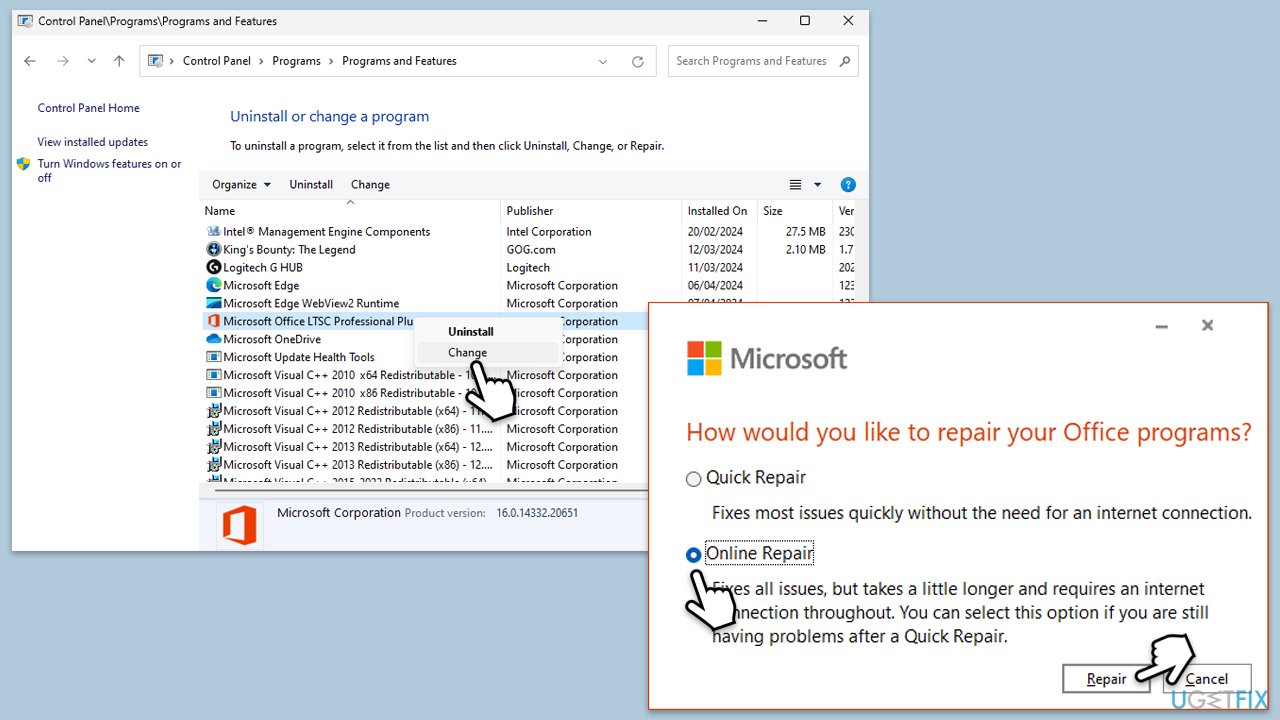
- Type Control Panel in Windows search and press Enter.
- Select Programs > Programs and Features.
- Select Microsoft Office and click on Change.
- Choose the option for Quick Repair and click Repair.
- Follow the prompts to finish the process.
- If the issue persists, select Online Repair for a more thorough fix.
Fix 8. Perform a Clean Boot
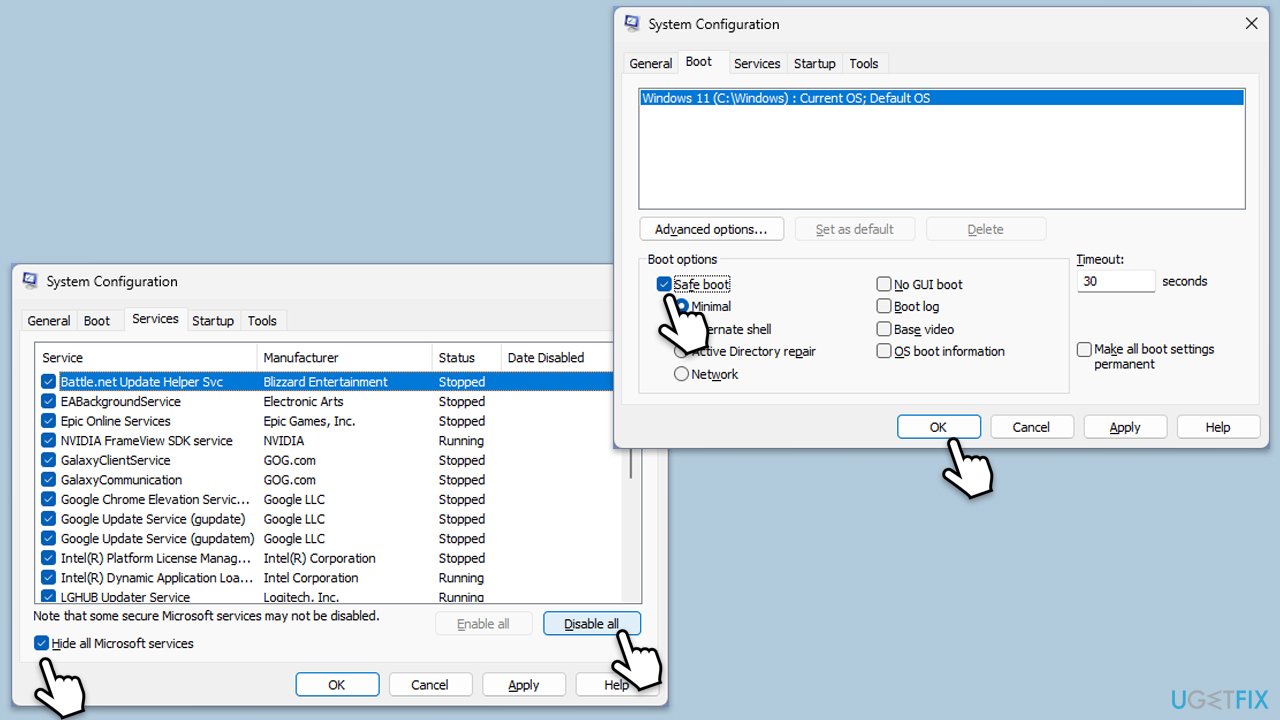
- Type msconfig in the Windows search box and press Enter.
- Pick the Services tab.
- Mark Hide all Microsoft services and select Disable all.
- Select the Startup tab and click Open Task Manager.
- In the Task Manager, right-click on each of the items and select Disable, then close the Task Manager.
- Go to the Boot tab, mark the Safe Boot option, then click Apply and OK.
- On the System Configuration window, click OK.
- Try using OneDrive again.
Bottom line
To fix OneDrive error code 0x8004de34, users can delete cached credentials, reinstall the OneDrive client, ensure a secure internet connection, and temporarily disable interfering programs. If these solutions do not resolve the issue, employing a repair tool may help address underlying system problems.
Frequently asked questions
The OneDrive error 0x8004de34 typically indicates that there is a problem with your internet connection or issues with your Microsoft account. It can prevent OneDrive from syncing your files properly.
To fix this error on Windows 11, try resetting the OneDrive app by running the command 'onedrive.exe /reset' in the Run dialog. Additionally, ensure your internet connection is stable and that your Microsoft account is properly configured.
Yes, to prevent this error in Windows 10, keep your OneDrive app updated and regularly check your internet connection. Also, make sure that your Windows updates are installed to avoid compatibility issues.




Report an issue
What's wrong with this guide? We review every report and update or remove content.
Report received — thank you. We'll review and fix it.
You need a free account to submit a report.
Be the first to comment