How to fix
OneDrive error 0x8004de44
on Windows
Resolve OneDrive error 0x8004de44 on Windows 10 and 11 with our expert-tested solutions. Get your cloud storage back on track in minutes!


What causes How to fix OneDrive error 0x8004de44 in Windows?
- Problem with user's proxy settings
- Server problems
- Out-of-date software
- Incorrect proxy settings
Repairs Windows system files, removes malware, and restores a clean OS state — without reinstalling.
Hello. I tried to sign in to OneDrive on my Windows PC but I got the 0x8004de44 error. How can I fix this issue?
Microsoft offers users the ability to store, access, and share files and folders from any device with internet connectivity through its cloud-based OneDrive service. It is pre-installed on the Windows operating system and is a component of the Microsoft Office suite.
When attempting to sign in to OneDrive, the 0x8004de44 OneDrive error frequently appears. A problem with the user's proxy settings may prevent OneDrive from working properly, as indicated by the error message, "Your proxy settings require authentication." Numerous things, including server problems, out-of-date software, and incorrect proxy settings, can contribute to this error.
Users may experience effects from the OneDrive error 0x8004de44 if it prevents them from accessing and synchronizing their files across devices. Users who depend on OneDrive to store and access crucial documents, pictures, and other files may find this inconvenient. Users might not be able to access the files they need to work on, which can reduce productivity.
Updates to the OneDrive app, checking internet connection and proxy settings, resetting OneDrive, and uninstalling and reinstalling OneDrive are all potential fixes for the OneDrive error 0x8004de44. Depending on the underlying cause of the problem and the particular set-up of the user's computer, these solutions may differ.
In this guide, you will find 7 steps that should help you fix OneDrive error 0x8004de44 in Windows. You can also try using a maintenance tool like [d1] that can fix most system errors, BSODs,[ref en-1] corrupted files, registry[ref en-2] issues, or clear cookies and cache.[ref en-3] Otherwise, follow the step-by-step instructions below.
Solution 1. Restart your PC
Restarting your computer may help if you experience issues while attempting to sign in to OneDrive. Restarting the computer will assist in fixing any network and app bugs. Please restart your computer now, and when it starts up, go to OneDrive and log in.
Solution 2. Check Internet Connection
Checking your internet speed should be your first course of action if you are having trouble accessing OneDrive. Sometimes a bad internet connection is the only thing causing the issue. If so, you can check your bandwidth or solve Wi-Fi issues by using internet speed testers. Using wired cables or restarting the router may also be able to fix the problem.
Solution 3. Update OneDrive
- Press the Windows key + R to open the Run dialog box.
- Type %localappdata%\Microsoft\OneDrive\update in the text field.
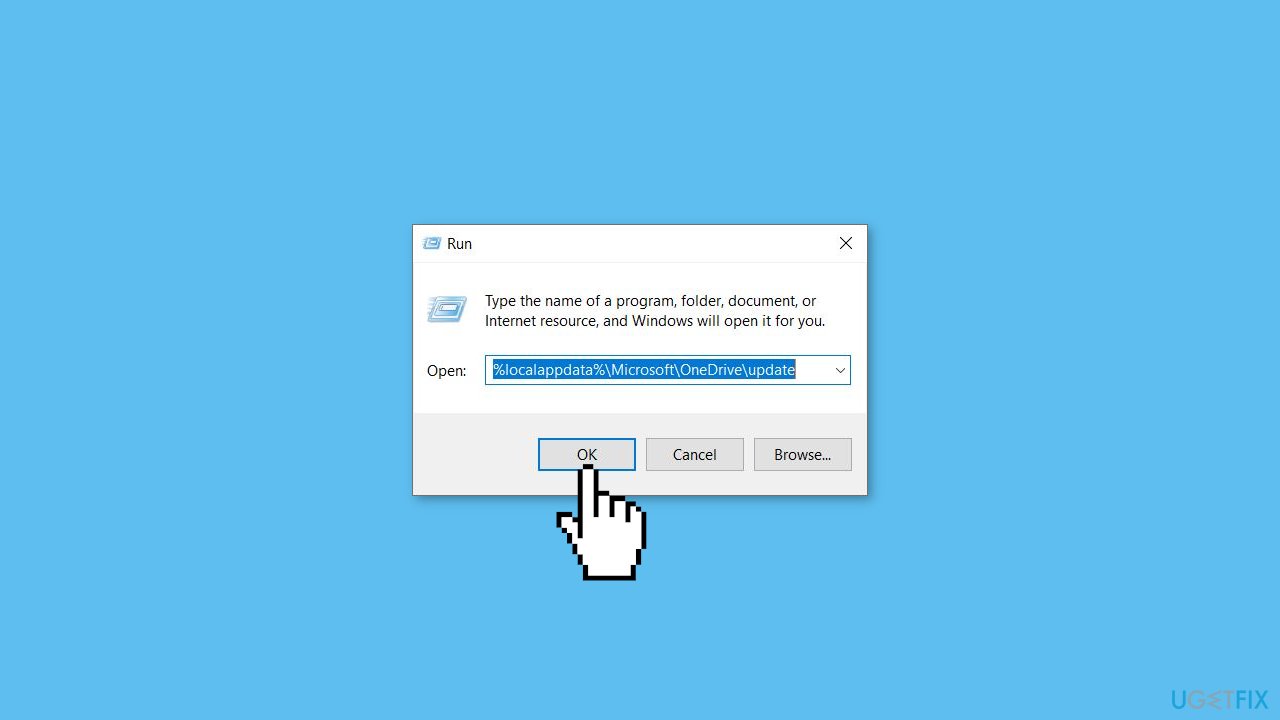
- Press OK to proceed.
- Double-click on OneDriveSetup.exe to install the latest version of OneDrive.
Solution 4. Check OneDrive’s Server Status
The next step is to see if the OneDrive servers are up and running if error code 0x8004de44 still occurs after updating the OneDrive app. The most likely explanation for this error is that the servers are probably undergoing maintenance or having some other server-related issues. As a result, we advise checking OneDrive's current server status to make sure that its services are operating as intended. There isn't much you can do if the server is down other than wait for it to start working again.
Solution 5. Run Windows Store Apps Troubleshooter
- Open the Start menu.
- Click the gear-shaped icon to launch the Settings app.
- In the Settings app, click on the System tab.
- Click on Troubleshoot.
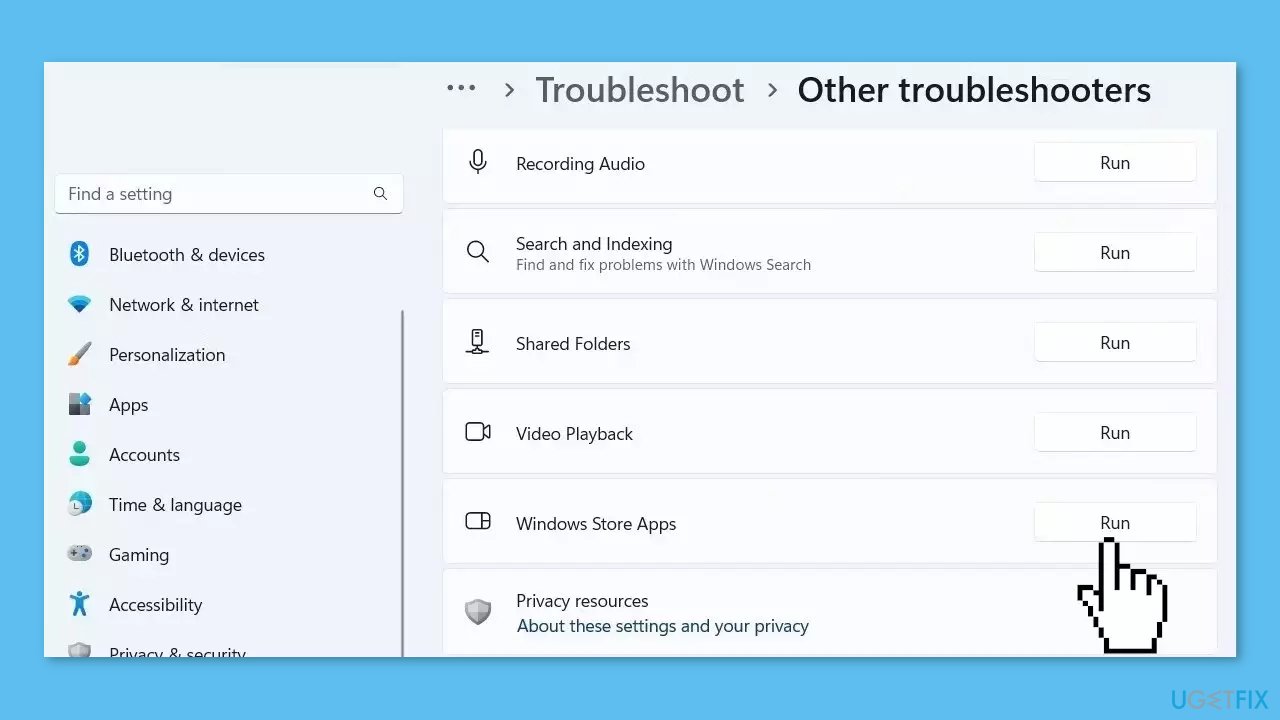
- Select Other troubleshooters.
- Look for Windows Store Apps and click the Run button next to it.
- Follow the on-screen prompts to run the troubleshooter.
Solution 6. Reset OneDrive
- Press the Windows key + R to open the Run dialog box.
- Copy-paste the following command into the text field:
%localappdata%\Microsoft\OneDrive\onedrive.exe /reset
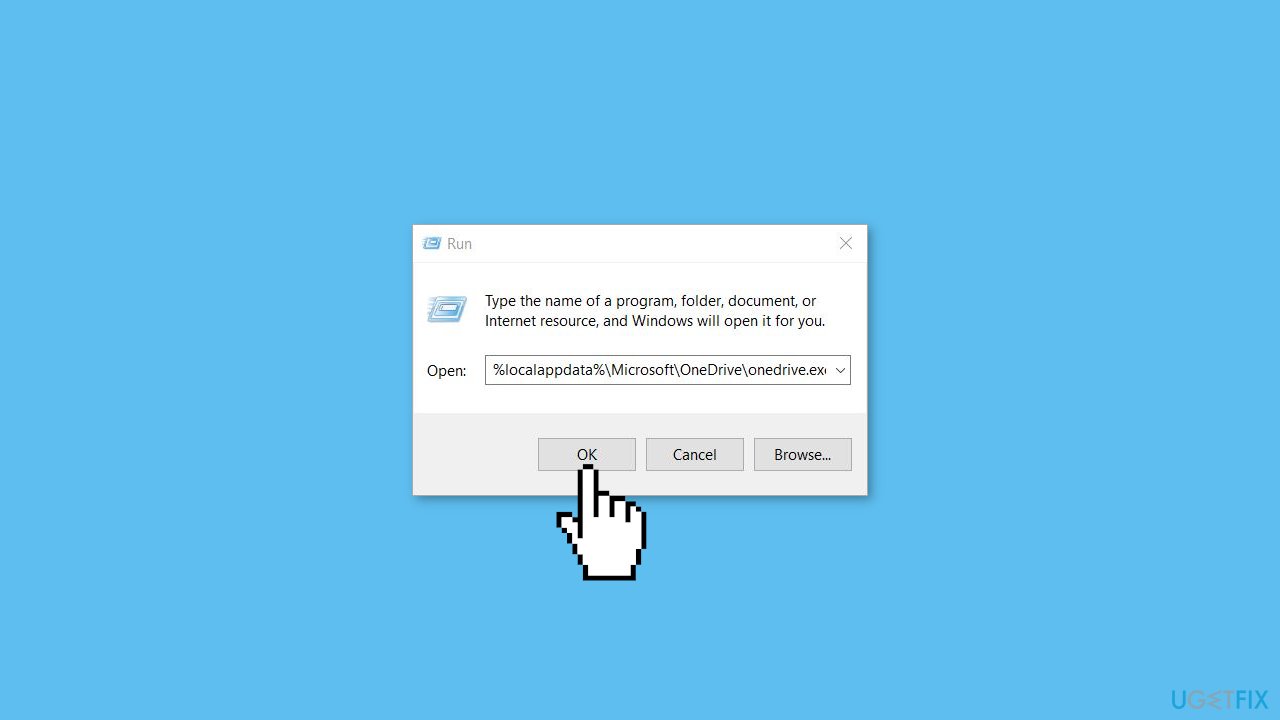
- Press the Enter key to proceed.
- Follow the on-screen instructions to complete the reset task.
Solution 7. Reinstall OneDrive
- Press the Windows key + R to bring up the Run dialog.
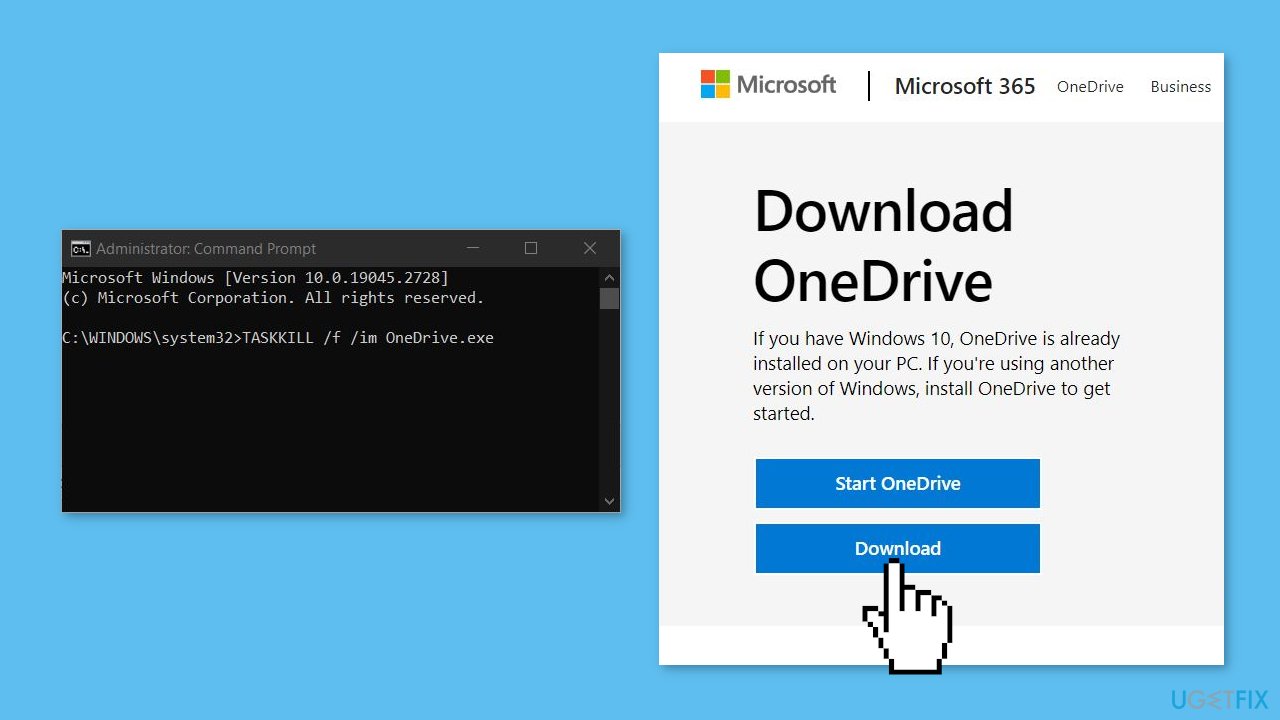
- Type cmd in the text field to open the Command Prompt window.
- Type the following command to terminate the OneDrive process:
TASKKILL /f /im OneDrive.exe
- To uninstall OneDrive from your Windows computer, use the following commands:
For 32-bit systems, type: %systemroot%\System32\OneDriveSetup.exe /uninstall
For 64-bit versions, type: %systemroot%\SysWOW64\OneDriveSetup.exe /uninstall
- Restart your computer after the uninstallation process is complete.
- Download the latest version of OneDrive from Microsoft’s official website.
- Run the OneDrive setup to begin the installation process.
- Follow the on-screen instructions to complete the installation process.
- Launch OneDrive to verify if the issue has been resolved.
Bottom line
To fix OneDrive error 0x8004de44, you can try restarting your PC, checking your internet connection, updating the OneDrive app, resetting OneDrive, or uninstalling and reinstalling OneDrive. If these solutions do not resolve the issue, consider using a maintenance tool to address potential system errors.
Frequently asked questions
The OneDrive error 0x8004de44 typically indicates a connection issue preventing OneDrive from syncing files properly. It can occur due to network problems or incorrect settings.
To fix this error on Windows 11, try resetting the OneDrive app by pressing Win + R, entering 'onedrive.exe /reset', and pressing Enter. If that doesn't work, check your internet connection and ensure that OneDrive is allowed through your firewall.
You can prevent this error by ensuring that your Windows 10 system is up to date and by regularly checking your OneDrive settings for connectivity issues. Additionally, maintaining a stable internet connection helps reduce the chances of encountering this error.




Report an issue
What's wrong with this guide? We review every report and update or remove content.
Report received — thank you. We'll review and fix it.
You need a free account to submit a report.
Be the first to comment